You click File > Printer Setup in QuickBooks Desktop, but nothing happens. The window does not open, or QuickBooks briefly shows a spinning cursor without displaying any printer settings.
This can leave you unable to select a different printer, adjust printing preferences, or print invoices and checks as needed. The issue may appear after a QuickBooks update, a printer replacement, or a change to your Windows printing setup.
To fix QuickBooks Printer Setup not opening, first confirm that your printer works outside QuickBooks. Then check the Windows default printer, run the QuickBooks PDF & Print Repair Tool, and rename the QBPrint.qbp file if the problem continues. Testing a sample company file can help narrow down the cause before you consider repairing QuickBooks.
The steps below apply to QuickBooks Desktop for Windows.
Why Is QuickBooks Printer Setup Not Opening?
QuickBooks Printer Setup may fail to open because of problems with saved printer settings, Windows printer configuration, or QuickBooks program components.
One possible cause is the QBPrint.qbp file, which stores printing preferences for different QuickBooks forms. If these settings are damaged or no longer match the available printer, printing problems may occur.
Other possible causes include:
| Possible cause | How it may affect QuickBooks |
| Damaged QBPrint.qbp file | Saved printer preferences may cause unexpected printing behavior. |
| Removed or replaced printer | QuickBooks may still reference settings associated with an old printer. |
| Incorrect Windows default printer | Windows may select an unavailable or unintended printer. |
| Printer driver problems | QuickBooks may be unable to communicate properly with the selected device. |
| Windows Print Spooler failure | Print jobs may remain stuck or fail across multiple applications. |
| QuickBooks program issues | Damaged components or other application problems may affect printing functions. |
| Company-file-specific problems | Printer Setup or printing may behave differently in one company file. |
These are possible explanations, not confirmed diagnoses. The first step is to determine whether printing fails across Windows or only within QuickBooks.
What Should You Check Before Fixing QuickBooks Printer Setup?
Start with a printing test outside QuickBooks. This helps you avoid changing QuickBooks files when the printer or Windows printing service is responsible.
Check Whether Your Printer Works in Windows
- Close QuickBooks Desktop.
- Open the Windows Start menu and search for Notepad.
- Type a short sentence in a blank document.
- Select File > Print.
- Choose the printer you normally use with QuickBooks.
- Click Print.
Check the result:
- If the document prints successfully: Your printer can receive print jobs from Windows. Continue with the QuickBooks-specific solutions below.
- If the document does not print: Check the Windows printer connection, driver, and printing service before changing QuickBooks settings.
Intuit also recommends testing printing from another application in its official QuickBooks Desktop printing troubleshooting guide.
What If the Printer Does Not Work Outside QuickBooks?
If Notepad cannot print, check whether the printer is online and whether Windows has any stuck print jobs.
For Windows 11, open Settings > Bluetooth & devices > Printers & scanners. Select your printer and open its print queue.
If jobs are stuck, cancel only those that are safe to discard.
You can also restart the Windows Print Spooler service:
- Press Windows + R.
- Type services.msc and press Enter.
- Find Print Spooler in the list.
- Right-click the service and select Restart.
- Return to Notepad and try printing again.
The Print Spooler manages print jobs sent to Windows printers. Restarting it can help when jobs are stuck or the service stops responding.
Microsoft provides further instructions for fixing print jobs stuck in the Windows queue.
If the printer still does not work, check its connection and install the appropriate driver from the printer manufacturer’s website. For a shared office printer, ask your network administrator to check the printer connection.
Once Windows printing works, return to QuickBooks.
How to Fix QuickBooks Printer Setup Not Opening
If printing works in Notepad but File > Printer Setup remains unresponsive, follow these solutions in order.
Test Printer Setup after each change. Stop when the window opens and you can successfully print a document.
Solution 1: Restart QuickBooks and Check for a Hidden Printer Setup Window
Before resetting files or running repair tools, check whether QuickBooks has a temporary program issue.
- Close QuickBooks Desktop completely.
- Restart your computer.
- Open QuickBooks Desktop.
- Open your company file.
- Select File > Printer Setup.

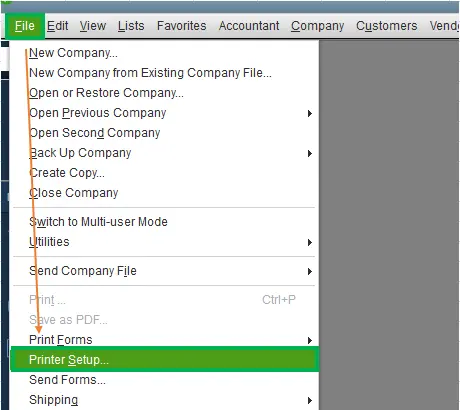
If nothing appears, press Alt + Tab to check whether a separate dialog is open behind the main QuickBooks window.
If you use multiple monitors, also check whether the window appears on another display. This is a general Windows display check, not a confirmed repair for QuickBooks Printer Setup.
If no dialog appears, move to the next solution.
Solution 2: Set the Correct Default Printer in Windows
An old or unavailable default printer may contribute to printer-selection problems, particularly if you recently replaced a printer or removed a PDF printing application.
You can change the Windows default printer without opening QuickBooks.
For Windows 11:
- Press Windows + I to open Settings.
- Select Bluetooth & devices > Printers & scanners.
- Find Let Windows manage my default printer and turn it Off.
- Select the printer you want to use.
- Click Set as default.
- Close Settings and reopen QuickBooks.
For Windows 10:
- Open Settings > Devices > Printers & scanners.
- Turn off Let Windows manage my default printer.
- Select your preferred printer.
- Click Manage > Set as default.
- Reopen QuickBooks.
If the printer is missing from Windows Settings, install it before continuing.
For example, suppose you replaced an office printer but Windows still uses the old printer as the default. Selecting the new printer removes that mismatch from the Windows configuration.
However, changing the default printer does not guarantee that QuickBooks Printer Setup will open. If the dialog remains unavailable, continue with the repair utility.
Solution 3: Run the QuickBooks PDF & Print Repair Tool
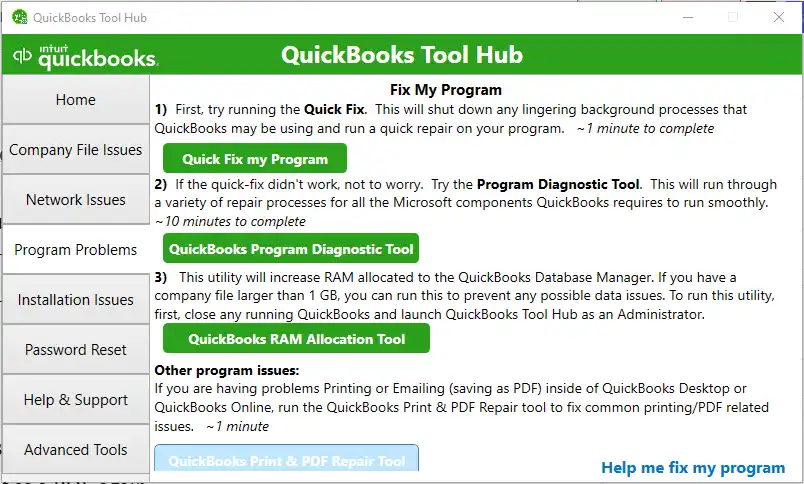
QuickBooks provides a PDF & Print Repair Tool for troubleshooting certain printing and PDF-related problems.
The tool is available through QuickBooks Tool Hub. It is worth trying when QuickBooks cannot print forms or has trouble with its printing functions.
Follow these steps:
- Close QuickBooks Desktop.
- Open QuickBooks Tool Hub.
- Select the Program Problems tab.
- Click QuickBooks PDF & Print Repair Tool.
- Allow the utility to complete its checks.
- Open QuickBooks Desktop again.
- Select File > Printer Setup to check whether the window opens.
If you have not installed Tool Hub, follow our QuickBooks Tool Hub download and installation guide.
Use the current download from Intuit rather than an older installer from a third-party website.
What if the repair tool does not fix Printer Setup?
The tool addresses supported printing and PDF problems, but it cannot resolve every failure to open the Printer Setup dialog.
If the problem remains, investigate the file that stores QuickBooks printer preferences.
Solution 4: Rename the QBPrint.qbp File to Reset Printer Settings
Renaming the QBPrint.qbp file is one of Intuit’s documented solutions for unexpected printing behavior in QuickBooks Desktop.
This method is especially relevant when printing problems may be linked to saved printer preferences.
What Is the QBPrint.qbp File?
QBPrint.qbp is a configuration file that stores printing settings for different QuickBooks forms, such as invoices, journal entries, and checks.
When you print a form, QuickBooks reads its saved preferences from this file.
For example, your invoice may use one printer and paper size, while your checks use a different printer or form alignment.
If the configuration becomes damaged, resetting it may help resolve printing problems.
Important: Renaming QBPrint.qbp does not delete your QuickBooks transactions or company file. However, when QuickBooks creates a replacement file, customized printer settings are reset to their defaults. Keep the original file instead of deleting it.
Step 1: Locate the QBPrint.qbp File
- Close QuickBooks Desktop.
- Press Windows + E to open File Explorer.
- Navigate to the following location:
C:\ProgramData\Intuit\QuickBooks 20xx - Replace 20xx with the year of your installed QuickBooks Desktop version.
- Find the file named QBPrint.qbp.
The ProgramData folder is hidden by default. If you cannot see it, open View > Show > Hidden items in Windows 11 File Explorer.
You can also paste the folder path into the File Explorer address bar.
For remote desktop or terminal server users
Intuit documents an additional location for some remote-user printer settings:
C:\Users\<remote user>\AppData\Roaming\Intuit\<YEAR VERSION>\TSPrinterSettings
Replace the bracketed parts with the appropriate Windows username and QuickBooks version information.
On a hosted or shared QuickBooks setup, printer configuration files may exist in more than one location. Ask your administrator or hosting provider to identify the correct file before renaming it. Do not reset another user’s printer settings without checking.
Step 2: Rename QBPrint.qbp
After locating the correct file:
- Right-click QBPrint.qbp.
- Select Rename.
- Change the file name to QBPrint.qbp.old.
- Press Enter.
If that backup name already exists, use another unique name rather than overwriting the older file.
Renaming preserves the original configuration in case you need to recover your previous printer preferences.
Step 3: Recreate the Printer Configuration File
- Open QuickBooks Desktop.
- Select File > Printer Setup.
- If the window opens, choose any transaction type from the Form Name list.
- Click OK.
QuickBooks creates a new QBPrint.qbp file using default settings. You do not need to repeat this process for every transaction type.
Now open an invoice or report and print a test copy.
What if Printer Setup still does not open after renaming QBPrint.qbp?
If the dialog remains unavailable, you cannot complete the normal file recreation procedure through Printer Setup.
Do not repeatedly rename files or assume the reset succeeded. Continue with the sample company file test to determine whether the problem affects your original company file or QuickBooks more broadly.
Intuit explains the configuration file and reset procedure in its official guide: Rename the QBPrint.qbp file.
Solution 5: Test Printer Setup in a Sample Company File
A QuickBooks sample company file helps you check whether the issue affects only your company data or occurs throughout the program.
For example, if Printer Setup opens in a sample company but not in your business file, the difference suggests that the original file or its settings need further investigation.
To perform the test:
- Open QuickBooks Desktop.
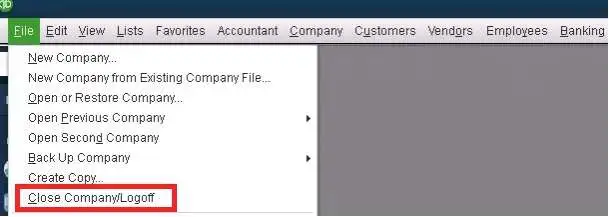
- Select File > Close Company/Logoff to return to the No Company Open window.
- Click Open a Sample File.
- Choose an available sample company.
- Once it opens, select File > Printer Setup.
- Check whether the Printer Setup window appears.
If the window opens, try printing a standard form or report from the sample file.
If Printer Setup Works in the Sample Company File
Return to your original company file and try a standard report or form, if the printing feature is accessible.
If only the original file has problems, review any other signs of company data damage, such as errors when opening reports or saving transactions.
Do not immediately rebuild the company file based on this single test.
If there is evidence of data damage, create a backup and follow Intuit’s supported Verify Data and, when justified, Rebuild Data procedures.
If Printer Setup Fails in Both Company Files
A problem affecting multiple files suggests that the issue may involve QuickBooks program components, the Windows user environment, or printer configuration.
It does not establish which component is responsible, but it makes a problem limited to your original company file less likely.
Continue with the program-level checks below.
Solution 6: Update QuickBooks and Run Quick Fix My Program
If Printer Setup fails across multiple company files, check whether QuickBooks Desktop itself is having problems.
Start by confirming that your installed version has received the latest available release updates.
For a supported QuickBooks Desktop version, you can generally check through Help > Update QuickBooks Desktop, then use the available update options.
An update may address known program issues, although there is no guarantee that it will fix an unresponsive Printer Setup window.
If the issue continues, try Quick Fix my Program.
- Close QuickBooks Desktop.
- Open QuickBooks Tool Hub.
- Select Program Problems.
- Click Quick Fix my Program.
- Let the utility finish.
- Reopen QuickBooks and test Printer Setup.

Quick Fix my Program can help with certain problems involving QuickBooks processes and program behavior.
It is most relevant when Printer Setup is not the only feature having trouble.
When Should You Repair or Reinstall QuickBooks?
Consider installation repair when QuickBooks shows broader program problems, such as repeated freezing, unexplained errors, or features that remain unavailable after the targeted checks.
Reinstallation should be a later step, not the first response to printer configuration problems.
Before removing QuickBooks, make sure you have:
- A current backup of your company file.
- The correct installer for your QuickBooks Desktop product and version.
- The required license or account information.
- Administrator access to the affected computer.
If the program still needs a fresh installation, follow our QuickBooks Clean Install guide for the appropriate procedure.
A reinstall may replace damaged program components, but it will not necessarily resolve a Windows printer driver problem or a company-file-specific issue.
What If QuickBooks Printer Setup Still Won’t Open?
If the problem remains after the appropriate repairs, use your test results to decide what to investigate next.
| What you find | What to do next |
| Notepad and other Windows applications cannot print | Check the printer connection, driver, queue, and Windows Print Spooler. |
| Windows prints normally, but Printer Setup does not open | Focus on QuickBooks printer preferences and program behavior. |
| Printer Setup works in a sample company file | Investigate settings or possible data problems associated with the original company file. |
| Printer Setup fails in every company file | Check program-level problems and the Windows printing environment. |
| PDF creation fails or a missing-component error appears | Troubleshoot QuickBooks PDF components separately. |
| QuickBooks closes unexpectedly when you select Printer Setup | Investigate a QuickBooks crash or unrecoverable error. |
What If QuickBooks Cannot Print or Save PDF Files?
A missing Printer Setup window and a PDF creation error are different symptoms.
For instance, you may be able to open Printer Setup and print an invoice on paper but receive an error when saving the same invoice as a PDF.
In that situation, the problem may involve PDF-related components such as Microsoft XPS Document Writer.
Follow our guide to fixing the QuickBooks Missing PDF Component error rather than changing unrelated printer settings.
There is no need to repair Microsoft XPS Document Writer solely because Printer Setup will not open, especially when PDF creation works correctly.
What If QuickBooks Closes When You Open Printer Setup?
If QuickBooks closes or displays an unrecoverable error when you click Printer Setup, record the complete error message.
A program crash requires different troubleshooting from a dialog that simply fails to appear.
Avoid repeating the same printer configuration reset when the program is also crashing.
How Do You Confirm QuickBooks Printer Setup Is Working Again?
Opening the Printer Setup window is the first sign that the issue may be resolved. You should also confirm that QuickBooks can save the correct settings and print a document.
- Open your company file.
- Select File > Printer Setup.
- Choose the required form from the Form Name list.
- Confirm that QuickBooks displays the correct printer.
- Review the paper size, orientation, and any other required preferences.
- Click OK to save your changes.
- Print a test invoice, check, or report.
For example, if you print checks on preprinted forms, confirm the alignment before printing a full batch. A new QBPrint.qbp file may have restored the default settings rather than your previous check layout.
If the printer settings remain available and the required documents print correctly, the problem is resolved for that printing task.
Conclusion
If QuickBooks Printer Setup is not opening, identify whether the problem affects Windows printing, QuickBooks printer settings, or the program itself.
When Windows printing works, the PDF & Print Repair Tool and QBPrint.qbp reset are reasonable next steps. If neither restores the window, testing a sample company file can help determine whether further investigation should focus on the company file or the QuickBooks installation.
Frequently Asked Questions
Why Does Nothing Happen When I Click Printer Setup in QuickBooks?
QuickBooks may be having trouble with saved printer preferences, an unavailable printer, or a program component. First, check that printing works in Windows. If it does, run the QuickBooks PDF & Print Repair Tool and consider resetting QBPrint.qbp.
How Can I Change My Printer If QuickBooks Printer Setup Won’t Open?
You can change the Windows default printer through Settings > Printers & scanners without opening QuickBooks. Select an installed printer and set it as the default, then reopen QuickBooks. This may help when the program references an unavailable printer, but it does not replace every form-specific QuickBooks printer setting.
Will Renaming QBPrint.qbp Delete My QuickBooks Company Data?
No, QBPrint.qbp stores printer configuration information, not your invoices, customer records, or accounting transactions. Renaming it does not delete the company file. However, QuickBooks resets customized printer preferences when it creates a replacement configuration file.
Where Is the QBPrint.qbp File Located?
On a typical QuickBooks Desktop Windows installation, the file is stored at C:\ProgramData\Intuit\QuickBooks 20xx, where 20xx represents the installed version year. Remote desktop and terminal server configurations may use additional user-specific locations.
Why Did QuickBooks Printer Setup Stop Opening After I Changed Printers?
QuickBooks may still have saved preferences associated with the previous printer. Confirm that the replacement printer is installed, works in Windows, and is selected as the default. If the problem continues, resetting QBPrint.qbp may help remove problematic printer preferences.
Why Does QuickBooks Printer Setup Work on One Computer but Not Another?
Each computer can have different printer drivers, Windows default printers, and user-specific settings. If the same company file works on one workstation but fails on another, compare the Windows printing configuration and QuickBooks installation on those computers before attempting company data repairs.
What Should I Do If the QuickBooks PDF & Print Repair Tool Does Not Work?
Check whether Windows printing works and whether Printer Setup fails in a sample company file. You can also reset the QBPrint.qbp configuration. If the problem affects multiple files and other QuickBooks features, investigate the program installation before considering a reinstall.
