To log in to QuickBooks Online, open the official Intuit sign-in page and enter your registered email address, phone number, or user ID. Follow the instructions on the screen to verify your identity and access your company.
If your QuickBooks Online login is not working, the cause could be an incorrect password, a missing verification code, a browser problem, or an account access issue.
This guide explains how to sign in, recover your Intuit account, resolve verification problems, and find the right solution when you cannot access QuickBooks Online.
Official QuickBooks Online Login: Sign in to QuickBooks Online through Intuit
How to Log In to QuickBooks Online
You can sign in to QuickBooks Online through Intuit’s official website using the credentials linked to your Intuit account. You do not need to install QuickBooks Desktop to use the online version.
Follow these steps:
- Open your browser and visit the official QuickBooks sign-in page.
- Select QuickBooks Online from the available products.
- Enter the email address, phone number, or user ID associated with your Intuit account, as requested.
- Select Continue.
- Enter your password or complete another sign-in method offered for your account.
- If Intuit requests additional verification, enter the code sent to your registered email or phone, or use another available verification method.
- Follow the remaining prompts to access your QuickBooks Online company.
The exact sign-in screens may vary depending on your account settings and the authentication method available to you.
If you manage more than one company under the same Intuit account, QuickBooks may ask you to select the company you want to open.
Is Your QuickBooks Online Login the Same as Your Intuit Account Login?
Yes, QuickBooks Online uses an Intuit account to verify your identity.
Your Intuit account stores the sign-in information used to access eligible Intuit products. However, using the same account does not automatically give you access to every QuickBooks company.
For example, if you have been invited to manage another company’s books, you must sign in with the Intuit account that received the invitation.
If you enter the correct password but cannot find your company, check whether you signed in with a different Intuit account.
QuickBooks Online Login Not Working? Identify the Problem
If QuickBooks Online is not letting you sign in, first check what happens during the login attempt.
A password error requires a different solution from a blank login page or a missing verification code.
The following table can help you find the right starting point.
| Login problem | What to check first |
| Incorrect password | Confirm your credentials or reset your password |
| Forgot email or user ID | Use Intuit’s account recovery process |
| Verification code not received | Check the selected email or phone number |
| Verification code rejected | Enter the most recently requested code |
| QuickBooks login page is blank | Check service status and browser loading |
| Access is denied | Try a private browser or another supported device |
| Account is locked | Follow Intuit’s account recovery instructions |
| Company does not appear after login | Check the Intuit account and company permissions |
| QuickBooks keeps signing you out | Review browser cookies and account security settings |
Before changing your browser settings, visit the QuickBooks service status page to check whether Intuit has reported a service interruption.
If a relevant outage is reported, local browser changes may not resolve the issue until the service is restored.
What If the QuickBooks Online Login Page Does Not Open?
If the sign-in page remains blank, displays a loading symbol, or does not respond, try opening it in a private or Incognito browser window.
You can also test another supported browser to find out whether the issue is limited to your regular browsing session.
For a page that remains inaccessible, follow our guide to fixing QuickBooks Online not opening. It explains how to troubleshoot loading problems, internet connections, and other issues that prevent QuickBooks Online from opening.
If the issue occurs only in Google Chrome, see our QuickBooks not working in Chrome guide for browser-specific solutions, including cache, cookies, and extensions.
What If QuickBooks Displays an Access Denied Error?
Intuit identifies several sign-in errors that can appear when accessing QuickBooks or accepting an invitation, including:
- Access is denied
- Access has been denied for this operation
- Service temporarily unavailable
- Reference code 25625
- Your request couldn’t be processed
These messages do not all indicate an incorrect password or a locked account.
Intuit recommends testing a private browser window, another supported browser, or another device to help identify the issue.
If the error continues, follow Intuit’s official sign-in troubleshooting instructions.
How to Recover Your QuickBooks Online Account
If you forget your password, cannot remember your user ID, or lose access to your account, Intuit provides recovery options.
The correct method depends on whether you can still access the email address or phone number registered with your Intuit account.
Reset a Forgotten QuickBooks Online Password
If you can receive verification messages through your registered email or phone, follow these steps:
- Open the official Intuit sign-in page.
- Select I forgot my user ID or Password.
- Enter the email address or phone number associated with your account.
- Select Continue.
- Choose an available verification method, such as email or text message.
- Check your email or phone for the verification code.
- Enter the code and select Continue.
- Follow Intuit’s instructions to reset your password or access your account.
When retrieving a code from your email, open the email in another browser tab. Keep the original verification page open so you can return to it.
After changing your password, use the updated credentials when signing in again.
If your browser has saved an old password, update the saved credential as well.
Recover Your Intuit Account Without Access to Your Email or Phone
If you no longer have access to your registered email address or phone number, a standard password reset may not work.
In this situation, Intuit provides an account recovery form that allows you to verify your identity.
To begin:
- Open Intuit’s account recovery instructions.
- Follow the link to the official account recovery form.
- Enter the requested account information.
- Upload a clear image of an accepted identity document.
- Submit the form and follow Intuit’s instructions.
Intuit lists driver’s licenses, state IDs, passports, and notarized documents among the accepted forms of identification.
Submit personal documents only through Intuit’s official recovery process. Do not send identification documents, passwords, or verification codes to an unfamiliar email address or support website.
What If Your QuickBooks Online Account Is Locked?
If your account is locked following unsuccessful sign-in attempts or a security check, stop repeatedly trying different passwords.
First, read the message displayed by Intuit. Follow any instructions to retry later or verify your identity.
If you cannot regain access, use the official account recovery process to confirm your identity and restore access.
You should also distinguish an account lockout from a company-access problem. Being able to sign in but not open a particular company may indicate missing permissions rather than a locked Intuit account.
How to Fix QuickBooks Online Verification Code Problems
Intuit may ask for a verification code when you sign in from a new device, use an unfamiliar browser, or complete an account recovery request.
If the code does not arrive or is rejected, the first step is to confirm which verification method Intuit is using.
QuickBooks Online Verification Code Not Received
If you selected email verification, check your inbox and spam or junk folder. Also confirm that you are checking the email address associated with the account.
Intuit recommends adding do_not_reply@intuit.com to your approved sender list if verification emails are being filtered.
For text messages, confirm that your phone can receive messages and that verification texts have not been blocked.
Intuit’s recovery instructions also identify 88811 and 97962 as sender numbers to check when troubleshooting blocked text messages.
If the code has not arrived after a few minutes, use the option on the sign-in screen to request another code.
QuickBooks Verification Code Not Working or Expired
If Intuit rejects the code, check whether you requested more than one.
Only the most recently sent verification code will work.
For example, if you requested a code, did not see it immediately, and requested another, the first code may no longer be valid.
Wait for the latest message, enter that code carefully, and avoid requesting additional codes while completing the current attempt.
If you still cannot verify your identity, use another verification option shown by Intuit or follow the account recovery process.
Why Does QuickBooks Keep Asking for a Verification Code?
QuickBooks Online uses multi-factor authentication to protect your Intuit account.
Intuit may request additional verification when it does not recognize your device, browser, or network with enough confidence.
This is different from optional two-step verification, which can be enabled to request verification at every sign-in.
Turning off optional two-step verification does not disable Intuit’s required security checks.
If you are repeatedly asked to verify your identity on a familiar computer, check your browser’s cookie settings and whether an extension is interfering with Intuit’s sign-in process.
How to Sign In to QuickBooks Online Accountant
QuickBooks Online Accountant provides accountants and bookkeepers with access to the client companies they are authorized to manage.
The accountant sign-in destination is separate from the regular QuickBooks Online product link on Intuit’s sign-in page.
To sign in:
- Visit the official QuickBooks sign-in page.
- Select QuickBooks Online Accountant.
- Enter the credentials linked to your accountant account.
- Complete any identity verification requested by Intuit.
- Open your accountant workspace and select the client company you need.
Your available clients depend on your firm’s account setup and access permissions.
What If You Cannot Access a Client’s QuickBooks Company?
If a client’s company does not appear after you sign in, check whether you are using the correct accountant account.
You should also confirm that your firm has been invited to the company and that your user account has permission to access that client.
If you cannot accept an invitation because of a sign-in error, Intuit recommends asking the QuickBooks Online company administrator to delete the original invitation and send a new one.
Accountant access also depends on the client’s subscription. Not every QuickBooks Online offering supports accountant invitations.
How to Access QuickBooks Online on Mobile or Another Device
You can access QuickBooks Online through a supported web browser or the QuickBooks mobile app.
To sign in using the mobile app:
- Open the QuickBooks mobile app on your iPhone or Android device.
- Select the sign-in option.
- Enter the credentials associated with your Intuit account.
- Complete any security verification requested.
- Select the company available to your account, if prompted.
The mobile app may have different features from the browser version, depending on your subscription and device.
If you cannot sign in through the app, try accessing QuickBooks Online through a supported web browser.
If browser sign-in succeeds but the app fails, check the app version, mobile internet connection, and any error shown on the device.
How to Switch Between QuickBooks Online Companies
If you manage multiple companies under one Intuit account, you may be able to move between them without signing out.
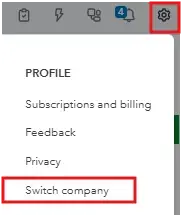
In QuickBooks Online:
- Select Settings.
- Choose Switch company.

- Select the company you want to open.
Each company maintains its own accounting records and user permissions.
If a company does not appear, signing in with another account may help only if that account has been granted access. Otherwise, contact the company administrator.
If QuickBooks opens successfully but reports or transactions take too long to load, that is a performance issue rather than a login failure. See our guide to fixing QuickBooks Online running slow for the relevant troubleshooting steps.
How to Keep Your QuickBooks Online Account Secure
Your Intuit account controls access to financial information, so it is important to keep your login details and recovery methods secure.
Use the official QuickBooks sign-in page rather than entering your credentials through unfamiliar websites or links.
You should also:
- Keep your registered email address and phone number current.
- Use a strong, unique password for your Intuit account.
- Enable additional verification methods supported by Intuit.
- Review your account’s security settings when you change devices or phone numbers.
- Avoid sharing login credentials or verification codes with coworkers or support providers.
Intuit also supports verification options such as passkeys and authenticator apps for eligible account configurations.
To review available security options, sign in to your Intuit account and open Sign in & security.
For more information, see Intuit’s account security and verification guidance.
What to Do If You Still Cannot Sign In to QuickBooks Online
If QuickBooks Online still does not allow you to sign in, use the error message to decide what to do next.
A forgotten password or unavailable verification method should be handled through Intuit account recovery. A blank page or browser error should be investigated as a loading issue. Missing access to a company may require help from the company administrator.
Once you regain access, make sure your recovery email, phone number, and account permissions are current. That can help prevent avoidable access problems later.
Frequently Asked Questions
Why Can’t I Log In to QuickBooks Online Even With the Correct Password?
You may be using an Intuit account that is different from the one associated with your QuickBooks company. An additional security check, account restriction, or browser issue can also prevent access. Confirm your user ID, follow any verification prompts, and test another supported browser if needed.
Why Does QuickBooks Online Keep Logging Me Out?
Repeated sign-outs may be related to session settings, browser cookies, privacy extensions, or security checks. Make sure your browser accepts the cookies required for Intuit sign-in, then test another supported browser to identify whether the problem is browser-specific.
Can I Use the Same Intuit Account for Multiple QuickBooks Online Companies?
Yes, Intuit allows multiple QuickBooks Online companies to be associated with the same sign-in credentials. However, each company has separate data and permissions, and additional subscriptions may be required.
Why Can’t I See My Company After Signing In to QuickBooks Online?
You may have signed in using another Intuit account or may not have access to the expected company. If the company is missing, confirm which email or user ID received the invitation and ask the company administrator to check your permissions.
Can I Use the Same Intuit Account for QuickBooks Online and QuickBooks Online Accountant?
You may use an Intuit account associated with multiple eligible Intuit services, but QuickBooks Online Accountant access requires the appropriate accountant account setup and permissions. Signing in to a regular QuickBooks Online company does not automatically provide accountant access to other businesses.
How Do I Fix QuickBooks Online Error 25625?
Intuit identifies reference code 25625 as one of the errors that may occur during sign-in. Try a private browser, another supported browser, or another device. If the problem remains, follow Intuit’s official sign-in troubleshooting and account recovery instructions rather than assuming your password is incorrect.