Trying to update QuickBooks Desktop or download the latest payroll tax table, only to encounter an error message, can be frustrating. QuickBooks Error 12031 is one such issue that interrupts the update process and prevents the software from connecting to Intuit’s servers.
This error generally occurs when QuickBooks Desktop cannot establish a stable internet connection or when certain security settings interfere with the download. As a result, users may experience problems installing software updates, downloading payroll updates, or accessing other connected services.
In this blog, you’ll learn why QuickBooks Error Code 12031 occurs, how to troubleshoot it using verified solutions, and what you can do to prevent similar update problems in the future.
Why Do You See QuickBooks Payroll Error 12031?
QuickBooks Error 12031 is primarily associated with internet connectivity and security configuration problems.
Here are some common reasons why you may encounter the QuickBooks Payroll Update Error 12031:
| Possible cause | How it affects QuickBooks |
| Unstable internet connection | An interrupted or unreliable connection can prevent QuickBooks from communicating with Intuit’s servers. |
| Incorrect browser settings | Incorrect internet or security configurations can interfere with secure connections. |
| Firewall restrictions | Windows Firewall may block QuickBooks programs or files from accessing the internet. |
| Antivirus interference | Security software may restrict QuickBooks processes or prevent update downloads. |
| Incorrect TLS configuration | QuickBooks requires the appropriate TLS 1.2 security configuration to access Intuit services. |
| VPN or proxy restrictions | Certain network configurations may interfere with the connection to Intuit’s servers. |
| Windows security changes | Changes to network or security settings after a Windows update may affect QuickBooks connectivity. |
| Internet security filters | Parental controls and other internet filtering applications may restrict access to required services. |
These issues can affect both regular software updates and payroll downloads. However, not every connection failure has the same cause. Let’s look at the solutions to fix these issues.
How to Fix QuickBooks Error 12031?
If QuickBooks Desktop Error 12031 keeps coming back, repeatedly attempting to download the same update may not solve the problem
The following solutions follow its guidance and cover the different ways you can troubleshoot the issue.
1. Check Your Internet Connection and TLS 1.2 Settings
QuickBooks Desktop needs a secure internet connection to communicate with Intuit’s servers. If your computer cannot establish this connection, you may encounter QuickBooks Update Error 12031.
Start by checking whether your internet connection is working properly.
- Close QuickBooks Desktop.
- Open a web browser such as Google Chrome.
- Visit a secure website and check whether the website opens without any connection or security warnings.
- If you cannot access secure websites, contact your internet service provider.
If your internet connection works but QuickBooks still displays the error, check your TLS 1.2 configuration.
TLS 1.2 is a security protocol that helps establish secure connections between QuickBooks Desktop and Intuit services. Intuit provides a TLS 1.2 Readiness Tool through QuickBooks Tool Hub to help make your system compliant with the required security protocol.
Here’s how to run the TLS 1.2 Readiness Tool:
- Close QuickBooks Desktop.
- Download the latest version of QuickBooks Tool Hub.
- Save the downloaded file, QuickBooksToolHub.exe, somewhere easy to find.
- Open the file and follow the installation instructions.
- Once installed, double-click the QuickBooks Tool Hub icon on your desktop.
- Select Installation Issues.
- Select QuickBooks TLS 1.2 Tool in the bottom-right corner.
- Select OK to open the tool.
- Accept the End User License Agreement (EULA) by selecting Yes.
- Select Run.
- Once the tool finishes, select Exit.
Restart QuickBooks Desktop and try downloading the update again.
After confirming that your internet connection is working and TLS 1.2 is properly configured, check whether your firewall or antivirus software is restricting QuickBooks’ access.
2. Check Your Firewall and Security Settings
If you encounter QuickBooks Payroll Update Error 12031 while updating payroll, check whether your firewall or internet security settings are blocking QuickBooks from connecting to Intuit’s servers.
To check whether Windows Firewall is causing the problem, review its existing rules and permissions:
- Open the Windows Start menu and search for Windows Defender Firewall with Advanced Security.
- Select Inbound Rules from the left panel.
- Look for rules associated with QuickBooks Desktop and check whether they are enabled.
- Repeat the same check under Outbound Rules.
- Verify that the rules allow the required QuickBooks applications and network connections.
- If the necessary permissions are missing, configure the appropriate program or port exceptions for your installed QuickBooks version.
- Save the changes and restart your computer before trying the update again.
Avoid opening unnecessary ports or disabling Windows Firewall permanently.
For more detailed instructions, including how to identify blocked applications, configure firewall rules, and resolve conflicting permissions, read our guide on Windows Firewall Is Blocking QuickBooks? Fix It Step by Step.
Once you have reviewed the firewall settings, reopen QuickBooks and try downloading the update. If QuickBooks Error 12031 still appears after changing firewall settings, move on to checking your connection through Windows Safe Mode with Networking.
3. Start Windows in Safe Mode with Networking
Another solution is to try starting Windows in Safe Mode with Networking to check whether the update works without interference from other applications.
Follow these steps:
- Press Windows + R on your keyboard.
- Type msconfig in the Run window and select OK.
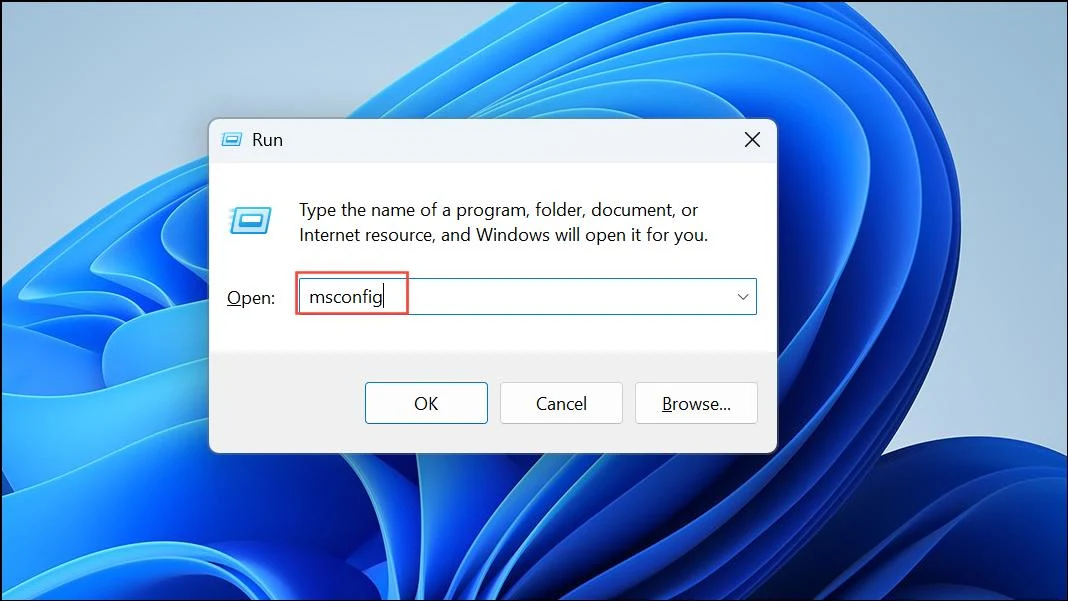
- Open the Boot tab in the System Configuration window.
- Under Boot options, select Safe Boot.
- Select Network.
- Click Apply, followed by OK.
- Restart your computer.
Once Windows starts in Safe Mode with Networking, open QuickBooks Desktop and try downloading the update again.
If the update downloads successfully, it indicates that another application or process running during normal startup may be interfering with QuickBooks.
Important: After completing the test, return to System Configuration, open the Boot tab, clear the Safe boot checkbox, and restart your computer to return to normal Windows startup.
Move on to resetting the QuickBooks update settings when other troubleshooting methods do not resolve the connection error.
4. Reset QuickBooks Desktop Updates
The QuickBooks Error 12031 still persists? Try resetting the update information before downloading the update again.
Here’s what you need to do:
- Restart your computer.
- Open QuickBooks Desktop.
- Select Help from the top menu.
- Choose Update QuickBooks Desktop.
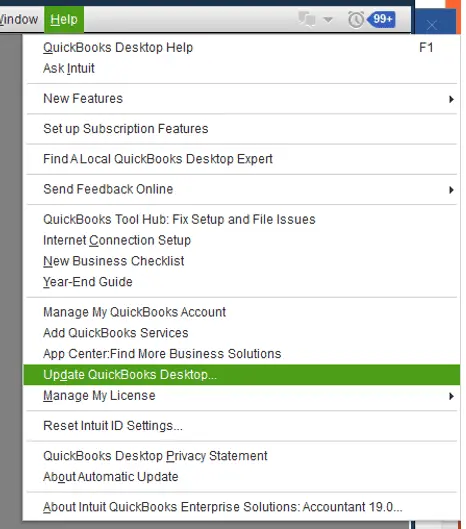
- Open the Update Now tab.
- Select the Reset Update checkbox.
- Click Get Updates.
- Wait for QuickBooks to finish downloading the updates.
- Close and reopen QuickBooks Desktop.
- If prompted, select Install Now to complete the installation.
If you are updating payroll, make sure your company file is in single-user mode before attempting to download and install the update.
Resetting the update process allows QuickBooks to download the required files again instead of relying on previously downloaded update information. Once the installation finishes, check whether the error has disappeared.
If none of the previous solutions work, we recommend reinstalling QuickBooks Desktop in Selective Startup mode.
5. Reinstall QuickBooks Desktop in Selective Startup
This method helps determine whether another application or service is interfering with the installation or update process.
Before proceeding, create a backup of your company file and keep your QuickBooks product and license information handy.
Step 1: Switch Windows to Selective Startup
- Press Windows + R to open the Run command.
- Type msconfig and select OK.
- Under the General tab, select Selective startup and Load system services.
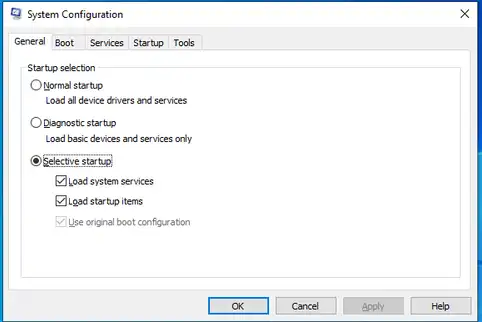
- Open the Services tab.
- Select Hide all Microsoft services.
- Select Disable all.
- Clear the Hide all Microsoft services checkbox.
- Find and select Windows Installer from the services list.
- Select OK.
- Restart your computer.
Step 2: Reinstall QuickBooks Desktop
Once Windows starts in Selective Startup mode, reinstall QuickBooks Desktop using the appropriate installation file and your product and license details.
Step 3: Return to Normal Startup
After reinstalling QuickBooks:
- Press Windows + R.
- Type msconfig and select OK.
- Open the General tab.
- Select Normal startup.
- Click OK.
- Restart your computer.
Open QuickBooks Desktop and check whether the update error has been resolved. If not, you can try downloading the update directly from Intuit’s website.
6. Manually Download QuickBooks Desktop Updates
This fix gives you another way to install the latest maintenance release without relying on the in-product update process.
Follow these steps:
- Close QuickBooks Desktop.
- Visit the official QuickBooks Downloads and Updates page.
- Select the Standard Setup option.
- Choose your country, QuickBooks product, and version year.
- Select Search.
- Click Get the latest updates.
- Open the downloaded update file and follow the installation instructions.
- Restart your computer after installation.
Make sure you select the correct QuickBooks product and version before downloading the update. Installing the wrong release can cause additional compatibility problems.
Follow the tips below in case QuickBooks Error 12031 keeps coming back.
How to Prevent QuickBooks Error 12031?
After resolving QuickBooks Error 12031, follow these practices to avoid repeated interruptions during future updates:
- Avoid interrupting updates: Allow QuickBooks to complete the download and installation process. Do not shut down your computer or close the software while an update is in progress.
- Use an administrator account: Install QuickBooks updates using a Windows account with administrator permissions to avoid permission-related installation problems.
- Keep your system date and time accurate: Incorrect date, time, or time zone settings can interfere with secure internet connections. Check these settings if connection errors occur.
- Download updates from trusted sources: Use QuickBooks Desktop or Intuit’s official Downloads & Updates page rather than third-party websites.
- Back up your company file regularly: Create a backup before major software updates so you have a recovery copy if an unrelated issue affects your company data.
- Check available disk space: Keep sufficient free space on your system drive to allow update files to download and install properly.
These additional precautions address update interruptions, system permissions, and installation readiness without repeating the earlier troubleshooting steps.
Conclusion
QuickBooks Error 12031 generally occurs when internet connectivity or security settings interfere with software and payroll updates. Checking TLS settings, reviewing firewall permissions, testing Safe Mode, and resetting updates can help resolve the issue. If the error continues, manually download the latest release or get help from an expert.
Frequently Asked Questions
Does QuickBooks Error 12031 damage my company file or payroll data?
No, Error 12031 is primarily a connection-related update error. It does not indicate that your company file or payroll records are damaged. However, if an update or payroll download was interrupted, check whether the update completed successfully before continuing your work.
Can QuickBooks Error 12031 occur after a Windows update?
Yes, it is possible to see QuickBooks Error 12031 after Windows update. A Windows update may change certain network, firewall, or security configurations that affect how QuickBooks connects to Intuit’s servers. However, it is not treated as a direct confirmed cause of Error 12031. Check your internet and security settings if the error starts appearing after an update.
Can a VPN or proxy server cause QuickBooks Error 12031?
A VPN or proxy configuration may interfere with the connection between QuickBooks and Intuit’s servers. If you suspect this is happening, contact your network administrator to check the connection settings. Avoid changing business network configurations without authorization.
Is QuickBooks Error 12031 the same as Error 12007 or 12029?
No, they are separate error codes, but all three are associated with QuickBooks Desktop connection and update problems. Intuit groups Errors 12002, 12007, 12009, 12029, and 12031 in the same troubleshooting guide because they can involve internet connectivity, browser settings, or security software interference.
Does QuickBooks Error 12031 also occur in QuickBooks Online?
QuickBooks Error 12031 is specifically addressed in Intuit’s troubleshooting documentation for QuickBooks Desktop updates and payroll downloads. QuickBooks Online uses a browser-based platform and does not use the same Desktop update process. If you experience a connection issue in QuickBooks Online, troubleshoot your browser and internet connection separately.
Intuit and QuickBooks are registered trademarks of Intuit Inc. Accounts Confidant is an independent Accounting and Bookkeeping service provider and is not affiliated with, sponsored by, endorsed by, or approved by Intuit Inc.
