QuickBooks Error 15311 is reported when users have trouble downloading or installing QuickBooks Desktop or payroll updates. The update may stop before it finishes, preventing the program from installing the latest maintenance release or payroll tax table.
To troubleshoot QuickBooks Error 15311, first identify which update failed. Then run QuickBooks as an administrator, repair background processes with QuickBooks Tool Hub, or reset the update download. If the error message mentions digital signature verification, check the Intuit certificate before changing other Windows settings.
Important: Intuit’s official documentation for QuickBooks 15XXX update errors does not explicitly list Error 15311. Third-party troubleshooting guides associate this code with update and digital signature problems, but its exact cause has not been independently confirmed. The steps below use Intuit’s documented solutions for related Desktop update failures.
What Is QuickBooks Error 15311?
QuickBooks Error 15311 is described in third-party support resources as an update failure affecting QuickBooks Desktop or Desktop Payroll.
Some guides associate the error with digital signature verification. A digital signature helps Windows confirm that a software file comes from its stated publisher and has not been changed since it was signed.
If Windows cannot verify a required file, the update process may fail.
However, digital signature problems are not the only possibility. Intuit identifies damaged update components, firewall restrictions, Windows file problems, and incorrect shared-download settings as causes of other documented 15XXX errors.
The exact message displayed with Error 15311 matters more than the code alone.
For example, if QuickBooks reports that it cannot verify a digital signature, investigate the certificate. If the problem occurs on several computers after a network change, check whether the workstations can still access the required update services.
What Should You Check Before Fixing QuickBooks Error Code 15311?
Before running repair tools, identify the failed operation and check your installed QuickBooks Desktop version.
Identify the update that failed
QuickBooks Desktop uses separate processes for program maintenance releases and payroll tax-table updates.
| Failed operation | Where to check | What it affects |
| QuickBooks Desktop update | Help > Update QuickBooks Desktop | Program fixes and maintenance releases |
| Payroll tax-table update | Employees > Get Payroll Updates | Supported payroll tax rates, calculations, and forms |
If only the payroll update fails, check your payroll subscription and tax-table information. If the Desktop maintenance update fails, focus first on the program and its update components.
Check the installed QuickBooks version
- Open QuickBooks Desktop.
- Press F2 or Ctrl + 1.
- Find the product year and release number in the Product Information window.
- Compare the release with Intuit’s latest QuickBooks Desktop update information.
You should also confirm that your Desktop version is still eligible for the services you are trying to use.
For QuickBooks Desktop 2023 users: Intuit discontinued connected-service support after May 31, 2026. This includes affected Desktop Payroll services. Repairing update components cannot restore payroll services that Intuit has discontinued.
If you are using a supported version, continue with the troubleshooting steps below.
How to Fix QuickBooks Error 15311
Start with administrator access and Quick Fix my Program. If those repairs do not help, follow the solution that matches your error message or failed update.
Solution 1: Run QuickBooks Desktop as an Administrator
QuickBooks may have trouble installing updates if Windows restricts access to files required during the process.
Intuit recommends running QuickBooks as an administrator when troubleshooting its documented 15XXX update errors.
- Close your company file and exit QuickBooks Desktop.
- Right-click the QuickBooks Desktop shortcut.
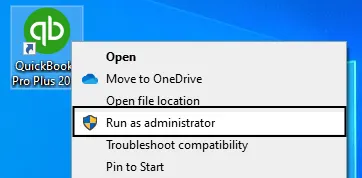
- Select Run as administrator.
- Click Yes when Windows asks for permission.
- Open QuickBooks and retry the failed update.
If the update completes, verify the installed release or payroll tax-table version.
If Error 15311 remains, try repairing the program’s background processes.
Solution 2: Run Quick Fix My Program
Quick Fix My Program closes lingering QuickBooks processes and performs a basic program repair. It may help when an application component prevents an update from finishing.
The utility is available through QuickBooks Tool Hub.
- Close QuickBooks Desktop.
- Open QuickBooks Tool Hub.
- Select Program Problems.
- Click Quick Fix My Program.
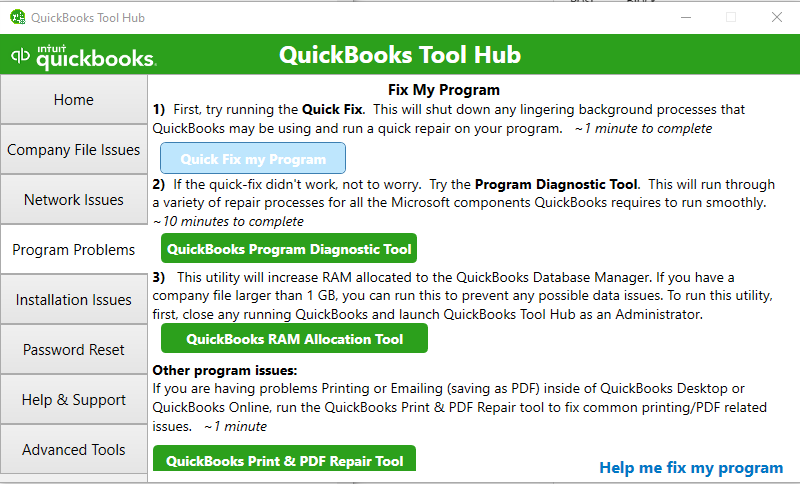
- Allow the repair to finish.
- Reopen QuickBooks and retry the update.
If Tool Hub is not installed, download it through Intuit’s official 15XXX troubleshooting guide.
You can also follow our QuickBooks Tool Hub guide for installation instructions and information about its repair utilities.
If Quick Fix my Program does not help and QuickBooks keeps downloading or installing the same update, reset the update files next.
Solution 3: Reset the QuickBooks Desktop Update
An incomplete or damaged download can prevent QuickBooks from installing a maintenance release. Resetting the update tells QuickBooks to download the available files again.
- Open QuickBooks Desktop.
- Go to Help > Update QuickBooks Desktop.
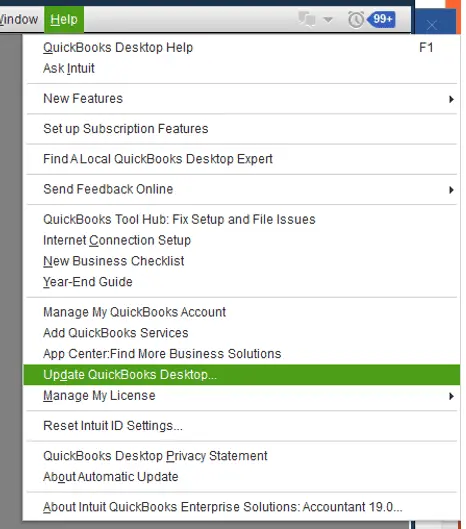
- Select the Update Now tab.
- Check Reset Update.
- Click Get Updates.
- Wait for the download to finish.
- Close and reopen QuickBooks.
- Select Install Now if prompted.
Check the installed release number after the process finishes.
What if resetting the update does not work?
Intuit documents an additional repair involving the version-specific QuickBooks Components folder.
The documented folder structure begins with:
C:\ProgramData\Intuit\QuickBooks XX\Components
The exact folder name depends on the installed QuickBooks version.
Intuit’s procedure involves removing the downloaded update components and downloading them again. Follow the instructions in its official 15XXX support article before changing this folder.
Do not delete your company file folder, payroll records, or unrelated QuickBooks files.
If the failed operation is a Desktop maintenance update, you can also download the appropriate release through Intuit’s official Desktop update instructions.
That download method applies to program maintenance updates. It is not a substitute for downloading payroll tax tables through an eligible payroll subscription.
Solution 4: Check the Intuit Digital Signature Certificate
Check the certificate if the Error 15311 message mentions a digital signature, certificate verification, or an inability to verify a software file.
Intuit documents a certificate installation procedure for related 15XXX update errors using QBW32.exe.
Step 1: Locate the QuickBooks executable
- Close QuickBooks Desktop.
- Open Windows File Explorer.
- Go to the QuickBooks installation directory.
- Find QBW32.exe.
Intuit documents the following location:
C:\Program Files\Intuit\QuickBooks
Your installation folder may differ.
Step 2: Inspect the digital signature
- Right-click QBW32.exe.
- Select Properties.
- Open the Digital Signatures tab.
- Select the signature associated with Intuit.
- Click Details.
- Select View Certificate.
Confirm that you are examining the certificate attached to the authentic QuickBooks executable.
If Windows reports an invalid signature, the publisher is unexpected, or the Digital Signatures tab is missing, do not import an unrelated certificate or bypass the warning.
The executable or Windows certificate configuration may require further investigation.
Step 3: Install the certificate when appropriate
If the authentic Intuit signature and certificate are present and Intuit’s procedure applies:
- Click Install Certificate.
- Follow the Certificate Import Wizard.
- Select Next as directed.
- Click Finish.
- Restart Windows.
- Open QuickBooks and retry the update.
If the signature problem continues, stop repeating the certificate import. Ask your IT administrator or Intuit Support to check the file’s publisher, certificate chain, and Windows trust settings.
A certificate repair is unlikely to help when the actual problem is an inactive payroll subscription or a blocked shared-download location.
Solution 5: Check Windows Updates and Security Restrictions
Windows and network security settings are worth checking when QuickBooks reports certificate or connection problems.
If Windows is missing security updates, install the applicable updates before attempting more advanced changes.
- Close QuickBooks.
- Open Windows Settings.
- Select Windows Update.
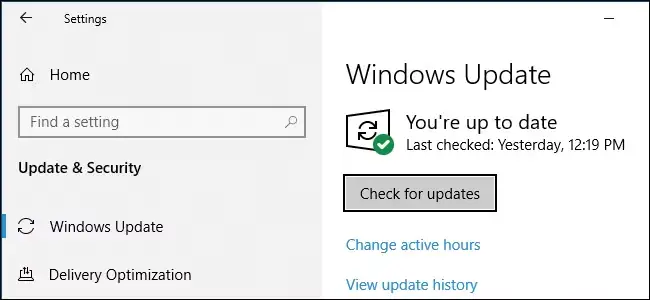
- Click Check for updates.
- Install the relevant updates.
- Restart Windows if required.
Retry the failed QuickBooks update.
If QuickBooks still cannot connect to update services, check whether your antivirus or firewall has blocked a legitimate QuickBooks connection.
Review recent security alerts and confirm the affected executable before changing any permissions.
Intuit lists QBUpdate.exe among the QuickBooks executables covered by its firewall and security configuration guide.
Only create an exception when you have confirmed what the security software is blocking. Do not disable Windows Firewall or antivirus protection permanently.
Should you change TLS or SSL settings?
Only investigate TLS settings when there is evidence of a secure-connection problem.
TLS 1.2 is a security protocol used by supported QuickBooks Desktop connected services. Intuit provides a TLS 1.2 Readiness Tool through QuickBooks Tool Hub for applicable environments.
Because the tool can change operating-system settings, check its compatibility with your Windows and QuickBooks versions first. On a managed computer, ask your IT administrator to review the configuration.
Do not disable TLS 1.2, enable obsolete SSL protocols, or switch off certificate verification to make an update work.
Solution 6: Check Shared Downloads and QuickBooks File Copy Service
A shared-download problem is more relevant when multiple computers are affected or when the error begins after a server, network, or office change.
For example, suppose a business updates its office server, and several QuickBooks workstations stop downloading payroll updates. If those computers previously used a shared location for update files, the drive mapping may no longer point to an accessible folder.
Ask the network administrator to confirm that the shared location exists and that the affected computers have the required access.
Intuit also identifies a disabled QuickBooks File Copy Service (FCS) as a possible cause of its documented 15XXX errors.
To inspect the service:
- Press Windows + R.
- Enter services.msc.
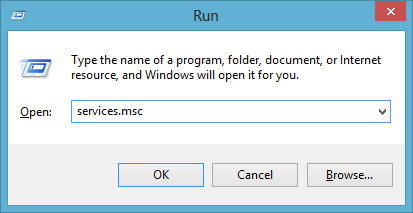
- Click OK.
- Look for Intuit QuickBooks FCS, if present.
- Check its service status and startup configuration.
If the service is disabled or unavailable, confirm the appropriate configuration for your installed Desktop environment before making changes.
Do not modify Windows service settings using instructions for an unrelated QuickBooks version.
Solution 7: Check Your Payroll Subscription if Tax-Table Updates Fail
If QuickBooks Desktop maintenance updates work but payroll tax tables will not download, verify that your payroll subscription is active.
Intuit requires an active QuickBooks Desktop Payroll subscription to download current tax tables.
- Open QuickBooks Desktop.
- Sign in to the correct company file with the required payroll administrator permissions.
- Go to Employees > Payroll Center.
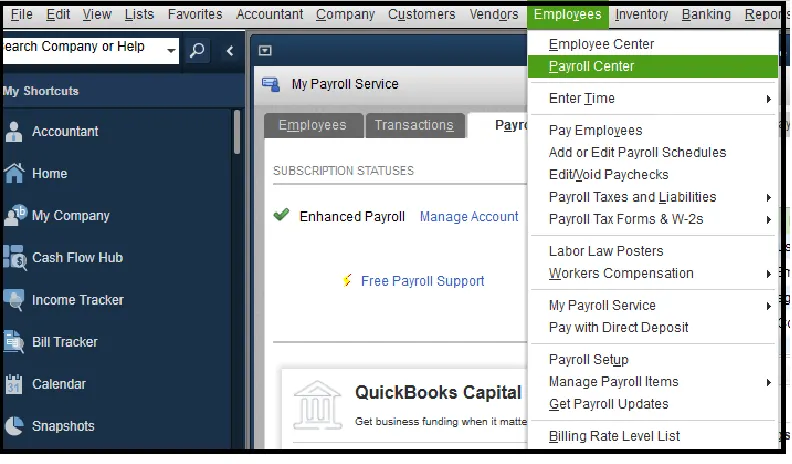
- Review the payroll subscription status.
You can also confirm your subscription information through the Intuit Customer Account Management Portal.
If QuickBooks reports that your subscription is inactive, compare the registered payroll account and service information before making changes.
For example, if you manage payroll for two businesses, make sure the open company file is associated with the correct employer and payroll subscription.
Our QuickBooks Payroll Subscription Inactive guide covers subscription verification and service-key troubleshooting in more detail.
If the subscription is active, do not repeatedly change the service key without evidence that it is incorrect. Return to the failed update message and investigate the appropriate update or connection issue.
Solution 8: Run QuickBooks Install Diagnostic Tool
If QuickBooks still cannot install an update and you suspect damaged installation components, use QuickBooks Install Diagnostic Tool.
Intuit includes this utility in its troubleshooting instructions for documented 15XXX errors.
- Close QuickBooks Desktop.
- Open QuickBooks Tool Hub.
- Select Installation Issues.
- Click QuickBooks Install Diagnostic Tool.
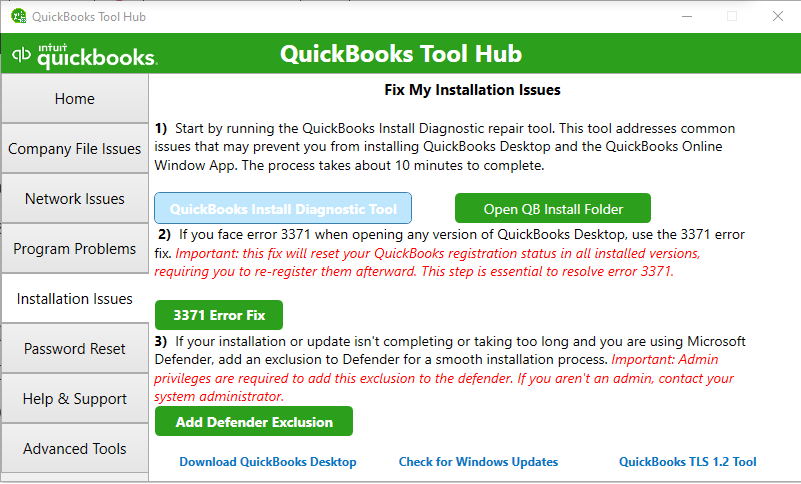
- Allow the utility to finish.
- Restart Windows.
- Open QuickBooks and retry the update.
The tool is intended to address common QuickBooks installation problems. It does not repair every payroll or network error.
For information about installation-related issues and the utility’s limitations, see our QuickBooks Install Diagnostic Tool guide.
If the installation remains damaged, follow Intuit’s official repair or reinstallation instructions.
Create a current company file backup before major installation changes, and make sure you have the correct installer and license information.
Reinstalling QuickBooks should not be the first response to an update failure caused by an inactive subscription, unsupported product version, or network restriction.
How to Confirm QuickBooks Error 15311 Is Resolved
The repair is successful when the update that previously failed completes and QuickBooks shows the expected installed version.
For a QuickBooks Desktop maintenance update
- Open QuickBooks Desktop.
- Press F2 or Ctrl + 1.
- Check the release number in the Product Information window.
- Compare it with the latest applicable maintenance release listed by Intuit.
If the expected release has not been installed, the program update may still be incomplete.
For a payroll tax-table update
- Go to Employees > Get Payroll Updates.
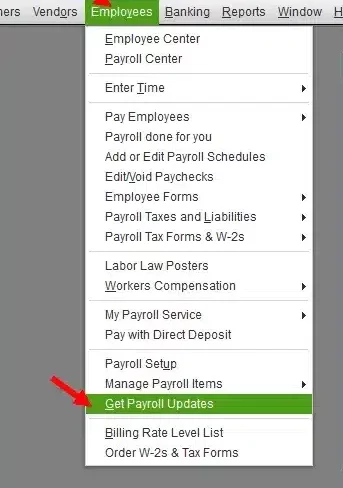
- Check the number beside You are using tax table version.
- Compare it with Intuit’s latest tax-table information.
- If necessary, select Download Entire Update and click Update.
- Confirm that the expected tax-table version is installed.
Intuit explains the process in its official payroll tax-table update guide.
If payroll was processed while the tax tables were outdated, review the affected paychecks and tax calculations before making corrections. A qualified payroll professional may need to assess any changes to previously processed payroll.
What If QuickBooks Payroll Error 15311 Still Appears?
If QuickBooks Update Error 15311 continues after the relevant troubleshooting steps, record what happens during the failed update.
Useful details include:
- The complete error message, preferably with a screenshot.
- QuickBooks Desktop product year and release number.
- Windows version.
- Whether the failure involves a maintenance release or payroll tax table.
- Any recent Windows, antivirus, firewall, or network changes.
- The troubleshooting steps already completed and their results.
If the error appears on only one computer, focus on that workstation’s installation and security settings.
If several computers fail during the same update, investigate shared resources and network restrictions before repairing each installation separately.
Contact Intuit or your IT administrator if the remaining problem involves certificate trust, managed Windows services, or an update failure that cannot be identified from the available message.
Do not attempt to repair the company file merely because an update failed. Company-file corruption requires separate evidence, such as an error when opening the file or a problem found by QuickBooks data verification tools.
Conclusion
QuickBooks Error 15311 should be investigated according to the update that failed and the exact message displayed. Administrator access, Quick Fix my Program, and resetting the update download are reasonable starting points. Certificate, payroll subscription, network, and installation repairs should follow only when the symptoms support them.
Before considering the issue resolved, check the installed Desktop release or payroll tax-table version. If the update remains incomplete, preserve the error details and investigate the specific failure rather than repeating unrelated repairs.
Frequently Asked Questions
Why does QuickBooks Error 15311 appear during payroll updates?
Third-party guides associate Error 15311 with QuickBooks update and digital signature problems, but Intuit has not explicitly documented the code in its current 15XXX error list. Check whether the payroll download fails because of a verification warning, connection restriction, or subscription problem before selecting a repair.
Can QuickBooks Error 15311 occur on Windows 11?
The error has not been independently established as a Windows 11-specific problem. If it appears on Windows 11, check whether your QuickBooks Desktop version is compatible with the operating system, then investigate the update component or security setting identified by the failure.
What if QBW32.exe does not have a Digital Signatures tab?
Confirm that you selected the correct executable in the authentic QuickBooks installation folder. If the expected signature is missing, do not install a certificate from an unknown source. Have the executable and Windows trust settings checked before continuing.
Is QuickBooks Payroll update Error 15311 the same as Error 15215?
No. They are different error codes, although third-party guides associate both with QuickBooks update problems.
Intuit explicitly documents Error 15215 in its official 15XXX troubleshooting guide. The same documentation does not explicitly list Error 15311.
For instructions focused on the documented code, see our QuickBooks Error 15215 guide.
Does QuickBooks Error 15311 mean my company file is damaged?
No, an update failure does not establish that the company file is corrupted. If QuickBooks opens the company file normally but cannot install an update, investigate the program update process first.
Can I download payroll tax tables without an active subscription?
No, an active, eligible QuickBooks Desktop Payroll subscription is required to download current payroll tax tables. You must also use a Desktop version that supports the payroll service.
What if another payroll error appears after fixing Error 15311?
Record the new error code and follow its specific troubleshooting instructions. Subscription errors, payroll calculation problems, and update verification failures can require different repairs.
Our QuickBooks Payroll Errors guide covers related QuickBooks Desktop payroll issues.
Intuit and QuickBooks are registered trademarks of Intuit Inc. Accounts Confidant is an independent Accounting and Bookkeeping service provider and is not affiliated with, sponsored by, endorsed by, or approved by Intuit Inc.
