QuickBooks Error 15215 can prevent you from downloading payroll tax tables or installing a maintenance release in QuickBooks Desktop. You may see a digital signature verification error even though your company file opens and other features work normally.
To fix QuickBooks Error 15215, start by running QuickBooks as an administrator. If the update fails again, use Quick Fix my Program in QuickBooks Tool Hub, reset the update download, and check the Intuit digital signature certificate.
Intuit also identifies damaged Windows files, missing update components, firewall restrictions, and shared download problems as possible causes of 15XXX update errors.
The steps below explain how to find the likely cause, apply the right repair, and confirm that the update was installed.
What Is QuickBooks Error 15215?
QuickBooks Error 15215 is an update error associated with QuickBooks Desktop and Desktop Payroll. One documented cause is a failure to verify the digital signature of a downloaded update file.
A digital signature helps Windows and QuickBooks confirm that a file comes from its stated publisher and has not been changed after signing.
QuickBooks uses this check when processing certain downloaded files. If verification fails, the program may reject the update.
Intuit includes Error 15215 in its official documentation for QuickBooks Desktop 15XXX update errors.
The error can affect two different types of updates:
- QuickBooks Desktop maintenance releases: Updates to the installed accounting software, including program fixes and security improvements.
- QuickBooks Desktop Payroll tax table updates: Updates that provide current tax rates and calculations for supported federal and state payroll taxes.
Both can encounter QuickBooks Payroll Error 15215, but they have different version checks. Identifying which update failed will help you confirm whether the repair worked.
What Causes QuickBooks Error Code 15215?
QuickBooks Error 15215 may occur when QuickBooks cannot verify an update file or access a component required to complete the download. Intuit documents several possible causes for the 15XXX error family.
| Possible cause | How it affects the update |
| Digital signature verification failure | QuickBooks cannot validate the signature of a downloaded file. |
| Missing update components | A file needed to process the update is unavailable or damaged. |
| Damaged Windows files | Windows cannot provide a component needed during the update. |
| Firewall restrictions | Security rules prevent QuickBooks from accessing an update service. |
| Disabled QuickBooks File Copy Service (FCS) | A QuickBooks service involved in certain update operations is unavailable. |
| Incorrect shared download mapping | QuickBooks cannot access the configured shared download location. |
These causes apply to the broader 15XXX error group. Not every Error 15215 incident involves all of them.
For example, if QuickBooks reports a digital signature failure, checking the certificate is a reasonable next step. If the error affects several workstations after a network change, checking shared update locations and security restrictions may be more useful.
What Should You Check Before Troubleshooting Error 15215?
Before repairing Error 15215 in QuickBooks, identify your installed Desktop version, confirm the type of update that failed, and check whether the product can still receive the required services.
Check the installed QuickBooks Desktop version
- Open QuickBooks Desktop.
- Press F2 or Ctrl + 1.
- Find the product version and release number in the Product Information window.
- Compare the details with Intuit’s QuickBooks Desktop release information.
If Error 15215 appears during a payroll tax table update, also confirm that your QuickBooks Desktop Payroll subscription is active.
Important for older Desktop versions: Intuit discontinued support and connected services for QuickBooks Desktop 2023 after May 31, 2026. This affects integrated services, including Desktop Payroll.
Intuit has separately confirmed continued updates and support for QuickBooks Desktop 2024 beyond the previously expected May 2027 discontinuation date.
If your Desktop version is no longer eligible for payroll updates, repairing certificates or reinstalling the program will not restore discontinued services.
Back up your company file before major repairs
Most of the initial troubleshooting steps affect QuickBooks program files rather than accounting data. Still, create a backup before reinstalling QuickBooks or making major installation changes.
To create a manual backup:
- Open QuickBooks Desktop.
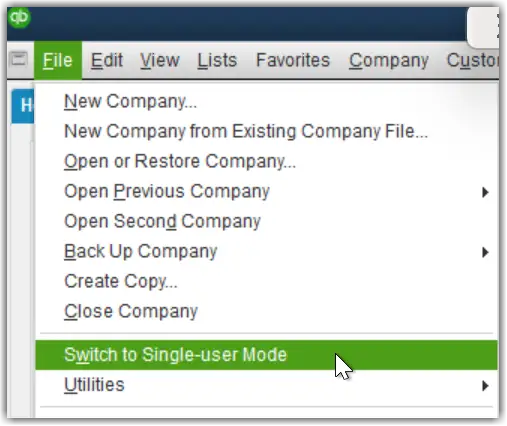
- Select File > Switch to Single-user Mode, if needed.

- Go to File > Back Up Company > Create Local Backup.
- Select Local Backup, then Next.
- Choose a secure location for the backup.
- Select Save it now and complete the backup process.
QuickBooks company-file backups do not automatically include saved payroll tax forms. Save those forms separately if you need to preserve them.
You can find the complete procedure in Intuit’s QuickBooks Desktop company-file backup guide.
How to Fix QuickBooks Error 15215
Intuit recommends beginning with administrator permissions and Quick Fix my Program. If Error 15215 continues, check the update files and digital signature certificate before attempting more advanced repairs.
Start with Solution 1 and retry the failed update after each applicable fix. You do not need to complete every solution if the update starts working.
Solution 1: Run QuickBooks Desktop as an Administrator
Running QuickBooks as an administrator can resolve Error 15215 when Windows permissions prevent the program from accessing files required for an update.
Intuit lists this as the first troubleshooting method for 15XXX update errors.
- Close your company file and exit QuickBooks Desktop.
- Locate the QuickBooks Desktop shortcut.
- Right-click the shortcut and select Run as administrator.
- Click Yes when Windows asks for permission.
- Open QuickBooks and try downloading the maintenance release or payroll update again.
If the update completes, continue to the verification section below.
If QB Error 15215 remains, check whether a background QuickBooks process or program component is interfering with the update.
Solution 2: Run Quick Fix My Program in QuickBooks Tool Hub
Quick Fix My Program can help resolve Error 15215 when background QuickBooks processes or certain application problems interrupt an update. The utility closes lingering processes and performs a basic program repair.
Step 1: Install QuickBooks Tool Hub
If you already have QuickBooks Tool Hub installed, open it from the desktop or Windows Search.
Otherwise:
- Close QuickBooks Desktop.
- Visit Intuit’s official QuickBooks Desktop repair guide.
- Download the QuickBooks Tool Hub installer.
- Open QuickBooksToolHub.exe.
- Follow the installation prompts and accept the terms.
- Launch QuickBooks Tool Hub.
Intuit’s August 2026 instructions identify Tool Hub version 1.6.0.8. Check the official page for the latest available installer.
For more information about its available repair tools, see our QuickBooks Tool Hub guide.
Step 2: Run Quick Fix my Program
- Open QuickBooks Tool Hub.
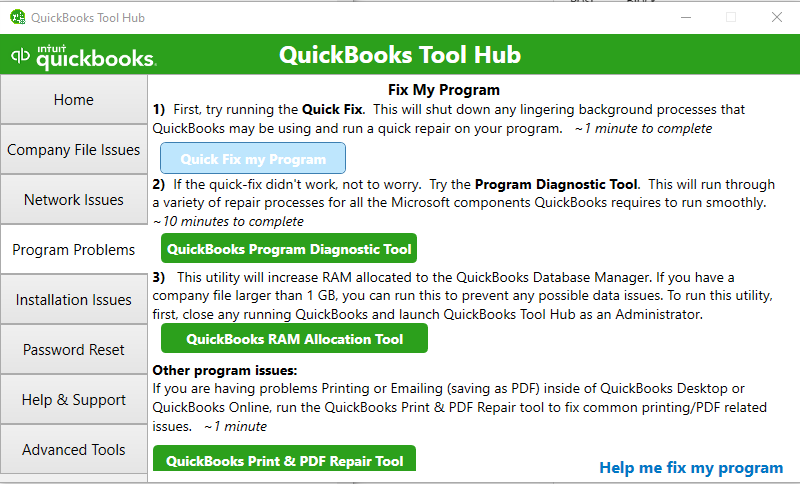
- Select Program Problems.
- Click Quick Fix my Program.
- Allow the repair to finish.
- Reopen QuickBooks Desktop.
- Retry the update.
If QuickBooks still displays Error 15215, the next step is to replace the downloaded update files rather than repeat the program repair.
Solution 3: Reset QuickBooks Desktop Updates
Resetting QuickBooks Desktop updates can help when an incomplete or damaged update download prevents the installation from finishing. It tells QuickBooks to download the available update files again.
- Open QuickBooks Desktop.
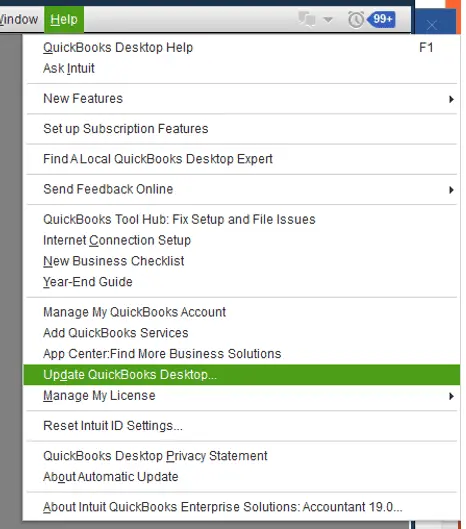
- Select Help > Update QuickBooks Desktop.
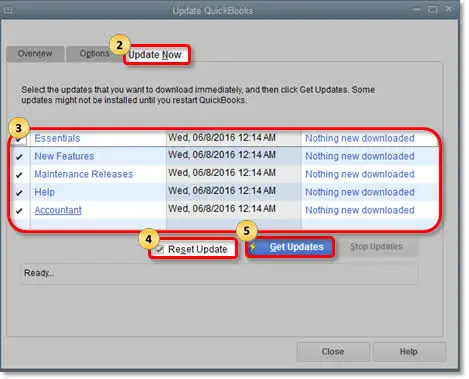
- Open the Update Now tab.
- Select the Reset Update checkbox.
- Click Get Updates.
- Wait for the download to finish.
- Close and reopen QuickBooks.
- Select Install Now if QuickBooks prompts you to install the update.
If the update still fails, Intuit documents an additional procedure involving the QuickBooks Components folder.
The documented folder structure includes:
C:\ProgramData\Intuit\QuickBooks XX\Components
Here, XX refers to the version-specific QuickBooks folder, which may vary by installation.
Intuit’s 15XXX troubleshooting instructions describe removing the update Components folder before resetting the download.
Because this changes installation-related files, use the exact procedure for your product version. Do not delete the company file folder, payroll records, or unrelated QuickBooks directories.
If you need a maintenance release: You can also download the correct program update from Intuit’s official Downloads & Updates website.
This method applies to QuickBooks Desktop program updates. It should not be confused with downloading payroll tax tables.
Solution 4: Install the Intuit Digital Signature Certificate
Installing the digital signature certificate may resolve QuickBooks Error 15215 when Windows cannot verify the signature associated with the QuickBooks program.
Intuit documents a certificate installation procedure using QBW32.exe, a QuickBooks Desktop executable.
Step 1: Locate QBW32.exe
- Close QuickBooks Desktop.
- Open Windows File Explorer.
- Navigate to the QuickBooks installation folder.
- Locate QBW32.exe.
Intuit’s documented location is:
C:\Program Files\Intuit\QuickBooks
Your installation may use a different folder, particularly if multiple Desktop versions are installed.
Step 2: Check the digital signature
- Right-click QBW32.exe.
- Select Properties.
- Open the Digital Signatures tab.
- Select the signature associated with Intuit.
- Click Details.
- Select View Certificate.
Confirm that you are examining the certificate attached to the authentic QuickBooks executable.
If the signature is missing, the publisher is unexpected, or Windows reports that the signature is invalid, do not bypass verification or install an unknown certificate from another website.
Step 3: Install the certificate
If the Intuit signature and certificate are present and the official procedure applies:
- Click Install Certificate.
- Follow the Certificate Import Wizard.
- Select Next as directed.
- Click Finish to complete the installation.
- Restart Windows.
- Reopen QuickBooks and download the update again.
If the digital signature was the cause, QuickBooks may now complete the verification process.
If the error continues, the problem could involve Windows certificates, downloaded update components, or another condition listed in Intuit’s 15XXX guidance.
Solution 5: Update Windows and Check TLS 1.2
Outdated Windows security certificates can cause digital signature verification problems. Intuit recommends Windows Update as a possible fix for 15XXX errors related to expired security certificates.
First, check Windows updates:
- Close QuickBooks Desktop.
- Open Windows Settings.
- Select Windows Update.
- Click Check for updates.
- Install the relevant available updates.
- Restart Windows if required.
After restarting, try the QuickBooks update again.
Check TLS 1.2 only if secure connection problems remain.
Transport Layer Security (TLS) protects data sent between applications and online services. Intuit documents TLS 1.2 requirements for connected QuickBooks Desktop services, including payroll.
To run Intuit’s TLS 1.2 Readiness Tool, where available:
- Open QuickBooks Tool Hub.
- Select Installation Issues.
- Click QuickBooks TLS 1.2 Tool.
- Select OK, accept the agreement, and click Run.
- Follow the tool’s instructions and exit when finished.
You can review Intuit’s TLS 1.2 guidance for the supported requirements.
A TLS problem is not established simply because Error 15215 appears. This check is most relevant when QuickBooks also has trouble accessing secure online services.
Do not enable TLS 1.0 or disable TLS 1.2 as a workaround. Microsoft has deprecated TLS 1.0 and 1.1 due to security issues.
If your company manages TLS through Windows Group Policy, ask the IT administrator to review the configuration rather than changing system-wide settings yourself.
Solution 6: Check Firewall and Antivirus Restrictions
Firewall or antivirus restrictions can prevent QuickBooks from reaching update services. This is worth investigating if Error 15215 started after a security policy change, antivirus update, or network configuration change.
Begin by checking whether the restriction affects QuickBooks specifically.
- Open your firewall or antivirus application’s management interface.
- Review recent blocked connections or security alerts.
- Check whether QuickBooks Desktop or its update process has been blocked.
- Verify the affected executable and connection before adding an exception.
- Apply only the permissions needed for the confirmed QuickBooks operation.
- Retry the update.
On a managed office network, ask the IT administrator to review the security logs and permitted connections.
Intuit provides instructions for QuickBooks Desktop firewall and security settings.
However, some firewall ports in that guide apply to multi-user company-file access. Do not open those ports solely because a payroll update displays Error 15215.
Avoid permanently disabling Windows Firewall or antivirus protection to complete an update.
If QuickBooks also has trouble accessing network locations or online services, see our QuickBooks Network Connection Error guide for related diagnostics.
Solution 7: Check Shared Downloads and QuickBooks File Copy Service
Shared download mapping and a disabled QuickBooks File Copy Service (FCS) are among the causes Intuit lists for 15XXX update errors. These checks are useful when the computer relies on shared update locations or the earlier repairs have not resolved an update-component problem.
Check the shared download location
If your office uses a shared update folder, confirm that QuickBooks can still access the configured location.
For example, after moving to a new office, a workstation may have an outdated mapped drive pointing to a server that is no longer available. In that case, reinstalling the digital signature certificate would not correct the missing shared location.
Ask the network administrator to verify the mapping and the required folder permissions.
Check whether QuickBooks FCS is disabled
To inspect the service:
- Close QuickBooks Desktop.
- Press Windows + R.
- Enter services.msc.
- Click OK.
- Look for Intuit QuickBooks FCS, if present.
- Open its properties and check the service status and startup configuration.
Intuit identifies a disabled FCS service as a possible cause within the 15XXX error family. However, the correct service configuration depends on the installed QuickBooks environment.
Do not change its startup type based on instructions written for another error code or older Desktop version. If it is disabled or missing, confirm the applicable configuration with your administrator or Intuit’s product-specific support instructions.
Solution 8: Run QuickBooks Install Diagnostic Tool
QuickBooks Install Diagnostic Tool can help when installation-related components prevent QuickBooks Desktop from operating or updating correctly.
Intuit includes installation repair among its solutions for 15XXX update errors.
- Close QuickBooks Desktop.
- Open QuickBooks Tool Hub.
- Select Installation Issues.
- Click QuickBooks Install Diagnostic Tool.
- Allow the diagnostic process to finish.
- Restart Windows.
- Open QuickBooks and retry the update.
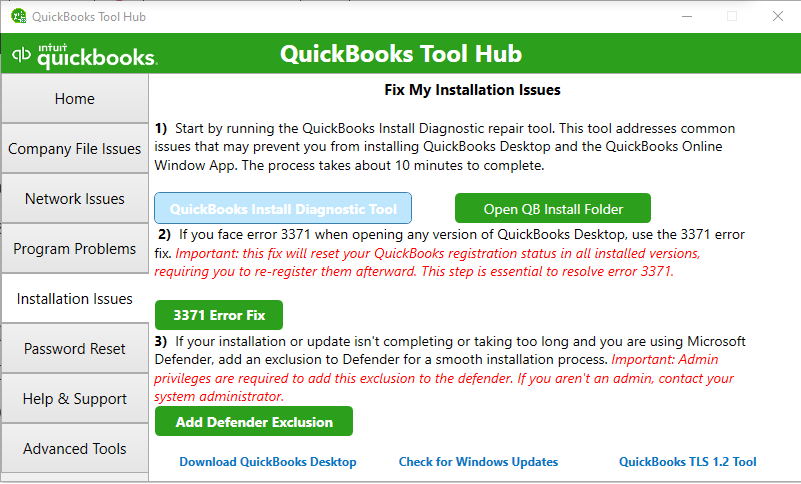
Intuit advises that the tool can take up to 20 minutes to complete.
The diagnostic tool is intended for common installation problems. It does not replace certificate verification or network troubleshooting when those are the actual causes.
You can read our QuickBooks Install Diagnostic Tool guide for additional instructions.
Solution 9: Reinstall QuickBooks Desktop if the Error Persists
Reinstalling QuickBooks Desktop may help when program components remain damaged after the earlier repairs. It should be considered after checking update files, digital signatures, and relevant connection restrictions.
Before reinstalling:
- Confirm that your company file backup is complete.
- Save any payroll forms you need separately.
- Obtain the installer for your licensed QuickBooks Desktop version.
- Keep your license and product information available.
- Confirm that the version remains eligible for the services you need.
Then follow Intuit’s QuickBooks Desktop reinstallation instructions.
Intuit states that reinstalling the program does not normally affect company-file data. Nevertheless, keep a verified backup before making installation changes.
After reinstalling, apply the appropriate program updates and check whether the original Error 15215 operation succeeds.
If the error continues after reinstallation, investigate the remaining cause rather than repeating the same installation procedure.
How Do You Confirm QuickBooks Error 15215 Is Fixed?
QuickBooks Error 15215 is resolved when the failed update completes and QuickBooks shows the expected release or payroll tax table version.
The correct verification method depends on the update you were installing.
Verify the QuickBooks Desktop Maintenance Release
- Open QuickBooks Desktop.
- Press F2 or Ctrl + 1.
- Check the release number in the Product Information window.
- Compare it with the latest available release listed by Intuit for your product.
- Confirm that the expected release is installed.
If QuickBooks still shows an older release when a newer one should have been installed, the update may not have completed.
Verify the Payroll Tax Table Update
- Open QuickBooks Desktop Payroll.
- Select Employees > Get Payroll Updates.
- Find the number beside You are using tax table version.
- Compare it with Intuit’s current payroll tax table information.
- If necessary, select Download Entire Update and click Update.
- Check the tax table version again after the update finishes.
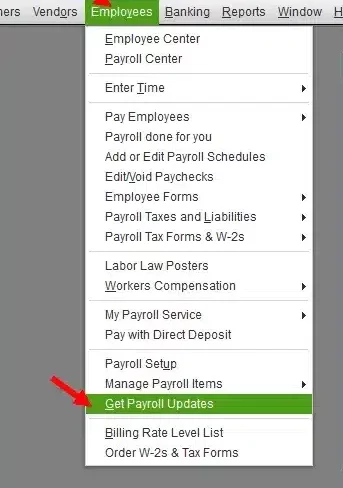
These steps follow Intuit’s payroll tax table update instructions.
Selecting Download Entire Update requests a complete download through QuickBooks Desktop Payroll. It is not an offline workaround for blocked connections or failed signature verification.
If Error 15215 has disappeared but payroll tax tables remain outdated, check your subscription and general payroll update settings.
Our QuickBooks Payroll Update Not Working guide explains those broader issues.
What If QuickBooks Error 15215 Still Appears?
If Error 15215 remains after the applicable repairs, identify which part of the update is failing before changing more Windows or QuickBooks settings.
| What you observe | What to investigate next |
| QuickBooks reports a signature verification failure | Check the authentic Intuit certificate and Windows security updates. |
| The error started after a firewall or security change | Review blocked connections and update permissions. |
| Multiple workstations cannot reach shared updates | Verify the shared download mapping and folder access. |
| The Desktop release updates, but payroll does not | Check payroll subscription status, tax table downloads, and service eligibility. |
| The error continues after installation repair | Record the exact message and seek product-specific support. |
When requesting technical assistance, provide your QuickBooks version and release, Windows version, the update you attempted, the full error message, and the repairs already completed.
For other payroll-related error codes, use our QuickBooks Payroll Errors guide to identify the appropriate troubleshooting steps.
Conclusion
QuickBooks Error 15215 can interrupt payroll tax table downloads and Desktop maintenance updates, often due to digital signature verification or update-related problems. Start with administrator permissions, QuickBooks Tool Hub, and a fresh update download. If the error continues, check the Intuit digital signature certificate, Windows security updates, and any network restrictions.
After applying the appropriate fix, confirm that the latest available maintenance release or payroll tax table has been installed. If Error 15215 persists, use the exact error message and the type of failed update to narrow down the cause before attempting further repairs.
Frequently Asked Questions
Why does QuickBooks Error 15215 appear during payroll updates?
Error 15215 may appear when QuickBooks Desktop Payroll cannot verify an update file or access the components required to download it. Digital signature problems, Windows files, and firewall restrictions are among the possible causes Intuit documents.
How do I fix QuickBooks Error 15215 when digital signature verification fails?
Find QBW32.exe in the QuickBooks installation folder, open its Digital Signatures properties, and inspect the Intuit certificate. If the certificate is authentic and the Intuit procedure applies, install it through the Certificate Import Wizard, restart Windows, and retry the update.
What does “Server Not Responding” mean if it appears with Error 15215?
The message suggests that QuickBooks could not complete a connection or related update operation. It does not prove that Intuit’s servers are unavailable. Check the exact wording, network restrictions, and update activity. This message wording is reported in third-party guides but is not established as universal in Intuit’s current Error 15215 documentation.
Can QuickBooks Error 15215 occur on Windows 11?
Yes, Error 15215 can occur on Windows 11 if QuickBooks encounters a signature verification, update-component, or connection problem. The error alone does not mean Windows 11 caused the failure.
Can I download payroll tax tables manually if Error 15215 continues?
You can request a complete payroll tax table download through Employees > Get Payroll Updates > Download Entire Update if your subscription is eligible. This still requires QuickBooks to access the payroll update service, so it may fail if the original connection or verification issue remains.
Will fixing QuickBooks Error 15215 affect my company file?
The initial fixes focus on program permissions, update files, and certificates rather than accounting transactions. Still, create a verified backup before reinstalling QuickBooks or making major installation changes, and preserve saved payroll forms separately.
Why does QuickBooks Error 15215 return after restarting Windows?
Restarting can clear temporary process problems, but it may not correct a damaged update component, invalid certificate, or blocked connection. If the error returns, investigate the failed update and its likely cause instead of repeatedly restarting the computer.
Accounts Confidant is an independent accounting and bookkeeping service provider and is not affiliated with Intuit.