QuickBooks Error 40001 can appear when you try to activate direct deposit or update your payroll account information in QuickBooks Desktop. It may prevent you from completing the request even when your company file opens normally and your payroll subscription is active.
The error may appear with a message such as:
Error Code: 40001
Something’s not right. We’re unable to complete your request at the moment. Contact our support team for assistance.
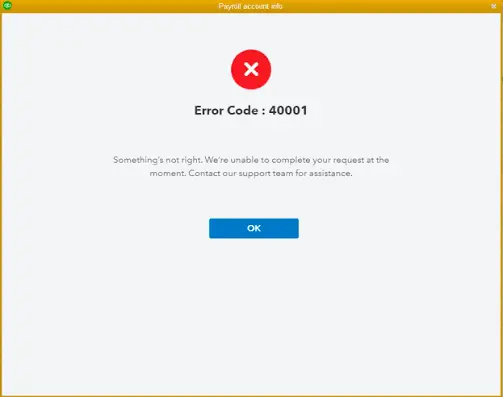
To fix QuickBooks Error 40001, first sign in as the QuickBooks company administrator, confirm your payroll subscription is active, and update QuickBooks Desktop and its payroll tax table. If the error continues, Intuit Payroll Support may need to check whether your company file’s Realm ID matches the information in its payroll system.
The right solution depends on whether the error appears during payroll account verification, an existing account update, or new direct deposit activation.
What Does QuickBooks Error 40001 Mean?
QuickBooks Error 40001 is an error reported in QuickBooks Desktop Payroll when users attempt to update payroll account information or activate direct deposit.
For example, you may see a notification in Payroll Center asking you to update your payroll account details. When you select Update Account > Update Now, QuickBooks displays Error 40001 instead of completing the request.
This exact situation was reported in an Intuit Community discussion about Error 40001.
Other users have encountered the error while setting up direct deposit for their businesses.
The error code does not identify one cause in every case. However, Intuit has linked some Error 40001 cases to a mismatch between the company file’s Realm ID and the corresponding record in its payroll system.
That distinction matters because updating QuickBooks may help with an outdated software component, but it cannot necessarily correct an account identifier mismatch held in Intuit’s systems.
Why Does QuickBooks Error 40001 Occur?
The most specific cause identified in Intuit’s Community guidance is a Realm ID mismatch. Intuit also recommends checking administrator access, software updates, and company file integrity in certain cases.
These checks serve different purposes and should not all be treated as confirmed causes of the same error.
Realm ID mismatch
A Realm ID is an identifier associated with a QuickBooks company in Intuit’s connected systems.
In a May 2021 Community response, an Intuit moderator explained that Error 40001 can occur when the Realm ID associated with a QuickBooks company no longer matches the identifier recorded in the payroll system.
For example, a business may have an active payroll subscription and a working company file, but QuickBooks cannot complete a payroll account update because the systems do not recognize the same company association.
This is an account-level problem that may require Intuit Payroll Support.
Incorrect administrator access
Direct deposit activation requires the appropriate QuickBooks company administrator credentials and access to the associated Intuit account.
If you are signed in as another company file user, you may not be authorized to complete the activation process.
Windows administrator permissions and QuickBooks administrator permissions are different. Running the program as a Windows administrator does not replace signing in with the correct QuickBooks company administrator account.
Outdated QuickBooks Desktop or payroll components
An outdated Desktop release or payroll tax table is another item worth checking.
Intuit recommends updating QuickBooks Desktop and the payroll tax table when troubleshooting certain Error 40001 cases. These updates can rule out outdated software components, although they do not guarantee that the error will disappear.
Payroll subscription or product eligibility problems
An active, eligible payroll subscription and a supported QuickBooks Desktop version are required to use connected payroll services.
An inactive subscription does not independently establish the cause of Error 40001. However, checking service eligibility helps avoid troubleshooting a feature that is no longer available.
Possible company file integrity problems
Intuit has suggested Verify Data and Rebuild Data in some Error 40001 support responses.
These utilities are designed to diagnose and repair certain company file data problems. They are relevant if QuickBooks also reports damaged data, unexpected file behavior, or another integrity warning.
Error 40001 alone is not proof that the company file is corrupted.
How to Fix QuickBooks Error 40001
Start with the administrator account and payroll service status, then install available updates. If those checks do not resolve the error, investigate the specific payroll operation that failed.
Solution 1: Sign in as the QuickBooks company administrator
Intuit’s direct deposit setup instructions require users to sign in with their QuickBooks administrator credentials.
To confirm your access:
- Open QuickBooks Desktop.
- Select File > Close Company/Logoff.

- Reopen the affected company file.
- Sign in using the QuickBooks company administrator username and password.
- Return to the payroll screen where Error 40001 appeared.
- Try completing the same operation again.
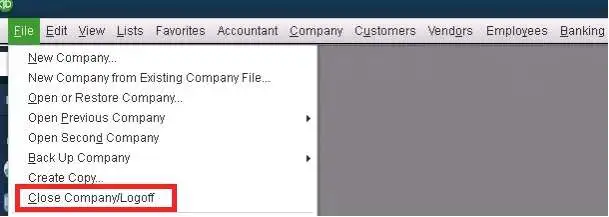
If QuickBooks asks you to sign in to an Intuit account, use the account authorized to manage the company’s payroll service.
What if you are already the QuickBooks administrator?
An older Intuit Community response recommends closing QuickBooks, right-clicking the Desktop shortcut, and selecting Run as administrator.
You can try this on Windows if local permissions appear to be interfering with QuickBooks. However, it is a Windows permissions check, not a verified way to correct a Realm ID mismatch.
If the error remains, continue with the payroll service checks.
Solution 2: Check your payroll subscription and supported Desktop version
Confirm that the correct company file is open and that the payroll service associated with it is active.
In QuickBooks Desktop:
- Open the affected company file.
- Select Employees > My Payroll Service > Manage Service Key.
- Review the service name and status.
- Confirm that the service belongs to the business whose payroll account you are updating.
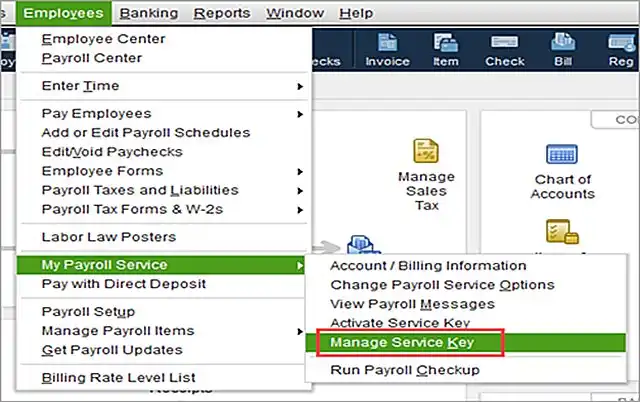
You can also review your registered payroll subscription through your Intuit account.
If you manage payroll for more than one company, check the company file and employer identification number (EIN) associated with each payroll registration. Do not change a valid EIN or service key merely to clear Error 40001.
When QuickBooks shows an inactive payroll service, follow the QuickBooks Payroll Subscription Inactive guide to investigate subscription status and service-key problems.
Check your QuickBooks Desktop version
Press F2 or Ctrl + 1 in QuickBooks to open the Product Information window. Note the installed product, version, and release number.
This is important because Intuit ended connected services for QuickBooks Desktop 2023 after May 31, 2026, including Desktop Payroll services.
If you use Desktop 2023 or an older discontinued product, updating its maintenance release will not restore discontinued payroll services. You must review the available supported payroll options instead.
You can confirm the affected products in Intuit’s QuickBooks Desktop 2023 service discontinuation policy.
Solution 3: Update QuickBooks Desktop to the latest available release
If your QuickBooks Desktop version is supported, check whether a maintenance update is available.
Follow these steps:
- Open QuickBooks Desktop.
- Select Help > Update QuickBooks Desktop.
- Open the Update Now tab.
- Click Get Updates.
- Wait until QuickBooks finishes downloading the available updates.
- Close and restart QuickBooks.
- Select Install Now if prompted.
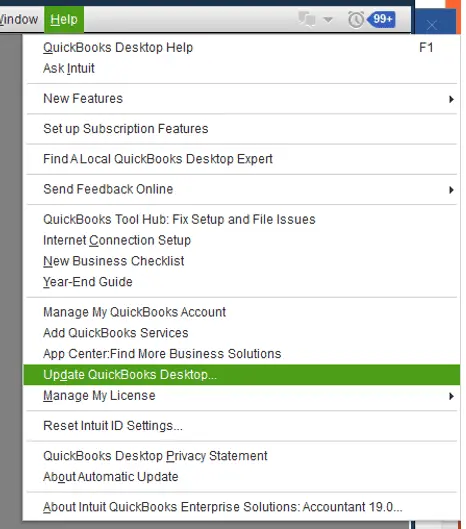
Reopen your company file and try the payroll account update or direct deposit activation again.
These steps install updates for your existing QuickBooks version. They do not upgrade it to a different product year.
If QuickBooks reports that no new updates are available, move to the next check rather than repeatedly downloading the same release.
For other supported update methods, see Intuit’s QuickBooks Desktop update instructions.
Solution 4: Download the latest QuickBooks Payroll tax table
Intuit also recommends updating payroll tax tables when investigating some QB Error 40001 cases.
A payroll tax table contains tax rates and calculation information used by QuickBooks Desktop Payroll. Updating it does not directly repair the Realm ID, but it helps confirm that the available payroll components are current.
To download the update:
- Open QuickBooks Desktop.
- Go to Employees > Get Payroll Updates.
- Check the installed payroll tax-table version.
- Select Download Entire Update.
- Click Update.
- Wait for the confirmation that the download has finished.
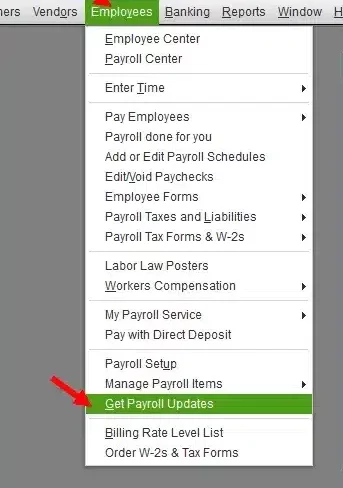
An active, eligible QuickBooks Desktop Payroll subscription is required to download payroll tax tables.
After the update, retry the operation that triggered Error 40001.
If the payroll tax table downloads successfully but the account update still fails, the problem may be separate from the tax-table installation.
What if Error 40001 Appears While Activating Direct Deposit?
If QuickBooks displays Error 40001 during direct deposit activation, check where the setup process stops.
New direct deposit activation requires business information, authorized principal officer details, and an eligible company bank account.
According to Intuit’s current Desktop instructions, the process begins as follows:
- Open QuickBooks Desktop and sign in as the company administrator.
- Select Employees > My Payroll Service > Activate Direct Deposit.
- Click Get Started.
- Sign in to the associated Intuit account if requested.
- Complete the required business and principal officer information.
- Add the company bank account and follow the prompts to create a direct deposit PIN.
- Review and submit the information.
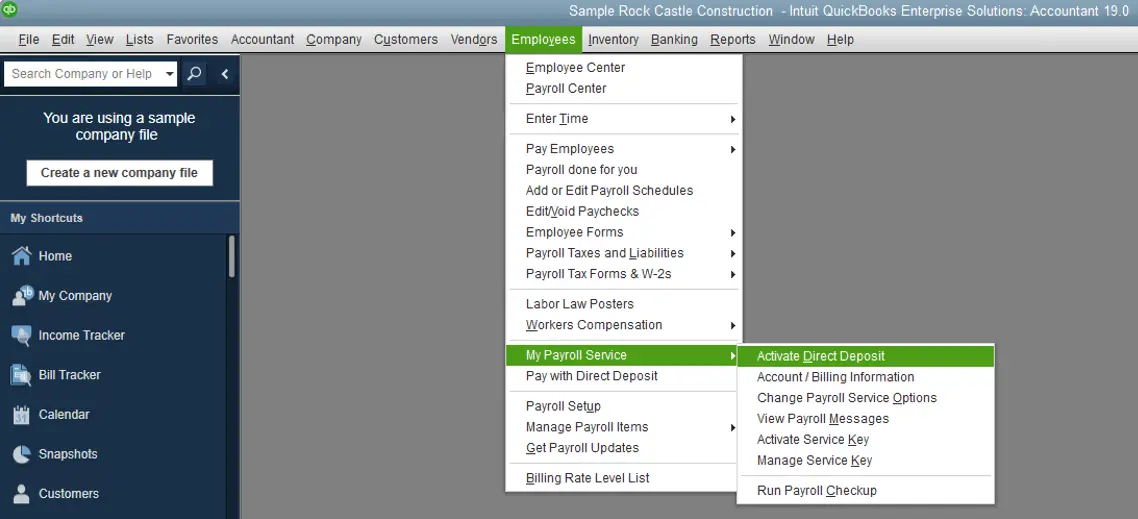
The precise screens may vary according to your product and account status. Intuit provides the complete process in its official direct deposit setup instructions.
If Error 40001 appears before you can submit the information
Confirm that you are using the correct QuickBooks administrator account and the Intuit account associated with payroll.
If both are correct, and QuickBooks is updated, the account association may need investigation by Intuit Payroll Support.
Repeatedly changing the company information or creating another payroll account is not a verified fix.
If QuickBooks asks you to verify your bank account
Bank verification is a separate part of direct deposit activation.
If instant verification is unavailable, Intuit may send a test debit of less than $1 to your company bank account. The debit can take up to two business days to appear.
You must then enter the exact amount to authorize the account.
A bank verification issue does not necessarily mean the company has a Realm ID mismatch. Follow the bank verification instructions shown in QuickBooks and identify any separate error message before continuing.
If you already use direct deposit and only need to update payroll information
Do not repeat the entire first-time activation process unless Intuit specifically instructs you to do so.
For example, if Payroll Center asks you to update company details and selecting Update Now produces Error 40001, the failure concerns an existing payroll account update.
After checking administrator access and available updates, ask Intuit to investigate that account request rather than creating a new direct deposit setup.
How to Resolve a QuickBooks Realm ID Mismatch
If administrator access, subscription status, and software updates are correct but Error 40001 continues, ask Intuit Payroll Support to check the Realm ID associated with your company.
Intuit Community guidance identifies this mismatch as a possible cause of the error.
A user also reported on March 20, 2026, that direct deposit activation began working after Intuit Support aligned the Realm ID between the company file and the direct deposit system.
That is an individual reported resolution, not proof that every Error 40001 has the same cause. You can read the account in the Intuit Community direct deposit activation discussion.
How can you recognize a possible account synchronization problem?
Consider requesting a Realm ID check if:
- The correct company file opens without errors.
- The payroll subscription is active and eligible.
- You can sign in with the appropriate administrator credentials.
- QuickBooks Desktop and payroll components are updated.
- The same payroll account update or direct deposit activation request repeatedly fails with Error 40001.
These observations help narrow the investigation, but they do not establish a Realm ID mismatch by themselves.
Can you correct the Realm ID yourself?
Intuit’s reviewed guidance does not provide a general self-service procedure for correcting the payroll Realm ID mismatch associated with Error 40001.
A payroll support representative may need to use account-level tools to inspect and correct the association.
Do not edit QuickBooks configuration files, alter internal identifiers, or replace company information based on unverified third-party instructions.
If the company manages multiple payroll accounts, ask Intuit to confirm that the correct company file and payroll registration are being checked.
Should You Run Verify and Rebuild Data for Error 40001?
Use Verify Data when there is reason to suspect company file damage. Do not rebuild a healthy file simply because Error 40001 persists.
Intuit has recommended Verify/Rebuild in older Error 40001 discussions, but those utilities address company file integrity, not every account verification issue.
To check the file:
- Open your QuickBooks Desktop company file.
- Select Window > Close All.
- Go to File > Utilities > Verify Data.
- Wait for the verification result.
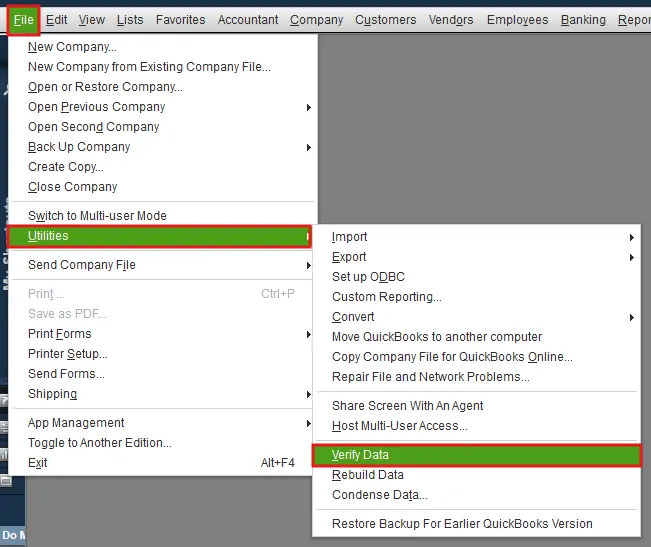
If QuickBooks reports no problems with your data, a rebuild is not indicated by that result. Continue investigating the payroll account.
If QuickBooks reports that your data has lost integrity, preserve a backup and follow Intuit’s Rebuild Data procedure.
Important: If you use QuickBooks Desktop Assisted Payroll, Intuit advises contacting support before rebuilding company data.
For the complete repair procedure, see How to Verify and Rebuild Data in QuickBooks Desktop.
Rebuilding is not a substitute for an Intuit account-level correction when the underlying problem is a Realm ID mismatch.
What to Do if QuickBooks Error 40001 Still Appears
If QuickBooks direct deposit activation error 40001 remains after the applicable checks, contact Intuit Payroll Support and ask for an investigation of the payroll account association.
You can start from QuickBooks Desktop:
- Open QuickBooks.
- Go to Help > QuickBooks Desktop Help/Contact Us.
- Select Contact Us if available.
- Enter a description of Error 40001 and the operation that fails.
- Follow the available support options.
Support menus and availability can differ by Desktop product and subscription.
Prepare your product and release number, payroll service type, and the exact message displayed. Also record what you were doing when the error occurred and which troubleshooting steps you completed.
For example, explain:
I am using a supported QuickBooks Desktop Payroll version. My subscription is active, but Error 40001 appears when I select Update Now in Payroll Center. I have confirmed administrator access and installed the available QuickBooks and payroll updates. Could you check whether the Realm ID associated with my company file matches the payroll system record?
This gives the representative a specific account-level issue to investigate.
Use only Intuit’s official support channels for sensitive information. Do not share administrator passwords, direct deposit PINs, or banking credentials in public Community discussions.
What if payday is approaching?
First, confirm whether a payroll submission has already been accepted.
QuickBooks Desktop Error 40001 appearing during an account update or activation process does not, by itself, establish the status of an earlier direct deposit submission.
If payroll cannot be processed on time, contact your payroll provider or qualified payroll professional to discuss the available payment options.
Check applicable wage-payment requirements before using an alternative method. Record any payment made outside QuickBooks so it can be reconciled correctly.
Do not submit duplicate payroll payments without checking whether the original request was processed.
How to Confirm QuickBooks Error Code 40001 Is Resolved
After applying the relevant fix, return to the exact operation that previously failed.
If the error appeared while updating your payroll account, confirm that QuickBooks accepts the update and displays the expected completion or confirmation message.
If the error appeared during direct deposit activation, verify that the activation request completes and that any required bank verification is finished.
Do not assume direct deposit is ready to use solely because the error message disappears. Check the service’s activation status and any remaining requirements before submitting payroll.
If another error appears, identify it separately. The QuickBooks Payroll Errors guide covers other payroll update, service, and transaction problems.
Conclusion
If QuickBooks Error 40001 prevents payroll account updates or direct deposit activation, begin with administrator access, payroll eligibility, and available software updates.
When those checks are correct and the error persists, ask Intuit Payroll Support to investigate the company file’s Realm ID and its association with the payroll account. Avoid reinstalling QuickBooks or rebuilding company data unless there is separate evidence that those repairs are needed.
Frequently Asked Questions
Can QuickBooks Error 40001 occur when my payroll subscription is active?
Yes, an active subscription does not rule out an administrator authorization problem or a mismatch between the company file and Intuit’s payroll records. Confirm that you are using the correct company and payroll account before requesting further support.
Why does QuickBooks Error 40001 still appear after updating payroll?
A successful software or payroll tax-table update does not necessarily resolve an account synchronization problem. If QuickBooks is current but payroll account verification still fails, Intuit may need to check the Realm ID.
Does QuickBooks Error 40001 mean my company file is damaged?
No, the error has been reported during payroll account updates and direct deposit activation without confirmed company file damage. Run Verify Data if there are additional signs of data integrity problems, but do not assume corruption from this code alone.
Can QuickBooks Tool Hub fix Error 40001?
QuickBooks Tool Hub can help diagnose certain Desktop program, installation, and file problems. It is not a verified universal solution for Error 40001 and does not provide a documented self-service method for correcting a payroll Realm ID mismatch.
Is Error 40001 the same as an incorrect direct deposit PIN?
No, an incorrect direct deposit PIN is an authentication issue, while Error 40001 has been reported during payroll account information updates and activation. If QuickBooks specifically reports a PIN problem, follow Intuit’s approved PIN recovery instructions rather than assuming the two errors are equivalent.
Do I need to change my default browser to fix Error 40001?
There is no verified current Intuit procedure requiring Internet Explorer to be the default browser to fix Error 40001. Older troubleshooting articles may suggest this, but it should not replace the supported administrator, software update, and payroll account checks.
Can I activate direct deposit in QuickBooks Desktop 2023 in 2026?
QuickBooks Desktop 2023 connected payroll services ended after May 31, 2026. Installing another maintenance update cannot restore discontinued direct deposit services. Review the supported QuickBooks and payroll options available for your business.
Does QuickBooks Error 40001 affect QuickBooks Online Payroll?
The Error 40001 cases discussed in this guide concern QuickBooks Desktop Payroll. QuickBooks Online Payroll uses different menus and account procedures. Do not apply these Desktop-specific instructions to an Online payroll issue without confirming that the same error and guidance apply.
Accounts Confidant is an independent accounting and bookkeeping service provider and is not affiliated with Intuit.