QuickBooks Payroll may show your subscription as inactive even after you have paid or renewed it. You might see Inactive in Payroll Center, a request to reactivate payroll, or an error when downloading payroll tax tables.
The warning can mean your subscription has expired, but it can also appear when QuickBooks Desktop fails to recognize an active payroll service.
First, check your subscription status in your Intuit account. If it shows Expired or Canceled, reactivate the service. If it shows Active while QuickBooks Payroll Center says Inactive, verify your service key, company information, and supported Desktop version.
The steps below explain how to identify the problem and restore payroll access without making unnecessary account or software changes.
Why Does QuickBooks Say Your Payroll Subscription Is Inactive?
QuickBooks may display an inactive payroll subscription when the service has expired, a renewal payment has failed, or Desktop cannot verify the subscription linked to your company file.
Possible causes include:
- Expired or canceled subscription: Your payroll service has ended or was canceled.
- Failed renewal payment: Intuit could not process a payment, leaving the subscription inactive.
- Incorrect payroll service key: The key entered in QuickBooks Desktop may not match your registered payroll subscription.
- Subscription status mismatch: Your Intuit account shows Active, but Payroll Center has not recognized that status.
- Incorrect company details: The EIN or company file may not match the payroll service you are trying to use.
- Unsupported Desktop version: The installed QuickBooks version may no longer support connected payroll services.
- Payroll verification or update error: QuickBooks may have trouble completing a subscription check or downloading payroll updates.
These issues need different solutions. For example, updating QuickBooks will not renew a canceled subscription, while making another payment may not resolve an active account that Desktop cannot verify.
Start by identifying which situation applies to you.
How to Check Your QuickBooks Payroll Subscription Status
You can check the payroll status inside QuickBooks Desktop and compare it with the subscription registered in Intuit’s Customer Account Maintenance Portal (CAMPs).
Check Payroll Center in QuickBooks Desktop
- Open QuickBooks Desktop and your company file.
- Go to Employees > My Payroll Service > Manage Service Key.

- Review the Service Name and Status.
- Check whether the status shows Active or Inactive.
- Record any warning or error message.
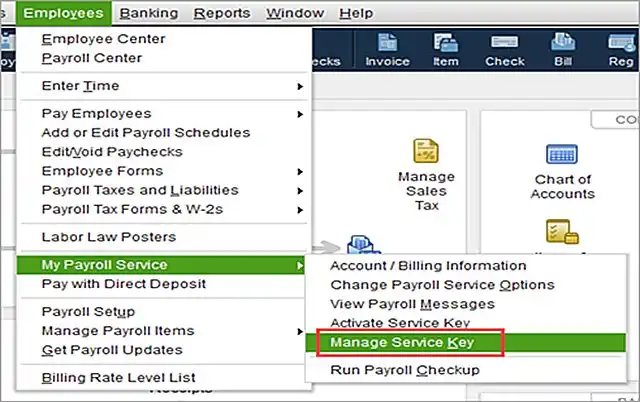
The service status should show Active when QuickBooks recognizes a valid, active payroll subscription.
If it displays Inactive, check your Intuit account before changing the service key.
Verify Your Payroll Subscription in CAMPs
CAMPs shows registered QuickBooks Desktop products and subscription information.
- Visit Intuit CAMPs.
- Sign in with the Intuit account used to register your payroll service.
- Find your subscription under Products & Services.
- Select Details.
- Review the subscription status, payroll service key, and EIN.
If you cannot find the subscription, confirm that you signed in with the correct account. Intuit notes that registered products may be associated with a different email address.
You can follow Intuit’s Desktop subscription management guide for more details.
Once you know the status, use the corresponding solution.
| What you find | What to do |
| Subscription is Expired or Canceled | Follow the reactivation process |
| Subscription is Active, but Payroll Center says Inactive | Verify the payroll service key and company details |
| Payment completed, but reactivation is pending | Check the subscription status and allow the documented processing period |
| Subscription is Active, but payroll updates fail | Troubleshoot the specific update error |
| You use a discontinued Desktop version | Check the supported payroll options before attempting reactivation |
How to Reactivate an Expired QuickBooks Payroll Subscription
You can reactivate an eligible payroll subscription through Intuit’s billing system. The exact steps depend on whether you use QuickBooks Desktop Payroll or an online payroll product.
Reactivate QuickBooks Desktop Payroll Enhanced or Basic
If you use QuickBooks Desktop Payroll Enhanced or Basic, Intuit provides a self-service reactivation option for eligible subscriptions.
Follow these steps:
- Open your QuickBooks Desktop company file.
- Select Employees > My Payroll Service > Account/Billing Info.
- Sign in using your Intuit account.
- Find the subscription Status.
- Select Resubscribe.
- Follow the on-screen instructions to complete reactivation.
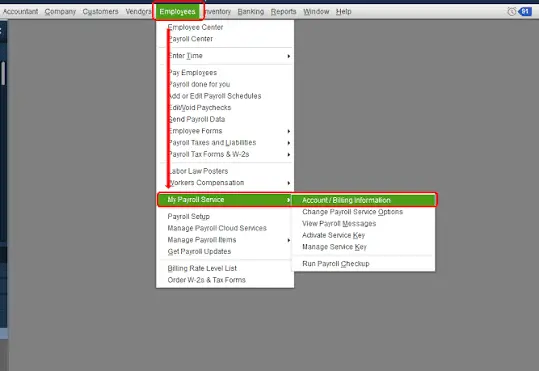
You can also reactivate through CAMPs:
- Sign in to CAMPs.
- Locate your payroll subscription.
- Under Status, select Resubscribe.
- Follow the instructions to renew the service.
Intuit states that QuickBooks Desktop Payroll reactivation may take up to 24 hours to complete. The subscription should show Active when the process finishes.
If your original payroll product is no longer offered, you may need to choose an available replacement rather than reactivate the discontinued plan.
Reactivate QuickBooks Desktop Payroll Assisted
QuickBooks Desktop Payroll Assisted requires a different process.
Intuit instructs Assisted Payroll customers to contact its support team for reactivation.
Before contacting support, prepare the company name, registered EIN, subscription information, and relevant billing details.
Do not create a replacement payroll setup or remove the existing service without confirming the correct procedure.
Reactivate QuickBooks Online Payroll
Intuit’s current reactivation guide refers to its online payroll offering as Intuit QuickBooks Workforce. Eligible online payroll customers can follow these steps:
- Sign in to the payroll account.
- Select Settings.
- Open Subscriptions and billing.
- Find the payroll subscription.
- Select Resubscribe.
- Review the subscription summary and payment details.
- Confirm the resubscription.
The options shown may vary by product and account status.
If you cannot access the billing page, resolve the sign-in problem before attempting another payment. Refer to the QuickBooks Online Login guide for related account-access issues.
How to Fix QuickBooks Payroll Showing Inactive When Your Subscription Is Active
If CAMPs confirms that your subscription is Active but QuickBooks Desktop still shows Inactive, the problem may involve service-key verification or a mismatch between the registered payroll account and the company file.
Do not purchase another subscription until you have checked these details.
Step 1: Refresh Your QuickBooks Payroll Service Key
The payroll service key identifies the payroll subscription used by your QuickBooks Desktop company file.
Intuit recommends checking and revalidating this key as part of troubleshooting certain PSXXX payroll update errors. Intuit Community support also recommends refreshing it when an active subscription is incorrectly displayed as inactive.
To check it:
- Close your QuickBooks company files and restart your computer.
- Open QuickBooks Desktop.
- Select Employees > My Payroll Service > Manage Service Key.
- Review the Service Name and Status.
- Select Edit.
- Compare the service key with the one in CAMPs.
- If the key is incorrect, enter the correct key.
- Select Next.
- Clear the Open Payroll Setup checkbox.
- Select Finish.
QuickBooks may attempt to download a payroll update during the process.
Return to Manage Service Key and check whether the status now shows Active.
If the key was already correct and the warning continues, check the company details next.
Step 2: Verify the EIN and Company File
Your payroll subscription must be associated with the correct employer and company file.
This check is especially useful if you recently moved QuickBooks to another computer, opened a different company file, or registered another business under your payroll account.
Compare these details:
- The company file currently open in QuickBooks.
- The EIN registered with your payroll service.
- The payroll service key.
- The subscription information listed in CAMPs.
For example, if you manage payroll for two businesses, make sure you are using the correct company file and that its EIN is covered by the intended payroll subscription.
An incorrect or unregistered EIN may prevent QuickBooks from recognizing the service.
Do not change a valid EIN to clear the inactive warning. If the information does not match, contact Intuit to confirm the correct registration.
Step 3: Check Whether Your QuickBooks Desktop Version Still Supports Payroll
A discontinued Desktop version cannot regain connected payroll services simply by refreshing its service key.
To check your installed version:
- Open QuickBooks Desktop.
- Press F2 or Ctrl + 1.
- Review the product name, version, and release number.
- Compare them with Intuit’s current support policy.
QuickBooks Desktop 2023 service discontinuation: Intuit ended support for connected services in QuickBooks Desktop 2023 after May 31, 2026.
The discontinuation affects Desktop 2023 Payroll Basic, Enhanced, and Assisted services. Intuit states that affected subscriptions are deactivated and that automatic payroll tax calculations and payroll forms are no longer supported through these versions.
If you use QuickBooks Desktop 2023 or an older discontinued version, review your supported software and payroll options before attempting further repairs.
Step 4: Update Your Supported QuickBooks Desktop Version
If you have a supported Desktop release, check whether a maintenance update is available.
Open QuickBooks Desktop and select Help > Update QuickBooks Desktop > Update Now > Get Updates. 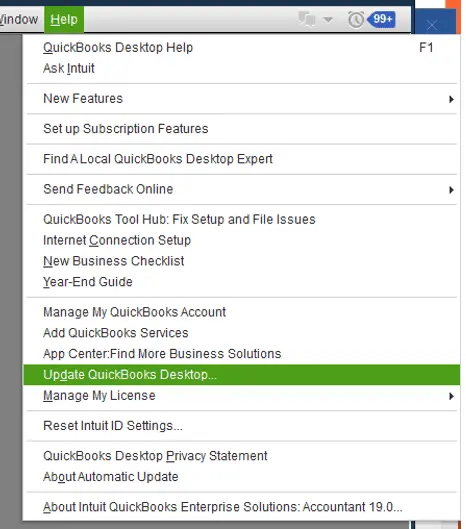
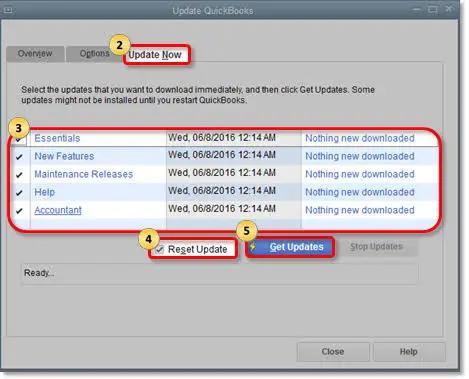
After the update downloads, restart QuickBooks and install it if prompted.
Then reopen the company file and check the payroll status.
Updating Desktop does not renew a canceled payroll subscription. This step is useful when an outdated program release may be interfering with service verification.
For other update methods, see How to Update QuickBooks Desktop.
Step 5: Check Payroll Tax-Table Updates
After QuickBooks recognizes the active payroll service, check whether it can download current tax tables.
Go to Employees > Get Payroll Updates, select Download Entire Update, and then select Update. 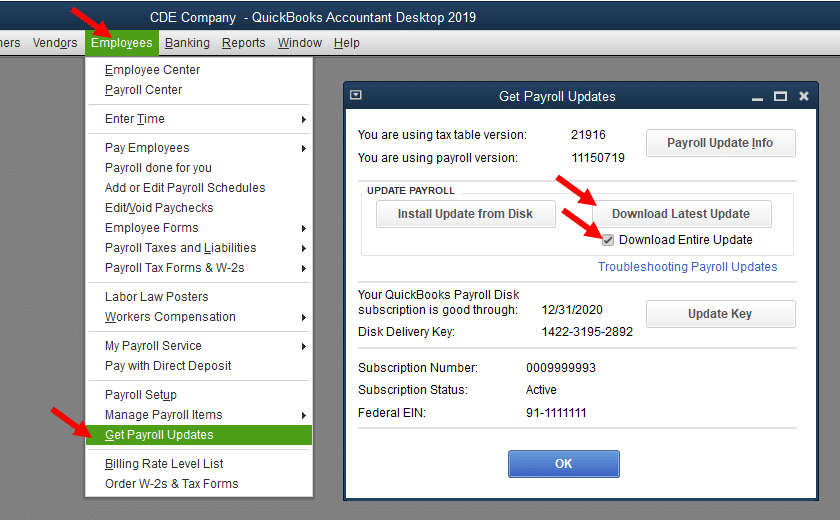
Intuit requires an active Desktop Payroll subscription for tax-table downloads. If the software still reports an inactive service, resolve the subscription issue before repeatedly trying the download.
If the subscription is active but the update fails with a separate error, use the QuickBooks Payroll Update Not Working guide.
For example, Error PS033 can involve payroll update components, internet settings, or firewall restrictions. It does not automatically mean your payroll subscription has expired.
The dedicated QuickBooks Error PS033 guide covers that error without requiring you to repeat the subscription reactivation process.
Step 6: Contact Intuit if the Active Subscription Still Shows Inactive
When CAMPs shows Active and your service key, EIN, and Desktop version are correct, repeated local troubleshooting may not resolve the warning.
In an October 2026 Intuit Community discussion, a Desktop user reported that Payroll Center remained inactive even though the subscription was active and payroll updates had been downloaded. The user later said Intuit support identified an inactive tax-table status associated with the account.
This was an individual customer report, not confirmation of a widespread QuickBooks issue. It shows why account-side investigation may be necessary after standard checks fail.
To contact Intuit from QuickBooks Desktop:
- Open the Help menu.
- Select QuickBooks Desktop Help/Contact Us.
- Choose Contact Us.
- Describe the issue and follow the available chat or callback options.
Prepare the following information:
- QuickBooks Desktop product and release.
- Payroll service type.
- Subscription status in CAMPs.
- Exact message displayed in Payroll Center.
- Date of the last payment or renewal.
- Troubleshooting steps already completed.
Ask Intuit to check whether the payroll service is correctly linked and active for the registered account and EIN.
Do not share your full service key, login credentials, or payment information in public community posts.
What If QuickBooks Payroll Still Says Inactive After Payment or Renewal?
If you have already paid for payroll but the warning remains, confirm whether the payment resulted in an active subscription.
A payment appearing on your bank statement does not necessarily mean the intended payroll account has completed reactivation.
Follow this sequence:
- Check that the payment belongs to the correct payroll subscription.
- Sign in to CAMPs and review the subscription status.
- Check whether a billing issue or cancellation notice remains.
- If you recently reactivated Desktop Payroll, allow Intuit’s documented processing period of up to 24 hours.
- Reopen QuickBooks and check the service status.
- If CAMPs shows Active but Payroll Center does not, request an account-side review from Intuit.
For example, a business might update an expired card and see a successful transaction, yet Payroll Center still displays a renewal warning. In that case, the next step is to check whether Intuit has reactivated the correct payroll service—not to make another payment.
If the Reactivate or Resubscribe button is disabled or missing, confirm that you are signed in to the correct account and that the subscription supports self-service reactivation.
Contact Intuit if the expected option remains unavailable.
What Happens When Your QuickBooks Payroll Subscription Is Inactive?
When payroll service access ends, QuickBooks may restrict connected payroll features. The exact effect depends on the product, subscription status, and whether cancellation has taken effect.
| Payroll feature | Possible effect |
| Payroll tax-table updates | New tax tables may no longer download |
| Automatic payroll tax calculations | Current calculations may be unavailable |
| Direct deposit | New payroll submissions may be blocked |
| Payroll tax forms | Creation, recreation, or electronic filing may be restricted |
| Historical payroll records | Access depends on the payroll product and data-retention policy |
An inactive subscription does not necessarily mean your historical payroll data has been deleted.
Intuit’s cancellation policy provides different data-access rules:
- Desktop Payroll Basic, Standard, and Enhanced: Customers retain access to payroll data after cancellation but cannot recreate tax forms.
- Desktop Payroll Assisted: Copies of filed payroll tax returns remain available through Intuit’s Canceled Client Payroll Tax Center for 12 months after cancellation.
- Intuit QuickBooks Workforce: Intuit states that payroll data remains accessible for up to one year after the cancellation date.
Save copies of payroll reports, employee records, and tax forms while access is available.
What Should You Do If Payroll Is Due Before Reactivation Finishes?
If payday is approaching, first verify whether any payroll has already been submitted.
An inactive status in Payroll Center does not, by itself, confirm that a previously submitted direct deposit failed.
Check the submission status and payment details before making another payment.
If payroll cannot be processed through QuickBooks:
- Contact Intuit to confirm whether the account can submit payroll.
- Identify which employees have not been paid.
- Review the amounts and deductions using reliable payroll records.
- If another payment method is necessary, follow applicable wage-payment and payroll-tax requirements.
- Record any payments made outside QuickBooks so they can be reconciled properly.
Do not send duplicate direct deposits or use outdated tax calculations without checking their accuracy.
If the software problem prevents accurate payroll calculations, obtain qualified payroll assistance before issuing payments or filing tax forms.
How to Confirm That QuickBooks Payroll Has Been Reactivated
A subscription showing Active is a useful first check, but you should also confirm that the payroll features you need are available.
Before the next payroll run:
- Verify that CAMPs shows the payroll subscription as Active.
- Confirm that QuickBooks Desktop recognizes the active service.
- Check that the correct EIN and company file are in use.
- Confirm that the Desktop version is supported.
- Review the installed payroll tax-table version.
- Check employee W-4 information, deductions, and payroll items.
- Verify direct deposit setup and submission availability, if applicable.
Intuit recommends reviewing employee and payroll tax information after reactivation. Settings may need attention if the service was inactive for an extended period.
If a different payroll error appears after the subscription is restored, identify that error separately. The QuickBooks Payroll Errors guide covers other issues involving payroll updates, transactions, and service connections.
Keeping your payment information current, using a supported Desktop release, and checking subscription status ahead of payday can also help prevent avoidable interruptions.
Conclusion
If your QuickBooks payroll subscription is expired or canceled, reactivate it through the appropriate Intuit account or product billing screen.
If your subscription is already Active but Payroll Center shows Inactive, check the service key, EIN, and supported Desktop version. When those details are correct and the warning remains, ask Intuit to investigate the account rather than repeating payments or changing program files.
After payroll access returns, verify the tax tables, employee information, and payment setup before processing payroll.
Frequently Asked Questions
Why Is My QuickBooks Payroll Subscription Inactive Even Though I Paid?
Your payment may have been processed while the payroll service remains inactive or has not been recognized inside Desktop. Check CAMPs to confirm the correct subscription is Active. If it is, verify the service key and request an account-side review if Payroll Center still says Inactive.
How Long Does It Take to Reactivate QuickBooks Desktop Payroll?
Intuit says QuickBooks Desktop Payroll reactivation may take up to 24 hours to complete. If the subscription still shows inactive after that period, check your account status and contact Intuit to investigate any unresolved billing or activation issue.
How Do I Find My QuickBooks Payroll Service Key?
Sign in to CAMPs with the account linked to your Desktop Payroll subscription. Open the subscription details under Products & Services. Intuit lists the payroll service key, EIN, and subscription information there.
Why Does Payroll Center Show Inactive When My Intuit Account Shows Active?
QuickBooks Desktop may not have recognized the correct payroll service information. Compare the service key and EIN with CAMPs, confirm that your Desktop version is supported, and refresh the key using the documented steps. If the statuses still disagree, Intuit may need to investigate the account.
Why Is the Reactivate Payroll Subscription Button Grayed Out?
The selected subscription may not offer self-service reactivation, or you may be signed in to an account that does not manage the service. Confirm the registered payroll account and product in CAMPs. If the option remains unavailable, contact Intuit instead of purchasing another plan.
Can I Reactivate QuickBooks Desktop 2023 Payroll in 2026?
The connected payroll services for QuickBooks Desktop 2023 were discontinued after May 31, 2026. Refreshing a service key cannot restore discontinued services. You will need to review Intuit’s supported software and payroll options.
Can I Use One QuickBooks Payroll Service Key for Multiple Company Files?
It depends on the product and registered EINs.
Intuit states that eligible Desktop Payroll Basic, Standard, and Enhanced subscriptions can cover up to three EINs. Enhanced for Accountant can cover up to 50 EINs.
Desktop Assisted standalone supports one EIN, while Diamond Assisted may support up to three. Online payroll subscriptions generally support one EIN each.


