Getting locked out of QuickBooks can throw off your day, especially when you need to send invoices, run payroll, check expenses, or access important business records. A forgotten password doesn’t mean you’re stuck, though. QuickBooks has different recovery options to help you regain access.
Resetting your QuickBooks password doesn’t have to be a complicated process. Whether you’re using QuickBooks Online or QuickBooks Desktop, the right steps to reset QuickBooks password depend on your version and whether you need to recover an Admin password or reset a regular user’s login. In this blog, we’ll walk you through each process step by step.
Reasons You Might Need to Reset QuickBooks Password
There are several reasons why you may need to reset your QuickBooks password, from recovering access to strengthening account security. The following table highlights common situations and why a password reset may be necessary.
| Reason | Explanation |
| Forgotten Password | You’ve forgotten your password and can no longer sign in to QuickBooks or access your company file. |
| Security Concerns | You suspect unauthorized access or believe your account credentials may have been compromised. |
| Account Recovery | You’re experiencing sign-in issues or need to regain access to your account after being locked out. |
| Employee Turnover | An employee leaves the company or changes roles, requiring access permissions or credentials to be reviewed and updated. |
| Compliance Requirements | Your organization’s internal security policies or applicable compliance requirements call for a password change. |
| Routine Security Maintenance | You want to strengthen account security by replacing an old, reused, or weak password. |
| Shared or Exposed Credentials | Your password has been shared with others or may have been exposed to unauthorized individuals. |
| Administrative Changes | You need to update the Admin password to maintain control over access to sensitive financial records. |
Let’s learn how to reset the password starting with QuickBooks desktop.
How To Reset Your QuickBooks Desktop Password
If you’ve forgotten your QuickBooks Desktop password, you can reset it to regain access to your company file. The steps depend on whether you need to reset a regular user password or the QuickBooks Admin password.
Reset a QuickBooks User Password
If you can sign in as the Admin user, follow these steps to reset another user’s password:
- Open QuickBooks Desktop and sign in as the Admin user.
- Go to Company > Set Up Users and Passwords > Set Up Users.

- Enter the Admin password when prompted.
- Select the user whose password you want to change from the User List.
- Click Edit User and enter a new password.
- Select Next twice, then click Finish.
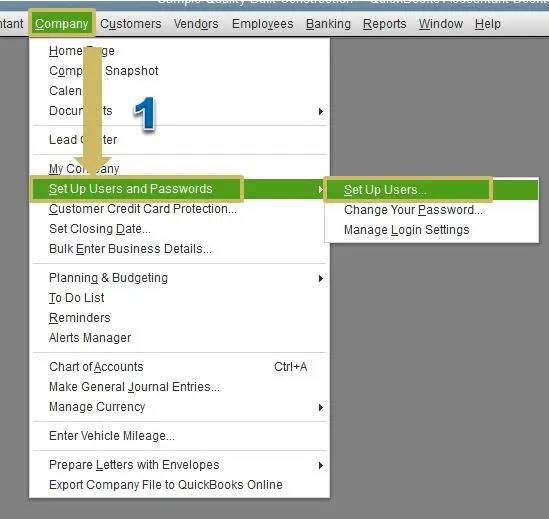
The user can now sign in using the new password.
Reset the QuickBooks Admin Password
If you have forgotten the admin password, follow the steps for your QuickBooks Desktop version.
For QuickBooks Desktop 2020 and later:
- Open QuickBooks Desktop and open your company file.
- On the sign-in screen, select I forgot my password.
- Select the email address associated with your account and click Next.
- Check your email for the password-reset verification token. Check your spam or junk folder if you don’t see it.
- Enter the token in QuickBooks and follow the on-screen instructions to reset your Admin password.
If your email address isn’t listed, select “Don’t see your email in the list above?” and follow the instructions to verify your account.
For QuickBooks Desktop 2019 and earlier:
- Open QuickBooks Desktop and select I forgot my password on the login screen.
- Complete the verification form with your QuickBooks license number and the contact information used when you registered the product.
- To find your license number, press F2 on the QuickBooks login screen.
- Enter your name, email address, phone number, and ZIP code.
- Click OK to submit your information.
- Check the primary email address associated with your Intuit account for the verification code.
- Enter the code and follow the on-screen instructions to create a new Admin password.
Make sure the information you enter matches the details registered in your Intuit account.
Use the Automated Password Reset Tool
If you cannot reset your Admin password using the standard process, you may be able to use Intuit’s Automated Password Reset Tool.
Important: This tool is not compatible with QuickBooks Desktop 2020 or later. For those versions, use the built-in password-reset process instead.
To use the tool with a supported older version:
- Download the QuickBooks Desktop Automated Password Reset Tool.
- Enter your QuickBooks license number and the business information associated with your registered product.
- If your details don’t match, sign in to the Intuit Customer Account Management Portal (CAMPS) and verify your account information.
- Accept the license agreement and download the tool. If prompted, save the file to your Desktop.
- Run the tool and enter the verification token sent to your registered email address.
- Select your QuickBooks Desktop version from the product dropdown.
- Click Browse for Company File and select the company file you need to access.
- Enter the correct Admin username, if it differs from the default username, Admin.
- Enter a new temporary password and confirm it.
- Select Reset Password to complete the process.
Open your company file and sign in using the new password. QuickBooks may prompt you to change the temporary password when you log in.
The tool is intended for one-time use. If you need another reset, you may have to complete the verification process again.
Now let’s learn how to reset the password for QuickBooks online.
How to Reset Your QuickBooks Online Password
If you’ve forgotten your QuickBooks Online password or are having trouble signing in, you can reset it through your Intuit account. QuickBooks Online uses your Intuit account login credentials, so resetting your password will update the password associated with that account.
Steps to Reset Your QuickBooks Online Password
Follow these steps to regain access to your account:
- Go to the QuickBooks Online sign-in page.
- Select, “I forgot my user ID or password” on the sign-in screen.
- Enter your registered email address, phone number, or user ID, as requested.
- Follow the on-screen instructions to verify your identity.
- Check your email or phone for the verification code or password-reset instructions.
- Enter the verification code if prompted, then follow the instructions to create a new password.
- Return to the QuickBooks Online sign-in page and log in using your updated credentials.
How to Change Your QuickBooks Online Password While Signed In
If you can still access your account and simply want to change your password, follow these steps:
- Sign in to QuickBooks Online.
- Select your Profile icon near the Gear icon.
- Choose Manage your Intuit Account.
- Select Sign in & security.
- Locate the Password section and follow the prompts to update your password.
- Save your changes and sign in again if prompted.
Moving forward, we will discuss the QuickBooks password requirements.
QuickBooks Password Requirements
Before resetting your QuickBooks password, check the requirements for your product. QuickBooks Desktop company file passwords and Intuit account passwords have different rules, so the requirements may vary depending on the version you’re using.
QuickBooks Desktop Password Requirements
QuickBooks Desktop complex passwords must meet the following requirements:
- Length: 8 to 16 characters.
- Uppercase letter: At least one uppercase letter.
- Lowercase letter: At least one lowercase letter.
- Number: At least one digit.
- Special character: At least one supported special character.
- No spaces: Spaces are not allowed.
- Username restriction: The password cannot contain the username, and the username cannot contain the password. These checks are case-sensitive.
QuickBooks Desktop passwords are also case-sensitive and must be changed every 90
QuickBooks Online Password Security
QuickBooks Online uses your Intuit account credentials. creating a strong password that combines uppercase and lowercase letters, numbers, and symbols.
Tips for Keeping Your QuickBooks Password Secure
- Use a unique password that you don’t use for other accounts.
- Avoid sharing your password with anyone.
- Keep your registered email address and phone number up to date so you can verify your identity if needed.
- Consider enabling an authenticator app for additional sign-in security.
Note: These requirements apply to the products and configurations described in Intuit’s guidance. If your QuickBooks version displays different password instructions, follow the requirements shown for your company file or Intuit account.
Now, we will share some tips to reset your QuickBooks password smoothly.
Tips for Resetting Your QuickBooks Password
Following these tips can help you reset your QuickBooks password smoothly and keep your account secure. However, if you still encounter login issues, knowing how to troubleshoot common password-reset problems can help you regain access to your account.
- Use the correct email address or user ID linked to your Intuit account.
- Check your spam or junk folder for password-reset emails.
- Create a strong, unique password to protect your account.
- Keep your recovery email address and phone number up to date.
- Never share your password or verification codes with anyone.
- Use the official Intuit website to reset your password securely.
- Follow the correct reset procedure for QuickBooks Online or QuickBooks Desktop.
Contact QuickBooks expert if you continue to experience login issues.
Conclusion
Losing access to QuickBooks can disrupt your workflow, but knowing where to turn can make the situation easier to handle. Follow the recovery steps that match your QuickBooks version, and double-check your login details before trying again. If the problem persists, contact QuickBooks Expert for help with the next steps. Once you’re back in, review your account’s recovery information and security settings to make future password issues easier to resolve.
Frequently Asked Questions
Why is the QuickBooks Automated Password Reset Tool not working?
Check whether you’re using a supported version. The tool is not compatible with QuickBooks Desktop 2020 or later. For supported older versions, verify your license number and registered contact details, run the tool with the correct company file, and enter the correct Admin username.
I’m not receiving the QuickBooks password reset email. What should I do?
Check your spam and junk folders, confirm you’re checking the correct registered email address, and allow a few minutes for delivery. For an Intuit account, you can request another verification code. Use the latest code if you’ve requested multiple codes.
How do I reset my QuickBooks password if I no longer have access to the registered email?
For QuickBooks Online or your Intuit account, try another available verification method, such as your registered phone number. If you can’t access any verification method, submit Intuit’s account recovery form and follow the identity verification instructions. For Desktop company file passwords, follow the recovery options provided for your version.
Can I reset the Admin password for multiple QuickBooks company files at once?
The Automated Password Reset Tool requires you to select a company file during the reset process. You should expect to repeat the process for each file that needs a password reset. Keep the correct file and Admin username in mind to avoid changing the wrong credentials.
How do I find my QuickBooks license number for password reset?
Open QuickBooks Desktop and press F2 to display the Product Information window, where you can find your license number. You can also check your Intuit account’s product details if your license is registered there.
How do I reset an employee’s password in QuickBooks Online Workforce?
For QuickBooks employee password reset (QBO Workforce), employees generally reset their own Workforce sign-in password through the Intuit sign-in page by selecting I forgot my user ID or password. If an employee has lost access to their registered email or phone, they should follow Intuit’s account recovery process. Employers can help with access or invitation issues.
What if the password reset token has expired?
Return to the official recovery process and request a new token or verification code. Use the most recent code you receive, since older codes may no longer work. If the issue continues, restart the reset process and check that you’re following the correct steps for your QuickBooks version.
Can I reset a QuickBooks Desktop for Mac password?
Yes, On the sign-in screen, select the lock icon beside the password field and choose an email address you can access. Follow the instructions in the email for the QuickBooks Desktop Mac password reset. To change a non-Admin user’s password, sign in as Admin and go to Company > Users and Passwords.
Why does QuickBooks say, “The information you entered does not match our records” during password reset?
This usually means one or more details don’t match the information registered with Intuit. Check the license number, registered email address, business phone number, contact name, and ZIP or postal code for typing errors. Make sure you’re using the details associated with the correct Intuit account.

