QuickBooks helps businesses and accounting professionals manage daily financial tasks, from recording transactions to maintaining customer and vendor records. However, display problems can sometimes affect how the software looks and functions. One such problem is the QuickBooks black and white screen issue, where the interface loses its normal colors, appears in grayscale, or displays black fields where white fields should appear.
This issue can make it difficult to read information, identify fields, and navigate different sections of QuickBooks. It may be related to graphics driver problems, Windows display or theme settings, or QuickBooks configuration issues. Identifying the exact symptom is important because black fields and a completely monochrome screen may have different causes and require different solutions.
In this blog, we’ll explore the common causes of the QuickBooks black and white screen issue and explain the troubleshooting steps you can follow to restore the display.
Why Does the QuickBooks Screen Turn Black and White?
The QuickBooks black and white display issue can occur for several reasons. Sometimes, the problem is related to Windows display settings or graphics drivers. In other cases, QuickBooks program files or configuration settings may be involved.
Here are some common causes to help you understand what might be affecting your screen.
| Possible cause | How it can affect QuickBooks |
| Outdated or incompatible graphics drivers | Old or incompatible video card drivers can interfere with how QuickBooks renders colors and other visual elements. |
| Incorrect Windows display settings | Changes to screen resolution, scaling, or display configuration may affect how QuickBooks appears on your screen. |
| Windows theme conflicts | Certain Windows themes or visual settings may not display correctly with QuickBooks, causing fields or interface elements to look different. |
| QBW.ini configuration issues | Incorrect or unexpected color-related settings in the QBW.ini file may contribute to black fields in QuickBooks Desktop. |
| Background processes | Other programs running in the background may interfere with QuickBooks performance or its display behavior. |
| Damaged or incomplete QuickBooks program files | If some program components are damaged or not registered correctly, QuickBooks may not display certain elements as expected. |
| Windows or software compatibility issues | A Windows update or software change may introduce compatibility problems that affect how QuickBooks displays on the computer. |
Note: The QuickBooks black and white screen vs black fields distinction is important. If only certain input fields appear black, the issue may be different from a situation where the entire QuickBooks interface turns grayscale. A QuickBooks gray screen or a completely monochrome interface may point to display or accessibility settings, while isolated black fields may require a different troubleshooting approach.
Next, let’s go through the fixes you can try to resolve the issue.
How to Fix the QuickBooks Black and White Screen Issue
Once you have identified how the display problem appears, the next step is to troubleshoot it.
Try the following methods one at a time. After each fix, reopen QuickBooks and check whether the display has returned to normal.
1. Run Quick Fix My Program from QuickBooks Tool Hub
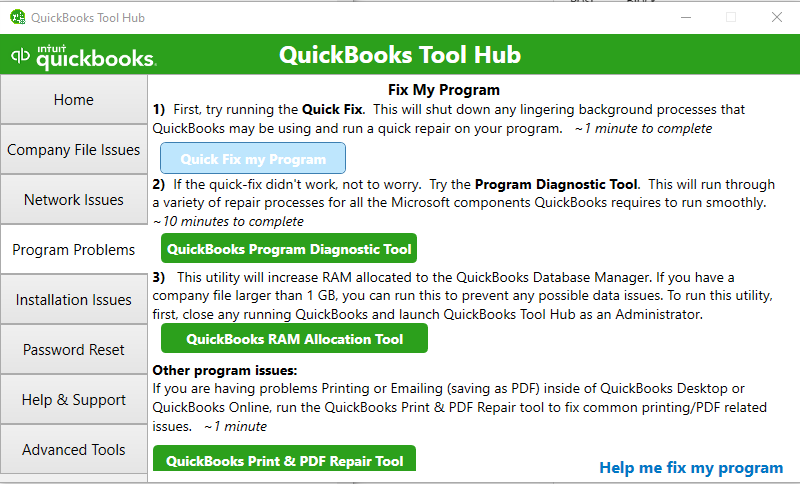
QuickBooks Tool Hub includes a utility called Quick Fix My Program, which can help resolve common program-related issues. It closes background QuickBooks processes and runs a quick repair.
Follow these steps:
- Close QuickBooks Desktop and make sure no company file is open.
- Download and install the latest version of QuickBooks Tool Hub.
- Open QuickBooks Tool Hub.
- Select Program Problems from the left menu.
- Click Quick Fix My Program.

- Wait for the process to finish.
- Open QuickBooks Desktop again and check the screen.
If the black and white display issue continues, move on to the next solution.
2. Update Your Video Card Drivers
Outdated or incompatible graphics drivers can affect how applications display colors, text, and other visual elements. Updating your video card drivers may help resolve display-related problems in QuickBooks.
Here’s how to check your graphics card details:
- Press Windows + R on your keyboard.
- Type dxdiag in the Run box and press Enter.
- If prompted, allow the DirectX Diagnostic Tool to load.
- Open the Display tab.
- Note the graphics card manufacturer and model.
- Visit the manufacturer’s official website, such as Intel, NVIDIA, or AMD.
- Download and install the appropriate driver update.
- Restart your computer and open QuickBooks again.
Make sure you select a driver that matches your graphics card and Windows version.
3. Check Windows Display and Accessibility Settings
Windows includes display and accessibility options that can change how colors appear on your screen. For example, a color filter or contrast theme may make the entire display look grayscale or unusually dark.
If you suspect the QuickBooks black and white screen high contrast mode setting is responsible, check the following options:
- Press Windows + I to open Settings.
- Select Accessibility.
- Open Color filters.
- Make sure color filters are turned off if you do not need them.
- Go back to Accessibility and open Contrast themes.
- Check that a high-contrast theme has not been enabled accidentally.
- Restart QuickBooks and see whether the display looks normal.
If the issue affects other applications as well, Windows display settings are worth checking before making changes inside QuickBooks.
4. Check Your Windows Theme Settings
Windows themes control several visual elements, including colors, backgrounds, and window appearance. In some cases, theme settings may contribute to display problems in QuickBooks Desktop.
You can try switching to a standard Windows theme:
- Right-click an empty area of your desktop.
- Select Personalize.
- Open the Themes section.
- Select a standard Windows theme.
- Close Settings and restart QuickBooks.
The older Windows Basic Theme option mentioned in some QuickBooks troubleshooting instructions may not be available in Windows 11. Choose a standard theme supported by your Windows version instead.
5. Edit the QBW.ini File
QuickBooks Desktop uses the QBW.ini file to store certain program settings. Intuit’s troubleshooting instructions for black fields include changing a color-related setting in this file.
Important: Close QuickBooks before editing the file. Also, create a backup copy of QBW.ini so you can restore the original configuration if needed.
Follow these steps:
- Close QuickBooks Desktop.
- Open File Explorer.
- Navigate to the QBW.ini file location for your QuickBooks version.
- Open the file using Notepad.
- Scroll to the bottom of the file.
- Add the following lines:
[COLORS]
Classic=0 - Select File > Save.
- Close Notepad and reopen QuickBooks Desktop.
Note: The file path may differ in newer releases, so do not assume those older paths apply to your installation. This setting is specifically documented for black fields, not as a guaranteed fix for every full-screen monochrome problem.
6. Check Your Screen Resolution and Scaling
Incorrect display resolution or scaling settings can sometimes affect how QuickBooks Desktop appears. This is particularly worth checking if text, fields, or other interface elements look distorted or incorrectly sized.
To review your Windows display settings:
- Right-click your desktop and select Display settings.
- Find the Display resolution option.
- Check whether the recommended resolution is selected.
- Review the Scale setting and use the recommended value.
- Close Settings and reopen QuickBooks.
Avoid changing multiple display settings at once. Check QuickBooks after each adjustment so you can identify whether a particular setting makes a difference.
7. Repair QuickBooks Desktop
If the previous methods do not resolve the problem, some QuickBooks program components may need repair. QuickBooks Tool Hub provides utilities that can help troubleshoot common installation and program issues.
You can try the installation repair process:
- Close QuickBooks Desktop.
- Open QuickBooks Tool Hub.
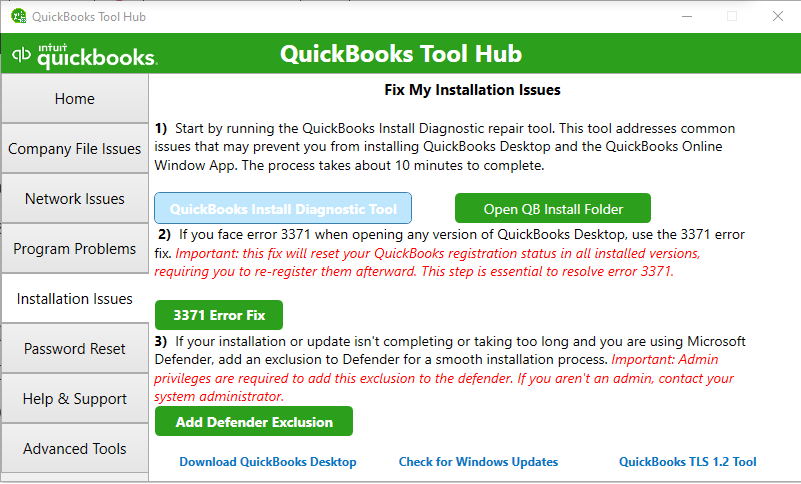
- Select Installation Issues.
- Choose the available repair option, such as QuickBooks Install Diagnostic Tool, if appropriate for your issue.
- Allow the tool to complete its process.
- Restart your computer.
- Open QuickBooks and check whether the display issue is resolved.
If the problem remains, refer to some additional prevention tips mentioned below.
Tips to Prevent QuickBooks Display Issues
Fixing the QuickBooks black and white screen issue is important, but taking a few preventive steps can help reduce the chances of it happening again.
Here are some practices worth following:
– Avoid Installing Unverified Third-Party Tools: Some screen customisation utilities and third-party applications may interfere with how QuickBooks displays its interface. Install software only from trusted sources.
– Use a Consistent Display Environment: Avoid frequently switching between multiple monitors, docking stations, and display arrangements while QuickBooks is running.
– Save Your Work Before Switching Display Modes: If you need to switch monitors, change display modes, or start a Remote Desktop session, save your work first to reduce the risk of interruptions.
– Avoid Running Multiple QuickBooks Sessions: Opening several QuickBooks windows or sessions unnecessarily can consume system resources and make troubleshooting more difficult.
– Keep a Record of Display Changes: Note any recent software installations, system changes, or display-related adjustments. This can help identify what triggered the QuickBooks black and white screen if it occurs again.
– Check Whether the Issue Is Limited to One User: In multi-user environments, ask whether other users experience the same QuickBooks black fields or gray screen. This can help distinguish a workstation-specific issue from a broader setup problem.
– Document Your Working Display Configuration: Keep a note of your usual monitor arrangement and display preferences. This makes it easier to identify unexpected changes if the QuickBooks screen turns black and white again.
These tips focus on reducing avoidable interruptions and making recurring QuickBooks display problems easier to identify.
Conclusion
The QuickBooks black and white screen issue can often be resolved by identifying its cause and applying the right fix. Whether you’re experiencing black fields, a gray screen, or a monochrome display, start with the basic troubleshooting steps and work your way through the advanced solutions if needed. If the problem persists, contact QuickBooks for further assistance.
Frequently Asked Questions
What is the QBW.ini Classic=0 fix, and how do I do it?
The QBW.ini fix involves adding a color setting to the QuickBooks configuration file to address black fields.
1. Close QuickBooks Desktop.
2. Locate and open the QBW.ini file using Notepad.
3. Go to the end of the file.
4. Add these lines:
[COLORS]
Classic=0
5. Save the file and reopen QuickBooks.
Create a backup of the original file before editing it. The documented Intuit instructions apply to specific QuickBooks Desktop versions, so the file location may vary.
Why does the black and white screen keep coming back after I restart?
If the QuickBooks black and white screen keeps coming back, the underlying cause may not have been resolved. Graphics driver conflicts, Windows display settings, or recurring compatibility problems may be responsible. Check whether the issue returns after a particular update, restart, or display change.
What is the difference between black fields and a black-and-white screen?
QuickBooks black fields refer to individual input areas that appear black instead of white. A black-and-white screen generally describes a broader display problem where the interface loses its usual colors or appears monochrome. These symptoms may have different causes, so identifying the affected area is important before choosing a fix.
Will editing the QBW.ini file damage my company file?
No. Editing the QBW.ini file changes QuickBooks program configuration settings, not the company file itself. However, an incorrect edit may cause unexpected program behaviour. Always close QuickBooks and back up the original QBW.ini file before making changes.
How do I fix the QuickBooks black and white screen on Windows 11?
If you experience the QuickBooks black and white screen Windows 11 issue, first check Windows color filters and contrast themes. Then run Quick Fix My Program and check your graphics drivers. You should also verify that your QuickBooks version is compatible with your Windows installation.
How do I fix the black and white screen on Remote Desktop (RDP)?
The QuickBooks black and white screen remote desktop issue may be related to the remote display configuration. Check the display resolution and scaling settings on both the local and remote computers. Compare the QuickBooks display when accessed directly on the host computer. If the issue occurs only through RDP, involve your IT administrator to investigate the remote display configuration.
Is my company file damaged if QuickBooks turns black and white?
Not necessarily. A black-and-white display problem is generally a visual or program-related symptom and does not automatically indicate company file damage. If you can still open your company file and access your records, avoid making unnecessary changes to it. Contact QuickBooks if you also experience file-opening errors or missing data.
Why does QuickBooks turn black and white only on certain screens, such as the Vendor list?
If the QuickBooks black and white display issue appears only in the Vendor list or another specific section, it may be related to that screen’s display behaviour or a program-specific issue. Check whether the problem occurs in other company files or user accounts. If it is limited to one screen, share that detail with QuickBooks Support when seeking assistance.
Can I use a third-party tool to fix the black and white screen?
It is best to avoid unverified third-party repair tools. They may not address the actual cause and could introduce additional software problems. Use QuickBooks Tool Hub and official graphics driver updates first. If the issue remains unresolved, contact Intuit Support.
Does the black and white screen affect QuickBooks Online or Mac?
The QuickBooks black and white screen Mac issue requires troubleshooting appropriate for macOS. The QBW.ini Classic=0 fix applies to QuickBooks Desktop for Windows and should not be used for QuickBooks Online or QuickBooks for Mac. If QuickBooks Online appears monochrome, check your browser’s display and accessibility settings. For QuickBooks Mac, use troubleshooting steps specific to your macOS version rather than Windows instructions.
Accounts Confidant is an independent accounting and bookkeeping service provider and is not affiliated with Intuit.