QuickBooks can turn a routine accounting task into a screen-fixing exercise when its display stops behaving as expected. An invoice opens with black fields, text becomes difficult to read, dropdown menus appear blank, or a window disappears beyond the edge of the monitor. You haven’t changed the way you work, but suddenly, navigating QuickBooks takes more effort than it should.
These problems are often tied to how QuickBooks interacts with your computer’s display settings. Windows scaling, high-DPI settings, screen resolution, and QuickBooks Desktop preferences can all affect how the software appears on screen. The tricky part is identifying which setting is responsible instead of changing several things at random.
Before considering a reinstall or worrying about your company file, start with the display settings. This guide explains the common causes of QuickBooks display issues and walks you through troubleshooting steps.
Reasons For QuickBooks Display Issues
Before trying different fixes, look for the symptoms you are experiencing.
- Blurry text or icons: Fonts, menus, and icons appear fuzzy or difficult to read.
- Oversized or tiny text: The interface looks unusually large or small.
- Missing buttons or cropped forms: Transaction windows extend beyond the visible screen.
- Black fields or blank dropdowns: Some interface elements fail to render correctly.
- Overlapping labels: Text and form fields appear on top of one another.
- Off-screen windows: QuickBooks opens outside the visible desktop area.
- Distorted windows: The interface looks different after maximizing, minimizing, or resizing a window.
- Pages that do not refresh: QuickBooks displays outdated content or fails to load part of a page.
Recognizing the specific symptom can save you time because a blurry desktop interface may require a different fix from a browser page that refuses to refresh.
How to Fix QuickBooks Display Issues
When troubleshooting QuickBooks screen problems, it’s best to start with the display settings rather than changing multiple things at once. Try these fixes one at a time and check whether the screen improves before moving to the next step.
Fix 1: Adjust QuickBooks High-DPI Settings to Resolve a Blurry Screen
A QuickBooks blurry screen, fuzzy icons, or text that looks unusually large or small can be related to high-DPI scaling. This is particularly noticeable when using a high-resolution monitor.
To fix QuickBooks display issues related to DPI settings, follow these steps:
- Close QuickBooks Desktop.
- Open the Windows Start menu and search for QuickBooks.
- Right-click the QuickBooks icon and select Open file location, if available.
- In the installation folder, locate QuickBooks.exe.
- Right-click the file and select Properties.
- Open the Compatibility tab.
- Select Change high DPI settings.
- Review the available high-DPI scaling options and follow the setting recommended in Intuit’s instructions for your Windows version.
- Click OK, then Apply.
- Reopen QuickBooks and check whether the text and interface look clearer.
Still seeing a blurry screen? Don’t change several compatibility settings at once. The next step is to check how QuickBooks arranges its open windows.
Fix 2: Switch QuickBooks Desktop to One Window View
Sometimes, QuickBooks Desktop display issues show up as overlapping windows, awkwardly arranged screens, or windows that are difficult to navigate. We recommend checking the Desktop View preference and switching to One Window.
Here’s how:
- Open QuickBooks Desktop.
- Select Edit from the top menu.
- Click Preferences.
- Select Desktop View from the left panel.
- Open the My Preferences tab.
- Under the View section, select One Window.
- Click OK.
- Close and reopen QuickBooks to check the change.
This setting gives you a different way to manage open QuickBooks windows and may help when the current view is causing navigation difficulties.
If the windows still don’t fit properly, the issue may be related to your computer’s screen resolution or scaling. That’s what we’ll check next.
Fix 3: Check Windows Resolution and Scaling Settings
Incorrect Windows display settings can affect how QuickBooks appears on your monitor. You may notice oversized text, cut-off interface elements, or a QuickBooks off-screen window.
To check the settings:
- Right-click an empty area of your Windows desktop.
- Select Display settings.
- Choose the monitor on which you use QuickBooks.
- Find Display resolution and select the option marked Recommended.
- Review the Scale setting if text or interface elements appear too large or too small.
- Apply the changes and reopen QuickBooks to check the display.
A minimum resolution of 1024 × 768 and 1920 × 1080 is advised. However, your monitor’s recommended resolution and your QuickBooks version’s requirements should guide your choice.
One thing to keep in mind: Windows display settings can affect other applications too. Note your original settings before making changes, especially if you use multiple monitors with different scaling levels.
If QuickBooks still displays black fields after checking these settings, move on to the next fix rather than repeatedly adjusting the screen resolution.
Fix 4: Resolve Black Fields in QuickBooks Desktop
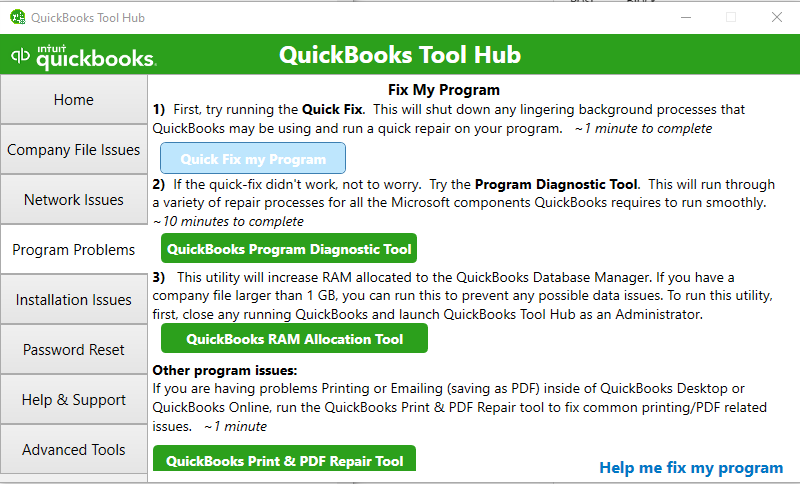
Black fields instead of white ones are another type of QuickBooks Desktop display issue. If certain fields appear black or their contents are difficult to view, using the Quick Fix My Program tool is suggested.
Follow these steps:
- Close QuickBooks Desktop.
- Download and install QuickBooks Tool Hub.
- Open QuickBooks Tool Hub.
- Select Program Problems.
- Click Quick Fix My Program.

- Wait for the tool to finish.
- Reopen QuickBooks and check whether the fields display correctly.
If the black fields remain, check whether your graphics driver needs an update. Use the driver supplied by your computer manufacturer or graphics hardware vendor.
If the problem continues after these steps, avoid making registry changes or editing system files based on generic online instructions. If the previous fixes haven’t helped, checking for a graphics driver update is a sensible next step.
Fix 5: Update Your Graphics Card Drivers
Outdated or incompatible graphics drivers can contribute to display problems, including black fields, blurry text, and other visual glitches in QuickBooks Desktop.
Follow these steps:
- Right-click the Windows Start button.
- Select Device Manager.
- Expand the Display adapters section.
- Right-click your graphics adapter.
- Select Update driver.
- Choose Search automatically for drivers.
- Follow the instructions if Windows finds an applicable update.
- Restart your computer and reopen QuickBooks.
Make sure the driver matches your hardware and Windows version.
Still experiencing QuickBooks display issues? Before attempting more changes, check whether the problem affects QuickBooks generally or appears only when you open a particular company file.
Fix 6: Test QuickBooks Using a Sample Company File
Not every display problem points to an issue with QuickBooks itself. Sometimes, the problem may be limited to a particular company file. Testing a sample company file can help you narrow down where the issue originates.
Here’s how to perform the test:
- Open QuickBooks Desktop.
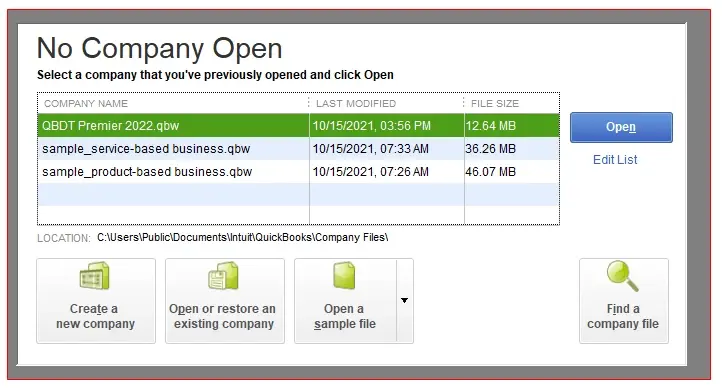
- Go to the No Company Open window.
- Select Open a sample file, if the option is available.
- Choose one of the sample company files.
- Check whether the same display problem appears.
Review the result:
- The sample company file displays correctly: The problem may be specific to your company file.
- The sample company file also displays incorrectly: The issue may be related to QuickBooks, Windows, or your display configuration.
If the problem appears limited to your company file, consider running the Verify and Rebuild Data utility to check for data-integrity issues. Create a backup before running the Rebuild process.
Keep in mind that a display problem alone does not mean your company file is damaged. Use this step as a diagnostic check rather than a direct display repair.
If the sample file shows the same display problem, focus on the application and your computer’s configuration. The next step is to check whether your software is up to date.
Fix 7: Update QuickBooks Desktop and Windows
Running outdated software can sometimes contribute to compatibility problems. If you’re experiencing QuickBooks display issues after a Windows update, or the problem started after changing your system configuration, check whether QuickBooks and Windows have applicable updates.
Here’s what you can do:
- Open QuickBooks Desktop.
- Check for available updates for your installed QuickBooks version.
- Install applicable updates by following Intuit’s instructions.
- Open Windows Settings.
- Select Windows Update.
- Click Check for updates.
- Review available updates, including applicable graphics driver updates.
- Restart your computer and reopen QuickBooks.
For users searching for QuickBooks display issues on Windows 11 26H2, check Intuit’s compatibility guidance and Microsoft’s Windows release information before applying any version-specific workaround. Don’t assume that every display problem on this release has the same cause.
If the display issue continues after updating, the problem may be related to how QuickBooks runs on your computer rather than the application version itself. This is particularly important if you use remote access, multiple monitors, or a Mac.
Fix 8: Check Your Display Environment
QuickBooks display issues can vary depending on your monitor setup, operating system, or remote access environment. Use the table below to identify what to check for your particular setup.
| Display environment | Steps to fix the issue |
| QuickBooks display issues with multiple monitors and different scaling | Open Windows Settings > System > Display. Select each monitor and use its recommended resolution. For QuickBooks Multi-Monitor mode, use the same resolution and 100% DPI scaling across monitors, and arrange them horizontally. |
| QuickBooks off-screen window | Press Alt + Tab to select the QuickBooks window. Then press Windows + Shift + Left/Right Arrow to move it to your active monitor. |
| QuickBooks display issues in Remote Desktop (RDP) | Check the resolution and scaling settings on your local computer. Disconnect and reconnect to the remote session, then reopen QuickBooks. |
| QuickBooks display issues in Citrix | Close QuickBooks and disconnect from the Citrix session. Reconnect and reopen QuickBooks. Check whether other applications also display incorrectly in the session. |
| QuickBooks display issues on Mac Retina displays | Open Apple menu > System Settings > Displays. Try an available resolution or scaling option, then reopen QuickBooks or refresh your browser if you’re using QuickBooks Online. |
| QuickBooks Online screen not refreshing | Refresh the page using Ctrl + R on Windows or Command + R on Mac. If the screen still doesn’t update, open QuickBooks Online in a private or incognito window. Clear your browser cache if the issue continues. |
If these checks don’t resolve the problem, refer to the prevention tips below.
Tips to Prevent QuickBooks Display Issues
Follow these tips to reduce recurring display problems:
- Keep QuickBooks Desktop updated to the latest release available for your version.
- Install compatible Windows and graphics driver updates.
- Use the recommended screen resolution and scaling settings in Windows.
- Avoid changing DPI settings unless needed to fix a specific display problem.
- Use consistent scaling settings across multiple monitors where possible.
- Restart QuickBooks after changing display or compatibility settings.
- Use a supported browser and keep it updated when working with QuickBooks Online.
- Check QuickBooks and Windows compatibility before upgrading your operating system.
Conclusion
QuickBooks display issues can make everyday accounting tasks harder, whether the screen looks blurry, fields appear black, menus become difficult to read, or windows disappear off-screen. The right fix depends on what is causing the problem, so start with display resolution, scaling, and QuickBooks preferences before moving to more advanced troubleshooting.
Keep QuickBooks, Windows, and graphics drivers updated, and use the recommended display settings for your system. If the problem continues after trying these steps, contact QuickBooks Support to help identify the underlying cause.
Frequently Asked Questions
How do I fix a QuickBooks window that opens off-screen?
Press Alt + Tab to select the hidden QuickBooks window. Then press Alt + Space, select Move, and use the arrow keys to bring the window back onto your screen. Press Enter when it is visible.
How do I fix QuickBooks display issues on Remote Desktop (RDP)?
Check the display resolution and scaling settings inside the remote session. Disconnect and reconnect after adjusting them. If the problem continues, ask your IT administrator to check the RDP display configuration.
How do I fix QuickBooks display issues on Mac or Retina displays?
Open the Apple menu > System Settings > Displays and review the available resolution and scaling options. Also check whether your QuickBooks version supports your current macOS version.
How do I fix QuickBooks Online display issues?
Refresh the browser page, sign out and back in, or open QuickBooks Online in a private window. If the issue continues, clear the browser cache or try another supported browser.
Why are my QuickBooks dropdowns blank after a Windows update?
The update may have affected graphics or display compatibility. Check whether your graphics driver and QuickBooks version have further updates available.
Can I prevent QuickBooks display issues permanently?
No method guarantees that display issues will never return. However, using compatible display settings, keeping your software updated, and checking monitor scaling after hardware or system changes can reduce the chances of recurrence.
What should I do if none of the display fixes work?
Provide your QuickBooks version, operating system details, monitor setup, and a description of the display problem to our team if QuickBooks display issues keep coming back.
Accounts Confidant is an independent accounting and bookkeeping service provider and is not affiliated with Intuit.