QuickBooks Error 1603 can prevent you from installing QuickBooks Desktop or applying an update. You may see the message “The update installer has encountered an internal error” or “There was a problem installing Microsoft .NET Framework.” 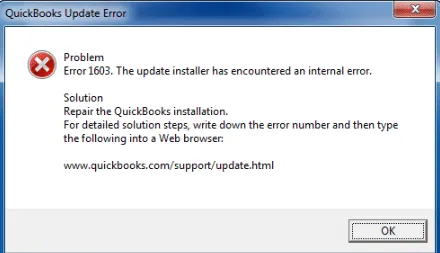
To fix QuickBooks Error 1603, start by running the QuickBooks Install Diagnostic Tool through Tool Hub. If the error continues, install pending Windows updates and check whether a Microsoft component or background application is interfering with the installation.
The correct fix depends on when the error appears. For example, if QuickBooks opens normally but an update fails, you should check the update process before reinstalling the program.
What Is QuickBooks Error 1603?
QuickBooks Error 1603 is an installation or update failure that occurs when Windows cannot complete a task required to install or update QuickBooks Desktop.
According to Intuit’s official documentation, the error may display either of these messages:
- Error 1603: The update installer has encountered an internal error.
- Error 1603: There was a problem installing Microsoft .NET Framework [version].
Windows Installer can also report error code 1603, which Microsoft defines as a fatal installation failure. However, the code alone does not identify which file or component caused the problem.
Why Does QuickBooks Error 1603 Occur?
Possible causes include damaged installation files, problems with Microsoft .NET Framework, incomplete Windows updates, restricted installation permissions, or conflicts with other applications.
The error may also occur when an existing QuickBooks installation cannot apply a maintenance update.
Use the symptoms to decide where to begin:
| What you notice | Where to start |
| Error 1603 appears during a new installation | Run QuickBooks Install Diagnostic Tool |
| The message specifically mentions .NET Framework | Check the relevant Microsoft component after running the diagnostic tool |
| QuickBooks opens, but the update fails | Follow the update troubleshooting steps |
| Windows displays an access-denied or permission error | Check administrator permissions |
| Installation fails during normal startup but works in Selective Startup | Investigate software or background service conflicts |
| Other Windows applications also fail to install | Investigate Windows Installer and system-level problems |
These symptoms help narrow the investigation but do not confirm a particular cause.
What Should You Check Before Fixing QuickBooks Error 1603?
Before changing Windows settings, record the complete error message and identify your QuickBooks Desktop product and version year.
Also check the following:
- Restart Windows. A pending installation or system update may need a restart before another setup attempt.
- Check the installer. Make sure you have the correct QuickBooks product and version. Download installation files through Intuit’s official QuickBooks Desktop download page.
- Confirm administrator access. Some installation tasks require Windows administrator permission. On a company-managed computer, contact your IT administrator.
- Protect existing data. If QuickBooks is already installed, keep a verified backup of your company file before reinstalling or making advanced system changes.
If setup fails without showing Error 1603, our guide on QuickBooks Desktop installation problems covers other installation errors and their related checks.
How to Fix QuickBooks Error 1603
Intuit recommends starting with the QuickBooks Install Diagnostic Tool, followed by Windows updates. If these steps fail, you may need to repair specific Windows components or try installing QuickBooks in Selective Startup.
Follow the solutions in order, unless the error message points to a more specific problem.
Solution 1: Run QuickBooks Install Diagnostic Tool
QuickBooks Install Diagnostic Tool helps repair certain installation problems involving components that QuickBooks Desktop needs to run.
The tool is available through QuickBooks Tool Hub.
Step 1: Download QuickBooks Tool Hub
- Close QuickBooks Desktop and any open installation windows.
- Visit Intuit’s official Error 1603 support page.
- Download QuickBooks Tool Hub using the official download link.
- Open the QuickBooksToolHub.exe file.
- Follow the installation instructions.
- Launch QuickBooks Tool Hub.
If Tool Hub is already installed, open it from the Windows Start menu. You can check its installed version from the Home tab.
For help installing or updating the utility, see our QuickBooks Tool Hub download guide.
Step 2: Run the diagnostic tool
- Open QuickBooks Tool Hub.
- Select Installation Issues.
- Click QuickBooks Install Diagnostic Tool.
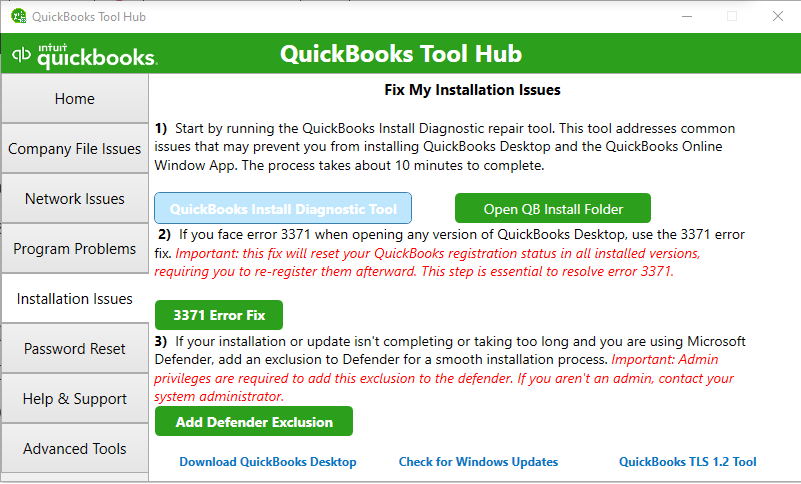
- Allow the tool to finish. Intuit states that this process can take up to 20 minutes.
- Restart your computer.
- Try installing or opening QuickBooks Desktop again.
If the installation completes, open QuickBooks to check whether the problem is resolved.
If Error 1603 returns, continue with Windows updates.
For problems such as the utility not opening or failing to complete, refer to our QuickBooks Install Diagnostic Tool guide.
Solution 2: Install Pending Windows Updates
Windows updates can repair or replace system components that affect software installation.
On Windows 11:
- Open the Windows Start menu.
- Select Settings.
- Go to Windows Update.
- Click Check for updates.
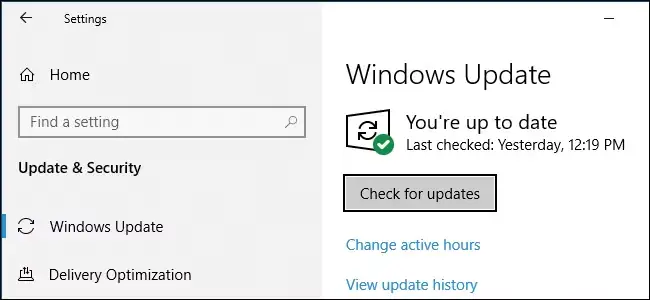
- Install the available applicable updates.
- Restart your computer when prompted.
- Run the QuickBooks installer again.
If Windows reports another pending update or restart, complete it before testing QuickBooks.
For example, if QuickBooks installation stopped while installing a Windows-dependent component, completing pending operating-system updates may allow the installer to proceed.
If the same error appears after Windows is updated, check whether the message names Microsoft .NET Framework or another component.
Solution 3: Repair Microsoft .NET Framework or MSXML
QuickBooks Desktop uses Microsoft Windows components for certain installation and program functions. When these components are damaged or unavailable, setup may fail.
Intuit includes .NET Framework and MSXML repair among its advanced installation troubleshooting options.
If the error mentions Microsoft .NET Framework
Microsoft .NET Framework provides components used by Windows applications.
If QuickBooks specifically reports a problem installing .NET Framework:
- Note the .NET Framework version shown in the error message.
- Confirm that the QuickBooks Install Diagnostic Tool has finished.
- Check that Windows updates are complete.
- Follow Intuit’s Microsoft .NET Framework repair instructions.
- Restart the computer after the appropriate repair.
- Retry QuickBooks installation.
The repair procedure can differ according to the installed Windows and .NET Framework versions. Do not uninstall unrelated .NET Framework components or download replacement system files from unofficial websites.
If the error points to Microsoft MSXML
Microsoft XML Core Services (MSXML) supports XML-related functions used by some Windows applications.
Intuit documents MSXML problems that can prevent QuickBooks from installing or operating correctly. However, Error 1603 by itself does not prove that MSXML is damaged.
If the installer or diagnostic results specifically identify MSXML, follow Intuit’s MSXML repair guidance.
Important: Manual repairs to Microsoft components should be performed by experienced Windows users, qualified IT professionals, or users working with Microsoft support. Changing or removing the wrong components can affect other applications.
If these component checks do not resolve the error, the next step is to investigate whether another application is interfering with QuickBooks installation.
Solution 4: Install QuickBooks Desktop in Selective Startup
Selective Startup temporarily limits the nonessential services that run when Windows starts.
Intuit recommends this method when background applications may be preventing QuickBooks Desktop from installing.
Before proceeding, save your work, back up your existing QuickBooks company file, and keep your product and license information available.
Step 1: Switch Windows to Selective Startup
- Press Windows + R to open the Run window.
- Type msconfig and click OK.
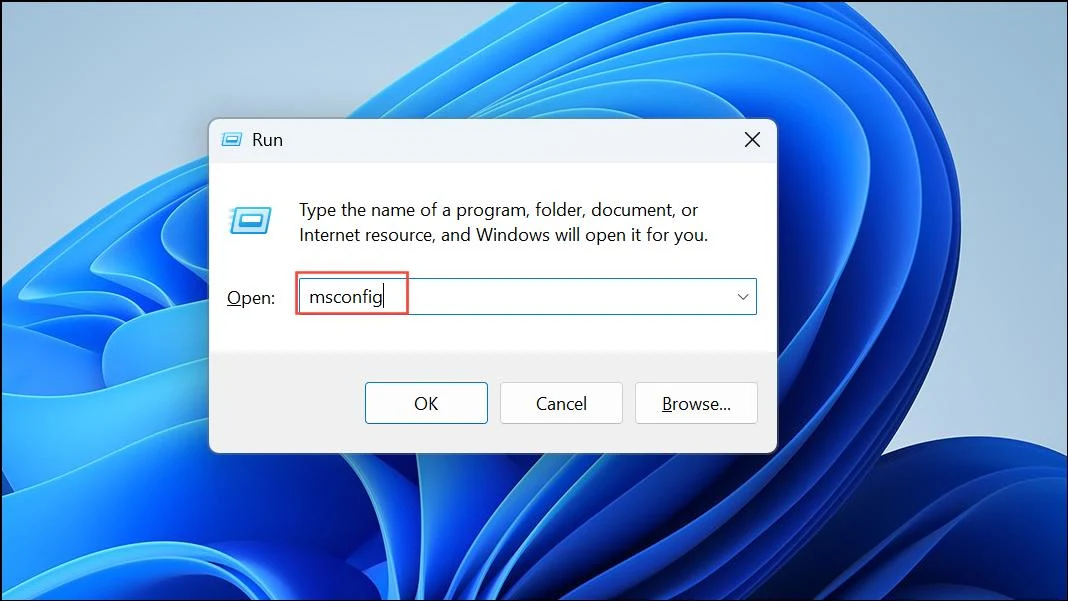
- Open the General tab.
- Select Selective startup and Load system services.
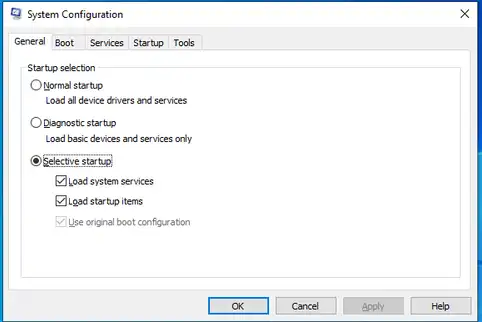
- Open the Services tab.
- Select Hide all Microsoft services.
- Click Disable all.
- Clear the Hide all Microsoft services checkbox.
- Find Windows Installer in the list and make sure it is selected.
- Click OK and restart your computer.
These steps temporarily change the Windows startup configuration. If your computer is managed by an organization, have your IT administrator perform the procedure.
Step 2: Install QuickBooks Desktop
After Windows restarts:
- Locate the correct QuickBooks Desktop installer.
- Run the installation.
- Check whether setup completes without Error 1603.
If installation succeeds in Selective Startup but fails during normal startup, that suggests a conflict with another service or application. It does not identify the specific program responsible.
Step 3: Restore Normal Startup
Whether the installation succeeds or fails, restore Windows to its normal configuration:
- Press Windows + R.
- Type msconfig and click OK.
- Under the General tab, select Normal startup.
- Click OK.
- Restart your computer.
After restarting, open QuickBooks Desktop to check whether it works with normal Windows services enabled.
For more details, follow Intuit’s Selective Startup instructions.
If the installer still fails, restore normal startup and investigate the remaining installation problem rather than repeatedly disabling Windows services.
How to Fix QuickBooks Update Error 1603
QuickBooks update error 1603 may appear when an existing installation cannot apply a maintenance release.
If QuickBooks Desktop still opens, check the product release and update file before attempting a complete reinstall.
Step 1: Check Your QuickBooks Desktop Release
- Open QuickBooks Desktop.
- Press F2 or Ctrl + 1.
- Review the Product Information window.
- Note your product, version year, and release number.
A maintenance release updates the existing QuickBooks version. It is different from upgrading QuickBooks Desktop to a newer product year.
Step 2: Try Updating QuickBooks Again
If QuickBooks opens normally:
- Go to Help > Update QuickBooks Desktop.
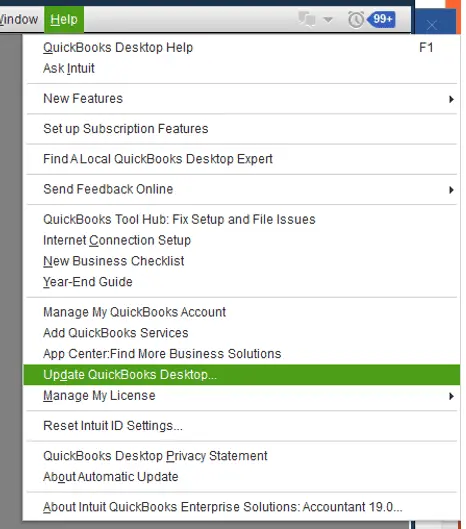
- Select the Update Now tab.
- Click Get Updates.
- Wait for the download to finish.
- Close and reopen QuickBooks.
- Select Install Now if prompted.
After the update, open the Product Information window again to confirm that the expected release was installed.
Step 3: Download the QuickBooks Update Manually
If the update fails inside QuickBooks, download the matching update from Intuit.
- Close QuickBooks Desktop.
- Open the official QuickBooks Desktop update instructions.
- Follow the link to the Downloads & Updates page.
- Select your country, QuickBooks product, and version year.
- Click Search.
- Select Get the latest updates.
- Open the downloaded update file and follow the installation instructions.
- Restart your computer.
Make sure the update matches your installed QuickBooks product and year.
For example, if you are running QuickBooks Desktop 2024, choose an update intended for the appropriate 2024 product rather than an installer for another version.
If the downloaded update also fails with Error 1603, the problem may involve the existing installation or a Windows component. Continue with the diagnostic checks rather than repeatedly downloading the same package.
What If QuickBooks Error 1603 Still Appears?
If QuickBooks Install Diagnostic Tool, Windows updates, and the applicable repairs do not resolve Error 1603, collect more information about the failed installation.
Start with these checks.
Check the Installer and Windows Permissions
Download a fresh installer from Intuit and confirm that it matches your QuickBooks product.
If Windows displays an access-denied message or requests administrator authorization, verify that your account has the required installation permissions.
On a company-managed computer, group policies or security settings may restrict software installation. Ask the system administrator to investigate rather than changing those restrictions yourself.
Investigate Windows Installer Problems
Windows Installer error 1603 can occur for several reasons, including problems with installation folders or system permissions.
Microsoft documents these conditions in its Windows Installer error 1603 guidance.
For example, if QuickBooks and another Windows application both fail to install with the same MSI error, a wider Windows Installer problem becomes worth investigating.
An IT professional can examine the installation logs, affected folders, and relevant permissions.
Do not change registry permissions, grant unrestricted folder access, or remove Microsoft components without identifying the cause.
Reinstall QuickBooks Desktop if the Installation Is Damaged
Reinstalling QuickBooks may help when existing program files are incomplete or damaged.
However, a reinstall may not fix an underlying Windows Installer or .NET Framework problem.
Before removing QuickBooks, confirm that you have the correct installer, license information, and a verified company file backup.
For the detailed procedure, see our QuickBooks Clean Install Tool guide.
If Error 1603 in QuickBooks remains after reinstalling, stop repeating the same repair. Record the complete error message, the stage at which installation fails, your QuickBooks version, your Windows version, and the steps already attempted.
These details will help an IT professional or Intuit investigate the remaining problem.
How Do You Know QuickBooks Error 1603 Is Fixed?
The repair is successful when the affected installation or update finishes and QuickBooks Desktop works normally.
Confirm that:
- The installer completes without Error 1603.
- QuickBooks Desktop opens successfully.
- An existing company file opens correctly, if applicable.
- The expected release number appears in Product Information if you were updating QuickBooks.
- QuickBooks continues working after Windows returns to Normal Startup.
If installation succeeds but a company file produces a separate error, investigate that message independently. An installation repair does not automatically resolve company-file problems.
Conclusion
Start with the QuickBooks Install Diagnostic Tool and Windows updates when Error 1603 interrupts installation. If QuickBooks already opens and only the update fails, check the update package and installed release before considering a reinstall.
When the error continues after these steps, the complete installer message and Windows installation logs can help identify whether the remaining problem involves Microsoft components, permissions, or another system issue.
Frequently Asked Questions
Can QuickBooks Error 1603 occur on Windows 11?
Yes, QuickBooks Install Error 1603 can occur during software installation on Windows 11. Before troubleshooting, confirm that your specific QuickBooks Desktop product and version year are compatible with the installed Windows version.
What does MSI returned 1603 mean in QuickBooks?
MSI error code 1603 means Windows Installer reported a fatal installation failure. It does not identify the exact cause. The installation log or additional error message may help determine which component or permission caused the failure.
Why does QuickBooks Error code 1603 keep appearing after reinstalling?
The error may return if the underlying problem involves Windows Installer, Microsoft components, or installation permissions. Reinstalling QuickBooks replaces program files but does not necessarily repair those Windows-level problems.
Are QuickBooks Errors 1601, 1603, and 1642 the same?
No, Intuit documents them as related installation or update errors with different messages. Error 1601 indicates that Windows Installer is inaccessible. QB Error 1603 may involve an internal update-installer failure or .NET Framework installation problem, while Error 1642 specifically reports an error installing .NET Framework during QuickBooks installation.
Does QuickBooks Installation Error 1603 affect company files?
QuickBooks Desktop Error 1603 concerns installing or updating QuickBooks Desktop rather than the integrity of accounting data. It does not normally damage an existing company file. Keep a verified backup before reinstalling the program or performing advanced repairs.
Can QuickBooks Online show installation Error 1603?
The QuickBooks installation Error 1603 troubleshooting procedures in this guide apply to QuickBooks Desktop installed on Windows. QuickBooks Online runs through a web browser and does not use the same local Desktop installation process.
Intuit and QuickBooks are registered trademarks of Intuit Inc. Accounts Confidant is an independent Accounting and Bookkeeping service provider and is not affiliated with, sponsored by, endorsed by, or approved by Intuit Inc.
