
If Sage 50 not opening when you double-click its icon, check whether the program is already running in the background. A stopped database service, incorrect compatibility setting, or activation error can also prevent the application from starting.
Restart your computer first. If Sage 50 still won’t open, look for a stuck Peachw.exe process in Task Manager and check the Actian Zen database service.
If Sage opens but freezes while loading your company, test a sample company before repairing the installation.
This guide covers Sage 50 Accounting US on Windows. The Canadian edition and Sage 50 Accounts UK use different software components and require separate troubleshooting procedures.
What to check when Sage 50 is not opening
Identify where the startup process fails. This helps you choose the right solution without making unnecessary changes to your accounting software.
| Symptom | What to check |
| Nothing happens when clicking the Sage 50 icon | Background processes and compatibility settings |
| Sage runs in Task Manager but does not open | Stuck Peachw.exe process |
| Sage 50 freezes on the startup screen | Last opened company and database service |
| Sage opens and closes immediately | Windows Event Viewer and activation errors |
| “Sage 50 could not be started” | Actian Zen database service |
| Sage opens but cannot load your company | Company data location and permissions |
| Sage works on the server but not a workstation | Network access and local installation |
| Sage stops opening after an update | Failed installation or Windows compatibility |
| Sage 50 Cloud Windows App does not open | Remote access application |
If Sage works on other computers, start with the affected workstation. If nobody can open the shared company, investigate the server, network connection, and database service.
Why is Sage 50 not opening?
Sage 50 needs working program files, a database engine, and access to its configured data location. Problems with these components can prevent the application from starting.
According to Sage’s official startup troubleshooting documentation, possible causes include:
- An existing Sage 50 process is stuck.
- The Actian Zen database engine has stopped.
- Windows compatibility mode is configured incorrectly.
- Product activation has failed.
- A mapped network drive is disconnected.
- Antivirus software is blocking the application.
Damaged installation files and problems loading the last opened company can also cause startup failures.
For example, Sage may fail to open because a workstation cannot reach the server, even though the accounting records remain intact.
Before troubleshooting Sage 50
Check your Sage release, Windows version, and any recent error messages. Note whether the problem began after a software update, server restart, or security software change.
Before making system changes:
- Confirm that a recent company backup is available.
- Arrange a backup from another workstation if it can still open the company.
- Have all users exit Sage before restarting a shared database service.
- Avoid deleting company folders, database files, or registry entries.
If no computer can open the company and you cannot confirm that a usable backup exists, contact Sage Support before attempting advanced repairs.
How to fix Sage 50 not opening on Windows
Choose the solutions that match your symptoms. Test Sage after each change rather than performing all nine fixes at once.
1. Close the stuck Sage 50 process
When nothing happens after clicking the Sage 50 icon, an earlier instance of the application may still be running.
Sage 50 Accounting US uses Peachw.exe as its main application process.
To close a stuck instance:
- Press Ctrl + Shift + Esc to open Task Manager.
- Select the Details tab.
- Locate Peachw.exe.
- Select the process and click End task.
- Close Task Manager and try opening Sage 50.
Only force the process to close if Sage is unresponsive. Any unsaved work may be lost.
If the application still does not open, restart Windows or check the Actian Zen service in Solution 5.
See Sage’s instructions for resolving stuck Peachw.exe processes.
2. Turn off incorrect Windows compatibility settings
Sage identifies Windows 8 compatibility mode as a possible reason the application fails to launch.
To check this setting:
- Right-click the Sage 50 desktop shortcut.
- Select Properties.
- Open the Compatibility tab.
- If Windows 8 compatibility mode is enabled, clear Run this program in compatibility mode for.
- Click Apply, then OK.
- Open Sage 50 again.
If you recently moved to Windows 11, check whether your Sage release supports it. Changing compatibility settings cannot make an unsupported Sage release fully compatible with a newer operating system.
3. Run Sage 50 as administrator
Restricted Windows permissions can prevent Sage from accessing resources it needs during startup.
To check whether permissions are involved:
- Right-click the Sage 50 shortcut.
- Select Run as administrator.
- Approve the Windows permission prompt if authorized.
- Try opening your company.
If Sage opens only with administrator rights, ask your IT administrator to review its program and folder permissions.
Running Sage with elevated rights may also affect access to mapped network drives under certain Windows configurations. If the program opens but cannot locate your company, check the network connection again.
Microsoft explains this behavior in its mapped network drive troubleshooting guide.
Do not disable Windows User Account Control (UAC) or edit the registry as a routine startup fix.
4. Open Sage 50 without loading the last company
Sage can automatically open the company you last worked in. If that company becomes unavailable, the application may freeze during startup.
Use Sage’s documented 111 startup command to bypass the last opened company.
- Close Sage 50.
- Right-click its shortcut and select Properties.
- Copy the complete contents of the Target field.
- Close the Properties window.
- Press Windows + R.
- Paste the copied shortcut target.
- Add a space followed by 111.
- Click OK.
Example:
“C:\Program Files (x86)\Sage\Peachtree\Peachw.exe” 111
Use the actual path from your shortcut rather than assuming this example matches your installation.
If the Start screen appears, select Explore a sample company and open an available sample.
What the sample company test tells you
| Test result | What to investigate |
| Sample company opens, but your company does not | Company location, permissions, or data problems |
| Neither company opens | Program files, database service, permissions, or security software |
| Your company opens on another workstation | Local installation and network access |
| No workstation can open the shared company | Server, database service, shared-folder access, or company data |
Suppose a sample company opens on your laptop, but your live company stored on the server does not. Check access to the server before attempting company data repair.
A successful sample company test does not prove that your live company is corrupted.
Once Sage is accessible, open Options and clear Start With Last Opened Company if you want to display the Start screen at every launch.
5. Restart the Actian Zen database service
Actian Zen is the database engine Sage 50 Accounting US uses to access accounting records. Older releases may refer to this component as Pervasive PSQL or Actian PSQL.
An unavailable database service can prevent Sage from opening or trigger the error “Sage 50 could not be started.”
Important: Make sure all users have closed Sage before restarting a shared database service.
To restart Actian Zen:
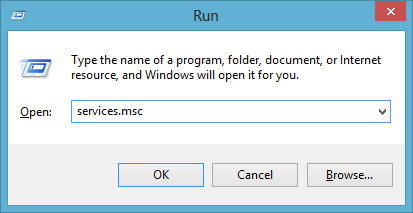
- Press Windows + R.
- Enter services.msc and press Enter.
- Locate Actian Zen Workgroup Engine.
- Right-click the service and select Restart.
- If the service is stopped, select Start instead.
- Confirm that the service status shows Running.
- Open Sage 50.
For network installations, check the service on the computer hosting the accounting data first.
Older Sage releases may display a different database service name.
If Actian fails to start, is missing, or stops again immediately, record the Windows service error. The database engine may require repair or reinstallation.
Follow Sage’s official Actian troubleshooting instructions for additional guidance.
6. Check the network drive and company data path
Sage 50 may not open if it cannot reach its configured data location. This can happen after a server replacement, network interruption, or mapped-drive change.
To check the connection:
- Press Windows + E to open File Explorer.
- Select This PC.
- Find the network drive used by Sage.
- Check whether the drive is missing or displays a red X.
- Try opening the shared accounting data folder.
If Windows cannot access the folder, check whether the server is online and whether your account has permission to access it.
For example, Sage may use drive S: to reach the company data. If that drive mapping disappears, Sage can lose access to its data without any files being damaged.
For recurring mapped-drive problems, Sage suggests installing the application using a UNC path. This identifies a shared network folder directly instead of using a drive letter.
Example:
\\ServerName\ShareName
Ask your administrator to verify the existing Sage data path before changing it. Connecting to the wrong folder could result in employees entering transactions into separate copies of the same company.
7. Check Event Viewer for activation errors
If Sage 50 closes immediately or fails to display a window, Windows Event Viewer may reveal why the startup failed.
To inspect the error:
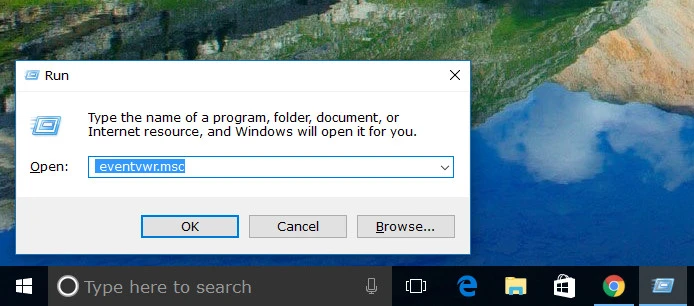
- Press Windows + R.
- Enter eventvwr.msc and press Enter.
- Expand Windows Logs.
- Select Application.
- Find an error recorded when you attempted to open Sage.
- Review its details.
Sage documents an activation-related startup exception containing:
System.IO.FileNotFoundException
The matching error also refers to Peachw.Program.Main.
For this specific exception, Sage recommends running its SageReg.exe activation utility.
For many installations, the default program folder is:
C:\Program Files (x86)\Sage\Peachtree\
Locate the utility in your actual installation folder and follow the applicable activation prompts.
For network installations, activation must take place on the computer hosting the accounting data. Do not assume that every affected workstation requires separate reactivation.
See Sage’s network activation requirements.
A general FileNotFoundException alone does not confirm an activation problem. Contact Sage Support if the exception differs or activation fails.
8. Review antivirus and firewall restrictions
Check your antivirus protection history if Sage stopped opening after a security software update, scan, or firewall change.
Look for blocked applications or quarantined files recorded around the time the problem began.
Examples of Sage components listed in its security exception guidance include:
| File | Purpose |
| Peachw.exe | Main accounting application |
| SageReg.exe | Product activation |
| PeachUpd.exe | Program updates |
| zenengnsvc32.exe | Database component used in Sage 50 2023 and later |
| w3dbsmgr.exe | Database component used in Sage 50 2022 and earlier |
Before adding an exception, confirm that the blocked file belongs to your legitimate Sage installation.
Ask your IT administrator to configure the required exclusions using Sage’s firewall and antivirus guidance.
Do not permanently disable antivirus protection or restore unidentified quarantined files.
9. Repair the Sage 50 installation
If the relevant startup checks fail, damaged program files may be responsible.
Try repairing Sage before uninstalling it. Confirm that a usable company backup exists first.
- Close Sage 50.
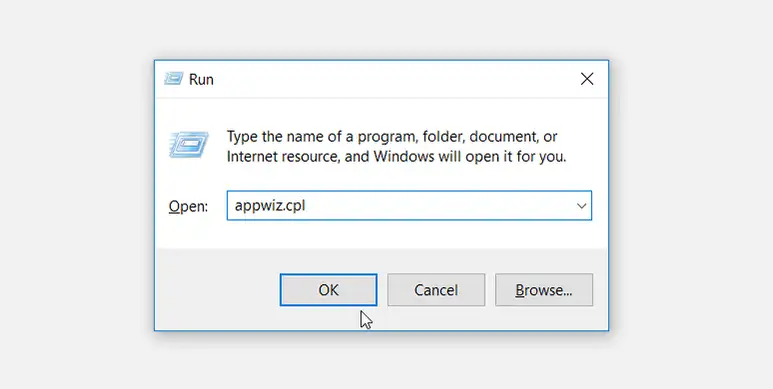
- Press Windows + R.
- Enter appwiz.cpl and press Enter.
- Find Sage 50 Accounting in Programs and Features.
- Right-click the program and select Change.
- Select Repair, then Next.
- Complete the repair and click Finish.
- Install any required Sage program updates and test the application.
If repair fails, further action depends on which component is damaged. An Actian database problem may require database engine repair, while damaged Sage files may require application reinstallation.
Before reinstalling, confirm that you have the correct installer, licensing information, company backup, and existing data path.
Use the official Sage 50 US download portal. Download access for supported releases is available through applicable Sage Business Care plans.
Why is Sage 50 not opening after an update?
First, determine whether the failure followed a Sage software update or a Windows update.
If a Sage update failed to complete, check whether the installation finished and whether Actian Zen restarted. Sage provides separate troubleshooting instructions for incomplete program updates.
For network installations, verify that the server and workstations are running the required Sage release.
If the problem began after a Windows update, check your update history:
- Windows 11: Settings > Windows Update > Update history.
- Windows 10: Settings > Update & Security > Windows Update > View update history.
Compare the recently installed update with Sage’s documented compatibility issues.
November 2026 Windows update issue
Sage has confirmed that Windows security updates released on November 10, 2026, can cause Sage 50 Accounting US to close unexpectedly during accounting tasks.
As of November 19, 2026, Sage’s November 17 advisory describes a planned corrective fix for version 2026.2. Installing the existing 2026.2 release alone does not confirm that this issue has been resolved.
The documented incident primarily affects users whose application crashes during use rather than those experiencing every type of startup failure.
Check the current Sage Windows update advisory for affected updates and corrective guidance.
Consult your IT administrator before removing a Windows security update. Removing security updates can expose your computer to vulnerabilities.
What if Sage 50 Cloud is not opening?
If you use Sage’s hosted service through Microsoft’s Windows App, the failure may involve the remote access application rather than Sage 50 itself.
Try accessing your assigned environment through windows365.microsoft.com, where available.
If browser access works but the Windows App does not, follow Sage’s Windows App troubleshooting instructions. Sage also identifies conflicting or outdated TSScan and TSPrint components as possible causes.
If the remote environment opens but Sage itself remains stuck, contact Sage Support or your hosting provider. Restarting your local computer will not necessarily restart the remote accounting application.
How to confirm that Sage 50 is working again
Once Sage opens, verify that you can access the correct company and resume normal accounting work.
- Confirm that recent transactions are visible.
- Open a familiar financial report.
- Check access from other workstations, if applicable.
- Close Sage and launch it again.
Create a fresh company backup once normal operation is restored.
If the problem returns, record which solution worked and whether another update, computer restart, or network interruption occurred.
What to do if Sage 50 still will not open
Contact official Sage Support or your IT administrator if activation fails, Actian repeatedly stops, or Sage cannot open any company after the appropriate checks.
Have the following information available:
- Sage 50 edition and release number
- Windows version
- Exact startup error or Event Viewer exception
- Recent software updates
- Number of affected computers
- Date of the last successful backup
- Troubleshooting steps already completed
Do not share passwords, activation keys, or confidential financial records in public support forums.
While Sage is unavailable, keep copies of invoices, receipts, and payments. Maintain a record of transactions entered outside Sage so you can avoid duplicate entries once access is restored.
If the outage creates a bookkeeping backlog, Accounts Confidant offers independent accounting and bookkeeping services.
Avoid further system changes when the cause remains unclear, especially if no current backup is available.
Frequently asked questions
Is Sage 50 compatible with Windows 11?
Sage 50 Accounting US 2026 lists Windows 11 version 23H2 and later among its minimum requirements. Sage recommends version 24H2 or later. Older Sage releases may have different requirements. Use a Windows version that still receives applicable security updates.
Can I still use Sage 50 on Windows 10?
Sage 50 US 2026 lists Windows 10 version 21H1 and later among its minimum requirements. However, regular support for mainstream Windows 10 releases ended on October 14, 2025.
Sage provides limited software-specific support for Windows 10 computers without Microsoft’s Extended Security Updates (ESU). An operating system upgrade may be required for further assistance.
See the official Sage 50 US 2026 system requirements.
Why is Sage Peachtree not opening on my new computer?
An older Peachtree release may not support your new operating system or current activation requirements.
Copying application files from an old computer is not a substitute for installing the software. Check Sage’s current product support policy before transferring your accounting data.
Will repairing Sage 50 delete my accounting data?
The repair function is designed to fix the application rather than remove company records. However, confirm that a usable backup exists before repairing or reinstalling the software.
Can I restore a Sage 50 backup if the application will not open?
You generally need a working, compatible Sage installation to restore a backup.
During restoration, choose A New Company to restore the backup into a separate folder without overwriting existing records. Verify the restored transactions before using that company for accounting work.
See Sage’s backup restoration instructions.
Why does Sage 50 open only after restarting Windows?
Restarting Windows may clear a stuck application process or restart an unavailable database service. If the problem returns, investigate why the process remains active or the service stops. Repeated restarts may restore access temporarily without correcting the underlying cause.
Does Sage 50 not opening mean my company file is corrupted?
No, A stopped database service, activation error, disconnected network drive, or incorrect Windows setting can prevent Sage from opening even when company data is intact. Diagnose the startup problem before attempting data repair.
Disclaimer: Accounts Confidant is an independent accounting and bookkeeping service provider and is not affiliated with, sponsored by, or endorsed by Sage. Product names and trademarks belong to their respective owners.
