

If Sage 50 keeps crashing while you save invoices, enter payments, or open reports, the problem may involve damaged company files, printer drivers, the Actian Zen database engine, or a recent software update.
Start by identifying the task that causes the crash. If Sage closes when opening reports, check the default printer. If it crashes when saving transactions, test another company to see whether the problem is specific to your accounting data.
If Sage crashes while saving a transaction, check whether it was recorded before entering it again. Repeating the entry without checking could create duplicate invoices or payments.
This guide covers Sage 50 Accounting US on Windows. The Canadian edition and Sage 50 Accounts UK use different software components and require separate troubleshooting procedures.
What to check when Sage 50 keeps crashing
Use the following table to identify which solution matches your symptoms.
| When Sage 50 crashes | What to check first |
| When pressing Tab and Enter | Whether only the transaction window closes |
| When saving invoices or transactions | Company preferences and database files |
| When entering payments or paying bills | Payment window settings and Windows input services |
| When opening reports | Default printer and report files |
| When printing invoices or checks | Custom forms and printer drivers |
| When emailing invoices | Email configuration and custom forms |
| When working in one company | Company-specific files and settings |
| Across several companies on one computer | Windows profile, application files, and database engine |
| On multiple workstations | Shared database components, server, or common updates |
| After a Windows update | Known Sage compatibility issues |
If Sage freezes but remains open, it may be an application hang rather than a crash. If the program never reaches its main window, follow Sage’s startup troubleshooting guidance instead.
Why does Sage 50 keep crashing?
Sage 50 uses a database engine to access accounting records and Windows components to display reports, print documents, and send emails. Problems with these components can interrupt specific tasks.
Documented causes of Sage 50 crashes include:
- Damaged or missing database dictionary (DDF) files.
- A damaged userpref.dat company preferences file.
- Problems with the Actian Zen database engine.
- Damaged custom forms or report files.
- Printer driver or default printer problems.
- Damaged Windows user profiles.
- Conflicts with touch keyboard and handwriting services.
- Incompatible Windows or Microsoft Office updates.
The cause is not always damaged accounting data. For example, a printer problem may prevent Sage from opening a balance sheet even though invoices and payments work normally.
What to do if Sage 50 crashes while saving a transaction
Before troubleshooting, check whether your last transaction was saved. A crash after clicking Save does not tell you whether Sage completed the entry.
Find the transaction in Sage 50
- Reopen Sage and select the correct company.
- Go to Edit > Find Transactions.
- Apply the relevant search filters.
- Click Find.
- Review the matching transactions.
You can also open the Lists menu, select the appropriate transaction type, and search within the relevant date range.
Sage 50 Premium Accounting and higher also provide an Audit Trail Report. Where audit tracking is available and enabled, follow these steps:
- Open Reports & Forms > Reports > Company.
- Right-click Audit Trail Report.
- Select Modify > Options.
- Apply the relevant date range and filters.
- Double-click an entry with a Transaction ID to review it.
The audit trail records the date an activity occurred, which may differ from the transaction date.
See Sage’s official instructions for finding transactions.
Check the transaction before recording it again
Suppose Sage closes immediately after you save a $750 supplier payment.
If you find the payment, check its amount, supplier, date, reference number, and the invoice to which it was applied. Do not enter a second payment.
If you cannot find it, review the payment list and search filters again.
For electronic payments, check the transaction status with your bank or payment processor. A missing accounting entry does not necessarily mean the money was never transferred.
If the bank processed the payment but Sage did not record it, work with your bookkeeper to record the existing payment without sending money again.
Before troubleshooting Sage 50 crashes
Create a company backup before changing database files or repairing the software.
If Sage remains accessible:
- Open the company you want to back up.
- Have other users log out of the shared company.
- Select File > Back Up.
- Choose the applicable backup options and click Back Up.
- Save the backup to a secure location separate from the live company folder.
- Confirm the backup and wait for it to finish.
See Sage’s official backup instructions.
Record your Sage release, Windows version, affected task, and recent software changes. Find out whether other employees experience the same problem.
If Sage crashes during the backup or you cannot confirm that a usable backup exists, contact Sage before attempting company-file or database repairs.
How to fix Sage 50 that keeps crashing
Choose the following solutions based on your symptoms. Test the affected task after each change so you know which action helped.
1. Check whether Sage 50 is actually crashing
If an invoice or payment window closes but the main Sage application stays open, keyboard navigation may be responsible.
Sage documents a situation where pressing Tab moves the focus to the Close button. Pressing Enter then closes the transaction window.
To avoid this, select Rows Add at the top of the transaction window when adding another transaction line.
This workaround applies when only the transaction window closes. If the entire application shuts down, continue investigating the crash.
2. Check Windows Event Viewer for crash details
Windows may record an application error even when Sage closes without displaying a message.
To locate the crash information:
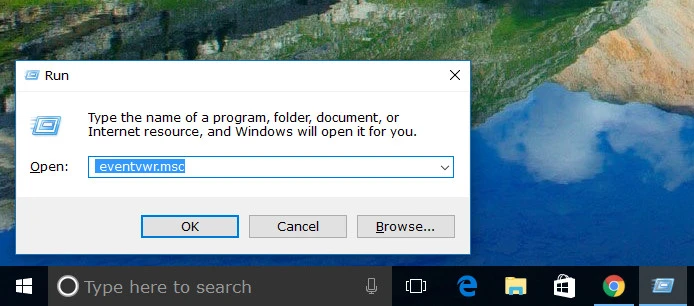
- Press Windows + R.
- Enter eventvwr.msc and press Enter.
- Expand Windows Logs.
- Select Application.
- Find an error recorded around the time Sage crashed.
- Open the event and review its details.
Microsoft identifies Event ID 1000 as an application crash event. Look for an entry involving Peachw.exe, the Sage 50 Accounting US application process.
| Event Viewer field | Why it matters |
| Faulting application name | Identifies the application that crashed |
| Faulting module name | Identifies a component associated with the failure |
| Exception code | Provides a technical clue about the crash |
| Application version | Identifies the affected software version |
| Event date and time | Helps match the error to the accounting task |
For example, an event listing KERNELBASE.dll or ntdll.dll does not automatically mean that the Windows file is damaged. Another application component may have triggered the failure.
Do not download replacement DLL files from unofficial websites.
See Microsoft’s application crash troubleshooting documentation for more information.
3. Check recent Sage and Windows updates
If Sage started crashing after an update, identify what changed before repairing the installation.
Check your Windows update history:
- Windows 11: Settings > Windows Update > Update history.
- Windows 10: Settings > Update & Security > Windows Update > View update history.
Compare the installation dates with the date the crashes began. Also check whether you recently installed a Sage program update or Microsoft Office update.
Sage 50 crashing after Windows update
Sage has confirmed that Windows security updates released on November 10, 2026, can cause Sage 50 Accounting US to close unexpectedly during accounting tasks.
As of November 19, 2026, Sage’s November 18 advisory describes a planned corrective patch for version 2026.2. Installing the existing 2026.2 release alone does not mean the corrective patch has been applied.
Check the official Sage Windows update advisory for affected updates and the latest instructions.
Sage’s documented temporary workaround involves removing affected Windows updates. Since removing security updates can expose your computer to vulnerabilities, coordinate any rollback with your IT administrator.
Avoid reinstalling Sage solely to address this confirmed Windows compatibility issue.
4. Test another company or workstation
Testing another company helps determine whether the crash involves a particular set of accounting records or affects the wider Sage installation.
From the Sage 50 Start screen, select Explore a sample company and open an available sample.
Try the same type of operation that causes Sage to crash. For example, if opening a sales invoice closes the application, try opening an invoice in the sample company.
| Test result | What to investigate next |
| Sample company works, but your company crashes | Company files, preferences, or data access |
| Both companies crash on the same computer | Local installation, Windows profile, or database engine |
| Your company works on another workstation | Affected computer’s settings and permissions |
| Several workstations crash in the same company | Shared company data or server components |
| Several companies crash across multiple workstations | Common software updates, database components, or shared environment |
A successful sample company test does not prove that your live accounting data is corrupted.
If a permissions problem is suspected, close Sage and right-click its desktop shortcut. Select Run as administrator and test the affected task if you have authorization.
If the task works only with elevated permissions, ask your IT administrator to investigate the normal user’s access rights.
5. Fix Sage 50 crashes when entering payments
If Sage crashes when opening Pay Bills, writing checks, or moving between payment fields, try maximizing the payment entry window.
- Open the payment entry window.
- Click the Maximize button in the upper-right corner.
- Alternatively, press Alt + Spacebar and select Maximize.
- Test the payment workflow using sample data where possible.
Sage documents this as a workaround for certain payment-entry crashes.
If the problem continues, Windows touch keyboard or handwriting components may be involved. Sage identifies the TabTip.exe process and window-position settings in its advanced payment troubleshooting instructions.
Damaged files in the company directory can also cause payment crashes.
Ask your IT administrator to investigate these components before disabling input services or changing registry settings. This is especially important if employees rely on touch screens, tablets, or handwriting features.
Follow Sage’s payment crash troubleshooting guide for further instructions.
6. Change the default printer if Sage crashes when opening reports
If Sage closes when opening a balance sheet, income statement, or general ledger, check the default Windows printer before repairing company data.
Sage recommends changing the default printer as an initial check for report crashes.
On Windows 11:
- Open Settings > Bluetooth & devices > Printers & scanners.
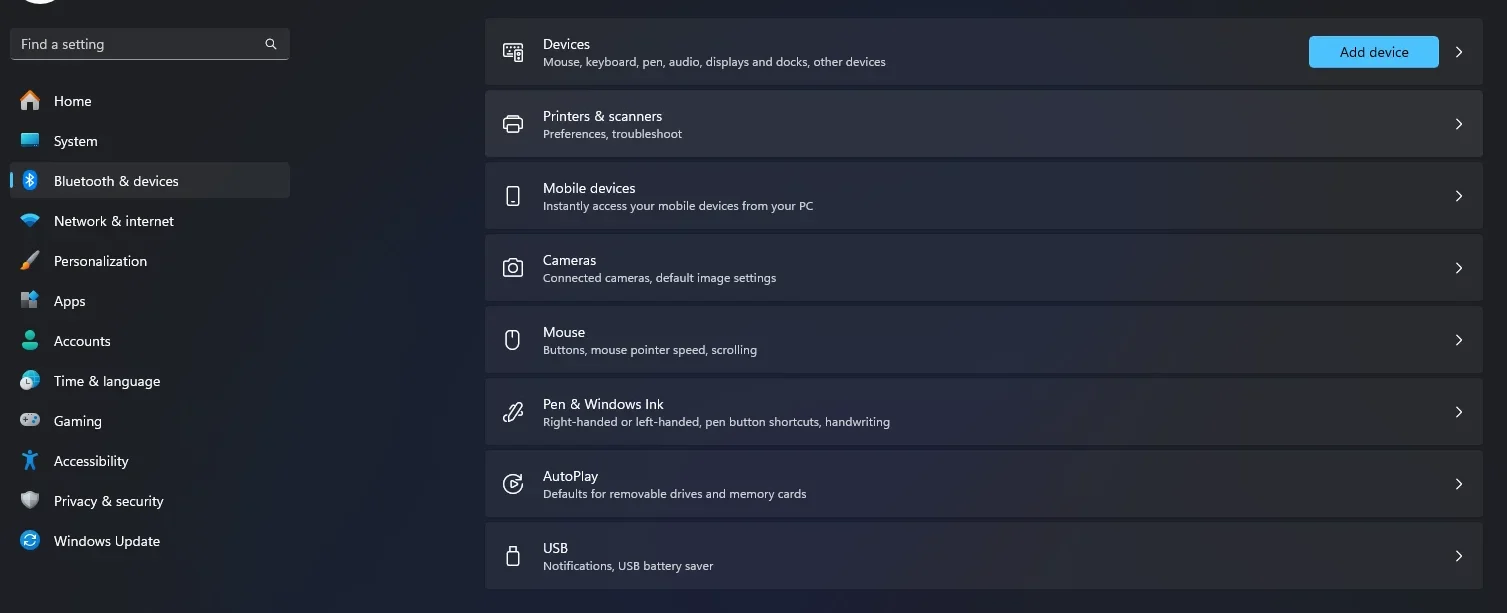
- Turn off Let Windows manage my default printer.
- Select another installed, working printer.
- Click Set as default.
- Reopen the affected report in Sage.
On Windows 10, go to Settings > Devices > Printers & scanners. Select the printer, then choose Manage > Set as default.
See Microsoft’s instructions for setting a default printer.
If the report opens, investigate the original printer or its driver.
If changing the printer does not help, try opening a standard report instead of a customized one. When only one custom report fails, preserve its settings before attempting to recreate it.
Other documented causes include damaged report folders, a damaged RPTDATAI.DAT file, Windows user profiles, and Actian database problems.
Follow Sage’s report crash troubleshooting guide before modifying report files.
7. Test standard forms when printing or emailing transactions
A damaged custom form can cause Sage to crash when printing invoices, checks, or other accounting documents.
Start by printing a sample transaction using a standard Sage form. Test the customized form on the same printer, then try another printer if available.
| Test result | Possible cause |
| Standard form works, but custom form crashes | Custom form damage |
| Both forms work on another printer | Original printer or driver problem |
| Custom form crashes on multiple printers | Form-specific problem |
| All forms fail on multiple printers | Broader application or database problem |
Change one item at a time. Otherwise, you may not know whether the form or printer affected the result.
If a custom form appears to be damaged, restore it from an appropriate backup or recreate it using a standard template.
Use sample data when testing checks to avoid creating duplicate payment documents.
See Sage’s official printing crash troubleshooting instructions.
If Sage crashes when emailing invoices
When printing works, but emailing causes a crash, investigate the email configuration.
Sage documents email-related crashes involving custom forms, printer components, database files, security settings, and Microsoft Office updates.
Where supported, test Sage’s webmail option instead of the desktop email client. This can help determine whether the desktop email integration is involved.
Use a sample document and an authorized test email address.
Before resending a live invoice, check your email delivery records to determine whether the original message was sent.
See Sage’s email crash troubleshooting guide.
8. Investigate damaged company preferences and DDF files
If Sage repeatedly crashes while saving transactions in a particular company, damaged preferences or database dictionary files may be responsible.
Sage identifies two possible causes:
- A damaged userpref.dat company preferences file.
- Damaged or missing DDF files in the company directory.
DDF stands for database dictionary file. These files describe the database structure and differ from the files containing your accounting transactions.
Sage’s documented repair procedure involves renaming the preference file and removing DDF files so the company can regenerate them.
This is an advanced repair and should be performed by a qualified technician.
The technician should confirm that a usable backup exists, locate the company directory through Maintain > Company Information, and ensure all users have exited Sage.
Sage’s procedure then calls for renaming userpref.dat to userpref.old and removing the DDF files from the identified company directory. Its documentation specifies 12 DDF files for this procedure.
Follow the complete official Sage procedure for crashes when saving transactions.
Do not delete unrelated .DAT files or the entire company folder. If the file layout differs from the documented procedure, confirm the correct instructions for your release before proceeding.
If the DDF files cannot be recreated or Sage continues crashing, stop changing company files and investigate the database engine.
9. Repair Actian Zen or the Sage 50 installation
If the previous checks fail, damaged database or application components may be responsible.
Actian Zen is the database engine used by Sage 50 Accounting US. Older releases may identify this component as Pervasive PSQL or Actian PSQL.
For persistent transaction-saving crashes, Sage recommends investigating Actian on the affected computer when only one workstation has the problem. If multiple computers experience the same failure, the server database engine may require attention.
Removing and reinstalling Actian can interrupt access for other users. Have your IT administrator handle this procedure with appropriate backups and administrator permissions.
If the problem points to damaged Sage application files, try repairing the software instead.
- Close Sage 50.
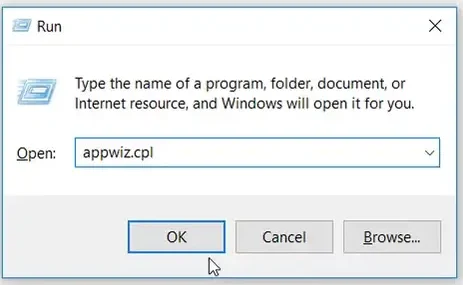
- Press Windows + R.
- Enter appwiz.cpl and press Enter.
- Locate Sage 50 Accounting in Programs and Features.
- Right-click the program and select Change.
- Choose Repair, then click Next.
- Complete the repair and select Finish.
- Install any required Sage program updates.
See Sage’s official installation repair instructions.
An application repair does not automatically correct damaged accounting records. If a sample company works but your live company continues crashing, investigate the company-specific problem before reinstalling Sage.
How to confirm that Sage 50 has stopped crashing
Opening Sage successfully does not establish that the crash has been resolved. Test the operation that previously failed.
| Original problem | How to verify the result |
| Crashes when saving invoices | Test invoice entry using sample data |
| Crashes when entering payments | Test the payment workflow without duplicating payments |
| Crashes when opening reports | Reopen the affected report |
| Crashes when printing | Test the affected form and printer |
| Crashes when emailing | Send a sample document to an authorized test address |
Confirm that recent accounting records remain accessible. For a shared installation, check whether other affected workstations can complete the same task.
Once normal operation is restored, create a fresh company backup.
If the crash returns, record the exact task and time. Compare the new Event Viewer error with the earlier crash information.
What to do if Sage 50 still keeps crashing
Contact official Sage help or your IT administrator if the application continues closing unexpectedly after the relevant checks.
Seek further assistance when:
- Sage crashes during company backups.
- Several users experience crashes in the same company.
- Database services repeatedly fail.
- DDF files cannot be recreated.
- Accounting records appear to be missing or damaged.
- You cannot confirm the status of a financial transaction.
Provide your Sage release, Windows version, crash event details, affected task, recent software updates, and backup status.
Do not share passwords, activation keys, or confidential accounting records in public support forums.
If the outage creates a backlog of invoices, payments, or unreconciled transactions, Accounts Confidant offers independent accounting and bookkeeping services for businesses using Sage and other accounting applications.
Before resuming normal work, resolve the status of any interrupted transactions. This is particularly important when Sage crashes during customer payments, supplier payments, or electronic transfers.
Frequently asked questions
Why does Sage 50 crash only when opening a particular invoice?
If other invoices open normally, the problem may involve that invoice, related customer data, or the operation used to display it. Avoid deleting the invoice until the cause is understood and your accounting records are protected.
Why does Sage 50 keep crashing without an error message?
Windows may record a crash event even when Sage displays no error. Check Windows Event Viewer under Windows Logs > Application. Look for an event involving Peachw.exe around the time the application closed.
Will Sage 50 automatically save my work before crashing?
Do not assume that unsaved work will be recovered. Reopen the company and search for the affected transaction. You may need to recreate unsaved information after confirming that doing so will not create a duplicate entry.
Why does Sage 50 keep crashing after reinstallation?
Reinstalling the application may not resolve damaged company data, printer problems, Windows profile issues, or incompatible updates. Investigate the task that triggers the crash rather than repeating the installation process.
Why does Sage 50 Cloud keep crashing?
In a hosted environment, Sage runs on a remote computer. Determine whether the remote connection closes or the accounting application itself crashes inside the session. Contact your hosting provider if the problem occurs within the remote environment.
Can I restore a Sage 50 backup to fix repeated crashes?
Restoring an earlier backup may help if the problem involves damaged company data. It will not resolve unrelated printer, Windows, or application problems.
When investigating data issues, restore the backup as a separate company rather than overwriting existing records. Check for missing transactions before replacing live accounting data.
Disclaimer: Accounts Confidant is an independent accounting and bookkeeping service provider and is not affiliated with, sponsored by, or endorsed by Sage. Product names and trademarks belong to their respective owners.
