
QuickBooks Error 9000 is a communication error reported when sending payroll data or direct deposit paychecks from QuickBooks Desktop software.
To fix Error 9000, switch to single-user mode, check your internet connection and system clock, update the software and payroll tax tables, and clear the DNS cache if the error continues.
Before resending payroll, confirm whether Intuit has received the affected paychecks. A communication error does not necessarily mean your payroll submission failed.
This independent troubleshooting guide from Accounts Confidant applies to QuickBooks Desktop Payroll for Windows, including supported Enterprise editions.
What causes QuickBooks Payroll Error 9000?
Error 9000 can occur when the software has difficulty communicating with Intuit’s payroll services. Users have reported messages such as “Problem uploading data” and “Sign-in rejected.”
According to Intuit Community discussions about Error 9000, possible causes include:
- Unstable internet connections or network timeouts.
- Sending payroll in multi-user mode.
- Invalid or expired security certificates.
- Incorrect system date and time settings.
- Firewall or internet security restrictions.
Community responses also recommend installing software and payroll updates and clearing outdated DNS records when the error persists.
The error code alone cannot establish whether the problem originates on your computer, business network, or within the payroll service.
Check whether Intuit received your payroll
Review the affected payroll run before attempting another submission. This helps prevent duplicate employee payments.
- Open QuickBooks Desktop.
- Navigate to Employees > View Payroll Run Status.
- Locate the affected payroll under Recent payrolls.
- Choose Selected payroll from the status dropdown.
- Review the information displayed in the Payroll Status window.
| Payroll status | What it means |
| Sent to Intuit | Your payroll has been received and is being processed. |
| Sent to Bank | Intuit has requested payment from your payroll bank account. |
| Payroll processed | The payroll funds have been debited and sent to employees’ banks. |
See Intuit’s employee direct deposit status guide for more information.
You can also print a direct deposit confirmation in QuickBooks Desktop to review previously received payroll reports.
If Intuit has already received the affected payroll, do not recreate or resend those paychecks. A missing confirmation report does not prove that the submission failed.
If the status shows a declined or rejected debit, investigate the payment issue instead. Insufficient funds and invalid bank account details require different solutions.
How to fix QuickBooks Error 9000 when sending payroll
Before following these steps, confirm that your payroll subscription is active and your Desktop version is supported.
Intuit discontinued payroll services for QuickBooks Desktop 2023 on May 31, 2026. Users of affected versions must upgrade to a supported release or move to another eligible payroll product. Connection troubleshooting cannot restore discontinued services.
Solution 1. Switch to single-user mode
Sending payroll in multi-user mode is identified as a possible cause of Error 9000 in Intuit Community guidance.
To switch modes:
- Ask other users to save their work and close the company file.
- Open the company file.
- Select File > Switch to Single-user Mode.
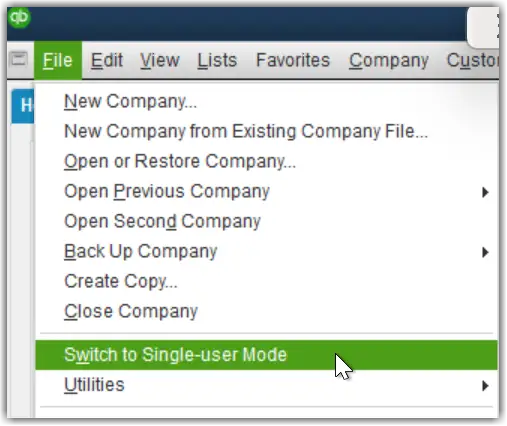
If the menu displays Switch to Multi-user Mode, you are already in single-user mode.
You do not need to disable hosting or change Database Server Manager settings.
Solution 2. Check your internet connection and system clock
A network interruption can prevent payroll data from reaching Intuit. Incorrect system time may also interfere with secure connections.
Open a browser on the computer running the software and check whether trusted websites load normally. Resolve any connection problems before continuing.
To correct Windows date and time settings:
- Open Windows Settings.
- Navigate to Time & language > Date & time.
- Verify the date, time, and time zone.
- Enable automatic time settings if appropriate.
- Close and reopen the accounting software.
If you run the application through a remote desktop or cloud-hosted environment, check the connection and system clock within that environment.
Solution 3. Update QuickBooks Desktop and payroll tax tables
Installing the latest maintenance release and payroll tax table is recommended in Intuit Community guidance for recurring QuickBooks Error Code 9000.
Update the Desktop application:
- Open Help > Update QuickBooks Desktop.
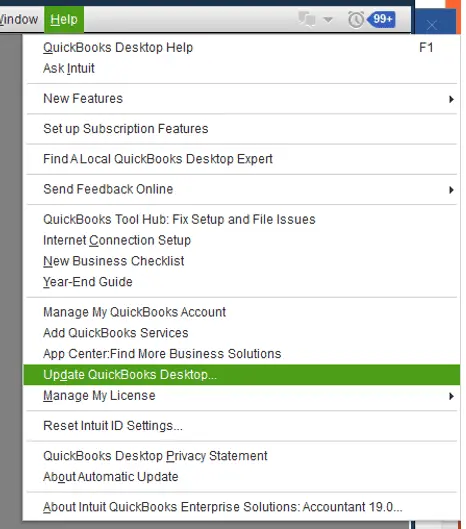
- Under Update Now, select Get Updates.
- Reopen the application after downloading the update.
- Complete the installation when prompted.
Refer to Intuit’s Desktop update instructions if you encounter problems.
Update the payroll tax table:
- Navigate to Employees > Get Payroll Updates.
- Enable Download Entire Update.
- Select Update to start the download.
- Confirm that the update finishes successfully.
An active Desktop Payroll subscription is required to download tax table updates.
Restart your computer after completing both updates.
If the download fails, follow our guide to fixing payroll updates that are not working before continuing.
Solution 4. Flush the DNS cache
The Domain Name System (DNS) helps Windows locate online services. Outdated DNS records may interfere with payroll communication.
Clearing the DNS cache is one of the troubleshooting steps recommended for recurring Error 9000 in Intuit Community discussions.
- Close the accounting software.
- Search for Command Prompt in the Windows Start menu.
- Right-click Command Prompt and select Run as administrator.
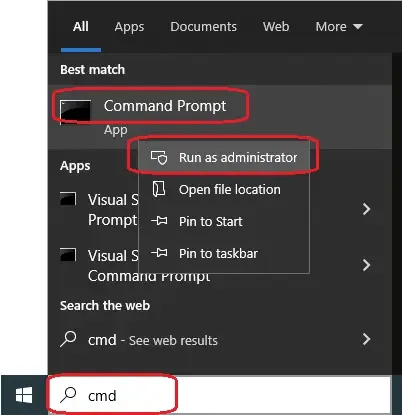
- Enter the following command:
ipconfig /flushdns - Press Enter and wait for the confirmation message.
- Reopen the accounting software.
According to Microsoft’s ipconfig documentation, this command clears stored DNS resolver records. It does not modify your payroll transactions or company file.
Solution 5. Check firewall and security restrictions
A working browser connection does not guarantee that the Desktop application can communicate with payroll services.
Ask your IT administrator to check whether firewall rules, proxy settings, or security certificate problems are restricting the application.
For additional instructions, refer to our payroll internet connection troubleshooting guide.
Do not permanently disable your firewall, enable outdated SSL protocols, or bypass security certificate warnings to submit payroll.
How to resend payroll after fixing QuickBooks Desktop Error 9000
Once the connection problem is resolved and you have confirmed that Intuit has not received the affected payroll, you can transmit the pending paychecks.
- Open the Desktop application in single-user mode.
- Navigate to Employees > Send Payroll Data.
- Use View to inspect the pending paychecks.
- Confirm that the listed transactions are intended for submission.
- Select Send All and complete the process using your direct deposit PIN.
Check the payroll run status afterward to confirm that Intuit received the submission.
If the submission deadline has passed, review Intuit’s direct deposit submission instructions. A late submission may delay employee payments.
Why does QuickBooks Error 9000 keep coming back?
When QB Error 9000 returns after installing updates and clearing the DNS cache, check whether the problem affects one workstation or several.
| When the error occurs | What to investigate |
| Only on one workstation | Local security settings, software updates, and system time. |
| On several computers using the same network | Shared network restrictions or connection instability. |
| Only in a remote desktop environment | Connectivity and security settings within that environment. |
| Only in multi-user mode | Whether payroll can be submitted in single-user mode. |
| During successive payroll runs despite troubleshooting | A possible payroll account or service-level issue requiring Intuit’s investigation. |
For example, if payroll submissions fail from two workstations on the same office network, reinstalling the application on one computer may not resolve a shared network restriction.
If the error continues despite the recommended checks, contact Intuit rather than repeating the same repairs.
What should you avoid when troubleshooting Error 9000?
Error 9000 does not establish that your company file or payroll records are damaged.
Avoid deleting paychecks, restoring an older backup, renaming the CPS folder, or reinstalling the software solely because this error appears.
These procedures may address other problems, but the reviewed Error 9000 guidance does not establish them as first-line repairs.
Similarly, QuickBooks Tool Hub is not documented as a dedicated repair tool for Error 9000.
If paychecks remain stuck with an Online to Send status and you receive QuickBooks Error PS038, follow the separate troubleshooting procedure for stuck payroll transactions.
When should you contact Intuit for Error 9000?
Contact Intuit directly if the error continues after connection troubleshooting or you cannot confirm whether the affected payroll was received.
Before contacting Intuit, collect the following information:
- Desktop software version and release number.
- Payroll subscription type.
- Complete error message.
- Date and time of the failed submission.
- Payroll transmission status.
- Troubleshooting steps already completed.
You can access Intuit’s available support options through Help > QuickBooks Desktop Help/Contact Us in supported Desktop versions.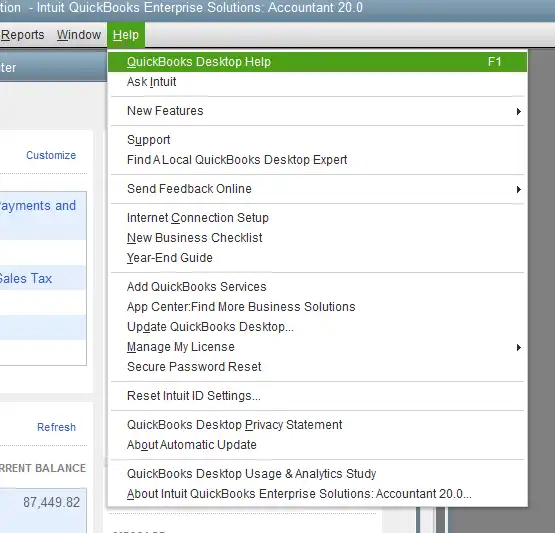
If payday is approaching, confirm the original payroll status before arranging another payment method. Issuing replacement payments without this information could result in duplicate wages.
Never share your payroll PIN, account password, or employee banking information in public forums.
Conclusion
If QuickBooks Error 9000 persists after updating the software, clearing the DNS cache, and checking connection settings, further local repairs may not help.
Ask Intuit to investigate the affected payroll transmission before making changes to your company file or employee payment records.
Frequently asked questions
What does QuickBooks Enterprise Error 9000 sign-in rejected mean?
This message has been reported during unsuccessful payroll uploads. An Intuit Community moderator associates it with communication problems. It does not necessarily indicate an incorrect payroll PIN or password.
Can Error 9000 occur in QuickBooks Desktop Enterprise?
Yes, Enterprise users have reported Error 9000 during payroll submission. The documented connection troubleshooting steps may also help users with a supported Enterprise release and an active payroll subscription.
Does clearing the DNS cache affect payroll records?
No, clearing the DNS cache removes stored network address information from Windows. It does not change employee wages, payroll calculations, or accounting transactions.
Can QuickBooks direct deposit error 9000 cause incorrect payroll tax calculations?
Error 9000 is associated with payroll communication rather than a confirmed calculation problem. However, outdated tax tables and discontinued payroll services can affect tax calculations independently of this error.
Does error 9000 mean my direct deposit was rejected?
Not necessarily. The error indicates a communication problem but does not establish whether the payment was rejected. Review the payroll run status or ask Intuit to confirm receipt.
Does this troubleshooting guide apply to QuickBooks Online Payroll?
No, these instructions apply to Desktop Payroll for Windows. QuickBooks Online Payroll uses different procedures and automatically updates its payroll tax tables.
Trademark and independence notice: Intuit and QuickBooks are registered trademarks of Intuit Inc. Accounts Confidant is an independent accounting and bookkeeping service provider and is not affiliated with Intuit. Accounts Confidant is not sponsored, endorsed, or approved by Intuit Inc. This independent educational article has not been approved by Intuit.
