
If Sage 50 not responding when you open a company or enter your login details, the program may be unable to access its database service, load company records, or communicate with Windows.
Start by restarting the affected computer, checking the Actian Zen database service, and opening a sample company. These checks can help determine whether the problem involves your Sage installation or a particular company’s data.
Before forcing Sage to close, make sure it is not performing a backup, data conversion, or year-end operation. Interrupting these processes could damage accounting records.
This guide covers the Not Responding error in Sage 50 Accounting US on Windows. The Canadian and UK editions require different troubleshooting procedures.
What does Sage 50 is not responding mean?
Windows displays the Not Responding message when an application stops responding to system messages or user input.
In Sage 50, the problem can occur when the application opens but fails to load the selected company’s dashboard. You may also see a gray screen after entering your password.
The message describes the application’s condition, not its underlying cause. It does not automatically mean your accounting data is damaged.
| Symptom | What to investigate |
| Sage opens, but the company dashboard does not load | Database service or company data access |
| A gray screen appears after login | Company directory or database components |
| Only one workstation stops responding | Local installation, permissions, or connectivity |
| All workstations stop responding | Shared data location or server components |
| Sage closes unexpectedly | Application crash |
| No window appears when launching Sage | Application startup failure |
If Sage never displays a window, use Sage’s startup troubleshooting instructions instead.
Why is Sage 50 not responding?
Sage’s official Not Responding troubleshooting guide identifies several possible causes:
- Problems with the Actian Zen database engine.
- Incorrect Windows compatibility settings.
- Insufficient Windows permissions.
- Antivirus software scanning required files.
- Problems loading the last opened company.
- Program files transferred from an old computer without a proper installation.
An incorrect company data location or damaged database installation can also prevent Sage from loading a company after login.
For example, if Sage displays its login window but stops responding after you enter your password, check whether another company opens before repairing the software.
What to do when Sage 50 stops responding
Check whether Sage is still processing information before closing it through Task Manager.
There is no fixed waiting time that applies to every accounting operation.
- Press Ctrl + Shift + Esc to open Task Manager.
- Select the Processes tab.
- Locate Sage 50 Accounting.
- Observe its CPU and disk activity.
- Allow the application time to respond.
Resource activity may suggest that processing continues, but it cannot confirm whether Sage is making progress.
If no critical operation is running, try closing Sage normally. If that fails, select Sage 50 Accounting in Task Manager and click End task as a last resort.
Unsaved work may be lost. Do not end database services or restart the server while other users are working.
After reopening Sage, check interrupted transactions through Edit > Find Transactions before recording them again. If an electronic payment was involved, verify its status with your bank or payment processor.
See Sage’s instructions for finding transactions.
Protect your company data before making repairs
Create a company backup as soon as you can access Sage.
- Open the affected company.
- Have other users log out.
- Select File > Back Up.
- Choose the applicable archive and attachment options.
- Click Back Up and select a secure backup location.
- Confirm the backup and wait for it to complete.
Sage requires single-user access during this process. Follow its official company backup instructions for additional details.
If you cannot open the company, preserve your existing backups. Avoid database repairs, registry changes, or company-file removal until you have confirmed that a usable backup exists.
How to fix Sage 50 not responding Issue
Follow the solutions that match your situation. If Sage stops responding on only one workstation, investigate that computer before changing shared company files or server settings.
1. Restart the affected computer
A Windows restart may restore application processes or services that have stopped working.
After safely closing Sage:
- Open the Windows Start menu.
- Select Power > Restart.
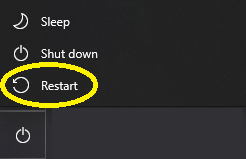
- Wait for Windows to load.
- Open Sage and select your company.
If several workstations are affected, Sage recommends having all users exit the application, restarting the server first, and then restarting the workstations.
Coordinate server restarts with your IT administrator to avoid interrupting other users and business applications.
2. Check Windows Event Viewer for application hang errors
Windows Event Viewer can provide information about an unresponsive Sage session, even when the program does not display a detailed error.
To locate the recorded event:
- Press Windows + R.
- Enter eventvwr.msc and press Enter.
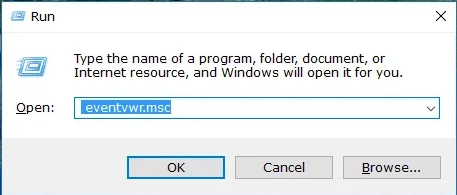
- Expand Windows Logs.
- Select Application.
- Look for events recorded around the time Sage stopped responding.
- Check whether the event refers to Peachw.exe, the Sage 50 application process.
You may encounter these Windows events:
| Event ID | Event type | Meaning |
| 1002 | Application Hang | Windows recorded an unresponsive application |
| 1000 | Application Error | An application crash was recorded |
| 1001 | Windows Error Reporting | Additional failure information may be available |
Record the event time, application version, and error description.
An Application Hang event does not identify the exact cause of the problem. For example, Event ID 1002 alone does not prove that Actian or the company database is damaged.
Microsoft provides additional application error diagnostic guidance.
3. Check the Actian Zen database service
Actian Zen is the database engine Sage 50 Accounting US uses to access company records. If it is unavailable, Sage may fail to load the company dashboard.
Before restarting the service, ensure all affected users have exited Sage.
- Press Windows + R.
- Enter services.msc and press Enter.
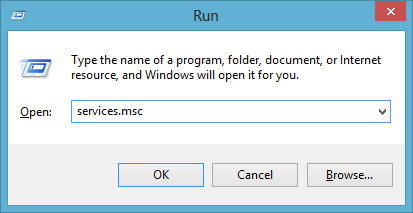
- Locate Actian Zen Workgroup Engine.
- Check whether the service is running.
- If it is stopped, right-click it and select Start.
- If a restart is necessary, right-click the service and select Restart.
- Reopen Sage and check whether the company loads.
Older Sage releases may use Actian PSQL or Pervasive PSQL instead.
For network installations, restart the database engine on the computer hosting the company data before restarting it on the workstations.
If the service cannot start or repeatedly stops, record the service error. Further database troubleshooting may be required.
See Sage’s Actian Zen service documentation.
4. Check Windows compatibility and administrator settings
Incorrect compatibility settings can interfere with company loading. Windows permissions may also prevent Sage from accessing required resources.
Remove incorrect compatibility settings
- Close Sage.
- Right-click its desktop shortcut.
- Select Properties > Compatibility.
- Clear Run this program in compatibility mode for, if selected incorrectly.
- Click Apply > OK.
- Reopen the application.
Changing compatibility mode does not make an unsupported Sage release compatible with a newer version of Windows.
If you recently upgraded Windows, check the system requirements for your installed Sage release. Sage provides separate system requirements for version 2026.
Test administrator permissions
Right-click the Sage shortcut and select Run as administrator, provided you have authorization.
If the company loads under elevated permissions but not under your normal Windows account, ask your IT administrator to investigate the user’s access rights.
Do not permanently enable administrator mode without understanding why it is needed.
Windows may also make mapped network drives unavailable to applications running with elevated permissions. If Sage cannot find its company data during this test, check the network connection before making further changes.
See Microsoft’s documentation on mapped drives and elevated applications.
5. Open a sample company instead of the last opened company
Sage may stop responding because it automatically attempts to load the company used during the previous session.
If you can access the application menu:
- Open Options.
- Clear Start With Last Opened Company.
- Close and reopen Sage.
- Select Explore a sample company from the Start screen.
See Sage’s Start screen documentation.
If you cannot reach the menu, use Sage’s official procedure for bypassing the last opened company.
Compare the results
| Test result | What to investigate next |
| Sample company opens, but the live company does not | Company-specific settings, files, or data access |
| Neither company responds | Local installation, database engine, or Windows settings |
| Live company opens on another workstation | Affected workstation’s configuration |
| Live company fails on every workstation | Shared company directory or server components |
Consider this hypothetical example: Sage opens a sample company on your computer but stops responding when loading your business records. A coworker can open those same business records without difficulty.
This result points toward a problem with your computer’s access to the live company rather than a failure affecting the entire database.
Do not delete company files simply because a sample company opens successfully.
Sage also documents clearing the last-opened company history through the Windows registry. Leave this advanced procedure to a qualified technician if the standard company-selection methods fail.
6. Check company data access and antivirus scanning
If Sage responds normally on the server but not on a workstation, investigate the workstation’s access to company data.
Ask your administrator to verify the following:
- Whether the correct shared folder is accessible through File Explorer.
- Whether Sage points to the correct data location.
- Whether the Windows user has the required folder permissions.
- Whether security software is blocking access.
Sage stores its program path and data path separately. The program path contains installed application files, while the data path identifies where company information is stored.
Follow Sage’s instructions for finding these paths.
If you suspect antivirus interference, check whether a scan is running. Allow it to finish and test Sage again.
If the application consistently responds after the scan ends, ask your IT administrator to review the scan schedule and necessary security exceptions.
Use Sage’s firewall and antivirus documentation as a reference.
Do not permanently disable antivirus protection or create another live copy of the company folder.
7. Verify your Sage release and installed updates
Check the Sage version installed on the affected computer, particularly if the problem began after an update or affects only one workstation.
- Open Sage if accessible.
- Select Help > About Sage 50 Accounting.
- Record the Release and Build information.
- Compare it with another working workstation or the server.
If Sage is inaccessible, check the installed product through Windows Programs and Features. This may identify the product release, although it may not provide all the build details.
See Sage’s version identification instructions.
To check for available updates, select Services > Check for Updates > Check Now.
Follow Sage’s official update instructions. Coordinate network installation updates with your administrator.
Check known product issues before installing or removing updates.
What if Sage stops responding after a Windows update?
Sage has documented a compatibility incident involving Windows security updates released on November 10, 2026.
The confirmed incident causes unexpected application closures during accounting tasks. It should not be treated as the cause of every Not Responding message.
Review Sage’s current Windows compatibility advisory if your symptoms match the reported incident.
Removing Windows security updates can expose your computer to vulnerabilities. Coordinate any rollback with your IT administrator.
8. Repair the Sage 50 installation
If Sage remains unresponsive across multiple companies after the earlier checks, damaged installation files may be responsible.
Sage recommends repairing the application before attempting a full reinstallation.
- Close Sage 50.
- Press Windows + R.
- Enter appwiz.cpl and press Enter.
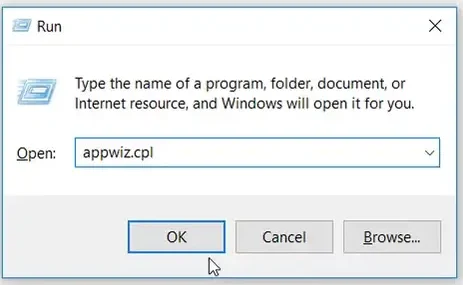
- Locate Sage 50 Accounting in Programs and Features.
- Right-click the program and select Change.
- Select Repair > Next.
- Wait for the repair to complete and click Finish.
- Install any required program updates.
For a network installation, Sage’s Not Responding guidance recommends performing the repair on the affected workstation.
See Sage’s installation repair instructions.
An installation repair addresses application files. It does not automatically repair accounting records.
If the problem began after moving to a new computer, check whether Sage was properly installed. Copying installed program folders from another computer does not replace the installation process.
Use Sage’s official download and installation guidance if reinstallation is necessary. Confirm your backups, licensing details, and network configuration before removing the software.
Sage 50 not responding after entering your password
If Sage stops responding after you click OK at the company login prompt, the problem may involve the company’s data location or database components.
Sage identifies several possible causes of a gray screen after login:
- An unavailable Actian database engine.
- Damaged database dictionary (DDF) files.
- An incorrect company data location.
- Incorrect compatibility settings.
- A damaged Actian installation.
Start by checking Actian and testing another company. If only one company is affected, have a technician investigate its data directory.
Sage also documents a specific login issue after installing the 2026.1 update. For that particular situation, it recommends reinstalling version 2026.1 using the full product installer.
This is a release-specific procedure. Do not downgrade or reinstall a newer Sage release based on instructions intended for 2026.1.
Follow Sage’s company login troubleshooting guide.
If database-file repairs are required, confirm that a usable backup exists and all users have exited Sage before proceeding.
How to confirm Sage 50 is responding normally
Opening the application does not establish that the company-loading problem has been resolved.
Reopen the affected company and confirm that:
- The company dashboard loads.
- Menus and navigation controls respond.
- Existing customer and vendor records are accessible.
- Recent transactions can be viewed.
- Other affected workstations can access the same company.
Create a fresh company backup once normal operation is restored.
If the problem returns, record the exact stage at which Sage stops responding. This information can help distinguish a login problem from a database service or workstation issue.
When to contact Sage Support
Contact official Sage Support or your IT administrator if Actian cannot start, the company remains inaccessible after the appropriate checks, or application repair does not help.
Provide the following information when requesting assistance:
- Sage release and build number.
- Windows version.
- Event Viewer error details.
- Whether the sample company opens.
- Whether one or multiple workstations are affected.
- Recent software changes and backup status.
Avoid sharing passwords, activation keys, or confidential financial records in public support forums.
If the interruption creates a backlog of accounting work, Accounts Confidant offers independent accounting and bookkeeping services.
Frequently asked questions
Does Sage 50 not responding mean my company data is corrupted?
No, Database service problems, Windows permissions, and incorrect company data locations can also prevent Sage from responding. Additional diagnosis is necessary before concluding that accounting records are damaged.
Why does Sage 50 Cloud stop responding?
If you use hosted Sage 50, check whether other applications within the remote session respond. If the entire session is inaccessible, contact your hosting provider. You can also check the official Sage service status page for reported incidents.
Why does Sage 50 stop responding for only one Windows user?
The problem may involve that user’s Windows profile, permissions, or application settings. Testing another authorized Windows profile can help identify whether the issue is specific to that user.
Can I repair Sage 50 without losing company data?
The standard installation repair addresses program components rather than company records. However, create a usable company backup before starting the repair. Application repair cannot resolve every company-data problem.
Why does Sage 50 remain unresponsive after restarting Windows?
Restarting Windows may temporarily restore application processes or services. If the problem continues, investigate Actian, company data access, permissions, and the installed Sage release rather than repeatedly restarting the computer.
Disclaimer: Accounts Confidant is an independent accounting and bookkeeping service provider and is not affiliated with, sponsored by, or endorsed by Sage. Product names and trademarks belong to their respective owners.
