
A login failure in QuickBooks Desktop accounting software can occur when your username is already active on another workstation, a previous remote session did not close properly, or your company file password is incorrect. You may also experience sign-in problems when the application cannot authenticate your Intuit® account.
If the QuickBooks Desktop Login Failed error indicates that a user is already logged into the company file, close the previous session and try again. If your company file opens but the Intuit sign-in window keeps spinning or displays an error, check whether your account works in a browser and whether your Desktop version can still access the affected service.
This guide explains how to diagnose and resolve login problems in QuickBooks Desktop Pro, Premier, and Enterprise for Windows. If you use the browser-based application, follow our guide to fixing QuickBooks Online login problems.
Accounts Confidant is an independent accounting and bookkeeping service provider and is not affiliated with Intuit. This material has not been approved, sponsored, or endorsed by Intuit Inc.
Identify which QuickBooks Desktop login is failing
Before resetting your password or repairing the software, identify where the login process fails. The following table helps you select the appropriate troubleshooting method.
| Error message or symptom | What to check first |
| Admin is already logged into the company file. | Existing user sessions on other workstations. |
| The company file password is rejected. | Local username and password. |
| Intuit login works in a browser but fails in Desktop. | In-product authentication and software version. |
| The Intuit sign-in window keeps spinning. | Internet connection and service availability. |
| Only one workstation experiences login problems. | Application or workstation issues. |
| Nobody can open the same company file. | Shared host and network connection. |
| Payroll or Payments displays an access denied message. | Account permissions and service eligibility. |
| Employees cannot log in after a company file upgrade. | Version-specific password requirements. |
| The application freezes after entering the password. | Program stability or company file loading problems. |
QuickBooks Desktop uses separate credentials for company file access and Intuit account authentication.
Your company file username and password control access to accounting records stored in the QBW file. Your Intuit account provides access to connected services, subject to the required permissions and service eligibility.
For example, you may be able to create invoices and review financial reports but encounter an error when accessing your payment-processing account. Changing the company file password will not resolve a missing Payments account permission.
Intuit explains these differences in its Desktop account user management documentation.
Why can’t you log in to QuickBooks Desktop?
An existing user session is a documented cause of company file login failure. The application may display the following error message:
User ID Admin is already logged into the company file.
Another version of the message states that the login attempt failed because the selected username is already active in the company file.
According to Intuit’s documentation for this login error, three circumstances can trigger the problem:
- A user did not sign out of a previous remote access session.
- The same company file username is already active on another workstation.
- An electrical disruption caused a network problem.
Other possible causes of Desktop login failures include incorrect passwords, incomplete account verification, unavailable online services, insufficient permissions, and password changes required after certain company file upgrades.
A failed login does not automatically indicate company file damage. Avoid running data repair utilities until you have identified a reason to use them.
What to check before troubleshooting QuickBooks Desktop login failed error
Gather information about the error before making changes that could interrupt other users or affect accounting data.
- Record the complete error message and any reference number.
- Confirm that you are opening the correct company file.
- Check your username, keyboard layout, and Caps Lock setting.
- Find out whether other authorized users can open the same file.
- Note any recent password changes, software upgrades, or network interruptions.
- If the application is accessible, press F2 to open the Product Information window and check the installed version and release.
- Identify the date of your latest company-file backup.
Suppose three employees work in the same company file. Two can sign in normally, but the third receives an existing-user error after disconnecting from a remote desktop.
In this situation, checking the employee’s previous session is more appropriate than restarting the entire server. It also allows the other employees to continue working.
If the application accepts your password but freezes while opening the company file, follow the relevant troubleshooting instructions for QuickBooks not responding.
How to fix company file login errors in QuickBooks Desktop
Choose the solution that matches your error. If the application reports that your username is already active, begin with Solution 1. If you have forgotten your password, proceed directly to Solution 5.
Solution 1: Close existing user sessions
Disconnecting from a remote desktop does not necessarily close the applications running inside that session. The accounting software may remain open and prevent you from using the same company file username on another workstation.
To close the previous session:
- Return to the computer or remote desktop where you last accessed the company file.
- Reconnect using your authorized Windows credentials, if necessary.
- Save any unfinished work.
- Close the company file and exit the application.
- Sign out of the remote desktop session.
- Return to your current workstation and attempt to sign in again.
If you cannot access the previous session, ask your network or hosting administrator to check for disconnected user sessions.
Do not force another employee to sign out before confirming that their work has been saved.
If the previous session has closed but the error continues, proceed with the program repair.
Solution 2: Run Quick Fix My Program from QuickBooks Tool Hub
Intuit recommends Quick Fix My Program for the documented existing-user login error. The utility addresses certain application problems that may interfere with company file access.
If the utility is not installed, follow our guide to downloading and installing QuickBooks Tool Hub. Obtain the installer directly from Intuit using the download link in its official login error documentation.
As of November 2026, Intuit documents Tool Hub version 1.6.0.8 and recommends using it on 64-bit Windows 11 for the best experience.
After installing the utility:
- Exit QuickBooks Desktop on the affected computer.
- Launch Tool Hub.
- Open the Program Problems tab.
- Select Quick Fix My Program.
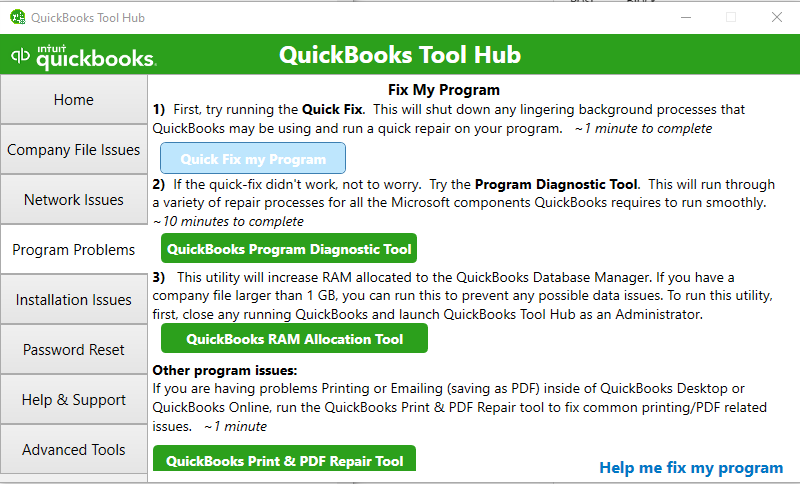
- Once the utility finishes, reopen the accounting software and test your login.
If you can access the correct company file using the affected username, no additional repair is necessary.
Quick Fix My Program is different from Quick Fix My File and QuickBooks File Doctor. An existing-user login error alone does not justify running company file repair utilities.
Solution 3: Restart the server hosting the company file
A host restart may help when a network interruption leaves user sessions in an abnormal state. Intuit includes restarting the company file host among its troubleshooting methods for the existing-user login error.
Coordinate the restart with your network administrator before proceeding.
- Ask all employees to save their work and exit the accounting software.
- Have the authorized administrator restart the computer hosting the company file.
- Allow the server and shared resources to become available.
- Open the application from an affected workstation.
- Test access using the previously affected account.
If your business uses a remotely hosted Desktop installation, ask your hosting administrator to perform the restart.
When employees continue to experience connection problems, follow the relevant instructions for troubleshooting QuickBooks multi-user mode before making further changes to your accounting data.
Solution 4: Test another authorized user account
Ask another authorized employee to open the same company file from the affected workstation using their own credentials.
The result can help you determine whether the problem follows the user account, the workstation, or the shared company-file environment.
| Test result | Recommended next step |
| Another employee can open the file from the same computer. | Check the original user’s credentials and previous sessions. |
| Both employees fail on one computer but succeed elsewhere. | Investigate the affected workstation. |
| Nobody can open the file from any workstation. | Check shared hosting, network access, and the company file environment. |
| Admin can sign in after an upgrade, but other employees cannot. | Review the upgraded version’s password requirements. |
These results are diagnostic clues rather than proof of a particular cause.
Do not share the administrator’s credentials as a temporary workaround. Each employee should retain an individual account with the permissions required for their work.
Solution 5: Reset the company file user or administrator password
Reset your password when you have forgotten it or confirmed that the existing credentials are no longer valid.
The procedure depends on your user role and installed edition.
Reset a regular user password
In QuickBooks Desktop Pro or Premier, an authorized company file administrator can assign a new password to an existing user.
- Open the company file as the administrator.
- Go to Company > Set Up Users and Passwords > Set Up Users.
- Confirm the administrator password.
- Select the affected account in the User List and choose Edit User.
- Assign a new password and complete the prompts by selecting Next twice and then Finish.
Ask the employee to sign in with the updated password.
Enterprise editions use a different user-management interface. Navigate to Company > Users > Set Up Users and Roles while signed in as the administrator.
Refer to Intuit’s Enterprise user and role management instructions for the applicable controls.
Changing an employee’s password does not require granting them additional accounting permissions.
Reset the company file administrator password
Intuit documents different administrator password recovery procedures based on the installed Desktop version.
- QuickBooks Desktop 2020 and later: Select I forgot my password on the company file sign-in screen. Choose the registered email address, retrieve the emailed reset token, and follow the recovery prompts.
- QuickBooks Desktop 2019 and earlier: The documented recovery procedure uses product registration information, including the license number and contact details associated with the software purchase.
Follow Intuit’s Desktop password recovery instructions for your version.
Recovery options may be limited in discontinued editions. If the reset token does not arrive, your registered email address is unavailable, or the recovery process rejects your information, see our guide on what to do when you are unable to reset the QuickBooks administrator password.
Security precaution: Only authorized users should attempt account recovery. Enter passwords, registration information, and reset tokens through the genuine application or official Intuit websites. Never disclose these details to unsolicited callers or unfamiliar websites.
How to fix Intuit account sign-in problems in QuickBooks Desktop
If you can open the company file but cannot authenticate your Intuit account, investigate the online sign-in process rather than repairing your accounting data.
Check whether your Intuit account works in a browser
Visit the official Intuit account sign-in page and enter the credentials associated with your business.
If the browser login fails, try private browsing, another browser, or a different device. Use Intuit’s account recovery options if you have forgotten your credentials.
If the browser login succeeds, confirm that the Desktop application is using the same Intuit account. The failure may involve the sign-in interface, software version, or connected service rather than the password.
A QuickBooks Community discussion involving Desktop 2020 describes a user experiencing a login failure inside the application despite being able to access the Intuit website.
This reported symptom illustrates why testing account access outside the application is useful before changing a working password.
Troubleshoot a blank or continuously spinning login window
If the Intuit sign-in window never displays the email and password fields, you cannot complete the normal authentication process. Changing your password will not necessarily make the window load.
Start with these checks:
- Save your work, exit the application, and reopen it.
- Confirm that your internet connection works.
- Test your Intuit account through a browser.
- Check the Intuit service status page for relevant incidents.
- Identify the installed Desktop version and release.
- If possible, test the affected feature from another authorized workstation.
The results can help distinguish a workstation problem from a shared authentication issue.
For example, if the sign-in window fails on one workstation but loads correctly on another using the same eligible Desktop version, investigate the affected computer before changing the company’s account settings.
If Intuit reports a matching service incident, allow the service to recover before attempting major software changes. The absence of a reported incident does not rule out an individual authentication problem.
Avoid disabling antivirus protection, lowering Windows security settings, or installing outdated browser components without verified instructions for your product.
Resolve verification code and access denied errors
If Intuit requests a verification code, confirm that you still have access to the registered email address or phone number.
Check your spam folder for email-based codes and use an alternative registered verification method if one is available.
Intuit also documents authentication errors involving reference code 25625, denied access, and temporarily unavailable services.
Follow Intuit’s sign-in troubleshooting instructions when these messages appear.
If authentication fails across different browsers and devices, visit Intuit’s website to get assistance. Further account or device security checks may be necessary.
Use the official recovery process if you no longer have access to your registered contact information.
Check Desktop Payroll and Payments account permissions
Company file administrator access does not automatically grant permission to use every connected Intuit service.
An employee may, for example, have permission to record customer payments in the company file but lack the account role needed to manage the connected payment-processing service.
In applicable Desktop versions, an authorized administrator can review these permissions through Company > Users > Intuit Account User Management.
To review or change a user’s role:
- Open the company file as the administrator and navigate to Intuit Account User Management.
- Locate the affected employee and check their role and invitation status.
- If an authorized change is needed, select Edit in the Action column.
- Assign the appropriate role, select Save, and confirm using Update info.
The ordinary editing procedure cannot be used to edit the primary administrator or the account currently signed in. Intuit also requires applicable Payments role changes to be completed in the Payments account first.
Use the appropriate official resource for the affected service:
- Desktop Payroll: Intuit’s My Account sign-in instructions.
- Desktop Payments: Merchant Service Center.
- Product registration and subscriptions: Customer Account Management Portal (CAMPS).
If the account permissions are correct, confirm that the business has an active service agreement and an eligible Desktop version.
Grant employees only the access required for their assigned work.
QuickBooks Desktop login problems related to software versions
An older Desktop version may no longer have access to connected Intuit services. A company file upgrade can also introduce different password requirements.
Login failures in discontinued Desktop versions
QuickBooks Desktop 2023 reached its service discontinuation date on May 31, 2026. Affected Windows editions in the United States include Pro Plus 2023, Premier Plus 2023, and Enterprise 23.0.
According to Intuit’s service discontinuation policy, affected products lose access to connected services such as Desktop Payroll, Desktop Payments, and online bank feeds. They also stop receiving critical security updates.
Service discontinuation does not automatically make every existing company file inaccessible. Local access can depend on licensing, subscription status, activation, and installation conditions.
If you use Desktop 2019, 2020, or another discontinued edition, check whether the feature requiring authentication is still available.
Installing the last available maintenance update for an older version cannot restore an online service that Intuit has discontinued.
Payroll precaution: Do not assume payroll taxes, forms, or filings continue to be processed after service discontinuation. Confirm outstanding payroll obligations with Intuit and your payroll professional before processing another payroll.
Login problems after upgrading to QuickBooks Desktop 2024
Intuit documents a password reset requirement when a company file is upgraded to QuickBooks Desktop 2024 or Enterprise 24.0.
The administrator must assign temporary passwords to all non-admin users. Each affected employee then creates a permanent password during their next sign-in.
For example, after upgrading a company file from Desktop 2023 to 2024, the administrator may be able to open the file while employees cannot sign in using their previous passwords.
If this happens:
- Confirm that the company file upgrade completed successfully.
- Open the upgraded file as the administrator.
- Access the user-management settings for your edition.
- Assign temporary passwords to the affected non-admin users.
- Ask each employee to sign in and establish a permanent password when prompted.
This requirement applies to the specified company file upgrade. It does not mean that employees must reset their passwords after every routine maintenance update.
See Intuit’s company file upgrade documentation for further details.
When should you restore a company file backup?
Intuit identifies backup restoration as a final troubleshooting option for persistent company file login errors.
Consider this step only after checking existing user sessions, repairing the application, investigating host access, and testing authorized credentials.
A backup restores accounting records from an earlier save point. Transactions entered afterward may be missing.
For example, restoring a Monday evening backup on Wednesday could exclude customer invoices, vendor payments, bank deposits, and payroll entries recorded since Monday.
Restore a backup without overwriting your working company file
Preserve the original company file. If your backup is stored on an external device or online storage service, copy it to your local hard drive first.
- Open QuickBooks Desktop and navigate to File > Open or Restore Company.
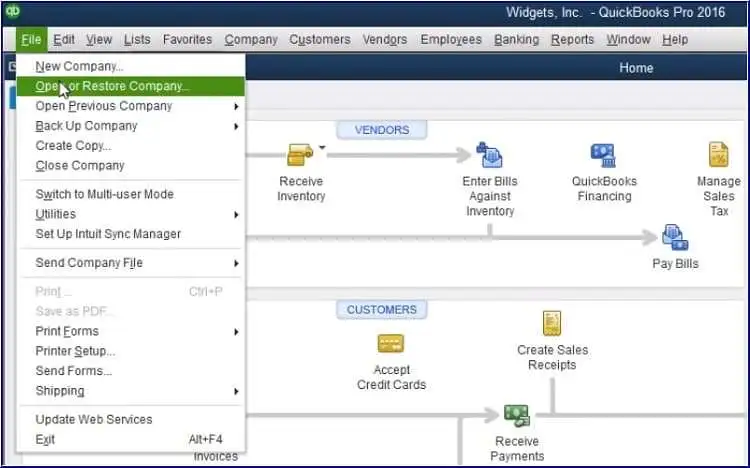
- Choose Restore a backup copy and continue with Local Backup.
- Locate the required backup file with the .QBB extension.
- Choose a separate destination folder for the restored company file.
- Use a unique filename to distinguish the restored file from your working file.
- Complete the restoration and attempt to open the new QBW file using valid credentials.
Do not approve a prompt to overwrite your active company file.
If the restored file opens, compare its contents with your available accounting records. Identify transactions entered after the backup date and reconcile the missing entries before replacing your working file.
For payroll and electronic payments, verify their actual processing status before reentering or resubmitting transactions. A payment may already have been processed externally even though its record is missing from the restored file.
If you cannot establish which transactions are missing, have a qualified accounting professional review the restored data.
Follow Intuit’s complete backup restoration instructions for additional guidance.
If neither the original company file nor the restored backup opens, retain both files and arrange a qualified assessment before attempting further recovery.
How to prevent recurring QuickBooks Desktop login problems
Proper user-session management can prevent some company file access conflicts. Maintaining current account information and reliable backups also makes recovery easier.
- Close the accounting software before disconnecting from a remote desktop.
- Assign a separate company file username to each authorized employee.
- Keep Intuit account recovery email addresses and phone numbers current.
- Schedule server maintenance outside active accounting sessions.
- Check version eligibility before relying on connected Payroll or Payments services.
- Create regular company file backups and periodically verify that they can be restored.
When an employee leaves the business, review and revoke their company file access and connected Intuit account permissions as appropriate.
What to do if QuickBooks Desktop still won’t let you log in
If the applicable solutions fail, collect the information needed to investigate the problem without repeating the same repairs.
| Diagnostic information | What to record |
| Error message | Complete message and any reference number. |
| Product version | Installed edition, year, and release. |
| Affected users | Whether the problem affects one employee or everyone. |
| Affected workstations | Whether the same login works on another computer. |
| Company-file access | Whether another authorized user can open the file. |
| Intuit account access | Whether authentication works in a browser. |
| Recent changes | Software upgrades, password changes, or network interruptions. |
| Backup availability | Date of the most recent known backup. |
Get in touch with Intuit directly for unresolved account authentication, identity verification, or licensing problems. Involve your hosting administrator when the failure concerns remote sessions or the company file server.
Do not share passwords, license keys, verification codes, or reset tokens when providing general diagnostic information. Keep the original company file and backups intact until the cause of the problem has been identified.
Frequently asked questions
Does QuickBooks Desktop require an internet connection to open a company file?
Many local accounting functions do not require continuous internet access. However, subscription verification, Intuit authentication, and connected services may require an internet connection. Requirements depend on the installed edition, licensing conditions, and feature being used.
Will reinstalling QuickBooks Desktop remove my company file password?
Reinstalling the application is not a password recovery method. Access to the company file remains subject to its authentication requirements. Use Intuit’s documented recovery procedure if you have forgotten the password.
Does restoring a QuickBooks backup remove login restrictions?
Not necessarily. A restored company file may still require valid credentials. Backup restoration recovers saved accounting records and should not be used to bypass authentication.
Can two employees use the same QuickBooks username simultaneously?
The application may reject the second login when the same username is already active in the company file. Employees working in multi-user mode should have separate authorized accounts with appropriate permissions.
Is QuickBooks Desktop login failure the same as activation failure?
No, activation concerns product registration, licensing, or subscription entitlement. A company file login failure affects access to accounting records, while an Intuit sign-in failure concerns online account authentication.
Trademark notice: Intuit and QuickBooks are registered trademarks of Intuit Inc. Accounts Confidant is an independent Accounting and Bookkeeping service provider and is not affiliated with, sponsored by, endorsed by, or approved by Intuit Inc.
