
The “QBPOSShell has stopped working” error can prevent QuickBooks® Desktop Point of Sale (POS) software from opening or cause it to close during startup. You may see the message when launching POS, reopening it after a crash, or trying to access the program on a workstation.
The error may involve a stuck background process, a missing executable file, damaged user settings, or a Windows component problem.
Start by closing Point of Sale and checking for QBPOSShell.exe in Windows Task Manager. If the process is still running but the application is unresponsive, end it and try opening POS again.
If the error returns, check the exact message and whether other workstations are affected. A missing executable, application crash, and database connection failure require different checks.
Important: Intuit discontinued QuickBooks Desktop Point of Sale 19.0 on October 3, 2023. Existing installations may continue running without discontinued connected services, but the product no longer receives critical security patches or feature updates. Protect your company data before making changes that could affect the installation.
What Does the QBPOSShell Has Stopped Working Error Mean?
The message means that the QBPOSShell process has crashed, stopped responding, or failed to start.
QBPOSShell.exe is an executable associated with QuickBooks Point of Sale. An executable is a file Windows runs as part of a program.
When this process fails, POS may close before reaching the main screen. Windows may also display a message saying it cannot find or open the executable.
The error does not automatically mean your inventory records, sales transactions, or POS company data are damaged.
Which Error Are You Seeing?
Check the message before choosing a repair.
| Error or symptom | What to investigate first |
| QBPOSShell has stopped working | Background process and Windows crash details |
| QBPOSShell.exe is not responding | Frozen application process |
| Windows cannot find QBPOSShell.exe | Shortcut target and executable location |
| POS crashes under one Windows account | User-specific settings and permissions |
| POS opens but cannot connect to company data | Database service or network connection |
If the message mentions “Error initializing QBPOS application log,” record the full wording. That message may require different troubleshooting steps from a QBPOSShell crash.
Why Does QBPOSShell Stop Working?
Several problems may prevent the POS application shell from running correctly.
A Background Process Is Not Responding
If Point of Sale freezes or closes unexpectedly, QBPOSShell.exe may remain active in Windows.
This can interfere with another attempt to open the program.
Windows Cannot Access the Executable
An incorrect desktop shortcut, missing installation file, or security restriction may prevent Windows from opening POS.
A file-not-found message does not always mean that the executable was deleted. The file may still exist, but Windows may be unable to access it.
User-Specific Settings Are Causing a Problem
Windows accounts can have different application settings and access permissions.
If POS opens under one account but fails under another, the problem may involve the affected user’s settings.
Program Files or Windows Components Have a Problem
Damaged installation files or a problem involving a Windows component may interfere with startup.
However, a crash after a Windows update does not prove that the update caused the error. Windows crash details can help narrow the investigation.
These are possible causes, not confirmed diagnoses. Use the exact message and the results of each check to decide what to do next.
What Should You Check Before Fixing QBPOSShell?
Before changing files or settings, record the error and locate your latest POS company data backup.
Check the following:
- POS version: Identify whether the installation uses POS 19.0 or an older release.
- Exact error: Save a screenshot, including any additional Windows error code.
- Affected computers: Determine whether the issue occurs on one workstation, the server, or every workstation.
- Recent changes: Note any Windows updates, security warnings, or software installations before the error appeared.
- Backup availability: Locate your latest company data backup and confirm where it is stored.
If POS still opens, use File > Back Up Data, where available in your version, to create a fresh backup. Store a separate copy in a secure location.
If the application cannot open, locate an existing backup before attempting advanced repairs.
Do not delete, rename, or replace POS company data files to fix an application-shell error.
How to Fix QBPOSShell Has Stopped Working
Begin with the checks that make the fewest changes. Test Point of Sale after each step.
You do not need to perform every procedure. Choose the next check based on the error and the results you have already recorded.
1. End the Stuck QBPOSShell Process
If POS freezes or closes incorrectly, QBPOSShell.exe may remain active in the background.
To check:
- Close any open Point of Sale windows.
- Press Ctrl + Shift + Esc to open Task Manager.
- Select More details, if shown.
- Open the Details tab.
- Look for QBPOSShell.exe.
- If the process is still active but POS is unresponsive, right-click it.
- Select End task.
- Open Point of Sale again.
Ending a process can discard unsaved work. Do not end unrelated Windows services or POS database processes.
Check the result: If POS opens, close it normally and launch it again.
If the error returns, restart Windows when it is safe to do so.
On a shared POS server, arrange the restart when other workstations are not processing sales.
If QBPOSShell is not listed in Task Manager, continue with the next relevant check.
2. Check Whether QBPOSShell.exe Is Missing
If Windows reports that it cannot find QBPOSShell.exe, inspect the Point of Sale shortcut and installation location.
Follow these steps:
- Right-click the Point of Sale desktop shortcut.
- Select Properties.
- Open the Shortcut tab.
- Review the path shown in the Target field.
- Select Open File Location, if available.
- Check whether the executable exists at that location.
If the target points to a folder that no longer exists, the shortcut may be incorrect or the installation may be incomplete.
If the executable exists but Windows still cannot open it, record the full error message. The problem may involve file access or the installed application.
An Intuit Community discussion about QBPOSShell.exe in POS 19.0 describes a server that reported a missing executable while two floor workstations continued operating.
The user later confirmed that the executable was present but could not be opened.
The discussion does not establish a confirmed repair. It shows why checking the actual file location matters before reinstalling POS.
Do not download a replacement QBPOSShell.exe file from an unknown website. A matching filename does not prove that the file is authentic or safe.
3. Check Whether Windows Security Blocked the File
If the executable is missing or cannot open, check whether Microsoft Defender blocked or quarantined it.
- Open the Start menu.
- Search for Windows Security.
- Select Virus & threat protection.
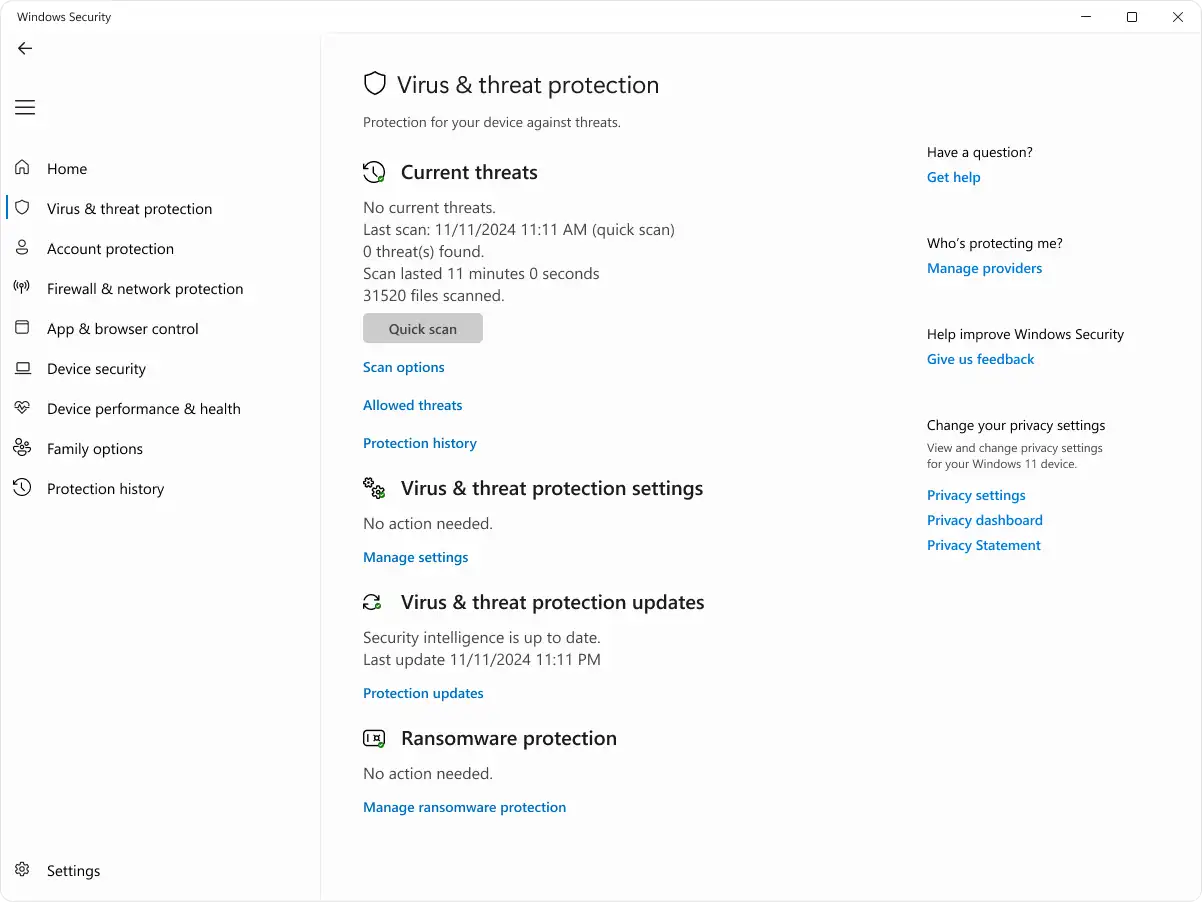
- Open Protection history.
- Review recent blocked or quarantined items.
- Look for an entry involving the POS executable or its installation path.
Microsoft Defender generally keeps Protection History entries for two weeks. Administrator permissions may be required to view certain details.
If you find a related entry, record the detection name and affected file location.
Do not restore a quarantined file until you have verified that it is legitimate. If the file is flagged as malicious, investigate the warning instead of disabling antivirus protection.
See Microsoft’s Protection History instructions.
If no related security event appears, continue without changing antivirus settings.
4. Check Windows Event Viewer for Crash Details
If QBPOSShell keeps crashing, Windows Event Viewer may show information that does not appear in the error message.
To review the application log:
- Press Windows + R.
- Type eventvwr.msc.
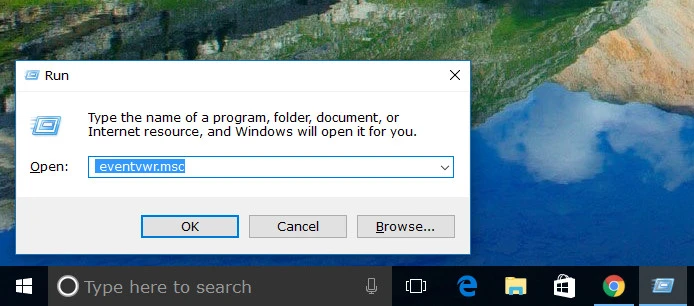
- Press Enter.
- Expand Windows Logs.
- Select Application.
- Find an error recorded around the time POS crashed.
- Open the event and review its details.
Look for the following information:
| Event detail | What it means |
| Faulting application name | Identifies the application that crashed |
| Faulting module name | Identifies a component involved in the failure |
| Exception code | Provides technical details about the error |
| Event time | Helps match the record to the POS crash |
For example, an Application Error event naming QBPOSShell.exe confirms that Windows recorded a failure involving that process.
If the event identifies another component, save its name and the exception code.
These details may help a technician narrow the investigation. They do not confirm the root cause on their own.
5. Test POS Under Another Windows Account
A separate Windows account can help determine whether the failure involves user-specific settings.
This test is useful when the executable exists but POS continues to fail under the original account.
On Windows 11:
- Open Start > Settings.
- Select Accounts > Other users.
- Under Add other user, select Add account.
- Follow the prompts to create a test account.
- Sign out of the original Windows account.
- Sign in using the test account.
- Try opening Point of Sale.
On Windows 10, the option may appear under Settings > Accounts > Family & other users.
If the computer is managed by your business, ask the administrator to arrange the test. Avoid granting administrator privileges unless they are required.
If POS opens under the test account: Compare the original account’s settings and permissions. The problem may be related to that user profile.
If POS fails under both accounts: Shared program files or Windows components may need investigation.
A new Windows account may lack the permissions or settings needed to use POS. Therefore, a failed launch under that account does not prove that the entire installation is damaged.
For account setup instructions, see Microsoft’s Windows user account guide.
6. Investigate the QBPOSShell user.config File Only When Relevant
If POS works under another Windows account, local configuration settings may be worth checking.
Some legacy Point of Sale troubleshooting guides recommend renaming a file called user.config.
The file may store user-specific application settings, but the exact QBPOSShell folder and reset procedure have not been verified for every POS version.
Older installations may contain related folders under:
%LOCALAPPDATA%\Intuit
Some folder names may begin with QBPOSShell.exe_Url_.
However, a similar folder name does not prove that it belongs to the active installation.
Do not delete the folder or rename an unidentified configuration file.
If the Windows account test points to a local configuration problem, a technician familiar with the installed POS version can identify the correct file, preserve the original, and decide whether a reversible reset is appropriate.
If the file cannot be confirmed, skip this procedure.
7. Repair .NET Framework Only if Windows Reports a Related Problem
Some older POS troubleshooting guides recommend uninstalling and reinstalling Microsoft .NET Framework.
That should not be a routine response to every QBPOSShell crash.
.NET Framework is a Windows component used by many applications. Changing it without a specific reason may affect other software.
If Event Viewer or another error message points to a .NET Framework problem:
- Open Microsoft’s .NET Framework repair instructions.
- Check whether the procedure applies to your Windows installation.
- Use Microsoft’s official .NET Framework Repair Tool, if appropriate.
- Follow the documented repair instructions.
- Restart Windows if required.
- Try opening Point of Sale again.
If the error continues, preserve the Windows error details rather than repeatedly changing system components.
The Microsoft repair procedure addresses certain framework problems. It is not a confirmed fix for every QBPOSShell error.
Should You Repair or Reinstall QuickBooks Point of Sale?
Consider an installation repair when the earlier checks fail and the evidence points to damaged program files.
Windows provides repair options for some desktop applications.
To check whether one is available:
- Close Point of Sale.
- Open Control Panel.
- Select Programs > Programs and Features.
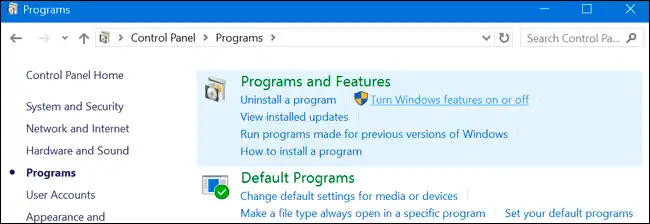
- Find the installed Point of Sale application.
- Check whether Repair or Change is available.
Do not select an uninstall option while checking.
Microsoft documents the general Windows application repair process. However, this does not confirm that every POS installation has a working repair option.
Only proceed after confirming that the repair applies to your version and that you have a recovery plan.
Why Reinstalling POS 19.0 Requires Extra Care
Intuit discontinued QuickBooks Desktop Point of Sale 19.0 on October 3, 2023.
The discontinued connected services include POS Payments, Gift Card Service, Mobile Sync, and Intuit Store Exchange. Intuit also ended live product assistance for POS 19.0.
Existing installations may continue operating without those services, but critical security patches and feature updates are no longer provided.
Before uninstalling POS, confirm that you have:
- A current and usable company data backup.
- Authentic installation files for your exact POS version.
- Original license and product information.
- Details of the current server and workstation setup.
- A recovery plan if the program cannot be reinstalled or activated.
If these items are missing, avoid uninstalling until the risks have been assessed.
Do not delete entitlement files, reset licensing information, or remove Intuit folders as a general QBPOSShell repair.
Such changes may create additional installation or activation problems.
For product status and discontinued features, read Intuit’s official QuickBooks Desktop Point of Sale discontinuation notice.
What if QBPOSShell Fails on the Server but Works on Other Workstations?
If the error occurs on one computer while other workstations continue operating, investigate the affected computer first.
Consider a hypothetical example: POS crashes when opened on the server, but two sales registers remain connected and usable.
This does not prove that every server component is healthy. However, it suggests checking the server’s local application and Windows environment before changing shared database settings.
| Situation | First area to investigate |
| One workstation crashes during startup | Local process, Windows account, or installation |
| Server POS interface crashes while registers remain connected | Server’s local application environment |
| All workstations lose access to shared data | Server availability, POS database service, or network |
| POS opens but reports a database error | The specific database message and shared-data connection |
Avoid restarting shared database services while sales are being processed unless the interruption has been planned.
A database connection error should be investigated using its exact message rather than treated as another QBPOSShell crash.
How Do You Confirm the QBPOSShell Error Is Fixed?
Opening Point of Sale without an error is the first check. Confirm that normal operations still work.
- Open the correct POS company data.
- Check that expected inventory records and recent transactions are visible.
- If several workstations use the same server, confirm that they can still connect.
- Close POS normally.
- Open it again and check whether the error returns.
If the crash happened during a sale, check whether the transaction was saved before entering it again.
Re-entering a saved sale could create duplicate records.
Keep a record of the settings changed and the result of each test. If the error returns, those details can help identify the next step without repeating the same procedures.
Frequently Asked Questions
Is QBPOSShell.exe a Virus?
QBPOSShell.exe is associated with QuickBooks Point of Sale, but a familiar filename does not guarantee that a file is safe.
Check its location, available digital-signature information, and security scan results if you suspect an unfamiliar executable.
Can QuickBooks Tool Hub Fix QBPOSShell Errors?
QuickBooks Tool Hub is documented primarily for common QuickBooks Desktop accounting software issues.
Its Desktop repair procedures should not automatically be treated as verified fixes for the discontinued Point of Sale application.
If the error occurs in QuickBooks Desktop accounting software rather than POS, see our separate QuickBooks has stopped working troubleshooting guide.
Does QuickBooks POS 19.0 Work on Windows 11?
Official Windows 11 compatibility for POS 19.0 has not been established in the documentation reviewed for this article.
Before moving POS to Windows 11, confirm the requirements and recovery options for your existing installation.
Do not assume compatibility because the application runs on an older Windows version.
Can a QBPOSShell Crash Damage My POS Company Data?
The error alone does not prove that your company data is damaged.
However, a crash may interrupt unsaved work. Check recent transactions before entering them again, and keep your existing backups safe.
What Should You Do if QBPOSShell Still Fails?
If the process, executable location, Windows account, and crash details do not reveal the cause, avoid repeating the same repairs.
Preserve your company data and error records before changing installation or licensing files.
For a discontinued POS installation, have a technician familiar with the affected version review higher-risk changes. This can help reduce the chance of losing access to an installation that may be difficult to restore.
Accounts Confidant is an independent accounting and bookkeeping service provider and is not affiliated with Intuit.
Intuit and QuickBooks are registered trademarks of Intuit Inc. This article has not been approved, sponsored, or endorsed by Intuit Inc.
