The “QuickBooks has stopped working” message tells you that Windows found a problem with QuickBooks Desktop. The message does not name the cause, and it does not mean your saved business records are lost.
Start by saving a screenshot of the message. Note your QuickBooks version, protect your latest backup, and record any recent changes to the computer. These details help you choose the right next step.
This guide focuses on that specific Windows error. If QuickBooks will not launch and you do not see this message, use our guide to QuickBooks that won’t open.
What Does the QuickBooks Has Stopped Working Error Mean?
The message means Windows has found a fault that prevents QuickBooks from working as expected. It is a general error, so you need more details before choosing a repair.
The alert may also say that a problem caused the program to stop working correctly. Save the full wording, including any extra code.
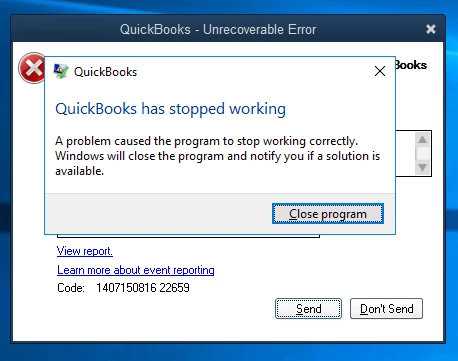
Do not treat this alert as proof of company file damage. A program fault and a data problem need different checks. Choosing a repair based only on the message can lead to changes that do not address the cause.
Why Does QuickBooks Show This Message?
Possible causes include damaged program components, user settings, or Windows files. Intuit also lists hard-drive damage and a company name that is too long among the possible causes.
The cause list is a starting point, not a diagnosis. Use Intuit’s official guidance for the QuickBooks has stopped working error as the source for the repair options.
| Area to check | What it means |
|---|---|
| QuickBooks program files | Part of the installed software may need repair. |
| QBWUSER.INI | QuickBooks may have a problem with its saved user settings. |
| Windows | Files or components used by QuickBooks may need attention. |
| Storage | A drive problem may affect access to files. |
Do not rename your business, delete files, or change Windows settings just because an item appears in this list. First, collect evidence that the area is relevant.
What Should You Save Before Making Changes?
Keep a record of the error and protect your latest known good backup. This makes it easier to compare results and recover information if further work is needed.
Write down:
- The full message and any error code.
- The date and time it appeared.
- Your QuickBooks edition, year, and release.
- Your Windows version.
- Any update, repair, or computer change made just before the error.
- The location and date of your latest backup.
If you regain access, check the last entry you worked on before entering it again. Do not assume that it failed to save.
Keep older backups when creating a new one. A new backup should not replace the only copy you know was working.
Which Repair Options Apply to This Error?
Intuit’s guidance includes program repair, component checks, and a user-settings reset. Choose the option that fits the evidence, and record the result before moving on.
Start With Quick Fix my Program
Quick Fix my Program is an initial repair option in QuickBooks Tool Hub. It ends QuickBooks background processes and runs a brief program repair.
Close QuickBooks first. In Tool Hub, choose Program Problems > Quick Fix my Program, then reopen QuickBooks when the tool finishes.

Our guide to Quick Fix my Program and the older Refresher Tool explains the download and setup process.
After the repair, note whether the exact message returns. If nothing changes, keep that result for the next step rather than running the same repair without a clear reason.
Check Program Components When the First Repair Does Not Help
A component check may be appropriate if the basic program repair does not resolve the error. Use the tool that matches the current official instructions and the labels in your installed Tool Hub.
Do not treat the Program Diagnostic Tool and the Install Diagnostic Tool as the same name. For installation issues, Intuit’s separate Desktop guidance places QuickBooks Install Diagnostic Tool under Installation Issues.
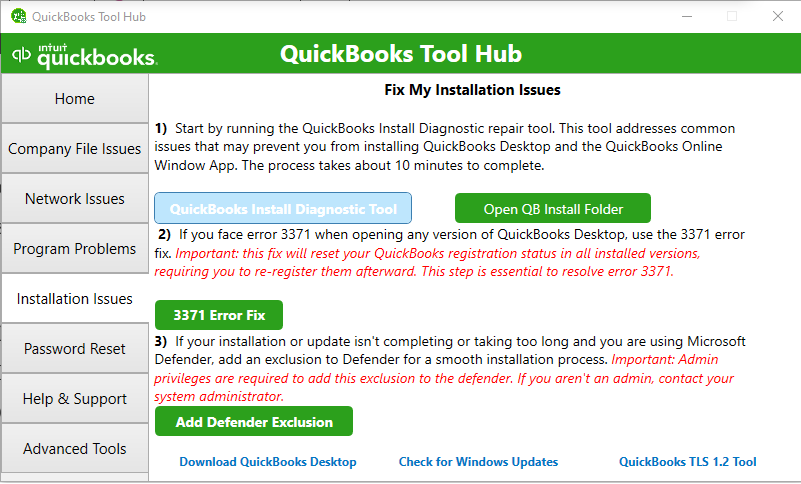
Record which tool you used and whether you restarted the computer afterward. This helps prevent the same checks from being repeated later.
Understand a User-Settings Reset Before Trying It
Renaming QBWUSER.INI resets saved user settings and removes the list of recently opened company files. You will need to locate and open the company file again.
This settings file is separate from your company data. Follow verified instructions for your version, and check the filename carefully before making changes.
Keep entitlement or license-file changes separate from a simple settings reset. If QuickBooks asks for activation after a change, tell support exactly what was renamed.
What if the Message Still Appears?
Stop repeating repairs that have produced no change. Collect the results and ask Intuit support or your IT provider to review the remaining cause.
A useful repair record is short and specific:
| Record | Example of what to note |
|---|---|
| Step completed | Name of the Tool Hub tool used |
| Result | Same message, different message, or no message |
| Restart | Whether Windows was restarted |
| File changes | Exact names of files renamed |
| New prompt | Any activation or sign-in request |
A clean install is a later option when the evidence points to damaged program files. Our QuickBooks clean install guide explains what to save and how to prepare.
Do not replace your company file with an older backup just because the error remains. An older copy may lack recent entries, and replacing the file may not address a program fault.
What Should You Check After the Error Is Resolved?
Confirm that you are using the correct company file and that your recent records are present. Then keep the repair notes so you have a clear record if the message appears again.
Check the company name and file location. Review the last saved work, close QuickBooks normally, and open it again to confirm that access still works.
If the program opens but rejects your account details, use our guide to QuickBooks sign-in problems. A rejected login needs its own checks.
Conclusion
The QuickBooks has stopped working error is a starting point for diagnosis, not proof that your data is damaged. Save the message, protect your backup, and use a repair that fits the evidence.
Keep a record of each result. If the error remains, those details will help support choosing the next step without repeating work you have already done.
Frequently Asked Questions
The answers below explain common concerns about this specific error message. Use the full message and any added code when asking for help.
Does This Message Mean My Company File Is Damaged?
No, the message alone does not prove data damage. Program files, user settings, Windows, or storage may need to be checked before a cause can be confirmed.
Is There One Error Code for QuickBooks Has Stopped Working?
The wording itself is not a numbered QuickBooks error code. If Windows or QuickBooks shows an extra code, record it with the full message because it may help narrow the issue.
Does Renaming QBWUSER.INI Remove My Transactions?
The file holds user settings rather than your company’s transactions. Renaming it removes the recent-file list, so you may need to find and open your company file manually.
Should I Delete My Company File to Remove the Error?
No, deleting the company file can remove your accounting records and does not repair the installed program. Keep the file and backups safe while the cause is checked.
Do I Need to Reinstall QuickBooks Right Away?
No, start with the relevant repair options and record what happens. Consider reinstallation only when the evidence points to the program and simpler repairs have not helped.
Accounts Confidant is an independent accounting and bookkeeping service provider and is not affiliated with Intuit.
