QuickBooks freezes when you open it. You search for the QuickBooks Refresher Tool, but the steps point to an old download or a button you cannot find.
For current Windows troubleshooting, start with QuickBooks Tool Hub → Program Problems → Quick Fix my Program. This is the current repair option to try for the kind of program issues older QBRefresher guides describe.
The right next step depends on where QuickBooks stops working. A freeze before the company file opens calls for a different check than an error that affects just one file.
Is the QuickBooks Refresher Tool Still Available?
QuickBooks Refresher is an older Windows repair tool referenced in past Intuit support answers. Intuit’s current repair guide directs users to Tool Hub and Quick Fix my Program instead of a separate QBRefresher download.
An old download link may still appear in a forum or blog. That does not prove the file is supported for your current setup. A verified, current standalone download is not provided in the repair guide used for this article.
If you searched for “QuickBooks Refresher Tool download,” use the Tool Hub route below. There is no need to find an old installer before trying the current repair.
Where Is the QuickBooks Refresher Tool in Tool Hub?
Look for Quick Fix my Program under Program Problems. The current repair steps do not ask you to select a button named QuickBooks Refresher Tool.
If the QuickBooks Refresher Tool is missing, you may be following an older guide. Our QuickBooks Tool Hub guide explains the tabs and helps you choose the right one.
What Does the QuickBooks Refresher Tool Actually Do?
Intuit’s older guidance describes QBRefresher as a tool that ends background QuickBooks processes and performs a small program repair. Quick Fix my Program has a similar stated purpose in the current repair guide.
A background process is part of a program that can keep running even when no window is visible. If a QuickBooks process gets stuck, closing the visible window may not end the problem.
A program repair may help when QuickBooks fails to start or stops responding. It does not follow that every slow report or crash has the same cause.
Do not treat Refresher as a company-file repair, a password reset tool, or a way to add RAM. There is also no basis here to claim it clears every cache, repairs the Windows registry, or fixes every QuickBooks error.
Which QuickBooks Repair Tool Should You Use?
Choose a tool based on the symptom and when it occurs. Program startup, company-file damage, and installation faults need different checks.
| Tool | Main job | When to consider it | Current access or limit |
|---|---|---|---|
| QuickBooks Refresher Tool / QBRefresher | Ends background QuickBooks processes and runs a small program repair | Understanding older startup and freeze advice | Legacy guidance; use the current repair route below |
| Quick Fix my Program | Closes background QuickBooks processes and repairs the program | QuickBooks will not open or stops responding | Tool Hub → Program Problems |
| QuickBooks File Doctor | Helps with supported company-file and network issues | A file will not open or shows a related error | Tool Hub → Company File Issues |
| QuickBooks Install Diagnostic Tool | Helps fix installation-related problems | The first program repair fails or setup problems remain | Tool Hub → Installation Issues |
| Component Repair Tool | An older term used in Windows component repair guidance | An error points to components such as .NET or MSXML | Do not assume a separate current download exists; follow the relevant component repair instructions |
QuickBooks Refresher Tool vs File Doctor: the first concerns the program and its background processes. File Doctor concerns supported file and network faults. They are not interchangeable.
How to Download and Run the Current Refresher Tool Alternative
Download Tool Hub from Intuit, then run Quick Fix my Program. Use this Windows workflow when an older guide tells you to run QBRefresher.
Prepare Before You Close QuickBooks
Save open work and close every QuickBooks Desktop window before the repair. If the company file opens, make a current backup before moving into deeper troubleshooting.
- Write down the exact error and the task that triggers it.
- Check whether the issue affects one company file or all files.
- If others share the host computer, arrange a time when they can sign out.
- Ask the hosting provider or IT team to handle repairs on a managed server.
If QuickBooks is frozen, check for a hidden prompt and give an active task time to finish. Do not interrupt a backup, rebuild, or file upgrade just because the screen is slow. Force-closing may lose unsaved work.
Download and Open QuickBooks Tool Hub
Use the Tool Hub download linked from Intuit’s official QuickBooks Desktop repair guide. This avoids relying on an old QBRefresher file from another site.
- Close QuickBooks Desktop.
- Open the Intuit guide above and select its Tool Hub download.
- Save QuickBooksToolHub.exe where you can find it.
- Open the file and follow the setup prompts.
- Launch QuickBooks Tool Hub from the desktop or Windows search.
If Tool Hub is already installed, check its version on the Home tab against the current Intuit download.
Run Quick Fix my Program and Check the Result
Select Program Problems → Quick Fix my Program and let the repair finish. Then reopen QuickBooks and your company file.

Repeat the task that failed. If the app froze when opening a report, open that report again with the same date range. Reaching the home screen alone does not show that the problem is fixed.
When the task works, close and reopen QuickBooks once more. If the freeze returns, note what changed before it came back.
What If the QuickBooks Refresher Tool Is Not Working?
First, check whether the repair tool cannot open or whether it finishes without fixing QuickBooks. These are separate problems, and each needs a different next step.
The Old Tool or Tool Hub Will Not Open
If an old QBRefresher file will not run, move to the current Tool Hub download. If Tool Hub itself will not open, restart Windows and check that its installation completed.
Download a fresh copy from the Intuit guide if the installer is incomplete. Record any error instead of trying several unknown download sites. On a work computer, ask IT to check install permissions or security blocks.
A tool launched within Tool Hub may need time to download its own files. Keep the installer open while that download finishes.
The Repair Finishes, but QuickBooks Still Fails
Try the QuickBooks Install Diagnostic Tool when the first program repair does not resolve the error. Intuit lists it as the next step in its Windows repair guide.
- Open Tool Hub and choose Installation Issues.
- Select QuickBooks Install Diagnostic Tool.

- Allow it to finish; it can take up to 20 minutes.
- Restart the computer and test QuickBooks again.
- Install the latest available maintenance update for your QuickBooks release.
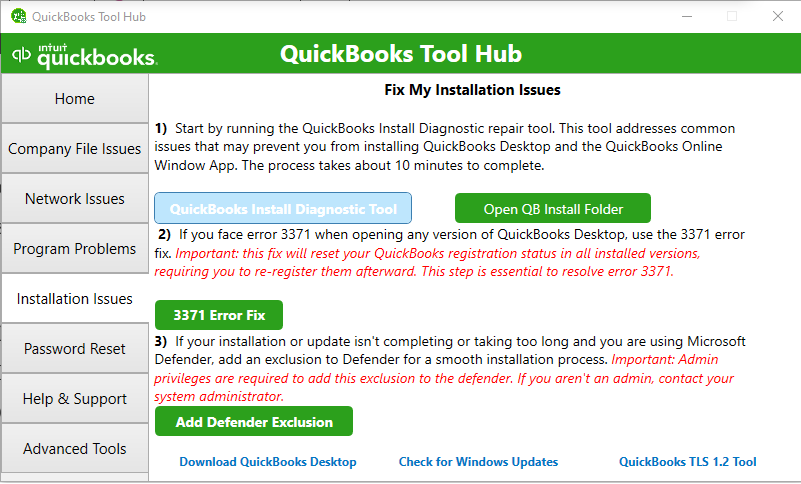
If an error points to .NET or MSXML, use the instructions for that component. Avoid deleting registry entries or using a general registry cleaner as a routine QuickBooks fix.
Only One Company File Freezes
A problem limited to one file calls for file-level checks. If a sample company opens but your working file fails, that is a useful clue, though it does not prove the file is damaged.
Protect the latest backup, record the full error, and follow the matching company-file repair steps. Our QuickBooks File Doctor guide explains when that tool may help.
Do not keep running a program repair simply because the first attempt failed. Check whether the file’s location, access rights, or data could be involved.
QuickBooks Works Locally but Fails for Other Users
If QuickBooks works on the host but fails on a workstation, investigate the shared-file connection. A program refresh alone may not resolve a hosting, firewall, or network fault.
Record any H-series error and which users are affected. Follow the relevant checks in our QuickBooks multi-user mode guide before changing server settings.
QuickBooks Opens but Remains Slow
Ongoing lag needs a performance check, even if program repair succeeds. Note whether the delay affects every task or only a large report, file, or shared connection.
Check available disk space and look for heavy CPU, memory, or disk use in Windows Task Manager. Record the pattern rather than ending unfamiliar processes. For a wider set of symptom-based checks, see our guide to QuickBooks not responding.
Is There a QuickBooks Refresher Tool for Mac?
There is no equivalent QBRefresher tool for native QuickBooks Desktop for Mac in the Intuit guidance reviewed. Windows Tool Hub instructions do not apply to the Mac app.
Start by updating QuickBooks for Mac and checking that your version supports your macOS release. Restart the Mac and test whether the issue affects a sample company as well as your working file.
If the issue points to company data and QuickBooks opens:
- Choose File → Utilities → Verify Data.
- Review the result. Do not rebuild just because the app feels slow.
- If Verify reports data damage, make a backup and use Rebuild Data.
- Run Verify again to check the result.
If QuickBooks crashes before you can use these menus, follow Mac crash troubleshooting instead. A Windows .exe download cannot repair the native Mac app.
Case Study: QuickBooks Freezes Before the Company File Opens
A startup freeze can point to a program issue before there is any clear sign of company-file damage. The scenario below shows how that distinction guides the repair.
The problem
A bookkeeper at a small plumbing business was preparing customer invoices when QuickBooks stopped responding. After closing the app, she tried to reopen it. The startup screen appeared, but QuickBooks would not move past it.
With invoices waiting to go out, she considered reinstalling the software. First, she checked where the freeze occurred: QuickBooks was stopping before she could select a company file.
The steps taken
She confirmed that no backup or file update was running and that nobody else was using QuickBooks on the computer. She then opened QuickBooks Tool Hub, selected Program Problems, and ran Quick Fix my Program.
Once the repair finished, she opened QuickBooks again and selected the company file.
The result
In this scenario, QuickBooks opened and the bookkeeper could return to her work. Before entering the last invoice again, she checked whether it had already saved to avoid creating a duplicate.
She then opened the customer record and ran the report she needed. A final close-and-reopen check showed that QuickBooks could start normally.
The result supported stopping there instead of moving straight to a reinstall. It did not establish the exact cause of the freeze. If the issue returned, the next step would be to record when it happened and check the program, file, or connection involved.
Conclusion
If you cannot find the QuickBooks Refresher Tool, start with QuickBooks Tool Hub → Program Problems → Quick Fix my Program. This is the current repair route for the program issues that older QBRefresher guides describe.
After the repair, repeat the task that failed. If QuickBooks still freezes, choose the next fix based on the symptom rather than running the same tool again. Keep a current backup before moving into file repair or reinstalling.
Frequently Asked Questions
These answers cover the common questions about QBRefresher downloads and current repair options. Use the Windows and Mac guidance that matches your setup.
How Do I Download the QuickBooks Refresher Tool?
For current troubleshooting, download QuickBooks Tool Hub through Intuit’s repair guide. Then select Program Problems and Quick Fix my Program. Older standalone QBRefresher download instructions are not the route used in that guide.
Is the QuickBooks Refresher Tool Still Available in 2026?
Legacy references remain online, but the current Intuit repair workflow uses Tool Hub. This guide does not verify a supported standalone QBRefresher download for 2026. Use the current repair option rather than relying on an old download page.
Can I Run the QuickBooks Refresher Tool on Windows 11?
Use the current Tool Hub alternative on Windows 11 instead of assuming the old QBRefresher executable is supported. Intuit recommends Windows 11, 64-bit, for Tool Hub. Your QuickBooks Desktop version must also support your Windows setup.
Why Did Intuit Replace QBRefresher.exe?
The official sources reviewed do not give a specific reason or date for replacing the standalone workflow. They show that current repair steps use Tool Hub. That does not confirm that QBRefresher was formally renamed or uses the same code as Quick Fix my Program.
Should I Close All QuickBooks Windows Before Running the Repair?
Yes, save your work and close all QuickBooks Desktop windows before running the program repair. If other people use the same computer or host, coordinate with them first. The repair closes background processes used by QuickBooks.
Does the QuickBooks Refresher Tool Delete Company Data?
Its documented purpose is program repair, not deleting company records. That is not a guarantee against every risk: force-closing QuickBooks can lose unsaved work. Keep a current backup, especially before moving on to file repair or reinstalling.
What Is the Success Rate of the QuickBooks Refresher Tool?
No verified success rate was found in the official sources reviewed. Results depend on the cause of the fault. A background-process issue may respond to program repair, while a file, network, or hardware problem may need a different fix.