QuickBooks Error 30159 can prevent you from running payroll even when your subscription is active and paid. The error has been linked to payroll account verification problems, especially when an Employer Identification Number (EIN) is missing, deleted, or not correctly associated with a QuickBooks Desktop Payroll subscription. 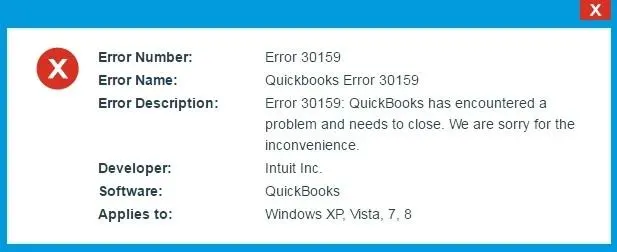
To fix QuickBooks Error 30159, first check your subscription in Intuit’s Customer Account Maintenance Portal (CAMPs). If the subscription is active, confirm that the correct EIN is linked to it. Then check the payroll service key if needed. When an EIN has been deleted or an account association cannot be corrected, Intuit may need to investigate.
The steps below focus on the account-verification problems documented by Intuit, followed by other checks that may help rule out related software issues.
What Does QuickBooks Error 30159 Mean?
QuickBooks Error 30159 is an error reported when QuickBooks Desktop Payroll cannot verify the account status associated with a company file.
One message reported in Intuit’s official Community reads:
Error 30159 — We’re having a problem verifying your account status. Contact Us for help resolving the issue.
In a January 2024 discussion, an accountant reported receiving this message after accidentally deleting a client’s EIN from an Enhanced Payroll for Accountant subscription. QuickBooks could no longer verify payroll for the affected company file.
An Intuit representative confirmed that the deleted EIN had triggered the error in that case and recommended contacting Payroll Support for an account investigation.
You can read the original QuickBooks Desktop Enhanced Payroll discussion.
The error does not automatically mean your payroll subscription has expired or your company file is damaged. It may indicate that QuickBooks cannot verify the relationship between the company and its registered payroll service.
Why Does QuickBooks Payroll Error 30159 Occur?
Intuit has identified several account-related situations associated with QuickBooks Error 30159.
| Reported situation | How it affects payroll verification |
| Deleted EIN | A company’s EIN was removed from the payroll subscription associated with its file. |
| Multiple-EIN account issue | The EINs or company files may not be correctly associated with an eligible payroll subscription. |
| Change of accounting firm | The employer’s EIN was not added to the new accounting firm’s payroll subscription. |
| Paid subscription not recognized | QuickBooks requests reactivation even though the customer has already paid, requiring further account verification. |
These situations were described by Intuit representatives in the October 2025 paid-subscription discussion and the January 2024 Enhanced Payroll discussion.
An incorrect service key, outdated Desktop installation, or separate program problem may also be worth checking during diagnosis. However, the reviewed Intuit Error 30159 cases do not establish those conditions as direct causes of every occurrence.
This distinction is important. If the error began immediately after an EIN was removed from the account, repairing Windows or reinstalling QuickBooks is unlikely to correct the missing account association.
What Should You Check Before Fixing Error 30159?
Start by recording the exact error message and checking the installed QuickBooks Desktop version.
Press F2 or Ctrl + 1 in QuickBooks Desktop to open the Product Information window. Note the product name, version year, and release number.
As of November 2026, QuickBooks Desktop 2023 is no longer supported for connected payroll services. Intuit ended support for the affected 2023 products after May 31, 2026. A discontinued payroll service cannot be restored through ordinary software troubleshooting.
If you have a supported Desktop version, continue with the account checks.
Before making changes to company information or program files, create a current company-file backup using File > Back Up Company > Create Local Backup. Save the backup securely without overwriting an existing copy. 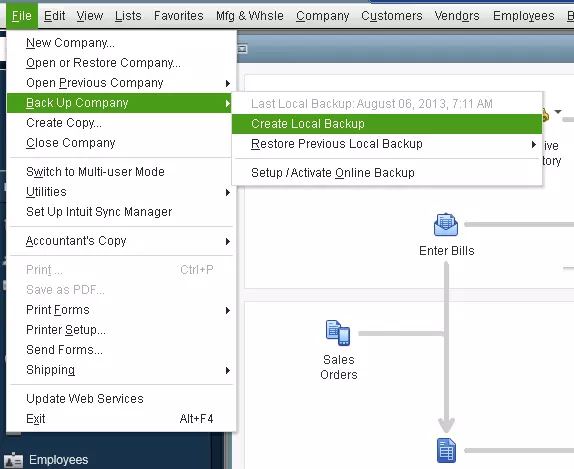
You should also establish whether the problem affects one company file or several. If other companies can use the same eligible payroll subscription, the affected company’s EIN association deserves closer attention.
How to Fix QuickBooks Error 30159
The most useful approach is to verify the payroll account before changing the software. Follow the steps in order, based on what you find.
Step 1: Verify Your Payroll Subscription in CAMPs
Check whether Intuit recognizes your payroll subscription as Active, Expired, or Canceled.
- Visit Intuit CAMPs.
- Sign in with the Intuit account used to register QuickBooks Desktop Payroll.
- Open Products & Services.
- Locate your payroll subscription.
- Select Details, or the available option to view subscription information.
- Review the subscription status, registered EIN, and payroll service details.
Intuit’s Desktop subscription management guide confirms that CAMPs provides payroll service key, EIN, and subscription information.
If your subscription is not listed, check that you signed in with the account used to register the payroll service.
The next action depends on the result:
- Active: Continue to Step 2 and compare the EIN registered with the subscription.
- Expired or Canceled: Check whether your payroll product is eligible for reactivation.
- Recently renewed: Confirm that reactivation has finished. Intuit states that the process can take up to 24 hours.
For full renewal instructions, see our guide to fixing an inactive QuickBooks payroll subscription. It covers reactivation for different payroll products, including situations where Payroll Center still shows Inactive after payment.
Do not purchase another subscription solely because Error 30159 appears while CAMPs shows your existing service as Active.
Step 2: Check the EIN Associated With Your Company File
An EIN mismatch or missing subscription association can prevent QuickBooks from verifying the payroll service for a specific company.
For QuickBooks Desktop Payroll Basic, Standard, or Enhanced, check the EIN entered in the company file:
- Open the affected company file.
- Select Company > My Company.
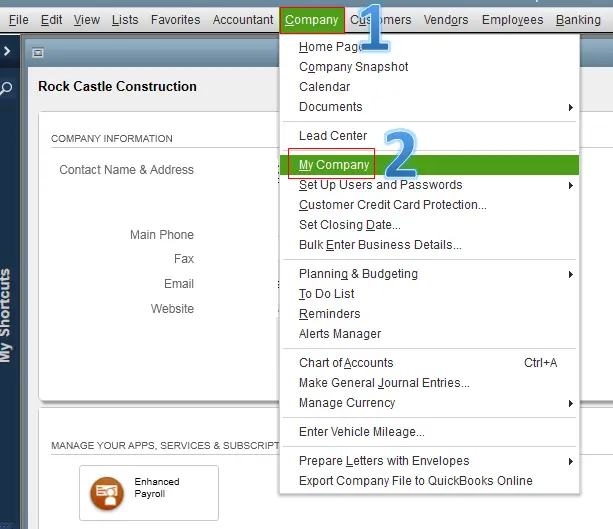
- Click Edit (the pencil icon) in Company Information.
- Select Company Identification.
- Find the Federal Employer Identification No. field.
- Compare the number with your company’s IRS records and the EIN associated with the payroll subscription.
This menu path is documented in Intuit’s EIN management instructions.
If the EIN in your company file is correct but the subscription does not show that EIN, do not change the company file to match an unrelated number.
The problem may be with the association maintained in Intuit’s payroll system.
If your business has genuinely changed its legal EIN, follow Intuit’s account-update process. Intuit specifically advises contacting them before changing the EIN for the relevant Desktop payroll products.
Step 3: Resolve a Missing or Deleted EIN
If QuickBooks Error 30159 began after someone removed an EIN from an Enhanced Payroll subscription, investigate that account change first.
Consider an accounting firm that uses an Enhanced Payroll for Accountant subscription for several client companies. Each client has a separate EIN and company file.
If the accountant accidentally removes one client’s EIN, the subscription itself may remain active. However, QuickBooks may no longer verify the payroll service for the affected company.
This matches the situation described in Intuit’s January 2024 Error 30159 discussion.
To investigate a deleted EIN:
- Sign in to CAMPs with the account that owns the payroll subscription.
- Confirm the subscription is Active.
- Check whether the affected EIN is still associated with it.
- Verify that the EIN in the existing company file is correct.
- Contact Intuit if the EIN has been removed or cannot be associated with the correct service.
Explain that the company previously used payroll under the subscription and that the EIN was removed.
Do not treat the company as a new payroll customer simply because its EIN is missing.
Intuit’s instructions for adding a new company to a payroll subscription distinguish new company files from those that have already used QuickBooks Desktop Payroll.
For a company file that previously used the payroll service, Intuit directs users to contact support about obtaining the appropriate service key.
The reviewed Error 30159 discussion does not document a universally successful self-service method for restoring an accidentally deleted EIN. Account-specific support may therefore be necessary.
Avoid creating a replacement company file unless Intuit has reviewed your situation and you understand how existing payroll history will be handled.
Step 4: Check Whether Your Payroll Subscription Supports Multiple EINs
Multiple EINs are not automatically invalid in QuickBooks Desktop Payroll. The allowed number depends on the payroll product.
According to Intuit’s October 2026 guidance:
| QuickBooks Desktop Payroll product | Maximum EINs per subscription |
| Basic, Standard, or Enhanced | 3 |
| Enhanced Payroll for Accountant | 50 |
| Assisted Payroll standalone | 1 |
| Enterprise Diamond Assisted Payroll | 3 |
Intuit also specifies that each EIN should be associated with only one company file for the relevant payroll service.
For example, an accountant using Enhanced Payroll for Accountant can manage multiple eligible companies under one subscription. However, if a company moves to another accounting firm, its EIN must be correctly associated with the new firm’s payroll service.
If 30159 Error in QuickBooks Desktop appeared after such a move, ask the new firm’s payroll administrator to verify the association. An active subscription at the new firm does not, by itself, confirm that the transferred company is included.
Do not remove another company’s EIN simply to make room for the affected company. Check the subscription’s eligibility and existing associations first.
Step 5: Verify Your QuickBooks Payroll Service Key
If the subscription is active and the EIN appears correct, check the payroll service key stored in QuickBooks Desktop.
This is a secondary troubleshooting step. Intuit documents service-key verification for certain PSXXX payroll update errors, but it has not established that every Error 30159 is caused by an incorrect key.
To check the key:
- Open QuickBooks Desktop and the affected company file.
- Go to Employees > My Payroll Service > Manage Service Key.
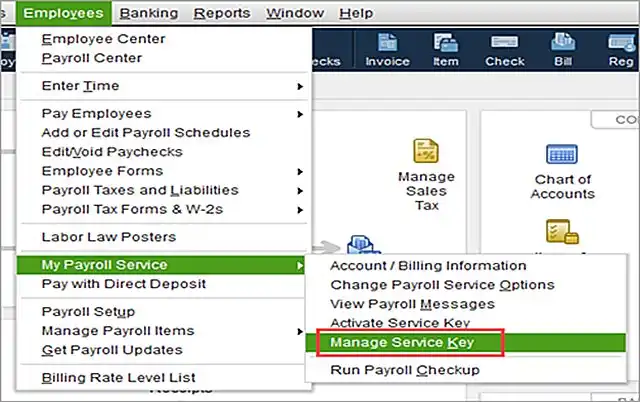
- Review the Service Name and Status.
- Confirm whether the status shows Active.
- Select Edit to inspect the registered service key.
- Compare it with the correct key supplied by Intuit or shown in your account records.
If the service key is incorrect and you have the verified replacement:
- Enter the correct key.
- Select Next.
- Clear Open Payroll Setup, if that option appears.
- Select Finish and follow any on-screen instructions.
QuickBooks may then attempt to download a payroll update.
If the service key is already correct, leave it unchanged. Repeatedly removing or replacing a valid key will not fix an EIN association that is missing from Intuit’s records.
For the official service-key procedure, refer to Intuit’s PSXXX payroll troubleshooting guide.
Step 6: Check Your QuickBooks Desktop Version and Updates
If the account and service details are correct, confirm that your supported QuickBooks Desktop installation has the latest available maintenance release.
To check for program updates:
- Open QuickBooks Desktop.
- Select Help > Update QuickBooks Desktop.
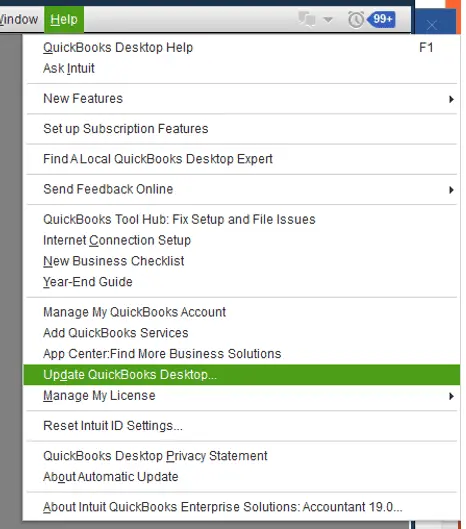
- Open the Update Now tab.
- Select Get Updates.
- Restart QuickBooks when the download finishes.
- Install the available update if prompted.
You can also press F2 and confirm that QuickBooks displays Activated beside the relevant license details.
Product activation and payroll subscription status are separate. An activated Desktop installation does not prove that the connected payroll service is correctly registered.
After updating, reopen the affected company file and retry the operation that produced QuickBooks Update Error 30159.
If the account-verification error remains, avoid repeating the update process. A software maintenance release cannot restore a missing EIN association.
For users of QuickBooks Desktop 2023 or older, check Intuit’s Desktop Payroll discontinuation policy before attempting further payroll repairs.
What if Error 30159 Still Appears After These Checks?
If your subscription is active, your EIN is correct, and the service key matches, the next step is an account-level investigation with Intuit.
Contact Intuit from QuickBooks Desktop:
- Open the Help menu.
- Select QuickBooks Desktop Help/Contact Us.
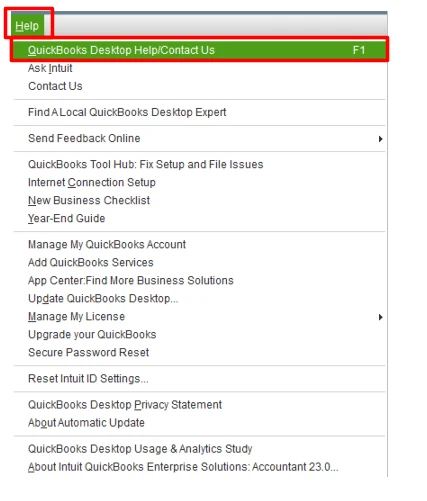
- Click Contact Us.
- Describe Error 30159 and select an available support option.
Have the following information ready:
- QuickBooks Desktop product, version, and release.
- Payroll subscription type and status in CAMPs.
- The exact Error 30159 message.
- The EIN of the affected company.
- Whether the EIN was removed or the business changed accounting firms.
- Which other company files, if any, can use the same subscription.
For example, you can explain that Enhanced Payroll is active, other client files work, but one company shows Error 30159 after its EIN was deleted.
That description identifies the account association that needs investigation without asking support to repeat unrelated program repairs.
Intuit’s representative in the deleted-EIN Community case recommended an account investigation ticket when the EIN could not be re-entered. You can request a support case reference if the problem requires further review.
Do not share complete service keys, account passwords, or sensitive payroll records in public forums.
Should You Use QuickBooks Tool Hub or Modify Paysub.ini?
QuickBooks Tool Hub and Paysub.ini modifications should not be the first fixes for QuickBooks Desktop Error 30159.
Some third-party articles recommend renaming or deleting Paysub.ini, editing Windows settings, or reinstalling QuickBooks. However, the reviewed official Error 30159 discussions do not establish these actions as standard fixes for the documented EIN-related cases.
If QuickBooks also freezes, crashes, or fails to open normally, a separate program problem may need attention. Intuit provides Quick Fix my Program through QuickBooks Tool Hub for certain application issues.
You can follow our QuickBooks Tool Hub guide when those additional symptoms are present.
Tool Hub cannot directly change the EINs or payroll entitlements recorded in Intuit’s account system.
Avoid editing Paysub.ini, changing the Windows Registry, or modifying payroll configuration files without reliable instructions for your specific situation.
If the company file opens normally and Error 30159 is limited to payroll verification, continue with Intuit’s account investigation rather than attempting unrelated file repairs.
How Can You Confirm QuickBooks Error 30159 Is Resolved?
After Intuit corrects the account association or you complete the applicable troubleshooting, return to the same company file that displayed QuickBooks Update Error 30159.
Check the result:
- Open the affected company file and confirm that the original verification error no longer appears.
- Select Employees > My Payroll Service > Manage Service Key and review the payroll service status.
- If your payroll service is eligible and active, go to Employees > Get Payroll Updates.
- Select Download Entire Update, then Update, if you need to install the latest payroll tax table.
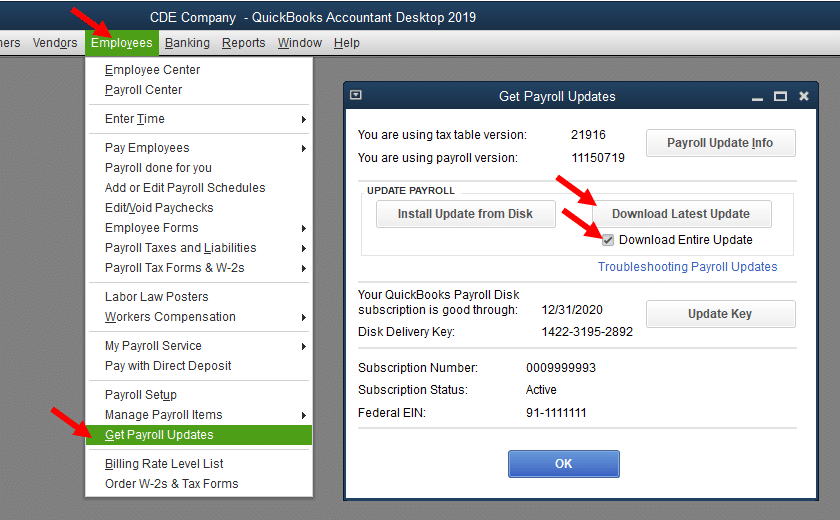
- Confirm that the payroll operation that originally failed can now proceed.
An account-verification error disappearing does not prove that every interrupted payroll transaction completed.
If you had already submitted payroll or direct-deposit payments, check their actual status before submitting them again. Do not create duplicate payments to test whether QuickBooks Payroll Error 30159 has been fixed.
If account verification succeeds but payroll tax tables still fail to download, the remaining issue may be separate. See our guide to QuickBooks payroll tax tables not updating for update-specific troubleshooting.
Likewise, if QuickBooks displays Error PS033 instead, follow the QuickBooks Error PS033 troubleshooting guide. That error belongs to a different payroll update error family and should not be treated as another name for Error 30159.
Final Steps
If QuickBooks Error 30159 appears despite an active payroll subscription, compare the affected company’s EIN with the account records before changing the software.
A deleted EIN, a company moved between accounting firms, or an incorrect subscription association may require Intuit to investigate the payroll account.
Once verification works again, confirm that the affected company can access payroll and review any transactions interrupted by the error before processing new payments.
Frequently Asked Questions
Why does QuickBooks Error Code 30159 appear even though my payroll subscription is paid?
A paid subscription does not guarantee that the affected company file is correctly associated with it. Intuit has documented Error 30159 cases involving deleted EINs and companies that were not added to a new accounting firm’s payroll subscription. Check the EIN association before attempting another payment.
Can I add a deleted EIN back to QuickBooks Enhanced Payroll?
The appropriate procedure depends on the existing subscription and company-file history. If the company file has already used QuickBooks Desktop Payroll, Intuit directs users to contact them about the service association. Do not treat it as a new company without confirming how its existing payroll records will be preserved.
What if Error 30159 in QuickBooks affects only one company file?
Check that company’s EIN and its association with the payroll subscription. If other company files work under the same eligible service, the problem may be limited to the affected company’s registration. This is a diagnostic clue, not proof of a particular account error.
Can QuickBooks Error 30159 affect direct-deposit payroll?
Error Code 30159 in QuickBooks may interrupt access to payroll services, but the error code alone does not tell you whether a direct-deposit transaction was submitted successfully. Review the existing payment status before sending payroll again. If the status is unclear, contact Intuit to avoid duplicate payments.
Does QuickBooks payroll error 30159 mean the company file is corrupted?
No, Intuit has documented Error 30159 occurring because an EIN was deleted from a payroll subscription. The error alone does not establish company-file corruption. Company-file repair tools should only be used when there is separate evidence of a data problem.
What does PSID null mean in QuickBooks Error 30159?
Some third-party troubleshooting articles associate Error 30159 with PSID or payroll-entitlement messages. However, the reviewed official Intuit sources do not confirm a single meaning for “PSID null” in every Error 30159 case. Record the complete message and ask Intuit to check the registered payroll service and account association.
Can QuickBooks Error 30159 occur in QuickBooks Online?
The documented Error 30159 scenarios discussed here concern QuickBooks Desktop Payroll. QuickBooks Online uses different payroll subscription and account-management workflows. Do not apply Desktop service-key or Tool Hub procedures to an Online Payroll account.
Can QuickBooks Desktop 2023 Payroll still work in 2026?
Intuit discontinued connected payroll services for QuickBooks Desktop 2023 after May 31, 2026. Affected users can no longer rely on that version for connected payroll processing and current payroll tax calculations. They need to review supported payroll options rather than attempting to reactivate discontinued services.
Intuit and QuickBooks are registered trademarks of Intuit Inc. Accounts Confidant is an independent Accounting and Bookkeeping service provider and is not affiliated with, sponsored by, endorsed by, or approved by Intuit Inc.
