
Sage 50 2026.2 update issues may cause the application to close when opening invoices, purchase forms, or journal entries. Sage has confirmed that the Windows security update released on November 10, 2026, caused a compatibility problem and has released a hotfix to address these crashes.
A separate user report describes an email integration failure following recent updates. However, Sage has not confirmed the cause of this problem.
If Sage closes unexpectedly during accounting tasks, check whether the hotfix has been installed. If transaction forms open normally but emails fail, investigate the email connection instead.
You can find the corrective patch instructions in the official Sage Windows update advisory.
This guide applies to Sage 50 Accounting 2026.2 U.S. Edition on Windows.
Known issues in Sage 50 2026.2
According to the Sage incident update published on November 25, 2026, the corrective patch is available and installs automatically in the background. However, some installations may require manual intervention.
| Issue | Symptoms | Current status |
| Application crashes | Sage closes unexpectedly during accounting tasks | Confirmed; hotfix available |
| Form open error | Invoice, purchase, or journal entry windows cause crashes | Reported in Sage Community Hub |
| Incomplete hotfix installation | Crashes continue, and the affected DLL retains its previous version | Official troubleshooting available |
| Email integration failure | Invoices and other forms cannot be emailed | Reported; cause unconfirmed |
In a Sage Community Hub discussion about form opening errors, a user reported being able to view the trial balance but experiencing crashes when opening transaction forms. Although another community member recommended the hotfix, the original user’s problem continued, and the affected DLL file had not updated.
This is why checking the installed component version matters more than simply confirming that an update was attempted.
Before troubleshooting the Sage 50 2026.2 update issues
Create a current company backup and confirm that it completed successfully. If several employees use Sage, arrange a maintenance period before stopping services or installing updates.
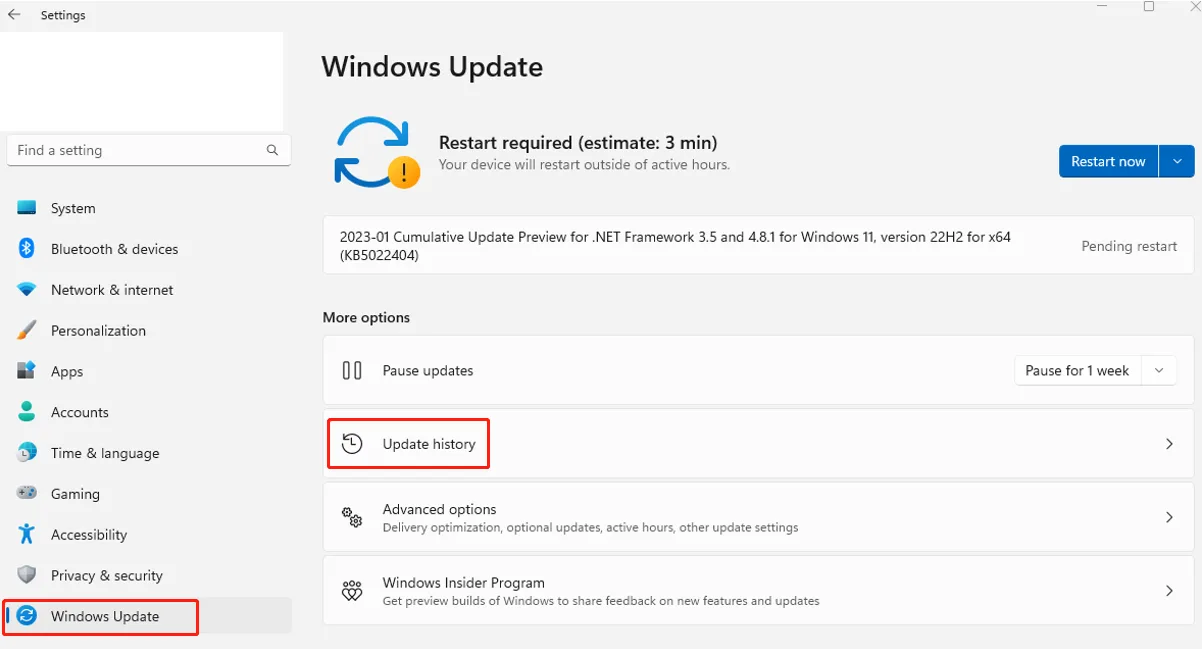
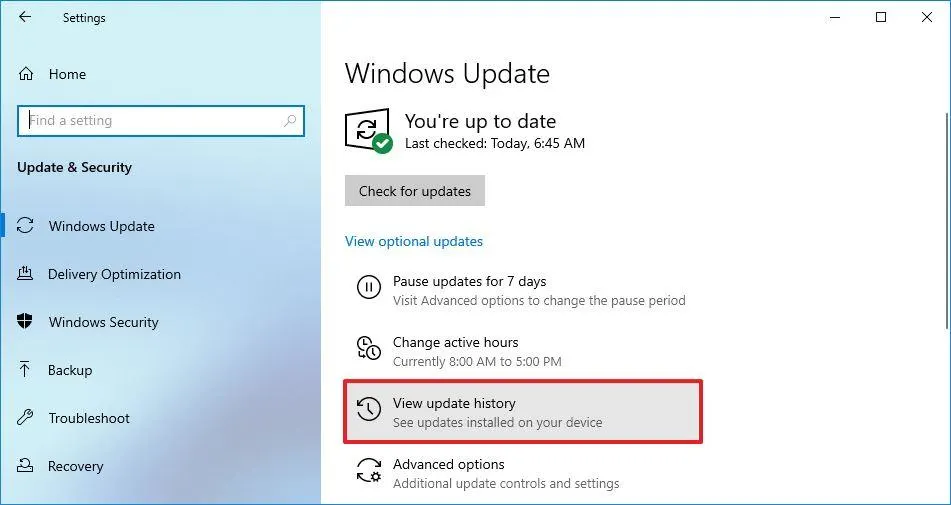
Check your Windows update history to identify changes made around the time the problem began.
- Windows 11: Settings > Windows Update > Update history.
- Windows 10: Settings > Update & Security > Windows Update > View update history.
If Sage crashed while saving an invoice, payment, or journal entry, check whether the transaction was recorded before entering it again. Repeating the transaction without checking could create duplicate accounting records.
How to fix Sage 50 crashing after the Windows update
Start by checking your application release and the installed hotfix. You may not need to install the patch manually if Sage has already applied it in the background.
Sage 50 2026.2 hotfix details
| Technical detail | Required or expected information |
| Product | Sage 50 Accounting U.S. Edition |
| Required application release | 2026.2 |
| Application build | 33.2.00.0234 |
| Updated component | PchCtls.dll |
| November hotfix DLL version | 2026.2.0.23401 |
| Installation method | Silent background update |
1. Verify your Sage 50 application version
Open Sage 50 and select Help > About Sage 50 Accounting.
Compare your application build with the number listed in the table above.
If you are using an earlier release, go to Services > Check for Updates > Check Now and install version 2026.2 if it is available for your account.
Obtain software updates only through Sage or its official download portal.
2. Check whether the hotfix is already installed
The hotfix updates an application component called PchCtls.dll. Checking its properties helps determine whether the patch has been applied.
- Open Windows File Explorer.
- Navigate to the Sage 50 installation directory. The usual location is:
C:\Program Files (x86)\Sage\Peachtree - Locate PchCtls.dll.
- Right-click the file and select Properties.
- Open the Details tab.
- Check the File version and Product version.
Both fields should display 2026.2.0.23401 for the documented November hotfix.
If this version is present, proceed to testing your transaction forms. If the previous version remains unchanged, continue with manual installation.
A later official Sage release may contain a different component version. Check the applicable release documentation before assuming that a newer version indicates a problem.
Do not download replacement DLL files from unofficial websites.
3. Temporarily stop SmartPosting if required
SmartPosting is a background service that handles transaction posting.
According to Sage, users of Quantum or Quantum Accountants Edition must stop this service before manually installing the hotfix. Otherwise, the installation can fail.
Ask your system administrator to stop SmartPosting using the procedure linked in the Sage Knowledgebase.
Users of other editions can proceed to the installation steps.
4. Install the Sage 50 2026.2 hotfix manually
The corrective patch installs silently and may not appear in the list of available updates.
Follow these steps:
- Open Services > Check for Updates > Check Now.
- Approve the SAGEMGR.EXE installation prompt if it appears as part of the legitimate Sage update process.
- Dismiss the message stating that no updates are available.
- Close Sage 50.
- Press Ctrl + Shift + Esc to open Windows Task Manager.
- Search for peach to check whether Sage application processes are still running.
- Have an authorized administrator close any confirmed, inactive application processes preventing Sage from shutting down completely.
- Reopen Sage 50, then repeat the close-and-reopen process twice more.
Complete all three restart cycles without performing accounting tasks between them.
Do not end shared database services or processes being used by other employees.
Restart SmartPosting if you stopped it earlier, then check the DLL properties again.
For additional guidance, refer to the official Sage hotfix announcement.
5. Resume Windows updates and test transaction forms
Once the hotfix is installed, Sage advises resuming Windows updates if they were previously paused.
Install applicable Windows updates and complete any required computer restart.
Next, open Sage 50 and navigate to Tasks > Sales/Invoicing. Check whether the invoice window opens without closing the application. Repeat the test for purchase forms and journal entries if those operations previously failed.
Has Microsoft released a fix for the Sage 50 crash issue?
Microsoft documented a Sage 50 crash correction in its November 19, 2026, Windows preview updates.
These optional, non-security preview updates address unexpected application closures when selecting options in Sage 50.
They are not mandatory prerequisites for installing the Sage hotfix, and their availability does not establish that every affected Windows version has received the correction.
Check your Windows version under Settings > System > About before considering a version-specific update.
For business computers, follow your organization’s update policy. Consult your IT administrator before installing optional preview releases or removing security updates.
What to do if the Sage 50 hotfix is not working
If the DLL version remains unchanged, a background application, permission restriction, or incomplete restart may be preventing installation.
| Possible cause | Recommended action |
| Sage remains active in the background | Confirm the application has fully closed before retrying. |
| Pending Windows restart | Restart the computer and test Sage again. |
| Restricted Windows permissions | Run Sage as administrator with authorization and repeat the update. |
| SmartPosting is running | Temporarily stop the service if required for your edition. |
| Paya Connect Desktop is active | Complete payment processing tasks, exit the application from the system tray, and retry. |
| Other connected applications are running | Temporarily close database-connected applications such as AutoEntry or Satago Connector. |
Restore the required services and applications after installation.
For problems that normally require a software repair, such as missing standard reports, Sage recommends uninstalling and reinstalling the application before applying the hotfix again. A standard installation repair does not automatically restore the patch.
Before reinstalling, confirm your company data location, backup availability, licensing information, and access to the correct installer.
If the patched DLL version is correct but the application continues closing, investigate other reasons why Sage 50 keeps crashing. These may include printer configuration, database services, or company-specific problems.
For example, if one workstation continues crashing while another opens the same company and transaction type successfully, investigate the affected workstation before attempting to repair shared accounting data.
How to troubleshoot Sage 50 email not working after the 2026.2 update
A Sage Community Hub user reported losing the ability to email invoices and other forms following recent updates. Changing the email configuration did not resolve the problem, and the same failure occurred in the sample company.
As of November 26, 2026, the discussion remains unanswered.
The symptoms resemble a previously documented Sage email error:
An error occurred sending the email. The server may be down. Check your webmail settings and try again.
According to the Sage email error Knowledgebase article, incorrect customer email formatting, mail server blocking, and browser cookie problems can trigger this error.
The following procedures help diagnose these possibilities. They are not confirmed fixes for the specific post-hotfix email failure.
1. Test your email account and customer address
Send a test message from your regular email application or webmail account outside Sage.
If the message fails, investigate the email account or network connection first. If it succeeds, check the connection between Sage and your email provider.
When the problem affects a particular customer:
- Navigate to Maintain > Customers/Prospects.
- Select the affected customer.
- Open the General tab.
- Review the email address field.
- Correct invalid addresses and save the record.
Separate multiple email addresses with semicolons instead of commas.
Incorrect: accounts@example.com, billing@example.com
Correct: accounts@example.com; billing@example.com
If batch emailing fails, examine the customer records around the point where the error occurred. Confirm which invoices were already sent before retrying the remaining documents in smaller groups.
2. Review the Sage 50 email configuration
Sage can send transaction documents through a compatible desktop email application or a configured webmail account.
Open Maintain > Email Setup and identify which method your company uses.
If you use a desktop email application
Check that the intended email program is configured as the Windows default and can send messages independently.
The program must also meet Sage’s MAPI requirements. MAPI, or Messaging Application Programming Interface, allows Windows applications to communicate with compatible email programs.
If you recently changed your Outlook installation, verify its compatibility with your Sage release. Successful email delivery through a browser does not establish that the desktop email connection works.
If you use a webmail account
Review the account details and outgoing mail settings.
- Open Maintain > Email Setup.
- Select Use a webmail account.
- Choose Add account information if you need to configure the account again.
- Select your email provider and enter your email address.
- Choose Configure automatically, where available.
- Complete the account authorization and save the settings.
Sage provides predefined settings for Gmail, Yahoo, and Outlook.com. Automatic configuration can populate the outgoing server and port for recognized providers.
For other email services, you may need to enter the SMTP server and port manually. SMTP is the protocol used to send outgoing email.
Obtain these settings directly from your provider. Avoid guessing port numbers or disabling account security to establish a connection.
See the Sage company email configuration guide. The available documentation covers an earlier release, so some interface options may differ in version 2026.2.
3. Clear browser cookies if email authorization fails
If Microsoft Edge displays a cookie-related error during webmail authorization, Sage recommends clearing browser cookies and retrying the email operation.
Close the browser afterward and complete authorization again if prompted.
Removing cookies may sign you out of websites. This procedure is relevant to browser-based authentication problems and should not be treated as a general solution for every email failure.
4. Test email functionality in another company
Open a sample company or create a separate test company. Configure an authorized email account and send a sample document to an address you control.
The test helps identify whether the failure is specific to your accounting company or affects shared settings.
| Test result | What to investigate next |
| Email fails for one customer | Customer email address and formatting |
| Email fails outside Sage | Email account, provider, or network |
| Email works outside Sage but fails within it | Application integration and authorization |
| Email works in another company | Original company’s email configuration or customer records |
| Email fails in both companies | Shared application, email, or workstation settings |
For example, suppose the same email error appears in both your live company and a sample company using the same Gmail account. Restoring your accounting backup would be a poor first step because the failure may involve shared account authorization or application settings.
How to email invoices while Sage 50 email integration is unavailable
If Sage can open and print invoices but cannot email them, save the documents as PDF files and send them through your regular email application.
- Open the required invoice.
- Select Print > Printer Setup.
- Choose Microsoft Print to PDF.
- Confirm the printer selection and print the document.
- Choose an appropriate file name and save location.
- Attach the PDF to an email and send it to the intended recipient.
Review the invoice number, amount, customer details, and recipient address before sending.
Keep a record of invoices delivered manually. This helps prevent duplicate emails when the built-in email integration becomes available again.
Store invoice PDFs in an approved location, particularly when they contain confidential customer information.
See Sage’s instructions for printing documents in PDF format.
Verify that Sage 50 is working correctly
Retest the accounting functions that originally failed before returning to normal work.
- Open existing invoices, purchase transactions, and journal entries.
- Preview and print an invoice.
- Send a test document and confirm its delivery.
- Close and reopen Sage 50.
- Confirm that any services stopped during troubleshooting have restarted.
Use a sample company when testing new transaction entries rather than creating unnecessary transactions in live accounting records.
If Sage fails to launch altogether, follow the separate troubleshooting guide for Sage 50 not opening.
What to do if Sage 50 update issues persist
Collect the following information before contacting Sage or your IT administrator:
- Sage 50 edition, release, and application build.
- Installed PchCtls.dll version.
- Windows version and recent update history.
- Exact error message and affected accounting operation.
- Results from testing another company or workstation.
- Email provider and configuration method, if applicable.
For application crashes, Windows Event Viewer may contain additional information about the affected component.
Check the current Sage incident status for changes to the documented compatibility issue.
Avoid sharing company files, customer details, email credentials, or software activation information in public discussion forums.
Until Sage confirms the cause of the reported email integration failure, use the diagnostic results to guide further investigation. If PDF printing works, manual invoice delivery remains a practical temporary alternative.
Frequently asked questions
What if I cannot download Sage 50 version 2026.2?
Sage identifies Business Care renewal as an option for users with older releases or inactive plans who need access to version 2026.2. Confirm your update eligibility with Sage before obtaining an installer.
Why does Sage 50 only show a payroll update when checking for the hotfix?
The corrective patch installs in the background and does not appear as a regular software update. Seeing only a payroll update does not establish that the hotfix has failed. Check the DLL properties to verify installation.
Do I need to install the hotfix on every Sage 50 workstation?
Where Sage is installed locally on multiple computers, verify each affected installation. For hosted or centrally managed environments, follow your administrator’s deployment procedures rather than making independent changes to shared systems.
Can Sage 50 send invoices without Outlook?
Yes, Sage can use a configured webmail account instead of a compatible desktop email application. The required account authorization and outgoing mail settings depend on your provider.
Does the November hotfix repair damaged Sage 50 company files?
No, the documented patch addresses a Windows compatibility problem affecting application stability. Suspected accounting data damage requires separate diagnosis and appropriate data-protection procedures.
Accounts Confidant is an independent accounting and bookkeeping service provider. This article is for informational purposes and is not official Sage documentation. Product names and trademarks belong to their respective owners.
