
QuickBooks Error PS034 can appear when a payroll update fails or keeps restarting in the QuickBooks Desktop accounting software. The download may seem to finish, but the same update starts again when you open payroll.
Start by checking your installed payroll tax-table version. If it is outdated, verify your payroll subscription and download the update again. If the tax table is current but PS034 returns, try updating or repairing the Desktop software.
If you have already submitted payroll, check the payment status before sending it again. PS034 does not confirm that employee payments have failed.
What is QuickBooks Error PS034?
QuickBooks Error PS034 is a reported payroll update error in QuickBooks Desktop for Windows. It may interrupt an update or cause the software to request the same download each time you open payroll.
In a January 2020 Intuit Community discussion, a user reported PS034 at the end of payroll update 22002. The update restarted when the user tried to access payroll. The response suggested repairing the software and installing available updates.
Intuit’s current PSXXX payroll error guide does not list PS034. Its exact cause remains unconfirmed.
Why does QuickBooks keep downloading the same payroll update?
The update may not have installed, or the software may keep requesting an update even when the tax table is current.
Several problems can interfere with payroll updates:
- An inactive payroll subscription or incorrect service key.
- Missing Desktop software updates.
- Problems with the software or its installation.
- Internet or firewall restrictions that interrupt downloads.
Intuit also lists damaged CPS folder files as a possible cause of other payroll update errors. However, it has not confirmed CPS file damage as a specific cause of PS034.
Checking the installed tax table can help you choose the right repair without making unnecessary changes to payroll files.
What to check before fixing QuickBooks Error PS034 in Windows 10 & 11
Back up your company file and make sure your Desktop version still supports payroll services.
Press F2 to open the Product Information window and find your software version.
According to Intuit’s payroll discontinuation policy, QuickBooks Desktop 2023 is no longer supported as of May 31, 2026.
Using a discontinued version affects payroll in several ways:
- Basic and Enhanced Payroll: Paychecks stop calculating taxes.
- Assisted Payroll: Paycheck tax calculations become incorrect.
- Direct deposits: You can no longer send payroll to Intuit for processing.
A software repair cannot restore discontinued payroll services. Move to a supported product before relying on its payroll calculations.
How to fix QuickBooks Payroll Error PS034
Start with the tax-table check. The result will help you decide whether to download another update or repair the software.
Step 1. Check your installed payroll tax-table version
A payroll tax table contains the rates and rules used to calculate payroll taxes. Checking its version helps you find out whether the update has installed.
- Open your company file in QuickBooks Desktop.
- Go to Employees > Get Payroll Updates.
- Note the number beside You are using tax table version.
- Compare it with the current release in Intuit’s payroll news and updates.
- Select Payroll Update Info for more details.
Use the result to choose your next step.
| What you find | What to do next |
| The tax table is outdated. | Verify your subscription and download the update. |
| The tax table is current, but PS034 returns. | Check for Desktop updates and try a program repair. |
| The tax table is current and payroll opens normally. | Further repairs may not be needed. |
| Payroll updates are unavailable. | Check your subscription and software version. |
For example, suppose you download a payroll update but the installed tax-table number does not change. The update may not have installed. If the number matches the latest release but PS034 keeps returning, another download may not solve the problem.
Step 2. Verify your payroll subscription and service key
You need an active payroll subscription to receive tax-table updates. The service key connects your payroll service to the software.
Restart your computer, open QuickBooks Desktop, and follow these steps:
- Go to Employees > My Payroll Service > Manage Service Key.
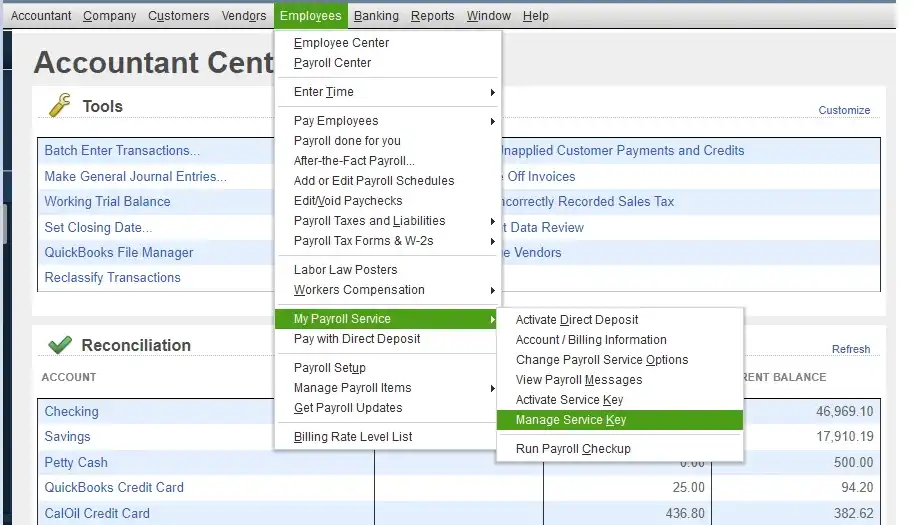
- Check that the service name is correct and its status shows Active.
- Select Edit to verify your service key.
- Correct the key if needed and select Next.
- Clear the Open Payroll Setup checkbox and select Finish.
This starts a full payroll update. Check whether it completes without PS034.
If the service shows Inactive, follow our guide to reactivate your QuickBooks Payroll subscription.
Do not remove a valid service key or change your employer identification number (EIN) just because this error appears.
Step 3. Check product activation and update QuickBooks Desktop
A payroll tax-table update does not install fixes for the Desktop software. You may need both types of updates.
Press F2 and check whether Activated appears beside your license number. Complete product registration if needed.
To install available software updates:
- Go to Help > Update QuickBooks Desktop.
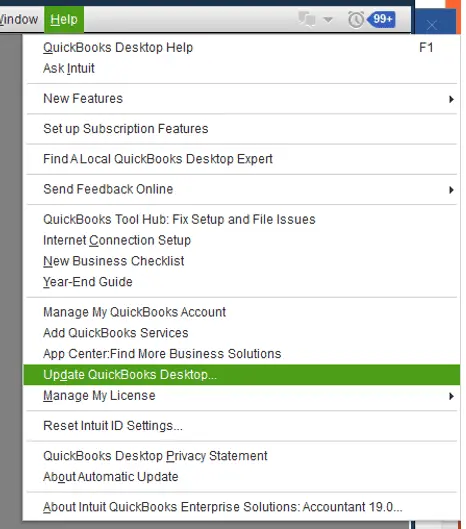
- Open the Update Now tab.
- Select Get Updates.
- Restart the software after the download.
- Select Install Now when prompted.
If the in-product update fails, follow the manual instructions to update QuickBooks Desktop.
Step 4. Download the entire payroll update again
An October 2024 Intuit Community response suggested downloading payroll updates again when PS034 appears.
To download the full update:
- Open Employees > Get Payroll Updates.
- Choose Download Entire Update.
- Select Update.
- Wait for the download completion message.
Close and reopen the software. Check the tax-table version and try opening payroll.
If PS034 returns, move to program repair rather than downloading the same update repeatedly.
See Intuit’s payroll tax-table update instructions for more details.
Step 5. Repair QuickBooks using Quick Fix my Program
Quick Fix my Program closes running QuickBooks processes and repairs common software problems. Try this tool if PS034 continues after you install the available updates.
- Close QuickBooks Desktop.
- Get Tool Hub from Intuit’s official repair page.
- Install and open Tool Hub.
- Go to Program Problems > Quick Fix my Program.
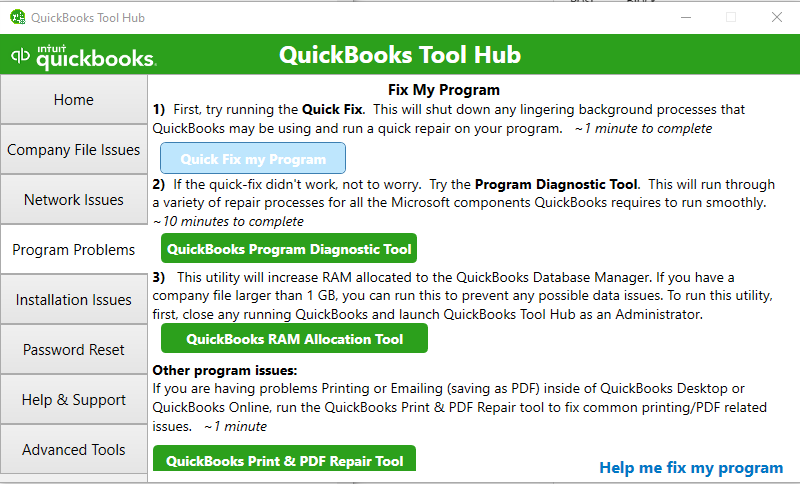
- Wait for the repair to finish.
- Reopen QuickBooks Desktop and check for software updates.
- Retry the payroll update.
If you need help setting up the utility, see our QuickBooks Tool Hub installation guide.
Quick Fix My Program repairs the software itself. PS034 alone does not mean your company file or payroll records are damaged.
What if QuickBooks Error PS034 keeps coming back?
If the error continues after a program repair, look for other signs of trouble before changing system settings or payroll files.
| Additional symptom | Recommended action |
| Downloads stop before they finish. | Check your internet connection and firewall restrictions. |
| The software has startup or installation errors. | Try the QuickBooks Install Diagnostic Tool. |
| Payroll updates fail in a hosted environment. | Ask your hosting provider to check the remote software and network settings. |
To repair installation problems, open Tool Hub and select Installation Issues > QuickBooks Install Diagnostic Tool. Restart your computer when the repair finishes.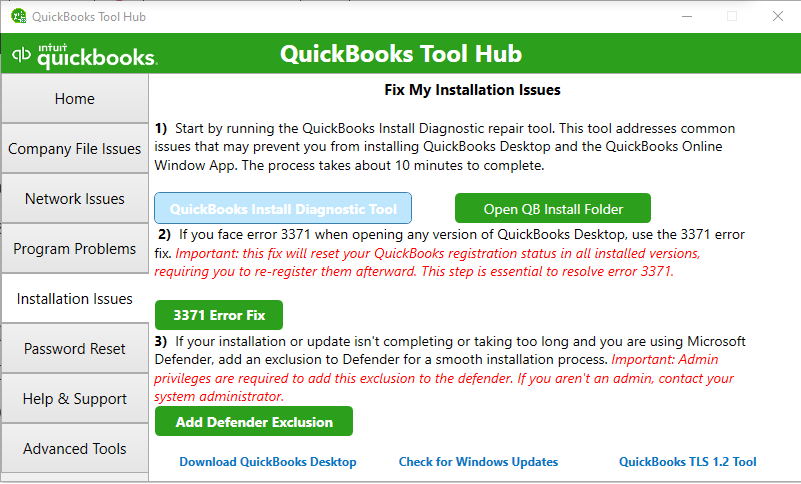
If you use hosted QuickBooks Desktop, repairs must take place in the hosted environment. Repairing a local installation will not fix the software running on a separate server.
Avoid turning off antivirus protection, renaming CPS folders, or rebuilding company data without a clear reason. These actions are not confirmed fixes for PS034.
What if PS034 appears after payroll has already been submitted?
Do not create replacement paychecks or resend payroll just because PS034 appears. Downloading a payroll tax table does not send employee payments.
If you use direct deposit, check the existing payroll status:
- Open Employees > View Payroll Run Status.
- Choose the affected payroll under Recent payrolls.
- From the status dropdown, choose Selected payroll.
Intuit’s direct deposit status guide explains these processing stages:
| Payroll status | What it means |
| Sent to Intuit | Intuit has received the payroll and is processing it. |
| Sent to Bank | Intuit has requested funds from your bank. |
| Payroll processed | Intuit has collected the funds and sent payroll to employees’ banks. |
The Payroll processed status does not confirm that every employee has received the funds.
For example, suppose your employees have received their wages, but the software asks you to resend payroll. Contact Intuit to check the existing payments before submitting another batch. This helps avoid duplicate payments.
If you also receive PS038 or find paychecks marked Online to Send, you may have a separate payroll transmission problem. After checking the existing payment status, follow our guide to fix QuickBooks Error PS038 and stuck paychecks.
How to confirm the payroll update worked
Before running your next payroll, check that:
- The installed tax table matches Intuit’s current release.
- Payroll opens without starting the same update again.
- PS034 does not return after reopening the software.
Review employee pay, deductions, and tax rates before submitting payroll. A current tax table does not mean every payroll setting is correct.
When should you contact Intuit about PS034?
Contact Intuit if the QuickBooks PS034 error returns after a full payroll update and program repair. Further checks may require access to your payroll account or a closer review of the software.
Have these details ready:
- Desktop edition, year, and release number.
- Payroll subscription type and status.
- Installed tax-table version.
- Complete error message.
- The point at which PS034 appears.
- Repairs you have already tried.
Do not share passwords, payroll service PINs, or license keys in public forums.
If payday is near and you cannot confirm paycheck calculations or payment status, contact Intuit and your payroll professional promptly. Avoid changing existing paychecks or restoring older company files without identifying the problem.
Frequently asked questions
Is QuickBooks Error PS034 the same as PS033?
No, Intuit lists QuickBooks Error PS033 among payroll update errors linked to network settings, firewall restrictions, and damaged CPS files. QuickBooks payroll update error PS034 has been reported during recurring payroll updates, but its exact cause remains unconfirmed.
Can payroll updates fail even when my subscription is active?
Yes, an active subscription does not rule out software or network problems. If PS034 returns with an active payroll service, check your Desktop release and installed tax table.
Can I restore an older company file backup to fix PS034?
Do not restore an older backup solely to fix QuickBooks Desktop Error PS034. The error does not establish that your company file is damaged. An older backup may also leave out recent payroll and accounting records.
Does QuickBooks Error Code PS034 affect QuickBooks Online Payroll?
PS034 has been reported in QuickBooks Desktop Payroll. QuickBooks Online Payroll updates its tax tables automatically. The manual downloads and Windows repair tools in this guide do not apply to the online product.
Will a payroll update change my state unemployment tax rate?
No, Regular Desktop Payroll tax-table updates do not change your assigned state unemployment insurance (SUI) rate. You must update that rate separately when required by your state agency.
Accounts Confidant is an independent accounting and bookkeeping service provider and is not affiliated with Intuit. Intuit and QuickBooks are registered trademarks of Intuit Inc. This article is not sponsored, endorsed, or approved by Intuit Inc.
