
QuickBooks direct deposit not working can leave employees without their paychecks, even when payroll appears to have been submitted. Sometimes the payment is still processing. In other cases, QuickBooks cannot send the payroll, the employer’s bank rejects the withdrawal, or the employee’s bank returns the deposit.
The first step is to find out where the payment stopped. Check the payroll status, scheduled pay date, and any notices from Intuit. Then review the bank details or payroll settings that apply to the problem.
Do not send payroll again just because an employee has not received a deposit. If the original payment is still processing, sending another one could result in duplicate wages.
The steps below explain how to troubleshoot direct deposit problems in QuickBooks Online Payroll and QuickBooks Desktop Payroll.
How to Check Whether QuickBooks Sent Your Direct Deposit
Before changing payroll settings, confirm whether QuickBooks received and processed the payment.
Use the following table to identify where to start.
| Problem | What to check first |
| All employees are missing deposits | Payroll submission status, cutoff time, funding bank, and Intuit notices |
| Only one employee has not been paid | Employee banking details, payment status, and possible ACH rejection |
| QuickBooks won’t send direct deposit | Payroll subscription, activation, and any submission error |
| Direct Deposit is unavailable | Employee payment method, selected pay date, and account setup |
| Payroll is on hold | Intuit’s email notification and the reason for the hold |
| Deposit went to the wrong account | Receiving bank status and possible reversal eligibility |
Check direct deposit in QuickBooks Online Payroll
QuickBooks Online Payroll users can review the employee’s paycheck and payroll history.
- Sign in to QuickBooks using an account authorized to manage payroll.
- Go to All apps > Payroll > Employees.
- Select Paycheck list below the Run payroll button.
- Find the employee and the affected pay date.
- Review the paycheck details and confirm whether direct deposit was selected.
- Compare the paycheck with your payroll submission confirmation and any notifications from Intuit.
The Paycheck list helps you find the affected transaction. However, seeing a paycheck in the list does not, by itself, prove that the receiving bank has deposited the money.
If you submitted payroll but cannot confirm its processing status, contact Intuit before attempting another payment.
Note: QuickBooks Online Payroll may appear under Intuit QuickBooks Workforce in current support documentation. Menu labels can also vary between interfaces.
Check direct deposit in QuickBooks Desktop Payroll
QuickBooks Desktop Payroll provides a specific payroll status window.
- Open QuickBooks Desktop and sign in to your company file.
- Go to Employees > View Payroll Run Status.
- Under Recent payrolls, select the affected payroll.
- Select the View Payroll Run Status drop-down.
- Choose Selected payroll.
- Review the status displayed in the Payroll Status window.
Intuit identifies three main processing stages:
| Payroll status | Meaning |
| Sent to Intuit | Intuit received your payroll and is processing it. |
| Sent to Bank | Intuit sent a request to debit your payroll bank account. |
| Payroll Processed | Intuit debited your account and sent the payments to your employees’ banks. |
If the status shows Payroll Processed, the next step is to investigate the employee’s receiving bank or a possible returned payment.
If the status shows a rejected debit request, check the notice sent to your payroll account’s primary contact.
You can find these statuses in Intuit’s Desktop direct deposit status guide.
Why Is QuickBooks Direct Deposit Not Showing Up in an Employee’s Bank?
A missing deposit can result from incorrect bank information, a rejected payment, or payroll sent after the processing deadline. The cause depends on whether Intuit has already processed the paycheck.
1. The employee’s bank details are incorrect
A wrong account number, routing number, or account type can cause a deposit to fail or reach an unintended account.
For example, an employee might provide the routing number used for wire transfers instead of the one required for ACH direct deposits.
Ask the employee to verify the banking information directly with their financial institution. Do not assume the information is correct simply because QuickBooks accepted it.
For QuickBooks Online Payroll:
- Go to All apps > Team > Employees.
- Select the employee.
- Open Job & pay.
- Under Payment method, select Add or Edit.
- Review the routing number, account number, and account type.
- Correct the information if needed and select Save.
For QuickBooks Desktop Payroll:
- Go to Employees > Employee Center.
- Open the employee’s record.
- Select the Payroll Info tab.
- Click Direct Deposit.
- Review the employee’s bank information.
- Make the necessary changes.
- Select OK and enter your direct deposit PIN if prompted.
Updating these details does not redirect a payment that has already been sent to the bank. The correction is intended for future payroll transactions.
If you need updated employee authorization details, see our guide to the QuickBooks direct deposit form.
2. The employee’s bank rejected the payment
An employee’s receiving bank may return a deposit because the account is closed, the account number is invalid, or the bank cannot locate the account.
If the payment is rejected, Intuit provides a process for returning the money to the employer’s payroll account.
According to Intuit’s missing direct deposit guidance, the employer can correct the banking information and create a replacement payment after the rejection is confirmed.
Follow this sequence:
- Confirm that the receiving bank rejected the original deposit.
- Review Intuit’s rejection notification and the expected return of funds.
- Correct the employee’s bank information.
- Void the rejected paycheck according to the applicable Intuit procedure.
- Recreate and send the payment, or arrange an appropriate alternative payment.
Do not void and recreate a paycheck while its original deposit is still processing. The employer must confirm the rejection first.
3. The deposit reached an unintended account
An incorrect account number does not always result in a rejection. If the number matches an active account, the deposit may be accepted.
In that case, changing the employee’s banking details in QuickBooks will not recover the money.
Contact the receiving bank and Intuit promptly. A direct deposit reversal may be possible if the payment meets the eligibility rules, but recovery is not guaranteed.
If the payment went to another employee, the employer may also need to arrange the return of the funds with that employee.
4. The bank sent a Notice of Change
A Notice of Change (NOC) is different from a rejected direct deposit.
A receiving bank may correct certain banking details and accept the employee’s payment while notifying Intuit that the information needs to be updated.
For example:
- C01: Incorrect account number
- C02: Incorrect routing number
- C03: Incorrect routing and account numbers
- C05: Incorrect account type
If Intuit sends an NOC, verify the corrected information with the employee or bank and update it before the next payroll.
An NOC does not automatically mean the employee went unpaid.
Check Whether You Missed the QuickBooks Direct Deposit Cutoff Time
QuickBooks direct deposit processing time depends on your payroll product and the funding lead time assigned to your account.
A payment submitted after the deadline may be processed on the next banking day.
Intuit publishes the following direct deposit submission deadlines:
| Funding lead time | Deadline for a Wednesday payday |
| Same-day | Wednesday before 7:00 AM Pacific |
| Next-day | Tuesday before 5:00 PM Pacific |
| Two-day | Monday before 5:00 PM Pacific |
| Five-day | Previous Wednesday before 5:00 PM Pacific |
These examples assume there is no intervening bank holiday.
For instance, if your account requires two banking days and employees are scheduled to receive their wages on Wednesday, payroll generally must be submitted by Monday at 5:00 PM Pacific.
Submitting it on Tuesday may delay payment.
Check your assigned funding time
In QuickBooks Online Payroll or an eligible Intuit QuickBooks Workforce account:
- Select Settings > Payroll settings.
- Find the Direct deposit section.
- Review the funding time displayed above your direct deposit limits.
Do not assume that your account qualifies for same-day or next-day processing. Some products and accounts use two-day or five-day funding, while faster options depend on eligibility.
QuickBooks Desktop Payroll Assisted may have a one-day or two-day lead time. Desktop Basic and Enhanced Payroll generally use a two-day lead time under Intuit’s current guidance.
Check weekends and banking holidays
Direct deposits follow banking-day schedules. Saturdays, Sundays, and applicable bank holidays are not normal ACH processing days.
Suppose employees are normally paid on Friday, but a bank holiday falls during the required processing period. You may need to submit payroll earlier than usual.
Use Intuit’s direct deposit funding-time guide to confirm the cutoff for your account.
If the deadline has already passed, check the expected processing date before deciding how to pay employees. Do not create another paycheck without confirming the original transaction.
How to Fix QuickBooks Direct Deposit That Won’t Send
When QuickBooks cannot send direct deposit, the problem is usually different from a payment that was already accepted for processing.
Start with the payroll subscription and activation status. Then check the specific error shown when attempting to submit payroll.
1. Check whether your payroll subscription is active
Direct deposit requires an eligible, active payroll service.
If your subscription has expired, been canceled, or cannot be verified, QuickBooks may prevent you from sending payroll.
For QuickBooks Desktop Payroll:
- Open your company file.
- Go to Employees > My Payroll Service > Manage Service Key.
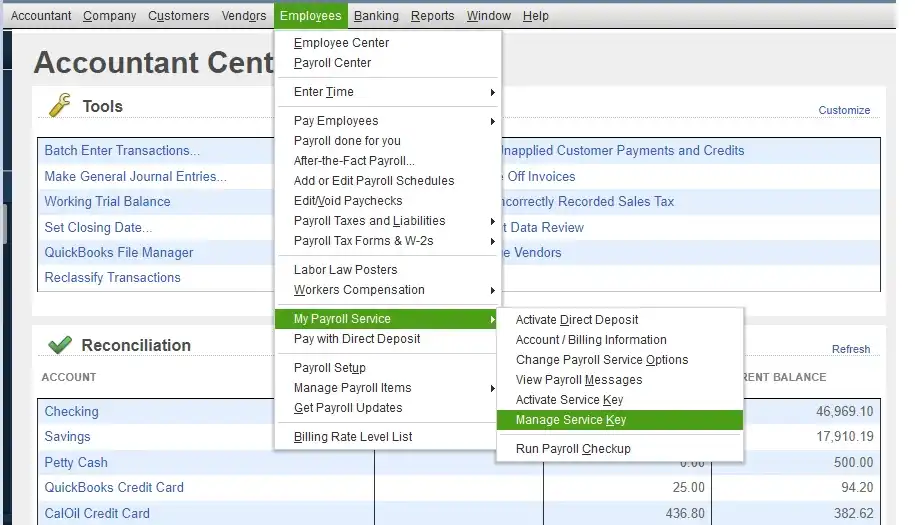
- Review the service name and status.
- Check whether the service is active.
- If QuickBooks reports Inactive, compare the status with your Intuit subscription information.
An inactive service must be restored before connected payroll functions can work normally.
If Intuit shows an active subscription but QuickBooks does not recognize it, follow our guide to QuickBooks payroll subscription inactive.
Important for Desktop users: Intuit discontinued connected payroll services for QuickBooks Desktop 2023 after May 31, 2026. Updating a discontinued version’s payroll tax table will not restore services that are no longer supported.
2. Check direct deposit activation and bank verification
If direct deposit was never activated or the verification process remains incomplete, QuickBooks may not allow payroll submission.
The business must have an eligible U.S. bank account capable of ACH transactions.
For QuickBooks Desktop Payroll, the company administrator can check activation through:
Employees > My Payroll Service > Activate Direct Deposit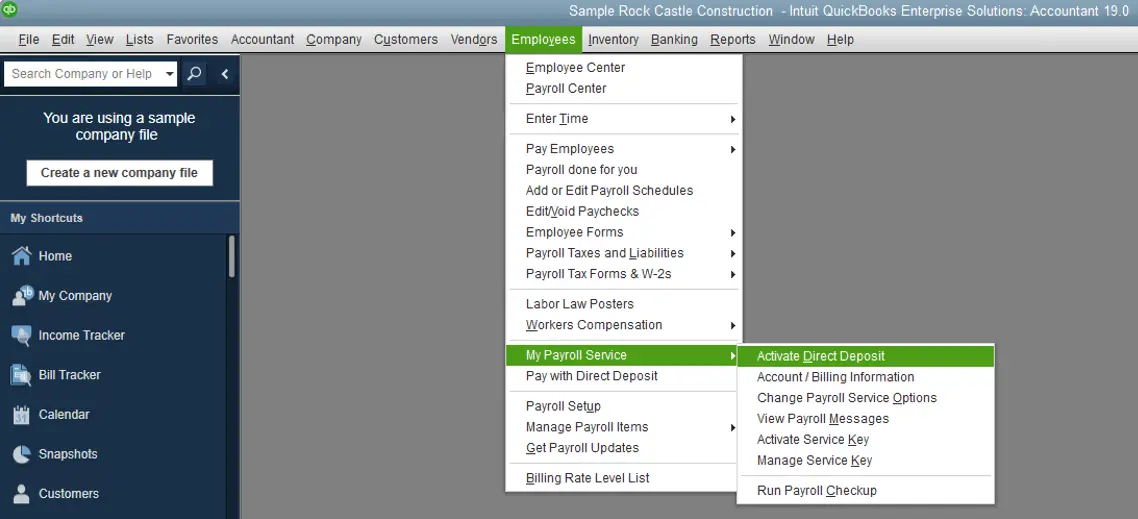
Complete the business, principal officer, and banking information requested by Intuit.
Depending on the bank and setup method, verification may be instant or require additional steps.
Do not repeatedly change banking details when the application displays an account-verification error. Record the error and confirm the account’s activation status first.
If you receive QuickBooks Error 40001 while activating direct deposit or updating payroll account information, see our dedicated QuickBooks Error 40001 troubleshooting guide.
Avoid editing QuickBooks configuration files or registry settings to force activation. These changes are not part of Intuit’s standard direct deposit setup procedure.
3. Send pending payroll data in QuickBooks Desktop
Creating paychecks in Desktop does not always mean the direct deposit batch has been transmitted.
To send payroll:
- Open QuickBooks Desktop.
- Go to Employees > Send Payroll Data.
- Review the paychecks in the Send/Receive Payroll Data window.
- Select View to confirm the amounts and employees.
- Click Send All.
- Enter your direct deposit PIN.
- Select OK and review the transmission result.
If the transmission succeeds, check the payroll status rather than sending the same paychecks again.
If you forgot the PIN, use Intuit’s documented PIN recovery process instead of guessing repeatedly.
4. Fix payroll connection errors in QuickBooks Desktop
If QuickBooks displays a Payroll Connection Error or Payroll Service Server Error while sending payroll, the cause may involve network access, a security certificate, incorrect system time, or an outdated payroll component.
Try these checks in order:
- Confirm that the computer can reach the internet.
- Check the Windows date, time, and time zone.
- Switch QuickBooks Desktop to single-user mode when transmitting payroll, as directed in Intuit’s connection-error guidance.
- Restart QuickBooks if the connection problem continues.
- Update the supported QuickBooks Desktop release.
- Go to Employees > Get Payroll Updates.
- Select Download Entire Update, then Update.
Attempt payroll transmission again only after confirming that the earlier attempt did not succeed.
If QuickBooks reports that paychecks remain stuck as Online to Send, the issue may involve Error PS038 rather than a general direct deposit failure. Use the specific QuickBooks Error PS038 troubleshooting procedure.
Updates and connection repairs apply to payroll that cannot be transmitted. They will not recall a direct deposit already sent to the bank.
Why Is Direct Deposit Unavailable or Showing as Paper Check?
Sometimes QuickBooks does not display Direct Deposit as an available payment method, even when the employee previously received electronic payments.
Check the employee’s setup first.
In QuickBooks Online Payroll:
- Open All apps > Team > Employees.
- Select the affected employee.
- Open Job & pay.
- Review the Payment method.
- Check whether Direct Deposit is available and whether valid banking information is saved.
If the employee’s payment method is correct, review the pay date selected for the payroll run.
A requested payday that does not meet the account’s funding deadline may prevent the intended direct deposit schedule. Selecting an eligible future date may resolve the issue in some cases.
However, a disabled Direct Deposit option can also indicate incomplete setup, verification requirements, or an account restriction.
Do not change an employee’s pay date solely to make an option available without considering the business’s wage-payment obligations.
If direct deposit remains unavailable on an eligible date, check your company’s activation status and contact Intuit.
How to Resolve a Rejected Payroll Withdrawal or Direct Deposit Hold
A payroll funding failure occurs when Intuit cannot collect the required money from the employer’s bank account.
This is different from an employee’s receiving bank rejecting a deposit.
Resolve insufficient-funds and payroll debit failures
If Intuit reports a failed payroll withdrawal, review the email sent to the payroll administrator or principal officer.
The notice may include an ACH return code.
| ACH return code | Meaning |
| R01 | Insufficient funds for the debit |
| R02 | Account closed |
| R03 | No account or unable to locate account |
| R04 | Invalid account number |
| R09 | Uncollected funds |
| R16 | Account frozen |
For example, R01 on an employer payroll-funding debit means the debit could not be collected because sufficient available funds were not present. It does not mean an employee’s bank account lacked money to receive a wage deposit.
Intuit’s November 2026 guidance states that for certain R01 and R09 NSF holds, it will attempt an automatic redebit on the day the notice is received. The account remains on hold for five banking days under that process.
If the redebit fails, or payroll needs to resume sooner, the account’s authorized principal may need to follow the payment instructions in Intuit’s notification.
Do not send money to banking details obtained from an unsolicited message. Use the instructions in your authenticated Intuit account or verify the request through official Payroll Support.
An NSF hold does not automatically mean every employee’s direct deposit failed. Whether employees were paid depends on the payroll service, funding lead time, and transaction stage.
Follow Intuit’s NSF payroll hold instructions for the applicable situation.
Resolve an urgent payroll account review hold
Intuit may also place an account on hold when it needs to review a payroll transaction or verify business information.
You might see:
“Your account is on hold, contact us.”
In this situation:
- Check the email associated with the payroll administrator.
- Look for a notification from Intuit about an urgent payroll account issue.
- Sign in to QuickBooks.
- Open Settings > Resolution Center, if available.
- Locate the payroll case.
- Submit the requested documents using the secure process.
Intuit may request business identification documents, bank statements, or other verification records.
For this specific account-review hold, Intuit says pending direct deposits are converted to manual checks and will not post to worker bank accounts. Employers should not run the same payroll again. Instead, they should follow the notice and issue the required paper checks for the affected net pay.
This procedure must not be confused with an NSF hold, where some employees may already have been paid.
Can You Resend or Reverse a Failed QuickBooks Direct Deposit?
A replacement payment and a direct deposit reversal solve different problems.
A replacement pays an employee whose original deposit did not reach them. A reversal attempts to recover money from an incorrect, duplicate, or unintended payment.
When can you resend a rejected direct deposit?
You can prepare a replacement once the original rejection is confirmed and the required payroll corrections are complete.
Before recreating the paycheck:
- Confirm the original deposit was rejected.
- Check whether Intuit has returned or is returning the funds.
- Verify the corrected employee banking details.
- Follow the appropriate voiding and replacement procedure.
- Check the new direct deposit deadline.
If the employee needs payment sooner than a new direct deposit can arrive, a properly documented paper check may be necessary.
Make sure the replacement does not create duplicate wages, taxes, or payroll liabilities in your records.
When can you request a reversal?
Intuit allows certain direct deposit reversal requests for reasons such as duplicate or unintended payments.
According to its current direct deposit reversal policy:
- The request must meet ACH or electronic funds transfer rules.
- It must generally be made within five banking days of the paycheck date, before the applicable noon Pacific cutoff.
- The original deposit must not have been rejected.
- The original bank account must still be associated with the employee’s profile.
- Fees may apply, depending on the payroll product.
Intuit lists a $75 reversal fee for Desktop Payroll and QuickBooks Contractor Payments, even if recovery fails. Workforce reversal requests may also be subject to a fee.
A submitted reversal request does not guarantee that the employee’s bank will return the money.
Do not void an accepted paycheck simply because a reversal was requested. Wait for the applicable reversal result and follow Intuit’s record-correction instructions.
Is QuickBooks Direct Deposit Not Working Today Because of an Outage?
A QuickBooks service disruption can affect payroll submissions or connected services. However, a missing deposit does not automatically mean Intuit is experiencing an outage.
Check the official Intuit QuickBooks service status page for current incidents and recent service history.
If there is a reported issue, compare the affected service with your payroll problem.
For example, an outage affecting QuickBooks Online access does not necessarily mean an already processed direct deposit will be delayed.
If no relevant incident is listed, continue checking your payroll status, bank information, and account notices.
When reporting a problem to Intuit, have the affected pay date, employee name, payroll amount, submission confirmation, and any error code available. Avoid sharing full bank account numbers or sensitive employee information through public forums.
How to Prevent Direct Deposit Problems on Future Paydays
Once the current issue is resolved, review the parts of payroll setup that caused the delay.
Keep the employee’s banking information current, especially after a bank or account change. Collect updated authorization details before preparing the next paycheck.
Confirm your account’s direct deposit funding time and schedule payroll earlier when a banking holiday affects the normal deadline.
Check the business’s payroll funding account before submission. If your bank has ACH debit restrictions, confirm that it permits authorized Intuit payroll withdrawals.
After submitting payroll, keep the confirmation and verify that processing has advanced as expected.
For QuickBooks Desktop users, maintain a supported version and an active payroll subscription. If an update or error prevents payroll from being sent, resolve that issue before the submission deadline.
The key is to confirm both stages of payroll: successful submission to Intuit and successful delivery to the employee’s bank.
What to Do If the Direct Deposit Still Hasn’t Arrived
If QuickBooks confirms that payroll was processed but the employee still has no deposit, contact Intuit with the transaction details. Ask whether the payment was delivered, returned, or remains under investigation.
If payroll never reached Intuit, resolve the submission error and verify the cutoff before sending it.
Keep the original paycheck record and payment confirmations until the issue is resolved. That makes it easier to correct your payroll records and confirm that the employee receives the correct amount.
Frequently Asked Questions
Why does QuickBooks say Payroll Processed when my employee has not received the deposit?
Payroll Processed means Intuit has debited the employer’s account and sent the payment to the employee’s bank. It does not independently confirm that the employee can access the funds. Check the scheduled payday, employee bank information, and any rejection notice. If the deposit is still missing, contact Intuit and the receiving bank.
How late can QuickBooks direct deposit arrive on payday?
Posting times depend on the receiving bank. Intuit’s Desktop payroll guidance says employees should receive direct deposit before 5:00 PM local time on payday. If the deposit has not arrived, confirm the payroll was submitted on time and investigate its status rather than assuming it will arrive automatically.
Can employees check their direct deposit through QuickBooks Workforce?
Employees may be able to view their pay stubs and payroll information through QuickBooks Workforce, depending on their employer’s setup. A visible pay stub does not prove that the receiving bank has posted the deposit. The employer or payroll administrator should investigate missing payments.
Why can’t I activate direct deposit for a contractor in QuickBooks?
Contractor direct deposit requires an eligible subscription, completed company direct deposit setup, and valid contractor banking details.
In current QuickBooks interfaces, contractor setup may be available under All apps > Payroll > Contractors or the Contractors section of Expenses & Bills. The exact path depends on the product.
If the payment method remains unavailable, check account eligibility, the contractor’s profile, and the selected pay date before contacting Intuit.
Can I pay employees by paper check if QuickBooks direct deposit fails?
Yes, a paper check may be an appropriate alternative when a deposit is confirmed rejected, a payment deadline cannot be met, or Intuit specifically instructs you to use manual checks during a hold.
However, confirm the original payment status first. Do not issue a replacement without checking whether the original deposit may still arrive. Record the payment correctly to avoid duplicate payroll expenses and tax entries.
Will reinstalling QuickBooks fix direct deposit problems?
Reinstalling QuickBooks Desktop is not a standard solution for a missing or rejected bank deposit. It also will not restore discontinued payroll services or clear an Intuit account hold.
If Desktop cannot send payroll because of a verified software problem, follow the appropriate update or connection troubleshooting instructions before considering more extensive repairs.
Intuit and QuickBooks are registered trademarks of Intuit Inc. Accounts Confidant is an independent Accounting and Bookkeeping service provider and is not affiliated with, sponsored by, endorsed by, or approved by Intuit Inc.
