QuickBooks Error 6190, 816 occurs when the QuickBooks Desktop software cannot open your company file. This may happen when another user has the file open in single-user mode, the multi-user network has a problem, or the company file and its transaction log do not match.
To fix Error 6190, check whether another user has the company file open, run Quick Fix my Program from Tool Hub, and restart the server and workstations. If the error continues, scan the company file folder using Database Server Manager.
The error does not necessarily indicate damaged accounting data. Check file access and network settings before attempting data recovery.
This independent troubleshooting guide is published by Accounts Confidant.
What is QuickBooks Error 6190, 816?
Error 6190, 816 belongs to the 6000 series of company file access errors. It can prevent users from opening a company file on a local computer or through a shared network.
The error message indicates that the software encountered a problem while accessing the company file.
According to Intuit’s official troubleshooting guide, Error 6190, 816 primarily indicates a multi-user network problem rather than a problem with the accounting data.
Error 6190 variants and their causes
Check the complete error code before choosing a solution.
| Error code | Possible cause |
| -6190, 816 | Single-user access conflict or transaction log mismatch |
| -6190, -83 | Incorrect computer hosting the company file |
| -6190, -85 | Single-user access conflict or transaction log mismatch |
| -6190, -82 | Single-user access conflict or transaction log mismatch |
| -6190, 1005 | A problem opening the software |
These variants are documented in Intuit’s general company file troubleshooting guide. For related errors, see our guide to QuickBooks 6000-series errors.
What causes QuickBooks Error 6190?
Single-user mode conflicts and mismatched transaction logs are documented causes of QuickBooks Error 6190 and 816. Other network and storage conditions may also interfere with company file access.
Common conditions to investigate include:
- Another user has opened the company file in single-user mode.
- The transaction log does not match the company file.
- A workstation is incorrectly configured to host the company file.
- The active company file is stored on an external drive or in a cloud-synced folder.
- A database service or network problem prevents workstation access.
- Damaged ND or TLG files interfere with company file access.
How does a QBW and TLG file mismatch affect access?
The QBW file contains your company’s accounting data. The TLG file records changes to that data and may assist with recovery.
Suppose you replace your current BusinessAccounts.qbw file with an older copy but leave the existing BusinessAccounts.qbw.tlg file in the same folder. The transaction log may no longer correspond to the company file.
This mismatch could prevent the software from opening the file. Preserve both files before attempting repairs or restoring a backup.
Which solution should you try first?
The circumstances in which Error 6190 appears can help you identify the affected part of your setup.
| What you experience | What to check first |
| Another user is working in the company file | Single-user mode |
| Only one workstation shows the error | Application or workstation connection |
| All workstations lose access | Server and Database Server Manager |
| Error appears after moving or replacing a file | File location and transaction log |
| Company file is stored in an online storage folder | Storage configuration |
| Error 6190, -83 appears | Hosting settings |
| A sample company file also fails to open | Application installation |
Before troubleshooting, ask other users to save their work and close the company file. Check your latest backup date and create a new backup if the file is accessible.
Note: These instructions apply to QuickBooks Desktop software for Windows, including applicable Pro, Premier, and Enterprise editions. They do not apply to QuickBooks Online or QuickBooks Desktop for Mac.
How to fix QuickBooks Error 6190 816
Start with the access checks and error-specific solutions below. Test the company file after each fix and stop once normal access is restored.
Solution 1: Resolve single-user mode conflicts
Another user may receive QuickBooks Desktop Error 6190 if someone already has exclusive access to the company file.
Ask the person currently using the file to:
- Finish the task requiring single-user access.
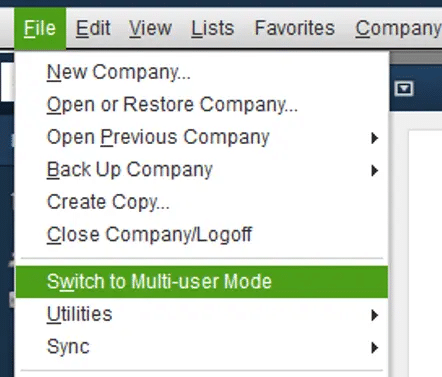
- Open the File menu.
- Select Switch to Multi-user Mode.
- Allow another authorized user to open the same company file.
If the current task requires single-user mode, wait until it finishes before attempting to access the file.
Simultaneous access also requires sufficient user licenses.
Solution 2: Run Quick Fix my Program from Tool Hub
Quick Fix my Program is the first repair utility Intuit recommends in its dedicated Error 6190, 816 guide.
If you have not installed Tool Hub, obtain the installer from Intuit’s website. Our Tool Hub download and installation guide explains the process.
Once installed:
- Exit the accounting software.
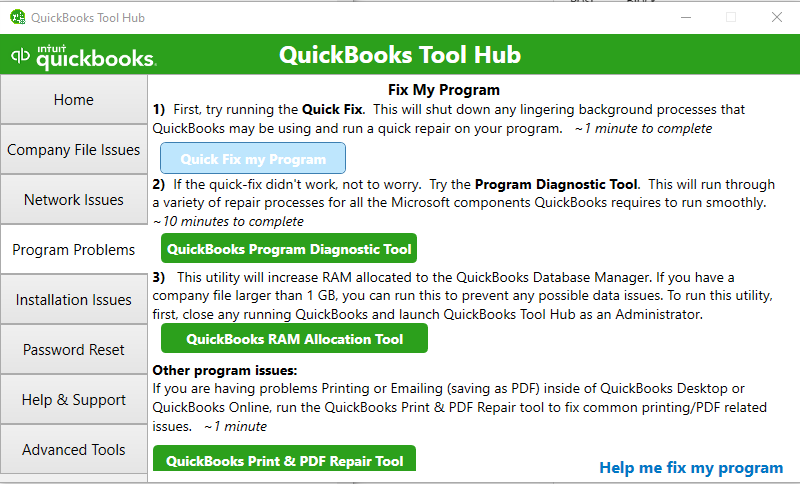
- Launch Tool Hub and open Program Problems.
- Select Quick Fix my Program.
- After the repair finishes, reopen the affected company file.
This tool addresses application problems. Running it does not mean your company data is damaged.
Solution 3: Restart the server and workstations
A restart may resolve temporary problems affecting the connection between the server and workstations.
Coordinate the restart with your network administrator before proceeding.
- Close the accounting software on all connected computers.
- Restart the designated company file server.
- Restart the connected workstations.
- Test access on the server if the full application is installed there, followed by the workstations.
For a standalone installation, restart the computer where the company file is stored.
If you use a hosted desktop environment, contact your hosting provider to restart the necessary services.
Solution 4: Scan the company file folder using Database Server Manager
Database Server Manager helps workstations access company files stored on a network server.
On the server computer:
- Launch Tool Hub.
- Under Network Issues, open QuickBooks Database Server Manager.
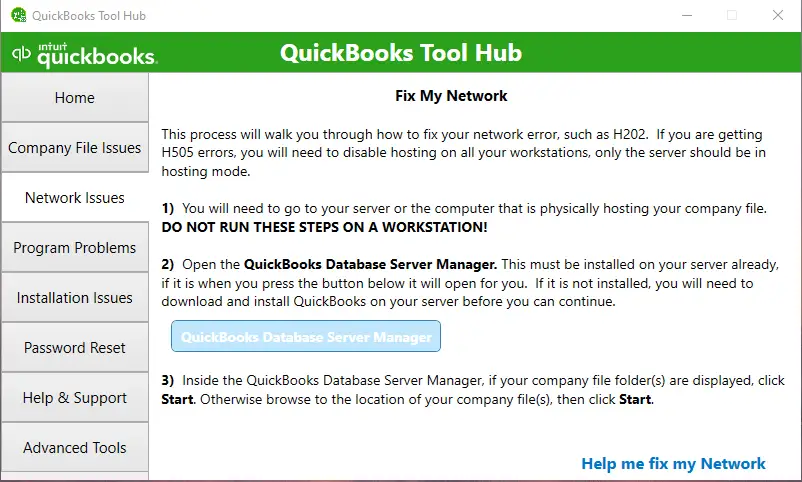
- Locate the company file folder.
- Select Start Scan.
- Close the utility when the scan finishes and test workstation access.
The scan also addresses firewall permissions required for the software’s network connections.
If the database service is unavailable, follow our guide to resolving QBDBMgrN not running on this computer.
Solution 5: Check the company file storage location
An unsuitable storage location can prevent the software from accessing your company file correctly.
Intuit advises against running active company files directly from removable drives, external hard drives, NAS devices, and online file storage folders such as Dropbox or Google Drive.
For a standard multi-user setup, keep the active company file on the designated server’s local hard drive.
If you need to relocate it, ask your administrator to preserve the original files and configure the new folder for network access.
Before entering any transactions, confirm that every workstation opens the relocated company file rather than an older copy.
What if QuickBooks Error 6190 and 816 still appear?
If the initial fixes do not restore access, use the following file and network diagnostics. These are based on Intuit’s broader 6000-series troubleshooting guidance.
Solution 1: Update the software and run File Doctor
Install the latest maintenance release available for your Desktop version through the Help > Update QuickBooks Desktop menu. 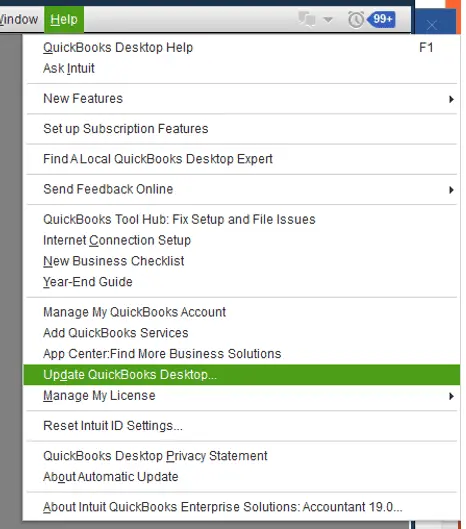
Next, use File Doctor to examine the affected company file:
- Open the Company File Issues section in Tool Hub.
- Launch Run QuickBooks File Doctor.
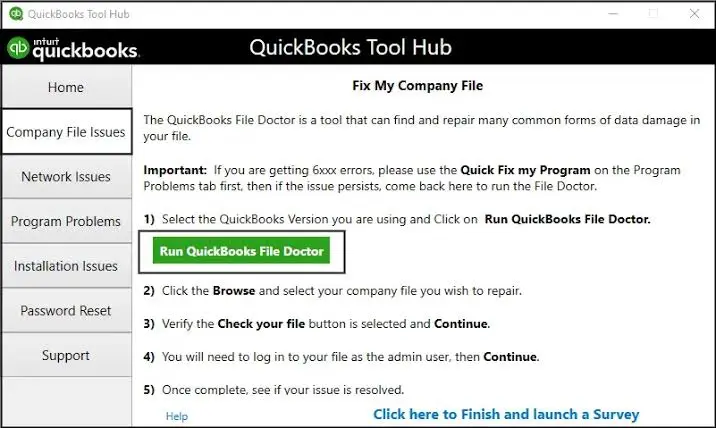
- Locate the affected QBW file.
- Select Check your file.
- Enter your company file administrator password within the application when prompted.
Test the file after the scan, even if the utility reports that the repair was unsuccessful.
For more information about available repair options, see our File Doctor troubleshooting guide.
Solution 2: Check workstation hosting settings
Incorrect hosting is particularly relevant when troubleshooting Error 6190, -83.
In a standard server-based setup, the designated server should host the shared company file rather than individual workstations.
Open the software on each workstation without opening the company file. Go to File > Utilities and check the displayed option.
| Menu option | Required action |
| Host Multi-User Access | Hosting is already off. Leave it unchanged. |
| Stop Hosting Multi-User Access | Hosting is on. Select this option to disable workstation hosting. |
If the server runs the full Desktop application, confirm that hosting is enabled there. If it runs only Database Server Manager, check that application’s configuration instead.
Hosting and single-user mode are different settings. Disabling workstation hosting does not prevent the workstation from accessing a file hosted by the server.
Solution 3: Rename the ND and TLG files
The Network Data (.ND) file supports network access, while the Transaction Log (.TLG) file records changes to company data.
Renaming these files allows the software to generate new ones without deleting transactions stored in the QBW file.
First, close all company file sessions and preserve the original files. Open the company file folder in File Explorer and enable file name extensions if they are hidden.
Locate the matching ND and TLG files, then append .OLD to their names.
For example:
- BusinessAccounts.qbw.nd becomes BusinessAccounts.qbw.nd.OLD
- BusinessAccounts.qbw.tlg becomes BusinessAccounts.qbw.tlg.OLD
For a local installation, reopen the company file. For a network installation, rescan its folder using Database Server Manager before testing access.
Important: Keep the original QBW file unchanged. Retain the renamed transaction log because it may contain information needed for data recovery.
Solution 4: Open a sample company file
A sample company file helps distinguish an installation problem from a problem affecting your accounting file.
- Close the Desktop application.
- Hold down the Ctrl key while launching it to reach the No Company Open window.
- Select Open a Sample File and choose an available file.
If the sample opens normally, investigate your actual company file or its storage location.
If the sample also fails, consider repairing the application installation before attempting accounting data recovery.
Solution 5: Test a local copy of the company file
A company file that opens in one folder but fails in another may indicate a storage or network access problem.
With all user sessions closed, copy the affected QBW file to a separate local folder that is not synchronized with online storage.
From the No Company Open window, select Open or restore an existing company and open the test copy.
| Test result | What to investigate |
| Local test copy opens | Original folder permissions, network access, or file path |
| Local test copy fails | Possible file-specific problems |
| Sample and test files both fail | Application installation |
Do not enter accounting transactions into the test copy. Otherwise, you may create two company files with different financial records.
Solution 6: Check network permissions and firewall settings
If the company file opens on the server but not on a workstation, investigate network access before attempting further data repairs.
Ask your administrator to check the shared folder permissions, database service, and firewall rules required by your software version.
Our guide to resolving company file communication problems explains these network checks in greater detail.
Configure the appropriate firewall exceptions rather than disabling security protection.
When should you investigate company file damage?
Consider file damage if the affected company file remains inaccessible in different locations while sample files open normally.
If you regain access to the affected file, use Verify Data to check its integrity.
Open the company file, select Window > Close All, then navigate to File > Utilities > Verify Data. 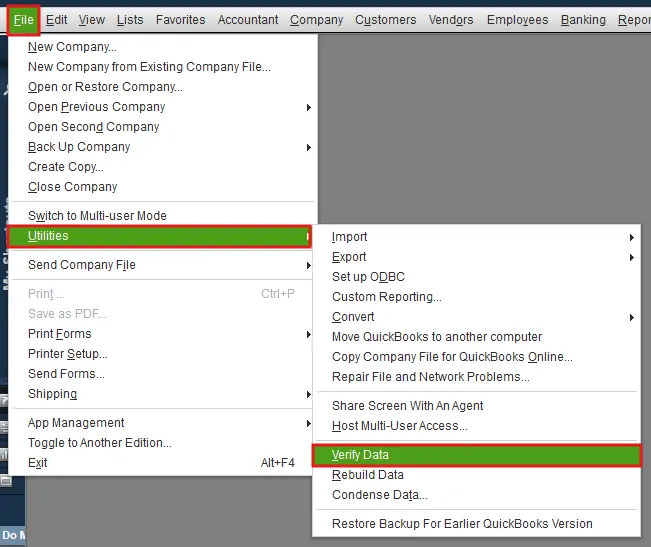
If the utility identifies lost data integrity, Rebuild Data may be appropriate.
Before running a rebuild:
- Switch to single-user mode.
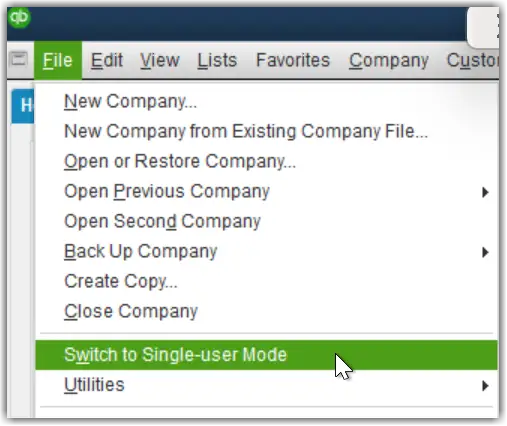
- Create a separate company file backup.
- Contact Intuit directly if you use Desktop Assisted Payroll.
- Run Rebuild Data through the Utilities menu and verify the file again afterward.
See Intuit’s Verify and Rebuild Data instructions for the complete procedure.
If the company file remains inaccessible, contact Intuit or a qualified data recovery specialist before attempting further repairs.
Restore backups under a different name or in a separate folder. Do not overwrite the existing QBW file. You may need to re-enter transactions recorded after the backup date.
How to confirm that QuickBooks Error 6190 is resolved
Opening the company file on one computer does not necessarily mean the multi-user problem is resolved.
Before resuming normal accounting work, confirm that:
- Authorized users can open the designated company file.
- All workstations access the same active file.
- Multi-user access works when required.
- Recent accounting transactions are present if you restored or recovered data.
Keep regular backups and avoid replacing company files without preserving their associated transaction logs.
Conclusion
If QuickBooks Error 6190, 816 persists after program, network, and file-location checks, preserve the original company file and transaction log.
Record the complete error code, affected computers, and troubleshooting results before contacting Intuit or a qualified technical specialist. Avoid restoring older accounting data until you have established whether the problem involves file access or actual data damage.
Frequently asked questions
Why does QuickBooks show Error 6190 when no other user is logged in?
A temporary network problem, unresolved access session, or mismatched transaction log may prevent access even when no other user appears to be logged in. Restart the affected computers and check the company file folder using Database Server Manager.
Can QuickBooks Error Code 6190 occur in single-user mode?
Yes, although the error is associated with multi-user access conflicts, a transaction log mismatch may also prevent a standalone user from opening a company file.
Why does Error 6190 appear after restoring a company file backup?
Manually replacing a QBW file with a restored copy may leave it paired with an unrelated transaction log. However, the error alone does not confirm a mismatch. Check the restored file’s location and preserve its associated files before making changes.
What should I do if Error 6190 continues after running File Doctor?
Determine whether the problem affects one workstation or the entire network. If the server opens the file, investigate hosting and network permissions. If the file also fails locally, test a sample company file and investigate file-specific problems.
Is QuickBooks Error 6190, 816 the same as Error 6189, 816?
They are different error codes, but Intuit provides a common troubleshooting guide for both because they can involve multi-user network access.
How do I fix QuickBooks Enterprise Error 6190 in a hosted environment?
Contact your existing hosting provider to investigate user sessions, database services, and company file permissions. Changes to shared hosting infrastructure should be handled by the provider or authorized administrator.
Can Auto Data Recovery fix QuickBooks Error 6190?
Auto Data Recovery (ADR) is intended for data loss or corruption, not routine access errors.
According to Intuit’s Auto Data Recovery documentation, ADR is available in Pro, Premier, and Enterprise editions for Windows, excluding Accountant editions. A 1.5 GB ADR file-size limit applies, and some recovery methods may not restore the most recent transactions.
Does QuickBooks Error 6190 mean my company file is corrupted?
No, Error 6190 alone does not establish company file corruption. Complete the access and network diagnostics before attempting data repair or backup restoration.
Trademark notice and disclaimer: Intuit and QuickBooks are registered trademarks of Intuit Inc. Accounts Confidant is an independent accounting and bookkeeping service provider and is not affiliated with, sponsored by, endorsed by, or approved by Intuit Inc. This article is independently published and has not been approved by Intuit Inc.
