QuickBooks® Error 6129 occurs when the QuickBooks Desktop accounting software cannot establish a database connection to a company file. You may encounter this error when creating a new company file, opening an existing one, or accessing accounting data stored on a network.
To fix Error 6129, check the company file folder permissions, update your installed software, and run File Doctor. If you share company files across multiple computers, check whether Database Server Manager is running and compatible with your software version.
This Accounts Confidant guide covers troubleshooting for QuickBooks Desktop for Windows.
What Does QuickBooks Error 6129 Mean?
QuickBooks Error 6129 0 is a company file access error associated with database connection verification failure. It belongs to the QuickBooks 6000 series of company file errors.
The error can appear in two forms:
- Error -6129, 0: Reported when creating or opening company files, including newly created files.
- Error -6129, -101: Intuit identifies incorrect folder permissions and Database Server Manager problems as possible causes.
Both variations can prevent access to your accounting records. However, the error does not necessarily mean your company file is damaged.
What Causes QuickBooks Error 6129?
Incorrect folder permissions and problems with Database Server Manager are the main causes identified in Intuit’s 6000 series troubleshooting guide.
An Intuit Community response also identifies outdated software and an incompatible Database Server Manager version as possible causes of QuickBooks Error -6129, -101.
If these conditions are ruled out, investigate other company file access problems:
- Damaged Network Data (.ND) or Transaction Log (.TLG) files.
- Incorrect hosting or network settings.
- An inaccessible company file folder.
- Damage to the company file or software installation.
These are general troubleshooting considerations for 6000 series errors rather than confirmed causes of every Error 6129 occurrence.
How to Identify the Cause of QuickBooks Desktop Error 6129
Before attempting repairs, determine whether the problem affects your company file, its storage location, or the software installation.
| Diagnostic result | What to investigate |
| A sample company file opens | Original company file or its folder |
| Sample files also fail to open | Software installation |
| A local copy opens successfully | Original file path, permissions, or network access |
| The file opens on the server but not on workstations | Database Server Manager or network settings |
| Newly created company files fail to open | Destination folder permissions or software configuration |
Test a sample company file
From the No Company Open window, select Open a Sample File and choose an available sample company.
If the sample opens but your company file does not, test your original file from a different location.
Open a local copy of your company file
- Ask all users to close the company file.
- Copy the original .QBW file to a secure local folder.
- Hold Ctrl while launching QuickBooks Desktop to reach the No Company Open window.
- Select Open or restore an existing company and browse to the copied file.
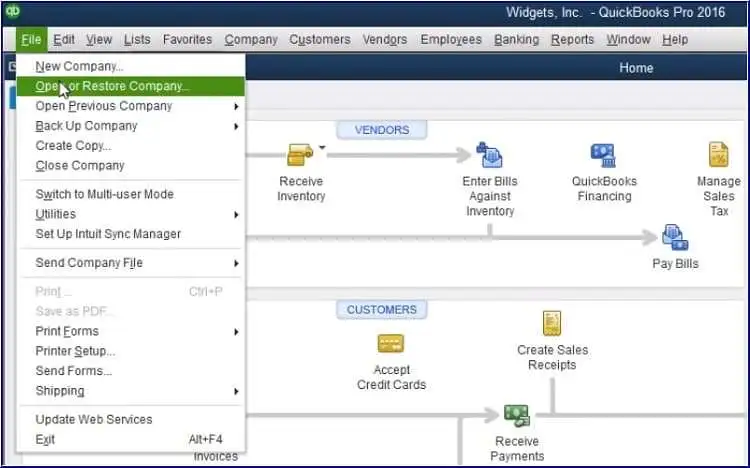
For example, if a company file stored in \\Server\Accounting displays Error 6129 but opens from a local folder, investigate the original network folder and its permissions before attempting data recovery.
Do not record transactions in the temporary copy. Otherwise, you may create two company files containing different accounting records.
How to Fix QuickBooks Error 6129 0
Start with maintenance updates and File Doctor. Then follow the solutions that apply to your diagnostic results.
Before making changes, close the company file on all computers and create a backup if possible. If you cannot open the file, preserve the original .QBW file, associated transaction logs, and existing backups.
Solution 1: Update the software and run File Doctor
Intuit recommends updating the software and using File Doctor as initial troubleshooting steps for 6000 series errors.
To check for maintenance updates:
- Open QuickBooks Desktop.
- Go to Help > Update QuickBooks Desktop.
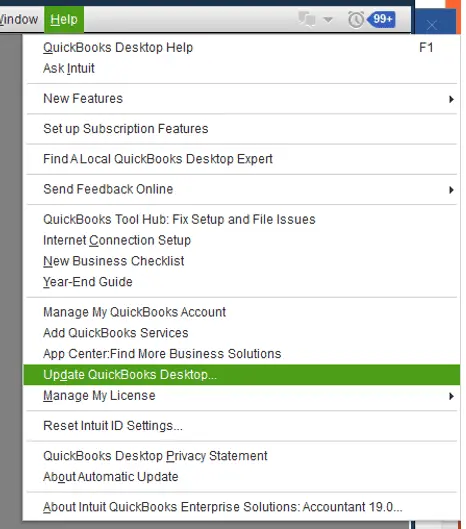
- Select Update Now > Get Updates.
- Restart the application and install the available update when prompted.
Next, close the application and open QuickBooks Tool Hub.
- Go to Company File Issues and run Quick Fix My File.
- If the error remains, select Run QuickBooks File Doctor.
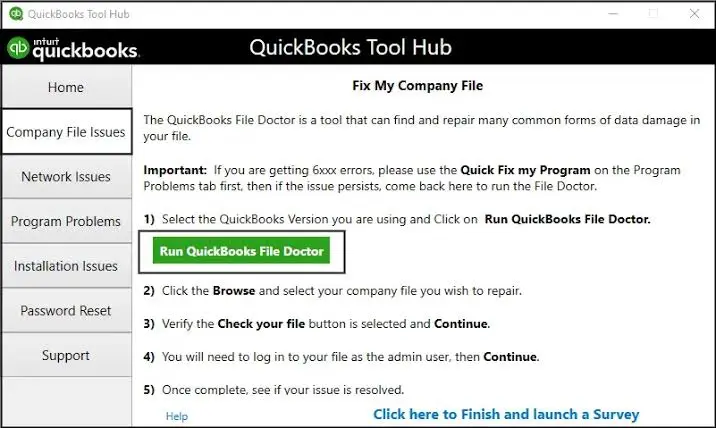
- Locate your affected company file.
- Choose Check your file, then Continue.
- Enter your company file administrator password in the utility and select Next.
After the scan, try opening the company file. File Doctor may report an unsuccessful scan even when it has corrected the problem.
Download the utility only through Intuit’s official File Doctor instructions.
For additional instructions, read our guide to using QuickBooks File Doctor.
Solution 2: Correct company file folder permissions
Incorrect Windows folder permissions can prevent the software from accessing or creating files needed for a database connection.
If your company file is stored on a network, perform these checks on the computer hosting the file.
Check the database service account
- Open Windows File Explorer and locate the company file folder.
- Right-click the folder and select Properties.
- Open Security > Advanced.
- Find the appropriate QBDataServiceUserXX account and review its permissions.
This Windows account is associated with Database Server Manager. Its name varies depending on the installed software version.
The account needs access to navigate the folder, read and write files, create folders, modify file attributes, and read permission settings.
Refer to Intuit’s Windows folder permissions guide for the complete advanced permissions checklist.
Correct insufficient folder permissions
If the required permissions are missing, a Windows administrator can correct them:
- Return to the folder’s Properties > Security settings.
- Select Edit and choose the relevant QBDataServiceUserXX account.
- Enable Full Control for that specific account.
- Apply the changes and test company file access.
For network folders, also review the sharing permissions. Windows security permissions and network sharing permissions both affect file access.
If you use a local, single-user setup without Database Server Manager, check the folder access assigned to your Windows user account instead.
Important: Do not grant unrestricted access to everyone on the network. Limit permissions to the required service account and authorized users.
Solution 3: Check Database Server Manager
If QuickBooks Error 6129 101 occurs only when accessing a company file over a network, verify that Database Server Manager is installed and running on the host computer.
Check the database service
- Press Windows + R on the host computer.
- Enter services.msc and press Enter.
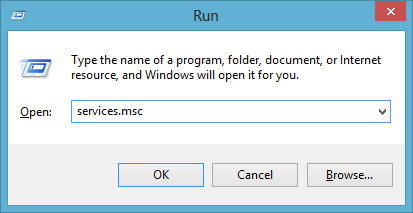
- Locate the QuickBooksDBXX service that corresponds to your installed version.
- Check whether the service is running. Start it if it has stopped.
If the service fails to start or repeatedly stops, follow the troubleshooting steps for QBDBMgrN not running.
A running service does not guarantee that the correct version is installed or that it can access your company file.
If the required component is missing, review the Database Server Manager installation and setup guide.
Scan the company file folder
Once the correct database service is running:
- Open Database Server Manager on the host computer.
- Under Scan Folders, select Browse.
- Choose the folder containing your company file.
- Confirm your selection and click Start Scan.
The scanned folder should appear in the Company Files Found section. Test access from the affected workstation.
If the file opens on the server but not on another computer, investigate hosting settings, network access, and firewall restrictions using our guide to fixing company file communication errors.
Solution 4: Rename the ND and TLG files
If folder permissions and database services are working correctly, damaged supporting files may be worth investigating.
The .ND file contains network configuration information. The .TLG file maintains a record of transactions associated with the company file.
Close the company file on all computers. Locate its matching ND and TLG files and append .OLD to their filenames.
For example:
| Original filename | Renamed filename |
| Business.qbw.nd | Business.qbw.nd.OLD |
| Business.qbw.tlg | Business.qbw.tlg.OLD |
If your file is hosted on a network, scan its folder again using Database Server Manager.
The software recreates the supporting files as needed. Renaming them does not remove transactions from the main company file.
Keep the original TLG file because it may be useful for recovering recent transactions. Do not rename or delete the main .QBW file.
Solution 5: Repair the software installation
Consider an installation repair if both your company file and sample company files fail to open.
Close QuickBooks Desktop, open Tool Hub, and select Program Problems > Quick Fix my Program. Reopen the application and test a sample file. 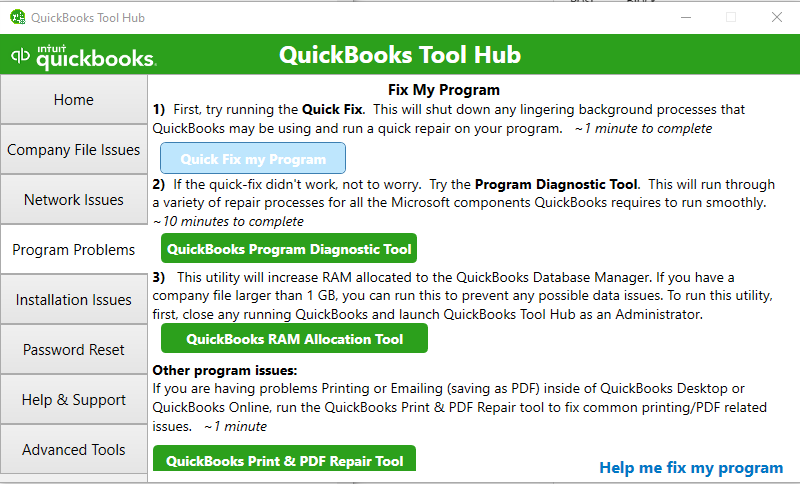
If the sample still fails, run the QuickBooks Install Diagnostic Tool and restart your computer.
Installation repair is unlikely to address the underlying problem when your company file opens locally but fails only over the network.
How to Fix Error 6129 in QB When Creating a New Company File
Error -6129, 0 can occur when you create a company file or try to reopen it later. In this situation, check the destination folder before assuming the new file is damaged.
In an Intuit Community discussion about Enterprise Desktop 18, an Intuit representative identified folder permissions, outdated software, and Database Server Manager compatibility as possible causes.
Create a test company file in a secure local folder. Close and reopen it to see whether the error returns.
If the test file opens, investigate the original destination folder. If the error also affects the new local file, check for available maintenance updates and installation problems.
When a company file opens locally but fails after being saved to a server, prioritize the server’s folder permissions and database service configuration.
What If QuickBooks Enterprise Error 6129 Appears After an Update?
If QuickBooks Error -6129 -101 starts after an update, check the installed software version and release number before making changes.
Press F2 to open the Product Information window. Compare the product year and release number with those on other workstations and the host computer, where applicable.
Check that Database Server Manager supports the product version used to access the company file.
A maintenance update is different from an upgrade to a newer annual version. Once a company file has been upgraded, it generally cannot be opened in an older version.
Avoid rolling back the software or upgrading your company file without checking compatibility and preserving a backup.
The appearance of Error 6129 after an update does not establish that the update caused the problem.
What to Do If QuickBooks Error 6129 Persists
If a sample file opens but your original company file fails even from a secure local folder, consider testing a recent backup.
Follow our guide to restoring a QuickBooks backup file safely. Save the restored file in a separate folder to avoid overwriting your current accounting data.
If the backup opens, check which transactions were entered after the backup date before using it as your main company file.
Intuit’s Auto Data Recovery feature may provide another recovery option for eligible Windows editions. The feature is subject to edition and file size restrictions.
If you have no usable backup or suspect company file damage, contact Intuit directly or consult a qualified data recovery professional before attempting further repairs.
Conclusion
Start troubleshooting QuickBooks Error 6129, 0 by checking folder permissions and, for network-hosted files, Database Server Manager. Use the sample file and local copy tests to determine whether further installation or company file repairs are necessary.
Keep your original company file, transaction logs, and backups until you confirm that your accounting records are accessible and complete.
Frequently Asked Questions
Can QuickBooks Error 6129 occur in single-user mode?
Yes, Incorrect Windows folder permissions, inaccessible file locations, and other company file problems can affect single-user installations without a network connection.
Can I get Error 6129 even if I am the company file administrator?
Yes, Administrator permissions within the accounting software are separate from Windows folder permissions. Being a company file administrator does not automatically grant access to restricted Windows folders.
Can Error 6129 occur if Database Server Manager is already running?
Yes, the service may be running but lack permission to access the company file folder. An incompatible version or an unscanned folder may also prevent access.
Why does Error 6129 appear after moving a company file?
The new location may have different folder or network sharing permissions. If you move the file to another network folder, verify its access settings and scan the new location with Database Server Manager.
Does Error 6129 require a password reset?
Not necessarily; Error 6129 relates to company file access and database connection problems. Resetting your password will not correct Windows folder permissions or database service failures.
Do I need Database Server Manager for a locally stored company file?
No, if you do not share the company file with other computers. Database Server Manager is intended for network-based multi-user access.
Does QuickBooks Error 6129 affect QuickBooks Online?
This guide applies to QuickBooks Desktop for Windows. QuickBooks Online does not use locally stored .QBW company files or Database Server Manager, so these troubleshooting procedures do not apply.
Intuit and QuickBooks are registered trademarks of Intuit Inc. Accounts Confidant is an independent accounting and bookkeeping service provider and is not affiliated with Intuit. This material has not been approved, sponsored, or endorsed by Intuit Inc.
