
QuickBooks Desktop installation or updates can fail when Windows cannot access the registry keys required to complete the process. When this happens, you may see QuickBooks Error 1402 with a message stating that Windows could not open a specific registry key. The error can interrupt installation, prevent updates, and leave the software only partially installed.
If you’re experiencing QuickBooks Installation Error 1402, the problem may involve Windows permissions, damaged system components, or third-party security software. This blog covers possible reasons why you may see this error, how to troubleshoot the issue using verified methods, and good practices you should follow that may prevent it from happening again.
Why Do You See QuickBooks Error 1402?
The error may appear as, “QuickBooks Error 1402 Could Not Open Key: UNKNOWN\Components”, indicating that Windows cannot open the specified registry entry.
You may encounter QuickBooks Desktop Error 1402 in the following situations:
- Incorrect registry permissions: Windows Installer does not have the required access to modify or open specific registry keys.
- Damaged Windows components: Problems with Microsoft .NET Framework or MSXML can interrupt the installation process.
- Incomplete Windows updates: Pending or unsuccessful Windows updates may affect components required by QuickBooks.
- Antivirus or firewall interference: Security software may block certain installation processes or files.
- Previous installation problems: Incomplete QuickBooks installations can leave behind components that interfere with subsequent installations.
The error can also appear as QuickBooks Update Error 1402 when Windows cannot access the registry entries required to complete an update.
Identifying when the error occurs can help narrow down the cause and determine which troubleshooting method to try first.
How to Fix QuickBooks Installation Error 1402?
Try the following solutions in order. Start with some easy troubleshooting steps before attempting advanced Windows repairs.
Solution 1: Run QuickBooks Install Diagnostic Tool
The QuickBooks Install Diagnostic Tool checks for common installation-related problems and attempts to repair them automatically. It is available through QuickBooks Tool Hub.
Follow these steps:
- Close QuickBooks Desktop and any other open programs.
- Download the latest version of QuickBooks Tool Hub from the official Intuit website.
- Open the downloaded QuickBooksToolHub.exe file.
- Follow the on-screen instructions to install the tool.
- Open QuickBooks Tool Hub from your desktop.
- Select Installation Issues.
- Choose QuickBooks Install Diagnostic Tool.
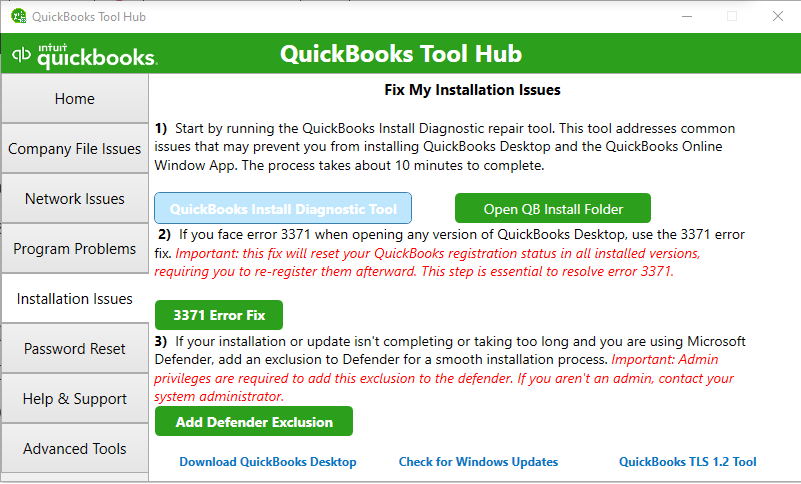
- Allow the tool to complete its scan. This process may take up to 20 minutes.
- Restart your computer after the tool finishes.
- Try installing or updating QuickBooks Desktop again.
If the diagnostic tool resolves the installation issue, you should be able to continue using QuickBooks without encountering the same error; if not, then try updating Windows.
Solution 2: Update Windows
An outdated Windows operating system may lack updates required by QuickBooks installation components. You should check for available Windows updates when installation errors occur.
Here’s how to check for updates:
- Close QuickBooks Desktop.
- Press Windows + I to open Settings.
- Select Windows Update.
- Click Check for updates.
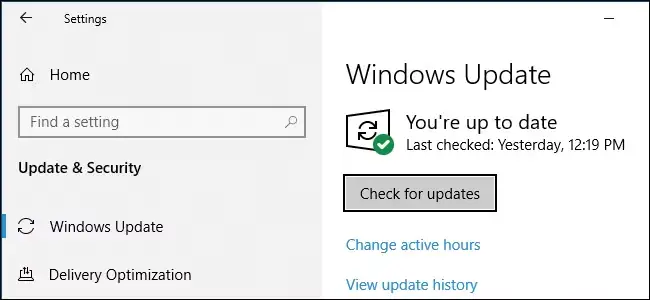
- If updates are available, download and install them.
- Restart your computer after the installation finishes.
- Try installing QuickBooks Desktop again.
Then, open the program and your company file to check whether it works correctly. If not, then proceed with the next solution.
Solution 3: Repair Microsoft .NET Framework
QuickBooks Desktop relies on Microsoft .NET Framework to run certain program components. If the framework is damaged or incorrectly configured, it may interfere with installation and trigger QuickBooks Installation Error 1402.
Follow these steps to check the .NET Framework settings through Windows Features:
- Close all open programs.
- Open the Windows search bar, type Control Panel, and open it.
- Select Programs and Features.
- Click Turn Windows features on or off.
- Locate .NET Framework 4.5 (or later) and .NET Framework 3.5 SP1.
- Check whether both options are enabled.
If either option is disabled, select its checkbox and click OK. Restart your computer.
If an option is already enabled, clear its checkbox, click OK, and restart your computer. Return to Windows Features, enable it again, and restart once more.
Repeat this process for both framework options as applicable. Once Windows finishes configuring the components, try installing QuickBooks again.
Solution 4: Register Microsoft MSXML DLL Files
Microsoft MSXML helps QuickBooks Desktop process XML-based data. If the required MSXML component is not registered correctly, installation may fail.
Register the MSXML6.dll file through Command Prompt.
For 64-bit Windows:
- Open the Windows Start menu and search for cmd.
- Right-click Command Prompt and select Run as administrator.
- Enter the following command and press Enter:
cd\windows\syswow64 - Next, enter:
regsvr32 MSXML6.dll - Press Enter and wait for the registration confirmation.
For 32-bit Windows:
- Press Windows + R.
- Type cmd and press Enter.
- Enter the following command:
regsvr32 MSXML6.dll - Press Enter and wait for confirmation.
After registering the DLL, restart your computer and run the QuickBooks installer again.
If registration fails, seek technical assistance instead of downloading DLL files from unofficial websites.
Solution 5: Install QuickBooks in Selective Startup
Background applications, including antivirus and security programs, can sometimes interfere with QuickBooks installation. Selective Startup allows Windows to start with a limited set of services and startup applications, helping identify software conflicts.
If QuickBooks Error 1402 keeps appearing after trying the previous solutions, use these steps:
- Press Windows + R to open the Run window.
- Type msconfig and press Enter.
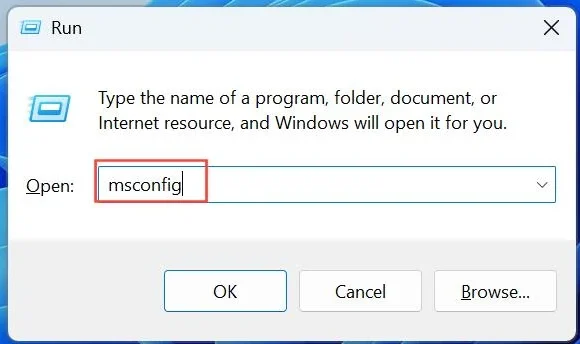
- Under the General tab, select Selective startup.
- Clear the Load startup items checkbox.
- Open the Services tab.
- Select Hide all Microsoft services.
- Click Disable all.
- Click Apply, then OK.
- Restart your computer.
- Try installing QuickBooks Desktop again.
Once the installation is complete, open System Configuration (msconfig) again and select Normal startup under the General tab. Apply the changes and restart your computer to restore normal Windows startup.
Important: Do not disable Microsoft services. Make sure the option to hide Microsoft services is selected before disabling other services.
Solution 6: Check Registry Permissions
If you see the message: “QuickBooks Error 1402 Could Not Open Key: UNKNOWN\Components”, Windows Installer may not have the required access to the specified registry key.
Registry permission problems can prevent the installer from reading or modifying the entries it needs.
Before making any changes:
- Note the complete registry key mentioned in the error message.
- Back up the Windows registry.
- Ask a qualified Windows technician to inspect the permissions of the affected key.
- Have them correct only the specific permission issue identified.
Avoid granting Everyone Full Control or changing permissions across entire registry branches. Incorrect registry changes can cause additional Windows problems.
If the error continues after these checks, go through the tips below.
Tips to Avoid QuickBooks Update Error 1402
Once QuickBooks is working properly, follow these tips to reduce the chances of encountering QuickBooks Error 1402 again:
- Download QuickBooks from official sources: Always download installation files and updates from Intuit to avoid incomplete or modified installers.
- Keep Windows updated: Install available Windows updates and restart your computer when prompted. This helps maintain compatibility with the components QuickBooks needs to run.
- Check antivirus and firewall settings: Make sure your security software does not unnecessarily block QuickBooks installation files or processes. Review its settings before starting an installation or update.
- Use an administrator account: Install or update QuickBooks using a Windows account with the necessary administrator permissions to access required system components.
- Avoid unnecessary registry changes: Do not modify, delete, or change permissions for Windows registry entries unless instructed by a qualified technician. Incorrect changes can create additional installation and system problems.
Conclusion
QuickBooks Error 1402 can interrupt installation and updates when Windows cannot access required registry keys or system components. Start with the recommended troubleshooting methods, including the Install Diagnostic Tool and Windows component repairs. If the error persists, seek technical assistance to investigate registry permissions and resolve the underlying issue.
Frequently Asked Questions
What does “Error 1402: Could not open key: UNKNOWN\Components” mean?
QuickBooks Error 1402 Could Not Open Key indicates that Windows Installer cannot access a specified registry key under the Components section. Incorrect registry permissions or damaged Windows components may be responsible.
Can QuickBooks Tool Hub fix Error 1402?
Yes, QuickBooks Tool Hub includes the Install Diagnostic Tool, which can identify and repair common installation problems.
Can QuickBooks Error 1402 appear during a QuickBooks Desktop update?
Yes, QuickBooks Update Error 1402 can occur when Windows Installer cannot access a registry key required to complete the update. The same installation troubleshooting methods may help resolve it.
Will QuickBooks Error 1402 damage my company file?
No, QuickBooks Desktop Error 1402 is primarily an installation or registry access issue. It does not automatically indicate company file damage. However, keep a recent company file backup before attempting major repairs or reinstallations.
What is the difference between QuickBooks Error 1402 and Error 1406?
Both errors involve Windows Installer and registry access, but they indicate different problems:
Error 1402: Windows Installer cannot open a specified registry key.
Error 1406: Windows Installer cannot write a value to a specified registry key.
Both may require investigating Windows Registry permissions.
What should I do if QuickBooks Error 1402 keeps appearing after every fix?
If QuickBooks Error 1402 keeps appearing after trying the recommended solutions, the issue may involve deeper Windows registry or system component problems. Have a qualified technician inspect the affected registry key and Windows installation environment before attempting further repairs.
Intuit and QuickBooks are registered trademarks of Intuit Inc. Accounts Confidant is an independent Accounting and Bookkeeping service provider and is not affiliated with, sponsored by, endorsed by, or approved by Intuit Inc.
