
A QuickBooks .NET Framework error can interrupt the installation of QuickBooks® Desktop software, prevent the program from opening, or display a Microsoft .NET Framework exception window. The problem may appear after installing QuickBooks Desktop, updating Windows, or opening a related application.
To fix the error, first identify when it occurs. If QuickBooks fails during installation or immediately afterward, run the QuickBooks Install Diagnostic Tool and check for Windows updates. If the error continues, verify the installed .NET Framework version and investigate the affected Windows component.
An error mentioning .NET Framework does not always mean the framework is damaged. Sometimes, the problem comes from QuickBooks Desktop or another application, such as QuickBooks Web Connector.
The steps below explain how to identify the problem and choose the appropriate repair on Windows 11 and Windows 10.
What Is a Microsoft .NET Framework Error in QuickBooks?
A Microsoft .NET Framework error in QuickBooks occurs when a required framework component fails or an application encounters an exception while using .NET.
Microsoft .NET Framework is a Windows software platform that provides libraries and services used by applications. QuickBooks Desktop uses certain Microsoft components to perform its functions.
For example, Intuit lists Microsoft .NET Framework 4.8 Runtime as a software requirement for QuickBooks Desktop 2024. The runtime is included with that product’s installation files.
You can verify this in Intuit’s QuickBooks Desktop 2024 system requirements.
If a required component is missing or damaged, QuickBooks may fail to install or open. However, a .NET exception can also occur because of a problem within the application using it.
This makes the exact error message and the point at which it appears important.
How Can You Identify the .NET Framework Problem in QuickBooks?
Start by checking whether the problem occurs during installation, when opening QuickBooks Desktop, or while using a connected application.
| Error or symptom | What to investigate first |
| QuickBooks installation stops while configuring .NET Framework | Installation files and required Windows components |
| QuickBooks fails to open immediately after installation | Installation-related errors and program startup |
| Windows says .NET Framework 4.7 is already installed | Installed .NET Framework version |
| A Microsoft .NET Framework exception appears | Application name and exception details |
| QuickBooks Web Connector displays a .NET exception | Web Connector configuration and connected application |
| Windows cannot enable a .NET Framework feature | Windows component installation or repair problems |
For example, if the error appears while installing QuickBooks Desktop and specifically mentions Microsoft .NET Framework 4.7, the problem may involve a framework installation step.
However, if the message contains System.NullReferenceException, it indicates an application exception. That message alone does not prove that .NET Framework is missing or damaged.
Important: If your installation displays Error 1935, follow our separate QuickBooks Error 1935 troubleshooting guide. That error concerns a particular assembly installation failure and requires its own troubleshooting process.
How to Fix QuickBooks .NET Framework Errors During Installation
Intuit recommends starting with the QuickBooks Install Diagnostic Tool and Windows updates. If those steps fail, further checks may be needed to identify the affected Microsoft component.
Before changing Windows settings, close QuickBooks and record the exact error message.
Also, check your Windows version by pressing Windows + R, typing winver, and pressing Enter.
Step 1: Run the QuickBooks Install Diagnostic Tool
The QuickBooks Install Diagnostic Tool can help resolve certain installation problems involving Microsoft components used by QuickBooks Desktop.
It is available through QuickBooks Tool Hub.
Follow these steps:
- Close QuickBooks Desktop and its installer.
- Download QuickBooks Tool Hub from Intuit’s official installation troubleshooting guide if it is not already installed.
- Open the downloaded QuickBooksToolHub.exe file.
- Follow the installation instructions and launch QuickBooks Tool Hub.
- Select Installation Issues.
- Click QuickBooks Install Diagnostic Tool.
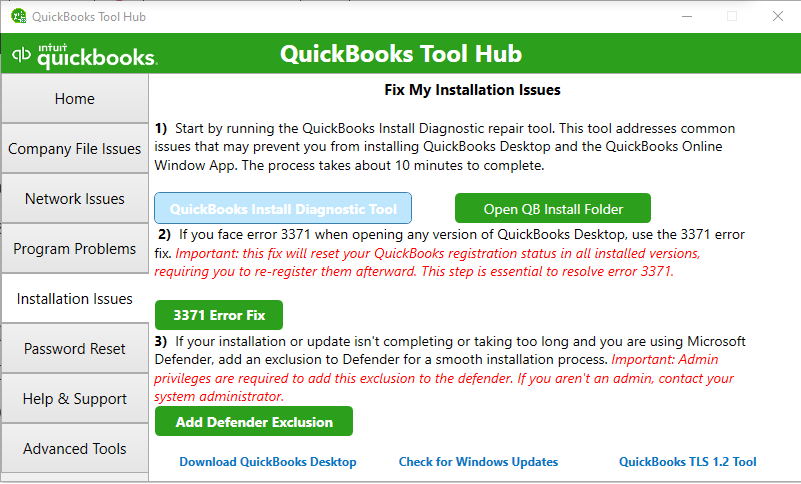
- Allow the diagnostic process to finish.
- Restart your computer.
Intuit states that the diagnostic tool can take up to 20 minutes.
After restarting, retry the QuickBooks Desktop installation.
If the installation finishes and QuickBooks opens normally, no further .NET Framework repair may be necessary.
If the same error returns, continue with Windows updates.
If the diagnostic utility is missing, fails to open, or does not finish, see our QuickBooks Install Diagnostic Tool troubleshooting guide.
Step 2: Install available Windows updates
Windows component problems can interfere with QuickBooks installation. Intuit recommends checking Windows Update when the Install Diagnostic Tool does not resolve a .NET Framework-related installation error.
On Windows 11:
- Press Windows + I to open Settings.
- Select Windows Update.
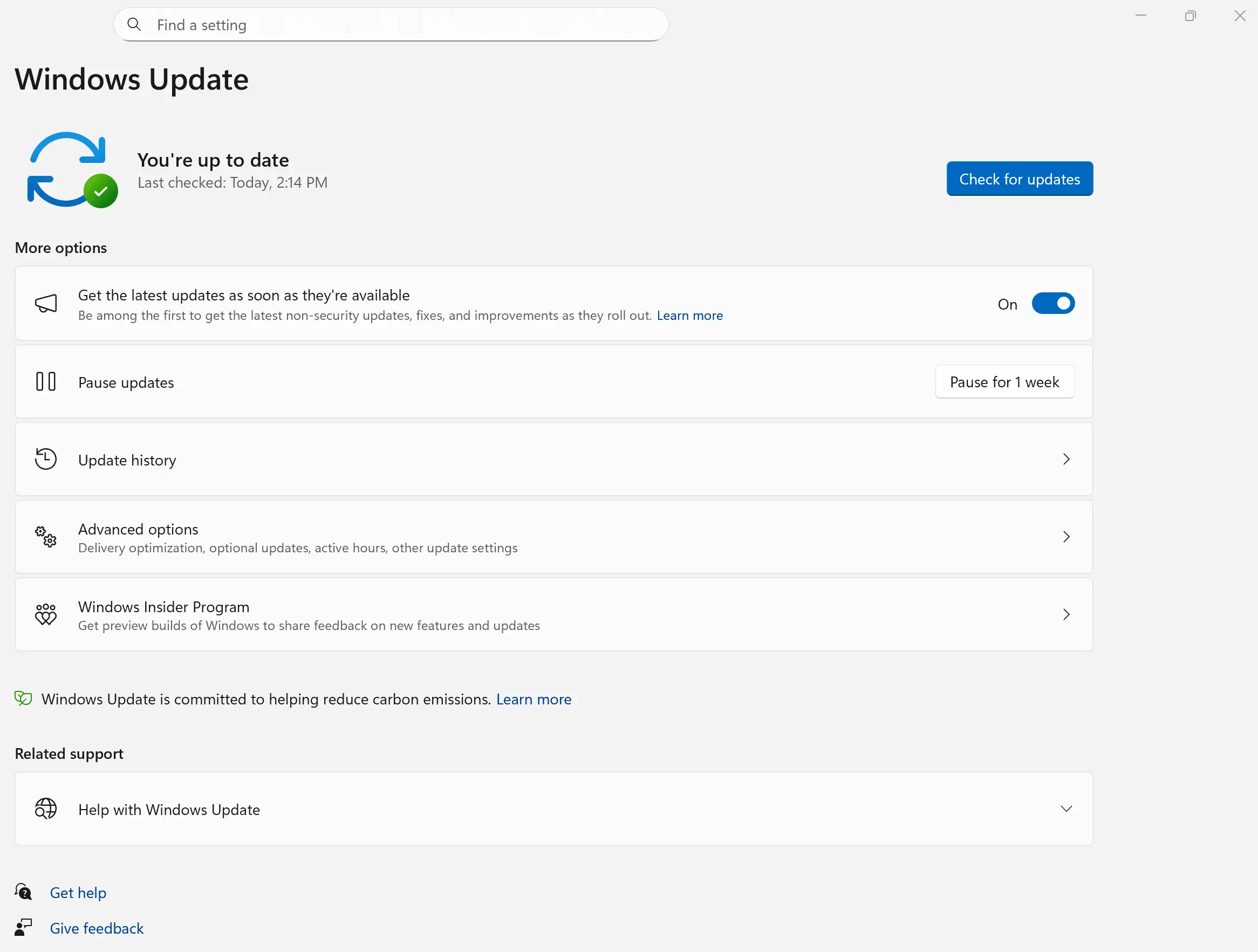
- Click Check for updates.
- Install the applicable updates.
- Restart Windows if prompted.
On Windows 10:
- Open Settings.
- Select Update & Security.
- Click Windows Update.
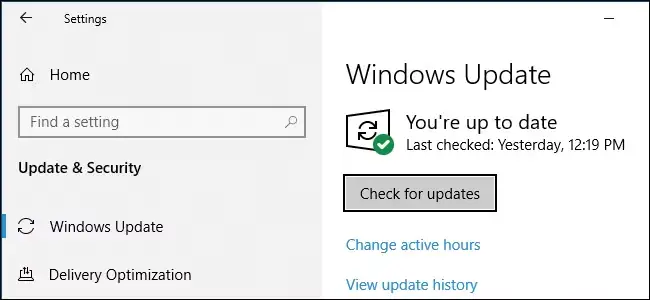
- Check for available updates.
- Install applicable updates and restart the computer.
After restarting, try installing or opening QuickBooks Desktop again.
If Windows Update displays an error, record its code. You may need to resolve the Windows update problem before the QuickBooks installation can finish.
Windows 10 support note: Microsoft ended general support for Windows 10 on October 14, 2025. Eligible devices may receive security updates through an Extended Security Updates (ESU) program. If you still use Windows 10, check its security coverage and the requirements for your QuickBooks Desktop release.
Step 3: Check which .NET Framework version is installed
Before installing another framework version, verify what Windows already has.
Microsoft .NET Framework 4.x releases use in-place updates. This means a newer compatible 4.x runtime replaces an earlier version instead of requiring both to be installed separately.
For example, a computer with .NET Framework 4.8.1 does not normally need a separate installation of .NET Framework 4.7.
Check the installed framework version using PowerShell
- Open the Windows Start menu.
- Search for PowerShell.
- Open Windows PowerShell.
- Enter the following command:
Get-ItemPropertyValue -LiteralPath ‘HKLM:\SOFTWARE\Microsoft\NET Framework Setup\NDP\v4\Full’ -Name Release - Press Enter.
PowerShell displays a numerical release value.
Compare it with the following Microsoft values:
| Release value | Installed framework |
| 528040 or greater | .NET Framework 4.8 or later |
| 533320 or greater | .NET Framework 4.8.1 or later |
For example, a release value of 533509 indicates .NET Framework 4.8.1.
These are minimum thresholds. Exact release values can vary depending on the Windows version.
Microsoft explains the values in its guide to determining installed .NET Framework versions.
If PowerShell cannot find the registry value, do not create the key manually. Investigate the installed framework through Microsoft’s documentation or seek assistance from your Windows administrator.
What if QuickBooks asks for .NET Framework 4.7 but a newer version is installed?
Do not attempt to replace .NET Framework 4.8 or 4.8.1 with 4.7.
Intuit documents a specific installation issue involving .NET Framework 4.7 in QuickBooks Desktop 2019. Its guidance recommends updating Windows before retrying setup.
You can review the official Intuit instructions for the .NET Framework 4.7 installation error.
Those instructions concern QuickBooks Desktop 2019 and should not be treated as a requirement for every newer release.
If Windows already contains a compatible framework, investigate the QuickBooks installer and the exact error rather than repeatedly attempting to install an older runtime.
Step 4: Check .NET Framework settings in Windows Features
If the error points to a disabled or malfunctioning Windows component, inspect the available .NET Framework features.
Follow these steps:
- Close QuickBooks and other open applications.
- Press Windows + R.
- Type appwiz.cpl.
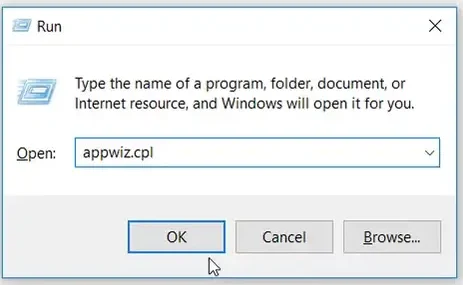
- Press Enter.
- Select Turn Windows features on or off.
- Find the available .NET Framework entries.
Depending on your Windows version, you may see:
- .NET Framework 3.5 (includes .NET 2.0 and 3.0)
- .NET Framework 4.8 Advanced Services
These components have different purposes.
.NET Framework 3.5 supports applications that require older framework components. The 4.x framework is a separate runtime family.
An unchecked option beneath .NET Framework 4.8 Advanced Services does not necessarily mean the entire 4.8 runtime is missing.
If a required feature is disabled, enable that specific feature and restart Windows when prompted.
Do not enable every optional Windows feature as a general QuickBooks repair.
What if the required .NET Framework feature is already enabled?
Intuit documents a procedure for disabling and re-enabling certain framework features when a Windows component repair is necessary.
However, changing these settings can affect other applications that depend on them.
Use the procedure only when the affected component has been identified and the earlier repairs have failed.
Follow Intuit’s manual Microsoft .NET Framework repair instructions.
Intuit recommends that advanced Windows component repairs be carried out by an IT professional, a confident Windows user, or someone assisted by Microsoft support.
If Windows reports an error while enabling or disabling a framework feature, investigate the Windows component failure before making further changes.
Step 5: Use the correct .NET Framework 3.5 installation method on Windows 11
Only use this step if the affected application specifically requires .NET Framework 3.5.
Microsoft changed the .NET Framework 3.5 installation method beginning with Windows 11 version 26H1.
| Windows version | How .NET Framework 3.5 is installed |
| Windows 10 and Windows 11 25H2 or earlier | Through Windows optional feature settings |
| Windows 11 26H1, build 28000, and later | Through a version-specific standalone installer |
On Windows 11 26H1 and later, .NET Framework 3.5 is no longer included as an optional Windows component.
To check your Windows version, press Windows + R, type winver, and review the version and OS build.
If an application requires .NET Framework 3.5 on Windows 11 26H1 or later, use the correct installer described in Microsoft’s Windows 11 .NET Framework 3.5 documentation.
Microsoft states that these standalone installers are specific to the supported Windows version.
Do not install .NET Framework 3.5 solely because QuickBooks displays a .NET-related error. First confirm that the affected application or component requires it.
Step 6: Run the Microsoft .NET Framework Repair Tool
If Windows reports a .NET Framework setup or update failure, Microsoft’s repair utility may help.
The Microsoft .NET Framework Repair Tool detects certain known installation issues and attempts to resolve them.
Follow these steps:
- Open Microsoft’s official .NET Framework Repair Tool page.
- Review the supported framework versions.
- Download the repair utility.
- Run the tool.
- Review the proposed repairs.
- Apply the appropriate changes.
- Restart Windows if required.
- Retry the QuickBooks installation or affected operation.
Microsoft’s published support list includes .NET Framework 4.8 and several earlier versions. It does not explicitly list 4.8.1 as a supported repair target.
The tool addresses certain framework setup and update problems. It is not designed to correct every exception generated by QuickBooks or another application.
If the utility reports an unresolved issue, save its results for further troubleshooting.
Step 7: Repair Windows system files if corruption is suspected
If Windows Update fails, Windows features cannot be repaired, or other Windows components are malfunctioning, the operating system may need further investigation.
Microsoft provides two utilities for checking and repairing certain system-file problems:
- DISM (Deployment Image Servicing and Management) repairs the Windows component store.
- SFC (System File Checker) checks protected system files and attempts to repair damaged ones.
Use these tools when there is evidence of a Windows system problem, not as a routine fix for every QuickBooks error.
To run them:
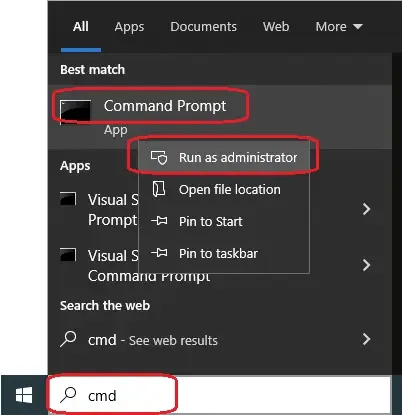
- Open the Windows Start menu.
- Search for Command Prompt.
- Right-click Command Prompt.
- Select Run as administrator.
- Enter this command:
DISM.exe /Online /Cleanup-Image /RestoreHealth
Allow DISM to finish.
If it completes successfully, run:
sfc /scannow
Wait until the verification finishes and review the result.
Microsoft recommends running DISM before SFC because DISM can repair the component store used by Windows system-file repairs.
For more information, follow Microsoft’s System File Checker instructions.
Restart Windows when appropriate and test the original QuickBooks operation.
If Windows reports corruption that cannot be repaired, consult an IT professional before attempting further operating-system changes.
What If QuickBooks Shows a .NET Framework Error When Opening?
If QuickBooks Desktop installed successfully but displays a .NET Framework error during startup, check whether the problem comes from a Windows component or the application itself.
First, close QuickBooks and launch it again. Record the exact message if it returns.
If the error identifies a framework installation or configuration problem, the Windows component checks described earlier may apply.
However, an error such as:
System.NullReferenceException
Object reference not set to an instance of an object.
indicates an application exception. It does not prove that .NET Framework is damaged.
Check which application is named in the error details.
If the message appears when QuickBooks itself starts, investigate the startup process and the installed QuickBooks release.
Also, check whether the problem affects the program or a particular company file.
For example, if QuickBooks opens to the company-file selection screen but fails only when you open one file, a company-file problem may need separate investigation.
Do not attempt to rebuild or modify company-file data based solely on a Microsoft .NET Framework message.
If the error continues after the appropriate startup and component checks, preserve its details for further diagnosis.
What If QuickBooks Web Connector Displays a .NET Framework Exception?
A Microsoft .NET Framework exception involving QuickBooks Web Connector may originate from the connector or a third-party application rather than the framework installation.
For example, a reported Web Connector exception involved:
System.NullReferenceException
QBWebConnector.RegistryManager.anyAppScheduled()
The message identified a Web Connector scheduling function. A community member reported resolving that particular situation through a registry change, but it is not a verified general solution for Web Connector exceptions.
If your error identifies QBWebConnector.exe, investigate the connector’s configuration and the connected application’s requirements.
Avoid changing the Windows registry based only on a community workaround.
For setup and configuration guidance, see our QuickBooks Web Connector guide.
If the error occurs only while syncing a specific third-party application, contact that application’s provider with the complete error details.
A connector-specific error may require a correction from the application provider rather than a Windows framework repair.
How Can You Confirm the .NET Framework Error Is Resolved?
The repair is successful when the original operation works without the same error.
If the problem occurred during installation, confirm that QuickBooks Desktop installs and opens.
If the error appeared during startup, launch QuickBooks and check that you can access the expected company file.
For a Web Connector exception, test the affected connection or operation.
If the error persists after the relevant repairs, prepare the following details before contacting Intuit or an IT professional:
- QuickBooks Desktop product version and release.
- Windows version and OS build.
- Installed .NET Framework version.
- Exact error message and when it appears.
- Results from the diagnostic or repair tools.
These details help identify whether the remaining issue involves Windows, the QuickBooks installation, or a connected application.
Frequently Asked Questions
Can QuickBooks Desktop use .NET Framework 4.8.1 instead of 4.8?
Generally, yes. Microsoft .NET Framework 4.8.1 is an in-place update to the 4.x framework family. Applications built for compatible earlier 4.x versions generally continue to work with newer versions. However, the QuickBooks Desktop release and operating system must meet their supported requirements.
Why does QuickBooks show a .NET Framework error when the framework is already installed?
The problem may involve a failed setup operation, a damaged Windows component, or an exception within QuickBooks or another application. An installed framework does not guarantee that every program using it will work correctly. Review the full error message before attempting another framework installation.
Is Microsoft .NET Framework 4.8 the same as .NET 8?
No. .NET Framework 4.8 and .NET 8 belong to different Microsoft software platforms. Installing .NET 8 does not replace an application’s requirement for .NET Framework 4.8.
Should I uninstall Microsoft .NET Framework to fix QuickBooks?
No, not as an initial repair. Some .NET Framework versions are built into Windows, and other applications may depend on them. Use Intuit’s diagnostic tool and Microsoft’s supported repair instructions before changing installed framework components.
Will repairing .NET Framework delete my QuickBooks company file?
A standard .NET Framework repair is intended to address Windows software components, not QuickBooks company file data. However, maintain a current company-file backup before major Windows repairs or any separate QuickBooks reinstallation procedure.
Can I fix a QuickBooks .NET Framework error without reinstalling QuickBooks Desktop?
In some cases, yes. Intuit recommends the Install Diagnostic Tool and Windows updates before advanced component repairs. Whether those steps resolve the error depends on its cause. A full QuickBooks reinstallation is not the first action recommended for every .NET Framework problem.
Trademark and independence notice: Intuit and QuickBooks are registered trademarks of Intuit Inc. Accounts Confidant is an independent Accounting and Bookkeeping service provider and is not affiliated with, sponsored by, endorsed by, or approved by Intuit Inc. This educational article has not been reviewed or approved by Intuit.
