
If QuickBooks Payroll direct deposit suspended, Intuit may need to review a payroll transaction, verify your business information, or resolve a failed withdrawal from your payroll bank account. You may see “Your account is on hold, contact us” or receive an email explaining why direct deposit has been restricted.
To resolve a QuickBooks Payroll account hold, first check Intuit’s notification and identify the reason for the restriction. An urgent transaction review may require business documents, while an insufficient-funds hold requires action based on a bank return code.
Before submitting payroll again, check whether your original payments were stopped or processed. Some holds prevent new direct deposits, while others may leave previously submitted payments unaffected.
Why Is QuickBooks Payroll Direct Deposit Suspended?
Intuit may suspend direct deposit when it needs to review a payroll transaction, cannot verify required information, or cannot collect funds from the employer’s bank account.
The exact message helps you choose the right procedure.
| Message or account status | Possible reason | What to check |
| “Your account is on hold, contact us” | Urgent payroll transaction review | Intuit’s email and Resolution Center |
| Direct deposit suspended because information could not be verified | Business or identity verification is incomplete | Requested documents and response deadline |
| “Payment Request for Failed Payroll Debit” | Failed withdrawal from the employer’s bank account | ACH return code |
| Payroll bank not verified and active | Bank verification is incomplete or restricted | Payroll bank verification status |
| Resolution Center cases are closed, but the hold remains | An earlier case may not have cleared the restriction | Closed cases and current account status |
An account hold is different from an employee’s bank rejecting a direct deposit.
If payroll was processed but an employee did not receive the money, see our QuickBooks direct deposit not working guide for failed, rejected, and delayed payments.
Intuit needs to review a payroll transaction
Intuit may place a payroll account on hold while reviewing a specific transaction.
Under its documented urgent-review process, Intuit prevents new payroll and contractor payments until the restriction is resolved.
The employer receives an email explaining what information is needed. Intuit may request bank statements, business records, or identity documents.
An account review does not, by itself, prove that fraud occurred.
Business identity verification is incomplete
Intuit verifies certain information about businesses and their principal officers when providing payroll and payment services.
If it cannot verify the information supplied, Intuit may request more documents.
This can happen even when a business has used direct deposit before or has not changed its bank details.
A pending verification request does not always stop payroll immediately. Under Intuit’s documented identity-verification process, payroll may continue during the review unless the service has already been restricted.
Intuit could not withdraw payroll funds
A non-sufficient funds (NSF) hold may occur when Intuit cannot collect a required payroll debit.
The notice may include an Automated Clearing House (ACH) return code.
Two examples are:
- R01: Insufficient funds.
- R09: Uncollected funds.
Other return codes may indicate different banking problems.
An NSF hold requires action based on the return code. It should not be treated as an identity-verification issue.
How to Resolve a QuickBooks Payroll Account Hold
If Intuit requests an urgent transaction review or identity verification, follow the instructions in your account notification.
Step 1: Find the payroll suspension notice
Check the email used by your payroll administrator, primary admin, or principal officer.
Look for messages about an urgent payroll issue, suspended direct deposit, business verification, or requested documents.
Check the spam or junk folder if the message is missing.
Read the notice to find the required action and response deadline.
Before sharing financial information, sign in through the official QuickBooks website and confirm that the request belongs to your account.
Do not upload bank statements or identity documents through an unverified link.
Step 2: Open the QuickBooks Resolution Center
Intuit uses the Resolution Center to collect documents and information for certain payroll account reviews.
To check an available case:
- Sign in to your QuickBooks account.
- Select Settings (gear icon).
- Open Resolution Center.
- Find the relevant payroll or verification case.
- Review the requested information.
For an urgent payroll hold, check the Payroll section if no case appears immediately.
Intuit also documents Resolution Center access for customers without a QuickBooks Online subscription. Follow the access instructions provided in your notification.
If no relevant case appears, contact Intuit to confirm where the documents must be submitted.
Step 3: Submit the requested verification documents
Depending on the review, Intuit may request:
- Business bank statements.
- A business license.
- Articles of Incorporation.
- Employer Identification Number (EIN) information.
- Other identity or business records listed in the case.
The exact requirements depend on the restriction.
For an identity-verification case:
- Open the case in the Resolution Center.
- Select the information request.
- Choose +Add document.
- Attach the requested file and select Open.
- Repeat for any additional documents.
- Answer the questions shown in the case.
Make sure every document is clear and readable.
For its urgent transaction-review procedure, Intuit states that if six months of bank statements are requested but unavailable, employers should submit all available statements.
Screenshots showing only account balances or activity are not accepted as substitutes under that procedure.
For identity-verification cases, Intuit does not begin its review until all requested information has been provided.
Once the submission is complete, the case status changes to In Review under the documented identity-verification process.
For the official procedure, see Intuit’s business identity verification instructions.
Step 4: Check the review deadline
Intuit gives different timelines for different payroll restrictions.
| Review type | Documented timeline or requirement |
| Urgent transaction review | Typically completed within two business days after requested documents are received |
| Urgent-review response deadline | Two weeks from the notification email |
| Business identity verification | Review within two business days after complete submission |
| Identity-verification response deadline | Follow the date stated in the notice |
For an urgent transaction review, Intuit states that failure to respond within two weeks can result in payroll service cancellation.
For identity verification, missing the stated deadline may disable direct deposit and electronic tax payment services.
These review periods are not guaranteed times for restoring every suspended account.
If the case remains unresolved, check whether Intuit requested more information.
What if the Resolution Center Case Is Closed but Direct Deposit Is Still Suspended?
A closed Resolution Center case does not necessarily confirm that the payroll restriction has been removed.
For example, an employer may have submitted the requested documents while the payroll bank still shows as unverified.
The account may need further review before direct deposit can resume.
Reopen a closed Resolution Center case
Intuit provides the following procedure:
- Sign in to your account.
- Go to Settings > Resolution Center.
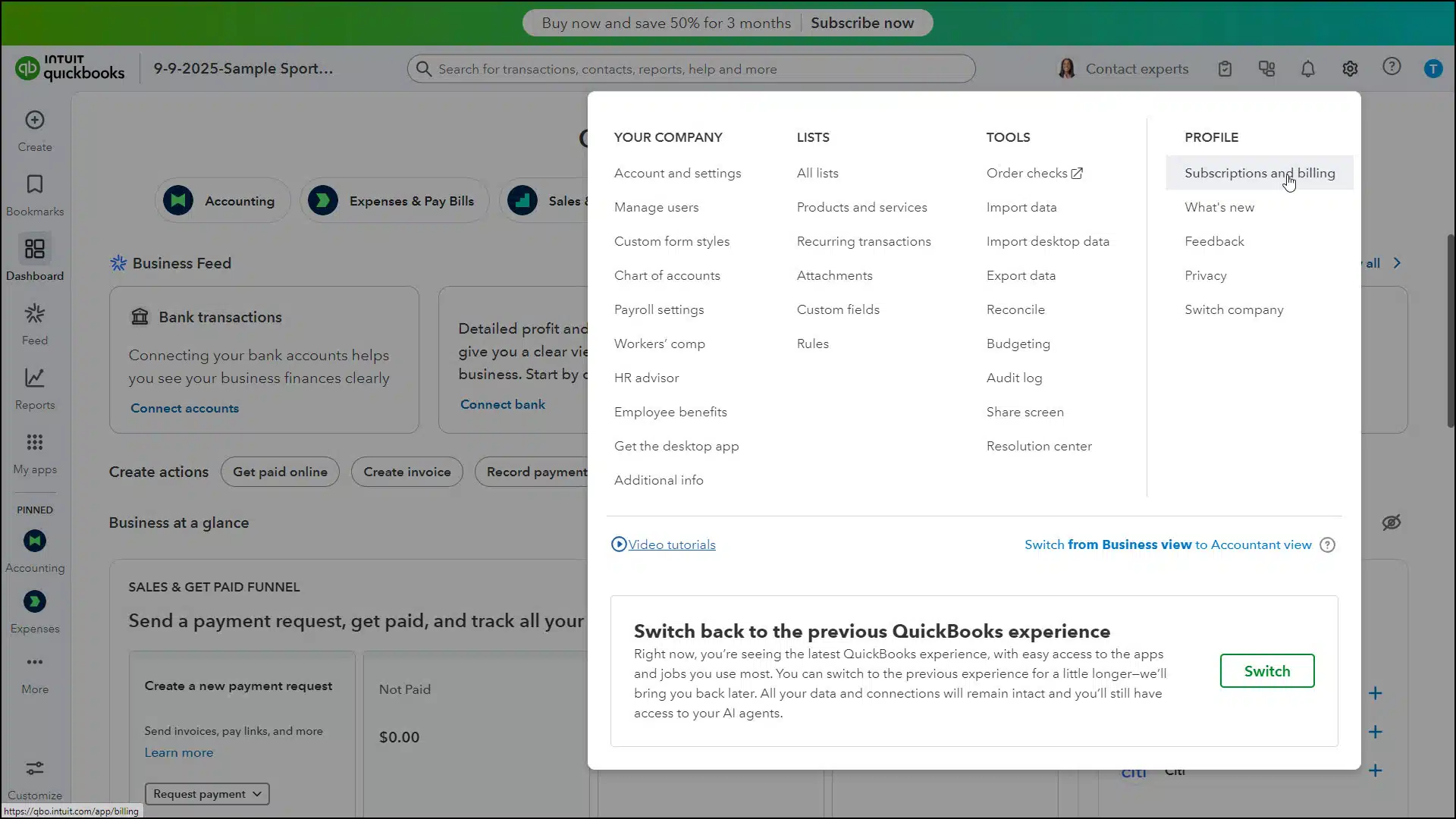
- Select Closed cases.
- Find the relevant case.
- Choose Reopen.
- Explain why further review is required.
- Select Submit.
You can then add information or share an update through the reopened case.
Reopening a case does not automatically remove the payroll hold.
If the restriction remains, contact Intuit with the case number, document-submission date, and current warning message.
What if the payroll bank verification option is missing?
A missing bank-verification option may be a separate issue from an urgent account review.
QuickBooks Online Payroll allows some bank accounts to connect instantly. Other connections may require manual verification through small test transactions.
For manual verification, Intuit may send one or two small transactions to the employer’s bank account.
When the verification task is available:
- Open Payroll overview.
- Find Get ready to pay your team.
- Select Enter amount under Check your bank account.
- Choose Verify your account.
- Enter the requested test-transaction amounts.
Intuit states that these transactions may take up to two business days to appear.
These steps apply to the documented QuickBooks Online Payroll setup process.
If the option is missing or the bank remains restricted, ask Intuit to check the verification status.
Do not repeatedly replace the payroll bank account or restart setup without knowing why the restriction remains.
See Intuit’s QuickBooks Online Payroll bank connection instructions.
How to Resolve an NSF Hold on QuickBooks Payroll
An NSF hold follows a different process from an identity or transaction review.
For ACH return codes R01 and R09, Intuit’s documented procedure states that:
- Intuit attempts an automatic redebit on the day the notice is received.
- The payroll account remains on hold for five banking days during the process.
- If the redebit succeeds, no further payment action is required under that procedure.
- If the redebit fails, another return code applies, or payroll must resume sooner, Intuit may require an authorized principal to arrange a wire transfer.
Under the applicable wire-payment procedure, Intuit states that the hold is removed within one banking day after it receives the required funds.
Confirm the payment instructions directly with Intuit before transferring money.
The employer may also need to work with its bank to allow future payroll debits.
For the complete process, see Intuit’s NSF payroll hold instructions.
How to Pay Employees While Direct Deposit Is Suspended
Whether employees need paper checks depends on the type of restriction and the status of their original direct deposits.
Do not submit the same payroll again until you confirm what happened to the first submission.
This helps prevent duplicate payments and payroll records.
If Intuit placed an urgent transaction-review hold
Under Intuit’s documented urgent-review procedure, pending direct deposits are converted to manual checks.
Those affected deposits will not reach employee or contractor bank accounts through the original transactions.
Intuit instructs employers to:
- Avoid running the affected payroll again.
- Issue paper checks for workers’ net pay amounts.
- Follow the applicable payroll tax instructions.
Net pay is the amount owed after applicable withholding and deductions.
Example:
A business submits Friday’s payroll on Wednesday. On Thursday, Intuit places the account under an urgent transaction-review hold.
An employee’s recorded net pay is $1,250.
If Intuit confirms that the pending deposit was converted to a manual check, the employer can issue a $1,250 paper check using the existing payroll record.
The employer should not create another payroll entry for the same wages. The paper check must be recorded and reconciled with the original payroll.
This is a hypothetical example of the urgent-review process. Other holds may require different steps.
If the hold involves insufficient funds
An NSF hold may affect employee payments differently.
Intuit’s guidance distinguishes between payroll services and funding times.
| Payroll service | Documented treatment during an NSF hold |
| Intuit QuickBooks Workforce with same-day, next-day, or two-day funding | Employee and contractor direct deposits are processed |
| Intuit QuickBooks Workforce with five-day funding | Direct deposits are not processed; paper checks are required |
| QuickBooks Desktop Payroll | Employee and contractor direct deposits continue to be paid |
These rules apply to the specific services and funding arrangements described by Intuit.
Confirm the actual payment status before issuing another check. Employers must also meet applicable state wage-payment deadlines.
Does a QuickBooks Payroll Hold Affect Payroll Taxes?
A payroll account hold can affect electronic tax payments. The result depends on the reason for the restriction and the payroll service.
| Situation | Intuit’s documented tax treatment |
| Urgent review with an applicable full-service payroll product | Tax payments continue normally |
| Urgent review with a self-service payroll product | Employer must continue making required tax payments |
| NSF hold in Intuit QuickBooks Workforce | Tax payments may remain on hold until the required withdrawal succeeds |
| NSF hold in QuickBooks Desktop Payroll Assisted | Intuit states that federal and state taxes are paid |
| NSF hold in QuickBooks Desktop Payroll Enhanced e-pay | The primary principal receives tax-payment instructions |
| Identity verification not completed by the deadline | Electronic tax payment services may be disabled |
These rules should not be applied to every current payroll subscription without checking the actual product.
Check whether payroll tax funds were already withdrawn
Before making a manual tax payment, check:
- The tax period and agency.
- The amount and due date.
- Whether Intuit already withdrew the funds.
- The payment status shown in QuickBooks.
- Whether the tax agency received the payment.
If funds were withdrawn but the payment remains unresolved, confirm with Intuit whether the money will be applied, remitted, or refunded.
Making a second payment without checking the first transaction may create a duplicate tax payment.
The IRS guidance on outsourcing payroll duties explains that employers generally remain responsible for federal employment tax obligations even when they use a third-party payroll provider.
An account hold does not automatically extend a tax deadline.
If a deadline is approaching, consult a qualified payroll tax professional or the relevant tax agency.
How to Confirm QuickBooks Direct Deposit Is Active Again
After Intuit confirms that the hold has been removed, check the payroll bank and previous payment records before submitting new payroll.
Verify that:
- The account restriction has been cleared.
- The payroll bank is verified and active.
- Direct deposit is available for an eligible new payroll.
- Previous employee payments are correctly recorded.
- Outstanding payroll tax liabilities have been reviewed.
For QuickBooks Desktop Payroll, you can check a previously submitted payment through Employees > View Payroll Run Status.
Under Recent payrolls, select the relevant payroll. Then open the View Payroll Run Status drop-down and choose Selected payroll.
Intuit documents three main processing stages:
| Status | Meaning |
| Sent to Intuit | Intuit received the payroll and is processing it |
| Sent to Bank | Intuit sent a debit request to the employer’s bank |
| Payroll processed | Intuit debited the employer’s account and sent the payroll to receiving banks |
A Payroll processed status does not guarantee that the employee’s bank has posted the deposit.
For more detail, see Intuit’s QuickBooks Desktop direct deposit status instructions.
If the account remains restricted, gather the notification, case number, document-submission date, next payday, and ACH return code, if available, before contacting Intuit.
Conclusion
A QuickBooks Payroll direct deposit suspension requires different steps depending on the reason for the hold.
An urgent transaction review requires the documents listed in Intuit’s notification. An identity-verification case requires complete business information. A failed bank debit must be resolved according to its ACH return code.
Before the next payday, confirm whether earlier deposits were processed, pay affected workers using the correct method, and check outstanding payroll taxes. Once Intuit clears the restriction, verify that direct deposit is available before submitting payroll again.
If the hold has left payroll records, manual checks, or tax liabilities out of balance, Accounts Confidant’s payroll management services may help with independent payroll administration and reconciliation. Intuit remains responsible for decisions about its account restrictions.
Frequently Asked Questions
Can QuickBooks suspend direct deposit even if my bank details have not changed?
Yes, Intuit may require additional business or identity verification even when the employer has not changed its banking information. Check the notification for the required action.
Does a QuickBooks payroll account hold mean my business committed fraud?
No, an account review or transaction restriction does not, by itself, establish fraud. Intuit may need more information before allowing payroll to continue.
Can changing my payroll bank account remove a direct deposit hold?
Not necessarily. Changing the bank account does not automatically remove an identity-verification or transaction-review hold. Follow the instructions for the specific restriction before changing account details.
Does a payroll account hold mean my subscription has expired?
No, an active payroll subscription can still have a direct deposit restriction.
If QuickBooks instead reports an inactive subscription, see our QuickBooks Payroll subscription inactive guide.
Can I resume direct deposit immediately after uploading verification documents?
Not always. Intuit must complete the applicable review and clear the restriction before direct deposit can resume. Check the case status and confirm that the service is available.
Disclaimer: Accounts Confidant is an independent accounting and bookkeeping service provider and is not affiliated with Intuit.
Intuit and QuickBooks are registered trademarks of Intuit Inc. Accounts Confidant is not affiliated with, sponsored by, endorsed by, or approved by Intuit Inc.
