QuickBooks Error 40003 may appear when you try to update payroll account information or download payroll tax tables in QuickBooks Desktop. Some users also report that they cannot send payroll usage data when this error occurs.
According to an Intuit Community response, QuickBooks Desktop error 40003 can be associated with paychecks stuck with an Online to Send status. However, the same error may appear while an account update is blocked, so checking the failed operation is important.
To fix QuickBooks Error 40003, confirm that your payroll subscription is active, update your supported QuickBooks Desktop release, and try sending payroll data. If QuickBooks identifies unsent paychecks, follow Intuit’s Verify and Rebuild procedure to check the company file.
What is QuickBooks Error 40003?
QuickBooks Error 40003 is an error reported during certain QuickBooks Desktop Payroll operations, particularly payroll account updates and payroll tax-table downloads.
In an Intuit Community discussion about updating payroll account information, a user reported Error 40003 after QuickBooks could no longer send payroll usage data. The user also could not update the account information needed to resume payroll processing.
In a May 12, 2026 response, an Intuit team member identified stuck paychecks as a possible cause of Error 40003 in that situation. The recommended steps included sending payroll data, finding unsent paychecks, and using Verify and Rebuild Data.
A separate community discussion also reports Error 40003 appearing with PS038 during a payroll update.
These reports provide useful troubleshooting guidance, although Intuit has not established one universal cause for every occurrence of Error 40003 in the reviewed documentation.
Why does QuickBooks Error 40003 occur?
The cause depends on what QuickBooks is trying to do when the error appears.
1. Paychecks are stuck with Online to Send status
Paychecks marked Online to Send are waiting to be transmitted to Intuit. If they remain stuck, QuickBooks may be unable to complete certain payroll operations.
This is a documented cause of QuickBooks Error PS038 and a possible cause of Error 40003 during payroll account updates.
For example, you might have processed several direct deposit paychecks but later discover that some transactions still show Online to Send. When you try to update payroll information, QuickBooks displays Error 40003.
Finding these transactions helps determine whether the stuck-paycheck repair procedure applies.
2. Payroll account information cannot be updated
Error 40003 has also been reported when QuickBooks requires updated payroll account information before it can send usage data.
The problem becomes more complicated if the account has been suspended or the update itself cannot be completed.
In the Intuit Community case, the user later reported that QuickBooks would not send usage data because the Enhanced Payroll account was suspended. Another attempt to update the account produced Error 40005.
An account restriction may require assistance from Intuit. Rebuilding a company file does not automatically restore a suspended payroll subscription.
3. A payroll tax-table download fails
Error 40003 has appeared during payroll tax-table downloads, sometimes alongside PS038.
An unsuccessful tax-table download does not, by itself, identify the cause. Check the subscription, supported Desktop version, and any additional error codes before changing program settings.
If payroll updates fail without Error 40003, refer to our guide on QuickBooks payroll updates not working for broader troubleshooting.
What should you check before fixing QuickBooks Error 40003?
Before making changes, identify the failed payroll operation and confirm that your software still supports connected payroll services.
| Where Error 40003 appears | What to check first |
| Updating payroll account information | Payroll subscription status and whether usage data can be sent |
| Sending payroll or usage data | Transmission result and paychecks marked Online to Send |
| Downloading payroll tax tables | Supported Desktop version, subscription status, and additional error codes |
Press F2 or Ctrl + 1 in QuickBooks Desktop to view your product version and release number.
Also check the following precautions:
- Use a supported QuickBooks Desktop version with an active payroll subscription.
- Keep your payroll service PIN available for data transmission.
- Create a backup before running company-file repairs.
- Do not delete, void, or recreate existing paychecks without confirming their processing status.
To create a local backup, switch to single-user mode, then go to File > Back Up Company > Create Local Backup and follow the prompts. 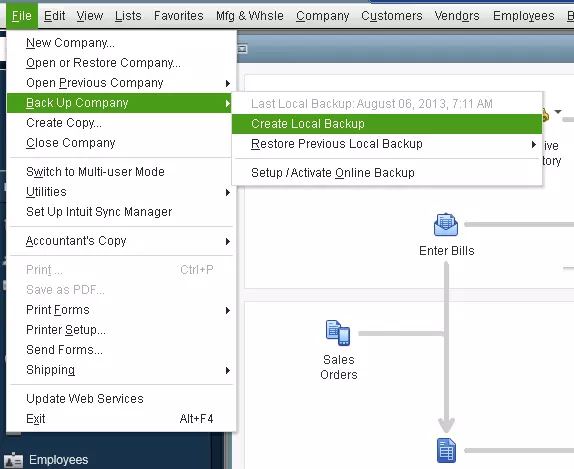
If you use QuickBooks Desktop Payroll Assisted, contact Intuit before rebuilding the company file.
Does your QuickBooks Desktop version still support payroll?
QuickBooks Desktop 2023 reached its service discontinuation date after May 31, 2026.
According to Intuit’s Desktop 2023 discontinuation policy, affected 2023 products no longer support connected payroll services.
If you are using a discontinued version, installing a maintenance update or rebuilding the company file will not restore those services. You will need a supported payroll solution.
How to fix QuickBooks Error 40003
Start with the payroll account and transmission checks. Use company-file repair tools only when the results point to stuck paychecks or data damage.
Step 1: Check your QuickBooks Payroll subscription
A payroll account that is inactive or suspended can prevent connected payroll operations.
To check your service status:
- Open QuickBooks Desktop.
- Go to Employees > My Payroll Service > Manage Service Key.
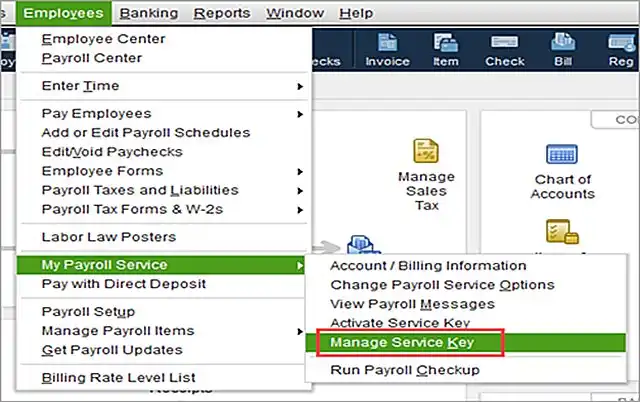
- Review the Service Name and Status.
- Confirm that the correct payroll service is listed.
- Check whether the status shows Active.
These fields are documented in Intuit’s payroll subscription troubleshooting instructions.
If the service is inactive, expired, or suspended, resolve the account issue before attempting data repairs.
You can follow our guide to reactivate an inactive QuickBooks Payroll subscription if the subscription has expired.
Do not remove your payroll service key simply to troubleshoot Error 40003. Service-key changes should be made only when the key is incorrect, and you have the appropriate replacement information.
If your subscription is active, continue with the next step.
Step 2: Update QuickBooks Desktop to the latest supported release
Intuit recommends updating QuickBooks Desktop before following its stuck-paycheck troubleshooting procedure.
To install the latest available maintenance release:
- Open QuickBooks Desktop.
- Go to Help > Update QuickBooks Desktop.
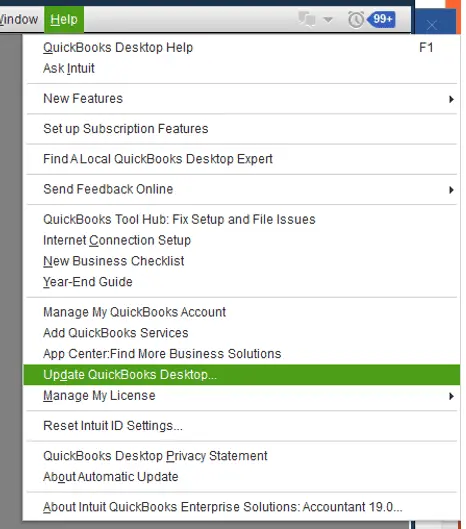
- Select the Update Now tab.
- Click Get Updates.
- Wait until the download finishes.
- Restart QuickBooks.
- Select Install Now when prompted.
After installation, press F2 to check the release number.
You can compare it with the latest release listed in Intuit’s QuickBooks Desktop update instructions.
Updating the maintenance release is a recommended preparation step. It does not establish that outdated software caused Error 40003.
If QuickBooks is already updated, proceed to the payroll transmission check.
Step 3: Send payroll or usage data to Intuit
If QuickBooks cannot complete a payroll account update, check whether it can transmit payroll data.
Follow these steps:
- Open the affected company file.
- Select Employees > My Payroll Service.
- Click Send Usage Data or Send Payroll Data, depending on the available option.
- In the Send/Receive Payroll Data window, select Send All.
- Enter your payroll service PIN if prompted.
- Review the transmission result.
These steps follow Intuit’s official PS038 troubleshooting guidance.
If the transmission succeeds: Retry the payroll account update or tax-table download that originally displayed Error 40003.
If the transmission fails: Record the complete message. Intuit advises contacting support when payroll or usage data cannot be sent.
For example, if QuickBooks reports that the payroll account is suspended, an account-level restriction may need to be cleared before transmission can resume.
Do not repeatedly resend direct deposit transactions or recreate paychecks without confirming their existing processing status.
If the error continues and you suspect stuck payroll transactions, check their online status next.
Step 4: Find paychecks stuck with Online to Send status
Intuit recommends identifying unsent paychecks when Error 40003 appears during a payroll account update.
To find these transactions:
- Open QuickBooks Desktop.
- Go to Edit > Find.
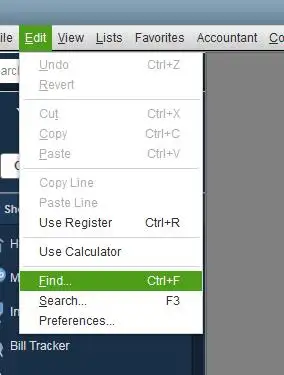
- Select the Advanced tab.
- Under Choose Filter, select Detail Level.
- Choose Summary Only.
- Return to the Filter list.
- Select Online Status.
- Choose Online to Send.
- Click Find.
QuickBooks displays the matching transactions.
Note the number of matches and the oldest unsent paycheck. For example, if the search finds four paychecks, record their dates and confirm whether those payments were already processed.
This information helps you determine which records require further investigation.
If no paychecks appear: The search did not identify the stuck-paycheck condition. Return to the exact Error 40003 message and investigate the failed account or update operation.
If paychecks appear: Follow Intuit’s data verification and repair procedure.
Do not delete the listed paychecks to clear their status. Existing transactions may affect payroll liabilities, employee earnings, and previously submitted direct deposits.
Step 5: Verify and rebuild the QuickBooks company file
The Verify Data utility checks for common company-file problems. Rebuild Data attempts to repair certain types of data damage.
Intuit recommends using these utilities as part of its documented stuck-paycheck troubleshooting procedure.
Run Verify Data
- Select Window > Close All.
- Go to File > Utilities.
- Click Verify Data.
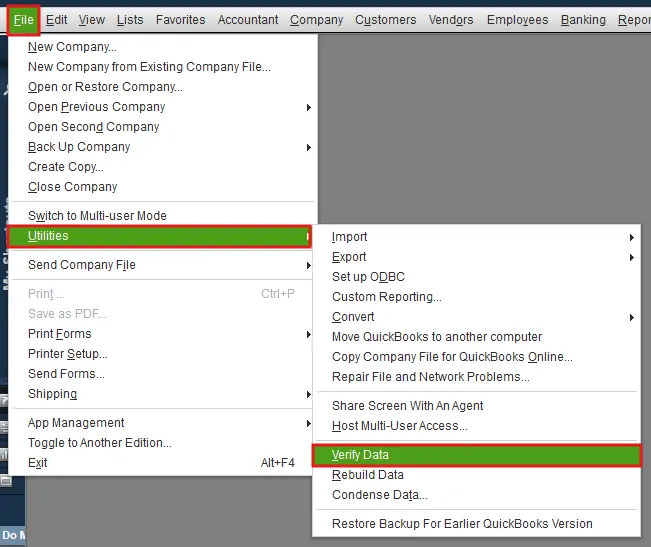
- Wait for QuickBooks to finish checking the file.
QuickBooks may report one of the following results:
- No problems detected: Verify did not find data damage. This does not confirm that an unrelated payroll account issue has been resolved.
- Your data has lost integrity: QuickBooks found a problem that may require Rebuild Data.
- A specific error message: Follow the repair instructions associated with that message.
If you are troubleshooting paychecks identified as Online to Send, Intuit’s PS038 procedure includes both Verify and Rebuild.
If no stuck paychecks were found and Verify reports clean data, there is no established reason to assume that rebuilding will fix Error 40003.
Run Rebuild Data when appropriate
If Verify identifies data damage, or you are following Intuit’s applicable stuck-paycheck procedure:
- Create a backup of your company file.
- Go to File > Utilities > Rebuild Data.
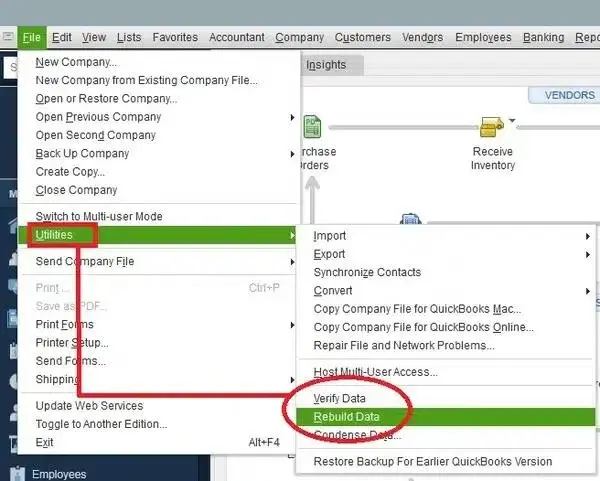
- Follow the prompts to create the required backup.
- Save the backup with a new filename. Do not overwrite an existing copy.
- Wait until QuickBooks confirms that the rebuild has completed.
- Run Verify Data again to check for remaining problems.
Important: If you use QuickBooks Desktop Payroll Assisted, contact Intuit before rebuilding.
The full procedure and its limitations are explained in Intuit’s Verify and Rebuild Data guide.
If Verify continues to report damage after rebuilding, do not keep repeating the process without investigating the specific errors.
Once the data check is complete, retry the original payroll operation.
Step 6: Address paychecks that remain stuck
If Verify and Rebuild do not resolve the stuck-paycheck condition, Intuit documents another procedure called paycheck toggling.
This involves temporarily adding an existing earnings item to an affected paycheck and later removing the duplicate item to refresh the transaction.
The procedure requires checking that the paycheck’s taxes and net pay remain unchanged.
Because editing an existing paycheck can affect payroll records, follow the exact instructions rather than experimenting with earnings or deduction amounts.
Our QuickBooks Error PS038 troubleshooting guide explains the full procedure and the required precautions.
If the paycheck was already submitted for direct deposit or the amounts cannot be preserved, stop and seek qualified payroll assistance before making changes.
Step 7: Retry the payroll account update or tax-table download
After addressing the relevant issue, return to the task that originally produced Error 40003.
If Error 40003 appeared while updating payroll account information
Open Employees > My Payroll Service and select the available payroll account-information option.
Some Desktop configurations provide an Update Payroll Account Info option. Account-management menus may differ by payroll product and service type.
Complete the required changes and check whether Intuit accepts the update.
If the account remains suspended or QuickBooks produces another error, contact Intuit instead of repeatedly rebuilding the company file.
If Error 40003 appears while updating payroll tax tables
Follow these steps:
- Go to Employees > Get Payroll Updates.
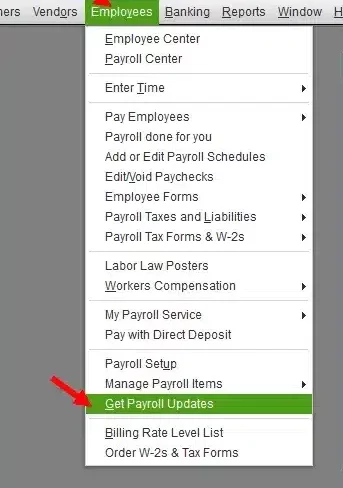
- Check the currently installed tax-table version.
- Select Download Entire Update.
- Click Update.
- Wait for the completion message.
- Confirm the installed tax-table version.
Intuit documents this procedure in its payroll tax-table update instructions.
If the download completes, compare the installed version with Intuit’s latest payroll update information.
Remember that state unemployment insurance (SUI) rates are not updated through the standard payroll tax-table download. Check those rates separately when applicable.
What if QuickBooks Error 40003 still appears?
If the error remains, the next action depends on what failed.
Payroll account information still will not update
Check whether QuickBooks reports a suspended account, a verification requirement, or a different error code.
In the documented Intuit Community case, the user could not send usage data because the payroll account was suspended. A later update attempt displayed Error 40005.
That situation required investigating the account restriction rather than assuming the company file was damaged.
If you encounter the same problem, contact Intuit with the complete error message and account status.
Payroll data still cannot be sent
If sending payroll or usage data fails, record the transmission message and confirm whether any paychecks remain Online to Send.
Intuit advises contacting support when the transmission cannot be completed through the documented procedure.
Before attempting another direct deposit submission, confirm whether the original payment was accepted or is still pending.
Verify Data continues to report damage
If Verify reports errors after rebuilding, investigate the specific messages rather than running Rebuild repeatedly.
For company-file problems outside the stuck-paycheck procedure, see our QuickBooks data integrity troubleshooting guide.
Keep an unchanged backup until you have confirmed that the repaired file works correctly.
How can you confirm QuickBooks Error 40003 is fixed?
The repair is successful when the operation that originally failed completes without Error 40003.
Depending on the situation, confirm that:
- Payroll usage or payroll data is transmitted successfully.
- The required payroll account changes are accepted.
- The payroll tax-table download completes.
- Previously stuck paychecks have the appropriate status.
- Employee paycheck amounts and payroll tax calculations remain correct.
For example, if Error 40003 appeared when updating payroll account information, a successful Desktop maintenance update alone is not enough. You must also confirm that the account update can now be completed.
Likewise, if the error appeared during a tax-table download, verify the installed tax-table version before processing another payroll.
Conclusion
QuickBooks Error 40003 may require different fixes depending on whether payroll account information, data transmission, or tax-table updates are failing.
The Intuit-documented troubleshooting path includes checking for stuck paychecks and using Verify and Rebuild when appropriate. If the problem involves a suspended payroll account, the next step is to resolve that restriction with Intuit.
Before resuming payroll, confirm that the original operation works and that existing paycheck amounts have not changed.
For other payroll-related problems, refer to our QuickBooks payroll errors guide.
Frequently asked questions
Can QuickBooks Error 40003 occur when my payroll subscription is active?
Yes, an active payroll subscription does not rule out stuck paychecks or a payroll transmission failure. If the subscription is active, check whether payroll data can be sent and whether any transactions remain Online to Send.
Is QuickBooks Payroll Error 40003 the same as PS038?
No, Intuit defines PS038 as an error caused by paychecks stuck with an Online to Send status. Error 40003 has been reported during payroll account updates and tax-table downloads, including cases involving PS038. They may share a troubleshooting path, but they are different error codes.
Are QuickBooks Errors 40001 and 40003 related?
Both may appear during QuickBooks Desktop Payroll operations, but they should not be treated as the same error. Error 40001 has been reported in different payroll account and direct deposit situations. Follow the guidance for the exact error displayed rather than applying one repair procedure to both.
Should I delete unsent paychecks to resolve Error 40003?
No, deleting unsent paychecks is not the routine fix recommended in Intuit’s documented stuck-paycheck procedure. Intuit instead provides Verify/Rebuild and, when needed, paycheck toggling. Check the status of any existing direct deposits before editing payroll transactions.
Why does QuickBooks show Error 40003 when downloading payroll tax tables?
Error 40003 has been reported during payroll tax-table downloads, including situations where PS038 also appears. Check whether paychecks are stuck with an Online to Send status, then follow the relevant troubleshooting procedure. A failed download alone does not establish that company-file damage is the cause.
Can I fix QuickBooks Error 40003 without rebuilding the company file?
Possibly, If the error is resolved by correcting a payroll account issue or successfully sending usage data, a rebuild may not be needed. Rebuild is appropriate when Verify identifies data damage or when you are following Intuit’s documented stuck-paycheck repair process.
What should I do if Error 40003 changes to Error 40005?
Record the complete Error 40005 message and investigate it separately. An Intuit Community user reported encountering 40005 after an earlier 40003 account-update problem, but that does not mean both codes have the same cause. If your payroll account is suspended, contact Intuit for account-level support.
Does QuickBooks Error Code 40003 affect payroll tax calculations?
Error 40003 does not, by itself, prove that existing tax calculations are incorrect. However, a failed tax-table update may leave QuickBooks without current rates needed for future calculations. Verify the tax-table version and review any payroll processed while the update was unavailable.
Does Error 40003 occur in QuickBooks Online Payroll?
The official cases reviewed for this guide concern QuickBooks Desktop Payroll. They do not establish that QuickBooks Online Payroll uses Error 40003 in the same way. If you use QuickBooks Online, follow the guidance for the exact message displayed in your account.
Intuit and QuickBooks are registered trademarks of Intuit Inc. Accounts Confidant is an independent Accounting and Bookkeeping service provider and is not affiliated with, sponsored by, endorsed by, or approved by Intuit Inc.
