QuickBooks Error 6143 can appear during company file operations in QuickBooks Desktop. Users have reported variations such as Error -6143, -301 during a failed backup, and Error 6143-101 while working with QuickBooks Desktop.
The error does not automatically mean your company file is damaged. If you cannot open the file, check its location and test a sample company file. If the error appears during backup, use Verify Data to look for possible integrity problems.
The right solution depends on when the error occurs. This guide explains how to troubleshoot QuickBooks Error 6143 while protecting your existing accounting data.
What Is QuickBooks Error 6143?
QuickBooks Error 6143 is an error reported by users experiencing problems with QuickBooks Desktop company file operations. Intuit has not established a single cause that explains every reported occurrence of this code.
Two variations appear in official QuickBooks Community discussions:
- Error -6143, -301: A QuickBooks Accountant 2014 user reported this error when a company file backup failed during preparation for migration to QuickBooks Online.
- Error 6143-101: A QuickBooks Desktop 2020 user reported this variation. A community response recommended using the Rebuild Data utility.
These reports suggest that checking company file integrity may be useful in certain cases. However, neither report proves that every occurrence of Error 6143 is caused by corrupted data.
The first step is to identify what QuickBooks was doing when the error appeared.
What Can Cause Error 6143 in QuickBooks Desktop?
The exact cause of QuickBooks Error code 6143 is not confirmed for every situation. Possible areas to investigate include company file integrity, file access, the QuickBooks installation, and network configuration.
The following symptoms can help narrow down the problem.
| What happens in QuickBooks | What to investigate |
| The company file will not open | File type, file location, and QuickBooks application |
| Error -6143, -301 appears during backup | Data integrity and backup destination |
| The file opens locally but not from a workstation | Shared folder access and hosting configuration |
| Sample company files also fail to open | QuickBooks application or installation |
| Verify Data reports damaged data | Company file integrity |
These checks do not establish the cause by themselves. For example, a company file that fails to open from a network folder may still open when copied to a local folder. That result points toward a location or access problem rather than proving that the company file is corrupted.
What Should You Check Before Fixing QuickBooks Error 6143?
Before changing company file settings or running repairs, take a few precautions.
- Note the complete error code, including any additional numbers such as -301 or -101.
- Identify whether the error occurs during file opening, backup, or network access.
- Locate the original .QBW company file.
- Ask other users to close the file before attempting file-level troubleshooting.
- Preserve your latest backup and, where possible, a separate copy of the current company file folder.
Avoid deleting supporting files or restoring an older backup over the current company file.
Once these checks are complete, follow the troubleshooting section that matches your problem.
How to Fix QuickBooks Error 6143 When Opening a Company File
If QuickBooks displays Error 6143 while opening a company file, start by checking the file type and location. Then test whether QuickBooks can open another company file.
1. Check the company file and update QuickBooks Desktop
First, confirm that you are opening the correct file.
A regular QuickBooks Desktop company file uses the .QBW extension. Backup files (.QBB) and portable company files (.QBM) require different opening or restoration procedures.
To check the file:
- Open File Explorer.
- Navigate to the folder containing your company file.
- Locate the .QBW file.
- Confirm that the file has not been moved or renamed unexpectedly.
- Try opening it through File > Open or Restore Company > Open a Company File.
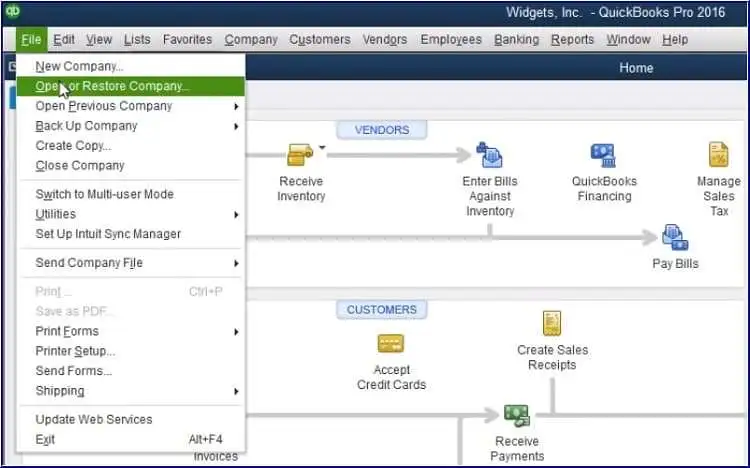
If the file is available but still will not open, check whether a maintenance update is available for your QuickBooks version.
- Open QuickBooks Desktop.
- Go to Help > Update QuickBooks Desktop.
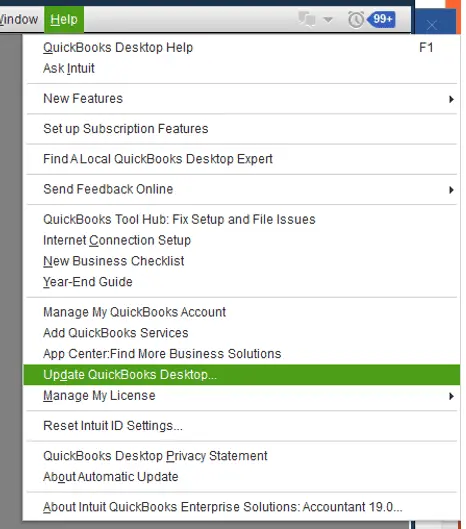
- Select the Update Now tab.
- Click Get Updates.
- Restart QuickBooks after the download finishes.
- Install the update if prompted.
Updating QuickBooks can help rule out previously addressed software problems, but it is not a confirmed fix specifically for QuickBooks Company file error 6143.
You can follow Intuit’s QuickBooks Desktop update instructions for your installed version.
If QuickBooks cannot locate the file at all, see our guide on QuickBooks company file not found before attempting data repairs.
2. Open a sample company file
A sample company file helps you determine whether the problem affects only your business file.
Follow these steps:
- Close QuickBooks Desktop.
- Open the Windows Start menu.
- Hold down the Ctrl key and launch QuickBooks.
- Keep holding Ctrl until QuickBooks opens to the No Company Open window.
- Select Open a Sample File.
- Choose an available sample company file.
Check whether the sample file opens.
If the sample file opens: QuickBooks can access another company file. Investigate the original file and its location.
If the sample file also fails: The QuickBooks application or installation may need attention. Follow Intuit’s company file opening troubleshooting guide for further checks.
A successful sample-file test does not confirm that your original company file is corrupted.
3. Open a local copy of the affected company file
If the sample file opens but your company file does not, check whether its location is contributing to the problem.
Suppose your company file is stored on an office server. QuickBooks may be able to open a local copy even when it cannot access the original file through the network.
To test this:
- Make sure other users have closed the company file.
- Open File Explorer and locate the original .QBW file.
- Right-click the file and select Copy.
- Paste the copy into a separate folder on your local computer.
- Open QuickBooks Desktop.
- Go to File > Open or Restore Company.
- Select Open a Company File.
- Browse to the copied file and try opening it.
If the local copy opens, investigate the original folder, network path, or access permissions.
If the copied file also fails, continue with the next troubleshooting method.
Important: Use the copy for testing only. Do not record new transactions in both copies, because the two files can develop different records.
4. Run QuickBooks File Doctor
QuickBooks File Doctor can help diagnose supported company file and network problems.
Although Intuit does not specifically list Error 6143 in its File Doctor documentation, the tool may be useful when QuickBooks cannot open a company file.
First, download QuickBooks Tool Hub from Intuit’s official File Doctor instructions.
Then follow these steps:
- Close QuickBooks Desktop and open QuickBooks Tool Hub.
- Select Company File Issues.
- Click Quick Fix My File.
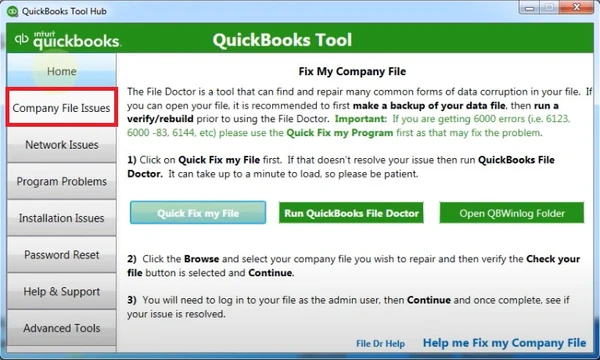
- Wait for the process to finish and select OK.
- Reopen QuickBooks and test the company file.
If the error continues:
- Return to Company File Issues in Tool Hub.
- Select Run QuickBooks File Doctor.
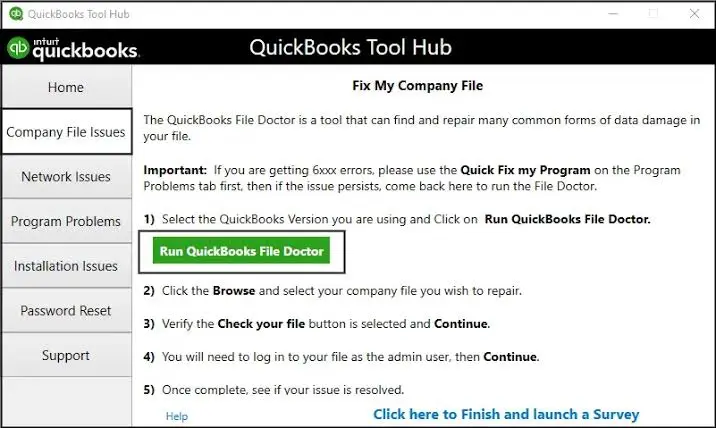
- Choose the affected company file, or click Browse to locate it.
- Select Check your file and click Continue.
- Enter the QuickBooks administrator password.
- Click Next to begin the scan.
When File Doctor finishes, try opening the original company file again.
The scan may report that it was unsuccessful even when it has addressed an issue. Testing the file afterward is necessary.
If the tool does not open, freezes, or fails to complete the scan, see our separate guide on QuickBooks File Doctor not working.
How to Fix QuickBooks Error -6143, -301 During Backup
If QuickBooks displays Error -6143, -301 while creating a company file backup, first check whether the original company file still opens.
This error combination was reported in an Intuit Community discussion about a failed backup during migration. An Intuit moderator suggested checking the file with Verify and Rebuild Data because possible data damage could be contributing to the problem.
The cause was not confirmed in that discussion.
1. Run Verify Data
If you can open the company file, use Verify Data to check for detectable integrity problems.
- Open the affected company file in QuickBooks Desktop.
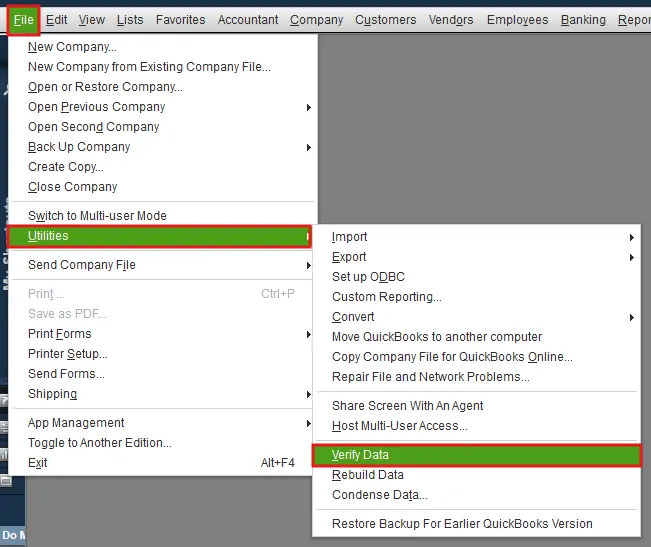
- Go to Window > Close All.
- Select File > Utilities > Verify Data.
- Wait for QuickBooks to complete the verification.
Review the result before choosing another repair method.
| Verification result | Recommended action |
| QuickBooks detected no problems with your data | Investigate other possible reasons for the backup failure |
| Your data has lost integrity | Create a reliable backup, then follow the Rebuild Data procedure |
| QuickBooks displays another error | Record the exact message and follow its specific troubleshooting guidance |
Verify Data checks for data integrity problems. It does not test every possible reason a backup may fail.
If verification finds no issues, check whether the backup destination is accessible, has adequate free space, and allows the required file operations.
These are general backup troubleshooting checks, not confirmed causes of Error -6143, -301.
2. Rebuild company data if verification finds damage
If Verify Data reports that the company file has lost integrity, Rebuild Data may repair the detected problems.
Before proceeding, understand that QuickBooks requires a backup before rebuilding company data.
To run Rebuild Data:
- Open the company file.
- Go to File > Utilities > Rebuild Data.
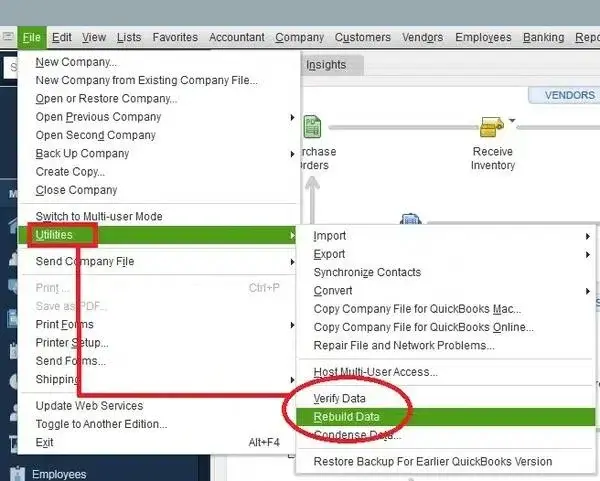
- Follow the prompt to create a backup.
- Save the backup with a new filename without replacing an existing copy.
- Allow QuickBooks to complete the rebuild.
- Select OK when the completion message appears.
After rebuilding, return to File > Utilities > Verify Data and check whether the reported damage remains.
If QuickBooks still detects problems, investigate the remaining errors rather than repeatedly rebuilding the file without reviewing the results.
Our guide on Verify and Rebuild Data in QuickBooks Desktop explains the process and how to handle unsuccessful repairs.
Note: Intuit advises QuickBooks Assisted Payroll users to contact Intuit before rebuilding company data.
3. What if QuickBooks cannot create a backup before rebuilding?
This situation needs extra care because the original Error -6143, -301 report involved a failed backup.
If QuickBooks cannot create the backup required for Rebuild Data, do not bypass the backup requirement or overwrite an existing backup.
First, confirm that the backup destination is accessible and has sufficient storage space. You may also test another suitable local backup folder.
If backup creation still fails, preserve the company file and seek assistance before attempting further data repairs.
A backup created before rebuilding provides a recovery point if the repair produces unexpected results.
4. Check migration compatibility if the error occurs during conversion
If Error -6143, -301 appears while preparing to move QuickBooks Desktop data to QuickBooks Online, distinguish the backup failure from the migration process itself.
The documented community case involved QuickBooks Accountant 2014, an older Desktop release.
Older QuickBooks versions may have separate conversion requirements. However, the community discussion does not establish that version compatibility caused the reported backup error.
Before converting an older company file, confirm the supported migration method with Intuit. Do not upgrade your only copy of the file or assume that fixing the backup error automatically makes the data eligible for conversion.
How to Troubleshoot QuickBooks Error 6143 in a Shared Company File
If the company file works on the host computer but fails from a workstation, investigate the shared-file setup.
This is general network troubleshooting for company file access problems. Incorrect hosting has not been established as a universal cause of Error 6143.
1. Check hosting settings on workstations
In a standard server-hosted QuickBooks Desktop setup, workstations should not host the company file independently.
To check:
- Open QuickBooks Desktop on an affected workstation without opening the company file.
- Go to File > Utilities.
- Check which hosting option appears.
If you see Host Multi-User Access, hosting is already off on that workstation. Do not select the option. 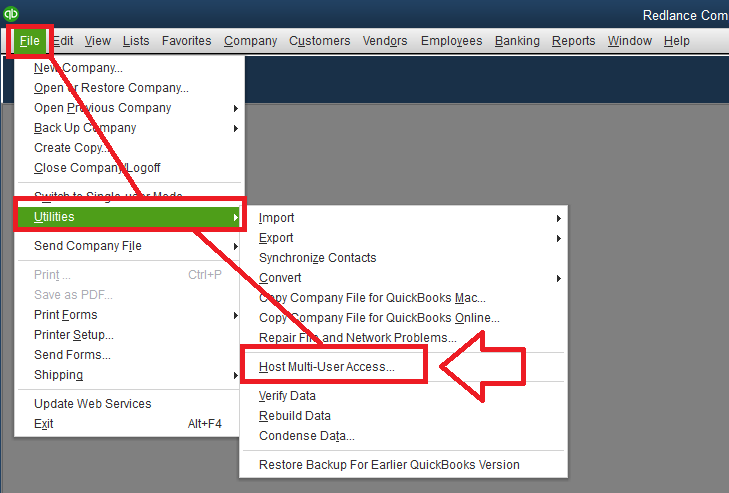
If you see Stop Hosting Multi-User Access, the workstation is hosting files. In a standard server-hosted setup, select it to turn off hosting on that workstation. 
Check the other workstations as well.
If the hosting settings are already correct, investigate the shared folder and server connection.
2. Check the shared folder and Database Server Manager
Make sure the workstation can access the folder that contains the company file.
If the shared folder is available but QuickBooks cannot connect to the file, QuickBooks Database Server Manager may need to be checked on the computer hosting the company file.
Depending on your installation, you can access the tool through QuickBooks Tool Hub > Network Issues > QuickBooks Database Server Manager. 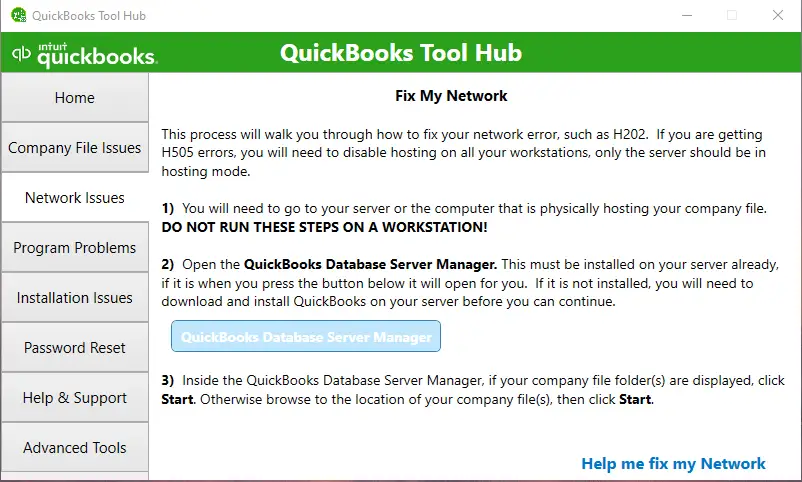
Follow the instructions for your installed version to check or scan the folder containing the company file.
Avoid changing Windows firewall settings, service permissions, or server configuration without identifying a related access problem.
For detailed network troubleshooting, see our guide on QuickBooks multi-user mode not working.
What if QuickBooks Error 6143 Still Appears?
If the error continues, review what the troubleshooting tests have shown.
For example:
- If sample company files fail, investigate the QuickBooks application.
- If the local copy works but the shared file does not, investigate the original location and network access.
- If Verify Data reports damage, follow the relevant data-integrity repair procedure.
- If the company file opens but backups continue to fail, investigate the backup operation separately.
If the working company file appears damaged and repair attempts fail, restoring a known-good backup may be an option.
However, restoring an older backup can leave out transactions recorded after that backup was created. Restore the backup to a separate location for testing rather than replacing the current company file.
If critical transactions are missing, the file cannot be backed up, or data-integrity errors remain, stop making further changes until the recovery options have been reviewed.
Our guide on QuickBooks data integrity issues covers unresolved verification errors and additional recovery considerations.
How Do You Confirm QuickBooks Error 6143 Is Fixed?
The final check depends on the operation that originally produced the error.
If QuickBooks could not open your company file, close the application and reopen the file from its normal working location.
If the error occurred during backup, create a new backup and confirm that QuickBooks completes the process.
If it occurred while accessing a shared company file, test access from the affected workstation.
When Verify Data previously detected damage, run it again after rebuilding and check whether the reported integrity problems have been resolved.
A completed File Doctor scan or successful rebuild alone does not confirm that the original problem is fixed.
Conclusion
The next step for QuickBooks Error 6143 depends on whether the failure involves opening a company file, creating a backup, or accessing a shared location.
For a file-opening problem, start with the sample-file and local-copy tests. For Error -6143, -301 during backup, check data integrity before attempting a rebuild. If only network access fails, investigate the hosting setup and shared location.
If the original operation still fails after the relevant checks, preserve the current company file and backups before pursuing further repair or recovery.
Frequently Asked Questions
What does QuickBooks Error 6143-101 mean?
Error 6143-101 was reported by a QuickBooks Desktop 2020 user in an official Intuit Community discussion. A community response recommended Rebuild Data, but the exact cause was not established. If your company file opens, start with Verify Data to determine whether integrity problems are present.
Is QuickBooks Error 6143 the same as Error -6000, -301?
No, these are different error codes. Intuit has a separate troubleshooting article for Error -6000, -301, which may involve company file access or damaged supporting files. Do not assume the same causes and repair procedures apply to Error 6143.
What if Verify Data finds no problems but Error 6143 continues?
A successful Verify Data result means the utility did not detect the integrity problems it checks for. It does not confirm that your backup destination, file location, or network connection is working properly. Continue with troubleshooting that matches the operation producing the error.
Should I rename the .ND and .TLG files to fix QuickBooks Error 6143?
Not automatically. Intuit documents supporting-file renaming for certain other company file errors, but it has not established this as a universal fix for Error 6143. The .TLG transaction log can also matter during recovery, so preserve the original files before considering file-level changes.
Can I fix QuickBooks Error 6143 without losing company file data?
Many initial checks, such as opening a sample file or checking the company file location, do not require changes to the original accounting records. Repairs and backup restoration need greater care. Preserve the original file and a usable backup before attempting procedures that could affect company data.
Can I use these solutions in QuickBooks Desktop for Mac?
Not all of them. QuickBooks Tool Hub and the Windows-based File Doctor procedures in this article are intended for QuickBooks Desktop on Windows. Mac users should follow Intuit’s Verify and Rebuild Data instructions for QuickBooks Desktop for Mac when investigating possible data damage.
Intuit and QuickBooks are registered trademarks of Intuit Inc. Accounts Confidant is an independent Accounting and Bookkeeping service provider and is not affiliated with, sponsored by, endorsed by, or approved by Intuit Inc.
