

QuickBooks error 15242 can appear when you install an update for QuickBooks Desktop accounting software or download payroll tax tables. The error is often associated with the File Copy Service (FCS), a Windows service involved in software updates.
To fix QB error 15242, check the FCS startup settings, run the accounting software as a Windows administrator, and repair the update components if necessary.
The error can occur even when you do not use payroll. This guide from Accounts Confidant explains how to troubleshoot both Desktop and payroll update failures on Windows.
What is QuickBooks error 15242?
QuickBooks error code 15242 is an update error that can prevent the accounting software from completing a maintenance release or payroll update. A response from an Intuit representative in the product’s official community links the error to problems involving the File Copy Service.
You may still be able to open your company file and record transactions while the affected update remains incomplete.
Why does error 15242 occur without payroll?
The File Copy Service also supports regular Desktop updates, so error 15242 is not limited to payroll users.
In January 2026, a Desktop Accountant 2023 user reported this error in an Intuit Community discussion despite having payroll disabled.
The user had already tried resetting updates, running Quick Fix my Program, and using reboot.bat. An Intuit representative recommended reinstallation, but the user declined. A successful resolution was not reported.
If you encounter error 15242 without using payroll, leave your payroll preferences unchanged and investigate the Desktop update process instead.
What causes QuickBooks Payroll Update Error 15242?
A problem with the File Copy Service is the main documented association with error 15242. If Windows prevents FCS from starting, the software may be unable to complete certain update operations.
Other possible update problems include:
- Missing or damaged program components.
- Insufficient Windows administrator permissions.
- Incomplete or damaged update files.
- Incorrectly registered application components.
- Problems with the software installation.
Intuit identifies similar problems in its general troubleshooting guidance for 15XXX update errors. However, these are possible causes to investigate rather than confirmed causes of every error 15242.
What should you check before fixing error 15242 in QuickBooks?
Identify which update is failing before changing Windows settings or repairing the application.
| Update problem | What to investigate |
| Regular Desktop update fails | FCS and update components |
| Payroll tax-table update fails | FCS, payroll subscription and product support |
| Both updates fail | Shared update components and installation problems |
Next, press F2 in the accounting software to check your product year, edition, and release number.
Intuit discontinued services for QuickBooks Desktop 2023 after May 31, 2026. Affected editions no longer receive critical security updates or access to services such as Desktop Payroll.
If you use an older version, review Intuit’s service discontinuation policy. Repairing the File Copy Service will not restore discontinued services.
How to fix QuickBooks error 15242
Start with the File Copy Service. If its configuration appears correct, move on to update and installation repairs.
Intuit’s formal 15XXX troubleshooting guides do not explicitly list error 15242. The following methods combine error-specific Community guidance with relevant general update troubleshooting procedures.
Retry the affected update after each applicable repair.
Solution 1: Check the Intuit File Copy Service
A disabled FCS service may interfere with software updates. Older Intuit Community guidance for related FCS errors recommends using the Manual startup setting.
You need Windows administrator permission to change service settings.
- Close the accounting software.
- Press Windows + R to open the Run window.
- Type services.msc and press Enter.
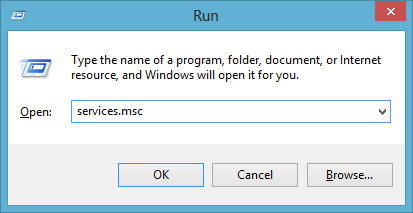
- Find Intuit QuickBooks FCS in the Windows Services list.
- Open the service properties.
- If the Startup type is Disabled, change it to Manual.
- Save the changes by selecting Apply and OK.
- Reopen the software and retry the update.
What if FCS is already set to Manual?
A Windows service configured for manual startup does not need to run continuously. A stopped status alone does not establish that FCS is damaged.
Use the service status to determine your next step.
| FCS status | Recommended action |
| Disabled | Change the startup type to Manual if authorized |
| Manual and stopped | Retry the update |
| Manual and running | Investigate update files and program components |
| Missing from Windows Services | Investigate the software installation |
| Fails to start | Record the Windows service error |
If FCS is missing, do not create the service manually or download replacement files from unofficial websites.
If the service becomes disabled again after an update attempt, record when the change occurs and ask your IT administrator or Intuit to investigate.
Solution 2: Run the software as an administrator and repair program components
Windows permission restrictions or background application processes may interfere with updates.
Close the accounting software, right-click its Desktop shortcut, and select Run as administrator. Approve the Windows permission prompt and retry the failed update.
Windows administrator access is different from signing in as the company file administrator.
If error 15242 continues, try the Quick Fix my Program utility:
- Close the accounting software.
- Open QuickBooks Tool Hub.
- Navigate to Program Problems → Quick Fix my Program.
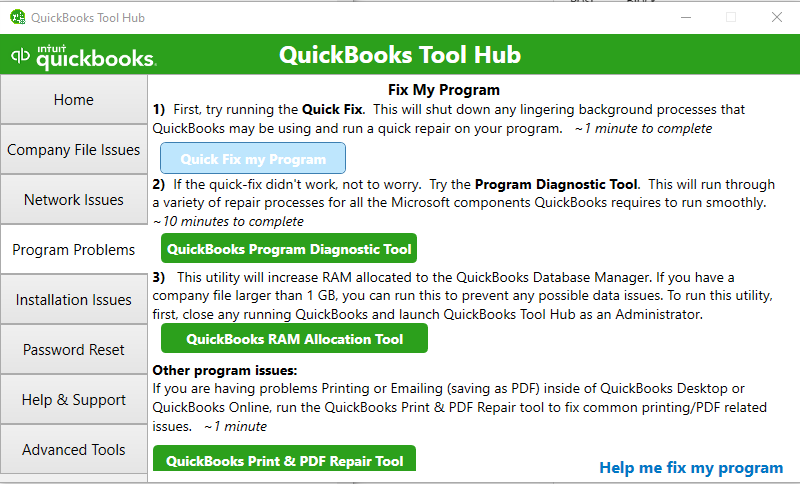
- Allow the repair to finish.
- Reopen the accounting software and retry the update.
The utility addresses common application problems and closes lingering program processes. It may help with update failures, but it does not guarantee that a missing or damaged FCS component will be restored.
Download the utility only through Intuit’s official Tool Hub documentation.
Solution 3: Reset Desktop update files
An incomplete update download may interfere with later attempts. Resetting the update allows the software to download the required files again.
- Open the accounting software.
- Navigate to Help → Update QuickBooks Desktop.
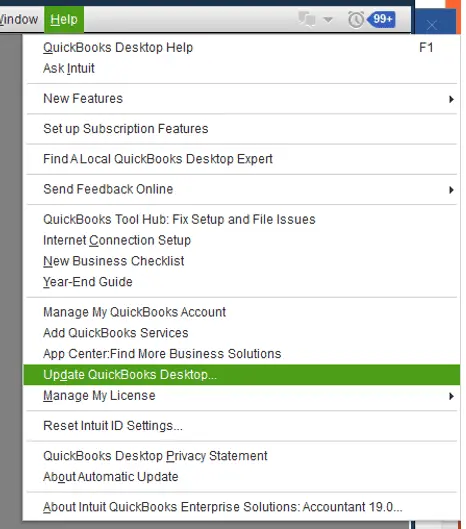
- Open the Update Now tab.
- Select Reset Update.
- Click Get Updates.
- Restart the application after the download finishes and install the update if prompted.
If the in-product download fails, follow our guide on how to update QuickBooks Desktop manually to obtain the correct maintenance release.
A manual update may help with download problems, but it may not resolve a damaged File Copy Service.
For persistent update failures, Intuit’s general 15XXX troubleshooting guide also provides instructions for removing the version-specific Components folder.
Follow the official folder instructions carefully. Do not delete the entire installation or ProgramData folder.
Solution 4: Register program components again
The reboot.bat file included with the Desktop installation can register certain application components again in Windows.
This is an optional repair to consider if FCS is enabled but error 15242 continues.
- Close the accounting software.
- Open the properties of its Desktop shortcut.
- Select Open File Location.
- Locate reboot.bat in the installation folder.
- Right-click the batch file and select Run as administrator.
- Wait for the process to finish and restart Windows.
Windows may display the file as reboot when file extensions are hidden.
Use only the batch file included with your existing installation. Do not download replacement batch files from third-party websites.
Solution 5: Investigate digital signature problems
The Desktop application checks digital signatures when downloading files. Failed signature verification can prevent certain updates from completing.
Digital signature problems are associated with several 15XXX errors, but they have not been established as a specific cause of every error 15242.
If you receive an additional certificate or signature verification error, follow the certificate troubleshooting instructions in our QuickBooks Error 15000 guide.
You can also refer to Intuit’s digital signature troubleshooting guidance.
Do not bypass Windows security checks or install certificates from untrusted sources.
Solution 6: Repair or reinstall the Desktop application
If FCS is missing, Windows cannot start the service, or earlier repairs fail, investigate the software installation.
Open QuickBooks Tool Hub and navigate to Installation Issues → QuickBooks Install Diagnostic Tool. 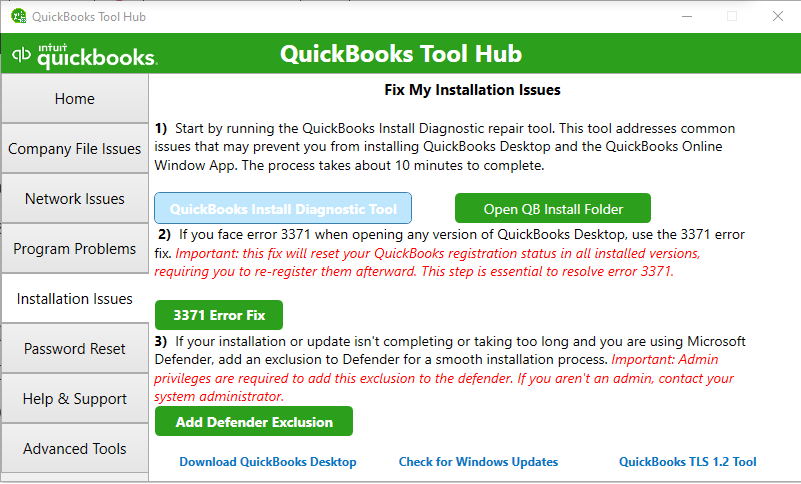
After the diagnostic process finishes, restart Windows and retry the update.
Our guide to the QuickBooks Install Diagnostic Tool explains how to use the utility and investigate common installation problems.
If error 15242 persists, consider reinstallation. Before removing the application:
- Create and verify a current company file backup.
- Back up payroll tax forms separately, if applicable.
- Obtain the correct installation files from Intuit.
- Confirm that you have the required license information and can activate your product.
Follow Intuit’s official Desktop reinstallation instructions.
Reinstallation may restore missing program components, but it cannot guarantee that error 15242 will disappear or restore discontinued services.
What if QuickBooks error 15242 occurs only during payroll updates?
If regular Desktop updates work but payroll updates fail, verify your payroll subscription and product version.
An active Desktop Payroll subscription is required to receive current payroll tax tables.
After confirming that your product supports payroll updates:
- Open your company file.
- Navigate to Employees → Get Payroll Updates.
- Select Download Entire Update.
- Click Update and check whether the download finishes successfully.
Compare the installed tax-table version with the latest information available through Intuit’s payroll tax-table update guide.
If the problem continues, follow our guide on QuickBooks Desktop payroll updates not working for additional subscription and payroll configuration checks.
Do not remove or replace your payroll service key unless you have identified a problem with its configuration.
What should you do if QuickBooks Update error 15242 persists?
If FCS is correctly configured and the standard repairs have failed, collect the following information before contacting Intuit or your IT administrator:
- Desktop product year, edition, and release number.
- Windows version.
- Complete error message.
- FCS startup type and service status.
- Windows service error number, if available.
- Name of the affected update.
- Repairs you have already attempted.
For example, if regular software updates install successfully but payroll tax tables do not, report that distinction. It helps narrow the investigation to payroll-specific components and requirements.
Do not share passwords, payroll records, license keys, or sensitive company information in public support discussions.
If an upcoming payday is affected, contact your payroll provider or accountant to arrange an alternative processing plan if necessary.
How to verify that QuickBooks error 15242 is fixed
Check the installed release or payroll tax-table version rather than relying only on the disappearance of the error message.
| Update type | How to verify |
| Desktop maintenance release | Press F2 and compare the installed release with Intuit’s release information |
| Payroll tax-table update | Open Employees → Get Payroll Updates and check the tax-table version |
| FCS repair | Retry the update that previously displayed error 15242 |
If the required update installs successfully and the version is current, no further repair is necessary.
Conclusion
If QuickBooks error 15242 remains after correcting FCS settings and repairing update components, investigate the Desktop installation before changing unrelated Windows or payroll settings.
For discontinued products, moving to a supported version may be necessary to regain access to current updates and payroll services.
Frequently asked questions
What is the difference between QuickBooks error 15241 and error 15242?
Both errors can involve the File Copy Service. Intuit identifies disabled FCS as a possible cause of error 15241 and other listed 15XXX errors. QuickBooks Desktop error 15242 has also been associated with FCS problems, but the error code alone does not identify the exact service fault.
Does QuickBooks error 15242 mean my company file is damaged?
No, Error 15242 concerns the update process and does not, by itself, indicate company file corruption. Problems opening or working with a company file require separate investigation.
Can I fix QuickBooks error 15242 without reinstalling the software?
Yes, in some cases. Correcting FCS settings, repairing program components, or resetting updates may resolve the problem. Consider reinstallation when simpler repairs fail, and an installation problem is suspected.
Does error 15242 occur in QuickBooks Online?
The FCS-related error discussed in this guide applies to the Windows Desktop application. QuickBooks Online accounting software does not use the same local update process. QuickBooks Online Payroll also receives automatic tax-table updates.
Can I process payroll if QuickBooks payroll error 15242 prevents a tax-table update?
Verify that your installed tax tables are current for the payroll period before processing paychecks. Outdated tax tables may result in incorrect tax calculations. Contact your payroll provider or accountant if you cannot obtain the required update.
How do I fix error 15242 in a hosted Desktop environment?
Contact your hosting provider to investigate the File Copy Service and update components. Hosted environments may restrict access to Windows services, installation files, and administrator settings.
Trademark and independence notice: Intuit and QuickBooks are registered trademarks of Intuit Inc. Accounts Confidant is an independent accounting and bookkeeping service provider and is not affiliated with, sponsored by, endorsed by, or approved by Intuit Inc.
