

QuickBooks Error 1328 occurs when Windows Installer cannot apply a patch during the installation, update, repair, or removal of QuickBooks Desktop. The error may interrupt the process and display a temporary file path beginning with C:\Config.Msi.
To fix Error 1328, repair the existing installation using Quick Fix my Program or the Install Diagnostic Tool. If the repair fails, reinstall QuickBooks Desktop using the correct installer for your product and version.
For a failed first-time installation, start by checking the installer and running the installation diagnostic utility.
What Is QuickBooks Error 1328?
Error 1328 is a Windows Installer patch error. A patch contains changes that modify existing program files during an update or installation operation.
According to Microsoft’s Windows Installer documentation, the affected file may have changed previously, preventing the current patch from modifying it.
Intuit documents the following error message:
Error 1328. Error updating file C:\Config.Msi\PTXXX.tmp.
The error concerns the software installation process. It does not, by itself, indicate damage to your company file or accounting records.
What Does the Config.Msi Error Message Mean?
The Config.Msi folder contains temporary files that Windows Installer uses to reverse installation changes if a process fails. This recovery process is called a rollback.
The temporary filename may vary between computers or installation attempts. For example, a user may encounter the following file path:
C:\Config.Msi\PTC6A5.tmp
Seeing this path does not mean the Config.Msi folder is damaged. Microsoft advises against manually deleting installation rollback files, as Windows Installer manages these files during the installation process.
Why Does QuickBooks Error 1328 Occur?
Error 1328 means an installation patch cannot modify its target file. However, the error message alone does not establish the exact reason for the failure.
Possible explanations include:
- Existing program files have been modified or damaged.
- An interrupted installation or update has left program files in an unexpected state.
- The current installation is incomplete and requires repair.
Checking for a matching update package and pending Windows updates may also help with troubleshooting. However, these are diagnostic checks rather than confirmed causes of every Error 1328 occurrence.
The best starting point depends on when the error appears.
| When Error 1328 Appears | What to Do First |
| During a maintenance update | Repair the existing installation and check the update package. |
| During a first-time installation | Verify the installer and run the Install Diagnostic Tool. |
| After an interrupted update | Restart Windows after the installer finishes rolling back changes. |
| During a program repair | Run the installation diagnostic utility. |
| During uninstallation | Check administrator permissions and seek further installation assistance if removal fails. |
| On one multi-user workstation | Investigate the affected computer before changing server settings. |
What Should You Check Before Fixing Error 1328?
Before making installation changes, make sure you can recover your accounting data and reinstall the software if necessary.
- Create a current company file backup if the program still opens.
- Record the complete error message, including the temporary filename and system error number.
- Note your product edition, version year, and release number.
- Confirm access to the correct installer and valid activation information.
- Use a Windows account with administrator permissions.
Press F2 while the software is open to check the product and release information.
If QuickBooks no longer opens, locate your existing company file and most recent backup. In a multi-user environment, coordinate installation changes with your network administrator.
How to Fix QuickBooks Error 1328
Intuit’s official Error 1328 guidance recommends repairing or reinstalling QuickBooks Desktop.
For an existing installation, starting with a repair is a less disruptive option. If you are installing the software for the first time, skip Quick Fix my Program and proceed to the installation diagnostic tool.
Solution 1: Restart Windows After the Failed Installation
A restart is a useful first step when QB Error 1328 follows an interrupted installation or update.
- If the failed installer is still open, cancel the operation using its available controls.
- Wait for Windows Installer to finish reversing any changes.
- Close other open applications.
- Restart your computer.
- Retry the failed installation or update.
Do not force your computer to shut down while Windows Installer is processing changes.
If Error 1328 returns, continue with the appropriate repair method below.
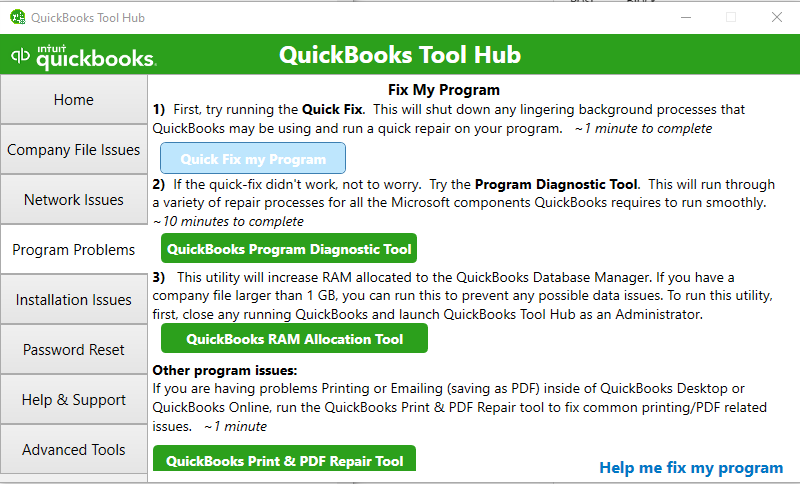
Solution 2: Run Quick Fix my Program
Quick Fix my Program closes background processes associated with QuickBooks Desktop and performs a basic program repair.
Download Tool Hub from Intuit’s official repair documentation if it is not already installed.
- Close QuickBooks Desktop.
- Launch Tool Hub.
- Go to Program Problems > Quick Fix my Program.
- Wait until the utility finishes.
- Reopen the accounting software and check whether it runs normally.
If the original problem occurred during an update, retry that update.
For additional setup instructions, refer to the Accounts Confidant QuickBooks Tool Hub download guide.
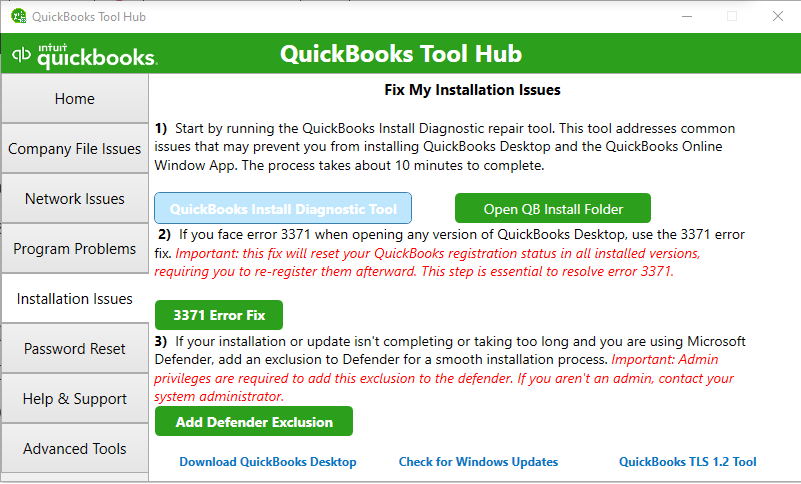
Solution 3: Run the QuickBooks Install Diagnostic Tool
Use the Install Diagnostic Tool when a new installation fails, or the basic program repair does not resolve QuickBooks Error code 1328.
- Launch Tool Hub.
- Open the Installation Issues section.
- Select QuickBooks Install Diagnostic Tool.
- Allow the repair process to finish.
- Restart Windows and retry the installation or update.
Intuit notes that the diagnostic process may take up to 20 minutes.
If the utility does not open or complete its repair, see the QuickBooks Install Diagnostic Tool troubleshooting guide.
Solution 4: Check the Update Package and Windows Updates
If QuickBooks update error 1328 occurs only when applying a maintenance release, verify that the update matches your installed product and version.
Close the accounting software and visit Intuit’s official Downloads & Updates page.
Select the standard setup, choose your country, product, and version year, and click Search. If a maintenance update is available, select Get the latest updates.
Open the downloaded update file and restart Windows after installation.
For example, if you use QuickBooks Desktop Pro Plus 2024, select an update intended for that product. A different product or version may require a different update package.
For additional update methods, see the Accounts Confidant guide on updating QuickBooks Desktop.
If the matching update still fails, check for pending Windows updates through Windows Settings. Complete applicable updates and restart your computer.
Avoid manually removing or repairing individual Windows components unless further diagnostics identify a specific problem.
Solution 5: Reinstall QuickBooks Desktop
Consider reinstalling the affected software if the repair tools cannot resolve Error 1328.
Before removing the existing installation, check whether you can download and activate your QuickBooks Desktop version. This is particularly important for older products and discontinued versions.
Step 1: Remove the affected version
- Open Control Panel in Windows.
- Navigate to Programs and Features or Uninstall a program.
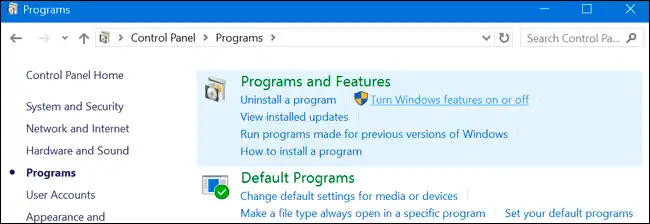
- Locate the affected QuickBooks Desktop version.
- Select Uninstall/Change.
- Follow the removal prompts.
If several versions are installed, remove only the one experiencing QuickBooks Desktop Installation Error 1328.
If Windows cannot complete the removal, stop and consult an IT professional or Microsoft rather than manually deleting program files.
Step 2: Reinstall the software
Use the correct installer obtained directly from Intuit. Follow the setup prompts and select the installation type that matches your environment.
| Installation Type | When to Use It |
| Express Install | Installation or reinstallation on a standalone computer. |
| Custom and Network Options | Network workstations, hosting servers, or installations where previous versions must remain available. |
Follow Intuit’s official Desktop installation instructions to complete installation and activation.
Apply the appropriate maintenance release before returning to your regular accounting work.
If the software unexpectedly asks you to upgrade your company file, confirm that you installed the intended version and have a current backup before proceeding.
What if QuickBooks Error 1328 Appears on Only One Workstation?
When QuickBooks Desktop Update Error 1328 affects one computer in a multi-user environment, begin by investigating that workstation’s installation.
For example, suppose two workstations successfully install a maintenance release, but a third displays Error 1328 with a Config.Msi file path. Compare the installed release numbers on the three computers using the Product Information window.
Repair the affected workstation and retry the update. If reinstallation becomes necessary, select Custom and Network Options and follow the setup instructions for a network workstation.
Avoid changing server hosting settings, network permissions, or database services unless other symptoms indicate a network problem.
If you use QuickBooks Enterprise software, coordinate installation and maintenance updates with your network administrator to maintain compatibility across computers.
How to Verify That QuickBooks Error 1328 Is Fixed
A successful repair does not necessarily mean the interrupted maintenance update has been installed. Check the software’s release information before assuming the problem is resolved.
- Open QuickBooks Desktop.
- Press F2 or Ctrl + 1 to display Product Information.
- Check the installed product version and release number.
- Compare the release with the intended update in Intuit’s current update documentation.
- Open your existing company file and confirm that it is accessible.
If the release number has not changed, the maintenance update may still be incomplete.
For a first-time installation, check that the software opens and activates correctly. For an uninstallation failure, verify that the affected version has been removed from the Windows application list.
What if Error 1328 in QuickBooks Persists After Reinstalling QuickBooks?
A standard reinstallation automatically creates new installation folders and renames the old ones. If this does not resolve Error 1328, Intuit provides an additional procedure involving manual renaming of installation folders.
Follow Intuit’s official reinstallation guide for this procedure.
Before renaming folders, confirm your company file location and backup. Only modify the folders identified in the applicable instructions. Do not substitute the Windows Config.Msi folder.
If Error 1328 continues, provide Intuit or your IT administrator with the following information:
- Complete error message and system error number.
- Windows version.
- Installed QuickBooks product and release.
- Installation or maintenance update that fails.
- Repair and reinstallation methods already attempted.
If other applications also fail to install or update, ask your IT administrator or Microsoft to investigate Windows Installer.
Conclusion
If QuickBooks Error 1328 continues after a program repair and reinstallation, further Windows Installer diagnostics may be necessary. Avoid registry cleaners, deleting rollback files, or changing unrelated network settings without evidence that they are involved.
Keep your company file backup available and verify that the intended maintenance release has installed before resuming your accounting tasks.
Frequently Asked Questions
What does QuickBooks Error 1328 system error -1072807676 mean?
A QuickBooks Community discussion documents this system error alongside the PTC6A5.tmp filename during a workstation update. However, the discussion does not establish the underlying cause or confirm a successful resolution. Further installation diagnostics may be necessary.
Should I click Ignore when QuickBooks displays Error 1328?
Intuit’s Canadian Error 1328 documentation includes an Ignore option for certain update failures. Its US documentation recommends repair and reinstallation instead. Follow the instructions applicable to your region and verify the installed release afterward.
Will reinstalling QuickBooks Desktop delete my company file?
A standard software reinstallation does not normally remove your accounting data. However, locate your company file and maintain a current backup before uninstalling the software.
What is the difference between QuickBooks Install Error 1328 and Error 1603?
Error 1328 identifies a patch application failure. QuickBooks Error Code 1603 indicates a broader installation failure. Some troubleshooting methods overlap, but the error codes describe different installation problems.
Can QuickBooks Error 1328 occur on Windows 11?
Yes, Windows Installer patch failures are not limited to older Windows versions. Check whether your QuickBooks Desktop edition and version support Windows 11 before reinstalling.
Does QuickBooks File Doctor fix Error 1328?
File Doctor primarily addresses company file and network-related problems. Error 1328 concerns software installation, making the program repair and installation diagnostic utilities more appropriate starting points.
Why does QuickBooks Desktop Error 1328 appear during uninstallation?
Windows Installer may encounter a patch-related problem while removing an existing installation. If administrator access and installation repair do not help, consult an IT professional or Microsoft for further assistance.
Does QuickBooks Error 1328 affect QuickBooks Online?
The Error 1328 message discussed in this guide relates to QuickBooks Desktop installation operations on Windows. It is not a standard error encountered when using the browser-based QuickBooks Online application.
Trademark and independence notice: Intuit and QuickBooks are registered trademarks of Intuit Inc. Accounts Confidant is an independent accounting and bookkeeping service provider and is not affiliated with Intuit. This material is independently published and is not sponsored, endorsed, or approved by Intuit Inc.
