Opening QuickBooks Desktop should be a straightforward part of your workday, but sometimes an unexpected error gets in the way. One such issue is QuickBooks Error 80029c4a, which usually appears with the message “QuickBooks Error loading type library/DLL.” When this happens, QuickBooks may fail to launch, leaving you unable to access your accounting software. The error often occurs when certain program files are missing, damaged, or blocked by antivirus software.
An outdated QuickBooks version or problems with Windows components can also play a role. But where should you start, and which fix should you try first? In this blog, we’ll explain the common reasons behind QuickBooks Error 80029c4a and walk you through different troubleshooting methods to help restore normal access to QuickBooks Desktop.
What Causes QuickBooks Desktop Error 80029c4a?
If QuickBooks can’t load a dynamic link library, it may indicate that essential program files are missing, damaged, or blocked by antivirus software, triggering Error 80029c4a. Understanding what triggers this issue can help you identify the right solution. Let’s take a look at its common causes.
| Common Causes | Description |
| Corrupted or Missing Program Files | QuickBooks files may become damaged, deleted, or inaccessible, preventing the software from starting properly. |
| Antivirus or Firewall Interference | Security software may mistakenly block or quarantine essential QuickBooks files. |
| Outdated QuickBooks Desktop | An outdated version or incomplete update may cause compatibility and loading issues. |
| Damaged Windows Components | Problems with Microsoft .NET Framework, MSXML, or Visual C++ components may affect QuickBooks. |
| Incorrect DLL Registration | Missing or incorrect DLL registration entries may prevent QuickBooks from loading required components. |
| Malware or Virus Infection | Malicious software may damage, modify, or remove important QuickBooks program files. |
| Incomplete Installation | An interrupted installation or update may leave essential QuickBooks components missing or damaged. |
Identifying the possible cause can help you choose the right troubleshooting method. In the next section, we’ll walk you through the steps to fix QuickBooks Error 80029c4a and restore access to QuickBooks Desktop.
How to Fix QuickBooks Error 80029c4a?
You can try several troubleshooting methods to resolve QuickBooks Error 80029c4a. Start by updating QuickBooks Desktop to the latest release, as an outdated version or incomplete update can cause problems when loading program files. If the error continues, move on to the following solutions in order.
Update QuickBooks Desktop to the Latest Release
Before trying other troubleshooting methods, check whether you’re using the latest QuickBooks Desktop release. Intuit recommends updating QuickBooks first when Error 80029c4a appears.
Follow these steps:
- Open QuickBooks Desktop and select Help.
- Choose Update QuickBooks Desktop.

- Go to the Update Now tab.
- Select Get Updates to download the available updates.
- Once the download is complete, close and reopen QuickBooks.
- If prompted, select Install Now and follow the on-screen instructions.
- Restart your computer and check whether the error is resolved.
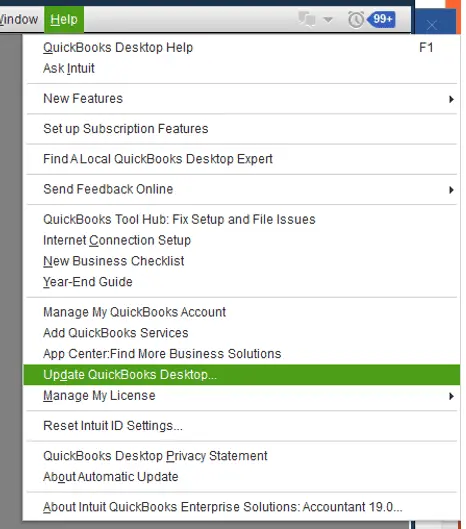
If QuickBooks won’t open, try launching it by right-clicking its desktop icon and selecting Run as administrator. Then check for updates from the No Company Open screen.
If the error continues after updating, move on to the next solution.
Check Your Antivirus and Firewall Settings
Sometimes, antivirus software mistakenly identifies QuickBooks program files as threats and blocks or quarantines them. When essential files are restricted, QuickBooks may fail to load and display Error 80029c4a.
To check your antivirus settings:
- Open your antivirus software.
- Find the Quarantine, Blocked Items, or Threat History section.
- Look for QuickBooks-related files that may have been blocked.
- If you find a legitimate QuickBooks file, restore it and add it to the antivirus exclusion list.
- Check your firewall settings to ensure QuickBooks programs are allowed through.
- Restart your computer and open QuickBooks Desktop again.
- Some QuickBooks executable files you may need to check include:
- QBW32.exe
- QBDBMgrN.exe
- QBUpdate.exe
- QBLaunch.exe
- QBCFMonitorService.exe
- QuickBooksMessaging.exe
- DBManagerExe.exe
Only restore files from quarantine after confirming they belong to your genuine QuickBooks installation. Avoid leaving your antivirus or firewall disabled.
Run Quick Fix My Program Using QuickBooks Tool Hub
If updating QuickBooks and checking your security settings don’t resolve the issue, use Quick Fix My Program. This tool closes background processes associated with QuickBooks and performs a quick repair of the program.
Follow these steps:
- Close QuickBooks Desktop.
- Download and install the latest version of QuickBooks Tool Hub.
- Open QuickBooks Tool Hub.
- Select Program Problems.
- Click Quick Fix My Program.
- Wait for the tool to finish.
- Open QuickBooks Desktop and check whether Error 80029c4a still appears.
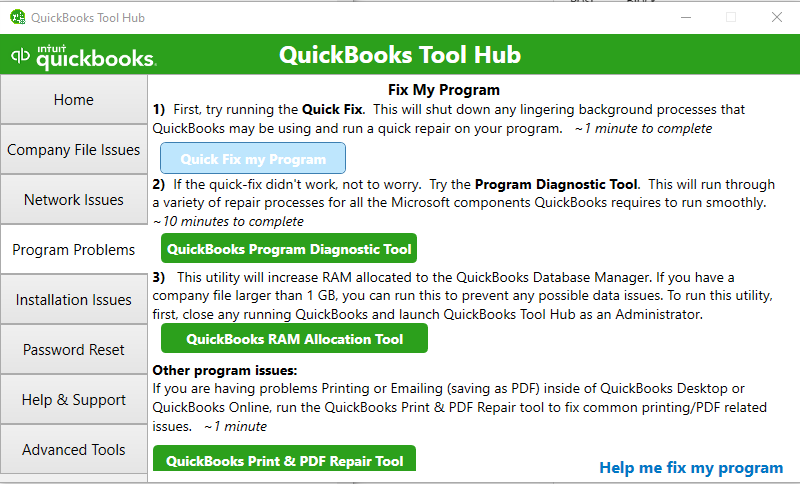
If the error persists, try the Install Diagnostic Tool next.
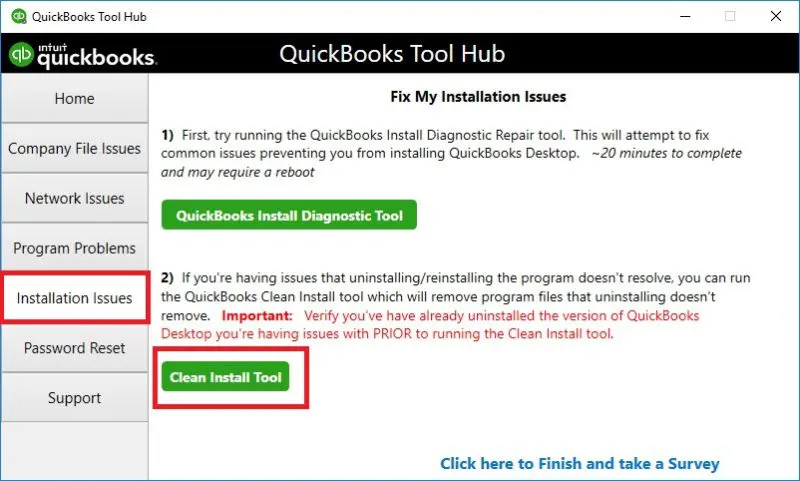
Run the QuickBooks Install Diagnostic Tool
An incomplete installation or damaged installation components can prevent QuickBooks from loading properly. The QuickBooks Install Diagnostic Tool checks and repairs common installation-related issues, including problems involving Microsoft components used by the software.
Here’s how to run it:
- Open QuickBooks Tool Hub.
- Select Installation Issues.
- Click QuickBooks Install Diagnostic Tool.
- Allow the tool to run. The process may take up to 20 minutes.
- Once it finishes, restart your computer.
- Open QuickBooks Desktop and check whether the error has been fixed.
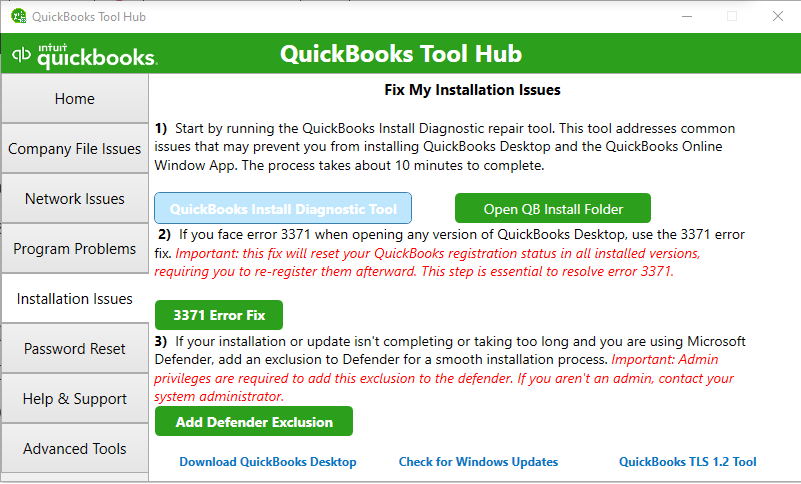
If QuickBooks still displays Error 80029c4a, proceed to the next solution.
Run the Reboot.bat File
QuickBooks includes a reboot.bat file that can re-register program-related components in Windows. Running it may help when DLL registration or related component issues prevent QuickBooks from opening.
Follow these steps:
- Close QuickBooks Desktop.
- Right-click the QuickBooks Desktop shortcut.
- Select Properties and click Open File Location.
- Find the reboot.bat file in the QuickBooks installation folder.
- Right-click the file and select Run as administrator.
- Allow the process to complete. A Command Prompt window may appear and close automatically.
- Restart your computer and open QuickBooks Desktop.
Do not close the Command Prompt window while the process is running.
Repair QuickBooks Desktop
If the previous methods haven’t resolved the issue, repair the QuickBooks installation through Windows. This can replace or fix damaged program components without requiring you to remove the entire application.
Here’s how:
- Close QuickBooks Desktop and other open programs.
- Open the Windows Start menu and search for Control Panel.
- Select Programs and Features or Uninstall a Program.
- Find and select QuickBooks Desktop from the list.
- Click Uninstall/Change.
- Select Continue or Next, then choose Repair if the option appears.
- Follow the on-screen instructions to complete the repair.
- Restart your computer and open QuickBooks again.
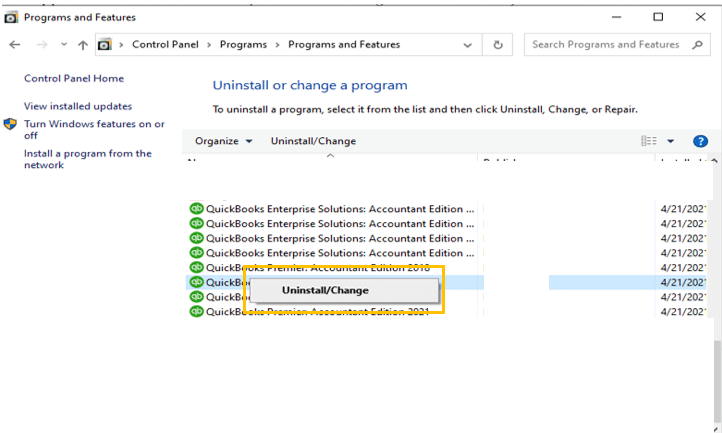
The exact options may vary depending on your Windows version and QuickBooks release.
Perform a Clean Installation of QuickBooks Desktop
If QuickBooks Error 80029c4a continues to appear, the installation may contain damaged files that the repair process couldn’t fix. A clean installation removes the existing program files and lets you install a fresh copy of QuickBooks Desktop.
Before starting, keep your QuickBooks license and product information handy. Also, create a backup of your company file as a precaution.
Follow these steps:
- Open the Windows Control Panel.
- Select Programs and Features or Uninstall a Program.
- Choose QuickBooks Desktop and click Uninstall.
- Follow the on-screen instructions to remove the application.
- Download and run the QuickBooks Clean Install Tool from QuickBooks Tool Hub, following Intuit’s instructions.
- Reinstall QuickBooks Desktop using the installer for your product and version.
- Open QuickBooks and check whether the error has been resolved.
A clean installation refreshes QuickBooks program files and does not normally delete company files, but keeping a separate backup is still recommended.
Lastly, we will discuss some tips to help prevent the error.
Best Practices to Avoid QuickBooks Error Code 80029c4a
Fixing the error is only part of the job. A few regular maintenance habits can help prevent QuickBooks Desktop from running into similar problems again.
– Don’t Delay Software Updates: Check for QuickBooks Desktop and Windows updates regularly. Installing them on time helps avoid compatibility issues and keeps the software’s components working properly.
– Make Sure QuickBooks Files Are Accessible: Review your antivirus and firewall settings after installing updates. Ensure they aren’t restricting access to files QuickBooks needs to run.
– Keep a Recent Copy of Your Company File: Save backups regularly, especially before installing updates or making major system changes. This gives you a recovery option if something goes wrong.
– Check Your System’s Health: Run occasional security scans and keep unnecessary files and programs under control. If Windows starts showing signs of system file corruption, use its built-in repair utilities to investigate the issue.
If QuickBooks error 80029c4a keeps coming back, making these checks part of your routine can help QuickBooks run reliably.
Conclusion
Understanding the causes of QuickBooks error 80029c4a can help you identify what is preventing the software from launching. Apply the appropriate fix, keep your system components updated, and follow regular maintenance practices to minimize the chances of encountering this error again.
Frequently Asked Questions
How do I fix Error 80029c4a on Windows 11?
Update QuickBooks Desktop, check Windows Security or your antivirus settings, and run Quick Fix My Program through QuickBooks Tool Hub. If the error persists, use the Install Diagnostic Tool or repair QuickBooks through Windows.
Why does Error 80029c4a only affect some users on a shared server or VPN?
The affected user may have a different QuickBooks installation, security restriction, permission setting, or damaged program component. Check the affected workstation first and compare its QuickBooks version and configuration with those of users who can access the software.
What is the difference between Error 80029c4a and 80029x4a?
Error 80029c4a and Error 80029x4a are both QuickBooks Desktop errors that occur when the software encounters a problem while starting or loading its program components. The difference lies in the error code displayed.
What DLL files does QuickBooks need, and can I re-register them manually?
QuickBooks relies on Windows DLL files and other system components to run. The exact files involved can vary by installation. Avoid downloading individual DLL files from unofficial websites or manually changing registrations without reliable instructions. You can try the QuickBooks reboot.bat file to re-register program-related components.
Can Error 80029c4a affect QuickBooks Desktop for Mac?
This error is primarily associated with the Windows version of QuickBooks Desktop and its DLL-loading process. Windows-specific fixes such as reboot.bat and the QuickBooks Install Diagnostic Tool do not apply to QuickBooks for Mac.
Is it safe to use a registry cleaner to fix Error 80029c4a?
No, avoid using third-party registry cleaners to resolve this error. They may remove or change entries that Windows or other applications need. Use QuickBooks Tool Hub and the recommended repair methods instead.
Why does QuickBooks Error 80029c4a occur after an update?
QuickBooks Error message 80029c4a may appear after an update if the installation is incomplete or some program files become damaged. Run Quick Fix My Program through QuickBooks Tool Hub and check whether QuickBooks needs another update.
How do I fix QuickBooks Error 80029c4a in remote desktop or multi-user mode?
Check whether the error affects one user or everyone. If only one user encounters it, update and repair QuickBooks on that workstation. If multiple users experience the issue, check the server installation, permissions, and security settings.
Can QuickBooks Error 80029c4a occur on Mac?
Error 80029c4a is associated with Windows DLL-loading issues in QuickBooks Desktop. Therefore, Windows-specific fixes such as running reboot.bat or using the Install Diagnostic Tool do not apply to QuickBooks for Mac.
Why does QuickBooks Error 80029c4a affect only one user on Remote Desktop?
The affected user may have restricted permissions, damaged QuickBooks program files, or antivirus settings that block essential components. Compare the affected user’s setup with a working user’s configuration to identify the issue.