When a customer fails to pay an invoice and you determine that the amount is unlikely to be collected, you may need to record it as bad debt. A bad debt write-off in QuickBooks clears the uncollectible amount from Accounts Receivable and records the loss as an expense.
An unpaid invoice does not automatically become bad debt just because it is overdue. You should first review the customer’s balance and determine whether the amount is genuinely uncollectible.
The process for writing off bad debt in QuickBooks varies between QuickBooks Online and QuickBooks Desktop. QuickBooks Online uses a bad debt expense account, bad debt item, credit memo, and payment application. QuickBooks Desktop uses a bad debt expense account and a zero-dollar payment with a discount.
Table of Contents
What Is Bad Debt in QuickBooks?
Bad debt is an amount owed by a customer that you do not expect to collect. For example, if a customer has an unpaid $2,000 invoice and collection efforts have failed, you may determine that the balance should be written off.
An overdue invoice is still a receivable while you expect to collect it. Once you determine that it is uncollectible, you can record the amount as bad debt.
Writing off the balance helps keep Accounts Receivable accurate and prevents an uncollectible customer balance from continuing to appear as money you expect to receive.
How to Write Off Bad Debt in QuickBooks Online
If you’re looking for how to write off bad debt in QuickBooks Online, Intuit’s current procedure involves reviewing your receivables, creating a bad debt expense account, creating a bad debt item, creating a credit memo, and applying the credit memo to the invoice.
Step 1: Review Your Accounts Receivable Aging
Before writing off bad debt in QuickBooks, identify the invoices that may be uncollectible.
- Go to Reports.
- Select Standard reports.
- Search for Accounts Receivable Aging Detail.
- Review your outstanding customer balances.
- Identify the invoices that should be considered bad debt.
The Accounts Receivable Aging Detail report helps you review outstanding receivables before deciding which amounts need to be written off.
Step 2: Create a Bad Debt Expense Account
Create a separate expense account to track the amounts you write off.
- Go to All apps.
- Select Accounting.
- Select Chart of accounts.
- Select New.
- Choose Expenses as the account type.
- Choose Bad debts as the detail type.
- Enter Bad debts as the account name.
- Select Save and Close.
QuickBooks uses this account to record the expense associated with the uncollectible amount.
Step 3: Create a Bad Debt Item
Next, create a non-inventory item that connects the credit memo to your bad debt expense account.
- Go to All apps.
- Select Sales & Get Paid.
- Select Products & services.
- Select New.
- Choose Non-inventory.
- Enter Bad debts as the name.
- Select your Bad debts expense account.
- Select I sell this product/service to my customers.
- Select Save and close.
This item can then be selected when you create the credit memo.
Step 4: Create a Credit Memo
Now create a credit memo for the amount you want to write off.
- Select + Create.
- Select Credit memo.
- Select the customer.
- In the Product/Service section, select Bad debts.
- Enter the amount you want to write off.
- Enter Bad Debt in the statement message if needed.
- Select Save and Close.
Step 5: Apply the Credit Memo to the Invoice
To write off an unpaid invoice in QuickBooks, apply the credit memo to the appropriate invoice.
- Select + Create.
- Select Receive payment.
- Choose the customer.
- Select the invoice under Outstanding Transactions.
- Select the credit memo under Credits.
- Select Save and close.
The credit memo offsets the invoice and clears the applicable receivable balance. Intuit’s current QuickBooks Online instructions use this process specifically for bad debt write-offs.
Step 6: Review the Bad Debt Report
After recording the write-off, you can review the bad debt account from the Chart of Accounts.
The written-off amount appears under the bad debt expense account on the Profit and Loss report.
How to Write Off Bad Debt in QuickBooks Desktop
The procedure for how to write off bad debt in QuickBooks Desktop is different from QuickBooks Online.
QuickBooks Desktop uses a bad debt expense account and a zero-dollar payment with a discount to close the unpaid invoice.
Step 1: Create a Bad Debt Expense Account
- Go to Lists.
- Select Chart of Accounts.
- Select Account.
- Select New.
- Choose Expense.
- Select Continue.
- Enter Bad Debt as the account name.
- Select Save and Close.
Step 2: Write Off the Unpaid Invoice
- Go to Customers.
- Select Receive Payments.
- Enter the customer in the Received from field.
- Enter $0.00 in the Payment amount field.
- Select Discounts and credits.
- Enter the amount you want to write off in Amount of Discount.
- Select the Bad Debt account as the Discount Account.
- Select Done.
- Select Save and Close.
This records the uncollectible amount and clears the applicable open balance from Accounts Receivable.
QuickBooks Online vs. QuickBooks Desktop Bad Debt Write-Off
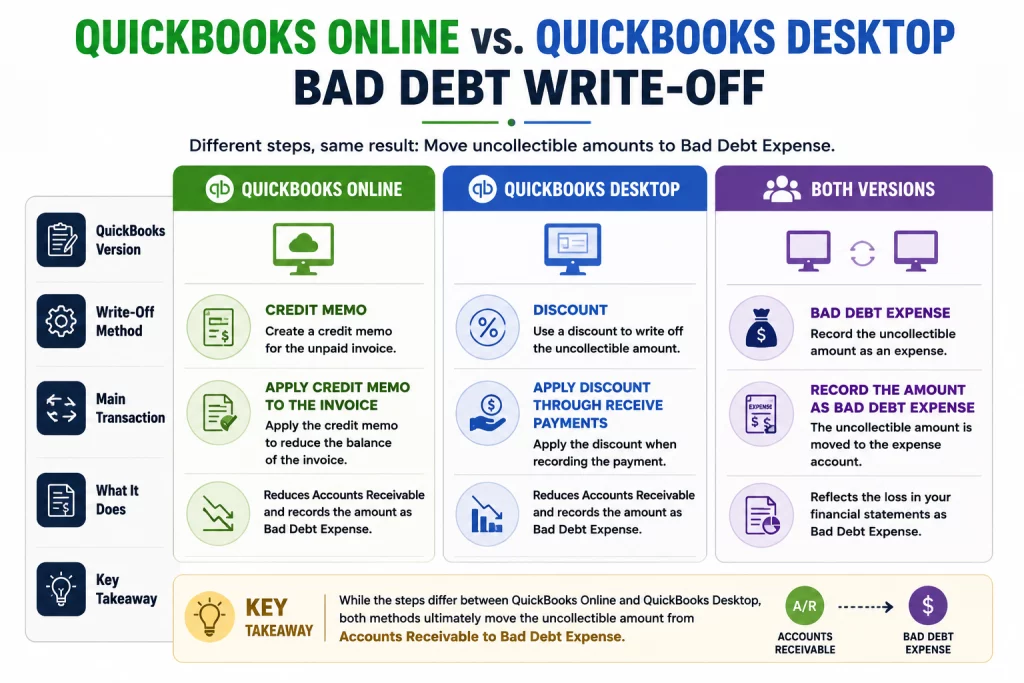
The purpose of the write-off is the same in both versions, but the workflow differs.
| QuickBooks Version | Write-Off Method | Main Transaction |
| QuickBooks Online | Credit memo | Apply credit memo to the invoice |
| QuickBooks Desktop | Discount | Apply discount through Receive Payments |
| Both | Bad debt expense | Records the uncollectible amount as an expense |
If you’re searching for how do I write off an invoice in QuickBooks, first determine which QuickBooks version you use because the steps are not identical.
How to Write Off an Unpaid Invoice in QuickBooks
A write off unpaid invoice QuickBooks process should be used when the invoice has been determined to be uncollectible.
Do not assume that every overdue invoice is bad debt. An invoice may be 30, 60, or even 90 days past due and still be collectible.
Before recording the write-off, review:
- The age of the invoice.
- The customer’s payment history.
- Collection efforts.
- Any customer disputes.
- Whether you still expect to receive payment.
Once you determine that the balance is uncollectible, use the appropriate QuickBooks Online or Desktop procedure to record the bad debt.
Can You Write Off Part of an Invoice?
Yes, You can write off only the portion of an invoice that you determine is uncollectible.
For example, suppose a customer has a $5,000 invoice but you determine that only $2,000 cannot be collected. You can write off uncollectible invoice amounts totaling $2,000 while continuing to track the remaining $3,000.
In QuickBooks Online, enter the amount being written off when creating the credit memo. In QuickBooks Desktop, enter the applicable amount as the discount.
This allows you to keep collecting the remaining balance rather than eliminating the entire invoice.
What Happens to Accounts Receivable After a Write-Off?
A properly recorded bad debt write-off reduces Accounts Receivable by the amount that is no longer expected to be collected.
For example:
Original invoice: $3,000
Amount written off: $3,000
Remaining Accounts Receivable: $0
The amount is not simply deleted. It is recorded as an expense while the applicable receivable is cleared.
QuickBooks’ Desktop guidance specifically states that recording bad debt clears the open balance from Accounts Receivable, while the Online procedure records the uncollectible receivable under the bad debt expense account.
Charged Off as Bad Debt: Profit and Loss Impact
When an amount is charged off as bad debt, the write-off is recorded as an expense.
For example, if you write off a $2,500 customer balance, the amount is recorded against the bad debt expense account. The expense then appears on the Profit and Loss statement.
At the same time, the related Accounts Receivable balance is reduced.
The accounting entry and tax treatment are separate issues. Recording an amount as bad debt in QuickBooks does not automatically determine whether it qualifies as a tax deduction.
Does Writing Off an Invoice Delete It?
No. Writing off an invoice is different from deleting an invoice.
A write-off records that the amount is no longer expected to be collected and clears the applicable receivable. Deleting an invoice removes the transaction itself.
QuickBooks Online’s credit-memo guidance also notes that credit memos can reduce a customer’s balance without affecting the original invoice records.
Therefore, if an invoice is genuinely uncollectible, use the appropriate bad debt procedure rather than deleting the original transaction simply to remove its outstanding balance.
What Happens If a Customer Pays After You Write Off the Debt?
A customer may occasionally pay after you have recorded a bad debt write-off.
Because the original receivable has already been cleared, the later payment should be recorded using the appropriate recovery treatment rather than treating it as a normal payment against an open invoice.
If the original bad debt was also claimed as a tax deduction, the later recovery can have tax consequences. For this reason, consult your accountant or tax professional before recording a significant recovery.
Best Practices for Writing Off Bad Debt in QuickBooks
Following a consistent process can help keep your Accounts Receivable records accurate.
Review Aging Reports
Use the Accounts Receivable Aging Detail report to identify outstanding invoices that may need to be written off.
Keep Collection Records
Maintain records of payment reminders, customer communications, and other collection efforts that support your decision to treat an amount as uncollectible.
Use a Dedicated Bad Debt Account
A separate expense account makes it easier to identify written-off amounts in your financial reports.
Do Not Delete Uncollectible Invoices
If an invoice has become bad debt, record the appropriate write-off instead of deleting the transaction.
Check Your Financial Reports
After the write-off, review Accounts Receivable and Profit and Loss to confirm that the transaction was recorded as expected.
Conclusion
A bad debt write-off in QuickBooks helps you keep your customer balances and financial reports accurate when an invoice is genuinely uncollectible.
The process differs between QuickBooks Online and QuickBooks Desktop. Online users create a bad debt expense account and item, issue a credit memo, and apply it to the unpaid invoice. Desktop users create a bad debt expense account and use a zero-dollar payment with a discount to close the applicable balance.
Remember that an unpaid invoice is not automatically bad debt. Review the Accounts Receivable Aging Detail report and determine whether the amount is genuinely uncollectible before recording the write-off.
For tax questions, consult a tax professional before claiming a bad debt deduction.
Frequently Asked Questions
How do I write off an invoice in QuickBooks?
In QuickBooks Online, create a bad debt expense account and bad debt item, create a credit memo, and apply it to the unpaid invoice. In QuickBooks Desktop, use Receive Payments with a $0 payment and a discount posted to the bad debt expense account.
How to write off an invoice in QuickBooks Online?
Review the Accounts Receivable Aging Detail report, create a bad debt expense account and item, create a credit memo for the uncollectible amount, and apply the credit memo to the invoice.
How do I write off a bad debt in QuickBooks?
The process depends on your version. QuickBooks Online uses a credit memo applied to the invoice, while QuickBooks Desktop uses a $0 payment with a discount.
Can I write off an unpaid invoice in QuickBooks?
Yes, when you have determined that the amount is uncollectible. An invoice being overdue does not automatically make it bad debt.
How do I write off bad debt in QuickBooks Online?
Review your Accounts Receivable Aging Detail report, create a bad debt expense account and item, create a credit memo, and apply the credit memo to the outstanding invoice.
How do I write off bad debt in QuickBooks Desktop?
Create a bad debt expense account, go to Customers > Receive Payments, enter a $0 payment, select Discounts and credits, enter the amount being written off, choose the bad debt account, and save the transaction.
What account should I use for bad debt?
Use a dedicated expense account for bad debts. In QuickBooks Online, Intuit’s current procedure uses an Expenses account with Bad debts as the detail type.
Does writing off an invoice delete it?
No, A write-off clears the applicable receivable and records the amount as bad debt. It does not mean that you should delete the original invoice.
Can I write off part of an invoice?
Yes, You can write off only the portion that is uncollectible and continue tracking the remaining balance.
What happens if a customer pays after I write off the debt?
The payment should be recorded as a recovery using the appropriate accounting treatment. If the original bad debt was claimed as a tax deduction, consult a tax professional about the recovery.
Does writing off bad debt affect Accounts Receivable?
Yes, The write-off reduces the applicable Accounts Receivable balance.
Can I write off multiple unpaid invoices at once?
You can review multiple unpaid invoices and determine which balances qualify for write-off. However, each balance should be reviewed rather than written off simply because it is old.
How do I remove old unpaid invoices from QuickBooks?
Instead of deleting old invoices simply because they remain unpaid, review the Accounts Receivable Aging Detail report and identify balances that are no longer collectible. Those qualifying balances can then be written off using the appropriate bad debt procedure. QuickBooks’ official guidance specifically directs users to review aging receivables to identify invoices that should be written off.
Is a bad debt write-off tax deductible?
It may be, depending on your accounting method and the applicable tax rules. A bookkeeping write-off in QuickBooks does not automatically make an amount tax deductible. Consult a qualified tax professional for your situation.