QuickBooks Error 15240 is an update-related error that can appear when QuickBooks Desktop cannot successfully download or install a product or payroll update. You may see a message stating that “the update was not successful” or that the payroll update failed to complete successfully. The problem can interrupt regular QuickBooks updates and, in some cases, prevent you from downloading the latest payroll tax table.
QuickBooks Error 15240 is part of the broader 15XXX update error family. For an overview of common update and payroll update problems, see our complete guide on QuickBooks Error 15000 and the 15XXX error series
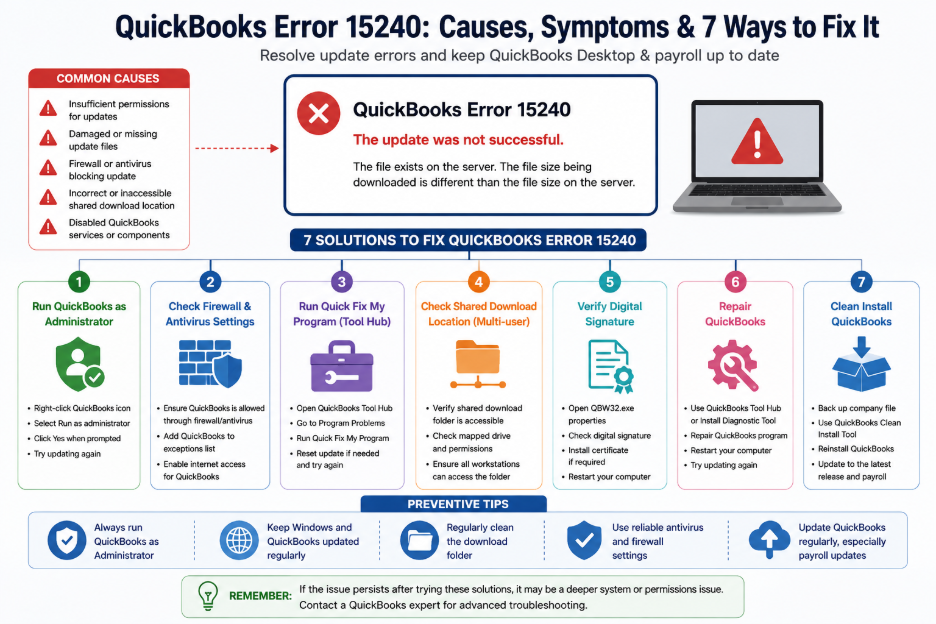
This error is commonly associated with permissions issues, firewall or security software restrictions, problems with the shared download location, damaged update components, or disabled QuickBooks services. It can occur on supported Windows systems, including Windows 10 and Windows 11.
Fortunately, this guide will help you deal with the errors effectively. Let us get started.
Table of Contents
Symptoms of QuickBooks Error 15240
QuickBooks Error 15240 can show up in several ways while you are trying to update QuickBooks Desktop or payroll.
Common symptoms include:
- QuickBooks displays an “update was not successful” message.
- A QuickBooks Desktop product update fails to download or install.
- A payroll tax table update stops before completion.
- QuickBooks displays an error message containing Error 15240 and an HRESULT code.
- You cannot download the latest payroll update even after retrying.
- QuickBooks may become slow or temporarily unresponsive during the update process.
- The problem may occur when QuickBooks does not have sufficient access to required folders or update components.
- In a multi-user environment, the error may occur when the shared download location is incorrectly configured or inaccessible.
Note: If you are experiencing repeated payroll update or tax table problems, check our detailed guide on QuickBooks Payroll Errors.
These symptoms generally point to an issue with the update process rather than damage to your company file.
For additional troubleshooting guidance, you can also refer to Intuit’s official instructions to fix 15XXX errors when updating QuickBooks Desktop or Payroll.
7 Solutions to Fix QuickBooks Error 15240
Try the following solutions in order. Start with the first few fixes because they address common permission and update-access problems without making significant changes to your QuickBooks installation.
Run QuickBooks as an Administrator
QuickBooks may need elevated Windows permissions to download and install updates. If the program cannot access the required files or folders, you may encounter a QuickBooks error 15240 permissions issue.
To run QuickBooks with administrator rights:
- Close QuickBooks Desktop and your open company file.
- Right-click the QuickBooks Desktop icon.
- Select Run as administrator.
- When Windows asks whether you want to allow the program to make changes, select Yes.
- Open your company file.
- Try downloading the QuickBooks Desktop or payroll update again.
If the update works after running QuickBooks as administrator, insufficient permissions were likely preventing the update from completing.
Check Your Firewall and Antivirus Settings
Firewall or antivirus software can interfere with QuickBooks when it attempts to connect to update servers. This can result in a QuickBooks update error 15240 when the required update files cannot be downloaded.
To troubleshoot the issue:
- Temporarily review your firewall or antivirus settings.
- Check whether QuickBooks is being blocked from accessing the internet.
- Add the required QuickBooks applications to the appropriate firewall or security exceptions according to your security software’s instructions.
- Make sure QuickBooks can communicate with the internet.
- Reopen QuickBooks and try the update again.
Avoid disabling your security software permanently. Instead, configure the appropriate exceptions so QuickBooks can access the resources required for updates.
Run Quick Fix My Program From QuickBooks Tool Hub
QuickBooks Tool Hub includes Quick Fix my Program, which can close background QuickBooks processes and repair certain program-related problems that may interfere with updates.
To use it:
- Close QuickBooks Desktop.
- Open QuickBooks Tool Hub.
- Select Program Problems.
- Choose Quick Fix my Program.
- Wait for the process to finish.
- Reopen QuickBooks Desktop.
- Try downloading the latest update again.
If you do not already have QuickBooks Tool Hub installed, download the current version from Intuit and install it before following these steps.
If the problem continues, you can also reset the QuickBooks update:
- Close QuickBooks.
- Open QuickBooks again.
- Go to Help > Update QuickBooks Desktop.
- Select the Update Now tab.
- Select Reset Update.
- Select Get Updates.
- Once the download finishes, close and reopen QuickBooks.
- Return to Help > Update QuickBooks Desktop and try the update again.
If QuickBooks payroll updates continue to fail without showing a specific error code, follow our guide to fix QuickBooks Payroll Update Not Working.
This can help when previously downloaded update components are incomplete or corrupted.
Check the Shared Download Location
A QuickBooks error 15240 shared download issue can occur in environments where QuickBooks uses a shared location to download updates. If the shared download location is incorrectly mapped, unavailable, or inaccessible, QuickBooks may be unable to complete the update.
Check the shared download configuration on the computer where the update is being performed.
If you use QuickBooks in a multi-user environment, verify that:
- The shared download location is accessible.
- The mapped drive is available.
- The folder has the required read and write permissions.
- The network connection is working correctly.
- QuickBooks is not pointing to an outdated or unavailable location.
This is particularly important when the error appears on one workstation but not another.
Verify the QuickBooks Digital Signature
QuickBooks updates may fail when Windows cannot properly verify the digital signature associated with a QuickBooks executable.
You can check the certificate associated with the QuickBooks executable:
- Close QuickBooks Desktop.
- Browse to the QuickBooks installation folder, commonly:
C:\Program Files\Intuit\QuickBooks - Locate QBW32.exe.
- Right-click the file and select Properties.
- Open the Digital Signatures tab.
- Select the Intuit signature.
- Select Details.
- Choose View Certificate.
- Select Install Certificate.
- Follow the certificate installation wizard and select Finish.
- Restart your computer.
- Open QuickBooks and try the update again.
If Windows is unable to verify the signature correctly, completing this process may resolve the update problem.
Repair QuickBooks Desktop
If the previous solutions do not fix the QuickBooks update error 15240, the QuickBooks installation itself may have a program component that needs repair.
Before repairing QuickBooks, close the application and back up your company file.
You can use the QuickBooks Tool Hub and its available repair tools to address common installation and program problems. Intuit also provides the QuickBooks Install Diagnostic Tool for repairing certain installation-related issues.
After completing the repair:
- Restart your computer.
- Open QuickBooks Desktop.
- Go to Help > Update QuickBooks Desktop.
- Select Update Now.
- Download the update again.
Repairing the program is preferable to immediately performing a clean installation because it allows you to troubleshoot the installation without completely removing QuickBooks.
Perform a Clean Installation of QuickBooks
If none of the previous solutions work, a damaged or incomplete QuickBooks installation may be preventing updates from completing. A clean installation can replace problematic program files and provide a fresh installation environment.
Before proceeding:
- Create a backup of your QuickBooks company file.
- Make sure you have your QuickBooks license and product information available.
- Close QuickBooks and other related programs.
Then use the QuickBooks Clean Install Tool to remove and reinstall the QuickBooks Desktop program according to the appropriate Intuit procedure.
After reinstalling QuickBooks:
- Open QuickBooks Desktop.
- Open your company file.
- Go to Help > Update QuickBooks Desktop.
- Download and install the latest available update.
- If the issue involved payroll, download the latest payroll tax table update afterward.
A clean installation should be considered a later troubleshooting step, not the first response to Error 15240.
Conclusion
QuickBooks Error 15240 generally occurs when QuickBooks Desktop cannot complete a product or payroll update. Permission restrictions, firewall or antivirus interference, problems with shared download locations, damaged update components, and digital-signature issues can all prevent the update from completing successfully.
Start by running QuickBooks as an administrator and checking your security settings. If the problem continues, use QuickBooks Tool Hub, verify the shared download location, check the digital signature, and repair the installation. A clean reinstall should be reserved for situations where the other solutions do not resolve the problem.
Taking these steps can help you fix QuickBooks Error 15240 without unnecessarily disturbing your company data.
Frequently Asked Questions
Does error 15240 mean my QuickBooks file is damaged?
No. QuickBooks Error 15240 is primarily an update-related error. It does not automatically mean that your company file is damaged. The issue is usually related to the update process, permissions, security settings, shared download locations, or QuickBooks program components.
Do I need admin rights to fix QuickBooks Error 15240?
You may need administrator privileges when QuickBooks requires access to protected Windows folders or files during an update. Running QuickBooks as an administrator is one of the first troubleshooting steps you should try.
Is this error related to multi-user mode specifically?
Not necessarily. Error 15240 can occur outside multi-user mode. However, a problem with the shared download location or network permissions can contribute to the error in a multi-user environment.
Can antivirus software cause Error 15240?
Yes. Antivirus or firewall software can potentially interfere with QuickBooks’ internet connection or block files required for an update. Review your security software’s settings and make sure QuickBooks is allowed to access the resources it needs.
Why does this happen only during payroll updates?
Payroll updates require QuickBooks to download and install updated tax-table components. If QuickBooks cannot access the required update files, connect to the update service, or write the downloaded files to the appropriate location, the payroll update may fail with Error 15240.
Why am I getting QuickBooks Error 15240?
You may be getting Error 15240 because QuickBooks cannot complete an update. Common reasons include insufficient permissions, firewall or antivirus restrictions, an inaccessible shared download location, damaged update components, or problems with QuickBooks program files.
How do I fix QuickBooks Error 15240 step by step?
Start by running QuickBooks as an administrator. Then check firewall and antivirus settings, run Quick Fix my Program through QuickBooks Tool Hub, verify the shared download location if applicable, check the QuickBooks digital signature, repair QuickBooks, and finally perform a clean installation if necessary.
QuickBooks says “the update was not successful.” What do I do?
First, close and reopen QuickBooks and try the update again as an administrator. If it still fails, reset the update through Help > Update QuickBooks Desktop > Update Now > Reset Update. You can then use QuickBooks Tool Hub and the other troubleshooting methods described above.
Is Error 15240 caused by folder permissions?
It can be. QuickBooks needs appropriate permissions to access and modify certain files and folders during the update process. If Windows prevents QuickBooks from accessing these locations, the update may fail.
Does Error 15240 mean QuickBooks needs to be reinstalled?
Not necessarily. Reinstallation is one of the later troubleshooting options. Try permission, security, update-reset, Tool Hub, shared-download, and repair solutions first. If those steps fail, a clean installation may resolve damaged or incomplete program components.
What is the difference between QuickBooks Error 15240, 15000, and 15106?
All three belong to the broader group of QuickBooks Desktop update-related errors, but they can have different triggers and troubleshooting requirements. Error 15240 is commonly associated with update access, permissions, security restrictions, and shared download issues. Errors 15000 and 15106 can involve other update, connectivity, or program-related conditions. The exact error message should be checked before selecting a solution.
Do I need admin rights to fix QuickBooks Error 15240?
Administrator access can be necessary when QuickBooks needs permission to access protected files or folders during an update. Running QuickBooks as an administrator is therefore a recommended first troubleshooting step.
Why does QuickBooks Error 15240 happen during payroll updates specifically?
Payroll updates download current tax-table information and related components. If permissions, security software, network access, or QuickBooks update components prevent those files from being downloaded or installed correctly, the payroll update can fail and display Error 15240.
Is QuickBooks Error 15240 related to the shared download location in multi-user mode?
It can be. If the shared download location is incorrectly mapped, unavailable, or lacks the necessary permissions, QuickBooks may be unable to retrieve or process the update. Check the shared location and its access permissions when the error occurs in a multi-user setup.