
QuickBooks Error PS036 appears when the Desktop software has trouble verifying your payroll subscription or downloading payroll updates. The error can occur even if you have already paid for your payroll service.
To fix QuickBooks error code PS036, check your payroll subscription status and service key. If both are correct, check your software activation, install available updates, and download the latest payroll tax table.
This guide applies to QuickBooks Desktop Payroll for Windows in the United States.
What does QuickBooks Error PS036 mean?
Error PS036 in QuickBooks is a payroll update error that may appear with the following message:
“There is a problem verifying your payroll subscription.”
The error can prevent the software from downloading current tax tables. Without these updates, payroll tax calculations may be incorrect.
QuickBooks Desktop error PS036 belongs to the PSXXX group of QuickBooks payroll errors. It does not always mean your payroll subscription has expired. Problems with your account details, software, or internet connection can also prevent verification.
Why is QuickBooks unable to verify your payroll subscription?
The following issues may cause payroll verification or update problems:
- An inactive or expired payroll subscription.
- An incorrect payroll service key.
- An outdated or unregistered Desktop installation.
- A discontinued software version.
- Incorrect internet connection settings.
- Firewall restrictions that block payroll updates.
- Damaged files in the CPS folder.
A mismatch between your company details and payroll account may also contribute to verification problems.
Check your payroll account before attempting to repair program files.
Check your Desktop version before fixing Error PS036
Press F2 to open the Product Information window. Check your software version and release number.
Intuit discontinued connected services for QuickBooks Desktop 2023 on May 31, 2026. The affected products include Pro Plus 2023, Premier Plus 2023, and Enterprise 23.0.
If you use a discontinued version, you need to move to a supported product. Renewing your subscription or repairing the software will not restore discontinued payroll services.
Read Intuit’s Desktop Payroll discontinuation policy for details.
How to fix QuickBooks Error PS036
Start with your payroll subscription and follow the steps that match your situation. Stop troubleshooting once the update succeeds, and you confirm that your tax table is current.
Solution 1. Verify your payroll subscription and service key
A payroll service key identifies your payroll service. If the wrong key is stored in your company file, the software may fail to verify your subscription.
- Close all company files and restart your computer.
- Open the Desktop software.
- Go to Employees > My Payroll Service > Manage Service Key.
- Confirm that the service name is correct and its status is Active.
- Select Edit to check the service key.
- Enter the correct key if the existing one is wrong.
- Select Next, clear the Open Payroll Setup checkbox, and select Finish.
The software will attempt to download the payroll update.
If your subscription is inactive, follow Solution 2. If it is active but the error continues, move to Solution 3.
Where can you find your payroll service key?
Sign in to Intuit’s Customer Account Maintenance Portal (CAMPs) using the account linked to your payroll purchase.
If you purchased Desktop Payroll Enhanced online or by phone, check your purchase email for the 16-digit service key. You can also use the retrieval tool listed in Intuit’s Enhanced Payroll setup guide.
Your Desktop license number and payroll service key are different. Do not use one in place of the other.
If you use direct deposit and are unsure which service key belongs to your account, contact Intuit before changing it or removing an existing payroll service.
Solution 2. Reactivate an inactive payroll subscription
If your payroll subscription has expired or a renewal payment has failed, you may need to reactivate it.
For existing Desktop Payroll Basic or Enhanced subscriptions:
- Open your company file.
- Go to Employees > My Payroll Service > Account/Billing Info.
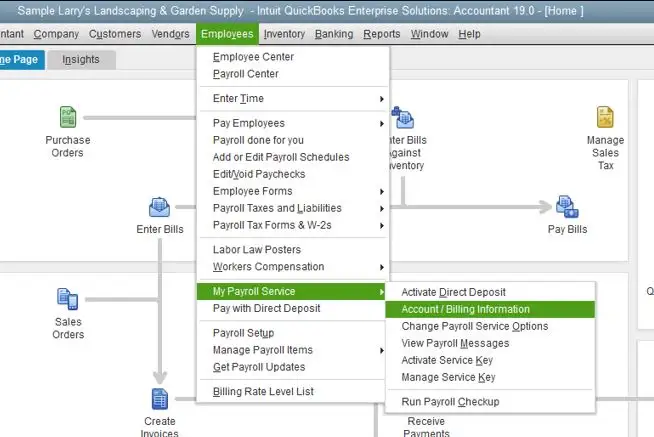
- Sign in to your Intuit account.
- Find Resubscribe under Status.
- Follow the instructions to complete the renewal.
According to Intuit’s payroll reactivation guide, reactivation may take up to 24 hours.
Desktop Payroll Assisted users should contact Intuit for help with reactivation.
Review your payroll data after renewal
Before processing payroll again:
- Open Employees > Employee Center and review employee details, W-4 information, deductions, and leave balances.
- Go to Lists > Payroll Item List and check your payroll tax items.
- Complete any remaining payroll setup tasks.
If you have already paid but your subscription still shows Inactive, check your payment and account details before making another payment.
Solution 3. Activate and update QuickBooks Desktop
Your Desktop license and payroll subscription are separate. An active payroll plan does not mean your software is activated.
Press F2 and check whether Activated appears beside your license number.
If it does not, select Help > Activate QuickBooks Desktop and follow the prompts.
After activation, update the software:
- Open Help > Update QuickBooks Desktop.
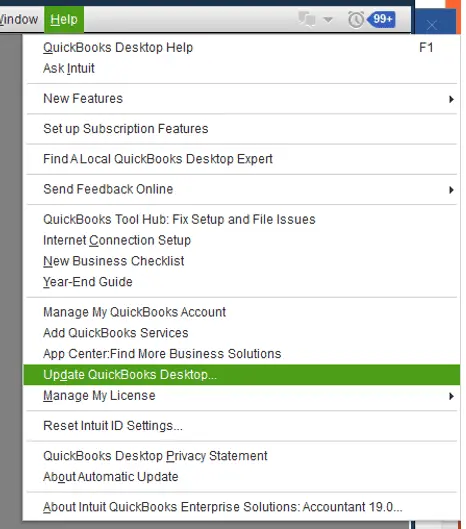
- Select Update Now, followed by Get Updates.
- Restart the program once the download finishes.
- Install the update when prompted.
If you receive a message that your QuickBooks Desktop subscription has lapsed, resolve the software subscription problem before attempting another payroll update.
Solution 4. Download the latest payroll tax table
A Desktop software update and a payroll tax-table update are separate processes.
To download the payroll update:
- Go to Employees > Get Payroll Updates.
- Select Download Entire Update.
- Click Update.
A message should appear when the download is complete.
If the QuickBooks payroll update error PS036 no longer appears, check that your tax-table version is current. If you receive a different error or the download fails without a subscription warning, follow our guide on payroll updates not working in QuickBooks Desktop.
Solution 5. Check security settings and repair program files
When your payroll account details are correct, security settings or damaged program files may be blocking the update.
Back up your company file before making repairs. If you use a managed business computer, ask your IT administrator to review any security changes.
Check Microsoft Defender settings
Intuit provides a tool that adds specific program files to the Microsoft Defender exclusion list.
If your IT administrator confirms that an exclusion is appropriate:
- Close the Desktop software.
- Open QuickBooks Tool Hub with administrator access.
- Select Installation Issues > Add Defender Exclusion.
- Restart your computer.
Follow Intuit’s Defender exclusion instructions.
Security exclusions reduce antivirus scanning for the selected files. Avoid disabling antivirus protection or excluding entire drives.
Run Quick Fix my Program
If the error continues, use the program repair tool recommended in Intuit’s PSXXX troubleshooting guide.
Download QuickBooks Tool Hub from Intuit if you do not have it installed.
Open Tool Hub, select Program Problems, and run Quick Fix my Program. When the repair finishes, reopen the software and retry the program and payroll updates. 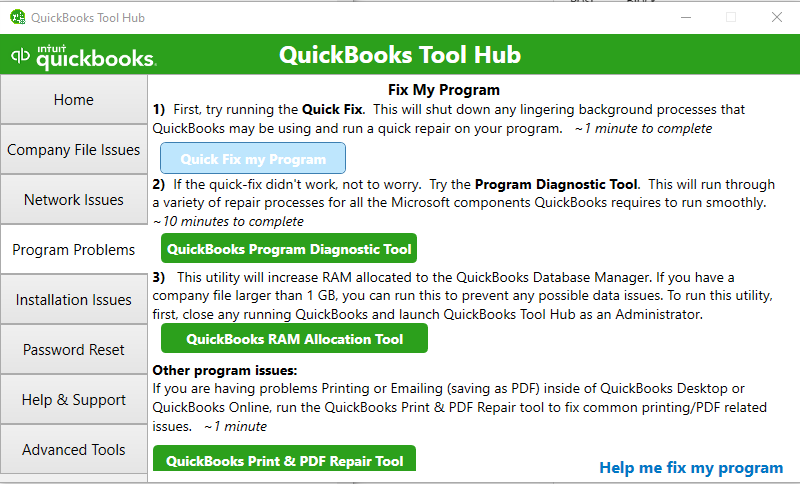
If the error message says that the software cannot read payroll setup files, see our guide to QuickBooks Error PS033.
Why does QuickBooks show PS036 when my payroll subscription is active?
Your Intuit account may show an active payroll subscription while the Desktop software fails to verify the service linked to your company file.
Compare your subscription details in CAMPs with the service information stored in the software.
| What you find | What to check |
| Payroll is active in CAMPs but inactive in the software | The payroll service key linked to your company file. |
| Your renewal is missing from CAMPs | Whether you signed in with the correct Intuit account. |
| An invalid number or EIN message appears | Whether your company details match your payroll account. |
| Payroll is active, but the software is not activated | Your Desktop license and registration status. |
| Both services are active, but PS036 continues | Connection restrictions or unresolved payroll account problems. |
For example, suppose your business renews Enhanced Payroll through a different Intuit account. You may see an active subscription in that account, but your company file may still use an older service key.
In this situation, paying for another renewal will not correct the mismatch. You need to confirm which payroll service belongs to your company file.
Contact Intuit if you cannot identify the correct account or service key.
How to fix PS036 after upgrading QuickBooks Desktop
If payroll verification fails after an upgrade, check whether your payroll plan changed during the process.
Moving from Pro or Premier to Enterprise may involve different payroll service details.
In an Intuit Community discussion, a user reported needing a new payroll service key after switching from Pro with Enhanced Payroll to Enterprise with Payroll.
If you experience a similar issue:
- Sign in to CAMPs and locate the payroll service linked to your current plan.
- Compare its service details with those stored in your company file.
- Ask Intuit to confirm the correct service key if they differ.
- Update the key using Solution 1 when necessary.
Not every Desktop upgrade requires a new service key. Avoid removing your existing payroll service until you confirm which subscription should be used.
How to confirm QuickBooks Error PS036 is fixed
Open Employees > Get Payroll Updates and check the current tax-table version.
Compare it with the latest applicable release using Intuit’s payroll tax-table update guide.
Before processing payroll, confirm that:
- Your payroll service shows Active.
- The payroll update finishes without PS036.
- Your tax table is current.
- Your payroll tax settings are correct.
Your company’s state unemployment insurance (SUI) rate is not included in normal Desktop payroll tax-table updates. You must update your SUI rate manually when it changes.
What if QuickBooks payroll error PS036 still appears?
Contact Intuit if you cannot verify your payroll subscription after completing the recommended checks.
You may need help when:
- The software displays an invalid number or EIN.
- Your subscription remains inactive after the reactivation period.
- Payroll or direct deposit agreements appear to conflict.
- Your payroll service is missing from your Intuit account.
- An upcoming payday is at risk because payroll updates have failed.
Have your software version, payroll plan, error message, and renewal details ready.
Do not share your full payroll service key, payroll PIN, or employee information in public support posts.
Avoid deleting payroll files or reinstalling the software without identifying the cause of the error.
Conclusion
Before running payroll again, confirm that the latest tax table is installed and review your payroll tax settings.
If QuickBooks Error PS036 remains despite correct subscription and service details, ask Intuit to review your payroll account instead of repeating software repairs.
Frequently asked questions
Can an incorrect EIN cause QuickBooks Error PS036?
A mismatch in your Employer Identification Number (EIN) or payroll account details may contribute to verification problems. Ask Intuit to confirm your account information before changing your company’s tax identification details.
Why am I getting QuickBooks Error PS036 and Error 557 together?
Error 557 may appear during payroll updates or when opening Account/Billing Info. If both errors occur, check your Desktop license and payroll subscription separately. The combination does not confirm a single cause.
Can I run payroll while QuickBooks Error PS036 is showing?
Whether you can create paychecks depends on your software version and payroll plan. Failed tax-table updates may affect tax calculations. Contact your payroll professional or Intuit before processing affected paychecks if you cannot confirm their accuracy.
Does renaming the Paysub.ini file fix Error PS036 in QuickBooks Desktop?
Some third-party guides recommend renaming Paysub.ini. However, Intuit’s current PSXXX troubleshooting guide does not include this procedure. Check your subscription, service key, and software updates before considering file repairs.
Can a service outage cause payroll subscription verification problems?
A service outage may interrupt access to online payroll services. Check the Intuit service status page before changing account settings. Error PS036 alone does not establish that an outage has occurred.
What should I do if PS036 appears after sending direct deposit?
Check the status of your payroll before submitting it again.
Go to Employees > View Payroll Run Status, choose the payroll under Recent Payrolls, and select Selected Payroll from the status dropdown.
The payroll status may indicate that Intuit received the submission, sent a debit request to your bank, or completed payroll processing.
Contact Intuit if the status is unclear. Resubmitting payroll without checking its status may result in duplicate payments.
Is QuickBooks Error PS036 the same as PS038?
No, PS036 involves payroll subscription verification or related update problems. QuickBooks Error PS038 involves paychecks stuck in the Online to Send status.
Will fixing QuickBooks Error PS036 delete my payroll history?
Standard subscription checks, software updates, and program repairs do not require deleting payroll transactions. Back up your company file before advanced repairs and seek guidance before removing existing payroll services.
Accounts Confidant is an independent accounting and bookkeeping service provider and is not affiliated with Intuit. Intuit and QuickBooks are registered trademarks of Intuit Inc. This article is not sponsored, endorsed, or approved by Intuit Inc.
