QuickBooks, developed by Intuit, helps businesses manage accounting, bookkeeping, and financial tasks. However, issues such as slow performance, printing errors, installation problems, and damaged company files can interrupt your work.
To help resolve these problems, Intuit provides the QuickBooks Tool Hub, a free troubleshooting utility for QuickBooks Desktop. It brings several repair tools together, so you can choose the right one based on the issue you’re facing.
In this guide, you’ll learn how to download QuickBooks Desktop Tool Hub, understand what each tool does, and use the right one to troubleshoot common QuickBooks Desktop errors.
QuickBooks Tool Hub Troubleshooting Problems with Resolutions
The latest QuickBooks Tool Hub version provides different tabs, with each section designed for specific categories of QuickBooks Desktop issues.
| Problem | Correct Tool | Resolution |
| Company file-related issues | Company File Issues | Helps troubleshoot common company file problems using available tools such as Quick Fix my File and QuickBooks File Doctor. |
| QuickBooks Desktop network problems or Error H202 | Network Issues | Helps troubleshoot network-related issues when QuickBooks Desktop is used in a multi-user environment. |
| QuickBooks PDF or printing issues | Program Problems | Provides tools to troubleshoot PDF and printing-related problems in QuickBooks Desktop. |
| QuickBooks installation or update-related problems | Installation Issues | Helps troubleshoot installation issues affecting QuickBooks Desktop. |
| QuickBooks Desktop admin password issues | Password Reset | Provides access to the automated password reset tool. |
| QuickBooks Desktop program, performance, or file-related issues that require advanced troubleshooting | Advanced Tools | Provides additional troubleshooting tools to diagnose and resolve complex QuickBooks Desktop problems. |
Moving forward, we will discuss the solutions in detail.
Solutions to Fix Common Errors Using QuickBooks Tool Hub
Knowing which QuickBooks Tool Hub tab to use can save time when troubleshooting QuickBooks Desktop problems. The first thing you need to do is have the latest version of the tool hub installed and launched. There are also some prerequisites to ensure smooth functioning:
System Requirements
Before downloading QuickBooks Tool Hub, make sure your computer meets the basic requirements for running QuickBooks Desktop and its troubleshooting tools:
- Operating system: 64-bit Windows 11
- Processor: 2.4 GHz processor
- Memory: 4 GB RAM minimum; 8 GB recommended
- Internet connection: Active and stable internet connection.
- Microsoft .NET Framework: Version 4.8
Now that we know the system requirements, we will learn about the download and installation process.
Install the latest version of QuickBooks Tool Hub
You should follow these steps to download and install the latest version of QuickBooks Tool Hub:
- Make sure QuickBooks is closed.
- Get the QB Tool Hub from Intuit’s official website and save it somewhere you can easily find, such as your Downloads folder or Windows desktop.
- Look for the file named QuickBooksToolHub.exe and double-click it to start the installation.
- The installer will guide you through the setup. Read and accept the terms and conditions to continue.
- Wait for the installation to finish before closing the installer.
- Double-click the QuickBooks Tool Hub icon on your Windows desktop to open the tool hub.
Follow the troubleshooting below if your computer treats the QuickBooksToolHub.exe file as malware.
If QuickBooksToolHub.exe Is Blocked During Installation
If Windows displays the message “QuickBooksToolHub.exe has been blocked because it can harm your device”, Intuit recommends these steps:
- Download QuickBooks Tool Hub again using a different web browser.
- If Microsoft Defender displays a warning, select More info.
- Select Run anyway to continue the installation.

- Complete the installation and launch QuickBooks Tool Hub.
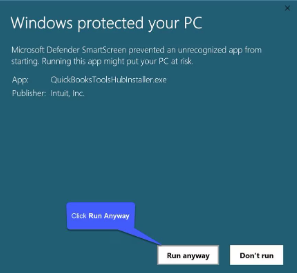
Moving forward, we will cover all the troubleshooting tabs and their tools in detail
1. Company File Issues
When QuickBooks Desktop shows company file errors such as 6000-series errors, including 6123 and 6000-83, or you cannot open your company file; the Company File Issues tab provides tools to diagnose and repair the problem.
Tool 1: Run Quick Fix my File
Use Quick Fix my File to address minor company file issues that may prevent QuickBooks from opening or working with the file correctly.
- You should select Company File Issues from the Tool Hub
- After that, click on Quick Fix my File.
- Select OK after the process completes and QuickBooks is ready to be launched.
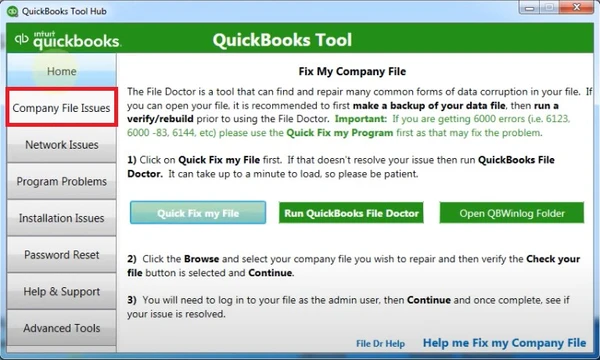
If the issue persists, try the File Doctor.
Tool 2: Run QuickBooks File Doctor
Use QuickBooks File Doctor to diagnose and repair company file damage or network-related problems that Quick Fix my File cannot resolve.
- Go to Company File Issues from the Tool Hub.
- Select Run QuickBooks File Doctor.
- Wait for File Doctor to open (this may take up to one minute).
- Select your company file from the drop-down list. If it isn’t listed, click Browse and locate it manually.
- Select Check your file and click Continue.
- Enter your QuickBooks Admin password and select Next.
- Wait for the scan to complete. Depending on your file size, the process may take 10 to 15 minutes.
- When the scan finishes, open QuickBooks Desktop and your company file.
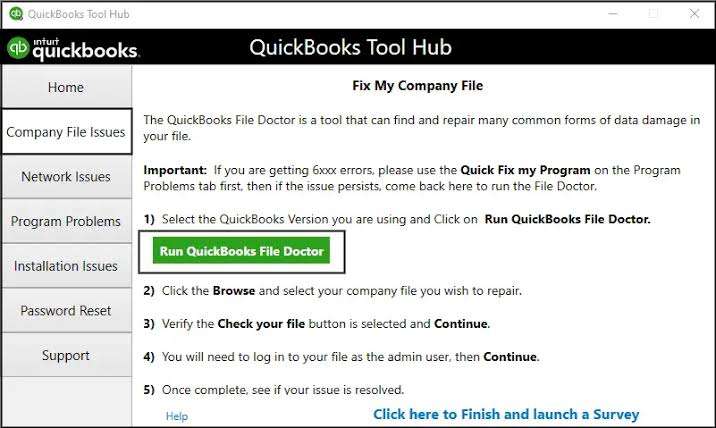
Note: You may see “QBWin.log” under the company files issue tab; QBWin.log is a QuickBooks Desktop log file, not a tool included in QuickBooks Tool Hub. It records program messages and error details, including information generated during Verify, Rebuild, and Condense Data, and can help identify issues during troubleshooting.
The next tab we will cover in our blog is a network-related issue tab.
2. Network Issues
Error H202 occurs when workstations cannot communicate with the server hosting the company file. Follow the steps below to troubleshoot connectivity issues and restore multi-user access.
Note: The first prerequisite is to download the Tool Hub using the steps listed here. Make sure you have the latest version. (1.6.0.8)
Tool 1: QuickBooks Database Server Manager
Use QuickBooks Database Server Manager to scan the company file folder and help restore network communication between the server and workstations.
- Open QuickBooks Tool Hub and then select Network Issues.
- Click QuickBooks Database Server Manager. If QuickBooks isn’t installed, follow the prompts to install it.
- If your company file folder appears, click Start Scan.
- If not, click Browse, select the company file folder, and then click Start Scan.
- Allow the scan to finish and click Close. QuickBooks automatically updates the required firewall permissions.
- You can open QuickBooks on each workstation where you see Error H202.
- Select File, choose Switch to Multi-user Mode, and if you also use the server computer as a workstation, check that computer as well.
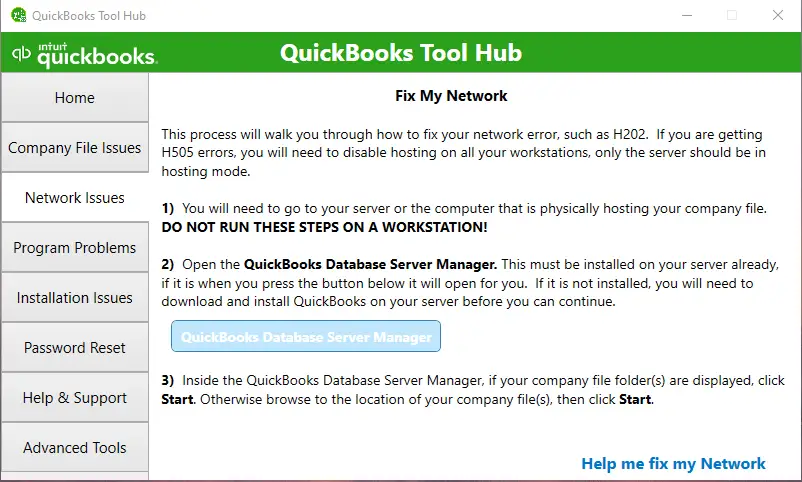
Next, you need to run QB File Doctor using the steps we have covered above, and the issue should be resolved.
3. Program Problems
When QuickBooks Desktop freezes, stops responding, or has issues with Microsoft components, RAM allocation, printing, or PDFs, the Program Problems tab provides tools to troubleshoot these issues.
Tool 1: Run Quick Fix my Program
Use Quick Fix my Program to close background QuickBooks processes and resolve program-related problems that cause QuickBooks Desktop to freeze, stop responding, or fail to open.
- Open QuickBooks Tool Hub.
- Select Program Problems.
- Click Quick Fix my Program.
- Once the repair finishes, open QuickBooks Desktop and your company file.

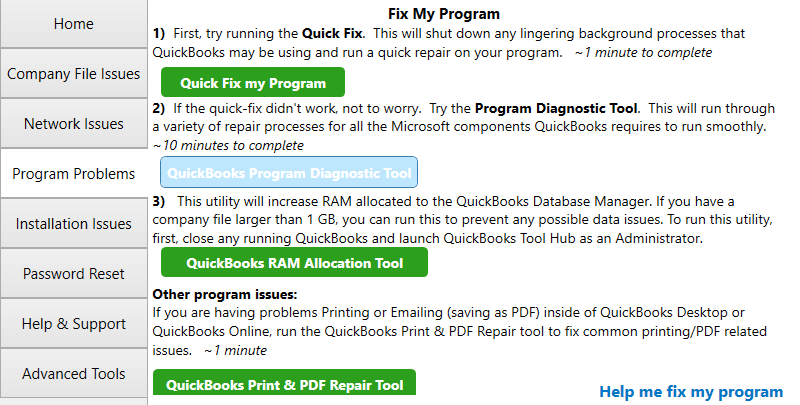
Tool 2: Run QuickBooks Program Diagnostic Tool
If QuickBooks is experiencing program-related issues, use the QuickBooks Program Diagnostic Tool to diagnose and repair them.
- Open QuickBooks Tool Hub.
- Select Program Problems.
- Click QuickBooks Program Diagnostic Tool.
- Allow the tool to complete the diagnostic process. It may take up to 20 minutes.
- Restart your computer after the tool finishes.
- Open QuickBooks Desktop again and check whether the issue is resolved.
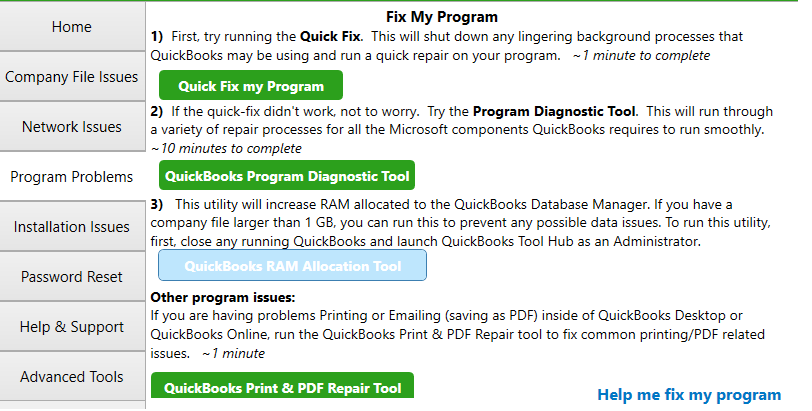
Tool 3: Run QuickBooks RAM Allocation Tool
When QuickBooks has problems related to memory allocation, the QuickBooks RAM Allocation Tool can help address them.
Note: Use this tool, if your company file is larger than 1 GB.
- Go to Program Problems from the Tool Hub.
- Close any running QuickBooks programs.
- Open QuickBooks Tool Hub as an administrator.
- Select QuickBooks RAM Allocation Tool.
- Follow the on-screen instructions to complete the process.
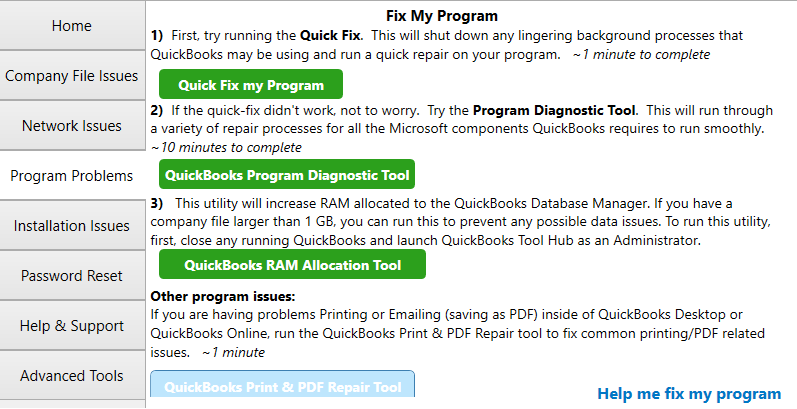
Tool 4: Run QuickBooks Print & PDF Repair Tool
For printing, emailing, or PDF-related problems, use the QuickBooks Print & PDF Repair Tool to repair the affected functionality.
- Go to Program Problems from the Tool Hub.
- Select QuickBooks Print & PDF Repair Tool.
- Wait for the tool to complete the repair process.
- Try printing, emailing, or saving the document as a PDF again.
Facing installation errors? The next section is for you.
4. Installation Issues
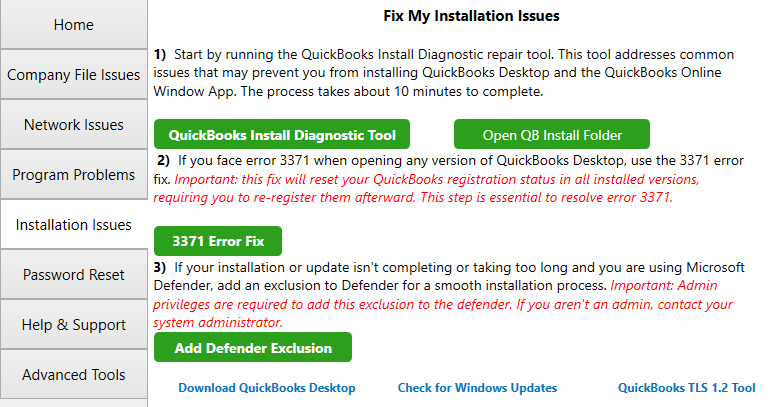
When QuickBooks Desktop has trouble installing, updating, or activating, the Installation Issues tab provides tools to troubleshoot common installation problems.
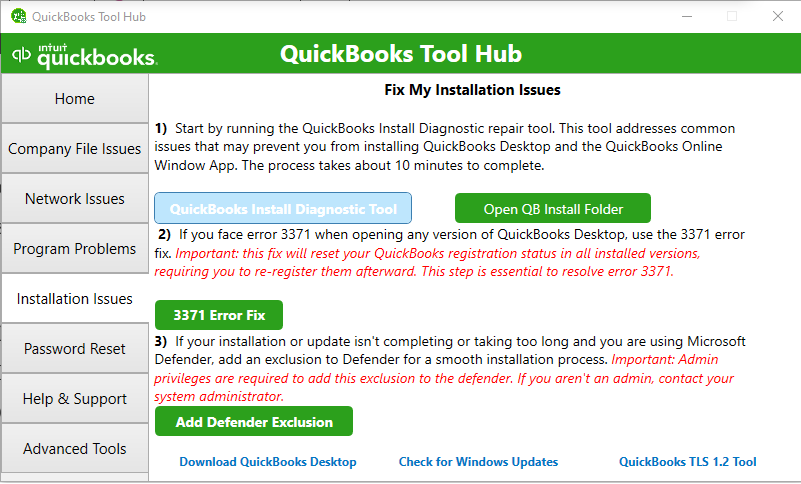
Tool 1: Run QuickBooks Install Diagnostic Tool
For installation-related problems, use the QuickBooks Install Diagnostic Tool to identify and repair issues affecting the installation.
- Open QuickBooks Tool Hub.
- Select Installation Issues.
- Click QuickBooks Install Diagnostic Tool.
- Let the tool complete its process.
- Open QuickBooks Desktop and check whether the issue is resolved.
Tool 2: Run the 3371 Error Fix
When QuickBooks displays Error 3371, use the 3371 Error Fix to resolve issues that prevent QuickBooks Desktop from opening or accessing the company file.
- Open QuickBooks Tool Hub.
- Select Installation Issues.
- Click 3371 Error Fix.
- Select OK.
- Open QuickBooks Desktop.
- Open your company file.
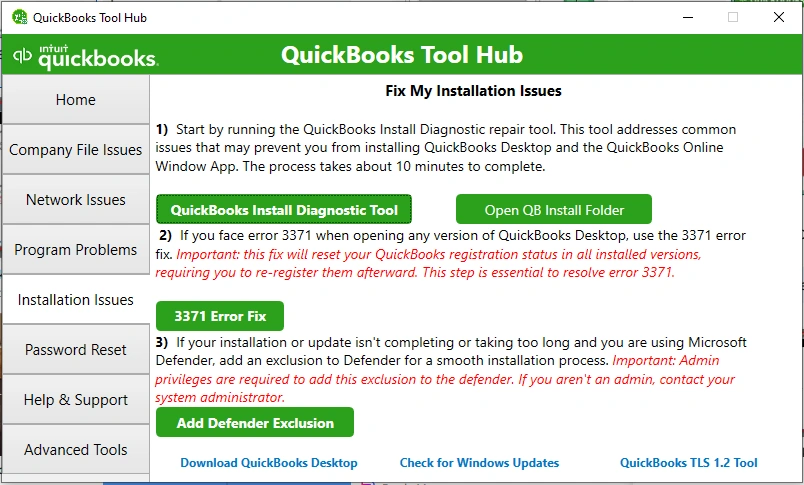
Tool 3: Add Defender Exclusion
If Windows Defender is interfering with QuickBooks, use Add Defender Exclusion to allow QuickBooks files and processes through the security settings.
- Open QuickBooks Tool Hub.
- Select Installation Issues.
- Click Add Defender Exclusion.
- Restart your computer.
- Open QuickBooks Desktop and try the installation or update again.
5. Reset the QuickBooks Password
If you forget your QuickBooks Desktop password, the Password Reset tab provides steps to reset it and create a new password:
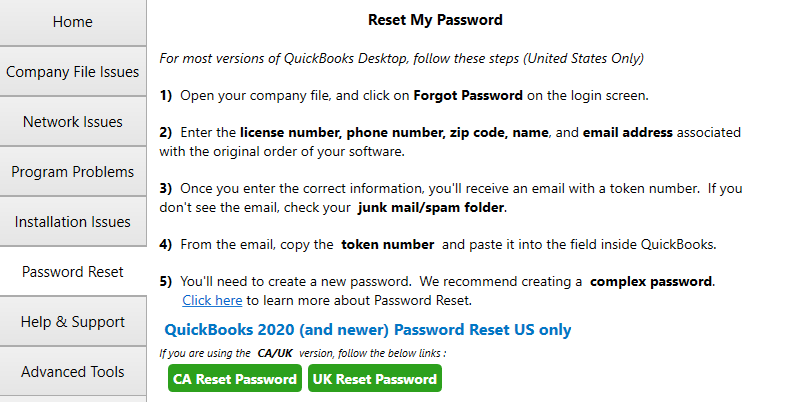
- Open your company file and select Forgot Password on the login screen.
- Enter the required account information associated with your QuickBooks software.
- Check your email for the token number. If you don’t receive it, check your junk or spam folder.
- Copy the token number from the email and enter it in QuickBooks.
- Create a new password.
6. Advanced Tools in QuickBooks Tool Hub
If the available troubleshooting tools don’t resolve the issue, the Advanced Tools tab provides additional Windows and QuickBooks utilities for further troubleshooting.
It contains the following tools:
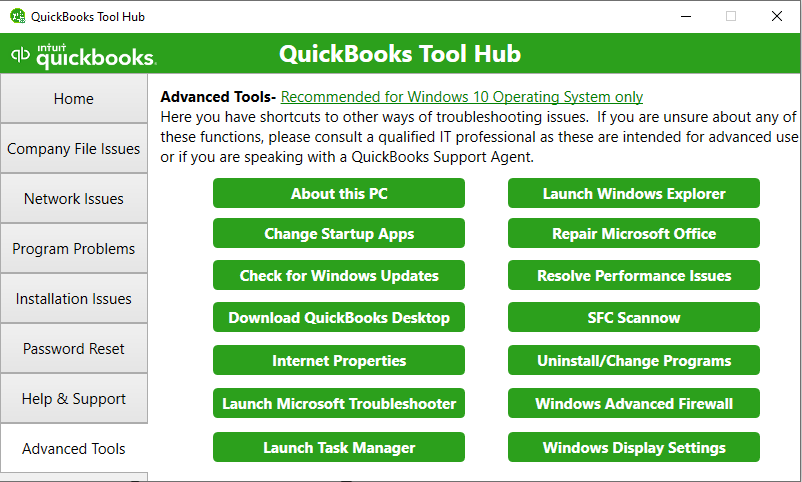
- About this PC
- Launch Windows Explorer
- Change Startup Apps
- Repair Microsoft Office
- Check for Windows Updates
- Resolve Performance Issues
- Download QuickBooks Desktop
- SFC Scannow
- Internet Properties
- Uninstall/Change Programs
- Launch Microsoft Troubleshooter
- Windows Advanced Firewall
- Launch Task Manager
- Windows Display Settings
That’s all you need to know how to use the QuickBooks Tool Hub.
Still Having Trouble with QuickBooks Desktop?
If QuickBooks Desktop errors continue even after using Tool Hub, you don’t have to keep troubleshooting on your own. Accounts Confidant can help identify the underlying issue and get your QuickBooks back on track.
Conclusion
QuickBooks Tool Hub puts several troubleshooting tools in one place, making it easier to deal with common QuickBooks Desktop problems. If you haven’t installed it yet, download the Tool Hub from Intuit and use the appropriate troubleshooting option for your problem. If an issue continues after running the recommended tool, you may need additional QuickBooks Desktop support.
Frequently Asked Questions
How do I use QuickBooks Tool Hub to fix QuickBooks errors?
Open the application and select the troubleshooting tab that matches your issue, such as Company File Issues, Network Issues, Program Problems, or Installation Issues. Then run the recommended troubleshooting tool and follow the on-screen instructions.
Can QuickBooks Tool Hub repair a corrupted company file?
Yes, QuickBooks Tool Hub includes QuickBooks File Doctor, which helps Repair, diagnose, and troubleshoot a corrupt company file. If File Doctor cannot resolve the problem, additional data recovery or repair steps may be required.
Why is QuickBooks Tool Hub not opening?
QuickBooks Tool Hub fails to open because of a corrupt installation, Outdated Windows, or a problem with the Tool Hub program files. Try reinstalling the latest version of Tool Hub and run it as an administrator.
Does QuickBooks Tool Hub work with QuickBooks Online?
No, QuickBooks Tool Hub is designed specifically for QuickBooks Desktop and is not used to troubleshoot QuickBooks Online.
Can I use QuickBooks Tool Hub on a Mac?
No, QuickBooks Tool Hub is designed for Windows operating systems and isn’t available for Mac.
What’s the difference between QuickBooks Tool Hub and File Doctor?
QuickBooks Tool Hub is a central troubleshooting application that includes several repair tools, while QuickBooks File Doctor is one of those tools specifically designed to help diagnose company file and network-related issues.