Setting up direct deposit in QuickBooks can make payday easier by letting you send employee or contractor payments straight to their bank accounts. Before you can start, you’ll need the right banking information and authorization.
A QuickBooks direct deposit form helps you collect these details and authorize electronic payments. In this guide, we’ll explain where to find the form, what information it includes, and how to set up direct deposit for employees and contractors in QuickBooks.
What Is a QuickBooks Direct Deposit Authorization Form Used For?
A QuickBooks direct deposit authorization form provides a written record of an employee’s request to receive wages electronically.
Employers can use the form to:
- Collect employee banking information
- Document authorization for payroll direct deposit
- Record checking or savings account details
- Provide payroll staff with the information needed for employee setup
- Maintain a record of the employee’s payment instructions
- Collect updated information when an employee changes bank accounts
What Information Is Included on a QuickBooks Direct Deposit Form?
A QuickBooks payroll direct deposit form is an authorization document that an employer can use to collect the information required to set up an employee for payroll direct deposit.
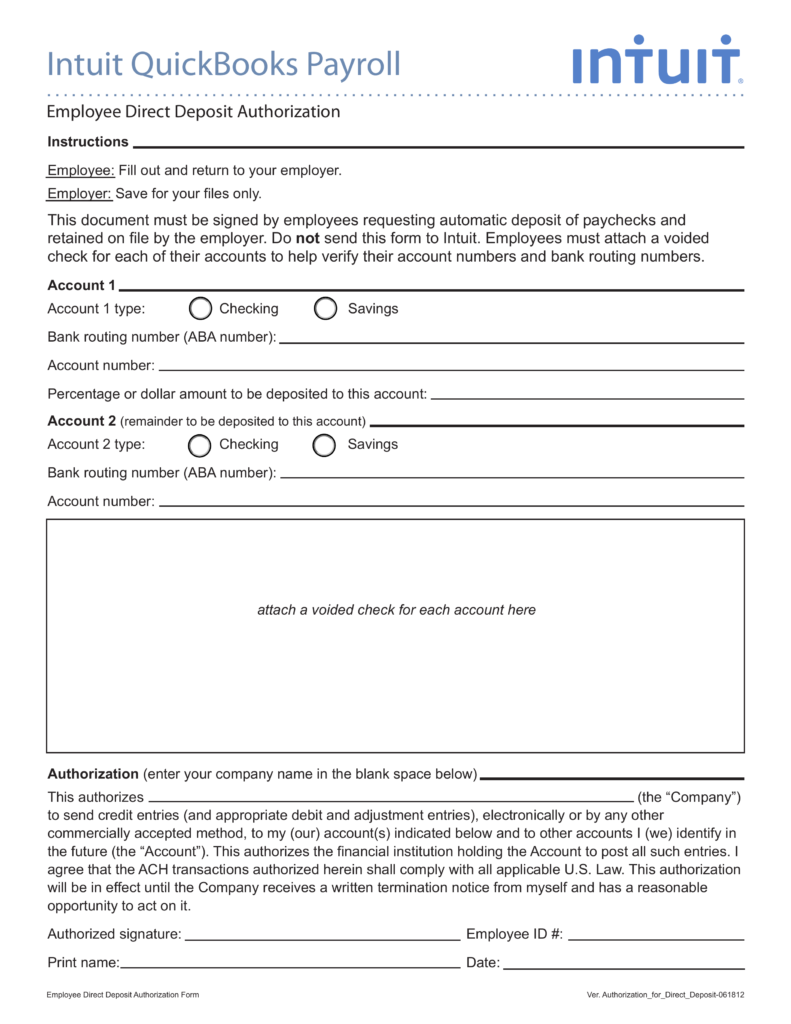
| Information | Purpose |
| Employee name | Identifies the employee receiving payroll |
| Bank name | Identifies the financial institution |
| Routing number | Identifies the bank for electronic transfers |
| Account number | Identifies the employee’s bank account |
| Account type | Specifies checking or savings |
| Deposit instructions | Specifies how funds should be allocated, when applicable |
| Authorization | Confirms the employee’s request for direct deposit |
| Signature and date | Documents the authorization |
Employees should review their banking information carefully before submitting the form. An incorrect routing or account number can cause problems with a direct deposit payment. Having said that, let’s learn how to fill out the form now.
How to Fill Out a QuickBooks Direct Deposit Form
Follow these steps to complete the form and provide the information needed for employee direct deposit:
Employee Information → Bank Details → Account Type → Deposit Instructions → Review → Authorize → Submit
- Enter Employee Information– Enter the employee’s full name as it appears in the payroll records.
- Add Bank Details– Enter the employee’s bank name, routing number, and account number. Review these numbers carefully to avoid payment issues.
- Select the Account Type– Choose whether the employee’s account is a Checking or Savings account.
- Add Deposit Instructions– If the payroll setup allows deposits to two accounts, specify how the paycheck should be divided between the accounts.
- Review the Information– Check the employee name, bank name, routing number, account number, account type, and deposit instructions for accuracy.
- Sign and Date the Form– Complete the required authorization, signature, and date according to the employer’s payroll procedures.
- Submit the Form– Return the completed form and any required documentation, such as a voided check, to the employer, payroll administrator, or HR department.
If a QuickBooks Desktop paycheck remains “Online to Send,” see our guide on QuickBooks Error PS038.
After submission: The payroll administrator can use the banking information to add or update the employee’s direct deposit payment method in QuickBooks Payroll.
Process for QuickBooks Direct Deposit Form Download
If you need a QuickBooks direct deposit form PDF, the available form depends on the QuickBooks Payroll product you use.
For QuickBooks Online Payroll, Intuit provides an Employee Bank Verification form through the payroll setup forms. You can open the form, then download or print it for use during the employee bank verification process.
For QuickBooks Desktop Payroll, Intuit’s setup process does not provide the same downloadable form workflow. Instead, employers can collect the employee’s banking information or a voided check and enter the details directly into the employee’s Direct Deposit settings.
Tip: Always use the form or setup process applicable to your QuickBooks Payroll subscription rather than relying on an unrelated third-party PDF.
If you encounter an error while processing payroll or sending direct deposit payments, see our guide to QuickBooks Payroll Errors for common causes and troubleshooting steps.
Benefits of Using QuickBooks Direct Deposit Forms
Using standardized QuickBooks direct deposit forms can make employee payroll setup more organized and provide a clear record of the information supplied by the employee.
- Simplifies Payroll Authorization: A completed QuickBooks direct deposit authorization form documents the employee’s request to receive wages electronically and gives the payroll administrator a record of that authorization.
- Organizes Banking Information: A direct deposit form for QuickBooks brings important information such as the bank name, routing number, account number, and account type together in one place.
- Helps Reduce Data-Entry Errors: Having employees provide their banking information in a standardized format allows payroll administrators to review the details before entering them into QuickBooks.
- Provides a Payroll Record: A completed form can serve as documentation of an employee’s direct deposit instructions and authorization, subject to the employer’s recordkeeping policies.
- Makes Banking Updates Easier: When an employee changes banks or accounts, a new authorization process can help the payroll administrator collect updated information before changing the employee’s payment method.
- Supports Direct Deposit for Small Business: Direct deposit for small business payroll can reduce reliance on paper checks and provide employees with an electronic way to receive their wages. A standardized authorization process can also make employee onboarding and recurring payroll administration easier to manage.
- Works With Different QuickBooks Payroll Workflows: The appropriate QuickBooks direct deposit form or electronic setup process depends on the payroll product being used. QuickBooks provides different employee setup workflows, so employers should follow the process applicable to their subscription.
The appropriate QuickBooks direct deposit form or electronic setup process depends on the payroll product being used. QuickBooks provides different employee setup workflows, so employers should follow the process applicable to their subscription.
Conclusion
A QuickBooks direct deposit form provides a simple way to collect an employee’s banking information and document their authorization to receive payments by direct deposit. The form typically includes the employee’s name, bank name, routing number, account number, account type, and authorization details.
Before submitting the form, carefully review all banking information for accuracy. If your employer or payroll administrator requires supporting documentation, such as a voided check, include it with the completed form.
Once the form is completed, return it to the appropriate employer, payroll administrator, or HR department according to their payroll procedures. The information can then be used to update the employee’s direct deposit payment method in the applicable QuickBooks Payroll workflow.
If you are looking for a QuickBooks direct deposit form PDF, make sure you use the form or process that applies to your QuickBooks Payroll product and payroll requirements.
Frequently Asked Questions
What is a QuickBooks direct deposit form?
A direct deposit authorization form in Intuit is an authorization document used to collect an employee’s banking information for payroll direct deposits. It typically includes the employee’s name, bank name, routing number, account number, account type, and authorization.
Where can I download an Intuit QuickBooks direct deposit form?
You can access the form from the available QuickBooks payroll setup forms and download or print it when needed. If you’re looking for a QuickBooks direct deposit form PDF, the available form may vary based on your payroll setup. Employers can also collect the required banking information or a voided check according to their payroll procedures.
Can I use a direct deposit authorization form in QuickBooks
Desktop?
Yes, an employer can use its own direct deposit authorization form to collect an employee’s banking information. However, QuickBooks Desktop Payroll requires the banking details to be entered into the employee’s Direct Deposit settings before direct deposit can be processed.
What information is required for QuickBooks direct deposit?
You generally need the employee’s bank name, routing number, account number, and account type. Additional authorization or verification information may also be required depending on the payroll workflow.
Can employees have their paycheck deposited into two bank accounts?
Yes, QuickBooks Payroll can support direct deposit to two accounts for eligible employee setups. The available options can vary by QuickBooks Payroll product.
Can independent contractors use QuickBooks direct deposit?
Yes, Eligible contractors can receive payments through direct deposit. However, contractor setup is different from employee setup, so their banking information should be entered through the appropriate contractor or vendor workflow.
Is a voided check required for QuickBooks direct deposit?
Not necessarily. A voided check may be used to verify an employee’s bank and account information when using a paper-based setup, but electronic setup options may allow the required banking details to be entered or verified without a voided check.
How long does QuickBooks direct deposit setup take?
The time depends on the payroll product and bank verification method. If manual bank verification is required, the process may take longer because the business may need to wait for a small verification transaction to appear in its bank account.
What happens if I enter the wrong bank account number?
Incorrect banking information can cause a direct deposit to fail or be sent to an unintended account. Always verify the routing number, account number, and account type before saving the employee’s direct deposit information.
How to Print Direct Deposit Confirmation in QuickBooks Desktop?
You can print a direct deposit confirmation in QuickBooks Desktop by going to Employees > Send Payroll Data. In the Items Received section, select the payroll confirmation report you want to print, choose View, and then select Print.


