A QuickBooks script error can appear when you open the program, finish a backup, or use an online feature. The pop-up may show a line number, a character number, an error message, and a web address.
The right fix depends on what failed and which QuickBooks version you use. Start by saving the full error message and checking your release. Then follow the steps that match your problem.
This guide focuses on QuickBooks Desktop for Windows. If you use QuickBooks through a web browser, follow our guide to QuickBooks Online not opening for browser-specific checks.
What Is a QuickBooks Script Error?
A QuickBooks script error means a script—a small set of instructions—could not run as expected. This can happen when QuickBooks loads a web-based page or feature. Intuit describes blocked script processing and damaged or incompatible script-related components as possible causes.
You may see messages such as:
- “An error has occurred in the script on this page.”
- “Expected identifier.”
- “Unable to get property length of undefined or null reference.”
- “Do you want to continue running scripts on this page?”
The popup may also display Code 0. That detail alone does not tell you which repair to use. Record the full message before closing it.
| Error detail | What to record |
| Error text | The exact wording |
| Line and character | Both numbers |
| URL | The full web address |
| Trigger | What you were doing when it appeared |
| Result | Whether the task stopped or completed |
What Causes Script Errors in QuickBooks?
Script errors can come from the web content QuickBooks loads, the settings it uses, or a problem with the program itself.
Possible causes include:
- A web script that does not work with the installed browser component.
- Old QuickBooks program components.
- Incorrect browser settings or damaged stored web data.
- Security software blocking a needed connection.
- Damaged program files or Windows user settings.
These are possible causes, not a diagnosis. A popup during startup does not automatically mean your company file needs repair.
What Should You Check Before Trying a Fix?
Check your version, record the error, and note when it appears. These details help you avoid changing settings that do not apply.
Check Your QuickBooks Version
Open QuickBooks and press F2 or Ctrl + 1. The Product Information window shows your version and release number. Save these details before you start.
Also note your Windows version. On Windows 11, you can find it under Settings > System > About.
Note What Triggers the Error
Try to identify the exact action:
- Opening QuickBooks.
- Switching company files.
- Opening an online page.
- Completing a local backup.
- Using a payment or other connected feature.
For example, if the popup appears after a backup, first check whether QuickBooks reported a successful backup. The timing alone does not prove that the backup failed.
Save Your Work
Save open work before restarting QuickBooks. Before program or company-file repairs, make a backup when the program allows it.
Change one setting at a time. After each change, repeat the action that caused the error.
Which Fix Should You Try First?
Choose your starting point based on what fails.
| What you notice | Where to start |
| A popup appears when QuickBooks opens | Check the release and full error URL |
| One online feature will not load | Check the connection and service status |
| QuickBooks also freezes or closes | Investigate the program problem |
| The error appears during backup | Check the backup result and exact message |
| Only one Windows user is affected | Test the user profile |
| QuickBooks reports separate data errors | Follow the company file repair path |
If QuickBooks closes before you can read the message, use our QuickBooks keeps crashing guide alongside the checks below.
How to Fix a QuickBooks Script Error
Use the methods that fit your symptoms. You do not need to complete every step if an earlier one resolves the problem.
1. Install Available QuickBooks Updates
An available maintenance update may resolve a program issue. Check for the correct update for your installed product year.
- Open QuickBooks Desktop.
- Select Help > Update QuickBooks Desktop.

- Open the Update Now tab.
- Select Get Updates.
- Restart QuickBooks when the download finishes.
- Accept the prompt to install the update.
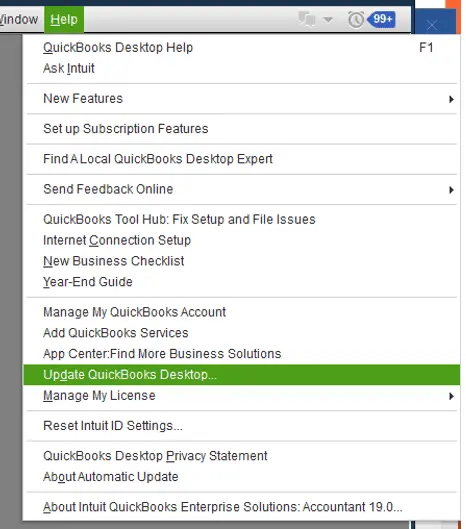
These are Intuit’s steps for updating within QuickBooks. A maintenance update is different from upgrading to a newer product year.
If the in-program update fails, our guide to updating QuickBooks Desktop covers the manual download method.
After updating, repeat the action that caused the popup. If it remains, record whether the error text or URL has changed.
2. Check the Connection and Affected Feature
Check whether the issue affects one feature or the whole program before changing settings.
- Open a trusted website to check your basic internet connection.
- Check the Intuit service status page for a relevant incident.
- Note whether other users have the same problem.
- Retry the affected feature after closing and reopening QuickBooks.
A working website does not prove every QuickBooks connection is working. It only helps rule out a complete loss of internet access.
If several users see the same error at the same time, collect those details before repairing each computer. A shared service or network issue may need a different response.
3. Check Browser Settings Only Where They Apply
Browser changes should match your QuickBooks release. Clearing Chrome or Edge data is not a universal fix for a popup inside QuickBooks Desktop.
Intuit states that supported Desktop versions began using its custom internal browser on June 10, 2022. Older releases may still be affected by older browser dependencies.
Before clearing web data:
- Identify whether the error is inside Desktop or in a separate browser.
- Use instructions that match that product and release.
- Expect to sign in again if you remove cookies.
- Avoid deleting folders based on instructions for a different QuickBooks app.
For an older installation, ask support whether Windows Internet Options apply to the reported error. Do not assume that making Internet Explorer your default browser will fix a current Desktop installation.
4. Check for Blocked Connections
A security rule may block a connection that QuickBooks needs. Intuit lists security software interference among the possible causes of script errors.
Use a targeted check:
- Note the time when the error appears.
- Check security alerts or ask your IT team to review them.
- Compare any blocked address with the URL in the popup.
- Confirm that the address belongs to a service QuickBooks needs.
- Apply the relevant rule, then test again.
Avoid turning off the firewall or antivirus as a routine fix. A specific blocked connection is more useful evidence than guessing which protection to disable.
5. Repair QuickBooks if the Program Also Has Problems
Program repair is a reasonable next step when the script error comes with other faults, such as freezing or trouble opening the application.
Download Tool Hub through Intuit’s official guidance. Our QuickBooks Tool Hub guide explains installation and tool selection.
To run a quick program repair:
- Close QuickBooks.
- Open QuickBooks Tool Hub.
- Select Program Problems.
- Select Quick Fix My Program.
- Reopen QuickBooks and test the failed action.

If the symptoms point to an installation problem and the quick repair does not help, open Installation Issues > QuickBooks Install Diagnostic Tool. Let it finish, then restart the computer. These options are part of Intuit’s program-repair process. They are not guaranteed fixes for every script error.
6. Test Another Windows User Profile
Testing another Windows user can help show whether the issue is tied to one profile.
On a managed work computer, ask your IT team to run this test. On Windows 11, user accounts are managed through Settings > Accounts > Other users. Microsoft provides the full Windows account setup instructions.
Once the test account has the required access:
- Sign out of the original Windows account.
- Sign in to the test account.
- Open QuickBooks.
- Repeat the same action.
If the error occurs under only one user, that points toward user-specific settings or permissions. It does not prove that the old profile is damaged. Keep the original account until the cause is clear.
Do Older QuickBooks Versions Need Different Steps?
Yes, older versions may rely on web components that differ from those in updated releases. This is why a procedure from an old forum post may not fit your installation.
For example, Intuit’s 2019 and 2021 community threads include Internet Explorer-based advice. Those replies describe the software environment at that time. They should not be treated as instructions for every current setup.
Does Turning Off Script Warnings Fix the Problem?
Turning off a warning may hide the message without repairing the failed script.
If you use a version-specific workaround to suppress a popup, repeat the original task afterward. Confirm that the page loads or the action completes. A missing warning is not enough to prove success.
Should You Block the URL in the Error Message?
Do not block it without checking what it does. Some community users report that blocking a specific Optimizely address stopped their popups, but this is a case-specific workaround.
A domain used for a required feature may need to remain accessible. Have an IT professional review the exact address and explain how to reverse any change.
Also, do not install Adobe Flash to follow an old troubleshooting guide. Adobe ended support for Flash and recommends removing it.
Does a Script Error Mean Your Company File Is Damaged?
No, A script error alone does not establish company-file damage. Check for separate signs, such as a data warning or a specific file error.
If QuickBooks opens and you have reason to check the data:
- Select File > Utilities > Verify Data.
- Review the result.
- Follow the guidance for any error found.
- Use Rebuild Data when the result calls for it, with a backup first.
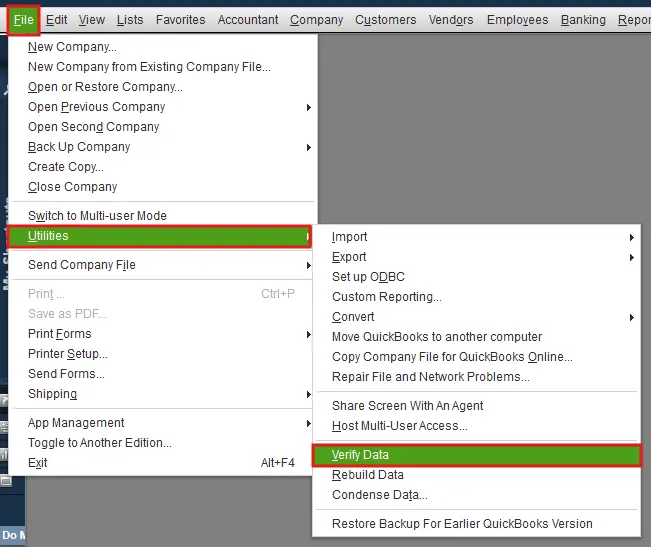
Intuit’s Verify and Rebuild tools are for checking and repairing company data. They should not be a default response to every web-related popup.
If the company file will not open and you receive a separate file or network error, our QuickBooks File Doctor guide explains when that tool may help.
Do not replace your current file with an older backup just to remove a script warning. That could leave recent work out of the restored file.
How Can You Confirm the Error Is Fixed?
Confirm that the original task works, not just that the popup has disappeared.
- Repeat the action that caused the error.
- Check that the task finishes.
- Close and reopen QuickBooks.
- Test the affected feature again.
- For a backup issue, check the backup result.
- Record any new message.
For example, if a payment page now opens but you still cannot complete the required action, the problem is not fully resolved.
What Should You Do if the Error Keeps Returning?
Stop repeating unrelated fixes and collect the details needed for a focused review.
Have these ready:
- QuickBooks product year and release.
- Windows version.
- Full error screenshot and URL.
- The action that triggers the error.
- Changes made before it started.
- Steps already tried.
- Whether other users are affected.
Use Intuit’s official support channels for product faults. If you need help reviewing your bookkeeping workflow or organizing the issue details, Accounts Confidant can discuss your needs.
Conclusion
To fix a QuickBooks script error, start with the full error message and your QuickBooks version. Choose the steps that match the problem, make one change at a time, and check whether the failed task now works. If the error returns, save the details for support. Avoid rebuilding your company file unless a data check shows that repair is needed.
Frequently Asked Questions
Why Does QuickBooks Show a Script Error When I Open It?
QuickBooks may load web-based content when it starts. If a script cannot run in the installed web component, a popup can appear before you begin work. Record the error URL and your QuickBooks release. Those details help separate a startup web-content problem from a wider program issue.
What Does QuickBooks Script Error Code 0 Mean?
Code 0 does not identify one clear cause or one repair. Read it with the error text, line number, character number, and URL. Also note what triggered the popup. Two users can see Code 0 while facing different script problems.
Should I Click Yes or No on the Script Error Message?
“Yes” asks the page to continue running scripts; “No” asks it to stop. Neither option repairs the cause. Save the message first. If you dismiss it, check whether the task completed before repeating a payment, submission, or other action that could be duplicated.
Why Am I Getting a Script Error When I Am Not Using a Browser?
QuickBooks Desktop can display web-based content inside the program. You do not need a separate browser window open for that content to load. The error may relate to this internal content rather than the browser you normally use to visit websites.
Can Changing My Default Browser Fix a QuickBooks Script Error?
Not necessarily; QuickBooks Desktop’s internal browser is different from your Windows default browser. Changing Chrome to Edge, or the reverse, may not affect the component showing the error. Check your Desktop release before following browser-switching advice.
Why Did the Error Start When I Changed Nothing?
A web page, remote script, security rule, or software component may have changed without a manual action from you. Note when the problem began and whether others see it. This helps narrow the cause, but the timing alone does not prove which update or service is responsible.
Can QuickBooks Tool Hub Fix Every Script Error?
No, Tool Hub can help with certain program, installation, file, and network problems. It cannot guarantee a repair for a broken remote web page or every browser-related issue. Choose the tool based on the symptoms rather than running all available tools.
Will a Script Error Delete My QuickBooks Data?
The popup alone does not show that data was deleted. However, check whether the action you were performing completed, especially when saving work or making a backup. If you also see missing records or a data warning, investigate that as a separate issue.
How Do I Fix a QuickBooks Script Error on Windows 11?
First, record your QuickBooks year, release, and full error message. Check that the product supports your setup and install any applicable release updates. Then follow the steps for the failed feature. Windows 11 by itself does not identify the cause, and older IE instructions may not apply.
What Does “Expected Identifier” Mean in a QuickBooks Script Error?
“Expected identifier” is a script syntax message. It means the script engine could not read part of the code as expected. It does not tell you that a customer name or company file field is missing. Save the full URL and error details so the affected script can be identified.


