Are you getting the “QuickBooks Migration Failed Unexpectedly” error while moving QuickBooks Desktop to a new computer? The error may appear while preparing the transfer, running the Migrator Tool, or installing QuickBooks on the new system.
One known cause is a compatibility issue between 64-bit QuickBooks files and a 32-bit Windows computer. Other possible causes include problems with the USB drive, an incomplete migration package, or a failed QuickBooks installation. The exact cause depends on where the transfer stops.
A failure of migration does not usually remove the original company files from your old computer. You can troubleshoot the transfer or use a backup to move your data manually.
This guide explains how to fix QuickBooks migration errors on Windows 11 and other compatible Windows systems, what to do when Move_QuickBooks.bat fails, and how to transfer your company file without the Migrator Tool.
What Does “QuickBooks Migration Failed Unexpectedly” Mean?
The error means the QuickBooks Desktop migration process stopped before the software or company files were fully transferred to the new computer.
The QuickBooks Desktop Migrator Tool helps eligible single-user installations move QuickBooks and up to three recently opened company files from one Windows computer to another.
It creates a migration package on a USB drive, which you then use to set up QuickBooks on the destination computer.
The failure can happen at several stages:
- On the old computer: The tool cannot finish preparing the migration package.
- During USB transfer: The files cannot be copied to or read from the USB drive.
- On the new computer: The migration batch file does not open or complete its process.
- During installation: QuickBooks Desktop cannot finish installing.
- After the transfer: The company file is missing or cannot be opened.
These situations do not necessarily have the same cause.
Why Does QuickBooks Migration Fail Unexpectedly?
The Migrator Tool depends on compatible software, a working transfer package, and a destination computer that can install QuickBooks.
Intuit specifically documents a failure involving 64-bit QuickBooks files and 32-bit Windows. Other problems may require checking the system, installation, or company file.
| Possible cause | What you may experience |
| Incompatible Windows architecture | Migration stops when a 64-bit QuickBooks package is used on a 32-bit system |
| Unsupported QuickBooks version | QuickBooks cannot install or run correctly on the new computer |
| USB storage problem | Windows cannot read the USB drive or the transfer package cannot be created |
| Incomplete migration package | The migration file is missing or does not launch correctly |
| Internet connection problem | QuickBooks setup cannot download the files it needs |
| Installation error | QuickBooks displays an installation error or stops during setup |
| Company-file problem | QuickBooks cannot open or verify the company file before or after transfer |
The last six entries are possible diagnostic areas, not confirmed explanations for every occurrence of this exact error message.
For example, if Move_QuickBooks.bat opens correctly but QuickBooks installation stops with Error 1603, the installation error should be investigated first. Repairing the company file would not directly address that problem.
What Should You Check Before Troubleshooting?
Before changing QuickBooks settings or repeating the migration, protect your company data and confirm the basic transfer requirements.
Make Sure Your Original Company File Is Safe
Open QuickBooks Desktop on the old computer and confirm that your company file is accessible.
If you have not created a recent backup, do so before attempting repairs. A manual backup is especially important if the next step involves reinstalling QuickBooks or changing its setup.
To create a backup:
- Open the company file in QuickBooks Desktop.
- Go to File > Switch to Single-user Mode, if the company file is in multi-user mode.
- Select File > Back Up Company > Create Local Backup.

- Choose Local Backup, then click Next.
- Select Browse and choose where to save the backup.
- Select Complete verification in the backup options, if available.
- Click OK, then select Save it now and Next.
- Follow the prompts until QuickBooks confirms that the backup is complete.
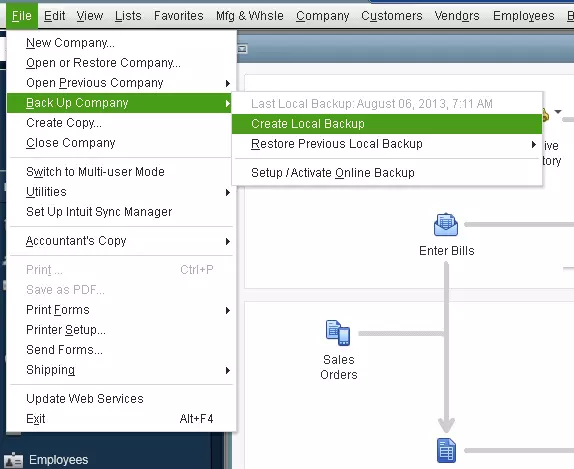
QuickBooks creates a backup file with the .QBB extension.
Keep a copy in a safe location separate from the USB drive being used for migration. Do not overwrite an older backup that you may need.
Intuit provides the complete procedure in its QuickBooks Desktop backup guide.
Confirm That You Have the Required Information
Before restarting the Migrator Tool, make sure you have:
- QuickBooks Desktop company administrator access.
- The QuickBooks product and license information.
- A USB drive with enough available space.
- A working internet connection on the new computer.
- A compatible QuickBooks Desktop version.
- Enough local storage to install QuickBooks and store the company files.
Intuit lists QuickBooks Desktop 2018 or newer for eligible Migrator Tool use. However, that does not mean every older release is compatible with Windows 11 or still eligible for support and activation.
You must check the requirements for your specific QuickBooks year and edition.
How to Fix QuickBooks Migration Failed Unexpectedly
Start with the solution that matches the point where your migration stopped. You do not need to perform every repair.
Solution 1: Check QuickBooks and Windows Compatibility
Use this solution if migration fails on the new computer, particularly after moving from an older Windows system.
Intuit states that 64-bit QuickBooks files must be migrated between compatible 64-bit systems. It specifically warns that a migration package containing files from 64-bit QuickBooks Desktop 2022 or 2023 may stop unexpectedly when used on 32-bit Windows.
First, identify the Windows architecture.
- Press Windows + I to open Settings.
- Select System > About.
- Find System type under Device specifications.
- Check whether the operating system is 32-bit or 64-bit.
Next, check the QuickBooks version on your old computer.
- Open QuickBooks Desktop.
- Press F2 or Ctrl + 1 to open the Product Information window.
- Note the QuickBooks product, year, release, and license information.
- Compare these details with Intuit’s system requirements.
For example, QuickBooks Desktop 2024 requires 64-bit Windows and a supported x86 processor.
What if the systems are incompatible?
Do not continue recreating the migration package. First, resolve the compatibility issue.
You may need a compatible destination computer or an available upgrade path for your QuickBooks installation.
A manual company-file transfer will not make an unsupported QuickBooks release work on the new computer.
Solution 2: Fix Move_QuickBooks.bat Not Working
Use this solution when the USB drive is recognized, but the Migrator Tool does not start on the new computer.
The file Move_QuickBooks.bat launches the migration process.
It does not open automatically when you insert the USB drive because of Windows security restrictions.
Follow these steps:
- Connect the migration USB drive to the new computer.
- Open File Explorer.
- Select the USB drive under This PC.
- Find Move_QuickBooks.bat.
- Double-click the file.
- If the Migrator Tool opens, enter your one-time migration password.
- Select Let’s go and follow the remaining prompts.
If the batch file does not open, check whether Windows has pending updates.
On Windows 11, go to Settings > Windows Update > Check for updates. Install the relevant updates and restart if required.
Intuit recommends checking Windows updates when the Migrator Tool fails to launch, although updating Windows does not guarantee a fix.
What if Move_QuickBooks.bat is missing?
Return to the old computer and create a new migration package using the Migrator Tool. The original package may not have been prepared correctly.
Do not download a replacement batch file from an unrelated website or bypass Windows security warnings for an unverified file.
Solution 3: Check the USB Drive and Recreate the Migration Package
Use this solution if the transfer stops while preparing files or if the USB drive cannot be read reliably.
The Migrator Tool uses external storage to carry its transfer package between computers.
Intuit estimates that many migrations require approximately 150–250 MB of USB space, but your actual requirement depends on the package. The tool displays the amount of storage needed.
Check the USB drive:
- Connect it to the old computer.
- Open File Explorer > This PC.
- Right-click the USB drive and select Properties.
- Review the available space.
- Check that Windows can open the drive and read its files.
If the drive disconnects frequently or cannot read ordinary files, use another reliable USB drive.
Do not format the original drive unless its contents have been safely preserved.
How to Create a New Migration Package
If the original company file and backup are safe, try creating the package again.
- Open QuickBooks Desktop on the old computer.
- Sign in with the company administrator account.
- Go to File > Utilities > Move QuickBooks to another computer.
- Select I’m Ready.
- Create a new one-time password.
- Choose the USB drive.
- Follow the prompts until QuickBooks finishes preparing the files.
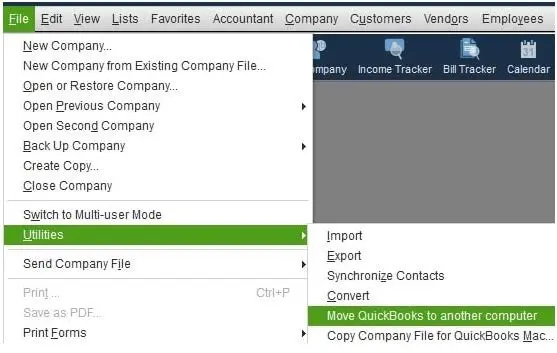
Move the USB drive to the new computer, open Move_QuickBooks.bat, and enter the new password.
The one-time migration password is different from your Windows password and is used for that migration attempt.
If the transfer fails again at the same point, record the exact error before retrying. Repeating the process without changing the cause is unlikely to help.
Solution 4: Repair QuickBooks Installation Problems
Use this solution when the Migrator Tool launches, but QuickBooks fails to install on the new computer.
A failed QuickBooks installation is different from an error opening a company file.
If you see an installation error such as 1603 or 1904, troubleshoot that error before trying another migration.
The QuickBooks Install Diagnostic Tool can help repair certain installation problems involving components used by QuickBooks Desktop.
To run it:
- Close QuickBooks Desktop.
- Download QuickBooks Tool Hub from Intuit’s official website.
- Install and open Tool Hub.
- Select Installation Issues.
- Click QuickBooks Install Diagnostic Tool.
- Allow the diagnostic process to finish.
- Restart the computer.
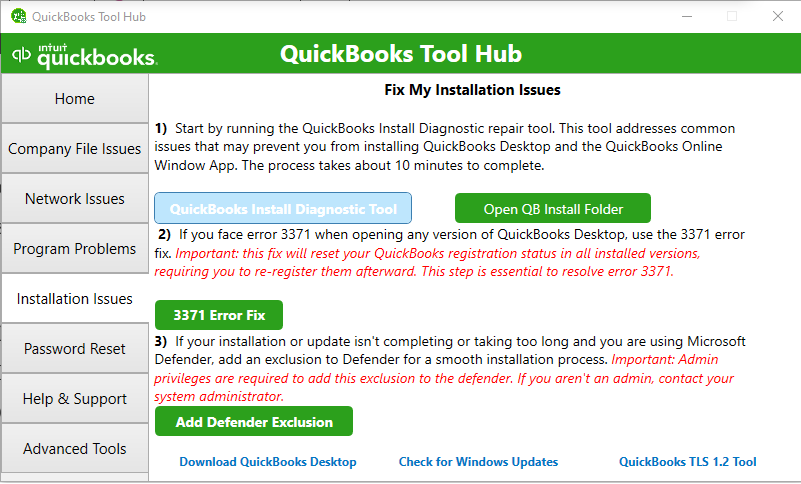
Intuit states that the diagnostic tool can take up to 20 minutes.
After restarting, check whether the QuickBooks installation can complete.
If the installation still fails, note the exact error code. The correct next step may involve the installer, Windows components, permissions, or an unsupported QuickBooks release.
The diagnostic tool is not a direct repair for damaged company files or incomplete migration packages.
Solution 5: Check Company-File Integrity If QuickBooks Cannot Open the File
Use this solution only if the company file also shows errors on the old computer or after restoration.
Company-file damage should not be assumed from the migration message alone.
If QuickBooks opens the original file normally, investigate the transfer process before attempting data repair.
If you receive file-integrity warnings or the company file behaves unexpectedly, use Verify Data.
- Open QuickBooks Desktop.
- Open the affected company file.
- Select Window > Close All.
- Go to File > Utilities > Verify Data.
- Wait for QuickBooks to complete the check.
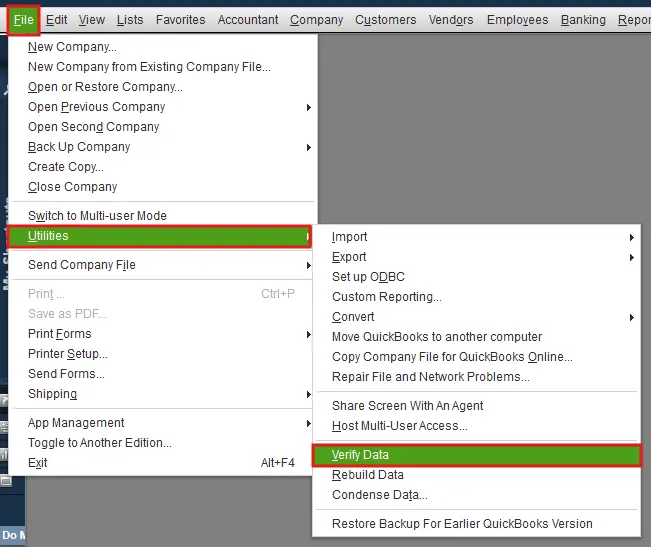
The result determines what to do next.
- No problems detected: Continue investigating the migration or installation.
- An error message appears: Follow the instructions for that specific error.
- Data has lost integrity: Create or confirm a current backup and follow Intuit’s Rebuild Data procedure.
If you use QuickBooks Desktop Assisted Payroll, Intuit advises contacting its support team before rebuilding your company file.
Do not rebuild a company file simply because Move_QuickBooks.bat failed to launch.
How to Fix QuickBooks Migration Failed Unexpectedly on Windows 11
Windows 11 migration problems should be checked against the system requirements for your specific QuickBooks Desktop release.
Windows 11 is a 64-bit operating system, so the documented problem of using a 64-bit QuickBooks migration package on 32-bit Windows does not apply to a normal Windows 11 installation.
However, compatibility problems can still prevent the migration from completing.
Check Your QuickBooks Release and Processor
For example, Intuit’s QuickBooks Desktop 2024 requirements specify:
| Requirement | QuickBooks Desktop 2024 |
| Operating system | Windows 11, 64-bit, installed natively |
| Processor architecture | x86 (Intel or AMD) |
| ARM processor | Not supported |
| Minimum RAM | 8 GB |
| Recommended RAM | 16 GB |
| QuickBooks installation space | 2.5 GB, plus additional space for company data |
These requirements are specific to QuickBooks Desktop 2024 and should not be assumed to apply to every other version.
They matter when moving QuickBooks to a new Windows 11 laptop, especially one with an ARM-based processor.
If the computer does not meet the requirements, running the Install Diagnostic Tool or recreating the USB package will not make the unsupported configuration compatible.
If the hardware and software are compatible, use the earlier solutions according to whether the failure occurs during batch-file launch, transfer, or installation.
How to Move QuickBooks Manually If the Migrator Tool Keeps Failing
If the Migrator Tool cannot complete the transfer, you can install QuickBooks Desktop separately and restore your company file from a local backup.
This method is useful when the automatic migration package repeatedly fails, but the original company file remains accessible.
Important: Manual backup and restore moves the company data. It does not automatically install QuickBooks or recreate every service and computer-specific setting.
Step 1: Prepare QuickBooks on the New Computer
Before transferring the data, confirm that you can install a compatible copy of QuickBooks Desktop.
- Identify the QuickBooks product, year, and edition on the old computer.
- Confirm that the destination computer meets its requirements.
- Locate the installation files from Intuit or an authorized source.
- Keep your license and product details available.
- Install QuickBooks Desktop on the new computer.
- Complete registration or activation if required.
Intuit’s manual move instructions treat the program installation and company-file transfer as separate tasks.
Moving a company file does not itself change the product license. However, installing or registering QuickBooks on another computer may be subject to your license terms and current activation availability.
Do not remove a working installation from your old computer before confirming that the required version can be installed and activated on the destination system.
Step 2: Copy Your Company Backup to the New Computer
Use the .QBB backup created earlier.
- Connect a USB drive or another approved storage device to the old computer.
- Copy the .QBB file to the device.
- Safely disconnect the device.
- Connect it to the new computer.
- Copy the backup into a local folder.
For example, you might store it in:
C:\QB_Migration_Backup
The folder name is only an example; you can choose another safe location.
Do not restore the file directly from the USB drive. Intuit instructs users to copy externally stored backups to the local hard drive before restoring them.
Step 3: Restore the Company File in QuickBooks
On the new computer:
- Open QuickBooks Desktop.
- Go to File > Open or Restore Company.
- Select Restore a backup copy, then Next.
- Choose Local Backup and click Next.
- Browse to your .QBB backup file.
- Choose where to save the restored company file.
- Enter a unique file name if necessary.
- Click Save.
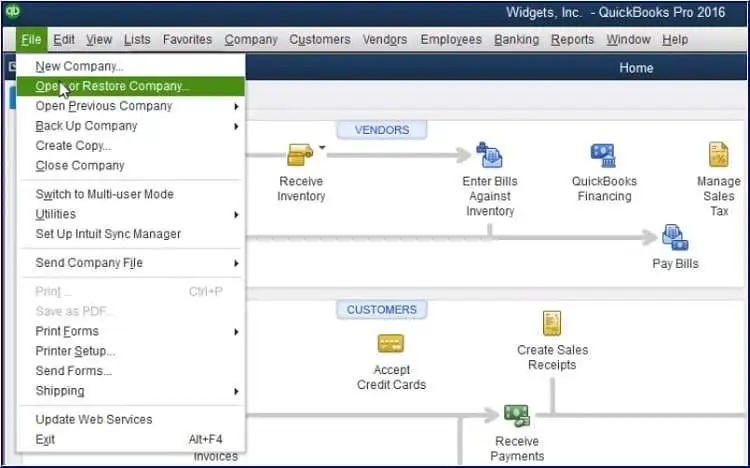
QuickBooks restores the backup as a working company file with the .QBW extension.
For example:
- Backup file: ABC_Company_Oct28_2026.qbb
- Restored company file: ABC_Company_Restored.qbw
Using a distinct name helps prevent accidental overwriting.
If QuickBooks warns that the destination already contains a company file with the same name, do not overwrite it unless you have confirmed which version you intend to replace.
Step 4: Preserve Saved Payroll Forms Separately
If you use QuickBooks Desktop Payroll, check your saved payroll forms before retiring the old computer.
Intuit explains that a standard QuickBooks company backup does not automatically back up saved payroll tax forms.
To preserve them:
- Open File Explorer on the old computer.
- Locate the folder named [Company Name] Tax Forms.
- Copy the entire folder to a safe location.
- Transfer it to the new computer.
- Keep a separate copy until you verify that the forms are accessible.
Intuit’s payroll-form backup instructions describe placing the saved Tax Forms folder alongside the restored company file when transferring those records.
Depending on your payroll setup, you may also need to save forms as PDFs and reconnect the payroll service on the new computer.
Step 5: Open the Restored File and Check Your Data
Once restoration finishes, sign in to the company file and review the information.
For example, if you entered supplier bills and customer payments on October 27, check whether those transactions appear in the restored file.
Compare key reports from both computers using the same report dates and accounting basis.
If balances or transactions differ, do not begin working in the restored copy until you understand the difference.
You can follow Intuit’s official company-file moving instructions for more detail on the manual transfer process.
What Should You Check After QuickBooks Migration?
Before treating the move as complete, verify the company data and any settings that may require separate configuration.
Confirm the Right Company File Is Open
Check the company name and file location, then compare information from the old and new computers.
Pay particular attention to:
- Recent invoices, bills, and payments.
- Bank and credit card balances.
- Customer and supplier records.
- Balance Sheet and Profit and Loss reports.
- Any company files not included in the migration package.
The Migrator Tool transfers up to three recently opened company files. Other company files may need separate transfer.
Reconnect Payroll, Banking, and Payment Services
Intuit states that the Migrator Tool does not copy payroll and payment-service setup information.
You may need to sign in to those services again.
If you use QuickBooks Desktop Payroll, download the latest payroll tax table available to your supported product and active payroll subscription, where applicable.
Check that the required payroll forms and records are present before processing payroll.
Restore Multi-User and Backup Settings
The Migrator Tool does not automatically transfer multi-user configurations or Intuit Data Protect.
If your company file is shared on a network, review the hosting setup and permissions on the new computer or server.
If you use scheduled backups or Intuit Data Protect, set up the required backup configuration again and confirm that it points to the correct company file.
Check Supporting Files and Templates
Intuit’s Migrator Tool documentation lists several related items that it can copy, including local attachments, custom templates, and memorized reports.
Nevertheless, verify the files you need after migration.
Manual company-file restoration may require separate steps for certain supporting files or application components.
Create a New Backup Before Regular Use
Once you have confirmed that the restored company file is correct, create a new backup on the destination computer.
Keep the original company file available until the migration has been fully checked.
Avoid entering new transactions in both the old and new copies. Otherwise, the company files may develop different transaction histories.
What If QuickBooks Migration Still Fails?
If the migration continues to fail after the relevant checks, identify whether the problem is with installation, the transfer package, or the company file.
Record the following details:
- QuickBooks Desktop product, edition, and year.
- Windows version and processor type on both computers.
- Exact error message or code.
- Whether the failure occurs on the old or new computer.
- Whether Move_QuickBooks.bat opens.
- Whether the original company file opens normally.
- Whether a current .QBB backup is available.
For example, a migration that stops before the password screen may need a different investigation from one that reaches QuickBooks installation and displays Error 1603.
If the old computer is damaged, the company file cannot be opened, or the backup cannot be restored, avoid performing repeated repairs on the only available copy.
Get assistance with the specific installation or company-file problem before continuing.
Conclusion
If QuickBooks migration failed unexpectedly, use the stage of failure to choose the repair. Check compatibility when the new computer cannot support the installation, investigate the USB package when Move_QuickBooks.bat fails, and use installation-specific tools when setup stops with an error.
If the Migrator Tool remains unsuccessful, you can install a compatible QuickBooks Desktop version and restore a current company backup manually.
Keep the original company file and saved payroll records until you have verified the restored data and completed the required setup.
Frequently Asked Questions
Why does QuickBooks migration fail after entering the one-time password?
A failure after entering the password does not always mean the password is incorrect. The Migrator Tool may have encountered a problem while processing the transfer package or preparing the installation. Confirm the password, check where the process stops, and investigate the USB package or installation as needed.
Does QuickBooks Migration Failed Unexpectedly mean my data is lost?
No, Intuit states that the Migrator Tool leaves the original QuickBooks files on the old computer. A failed migration does not normally delete them. However, you should verify that the original file opens and keep a separate backup before retrying.
Can I migrate QuickBooks Desktop without using the Migrator Tool?
Yes, install a compatible, properly licensed QuickBooks Desktop version on the destination computer, create a .QBB backup on the old computer, and restore it on the new one. Program settings and connected services may need separate configuration.
Why is Move_QuickBooks.bat not opening on Windows 11?
The migration package may be incomplete, Windows may be preventing execution, or the system may need further updates or installation checks. First, confirm that the file came from the Migrator Tool on the old computer. If it is missing or cannot be verified, create a new migration package rather than downloading a replacement file.
Can I transfer 64-bit QuickBooks files to a 32-bit computer?
Intuit states that 64-bit QuickBooks files must be migrated between compatible 64-bit systems. In particular, it documents unexpected Migrator Tool failures involving 64-bit QuickBooks Desktop 2022 or 2023 files on 32-bit Windows.
Will QuickBooks migration transfer my payroll data?
The company file can contain payroll-related records, but saved payroll tax forms and service setup require separate attention. A regular .QBB backup does not automatically include saved payroll forms. You may also need to sign in to the payroll service and update the available tax table after migration.
Why is my company file missing after QuickBooks migration?
The Migrator Tool transfers up to three recently opened company files, which can include sample files. If the file you need was not included, locate it on the old computer and move it separately using a backup. Do not assume that a successful migration transferred every company file.
Can QuickBooks File Doctor fix a failed migration?
QuickBooks File Doctor may help with certain company-file and network problems, but it is not a general repair for the Migrator Tool. It should be considered when the company file itself cannot be opened or shows related errors, rather than when a USB package or QuickBooks installation fails.
Should I uninstall QuickBooks from my old computer after migration?
Do not uninstall it until the destination computer is working, the company data has been checked, and the required files and services are available. Once the migration is complete, review the applicable license and installation requirements before retiring the old setup.
How can I confirm that the QuickBooks migration was successful?
Open the company file on the new computer and compare recent transactions, balances, and key reports with the original. Check payroll forms, attachments, additional company files, and connected services. Finally, create a new backup of the verified company file.
