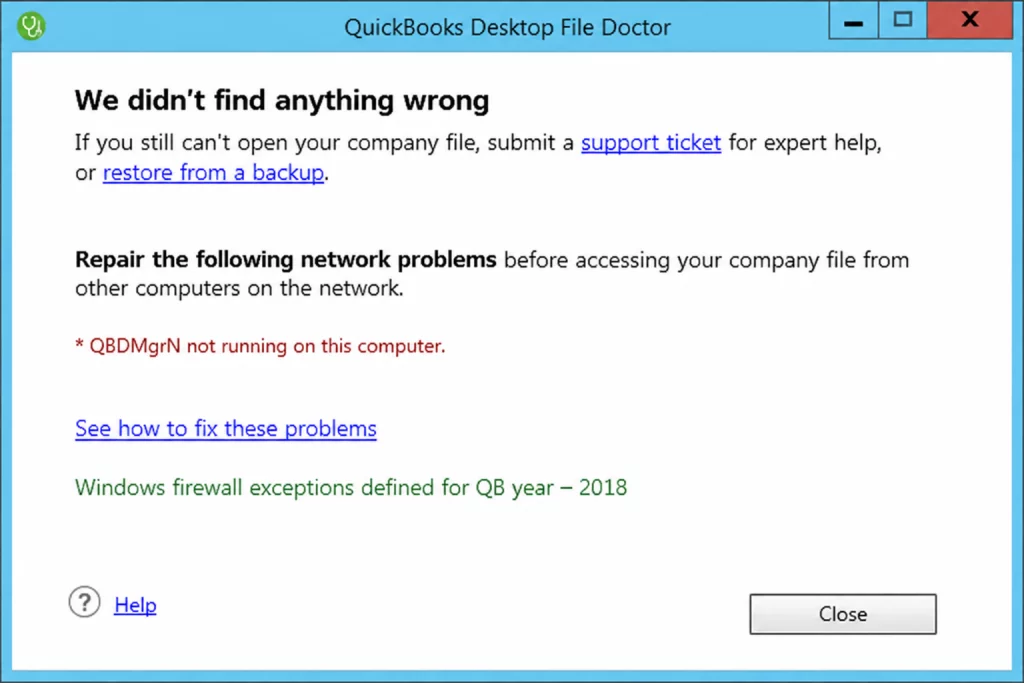
“QBDBMgrN not running on this computer” means one specific thing. The Windows service that hosts your QuickBooks company file over the network is stopped, blocked, or unreachable from the machine that showed you the message. Nothing is wrong with your data. The file is fine. A background service is not answering.
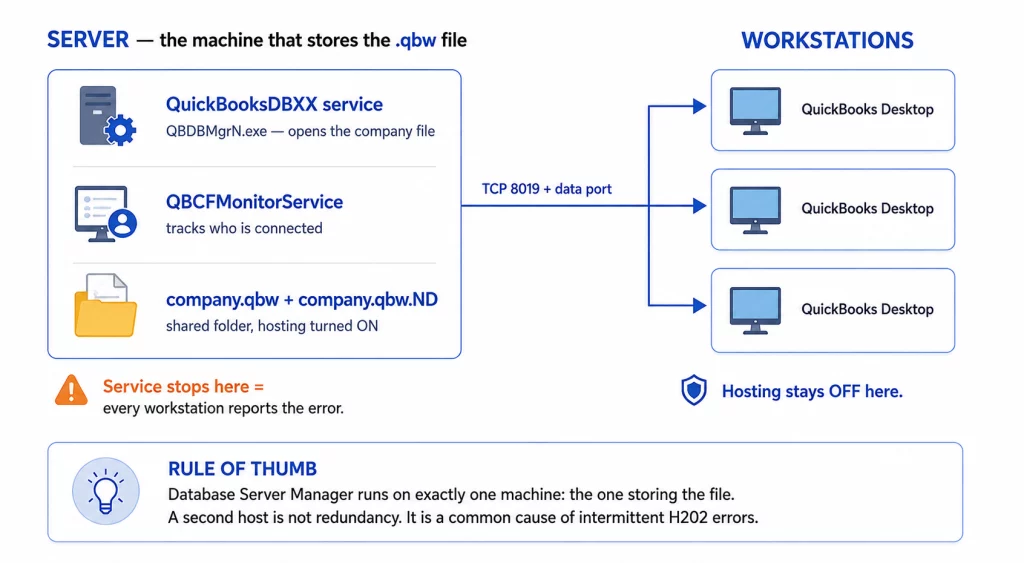
That distinction matters because it decides where you spend the next twenty minutes. Most people start by reinstalling QuickBooks on the workstation that threw the error, which is almost always the wrong machine. The service in question QBDBMgrN.exe, registered in Windows as QuickBooksDBXX only runs on the computer that stores the .qbw file. If it is down there, every workstation in the office drops out of multi-user mode at once, and every one of them can display this message.
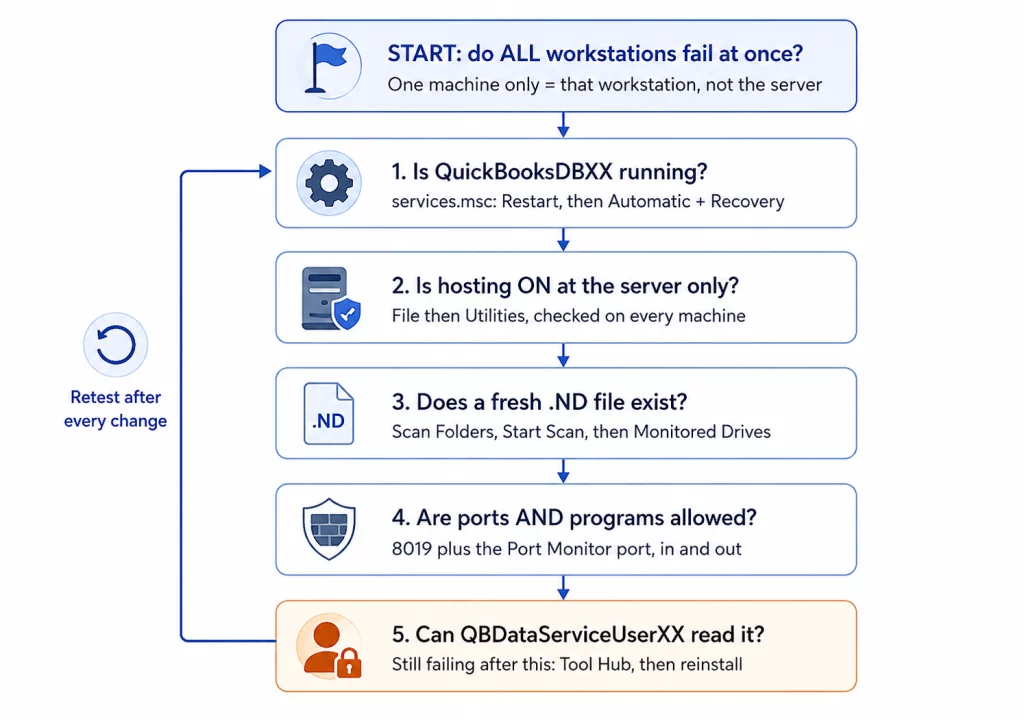
This guide works through the failure in the order the components actually depend on each other: service state, hosting mode, the network data file, the firewall, then permissions. Each step tells you how to confirm it worked before you move on. You are never left guessing whether the last change did anything.
Key Takeaways
- QBDBMgrN.exe is the executable behind the Windows service QuickBooksDBXX, where XX is the release year minus 1990 QuickBooks Desktop 2025 registers QuickBooksDB35.
- The service only needs to run on the server (the machine holding the company file), not on every workstation.
- Restarting the service fixes the symptom; it comes back unless you also fix the cause, usually a firewall rule, a reset startup type after a Windows update, or a broken .ND file.
- Windows 10 reached end of support on October 14, 2025, and you can enroll a Windows 10 device in Microsoft’s consumer Extended Security Updates program any time until the program ends on October 12, 2027. A server still on Windows 10 is worth checking whenever this error follows an update.
- You can keep working in single-user mode on the server itself while you troubleshoot. Multi-user is what is broken, not the file.
Table of Contents
What the QBDBMgrN Not Running on This Computer error actually means
QuickBooks Desktop in multi-user mode is a client–server application wearing a desktop application’s clothes. The company file is not opened directly over a network share by each workstation. Instead, a database service on the host machine opens the file and brokers every read and write. QBDBMgrN.exe is that service’s executable, and it must be running on the host even when nobody has QuickBooks open there
So the message is a connection report, not a diagnosis. The workstation tried to reach the database service for the company file it was told to open, and got nothing back. Six different root causes produce the identical sentence.
Is QBDBMgrN the same as QuickBooks Database Server Manager?
Effectively yes, at different layers of the same product. QuickBooks Database Server Manager is the name of the tool and its user interface. QBDBMgrN.exe is the executable that runs as a background Windows service. QuickBooksDBXX is the name that service is registered under in services.msc.
| You see this name | Where you see it | What it is |
| QuickBooks Database Server Manager | Start menu, Tool Hub | The application and its Scan Folders / Monitored Drives interface |
| QBServerUtilityMgr.exe | Task Manager | The Database Server Manager window you interact with |
| QBDBMgrN.exe | Task Manager, firewall rules | The background database engine — the thing that must keep running |
| QuickBooksDBXX | services.msc | The Windows service registration for QBDBMgrN.exe |
| QBDataServiceUserXX | Local Users and Groups | The Windows account the service runs as |
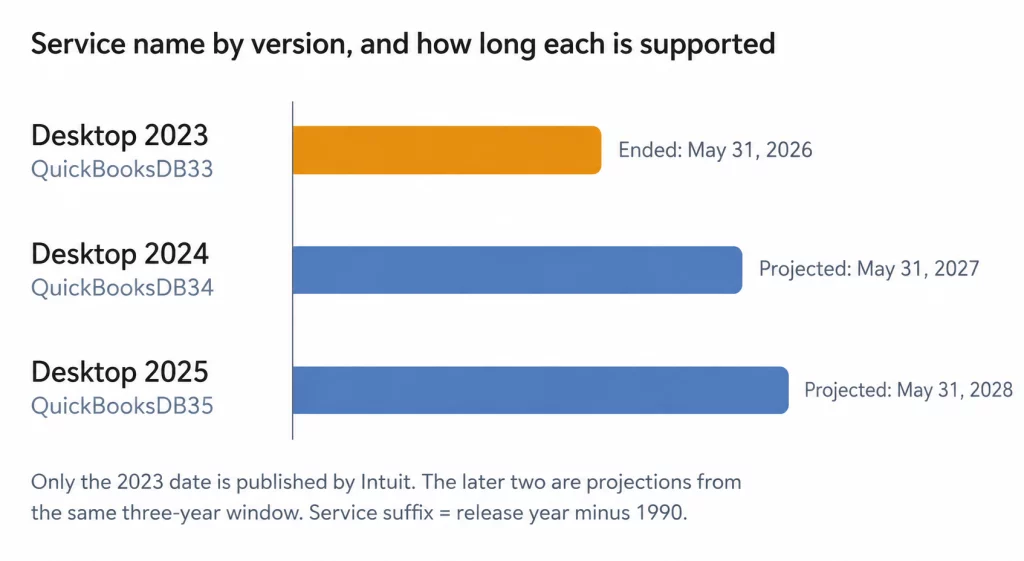
The XX suffix is the release year minus 1990. QuickBooks Desktop 2023 registers QuickBooksDB33, 2024 registers QuickBooksDB34, 2025 registers QuickBooksDB35. Each installed year version gets its own service and its own QBDataServiceUserXX account, which is why a server that has hosted three upgrades in a row shows three QuickBooks services in the list. That is normal. Only the one matching the version that created your company file needs to be running.
Why QuickBooks says QBDBMgrN is not running
Six causes cover the cases this guide addresses. They are ordered by how cheap each one is to rule out, not by how often it occurs.
| Cause | Symptom | Fix |
| Service stopped or set to Manual | services.msc shows the service blank or “Stopped” | Fix 1 |
| Hosting off on the server, or on at a workstation | File menu offers “Host Multi-User Access” on the server | Fix 2 |
| Missing or stale .ND file | Error appears for one company file only | Fix 3 |
| Firewall or antivirus blocking the ports | Works on the server, fails from every workstation | Fix 4 |
| QBDataServiceUserXX lost folder permissions | Service starts, then stops within seconds | Fix 5 |
| Damaged Database Server Manager install | Service missing entirely from services.msc | Fix 6 |
Two of these, hosting configuration and a stale .ND file also produce the H-series errors (H101, H202, H303, H505) that QuickBooks shows when it can find the file but cannot reach its host. If you are seeing both messages on different machines, treat them as one incident, not two. A 6000-series error is a different failure: that one means QuickBooks reached the file and could not open it.
Five-minute triage before you change anything
Do this before you touch a setting. It takes five minutes and it decides which of the seven fixes below you actually need.
- Identify the server. The server is whichever machine stores the .qbw file, not necessarily a rack-mounted box, and frequently the office manager’s desktop. Open the company file on any working workstation and press F2. The File Information panel shows the full network path. The machine name in that path is your server.
- Note the exact QuickBooks year. The same F2 panel shows the product year and release. You need the year to know which QuickBooksDBXX service to look for.
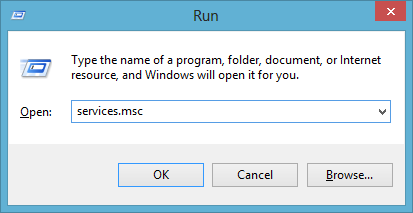
- Check the service state on the server. Press Windows + R, type services.msc, press Enter, and scroll to the QuickBooks entries. Note the Status and Startup Type columns for the service matching your year.
- Check whether it is one machine or all of them. If one workstation fails and the others are fine, the problem is on that workstation or in that one machine’s network path. If every workstation fails at once, the problem is on the server. This single observation eliminates about half the guide.
What “working” looks like: on a healthy server, QuickBooksDBXX shows Status “Running” and Startup Type “Automatic”, QBCFMonitorService shows “Running”, and QBDBMgrN.exe appears in Task Manager under Details even with QuickBooks closed.
Fix 1: Restart the QuickBooksDBXX service
By the end of this step you will have the database service running and configured to start itself after a reboot. This resolves the immediate outage in most cases; the later fixes stop it from recurring.
Before you start: Fixes 1, 4, 5, and 7 all require local administrator rights on the server. If Windows returns “Access is denied”, or a menu option does nothing when you click it, you are not signed in as an administrator — sign in with an admin account or ask whoever set the machine up. Also ask anyone still working in the company file to close it first: restarting this service disconnects every open multi-user session, and unsaved work in an open transaction window can be lost.
On the server:
- Press Windows + R, type services.msc, press Enter.

- Scroll to QuickBooksDBXX — match XX to your year (2025 → QuickBooksDB35).
- Right-click it and select Restart. If Restart is greyed out, the service is already stopped, select Start instead. If you get “Access is denied”, you do not have administrator rights on this machine; see the note above.
- Right-click again, select Properties, and set Startup type to Automatic.
- Switch to the Recovery tab and set First failure, Second failure, and Subsequent failures all to Restart the Service.
- Click Apply, then OK.
- Repeat steps 3 to 6 for QBCFMonitorService.
Verification: the Status column reads “Running”. Open Task Manager, go to the Details tab, and confirm QBDBMgrN.exe is listed. Then try multi-user login from a workstation.
That Recovery tab is the step most guides skip, and it is the difference between a fix and a patch. Windows will restart a crashed service on its own if you tell it to, which converts a Monday-morning outage into a five-second hiccup nobody notices.
If the service starts and then stops again within a few seconds, do not repeat this step Intuit documents that pattern separately, and it points at account permissions rather than service configuration. Jump to Fix 5.
Fix 2: Confirm hosting is on the server only
By the end of this step exactly one machine on the network will be hosting. More than one host is a frequent cause of an error that keeps coming back after a service restart.
On the server:
- Open QuickBooks Desktop and go to File → Utilities.
- If you see Host Multi-User Access, hosting is currently off. Click it to turn it on.
- If you see Stop Hosting Multi-User Access, hosting is already on. Leave it alone.
On every workstation:
- Open QuickBooks Desktop and go to File → Utilities.
- If you see Stop Hosting Multi-User Access, click it. That machine is wrongly acting as a host.
- If you see Host Multi-User Access, hosting is off there, which is correct. Do not click it.
Verification: exactly one machine offers “Stop Hosting Multi-User Access”. Every other machine offers “Host Multi-User Access”.
The wording is genuinely confusing — the menu shows the action available, not the current state. I have watched competent people turn hosting on across an entire office because the menu appeared to be telling them hosting was off everywhere. Read it as a button, not a status light.
Fix 3: Rescan the folder to rebuild the .ND file
By the end of this step the network descriptor file that points workstations at the host will be regenerated. Every company file has a companion .ND file MyCompany.qbw.ND, that stores which machine hosts it and how to reach it. It is a configuration file, not data; deleting it costs you nothing, because Database Server Manager rebuilds it.
On the server:
- Open the Start menu, type Database, and open QuickBooks Database Server Manager.
- Go to the Scan Folders tab.
- Click Browse, select the folder holding your company files, and click OK.
- Click Start Scan.
- When the scan finishes, the folder appears under QuickBooks company files found.
- Open the Monitored Drives tab and tick the drive that holds those folders.
Verification: the scan results list your .qbw file by name, and the folder now contains a fresh .qbw.ND file with today’s timestamp.
Ticking the drive in Monitored Drives is what stops this from becoming a recurring chore. Once a drive is monitored, moving or renaming company files inside it no longer requires a manual rescan.
If the scan reports the folder but no company files, the service account cannot read the folder, that is Fix 5, not a scanning problem.
Fix 4: Open the firewall ports and program exceptions
By the end of this step Windows Defender Firewall will allow both the QuickBooks ports and the QuickBooks executables through on the server. This is the fix when QuickBooks opens fine on the server itself but every workstation reports the error.
QuickBooks needs both port rules and program exceptions. Doing only one of the two is a common half-fix.
Ports by version
| QuickBooks Desktop version | TCP ports to allow |
| 2019 and later | 8019, plus the dynamically assigned port shown in Port Monitor |
| 2018 and earlier | 8019, plus the fixed port range for that year |
From 2019 onward Intuit moved to dynamic port assignment, so there is no fixed range to memorize. Older releases use a fixed range that differs per year. Either way, do not work from a number you found in a forum post, open QuickBooks Database Server Manager on the server, go to the Port Monitor tab, and read the port your installation is actually using. Intuit’s firewall article lists the per-year values if you want to cross-check.
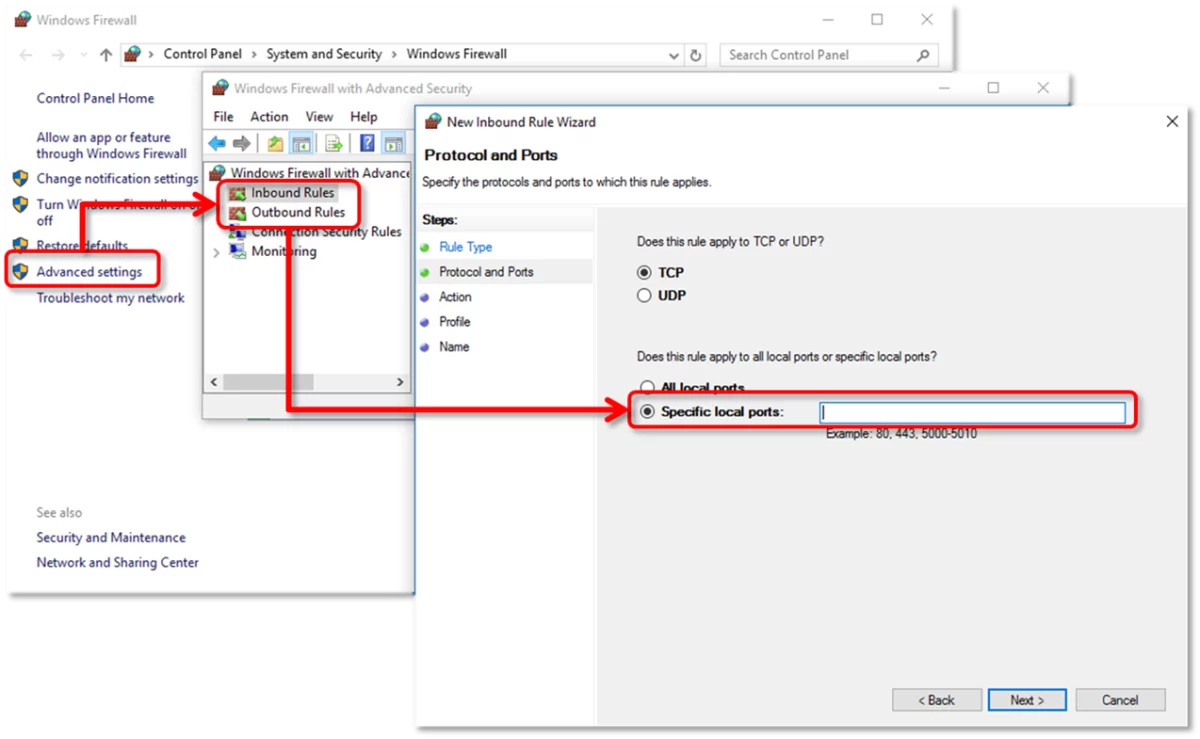
To create the rules:
- Open the Start menu, type Windows Firewall, and open Windows Defender Firewall with Advanced Security.
- Right-click Inbound Rules → New Rule → Port → TCP.
- Enter your ports in Specific local ports — 8019 plus the port from Port Monitor — then click Next.
- Select Allow the connection, tick Domain, Private, and Public, and name the rule something you will recognize, such as QBPorts(year).
- Repeat the whole sequence for Outbound Rules.
Program exceptions
Create a Program rule for each QuickBooks executable, most of which live in C:\Program Files\Intuit\QUICKBOOKS 20XX\:
- QBDBMgrN.exe — the database service itself
- QBCFMonitorService.exe — the connection monitor
- QBW32.exe (QBW.exe on 64-bit releases) — the QuickBooks application
- QBServerUtilityMgr.exe — the Database Server Manager window
- DBManagerExe.exe, QBLaunch.exe, QBUpdate.exe, AutoBackupExe.exe, FileManagement.exe, FileMovementExe.exe
Verification: from a workstation command prompt, run ping <servername> and confirm replies, then attempt multi-user login.
Third-party antivirus and endpoint security suites enforce their own firewall independently of Windows. If Windows rules are correct and the error persists, temporarily disable the third-party product’s firewall module and retest. If that fixes it, add the same exceptions there and re-enable it, do not leave it off.
Fix 5: Repair QBDataServiceUserXX permissions
By the end of this step the Windows account that runs the database service will have full access to the company file folder. This is the fix for the specific pattern where the service starts and stops within seconds, and for scans that find the folder but not the files.
The service does not run as you. It runs as a dedicated local account, QBDataServiceUserXX, created during installation. When that account loses read/write access to the shared folder after a drive migration, a permissions cleanup, a domain change, or a restore from backup, the service starts, fails its first file operation, and exits.
On the server:
- Open File Explorer, right-click the folder containing your company files, and select Properties.
- Go to the Security tab and click Edit.
- If QBDataServiceUserXX is not listed, click Add, type the account name, and click Check Names.
- Select the account and tick Full control under Allow.
- Click Apply, then OK.
- Repeat for every folder in the path that contains company files, including any subfolders.
- Restart the QuickBooksDBXX service.
Verification: the service stays in the “Running” state for more than a minute, and a fresh folder scan in Database Server Manager lists your company files.
Two details worth knowing here. First, if the folder is on a NAS or a non-Windows file server, this local-account approach does not apply. The share permissions on the NAS itself have to grant access instead, and some consumer NAS devices cannot host QuickBooks company files at all. Second, if you have upgraded across several years, grant the permission to the QBDataServiceUserXX account matching the version you are actually running. It is not always the highest number in the list.
Fix 6: Run QuickBooks Tool Hub
By the end of this step Intuit’s own diagnostics will have repaired the network configuration and the installation, if either is the cause. Tool Hub bundles the utilities that used to ship as separate downloads.
- Download QuickBooks Tool Hub from Intuit’s support site and install it on the server. Version numbers change; always take the current build directly from Intuit rather than a mirror.
- Open Tool Hub and select Company File Issues → Run QuickBooks File Doctor.
- Choose your company file, select Check your file and network, and enter the QuickBooks admin password.
- Let it finish without interrupting it. Run time scales with company file size, so a large file can take a while.
- If the error persists, return to Tool Hub and run Installation Issues → QuickBooks Install Diagnostic Tool.
- Restart the server after either tool completes.
Verification: File Doctor reports the network test passed, and multi-user login succeeds from a workstation.
Run Tool Hub after the manual checks above rather than before. File Doctor is good at repairing what it understands: hosting flags, .ND files, service registration. It cannot see a third-party firewall rule or a NAS permission. A clean File Doctor result on a still-broken network is what sends people down the reinstall path unnecessarily.
Fix 7: Repair or reinstall Database Server Manager
By the end of this step the Database Server Manager installation will be rebuilt from scratch. Reserve this for when QuickBooksDBXX does not appear in services.msc at all, or when everything above has been verified and the service still refuses to stay up.
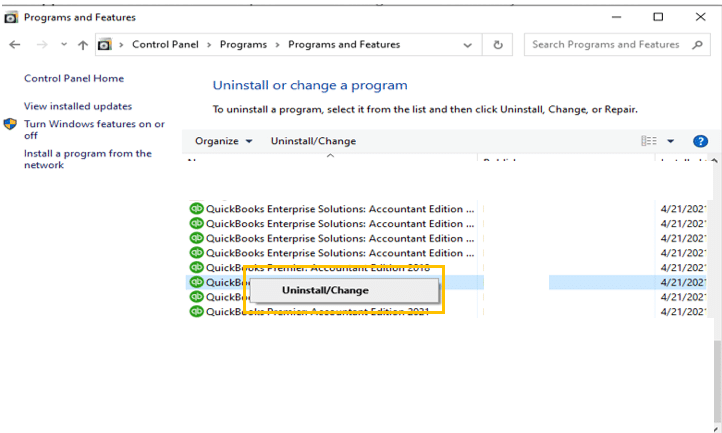
- On the server, open Control Panel → Programs and Features.
- Select your QuickBooks version and click Uninstall/Change → Repair. Let it complete and reboot.
- If the repair does not restore the service, reinstall: back up the company file first, uninstall QuickBooks, then reinstall using the Custom and Network Options installation type.
- When the installer asks, choose I’ll be using QuickBooks Desktop on this computer, AND I’ll be storing our company file here if the server also runs QuickBooks, or the database-server-only option if it does not.
- After installation, rescan folders as in Fix 3.
Verification: QuickBooksDBXX appears in services.msc with Startup Type “Automatic” and Status “Running”.
Choosing the wrong installation type is how servers end up without a database service in the first place. The default “Express” install does not configure the machine as a host, so an in-place upgrade done in a hurry can leave a server running QuickBooks perfectly for the person sitting at it while serving nothing to anyone else.
Why it broke right after a Windows update
Windows updates break this in three specific ways, and each one has a different fingerprint.
Service startup type reset. A feature update can leave QuickBooksDBXX set to Manual instead of Automatic. Everything works until the next reboot, then nothing does. Fingerprint: the service starts fine when you start it by hand.
Firewall profile flip. After an update — or after a router or NIC change — Windows can reclassify the network from Private to Public and apply a stricter rule set. Fingerprint: QuickBooks works on the server, fails from every workstation, and the firewall rules look present but are scoped to the wrong profile.
Permission and account changes. Updates that touch the security stack can disturb local account rights, which lands you in Fix 5. Fingerprint: the service starts, then stops within seconds.
Underneath all three is a version question worth answering honestly. Windows 10 reached end of support on October 14, 2025. Microsoft’s consumer Extended Security Updates program is open for enrollment until it ends on October 12, 2027, and commercial and education customers can buy a maximum of three years of ESU coverage. Either way, ESU delivers security updates only: no new features, no non-security fixes, and no general technical support.
QuickBooks Desktop has a parallel clock. Intuit runs a rolling three-year support window, and QuickBooks Desktop 2023 — including Pro Plus, Premier Plus, Mac Plus, and Enterprise 23.0 — reached end of service on May 31, 2026. Discontinued versions keep opening your file; what stops is payroll, bank feeds, payments, live support, and security updates. If yours has passed that date, the practical choices are upgrading the Desktop version or migrating to QuickBooks Online.
Case Study: A Recurring QBDBMgrN Outage That Turned Out to Be Three Problems, Not One
Jeffrey Johnson works on QuickBooks Desktop network deployments and multi-user troubleshooting for small and mid-sized businesses, with a focus on Windows Server and peer-to-peer office networks. The following is a composite of a typical engagement, following the same diagnostic order — drawn from field practice and Intuit’s published documentation — used throughout this guide.
A 14-person office running QuickBooks Desktop 2024 hit “QBDBMgrN not running” on every workstation at once after a Windows update. Two prior attempts — reinstalling QuickBooks on the affected PCs, hadn’t touched the actual host and only “fixed” it for a day.
Triage showed the failure was server-side. On the host, QuickBooksDB34 was stopped with its Startup Type reverted to Manual. Restarting it brought multi-user access back, but two more issues surfaced: a second machine was still set to host (from an earlier hardware swap), and the update had flipped the host’s network profile to Public, blocking QuickBooks through the firewall.
Fixing the service alone would have looked complete for a day, then failed again. Correcting hosting, rebuilding the .ND file, and scoping firewall rules to all network profiles is what made the fix hold.
QBDBMgrN vs QBCFMonitorService
Both must run on the server, and their error messages look interchangeable, but they do different jobs. Knowing which one is down tells you where to look.
| QBDBMgrN | QBCFMonitorService | |
| Full name | QuickBooks Database Manager (network) | QuickBooks Company File Monitor Service |
| Registered as | QuickBooksDBXX | QBCFMonitorService |
| Job | Opens the company file and brokers all reads and writes | Tracks which users and machines are connected to the file |
| Runs on | Server only | Server and workstations |
| Symptom when stopped | “QBDBMgrN not running on this computer”; multi-user unavailable | Users cannot join or leave cleanly; stale user locks; H-series errors |
| Depends on the other? | No, it can run alone | Effectively yes, it monitors what QBDBMgrN hosts |
If QBDBMgrN is running and multi-user still fails, QBCFMonitorService is the next thing to restart. The reverse is not true: starting the monitor service without the database service accomplishes nothing.
How to stop “QuickBooks Database Server Manager not running on this computer” coming back
A fix that survives the next reboot has five properties. Confirm each one before you close the ticket:
- QuickBooksDBXX and QBCFMonitorService are both set to Automatic with Recovery → Restart the Service on all three failure entries.
- Hosting is on at exactly one machine, and you have physically checked the File → Utilities menu on each workstation.
- The drive holding company files is ticked in Monitored Drives, so file moves do not require a rescan.
- Firewall rules exist inbound and outbound, for both ports and programs, scoped to Domain, Private, and Public.
- QBDataServiceUserXX has Full control on every folder in the company file path.
Two settings are commonly missing on a network that keeps failing: the Recovery tab settings and the outbound firewall rules. Neither is dramatic. Both convert an intermittent, unexplained outage into a network that simply stays up.
Where to go next
If multi-user is running again, spend ten more minutes on the five durability checks above; that is what keeps the fix. If it is still down, the next place to look depends on what you saw: a service that starts and stops points at permissions, and a server that works locally while every workstation fails points at the firewall.
Still stuck? Tell us what the service does when you start it manually — stays running, stops immediately, or is missing from the list. That one detail narrows it to a single fix, and it is the first thing any competent technician will ask you.
Frequently Asked Questions
QuickBooks says Database Server Manager is not running on this computer – how do I fix it?
Go to the machine that stores the company file, open services.msc, restart the QuickBooksDBXX service matching your QuickBooks year, and set its Startup Type to Automatic. That resolves the immediate outage in most cases. Then work through hosting configuration, the .ND file, and firewall rules so it does not return, using Fix 2 through Fix 4 above.
Why does QuickBooks say QBDBMgrN is not running?
Because the workstation could not reach the database service on the host machine. The six causes, in the order this guide checks them: the service is stopped or set to Manual, hosting is misconfigured, the .ND file is missing or stale, a firewall is blocking the ports, the QBDataServiceUserXX account lost folder permissions, or the Database Server Manager installation is damaged.
Is QBDBMgrN the same thing as QuickBooks Database Server Manager?
They are two layers of the same product. Database Server Manager is the application and its interface; QBDBMgrN.exe is the background executable that does the actual database hosting, registered in Windows as the service QuickBooksDBXX. When an error message says QBDBMgrN, it is talking about the service, not the window.
How do I restart the QuickBooks Database Server Manager service?
Press Windows + R, type services.msc, press Enter, find QuickBooksDBXX (2025 → QuickBooksDB35), right-click it and select Restart. Do this on the server, not on a workstation. While the Properties dialog is open, set Startup Type to Automatic and configure the Recovery tab to restart the service on failure.
QuickBooks Database Server Manager is not running only on the server – why?
That is the normal and correct configuration. The service is designed to run on the machine hosting the company file, and only there. If you are seeing the message at the server, the service has stopped on the machine it is supposed to be running on — start with Fix 1, then check permissions in Fix 5.
How do I manually start the QBDBMgrN service in Windows?
Two ways. In services.msc, right-click QuickBooksDBXX and choose Start. Or, from an elevated Command Prompt, run net start QuickBooksDB35, substituting your version’s suffix. If the manual start succeeds but the service is gone again after a reboot, the Startup Type is set to Manual — change it to Automatic in the service’s Properties.
Does QuickBooks Database Server Manager need to run on every computer or just the server?
Just the server. Workstations need QuickBooks Desktop installed, but not Database Server Manager, and hosting must stay off on them. Multiple hosts on one network cause intermittent connection failures that are considerably harder to diagnose than a single stopped service.
Why did QuickBooks Database Server Manager stop working after a Windows update?
Usually one of three things: the service’s Startup Type was reset to Manual, the network profile flipped from Private to Public so the firewall applied a stricter rule set, or local account permissions changed and QBDataServiceUserXX lost folder access. Check the service’s Startup Type first, then the firewall profile scope, then folder permissions. It is also worth checking the server’s OS support status: Windows 10 left support on October 14, 2025, and the consumer ESU program that followed it closes on October 12, 2027.
What is the difference between QBDBMgrN and QBCFMonitorService in QuickBooks?
QBDBMgrN hosts the company file and handles every read and write; it runs on the server only. QBCFMonitorService tracks which users are connected and runs on both server and workstations. If multi-user fails while QBDBMgrN is confirmed running, restart QBCFMonitorService next. See the comparison table above.
Can I open my company file in multi-user mode if Database Server Manager isn’t running?
No. Multi-user mode depends on that service to broker access. You can still open the file in single-user mode on the server itself, so month-end work does not have to stop while you troubleshoot — but only one person can be in the file, and workstations stay locked out until the service is running again.
Do I need to reinstall QuickBooks to fix Database Server Manager not running?
Almost never. Reinstalling is the last of seven steps, and it is only warranted when QuickBooksDBXX is absent from services.msc entirely or when every configuration fix above has been verified and the service still will not stay up. Try a Repair from Programs and Features before a full reinstall, and back up the company file first either way.
How do I check if QuickBooks Database Server Manager is installed correctly on my server?
Four checks: QuickBooksDBXX appears in services.msc with Status “Running” and Startup Type “Automatic”; QBDBMgrN.exe is visible in Task Manager’s Details tab with QuickBooks closed; the Scan Folders tab lists your company files by name after a scan; and the File → Utilities menu on the server reads “Stop Hosting Multi-User Access”.
What causes “Database Server Manager not running on this computer” in QuickBooks Desktop?
The message is generated whenever the client cannot get a response from the database service for the file it was asked to open. That covers a stopped service, a blocked port, a wrong hosting flag, a stale .ND file, and a permissions failure on the folder — which is why restarting the service alone often fixes it for a day and not for a week. Work through the diagnostic order rather than the symptom.