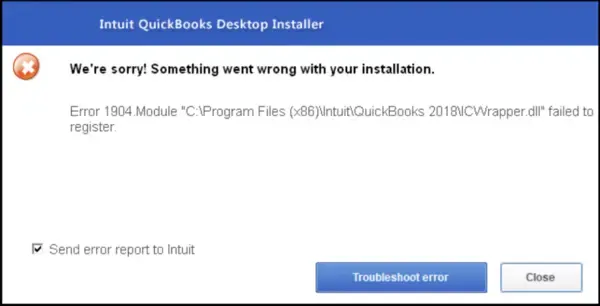
QuickBooks Error 1904 can stop QuickBooks Desktop from installing when Windows fails to register a required program component. The error message usually identifies a DLL file that failed to register.
The first recommended fix is to run the QuickBooks Install Diagnostic Tool from QuickBooks Tool Hub. If the error remains, you may need to repair Microsoft Windows components or check installation permissions.
Before applying a fix, check the DLL filename in the error message. Intuit provides separate instructions for certain cases, including QBversionTool.dll and installations affected by Bitdefender.
This guide explains how to fix QuickBooks Error 1904 and determine what to try when the installation still fails.
What Is QuickBooks Error 1904?
QuickBooks Error 1904 is a Windows installation error that occurs when a required file or module fails to register during QuickBooks Desktop setup.
You may see a message similar to:
Error 1904: [File path or module name] failed to register.
For example, the message might mention ICWrapper.dll or QBversionTool.dll.
A DLL (Dynamic Link Library) contains code that Windows applications can use to perform specific functions. Some components must be registered during installation so the application can access them correctly.
If Windows cannot complete that registration, QuickBooks installation may stop or finish with an incomplete setup.
What Causes QuickBooks Error 1904?
QuickBooks Error 1904 can result from problems with Microsoft components, installation permissions, or software that interferes with setup.
The main areas to investigate are:
- Microsoft .NET Framework: A damaged or incorrectly configured .NET component may affect QuickBooks installation.
- Microsoft MSXML: Missing, damaged, or unregistered XML components can prevent certain QuickBooks functions from working correctly.
- Windows permissions: The installer may be unable to register a required file or access a protected folder.
- Installation components: A DLL or one of its required dependencies may fail to register.
- Security software: Intuit documents a specific Error 1904 issue involving Bitdefender.
The filename shown in the error identifies a component that failed to register. However, it does not always explain why registration failed.
What Should You Check Before Fixing QuickBooks Error 1904?
Record the complete error message, including the DLL filename, file path, and any additional error code.
Next, check your QuickBooks Desktop version and Windows version. On Windows 11, you can find the operating system details under Settings > System > About.
If QuickBooks is already installed and contains company data, make sure you have a recent backup before making major installation changes.
Now check whether one of these special cases applies.
| What you notice | Recommended action |
| The error mentions QBversionTool.dll | Follow the specific administrator and permission checks described below |
| Bitdefender is installed | Review Intuit’s recommended QuickBooks folder exclusions |
| The error appears during an old Adobe Flash installation | Check the legacy software guidance before attempting repairs |
| None of these conditions apply | Start with the QuickBooks Install Diagnostic Tool |
Intuit advises checking these special cases before following the general troubleshooting process.
How to Fix QuickBooks Error 1904 in Special Cases
Fix Error 1904 When QBversionTool.dll Fails to Register
If the error message names QBversionTool.dll, Intuit recommends running the QuickBooks Install Diagnostic Tool and checking Windows account permissions.
Start with the diagnostic tool described in the next section. If it does not resolve the error, have an administrator review the installation permissions.
Intuit also documents a Notepad test for this issue.
- Open the Windows Start menu.
- Search for Notepad and open it.
- Type QBTEST in a blank document.
- Select File > Save As.
- Try saving the file in the applicable Common Files folder:
C:\Program Files\Common Files
or
C:\Program Files (x86)\Common Files
If Windows blocks the save operation, the account does not have permission to write to that location.
Important: Windows normally restricts standard users from writing to Program Files folders. A failed save test alone does not prove that Windows permissions are damaged.
The next step is to have an administrator review the required installation permissions and retry QuickBooks setup with authorized administrator access.
If the error continues, follow Intuit’s instructions for QBversionTool.dll or ask an IT professional to investigate.
Fix QuickBooks Error 1904 When Bitdefender Is Installed
Intuit identifies Bitdefender as a special case for Error 1904. Its support instructions recommend adding the relevant QuickBooks installation location to Bitdefender’s antivirus exclusions.
Simply turning off Bitdefender is not Intuit’s recommended fix for this case.
Check the QuickBooks installation folder
Intuit identifies the following locations for its Bitdefender troubleshooting procedure.
| Windows configuration | Folder location to review |
| 32-bit Windows | C:\Program Files\Common Files |
| 64-bit Windows | The applicable Intuit folder under C:\Program Files\Intuit or C:\Program Files (x86)\Intuit |
The 64-bit folder path in Intuit’s published article is not clearly formatted. Confirm which folder exists on your computer before making any changes.
How to add a Bitdefender exclusion
For supported Bitdefender Antivirus versions:
- Open Bitdefender.
- Select Protection from the navigation menu.
- In the Antivirus section, click Open.
- Open Settings and select Manage Exceptions.
- Click Add an Exception.
- Browse to the verified QuickBooks installation folder.
- Enable the Antivirus exclusion option.
- Click Save.
These steps follow Bitdefender’s official exclusion instructions.
An antivirus exclusion reduces scanning protection for the selected location. Have your IT administrator review the exception, especially if it involves a shared Windows folder such as Common Files.
Do not exclude the entire system drive or disable antivirus protection permanently.
After applying an approved exclusion, retry QuickBooks installation.
Fix Error 1904 Related to Adobe Flash Player
Some older QuickBooks installation environments may show Error 1904 when an Adobe Flash-related component fails to register.
Intuit’s documentation still includes troubleshooting instructions for this legacy issue. However, Adobe ended Flash Player support on December 31, 2020, and no longer provides regular security updates.
If the message specifically refers to Adobe Flash Player:
- Record the full error message and affected component.
- Run the QuickBooks Install Diagnostic Tool.

- Check whether the installer or another application depends on Adobe Flash.
- Have an IT professional review the compatibility problem if it continues.
Do not reinstall unsupported Adobe Flash Player as a routine fix. Adobe advises users to uninstall Flash Player because it no longer receives security patches.
A verified, generally safe Flash reinstallation solution for current Windows and QuickBooks versions has not been established.
How to Fix QuickBooks Error 1904 Using the Install Diagnostic Tool
If none of the special cases apply, start with the QuickBooks Install Diagnostic Tool.
Intuit recommends this tool because it can detect and attempt to repair issues involving Microsoft components used by QuickBooks Desktop.
Solution 1: Run the QuickBooks Install Diagnostic Tool
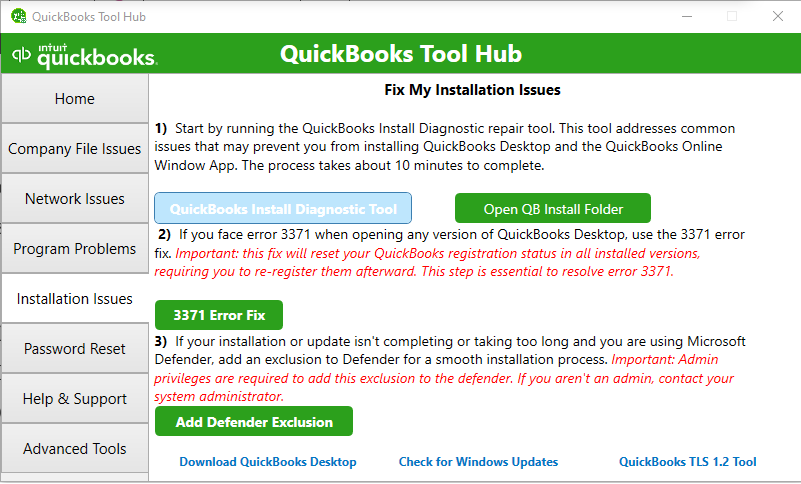
The Install Diagnostic Tool is available through QuickBooks Tool Hub.
Step 1: Download and install QuickBooks Tool Hub
If Tool Hub is already installed, open it and continue to Step 2.
Otherwise:
- Close QuickBooks Desktop.
- Download the latest QuickBooks Tool Hub (version 1.6.0.8) from the official Intuit support page.
- Save the QuickBooksToolHub.exe file in your Downloads folder or another easy-to-find location.
- Double-click the downloaded file.
- Follow the installation instructions and accept the license terms.
- When installation finishes, open QuickBooks Tool Hub.
If the desktop shortcut is missing, search for QuickBooks Tool Hub using Windows Search.
Step 2: Run the Install Diagnostic Tool
- Open QuickBooks Tool Hub.
- Select Installation Issues from the left menu.
- Click QuickBooks Install Diagnostic Tool.
- Allow the diagnostic process to finish.
- Restart your computer.
Intuit states that the diagnostic process can take up to 20 minutes.
Step 3: Check whether the error is resolved
After restarting Windows, retry the QuickBooks installation that originally failed.
If the installation finishes successfully, open QuickBooks Desktop to check whether the program runs correctly.
If Error 1904 appears again, continue with the Windows component checks.
Solution 2: Repair Microsoft .NET Framework and MSXML
If the Install Diagnostic Tool does not resolve Error 1904, Intuit recommends investigating Microsoft .NET Framework and MSXML.
These are Windows components used by QuickBooks and other applications. Repairing them may resolve registration-related problems, but the correct procedure depends on the operating system and affected component.
Check Microsoft .NET Framework
Microsoft .NET Framework provides functions that applications use to run certain features.
To review the available Windows features on supported versions of Windows:
- Close QuickBooks and other open programs.
- Open the Start menu and search for Control Panel.
- Select Programs > Programs and Features.
- Click Turn Windows features on or off.
- Review the .NET Framework entries.
You may see:
- .NET Framework 3.5, which includes support for older .NET applications.
- .NET Framework 4.x Advanced Services, with the version depending on Windows.
Do not assume that a damaged .NET Framework installation can be identified simply by checking whether a box is selected.
For example, Microsoft states that the original Windows 11 release included .NET Framework 4.8, while Windows 11 version 22H2 and later include .NET Framework 4.8.1.
Only one .NET Framework 4.x version can be installed at a time because newer 4.x releases replace earlier versions. .NET Framework 3.5 can coexist with 4.x.
Also, some newer Windows 11 releases use a separate installer for .NET Framework 3.5 rather than the older Windows Features method.
Follow the instructions that match your Windows version:
Avoid downloading older framework versions or changing Windows features without confirming which version your system requires.
Repair Microsoft MSXML
Microsoft XML Core Services (MSXML) helps Windows applications process XML-based information.
If an MSXML component is damaged or incorrectly registered, it can affect QuickBooks Desktop.
Intuit provides a repair procedure involving MSXML6.dll. On a 64-bit Windows system, its instructions use an administrator Command Prompt and the relevant Windows system directory to register the component.
However, this procedure is not a general fix for every DLL listed in Error 1904.
Use Intuit’s Microsoft MSXML repair instructions only when MSXML troubleshooting is appropriate.
If you are unfamiliar with Windows system directories or DLL registration commands, ask an IT professional to perform the repair.
After repairing the relevant component, restart Windows and retry QuickBooks installation.
Solution 3: Check Windows Administrator Permissions
If Microsoft component repairs do not help, the installer may be unable to access a location or register a file with the permissions available to the current Windows account.
First, retry the installation using an authorized administrator account.
- Close QuickBooks Desktop.
- Locate the QuickBooks Desktop installer.
- Right-click the installer.
- Select Run as administrator, if available.
- Approve the User Account Control prompt using authorized administrator credentials.
- Follow the installation instructions.
If Error 1904 appears again, further permission checks may be needed.
Intuit documents an advanced procedure involving the built-in Windows Administrator account and permissions for:
C:\Program Files\Common Files
However, changing permissions for this folder can affect other applications and system security.
Do not grant the Users group broad write access or permanently enable the built-in Administrator account without reviewing the security implications.
An IT administrator can check the required permissions, perform the installation, and restore the appropriate account and folder settings afterward.
Solution 4: Reinstall QuickBooks Desktop If Needed
If Windows components and permissions have been checked but QuickBooks installation remains incomplete, a reinstall may help replace missing or damaged program files.
Before reinstalling:
- Back up any existing QuickBooks company files.
- Confirm your QuickBooks product, version, and license information.
- Download the correct installer from Intuit.
- Check that the underlying component or permission issue has been addressed.
Follow our guide on how to install QuickBooks Desktop for the full installation process.
If ordinary reinstallation fails because old program folders or damaged installation files remain, review our QuickBooks Clean Install Tool guide.
A clean install may help with damaged program files. It will not necessarily repair a Windows DLL registration failure.
Additional Check: Install Pending Windows Updates
If the error continues, check whether Windows has important updates waiting to be installed.
On Windows 11:
- Open Settings.
- Select Windows Update.
- Click Check for updates.
- Install applicable updates.
- Restart your computer if required.
Windows updates can address some component or system problems, but they are not a confirmed fix for every QuickBooks Error 1904 case.
If Windows Update fails, resolve that issue before attempting further Windows component repairs.
What Do Different QuickBooks Error 1904 DLL Messages Mean?
The DLL filename can help narrow the investigation. Some files have specific troubleshooting instructions, while others require the general installation diagnostic process.
| DLL or component | What it indicates | Recommended action |
| QBversionTool.dll | A QuickBooks component failed to register | Follow Intuit’s special-case installation and permissions guidance |
| MSXML6.dll | A Microsoft XML component is involved | Check the applicable MSXML repair instructions |
| QBFC16.dll | May involve a QuickBooks SDK component | Determine whether the failure occurred during an SDK or third-party integration installation |
| ICWrapper.dll | A DLL registration failure was reported | Run the Install Diagnostic Tool and investigate dependencies if needed |
| qbprefs.dll or RcnFndRequestHandler.dll | A named component failed to register | Record the full error and use the general installation troubleshooting process |
For example, if the message names ICWrapper.dll, do not download a replacement DLL from an unknown website. The failed registration may be caused by another Windows component or the installation process.
Similarly, QBFC16.dll can appear in QuickBooks SDK-related installation reports. If that happens while installing a developer tool or third-party integration, check that product’s installation requirements as well.
No separate, reliably documented repair was verified for every DLL listed in this table. The filename should guide troubleshooting, not be treated as proof of a specific underlying cause.
How Do You Know QuickBooks Error 1904 Is Fixed?
The best test is to retry the installation or action that originally produced the error.
Check these results:
- QuickBooks Desktop installation finishes without Error 1904.
- QuickBooks Desktop opens successfully.
- The expected QuickBooks product and version are installed.
- Your existing company file opens correctly, if applicable.
- QuickBooks works under your normal Windows user account.
Once QuickBooks opens, press F2 or Ctrl + 1 to view the Product Information window and confirm the installed version.
If the installation succeeds but QuickBooks shows a different error when opening, investigate that new problem separately.
What If QuickBooks Error 1904 Still Appears?
If Error 1904 continues after the relevant repairs, collect the installation details before contacting an expert.
| Information to collect | Why it is useful |
| Complete Error 1904 message | Shows the reported failure |
| DLL filename and full file path | Identifies the component Windows could not register |
| HRESULT or additional error code | May help narrow the Windows registration problem |
| QuickBooks product and version | Helps confirm the correct installation requirements |
| Windows version | Identifies applicable Microsoft repair procedures |
| Troubleshooting already completed | Helps avoid repeating unsuccessful fixes |
| Any related installer or security warnings | May reveal a separate problem affecting setup |
For example, a message naming QBversionTool.dll after an unsuccessful administrator installation calls for a different investigation from an error that occurs only while installing QBFC16.dll for a third-party integration.
Avoid downloading replacement DLL files, changing unrelated registry entries, or repeating the same reinstall without identifying the cause.
You can provide these details to an IT professional or qualified QuickBooks Desktop expert.
Conclusion
QuickBooks Error 1904 (icwrapper.dll failed to register) usually points to a failed component registration during installation. Start with the Install Diagnostic Tool unless a documented special case applies. If the error continues, use the DLL filename and Windows details to guide further troubleshooting.
Confirm that QuickBooks installs and opens under your normal Windows account before considering the issue resolved.
Frequently Asked Questions
How Do I Fix QuickBooks Error 1904 module failed to register?
Error 1904 is a Windows Installer error indicating that a module failed to register. The appropriate repair depends on the affected application. For QuickBooks Desktop, run the Install Diagnostic Tool first, then check Microsoft components and Windows permissions if necessary. Other applications may require different fixes.
Can I Ignore QuickBooks Error 1904 During Installation?
Selecting Ignore may allow some installers to continue, but it does not repair the failed component. Follow the appropriate troubleshooting instructions and confirm that QuickBooks installs and opens correctly before treating the error as resolved.
Can QuickBooks File Doctor Fix QuickBooks Error Code 1904?
QuickBooks File Doctor is intended for certain company-file and network problems. Error 1904 is an installation issue, so the QuickBooks Install Diagnostic Tool is the appropriate first tool. File Doctor is not a replacement for installation diagnostics.
Can QuickBooks Error 1904 Occur on Windows 11?
Yes, QuickBooks Error 1904 can occur on Windows 11 when a required module fails to register. Check that your QuickBooks Desktop version supports your Windows environment, then use the Install Diagnostic Tool and the appropriate Microsoft component repair guidance.

