QuickBooks error PS038 means one specific thing. At least one paycheck in your company file is sitting with the status Online to Send, and QuickBooks will not let you download a payroll update or send payroll until that paycheck clears.
Nothing is wrong with your subscription. Your internet connection is probably fine. The paycheck itself is not lost. One transaction is stuck in a queue, and everything behind it is waiting.
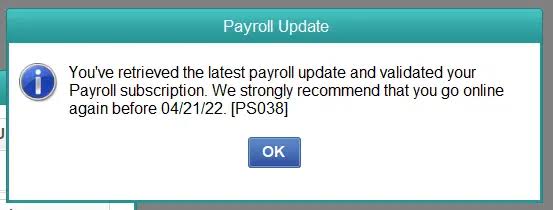
That distinction matters, because it decides what you should do next. Most guides for this error open with firewall settings, internet options, and the CPS folder. Those steps belong to a different family of payroll errors. For PS038, they will cost you an hour and change nothing.
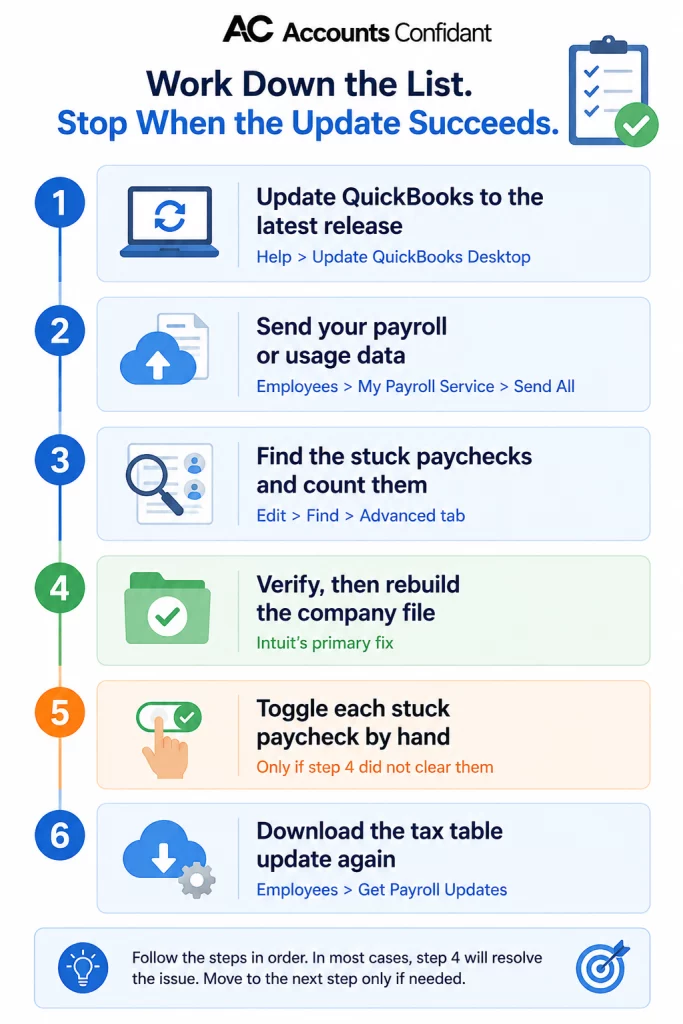
This guide follows the order Intuit documents: sync, find the stuck paychecks, repair the file, then release each stuck paycheck one at a time. Every step tells you how to confirm it worked before you move on.
Table of Contents
Key Takeaways
- PS038 is a data problem inside your company file, not a connection problem. Intuit defines it as paychecks “stuck with an ‘Online to Send’ status, which prevents payroll from running or tax tables from downloading”.
- You need three things before you start: QuickBooks updated to the latest release, a fresh backup, and your payroll service PIN.
- Intuit’s fix is a rebuild first, and only if that fails, a manual “toggle” of each stuck paycheck.
- If you use Assisted Payroll, contact Intuit before you rebuild. Intuit states this directly, and almost no third-party guide repeats it.
- On QuickBooks Desktop 2023, this fix cannot work. Payroll service for that version was discontinued after May 31, 2026, so nothing can be sent to Intuit at all.
- PS038 is not the same as PS032 or PS077. Intuit’s own PSXXX troubleshooting article does not list PS038.
What QuickBooks error PS038 actually means
PS038 is QuickBooks telling you it found paychecks it was supposed to send to Intuit but never did. Until those paychecks are cleared, QuickBooks blocks payroll updates and further payroll sends.
Intuit’s description is short and worth reading literally: “Error PS038 occurs when paychecks are stuck with an ‘Online to Send‘ status, which prevents payroll from running or tax tables from downloading in QuickBooks Desktop”
Every paycheck that needs to reach Intuit carries an online status. Normally the status moves from “Online to Send” to sent as soon as a transmission succeeds. When a send is interrupted, or when the transaction record is damaged, the paycheck keeps the “to send” flag forever. QuickBooks then refuses to move on, because sending a tax table update or a new payroll run on top of an unsent paycheck risks paying someone twice or filing the wrong numbers.
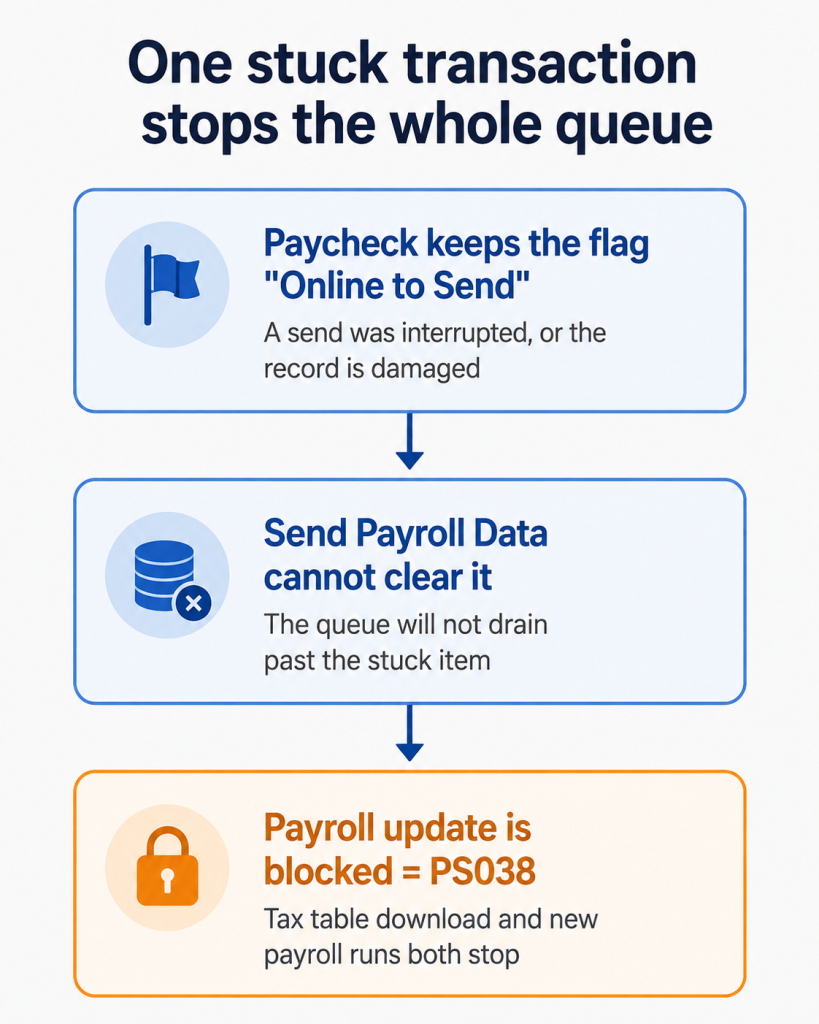
This is why PS038 tends to appear at the worst moment. You do not notice a stuck paycheck when it happens. You notice it weeks later, on the morning you sit down to run payroll or pull the newest tax table.
If your symptoms are broader than this one code, start with our overview of QuickBooks payroll errors; if the update itself hangs or fails without naming PS038, see QuickBooks payroll update not working.
Why am I getting QuickBooks error PS038?
You are getting PS038 because a paycheck that was flagged for sending never reached Intuit. The most common trigger is a payroll send that was cut short, followed by damage to that transaction record inside the company file.
Whether you meet it as a QuickBooks payroll error PS038 when running payroll, or as a QuickBooks payroll update error PS038 when pulling the newest tax table, the underlying condition is the same one. The two symptoms differ only in which action tripped the check.
Realistic ways this happens:
- A payroll send was interrupted partway through, by a dropped connection, a closed laptop, a power cut, or someone selecting Cancel.
- QuickBooks or Windows closed unexpectedly while payroll was transmitting.
- The company file has developed data damage, so the paycheck’s status cannot be updated even when a send succeeds.
- A paycheck was created for direct deposit and then edited, voided, or partially reversed before it was sent.
That short list is deliberate. Intuit’s PS038 article documents one condition, stuck “Online to Send” paychecks, and one repair path: rebuild, then toggle.
What does not cause PS038
Firewall rules, internet options, the CPS folder, and your service key are not documented causes of PS038. They belong to a different set of payroll errors.
This is worth being blunt about, because it is the single biggest time-waster with this error. Intuit publishes a separate article, “Fix PSXXX errors when downloading payroll updates”, which covers PS033, PS101, PS036, PS107, and PS032. Those are the errors caused by “incorrect internet connection settings”, “a firewall setting that blocks payroll updates”, or a “damaged file in the CPS folder”.
PS038 is not on that list. Intuit’s tax table troubleshooting index also links “PS038” and “PSXXX errors” as two separate entries.
What we found while researching this article
We read the three highest-ranking third-party PS038 guides. All three list firewall settings, the CPS folder, or the service key as causes of PS038. One of them puts the actual stuck-paycheck fix at methods 6 and 7 of 8, behind internet settings and antivirus. None of the three link to Intuit’s PS038 article. If you have already worked through a guide like that without success, that ordering is the likely reason.
Check three things before you change anything
Three checks take about five minutes and decide whether the rest of this guide will work at all. Do them in order.
- Take a backup. Intuit lists “a recent backup copy of your QuickBooks Desktop company file” as a prerequisite, and the rebuild tool requires one before it will run. Go to File > Back Up Company > Create Local Backup. Save it somewhere new. Do not overwrite an existing backup.
- Find your payroll service PIN. You will be asked for it when you send payroll data. If nobody in the office knows it, sort that out now rather than in the middle of a rebuild.
- Check that your version still has payroll service. This is the check that decides everything else, and it is the one no other guide makes.
Is your QuickBooks version still supported?
If you are running QuickBooks Desktop 2023, the steps in this guide cannot succeed, because your software can no longer send anything to Intuit. Everything else in this article assumes a supported version.
Intuit discontinued service for QuickBooks Desktop 2023 after May 31, 2026: “older versions such as QuickBooks Desktop 2023 will stop getting support after May 31, 2026”.
For payroll specifically, Intuit is explicit about what stops. On Payroll Basic, Standard, and Enhanced, “Your paychecks won’t calculate any taxes. You won’t be able to send payroll to Intuit for processing, including direct deposits. Your payroll subscription will be deactivated”. On Payroll Assisted, “Intuit will no longer be responsible for filing payroll tax returns and W-2s for 2026”.
To check what you are running, press F2 (or Ctrl+1) in QuickBooks to open the Product Information window. It shows your year version and release number. As of Intuit’s page, the latest Windows release listed was QuickBooks 2024 R21_65.
If you are on a discontinued version, upgrading is the fix. No amount of toggling will help, because there is no live service on the other end. Your two routes are a newer Desktop year version, which you can get from the QuickBooks Desktop download page, or a move to the online product, which we cover in migrating from QuickBooks Desktop to Online.
How to fix PS038 error in QuickBooks Desktop, step by step
Work through these six steps in order and stop as soon as the payroll update downloads. Intuit’s documented path puts the rebuild first and treats the manual toggle as the fallback: “You can fix this problem by doing a data rebuild. If this doesn’t work, you’ll need to toggle each stuck check”. So step 5 is only needed when step 4 does not release the paychecks on its own.
Step 1: Update QuickBooks Desktop to the latest release
Start here because Intuit lists “QuickBooks Desktop updated to the latest release” as a prerequisite for the rest of the fix. An older release can fail to update a paycheck’s status even after a good transmission.
Go to Help and select Update QuickBooks Desktop. Select the Update Now tab, then Get Updates. When it finishes, restart QuickBooks, and select Install Now when prompted.
How to confirm it worked: press F2 and check that the release number changed.
Step 2: Send your payroll or usage data
This step tests whether your file can still talk to Intuit at all. If the transmission succeeds, you have ruled out subscription and connection problems in one move, and you know the problem is the paychecks themselves.
Go to Employees, select My Payroll Service, then Send Usage Data or Send Payroll Data. In the Send/Receive Payroll Data window, select Send All, and enter your payroll service PIN if you are asked for it.
How to confirm it worked: you get a confirmation that the transmission succeeded. If it does, try the payroll update again right now. Some files clear at this point and need nothing else.
Step 3: Find the stuck paychecks and write down the count
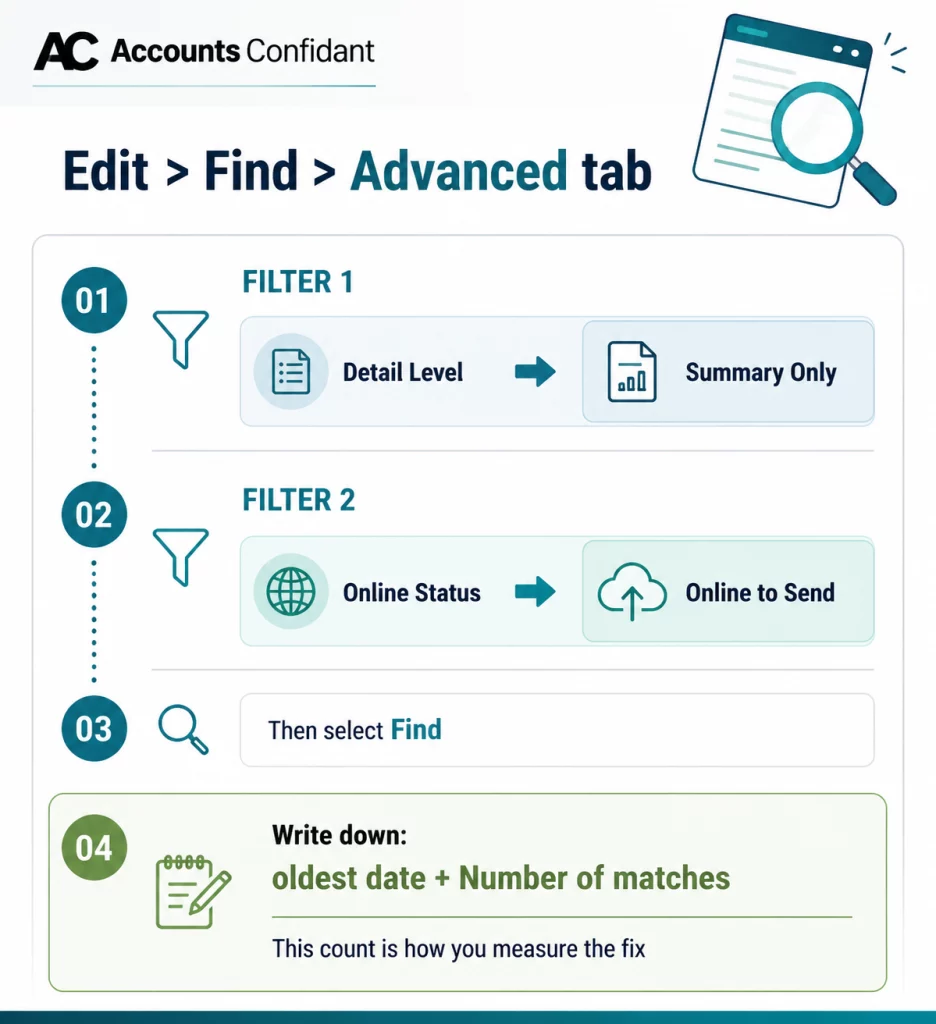
Now you find out exactly what you are dealing with. This search gives you a number, and that number is how you will measure progress for the rest of the fix.
In QuickBooks:
- Go to the Edit menu and select Find.
- Select the Advanced tab.
- In the Choose Filter section, select Detail Level from the Filter list.
- Select Summary Only.
- Return to the Filter list, scroll to select Online Status, then select Online to Send.
- Select Find.
You now have a list of every paycheck that has not reached Intuit. Note two things: the oldest paycheck in the list, and the Number of matches shown in the Find window. Write the count on paper. Then close the Find window.
The oldest date is useful on its own: it usually points at the day the interrupted send happened, which often explains the whole thing.
Step 4: Verify and rebuild your company file
The rebuild is Intuit’s primary fix for PS038, and it is the step to try before touching any paycheck by hand. Verify checks the file for damage; rebuild repairs it, and in doing so can reset the stuck paycheck statuses without further work.
Read this first if you use Assisted Payroll. Intuit’s instruction is unambiguous: “If you use Assisted Payroll, contact us before you rebuild your data”. Assisted Payroll files are reconciled against Intuit’s own records, so an unplanned rebuild is a call you want to have made first, not explained afterwards.
To verify:
- Go to Window, then select Close All.
- Go to File, then Utilities, then Verify Data.
Verify gives you one of three results. “QuickBooks detected no problems with your data” means the file is clean. “Your data has lost integrity” means damage was found and you should rebuild. A specific error message means you should search that exact message on Intuit’s support site.
To rebuild:
- Go to File, then Utilities, then Rebuild Data.

- QuickBooks asks to make a backup first. Select OK, choose a location, and give it a new file name. Do not replace another backup file.
- Select OK when you see “Rebuild has completed”.
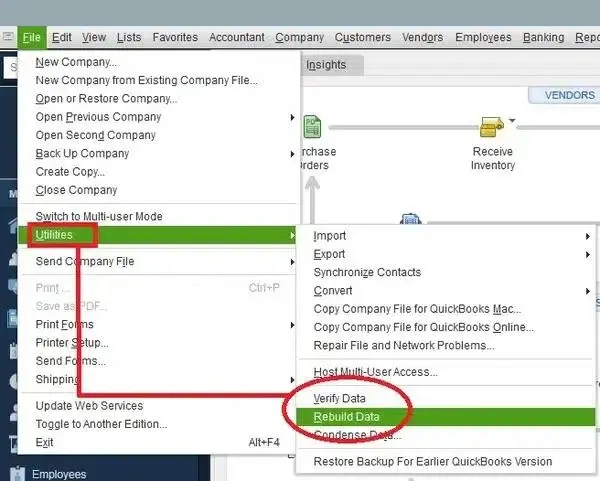
Then verify again to confirm the repair held.
How to confirm it worked: run the Find search from step 3 again. If the number of matches has dropped to zero, go to step 6. If the count is unchanged, go to step 5.
Step 5: Toggle each stuck paycheck
Toggling means making a harmless edit to a paycheck and undoing it, which forces QuickBooks to rewrite the record and refresh its status. You only need this when the rebuild did not clear the paychecks by itself, and you repeat it for every paycheck in your list.
For each stuck paycheck:
- Open the paycheck and select Paycheck Detail.
- Under the Earnings section, add the same earnings item that already appears last in the list. If the last item is Hourly Rate, add Hourly Rate a second time.
- When the Net Pay Locked message appears, select No.
- Check that the tax amounts and net pay have not changed, then select OK.
- Select Yes if you get a Past Transaction message.
- Select Save & Close, then Yes if a Recording Transaction warning appears.
- Open the same paycheck again and select Paycheck Details.
- Delete the duplicate earnings item you just added.
- Check that the tax amounts and net pay are still correct, then select OK.
Those steps are Intuit’s, in Intuit’s order.
The instruction that matters most is the one people rush: check that the tax amounts and net pay have not changed, both when you add the duplicate line and after you delete it. You are refreshing a status flag, not editing someone’s pay. If a figure moves, undo and start that paycheck again.
Step 6: Download the tax table update again
This is the step that confirms the whole thing worked, because downloading the tax table is what PS038 was blocking in the first place.
Go to Employees, then Get Payroll Updates. Select Download Entire Update, then Update. An informational window appears when the download is complete.
One thing to be aware of afterwards: your State Unemployment Insurance rate is not included. Intuit notes that “Your SUI rate isn’t part of the normal tax table updates in QuickBooks Desktop Payroll. You need to update it manually”. Check that rate after any tax table update, because a stale SUI rate produces quietly wrong paychecks rather than an error message.
A worked example: one June paycheck, one blocked tax table
Here is how the fix plays out end to end. The scenario below is an illustrative composite, built from the documented behavior above rather than from one named client, so you can see how the steps connect and what each result should look like.
The situation. A 14-person construction firm on QuickBooks Desktop Premier Plus 2024 with Payroll Enhanced. On a Monday in late July, the bookkeeper opens QuickBooks to download the newest tax table before running payroll and gets PS038. Payroll is due Wednesday.
What the checks showed.
| Check | Result | What it ruled out |
|---|---|---|
| F2 Product Information | 2024, current release | Not a discontinued version |
| Send Payroll Data | Transmitted successfully | Not the subscription or the connection |
| Advanced Find, Online to Send | 1 match, dated June 12 | Confirmed a single stuck paycheck |
| Verify Data | “Your data has lost integrity” | Confirmed file damage |
What happened. The June 12 date was the giveaway. That was the Friday the office lost power mid-afternoon, during a payroll send. One direct deposit paycheck kept the “Online to Send” flag; the other thirteen went through. Nobody noticed for six weeks, because the June and July payrolls ran normally on top of it. The error only surfaced when a tax table download was attempted.
What fixed it. A backup, then Verify, then Rebuild. Re-running the Advanced Find afterwards returned zero matches, so the manual toggle in step 5 was not needed in this instance. The tax table then downloaded normally.
Why it is worth walking through. Three details in that sequence do the real work, and they are the ones people skip:
- The count from step 3 turned a vague error into a defined job: one paycheck, one date.
- The oldest date explained the cause, which meant the firm could prevent a repeat rather than just clear the symptom.
- Re-running the Find search after the rebuild is what proved the fix, instead of assuming it and discovering otherwise on payroll morning.
Had the count still been 1 after the rebuild, the toggle in step 5 would have been the next move on that single paycheck, which is a few minutes of work. The reason to do the steps in order is that you rarely need all of them.
PS038 vs PS032 vs PS077
They look alike and they are not. PS038 is a data problem inside your company file. PS032 is a payroll update problem, which Intuit documents alongside several sibling codes. PS077 is discussed outside Intuit’s documentation, but Intuit does not list it in its current payroll update troubleshooting article, so we will not invent a documented cause for it.
Here are the two that Intuit documents, side by side.
| PS038 | PS032 | |
| What is wrong | Paychecks stuck “Online to Send” in your file | Payroll update cannot download or install correctly |
| In Intuit’s PSXXX article? | No, it has its own separate article | Yes, listed with PS033, PS036, PS101, PS107 |
| Documented causes | Stuck unsent paychecks; company file damage | Internet connection settings; a firewall blocking payroll updates; a damaged file in the CPS folder |
| Where the fix happens | Inside your company file | Around QuickBooks: subscription, registration, security software |
| First thing to do | Find the stuck paychecks | Check the service key under Manage Service Key |
The practical difference: for PS038, look inside the file. For PS032, look at everything around QuickBooks.
PS077 needs an honest caveat. It is not in Intuit’s current PSXXX article, and we could not find a current Intuit help article for it at all. That means there is no documented cause, no documented fix, and no vendor-stated relationship to PS038 that we can pass on to you. Much of what is written about PS077 elsewhere is third-party guesswork presented as fact, which is why we are not adding a column of confident answers here.
If PS077 is the code actually on your screen, the sensible first move is to confirm your payroll subscription is active and paid. Intuit states that “You need an active QuickBooks Desktop Payroll subscription to update your tax table”, and subscription validation is the first check in Intuit’s own procedure for the documented update errors. Our guide to what to do when your QuickBooks subscription has lapsed covers that check.
Intuit’s PSXXX article covers PS033, PS101, PS036, PS107, and PS032, and gives three steps: check the payroll service subscription under Employees > My Payroll Service > Manage Service Key, confirm QuickBooks is registered and updated by pressing F2 to check for “Activated”, and add a Windows Defender exclusion before running Quick Fix my Program in the QuickBooks Tools Hub.
Applying those steps to PS038 is the mistake this whole article is trying to prevent. Applying the PS038 steps to PS032 will not help either. If you need the Tools Hub for the PS032 route, see our walkthrough of the QuickBooks Tool Hub, and for company file damage more generally, QuickBooks File Doctor.
How to stop PS038 coming back
PS038 comes back when payroll sends keep getting interrupted and nobody checks afterwards. The fix is a habit, not a setting.
- Let payroll sends finish. Do not close QuickBooks, sleep the machine, or disconnect while a send is in progress. Interrupted sends are the main way paychecks get stuck.
- Check the queue after any interruption. If a send is cut short, run the Advanced Find from step 3 straight away. Clearing one paycheck the same day is a two-minute job.
- Run Verify Data monthly. File damage is what stops a status updating even when the send works. Verify is read-only and safe to run whenever the file is quiet.
- Keep QuickBooks on the current release. Turn on automatic updates under Help > Update QuickBooks Desktop > Options.
- Watch your discontinuation date. Payroll service ends on a schedule. Upgrading ahead of it avoids a scramble in the middle of a pay run.
Do you need to call support?
Most people can fix PS038 themselves, because the whole procedure is published and the risky part is a backup away from being reversible. There are two situations where you should call Intuit before you touch anything.
Call Intuit first if you use Assisted Payroll and a rebuild is next, because Intuit asks you to. Call them if the count from step 3 will not come down after both the rebuild and the toggle, which suggests damage the standard tools are not reaching.
If you’ve already contacted Intuit but your payroll issue is still unresolved, Accounts Confidant is here to help. Our payroll specialists can help you troubleshoot payroll errors, paycheck issues, tax table problems, and other QuickBooks payroll concerns.
Call Accounts Confidant at +1-877-519-7362 and get the payroll assistance you need.
Where to go next
If your payroll update now downloads and the Advanced Find returns zero matches, you are done. Put a monthly Verify Data in the calendar and check your version’s discontinuation date while it is on your mind.
If the count will not come down, the issue is file damage the standard tools are not reaching, and that is the point to involve Intuit rather than keep repeating the rebuild.
For neighboring problems: our index of QuickBooks payroll errors covers the other codes you may hit on the way, and if QuickBooks is also dropping out of multi-user mode, that is a separate fault with its own fix in QBDBMgrN not running on this computer. If you would rather hand payroll over entirely, we also offer payroll services.
Frequently asked questions
How do I fix PS038 error in QuickBooks Desktop?
Update QuickBooks, send your payroll data, find the stuck paychecks with an Advanced Find on Online Status, then verify and rebuild your company file. If the paychecks are still stuck after the rebuild, toggle each one by adding and removing a duplicate earnings line. Then download the tax table update again to confirm the fix.
Why am I getting QuickBooks error PS038?
Because at least one paycheck in your file is flagged “Online to Send” and never reached Intuit. That usually traces back to a payroll send that was interrupted, or to data damage in the company file that stops the paycheck’s status from updating.
How do I fix QuickBooks error PS038 step by step?
Work by checkpoint rather than by instinct, because each step has a result you can see. After step 2 you should get a successful transmission. After step 3 you should have a number of matches written down. After step 4 that number should be zero, and if it is not, step 5 brings it down one paycheck at a time. After step 6 the tax table downloads. If a checkpoint does not produce its expected result, stop there instead of moving on, because the later steps assume the earlier ones worked.
QuickBooks says PS038 and will not let me send payroll. What do I do first?
Take a backup, then run the Advanced Find from step 3 to see how many paychecks are stuck and how old the oldest one is. That takes two minutes and tells you the size of the job before you change anything. If payroll is due imminently, note that the blockage is a status flag, not missing money, so the paychecks themselves are intact.
Is it safe to restart QuickBooks after a PS038 error?
Yes. Restarting QuickBooks does not damage payroll data, and Intuit’s own steps ask you to restart after installing an update. What is not safe is interrupting a payroll transmission that is in progress, since that is a common way paychecks get stuck in the first place. Let any send finish, then restart.
What is a stuck paycheck, and how does PS038 relate to it?
A stuck paycheck is a paycheck still carrying the status “Online to Send” because it never transmitted to Intuit. PS038 is the error QuickBooks raises when it finds one, and it exists to stop you from running payroll or updating tax tables on top of unsent data. Clear the paycheck and the error goes with it.
PS038 vs PS032 vs PS077: what is the difference?
PS038 is caused by stuck paychecks inside your company file and has its own Intuit article. PS032 is an update-side error, listed by Intuit alongside PS033, PS036, PS101, and PS107, and is linked to connection settings, firewall rules, or a damaged CPS folder file. PS077 is different in an important way: Intuit does not document it in the current PSXXX article, and we found no current Intuit help article for it, so treat confident third-party explanations of PS077 with caution. In short: PS038 means look in the file, PS032 means look around the software, and PS077 means verify the code and check your subscription before trusting any published fix.
Do I need to call QuickBooks support for PS038, or can I fix it myself?
Most people can fix it themselves, because the procedure is published and a backup makes it reversible. Call Intuit first if you use Assisted Payroll and are about to rebuild, or if the stuck paycheck count will not drop after both the rebuild and the toggle. Take the number from inside QuickBooks or from Intuit’s own site, not from a search result.