QuickBooks Desktop updates help keep your accounting software secure, reliable, and compatible with the latest features and services. If you are wondering how to update QuickBooks Desktop, you can usually complete the process directly from the software. QuickBooks also lets you download updates manually when an in-product update does not work.
It is important to understand that a QuickBooks Desktop update is not always the same as an upgrade. An update installs the latest maintenance release for the version you already use, while an upgrade moves you to a newer product version. For example, moving from QuickBooks Desktop 2023 to QuickBooks Desktop 2024 is an upgrade, not simply a routine update.
Intuit has also changed the QuickBooks Desktop release model. QuickBooks Desktop Plus 2024 and Enterprise 24.0 were the last annual platform releases, and Intuit now uses continuous updates to deliver improvements and security updates throughout the year.
How to Update QuickBooks Desktop to the Latest Release
Keeping QuickBooks updated hel ps you access the latest available security improvements and product enhancements. If you are looking for how to update QuickBooks Desktop, first check your current version and release number. You can then install the update automatically from within QuickBooks or use the manual download method if the in-product update does not work.
Prerequisites for Updating QuickBooks Desktop
Before you update QuickBooks Desktop, complete these basic checks:
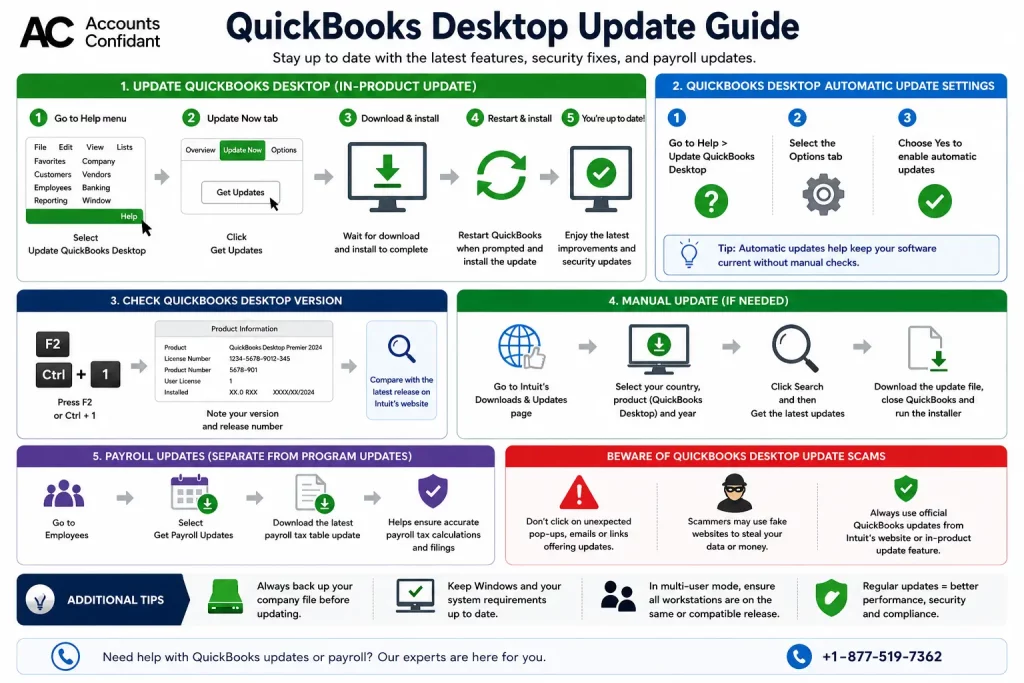
- Check your QuickBooks version: Press F2 or Ctrl + 1 to confirm your current version and release number.
- Back up your company file: Create a recent backup before installing the update.
- Ensure a stable internet connection: You need internet access to download the update.
- Close QuickBooks when required: For a manual update, close QuickBooks Desktop before running the downloaded update file.
- Check your product details: When updating manually, select the correct Country, Product, and Version (Year).
Method 1: Update Within QuickBooks Desktop
You can configure QuickBooks Desktop automatic update settings to download available updates automatically. You can also manually start the update process whenever you want to install the latest available release.
Schedule Automatic Updates
To enable automatic updates:
- Go to Help and select Update QuickBooks Desktop.
- Open the Options tab.
- Select Yes to enable automatic updates.
- Select Close.
Once enabled, QuickBooks can download available updates automatically.
Run an Immediate Update
If you want to update QuickBooks Desktop to the latest release immediately, follow these steps:
- Go to Help and select Update QuickBooks Desktop.
- Select the Update Now tab.
- Select Get Updates.
- After the update finishes downloading, restart QuickBooks.
- When prompted, select Install Now.
This method allows you to install an available update without waiting for the automatic update process.
Method 2: QuickBooks Desktop Update Manually
If you cannot update QuickBooks from within the software, you can perform a QuickBooks Desktop update manually by downloading the appropriate update file from Intuit’s official download page.
This method is useful when the in-product update fails or does not install correctly.
- Close QuickBooks Desktop.
- Go to the Downloads & Updates page.
- Select the standard setup option.
- Choose your Country, Product, and Version (Year).
- Select Search.
- Select Get the latest updates.
- Open the downloaded file and install the update.
- Restart your computer after the installation is complete.
This is one of the official methods for accessing downloads and updates for QuickBooks Desktop when the automatic or in-product update process does not work.
QuickBooks Desktop 2024 Update
If you use QuickBooks Desktop 2024, you can check your current release number and install the latest available maintenance update using either of the methods above.
The current Intuit support page lists QuickBooks 2024 R21_65 for Windows. To get the latest release, you can either update the software from within QuickBooks or download the update manually from the official Downloads & Updates page.
Remember, a QuickBooks Desktop 2024 update keeps your existing 2024 installation current. It is not the same as upgrading from an earlier year version, such as QuickBooks Desktop 2023.
If you need to update QuickBooks Desktop to 2024 from an older year version, you need to follow the separate upgrade process rather than the regular maintenance update process.
How to Update QuickBooks Desktop for Mac?
QuickBooks Desktop for Mac users can also check their installed release and update the software through the application or by downloading the update manually.
Check for the Latest Release
- Open QuickBooks Desktop for Mac.
- Press Command + 1 to open the Product Information window.
- Compare your installed release with the latest release available for your version.
Method 1: Update Within QuickBooks
- Go to the QuickBooks menu and select Check for QuickBooks Updates.
- Select Install and Relaunch.
To allow future updates to install automatically, select the option to automatically download and install future updates from the update window.
Method 2: Update Manually
If the in-product update does not work or your release number does not change:
- Go to the Downloads & Updates page.
- Select the standard setup option.
- Select your Country, Product, and Version (Year).
- Select Search.
- Select Get the latest updates.
- Open the downloaded update file and complete the installation.
- Restart your computer.
How to Upgrade QuickBooks Desktop to 2024?
Updating QuickBooks Desktop and upgrading to a newer version are two different processes. A regular update installs the latest maintenance release for the version you already have, while an upgrade moves you to a newer QuickBooks Desktop version.
For example, installing a newer release of QuickBooks Desktop 2024 is an update, while moving from QuickBooks Desktop 2022 or 2023 to 2024 is an upgrade. If you want to update QuickBooks Desktop to 2024 from an earlier version, use the upgrade process rather than the standard update options.
The following steps apply to single-user QuickBooks Desktop for Windows versions 2022 and 2023. QuickBooks Desktop for Mac users should follow the Mac upgrade process, while users working with QuickBooks Desktop in multi-user mode should use the appropriate multi-user upgrade instructions.
Prepare to Upgrade QuickBooks Desktop for Windows
Before you begin the upgrade, make sure your computer meets the requirements for the new version and that your company file is ready.
- Go to your QuickBooks Desktop homepage.
- Open your company file.
- Select Upgrade QuickBooks.
- Find the latest version of QuickBooks Desktop and review its new features and improvements before starting the upgrade.
- Check the system requirements to confirm that your computer meets the requirements for the upgrade.
It is also recommended to back up your company file before upgrading QuickBooks Desktop. This gives you a recent copy of your accounting data before the new version is installed.
How to Upgrade QuickBooks Desktop for Windows
After preparing your company file and checking the system requirements, you can choose from the available upgrade options.
QuickBooks provides two options:
- Upgrade Now: Start the upgrade immediately from QuickBooks Desktop.
- Schedule an Upgrade: Set the upgrade to take place at a later time.
Choose the option that works best for your business and follow the prompts displayed in QuickBooks.
How to Upgrade QuickBooks Desktop Mac Plus
If you use QuickBooks Desktop Mac Plus, the Upgrade QuickBooks window appears when you open your company file. You can upgrade from within the software using the following steps:
- Select Upgrade for Free.
- Select Let’s go. QuickBooks will download and install the new version.
- After the installation finishes, select Open QuickBooks.
- Register the new QuickBooks version.
The upgrade can take some time depending on your internet connection and the size of your company files. Your previous QuickBooks version remains installed on the computer after the upgrade.
If you’re moving your accounting data between QuickBooks Desktop versions or installations, see our guide on the QuickBooks Migration Tool for more information.
What Is the Difference Between an Update and an Upgrade?
| Update | Upgrade |
| Installs the latest release for your existing QuickBooks version | Moves you to a newer QuickBooks Desktop version |
| Example: QuickBooks Desktop 2024 → latest 2024 release | Example: QuickBooks Desktop 2023 → QuickBooks Desktop 2024 |
| Can be performed through Help > Update QuickBooks Desktop | Uses the Upgrade QuickBooks option |
| Keeps your existing product version | Installs the newer product version |
So, if you are searching for how to update QuickBooks Desktop, use the regular update process described earlier in this guide. If you specifically need to update QuickBooks Desktop to 2024 from an older version, you need to follow the upgrade process above instead.
The QuickBooks Desktop Update Scam: How to Identify Fake Updates
A QuickBooks Desktop update scam can appear as an email, pop-up, phone call, text message, or website claiming that your QuickBooks software needs an urgent update. Scammers may use QuickBooks or Intuit branding to make the message appear legitimate and then try to get you to download an unofficial program, provide account information, or pay for unnecessary support.
The safest approach is to verify updates directly through QuickBooks Desktop or Intuit’s official website instead of using an update link provided in an unexpected message.
Common Signs of a QuickBooks Desktop Update Scam
Be cautious if a message or caller:
- Claims your QuickBooks Desktop will stop working unless you update immediately.
- Sends you to an unfamiliar website to download an update.
- Requests your QuickBooks or Intuit account password.
- Asks for remote access to your computer without a support request from you.
- Demands payment to install a routine QuickBooks update.
- Uses urgent threats about losing your company file or accounting data.
- Offers an unusually cheap QuickBooks Desktop license or update.
- Provides a download file that does not come from an official Intuit source.
How to Safely Update QuickBooks Desktop
When you need to update QuickBooks Desktop to the latest release, start the process yourself instead of clicking an unexpected update link.
For an in-product update:
- Open QuickBooks Desktop.
- Go to Help.
- Select Update QuickBooks Desktop.
- Check the available update options.
- Download and install the update through QuickBooks.
If the in-product method does not work, use Intuit’s official Downloads & Updates page. Select the appropriate country, product, and version before downloading the update.
Do not download QuickBooks Desktop updates from websites that claim to offer modified installers, unofficial patches, or unauthorized versions.
If QuickBooks continues to experience problems after you retry the update, check our guide to QuickBooks Desktop errors for additional troubleshooting steps.
What to Do If You Receive a Suspicious Update Message
If you receive an unexpected QuickBooks update notification, do not immediately click its links or download attachments. Instead, close the message and open QuickBooks Desktop yourself to check whether an update is available.
You can also visit the official support resources directly rather than using contact information provided in the suspicious message.
How to Get Payroll Updates in QuickBooks Desktop
Updating the QuickBooks Desktop application and updating payroll tax tables are separate processes. If you use QuickBooks Desktop Payroll, you should check for available payroll updates in addition to keeping the main QuickBooks software current.
Payroll updates can contain updated tax tables, calculations, forms, and other payroll-related changes.
To get payroll updates in QuickBooks Desktop, follow these steps:
- Open your QuickBooks Desktop company file.
- Go to Employees.
- Select Get Payroll Updates.
- Select Download Entire Update.
- Select Update.
- Wait for the payroll update to download and install.
You need an active QuickBooks Desktop Payroll subscription to receive the latest payroll tax-table updates.
Get the Latest Payroll News and Updates in QuickBooks Desktop Payroll
If you want to get the latest payroll news and updates in QuickBooks Desktop Payroll, check Intuit’s payroll update information regularly.
You can also check which payroll update is installed in your QuickBooks Desktop company file:
- Open your company file.
- Go to Employees.
- Select Get Payroll Updates.
- Select Payroll Update Info.
Checking the installed payroll update is useful when you need to verify whether your payroll tax tables are current.
For example, completing a QuickBooks Desktop 2024 update does not necessarily mean your payroll tax tables have also received the latest payroll update. Payroll users should check Employees > Get Payroll Updates separately.
If you use QuickBooks Desktop Payroll, you should also check separately for payroll tax-table updates and learn how to troubleshoot common QuickBooks Payroll Errors when payroll updates fail.
Conclusion
Keeping QuickBooks Desktop updated helps you access the latest available product improvements and security updates for your supported version. Whether you choose automatic updates or QuickBooks Desktop update manually, always verify your current release before installing an update.
If you need to update QuickBooks Desktop to 2024 from an older version, follow the upgrade process instead of the standard update steps. QuickBooks Desktop Payroll users should also check separately for the latest payroll tax-table updates.
For safety, use Intuit’s official downloads and updates for QuickBooks Desktop page and avoid unexpected links or unofficial installers that may be part of a QuickBooks Desktop update scam. Keeping your software and payroll information current can help you maintain a more reliable accounting and payroll workflow.
Frequently Asked Questions
How do I know if my QuickBooks Desktop needs an update?
Press F2 or Ctrl + 1 to open the Product Information window. Check your current QuickBooks Desktop version and release number, then compare it with the latest release listed by Intuit.
How do I update QuickBooks Desktop without losing data?
A regular QuickBooks Desktop release update does not delete your company file data. However, it is recommended to create a recent backup before making significant software changes.
Why won’t QuickBooks Desktop update?
The update may fail because of a download problem or because the in-product update did not complete successfully. Try the update again, and if it still fails, use Intuit’s manual download method.
Is updating QuickBooks Desktop free?
Routine updates for a supported QuickBooks Desktop product may be included with your existing subscription. An upgrade to a different product version can have separate requirements or costs.
How often should I update QuickBooks Desktop?
Install updates when they become available. If you use QuickBooks Desktop Payroll, also check for payroll tax-table updates whenever new payroll updates are released.
Do I need to update QuickBooks Desktop on every computer in multi-user mode?
Keep QuickBooks Desktop installations used in the same multi-user environment properly updated and compatible. Coordinate updates so users are not working in QuickBooks while the required installation or server components are being updated.
How do I update QuickBooks Desktop to the latest version?
For a regular release update, go to Help > Update QuickBooks Desktop, select the Update Now tab, and then select Get Updates. Restart QuickBooks and install the update when prompted.
How do I manually update QuickBooks Desktop?
Close QuickBooks Desktop and visit Intuit’s Downloads & Updates page. Select the appropriate country, product, and year, then select Search and Get the latest updates. Open the downloaded file and follow the installation instructions.
Why is QuickBooks Desktop not updating?
If QuickBooks Desktop is not updating, try downloading the update again from within QuickBooks. If the release number does not change, use the manual download method from Intuit’s official Downloads & Updates page.
Is it safe to update QuickBooks Desktop while it’s open?
You can initiate an update from within QuickBooks Desktop, but you should follow the prompts and restart the software when requested. For a manual update, close QuickBooks before opening the downloaded update file.
Do I need to update QuickBooks Desktop on every workstation in multi-user mode?
Yes, you should keep the QuickBooks Desktop installations used by your workstations properly updated and compatible. If your setup includes a server, check whether the QuickBooks Database Server Manager also requires an update.
How do I check what version of QuickBooks Desktop I’m running?
Open QuickBooks Desktop and press F2 or Ctrl + 1. The Product Information window displays your product version and release number.
Does updating QuickBooks Desktop delete my company file data?
No. A normal release update does not delete your company file data. However, upgrading to another QuickBooks Desktop version is a different process and may involve updating the company file for the newer version.
How do I turn on automatic updates in QuickBooks Desktop?
Go to Help > Update QuickBooks Desktop, select the Options tab, choose Yes to enable automatic updates, and then select Close.
What’s new in the latest QuickBooks Desktop update?
The changes depend on your QuickBooks Desktop product and release. Intuit publishes release notes describing available improvements, fixes, and other changes for supported versions.
Do I need to update payroll tax tables separately from QuickBooks itself?
Yes. A QuickBooks Desktop product update and a payroll tax-table update are separate. To get payroll updates in QuickBooks Desktop, go to Employees > Get Payroll Updates and download the available update.
