Seeing the error “Intuit Data Protect has stopped working”? Don’t ignore it! If Intuit Data Protect crashes or your scheduled backup fails, your latest QuickBooks company data may not be safely backed up. This can put essential financial records, customer details, and business transactions at risk if your system suddenly crashes or files become corrupted. The longer the backup issue remains unresolved, the greater the chance that recent changes won’t be available for recovery when you need them most.
But don’t panic! This error doesn’t automatically mean your data is lost. In this blog, we’ll walk you through practical, step-by-step troubleshooting solutions to resolve the error and restore your backup functionality.
Why Does Intuit Data Protect Keep Stopping?
If Intuit Data Protect has stopped working or your backups keep failing, the issue may be related to software updates, system permissions, storage space, or backup settings.
Here are some common issues covered by the troubleshooting steps below.
| Possible cause | How it can affect Intuit Data Protect |
| Firewall or antivirus restrictions | Security software may block Intuit Data Protect’s program files or connections, causing backup failures. |
| IBuEngHost.exe running incorrectly | If this process isn’t running under the Windows System account, Intuit Data Protect may be unable to back up open files. |
| Outdated QuickBooks or Intuit Data Protect | Older software versions may cause authentication, setup, or backup problems. |
| Insufficient memory or disk space | Low available memory or insufficient working disk space can cause diagnostic checks to fail. Reaching the 100 GB backup storage limit can also cause Error 2261. |
| Windows administrator permissions | Without the required administrator-level access, scheduled backups may not run as expected. |
| Remote session timeouts or power settings | A remote session that times out, a laptop that hibernates, or a low battery may interrupt scheduled backups. |
| Open company files on a network drive | Intuit Data Protect cannot back up a QuickBooks company file while it’s open through a mapped network drive. |
| A drive using a file system other than NTFS | Intuit Data Protect may be unable to back up open files if the drive doesn’t use NTFS. |
| .NET Framework or required service issues | Problems detected with .NET Framework or the QBIDPService service may indicate components that need attention. |
If QuickBooks Data Protect has stopped working, first check when your last successful backup completed and make a separate copy of your company file if possible. Then work through the solutions below to identify and address the problem.
How to Fix the “Intuit Data Protect Has Stopped Working” Error
Let’s walk through the troubleshooting steps recommended to help you identify the issue and get your backups working again.
Solution 1: Check Your Firewall Settings
Sometimes, a firewall or third-party security program can prevent Intuit Data Protect from accessing the files and connections it needs. If you’re seeing the Intuit Data Protect backup failed error, checking your firewall settings is a good place to start.
Here’s what you need to do:
- Press the Windows key and type Firewall in the search box.
- Select Allow an app through Windows Firewall, then click Allow another app.

- Select Browse and open this folder: C:\Program Files (x86)\Common Files\Intuit\Data Protect.
- Select QBIDPService.exe and click Open.
- Select Network types, check the Private box, and click Add.
- Repeat the same steps for IBuEngHost.exe and IntuitDataProtect.exe.

If you’re using third-party antivirus software, check that these files aren’t being blocked there either. Once you’ve made the necessary changes, try running your backup again.
Still having trouble? Let’s check another component that Intuit Data Protect needs to work properly.
Solution 2: Check Whether IBuEngHost.exe Is Running Correctly
IBuEngHost.exe needs to run under the Windows System account. If it isn’t running as expected, your backup process may not work correctly.
Follow these steps to check:
- Right-click the Windows taskbar and open Task Manager.
- Select the Details tab.
- Find IBuEngHost.exe.
- Check that its user name is System and its status is Running.
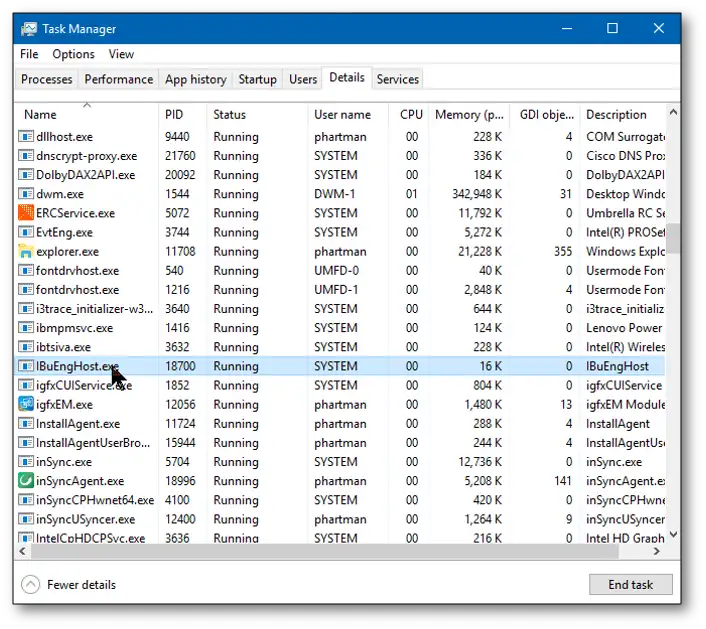
If the process isn’t running under System, download the installer for your QuickBooks version. Save it somewhere easy to find, right-click the installer, and select Run as Administrator to reinstall the software.
After installation, return to Task Manager and check IBuEngHost.exe again. Make sure its user name is System and its status is Running. Then try backing up your QuickBooks files.
If this doesn’t work, try updating QBD.
Solution 3: Update QuickBooks Desktop and IDP
If you’re using an older version of QuickBooks Desktop, it’s worth checking for updates. Keeping QuickBooks Desktop and Intuit Data Protect updated is important for authentication, compatibility, and reliable backups.
Outdated versions can also cause errors such as Intuit Data Protect has stopped working or an incomplete backup.
Here’s how to check for QuickBooks updates:
- Open QuickBooks Desktop.
- Select Help, then Update QuickBooks Desktop.
- Open the Update Now tab.
- Click Get Updates.
- Once the updates have downloaded, install them and check whether Intuit Data Protect is working properly.
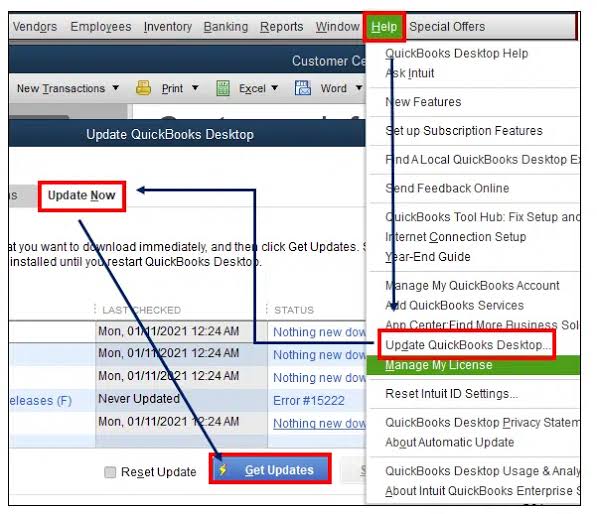
This is particularly important if you’re experiencing problems associated with Intuit Data Protect discontinued versions, as older versions may not support the newer sign-in and setup requirements.
Not sure what’s causing the error? Rather than guessing, let the Intuit Data Protect Diagnostic Tool check your system.
Solution 4: Run the Intuit Data Protect Diagnostic Tool
The tool checks several important areas, including available memory, disk space, .NET Framework, the Data Protect version, and connections to Intuit’s backup and authentication servers.
Here’s how to run it:
- Find the green padlock icon for Intuit Data Protect in the Windows system tray.
- Right-click the icon and select About Intuit Data Protect.
- Press Ctrl + F2 to open the Diagnostic Tool. If that doesn’t work, try Fn + Ctrl + F2 or use the Windows On-Screen Keyboard.
- Select Run Diagnostics.
- Review the results and follow the recommended instructions for any errors.
Pay attention to these diagnostic results:
- Free Physical Memory: Intuit Data Protect requires at least 150 MB of free physical memory.
- Free Local Disk Space: The working directory needs at least twice the size of your largest backup file set, plus another 60 MB.
- .NET: Intuit identifies .NET Framework 3.5 or later as a requirement.
- QBIDPService: The diagnostic tool checks whether the required service is available.
- IDP Version: The tool checks whether you’re running the required version.
- Backup and Authentication Systems: These tests help identify connection or server-related problems.
If the diagnostic tool reports an error you can’t resolve, select Create Zip File, if available, and contact Support.
Solution 5: Check the Intuit Data Protect Disk Space Requirement
If you receive Error 2261, your Intuit Data Protect has reached its 100 GB storage limit, causing your last backup to fail.
Follow these steps to free up space:
Step 1: Check your Intuit Data Protect version
Make sure Intuit Data Protect is up to date before deleting backup data.
Step 2: Delete backup folders
Delete saved backup folders you no longer need. Before doing so, download any files you want to keep, as deleted backups can’t be recovered.
Step 3: Reduce backup file size
Remove unnecessary files from your backup selection to help prevent reaching the storage limit again.
Once you’ve freed up space, try running your backup again.
If the previous solutions haven’t resolved the problem, we recommend using QuickBooks File Doctor to check for company file and network issues.
Solution 6: Use QuickBooks File Doctor
Here’s how to get started:
- Download and install the QuickBooks Tool Hub.
- Open QuickBooks Tool Hub and select Company File Issues.
- Select Run QuickBooks File Doctor.
- If the tool doesn’t open, search your computer for QuickBooks Desktop File Doctor and open it manually, or you may follow our guide on how to fix the QuickBooks File Doctor Not Working Issue
- Read the prompt and select OK.
- Choose your company file from the dropdown menu. If it isn’t listed, select Browse.
- Select Check your network, identified as the third option in the supplied instructions, and click Continue.
- Follow the prompts and select whether you’re using a workstation or a server.
- Wait for the scan to finish and review the results.
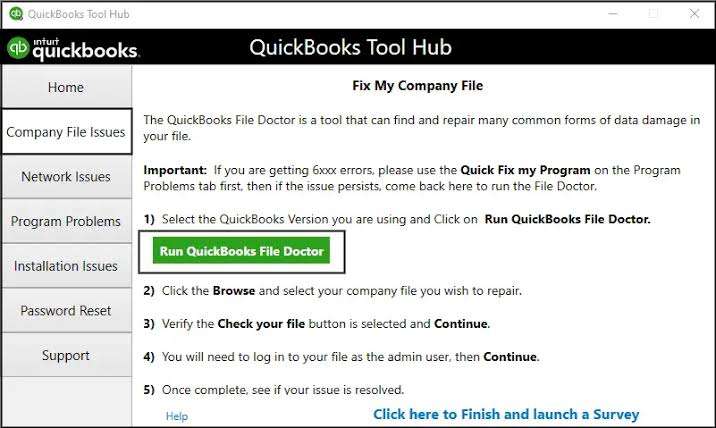
Once the scan finishes, QuickBooks File Doctor will list the issues it fixed and any remaining problems that may prevent QuickBooks from connecting to Intuit’s servers.
Solution 7: Check Windows Administrator Permissions
If Intuit Data Protect’s scheduled backup isn’t running, check whether your Windows user account has administrator-level access.
To verify this:
- Press Ctrl + R on your keyboard to open the Run command.
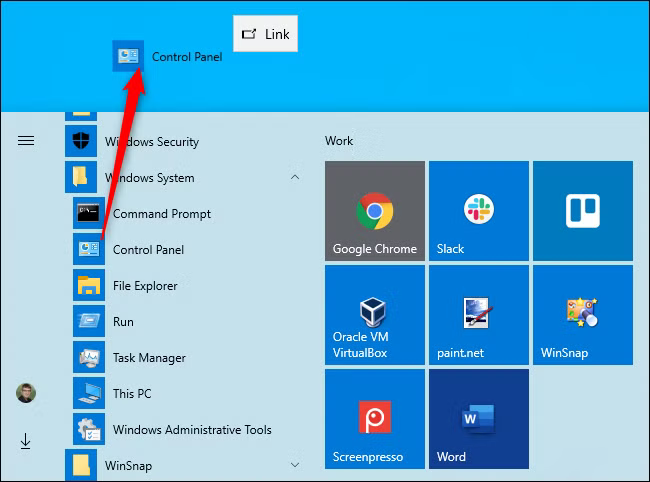
- Type Control Panel and select OK.
- Open User Accounts.
- Check whether Administrator appears below your username. This indicates that your account has the access needed to manage Intuit Data Protect and QuickBooks.
If necessary, create a Windows user account with administrator rights for Windows 10, Windows 11, or Windows Server 2012.
Important: The Windows account with administrator-level privileges must remain logged in during the scheduled backup. If you log out while leaving the computer running, Intuit Data Protect may not have the permissions required to complete the backup.
Solution 8: Check Remote Access and Power Settings
If you access QuickBooks Desktop and Intuit Data Protect remotely, make sure your remote session stays active and doesn’t time out before or during the scheduled backup.
To check your computer’s power settings:
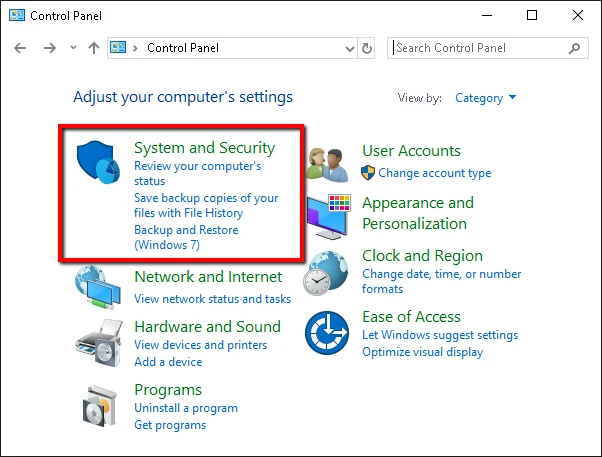
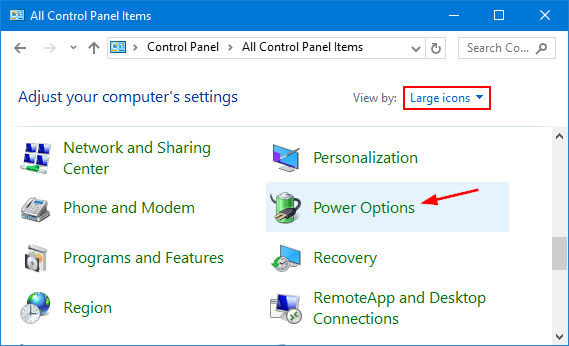
- Open Control Panel.
- Select System and Security.
- Choose Power Options.
- Adjust the settings to prevent your computer from sleeping during the scheduled backup, allowing the remote session to remain active.
If your computer is in a power-saving mode, Intuit Data Protect can wake it from Sleep mode when a backup is scheduled. However, the backup may not run as expected if the program is installed on a laptop that hibernates when its lid is closed or if the battery is low. Adjust your power settings accordingly.
If you need to access QuickBooks Desktop from different locations, explore our QuickBooks cloud hosting services to learn about remote access to your desktop accounting software.
Solution 9: Fix Files That Are Open or Unreachable During Backup
Intuit Data Protect may be unable to back up files if the QuickBooks company file is open through a mapped network drive, IBuEngHost.exe runs under the local user instead of the SYSTEM user, or the Windows drive uses a file system other than NTFS.
Step 1: Close the QuickBooks Desktop File If It’s Open Through a Network Drive
Intuit Data Protect cannot back up the company file while it’s open through a mapped network drive.
- Close the QuickBooks company file.
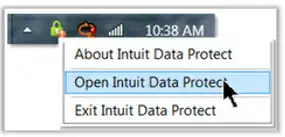
- Right-click the Intuit Data Protect icon in the system tray, next to the system clock.
- Select Open Intuit Data Protect.
- Click Back up now.
Step 2: Verify That IBuEngHost.exe Runs as the System User
- Right-click the taskbar and open Task Manager.
- Find IBuEngHost.exe and check the User Name column. You may need to select Show processes from all users to find it.
- Confirm that the user listed is System. If another user is listed, Intuit Data Protect may not be able to back up open files.
To address this, check whether QBIDPService.exe is running:
- Open the Windows Run command.
- Type services.msc and press Enter.
- Find QBIDPService.exe and check whether its status is Started.
- If the service isn’t running, start it and restart your computer.
QuickBooks must be installed using a Windows administrator account for Intuit Data Protect to install and run correctly. If the issue persists, you may need to uninstall and reinstall QuickBooks using a Windows administrator account.
Step 3: Check Whether the Drive Uses NTFS
If the drive uses a file system other than NTFS, Intuit Data Protect won’t be able to back up open files.
- Open My Computer.
- Right-click the C: drive and select Properties.
- Check whether the file system is listed as NTFS.
Note: The QuickBooks company file, which ends in .QBW, and Intuit Data Protect may be installed on different computers. If so, close the company file in QuickBooks before running the backup. Don’t use a UNC path (\\) as a workaround.
If you also experience network-related problems when accessing your company file, see our QuickBooks Company File Guide for additional help with common QuickBooks Company File issues.
Next, we are covering some bonus tips you can take to prevent this issue from happening.
How to Prevent Intuit Data Protect Backup Failures
You should keep the following things in mind while dealing with the IDP error:
- Keep QuickBooks Desktop and Intuit Data Protect updated.
- Check backup status regularly to confirm successful backups.
- Maintain sufficient disk space and monitor your backup storage limit.
- Ensure firewall and antivirus settings do not block Intuit Data Protect.
- Verify that the Windows account has the required administrator privileges.
- Keep the administrator account logged in during scheduled backups.
- Prevent remote sessions from timing out during scheduled backups.
- Adjust power settings to avoid sleep or hibernation interruptions.
- Close company files accessed through mapped network drives before backing them up.
- Run the Intuit Data Protect Diagnostic Tool to identify potential issues.
- Verify that each backup completes successfully.
For additional troubleshooting guidance, consult Intuit’s official guide to fixing Intuit Data Protect backup problems.
Case Study
Client Name: Robert Herd
Designation: Accounts Manager
Company: Small Business Enterprise
Problem
Robert Herd, an Accounts Manager, ran into an issue when Intuit Data Protect stopped working in QuickBooks Desktop. His scheduled backups kept failing, making it difficult to ensure that the company’s financial records and recent transactions were safely backed up.
Solution We Offered
We took a step-by-step approach to identify the cause. We reviewed the Intuit Data Protect diagnostic results, checked firewall permissions, verified software updates, examined available disk space, and checked Windows administrator permissions. After addressing the potential issues, we tested the backup process to see whether it was working correctly.
Outcome
Our troubleshooting process helped identify the areas that needed attention and provided a clear path toward resolving the backup issue. We also guided Robert on checking backup status regularly and maintaining the right system settings to help prevent similar problems in the future.
Conclusion
When Intuit Data Protect stops working, identifying the root cause helps you resolve backup issues and protect your QuickBooks data. Regular updates and successful backup checks help keep your financial records safe and your accounting running smoothly.
Frequently Asked Questions
How do I fix Intuit Data Protect error 2229?
Intuit Data Protect error 2229 can occur when you cancel a backup before it finishes. Open Intuit Data Protect and start the backup manually, then let the process complete without interruption. The initial backup may take longer because it needs to back up your selected files.
How do I fix Intuit Data Protect error 305?
Intuit Data Protect error 305 may indicate a backup problem. Check your internet connection and confirm that your firewall allows Intuit Data Protect to connect. Then run the Intuit Data Protect Diagnostic Tool to check for system or connectivity issues that may interrupt the backup.
Is Intuit Data Protect compatible with Windows 11?
Yes, Intuit Data Protect can work on Windows 11, provided the installed version is compatible with your QuickBooks Desktop release.
Can I use Intuit Data Protect on a virtual machine or Parallels?
If you run QuickBooks in a virtual machine or Parallels, confirm that your configuration is supported by Intuit before relying on scheduled backups. Compatibility can vary by software version and setup.
Why is Intuit Data Protect not sending backup emails?
First, check whether the backup actually completed. Then look in your spam or junk folder and review your email settings. If you still don’t receive notifications, contact Intuit Support for further guidance.
Is Intuit Data Protect still supported for older QuickBooks versions?
No, Intuit Data Protect is not supported for discontinued QuickBooks Desktop versions.


