The QuickBooks missing PDF component error appears when QuickBooks Desktop cannot create a PDF file. You may see this error while saving an invoice, emailing a customer, or printing a report.
The message usually reads:
QuickBooks detected that a component required to create PDF files is missing.
This often happens when Microsoft XPS Document Writer is disabled, QuickBooks has a damaged printing component, or Windows blocks PDF creation.
Quick fix: On Windows 11, enable Microsoft XPS Document Writer through Windows Features. Then restart QuickBooks and try saving a PDF again. If the error remains, run the QuickBooks Print & PDF Repair Tool.
Below are eight ways to find and fix the problem without making unnecessary changes to your company file.
What Does the QuickBooks Missing PDF Component Error Mean?
The error means QuickBooks cannot access a Windows component it needs to create PDF documents.
QuickBooks Desktop uses parts of Microsoft XPS Document Writer to generate PDFs. If this feature is missing, disabled, or not working correctly, QuickBooks may fail to complete the task.
You might notice:
- Invoices do not save as PDF files.
- QuickBooks cannot attach invoices to emails.
- Reports fail to export as PDFs.
- The missing PDF component message appears during printing.
- QuickBooks displays an error when saving forms.
The issue does not necessarily mean your company file is damaged. In many cases, the problem comes from Windows printing settings or QuickBooks installation components.
Why Is QuickBooks Desktop Missing a PDF Component?
The error can have several causes. The most common ones involve Windows settings and QuickBooks printing tools.
| Possible cause | How it affects QuickBooks |
| Microsoft XPS Document Writer is disabled | QuickBooks may be unable to generate PDFs |
| Damaged Windows printing components | PDF creation or printing may fail |
| Outdated QuickBooks Desktop | Existing software problems may remain unresolved |
| Incorrect Temp folder permissions | QuickBooks may fail to create temporary files |
| Damaged printer configuration | Saved printing settings may interfere with printing |
| Security software restrictions | PDF or XPS file creation may be blocked |
| Damaged QuickBooks installation | Required program components may not work properly |
These issues can appear after a Windows update, a QuickBooks update, or moving QuickBooks to another computer.
According to Intuit’s PDF and printing troubleshooting guide, checking Microsoft XPS Document Writer is especially important for Windows 11 users.
How to Fix QuickBooks PDF Component Missing Error
Start with the first two fixes. They address the Windows feature and QuickBooks repair utility most closely related to this error.
If neither works, use the remaining steps to narrow down the cause.
Fix 1: Enable Microsoft XPS Document Writer
QuickBooks may show the “Component required for PDF print from QuickBooks is missing” error when Microsoft XPS Document Writer is turned off.
To enable it:
- Close QuickBooks Desktop.
- Press Windows + R to open Run.
- Type optionalfeatures and press Enter.
- In Windows Features, locate Microsoft XPS Document Writer.
- Check the box beside it if it is unchecked.
- Click OK and allow Windows to apply the change.
- Restart your computer if prompted.
Open QuickBooks and try saving an invoice or report as a PDF.
If Microsoft XPS Document Writer was already enabled, leave it checked and move to the next fix.
Note: These steps apply to Windows 10 and Windows 11, although some screen labels may differ.
Fix 2: Run QuickBooks Print & PDF Repair Tool
The QuickBooks Print & PDF Repair Tool can help repair common printing and PDF-related problems.
It is available through QuickBooks Tool Hub.
Follow these steps:
- Close QuickBooks Desktop.
- Open QuickBooks Tool Hub.
- Select Program Problems.
- Click QuickBooks Print & PDF Repair Tool.

- Allow the utility to finish.
- Open QuickBooks again.
- Try printing, emailing, or saving a PDF.
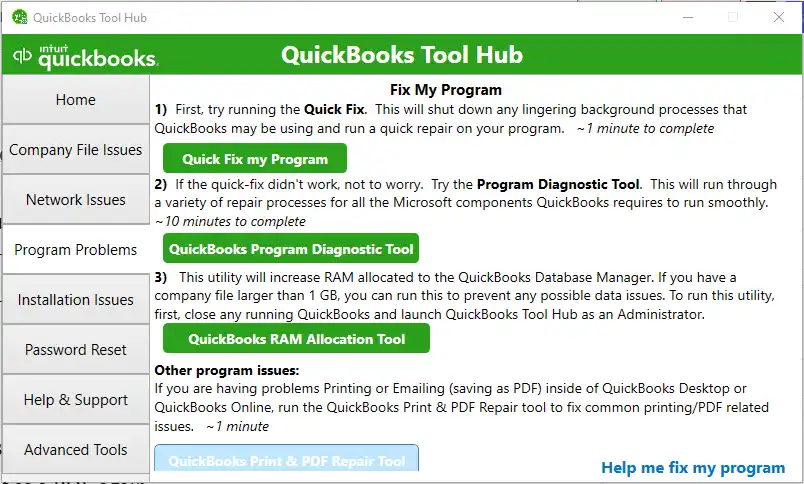
Intuit recommends this utility for errors involving missing PDF components and failed PDF creation.
Fix 3: Test Microsoft XPS Document Writer Outside QuickBooks
Testing XPS Document Writer helps determine whether the problem comes from Windows or QuickBooks.
You can run this test without opening your company file.
- Open Notepad.
- Type a short sentence, such as “PDF printing test.”
- Select File > Print.
- Choose Microsoft XPS Document Writer from the printer list.
- Click Print.
- Enter a filename and save the file to your Desktop.
- Check whether the .xps file was created successfully.
If the test works: Windows can create an XPS document. The problem may be related to QuickBooks settings, permissions, or its installation.
If the test fails: The Windows XPS feature, printer driver, or permissions may need attention.
You should resolve the Windows printing problem before repeatedly running QuickBooks repair tools.
Also, check that the printer appears under its expected name, Microsoft XPS Document Writer. An incorrect or unusual printer name has been reported as a cause in some QuickBooks installations.
Fix 4: Update QuickBooks Desktop
An outdated QuickBooks release may contain software issues that have already been addressed in later updates.
To check for updates:
- Open QuickBooks Desktop.
- Select Help > Update QuickBooks Desktop.
- Open the Update Now tab.
- Click Get Updates.
- Wait for the available updates to download.
- Close and reopen QuickBooks.
- Install the downloaded updates when prompted.
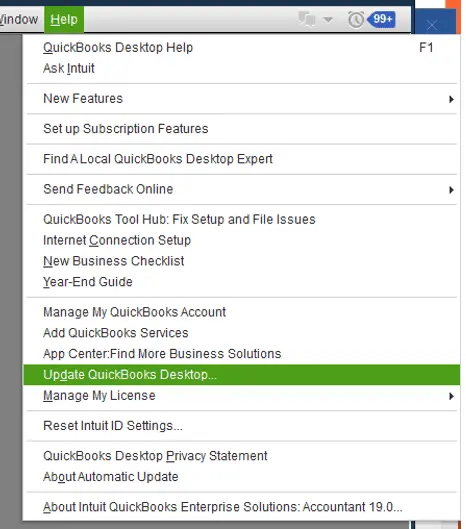
Once the update is complete, test the PDF feature again.
Important: QuickBooks updates and version upgrades are different. Updating a supported release does not automatically upgrade an older QuickBooks Desktop product to a newer year.
Fix 5: Check Windows Temp Folder Permissions
QuickBooks uses temporary files when processing certain tasks, including PDF creation. Incorrect folder permissions can prevent these operations from finishing.
First, restart your computer and test QuickBooks again.
If the error continues, check the Temp folder:
- Press Windows + R.
- Type %TEMP% and press Enter.
- Right-click an empty area inside the folder.
- Select Properties.
- Open the Security tab.
- Select your Windows user account.
- Review the permissions listed for that account.
Check whether your account has the access needed to write files to the folder.
If permissions appear incorrect, contact your system administrator before changing them.
Intuit includes a Temp folder permission reset in its official troubleshooting guidance. However, changing permissions to Full Control for broad Windows user groups can create security risks, especially on shared office computers.
Once the correct permissions have been restored, reopen QuickBooks and try saving a PDF.
Fix 6: Repair Microsoft XPS Document Writer
If Microsoft XPS Document Writer is enabled but cannot create a test file, its Windows feature or printer installation may be damaged.
You can try reinstalling the optional feature.
- Close QuickBooks and other open programs.
- Press Windows + R.
- Type optionalfeatures and press Enter.
- Uncheck Microsoft XPS Document Writer.
- Click OK and allow Windows to complete the change.
- Restart Windows.
- Open Windows Features again.
- Check Microsoft XPS Document Writer.
- Click OK and restart if required.
Run the Notepad printing test from Fix 3 again.
If XPS still fails, the issue may involve Windows printer services, drivers, or security restrictions. Ask your IT administrator to investigate those components.
Avoid downloading replacement printer drivers from unknown websites.
Fix 7: Rename the QBPrint.qbp File
The QBPrint.qbp file stores printing settings used by QuickBooks Desktop. When these settings become damaged, printing problems can occur.
Renaming this file allows QuickBooks to recreate its printer configuration.
Follow these steps:
- Close QuickBooks Desktop.
- Open File Explorer.
- Navigate to: C:\ProgramData\Intuit\QuickBooks 20xx
- Replace 20xx with your QuickBooks version year.
- Find the file named QBPrint.qbp.
- Right-click the file and select Rename.
- Change the name to QBPrint.qbp.old.
- Open QuickBooks Desktop.
- Go to File > Printer Setup.
- Select a form in the Form Name list and click OK.
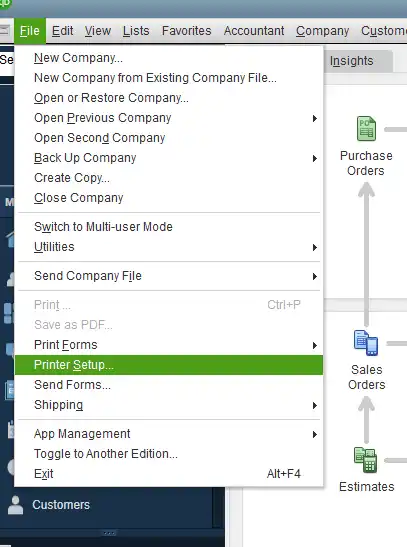
QuickBooks should create a new printer configuration file.
Test PDF creation again.
Note: You may need to enable hidden items in File Explorer to see the ProgramData folder. This repair can reset saved printing preferences, so check your printer settings afterward.
Intuit documents this method for QuickBooks Desktop printing issues.
Fix 8: Repair the QuickBooks Desktop Installation
If Windows XPS works correctly but QuickBooks still cannot create PDFs, the application installation may need repair.
Before making installation changes, back up your company file and ensure you have your QuickBooks license and installation information.
First, try Quick Fix my Program:
- Close QuickBooks Desktop.
- Open QuickBooks Tool Hub.
- Select Program Problems.
- Click Quick Fix my Program.
- Allow the repair process to finish.
- Restart QuickBooks and test PDF creation.

If the error remains, follow Intuit’s QuickBooks Desktop repair instructions for further installation repair options.
Do not uninstall QuickBooks or delete company files as your first troubleshooting step. A full reinstall should be considered only after simpler fixes have failed.
What If the QuickBooks PDF & Print Repair Tool Doesn’t Work?
If the repair tool completes but the error remains, stop repeating it and check which part of the PDF process is failing.
Use the results below to choose your next step.
| What you find | What to do next |
| XPS Document Writer is missing | Enable it in Windows Features |
| XPS cannot print from Notepad | Repair Windows XPS or printer settings |
| XPS works but QuickBooks fails | Check Temp permissions and QuickBooks updates |
| QuickBooks printing settings appear damaged | Rename QBPrint.qbp |
| Only one invoice or form fails | Test another template |
| The problem continues across all forms | Repair the QuickBooks installation |
You should also try creating a PDF from a different invoice or report.
If one form fails while others work, its template may be damaged. Create or select another template and test it before making further Windows changes.
If none of these checks resolves the error, contact Intuit Support or a qualified IT professional with your QuickBooks version, Windows version, exact error message, and troubleshooting results.
This information can help identify the cause without repeating unsuccessful repairs.
How to Fix QuickBooks Missing PDF Component on Windows 11
On Windows 11, the first thing to check is whether Microsoft XPS Document Writer is enabled.
This is particularly relevant if the error began after setting up QuickBooks on a new laptop or moving from an older computer.
A practical order is:
- Enable Microsoft XPS Document Writer.
- Test XPS printing from Notepad.
- Run the QuickBooks Print & PDF Repair Tool.
- Install available QuickBooks updates.
- Check Windows permissions if the problem continues.
You should also confirm that your QuickBooks Desktop version is supported on your Windows installation.
For example, if the error appeared after moving QuickBooks to a replacement computer, review the installation and migration steps in our guide to moving QuickBooks to a new computer.
That guide covers the wider migration process, while the fixes here address the missing PDF component itself.
Why Is QuickBooks Not Attaching PDF Invoices to Emails?
QuickBooks may fail to attach an invoice because it cannot create the PDF file required for the email.
Before changing your email settings, check whether PDF creation works.
Open an invoice and try saving it as a PDF.
If the PDF cannot be saved: Fix the PDF component problem using the steps above.
If the PDF saves successfully: The issue may involve your email configuration, Outlook connection, or QuickBooks email preferences.
For those problems, follow our separate guide to fix QuickBooks email sending issues.
This simple test helps avoid unnecessary email troubleshooting when the actual problem is PDF generation.
How to Check Whether the PDF Component Error Is Fixed
After applying a fix, test the feature that originally failed.
Use a non-sensitive sample document if possible.
- Save test: Open an invoice or report and save it as a PDF.
- Printing test: Print a report from QuickBooks.
- Email test: Send a test invoice to an email address you control and confirm that its PDF attachment arrives.
Open the saved PDF and check that its contents appear correctly.
If the save and print tests work but emailing fails, focus on the email configuration rather than repeating Windows XPS repairs.
If QuickBooks freezes during PDF creation instead of displaying the missing-component message, you may also need to investigate QuickBooks freezing problems.
Frequently Asked Questions
Can I fix QuickBooks missing PDF component without reinstalling QuickBooks?
Yes, many cases can be resolved by enabling Microsoft XPS Document Writer, using the Print & PDF Repair Tool, or correcting Windows settings. Reinstallation is usually a later option.
Is Microsoft XPS Document Writer required for QuickBooks PDFs?
QuickBooks Desktop uses parts of Microsoft XPS Document Writer for PDF creation. If the feature is disabled or cannot print correctly, saving or emailing PDFs from QuickBooks may fail.
Does QuickBooks need Adobe Acrobat Reader to create PDFs?
Adobe Acrobat Reader is mainly used to open and view PDF files. QuickBooks Desktop relies on its own software and Windows printing components to create PDFs. Reinstalling Adobe Reader is not the first fix for a missing PDF component error.
Why did the PDF component error appear after a Windows update?
A Windows update may change printing components, drivers, or settings. Check whether XPS Document Writer is enabled and working before making changes to QuickBooks.
Will fixing the PDF component delete my QuickBooks company file?
Enabling XPS, running the PDF repair tool, or resetting printer settings should not delete your company data. Still, create a backup before repairing or reinstalling QuickBooks Desktop.
What if QuickBooks still cannot save a PDF?
Test Microsoft XPS Document Writer in Notepad, check your Temp folder permissions, and try another QuickBooks form. If those checks pass but PDF creation still fails, the QuickBooks installation may require repair.

