QuickBooks Error 2277 can appear when Intuit Data Protect (IDP) fails to back up your company files. The message often reads, “Intuit Data Protect Backup Failed: Firewall or connection issue.” This means the backup did not complete, but it does not automatically mean your company file is damaged.
Start by checking your last successful backup. Then run the Intuit Data Protect Diagnostic Tool to find out whether the problem involves your firewall, internet connection, software version, or another part of the backup process.
This guide explains how to identify the cause and choose the right fix without making unnecessary changes to your system.
What Is QuickBooks Error 2277?
QuickBooks Error 2277 is commonly associated with a failed Intuit Data Protect backup that displays a firewall or connection error. The message points to a backup problem, but it does not identify the exact cause on its own.
Intuit Data Protect backs up selected QuickBooks files and other folders to online storage. If the service cannot access the files or connect to the required systems, the backup may fail.
You may notice that:
- Intuit Data Protect displays a backup failure message.
- A scheduled backup does not finish.
- A manual backup fails to complete.
- The diagnostic tool reports a connection or security problem.
These signs do not prove that Windows Firewall is responsible. Check the diagnostic results before changing your settings.
What Causes QuickBooks Backup Error 2277?
QuickBooks backup error 2277 can have several causes. The best way to narrow them down is to check the backup process and the results from Intuit’s diagnostic tool.
Common causes include:
- Firewall or antivirus restrictions: Security software may block Intuit Data Protect from accessing the services it needs.
- Internet or server connection problems: IDP may be unable to reach Intuit’s backup or authentication systems.
- Outdated software: An older version of QuickBooks Desktop or Intuit Data Protect may have compatibility or sign-in problems.
- IDP service problems: A required Windows service or background process may not be running correctly.
- Company-file access issues: IDP may be unable to back up a file that is open through a mapped network drive.
These problems need different fixes. For example, changing firewall rules will not solve a company-file access problem.
How to Fix QuickBooks Error 2277
Follow the steps below in order. Start with the diagnostic tool, then use its results to choose the next step.
Check Your Last Successful Backup
Before changing system settings, confirm that you have a usable backup.
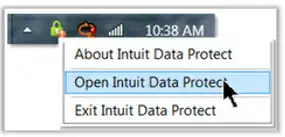
- Find the Intuit Data Protect icon in the Windows system tray near the clock.
- Open Intuit Data Protect.
- View the backup status or backup history.
- Check the date and time of the last completed backup.
- Keep any existing backup copies until the issue is resolved.
If the latest backup failed, your company file may still be available on your computer. The main concern is that recent changes may not be included in a recovery copy.
If QuickBooks Desktop still opens your company file, create a separate local backup using the available QuickBooks backup option, if possible. Do not overwrite your only known-good backup.
Run the Intuit Data Protect Diagnostic Tool
The Intuit Data Protect Diagnostic Tool checks system requirements, software versions, and connections to Intuit’s backup and authentication systems. Run it before changing firewall rules or reinstalling QuickBooks.
Follow these steps:
- Find the green padlock icon for Intuit Data Protect in the Windows system tray.
- Right-click the icon and select About Intuit Data Protect.
- Press Ctrl + F2 to open the diagnostic tool. If that does not work, try Fn + Ctrl + F2 or use the Windows On-Screen Keyboard.
- Select Run Diagnostics.
- Review the results and note any failed checks.
Pay close attention to the following results:
- Backup system: A failure may point to a problem with Intuit’s backup servers or your connection to them.
- Authentication system: A failure may indicate a sign-in or connection issue.
- QBIDPService: A failure means the required service needs attention.
- IDP version: An outdated version may need an update.
- Memory or disk space: Your computer may not have enough resources to complete the backup.
If the diagnostic tool identifies a problem, follow the instructions for that result instead of trying every available repair.
If the results show a connection failure, continue to the next step.
Check Your Internet Connection
Intuit Data Protect needs a working connection to reach its backup and authentication systems. A browser that opens websites successfully does not guarantee that IDP can connect to those systems.
Try these checks:
- Confirm that your computer has an active internet connection.
- Open a few trusted websites to check for a general connection problem.
- If you use a VPN or managed business network, ask your network administrator whether it restricts Intuit Data Protect traffic.
- Run the IDP Diagnostic Tool again and check the backup and authentication results.
If IDP worked before and the diagnostic tool reports a temporary server or connection problem, wait a while and try again.
If the same error continues, check your firewall and antivirus settings.
Check Windows Firewall and Antivirus Permissions
Windows Firewall or third-party antivirus software may block Intuit Data Protect. If the diagnostic tool points to a security restriction, check the permissions for the required IDP files.
To review Windows Firewall settings:
- Press the Windows key and type Firewall.
- Open Allow an app through Windows Firewall.
- Select Allow another app.
- Select Browse.
- Open the Intuit Data Protect folder, commonly located at:
C:\Program Files (x86)\Common Files\Intuit\Data Protect - Select the required IDP executable listed in Intuit’s instructions.
- Add the application and allow it on the appropriate trusted network profile.
- Repeat the process for the other required IDP files if they are not already listed.
Intuit’s troubleshooting guidance identifies these files:
- QBIDPService.exe
- IBuEngHost.exe
- IntuitDataProtect.exe
The exact filename or folder may vary by installation. Select the actual file on your computer rather than creating a new entry with a guessed path.
If you use third-party antivirus software, check its application permissions as well.
Do not turn off your firewall permanently. The goal is to allow the required connection while keeping your computer protected.
For more detailed instructions, read our guide to checking Windows Firewall rules for QuickBooks.
What about firewall ports and trusted websites?
Intuit also lists port and trusted-site settings in its official guide to the IDP firewall or connection error.
Use those instructions if the diagnostic results point to a firewall or network restriction. The official page includes older Internet Explorer steps, so do not change legacy browser security settings blindly. Newer IDP versions use a different embedded browser.
Update QuickBooks Desktop and Intuit Data Protect
An outdated version can cause compatibility, sign-in, or backup problems. Intuit recommends keeping QuickBooks Desktop and IDP up to date.
To check for QuickBooks Desktop updates:
- Open QuickBooks Desktop.
- Select Help.
- Choose Update QuickBooks Desktop.

- Open the Update Now tab.
- Select Get Updates.
- Install the available updates and restart QuickBooks if prompted.
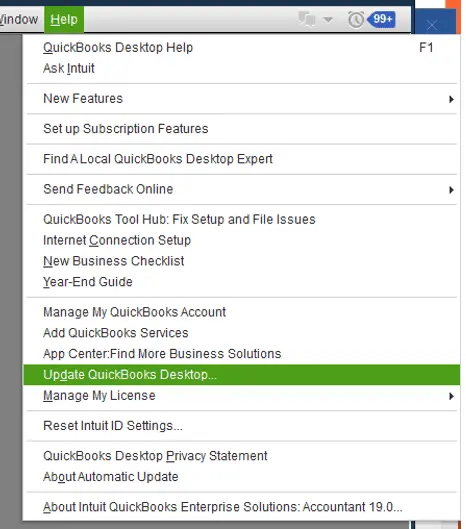
Intuit’s updates also help maintain the IDP features used for setup and authentication.
After updating, open Intuit Data Protect and run the backup again. Check whether the backup completes successfully.
If you still see Error 2277, return to the diagnostic results and check whether the service or process tests failed.
Check the Intuit Data Protect Service
If the diagnostic tool reports a QBIDPService problem, check whether the service is running.
- Press Windows + R.
- Type services.msc and press Enter.
- Find QBIDPService in the list.
- Check its status.
- If it is stopped, select it and choose Start. If it is already running and the diagnostic tool reports a service problem, follow Intuit’s instructions to restart it.
- Run the diagnostic tool again.
You should also check IBuEngHost.exe if Intuit’s diagnostics indicate a problem with the process.
Open Task Manager, select the Details tab, and find IBuEngHost.exe. Intuit says this process needs to run under the Windows System account for IDP to back up open files correctly.
If the process runs under a different account, do not change system permissions at random. Follow Intuit’s recommended repair or reinstall instructions for your QuickBooks version.
For more help with wider IDP service failures, see our guide to fixing Intuit Data Protect when it stops working.
Check Company-File Access and Network Locations
Intuit Data Protect may fail when it cannot access the file selected for backup. This is different from a firewall problem.
One known issue occurs when a QuickBooks company file is open through a mapped network drive during the backup.
Try the following:
- Close the QuickBooks company file if it is open through a mapped network drive.
- Open Intuit Data Protect.
- Select Back up now.
- Check whether the backup completes.
Intuit also advises using supported local file paths when setting up IDP. Do not try to work around a mapped-drive problem by switching to a different network path without checking the supported setup.
If QuickBooks itself cannot open the company file over your network, the issue may need separate troubleshooting.
Read our guide to QuickBooks Desktop connection problems for help with broader server or file-access issues.
Use QuickBooks File Doctor only if your symptoms point to a supported company-file or network problem. You can follow our QuickBooks File Doctor guide for instructions.
Run the Backup Again and Check the Result
After addressing the problem found by the diagnostic tool, run a new backup.
- Open Intuit Data Protect.
- Start a manual backup.
- Allow the process to finish without closing the application or interrupting the computer.
- Check the final status.
- Open the backup history and confirm that the new backup completed.
Starting a backup is not the same as completing one. Check the result before relying on it to recover your financial records.
If Error 2277 returns, save the diagnostic results and review them to identify the underlying cause before trying additional troubleshooting steps.
What If QuickBooks Error 2277 Still Appears?
If Error 2277 continues after the relevant fixes, save the diagnostic results. The results can help narrow the problem to a connection, authentication, service, or system issue.
Before contacting expert, gather:
- The exact error message
- The date and time of the failed backup
- The last successful backup date
- The diagnostic tool results
- Your QuickBooks Desktop and IDP versions
- A list of the fixes you have already tried
Do not delete old backups to make room unless you have checked what they contain and saved any copies you may need.
If you need to recover company data from an existing backup, follow our guide on how to restore a QuickBooks backup file safely.
How Can You Prevent Future Intuit Data Protect Backup Failures?
You can reduce the risk of another failed backup by checking the backup status regularly instead of relying only on the schedule.
Follow these habits:
- Keep QuickBooks Desktop and Intuit Data Protect updated.
- Review backup history after scheduled runs.
- Keep enough free disk space for the backup process.
- Make sure the required IDP files are allowed by your security software.
- Use supported file locations and access settings.
- Keep a separate recovery copy of important company data.
These checks will not prevent every error, but they can help you notice a failed backup before you need to recover your records.
Conclusion
QuickBooks Error 2277 usually points to an Intuit Data Protect backup failure associated with a firewall or connection message. The message alone does not tell you what caused it.
Run the IDP Diagnostic Tool first. Check the result, apply the matching fix, and run a new backup to confirm that it completes. If the error persists, save the diagnostic details and review them before making further changes to your system.
Frequently Asked Questions
What does QuickBooks Error 2277 mean?
QuickBooks Error 2277 is commonly associated with an Intuit Data Protect backup failure that displays a firewall or connection message. The cause may involve security settings, connectivity, software, or file access.
How do I fix Intuit Data Protect Error 2277?
Start by running the Intuit Data Protect Diagnostic Tool. Check its results for firewall, connection, service, or version problems. Apply the fix that matches the result, then run a new backup and confirm that it completes.
Is Intuit Data Protect backend error 2277 a different error?
The phrase “Intuit Data Protect backend error 2277” is used as a search variation for this troubleshooting topic. It does not, by itself, confirm a separate technical error. Check the exact message displayed by IDP and use the diagnostic results to identify the problem.
Can Windows Firewall cause QuickBooks backup Error 2277?
Yes, Firewall or antivirus restrictions can block Intuit Data Protect from reaching the services it needs. Run the diagnostic tool first, then review the required application permissions if the results point to a security restriction.
Does QuickBooks Error 2277 mean my company file is corrupted?
No, A failed backup does not automatically mean the company file is damaged. The error may be related to a connection or security problem. Check whether the company file still opens and confirm the date of your last successful backup.
Does Error 2277 affect QuickBooks Online?
This guide focuses on QuickBooks Desktop using Intuit Data Protect. QuickBooks Online uses a different service and backup setup, so these Desktop troubleshooting steps may not apply.
What should I do if Error 2277 continues after troubleshooting?
Save the diagnostic results, and record your QuickBooks and IDP versions. Keep existing backups until you have confirmed that a new backup completes successfully.

