QuickBooks Error PS033 can appear when QuickBooks Desktop cannot read the files needed for payroll updates. You may see the message “QuickBooks can’t read your payroll setup files” while downloading a payroll tax table update. In some cases, PS033 also appears when opening QuickBooks.
The problem may come from damaged payroll components, incorrect internet settings, or firewall restrictions. Before changing any program files, check your payroll subscription and update QuickBooks Desktop.
This guide explains what causes QuickBooks Error PS033, how to fix it, and how to confirm that payroll updates are working again.
What Is QuickBooks Error PS033?
QuickBooks Error PS033 is a payroll-related error that occurs when QuickBooks Desktop cannot access certain files or services required for payroll updates.
It belongs to the PSXXX group of QuickBooks payroll errors, which also includes PS032, PS036, PS101, and PS107.
One possible cause is a damaged file in the CPS folder, which contains payroll-related program components.
However, PS033 does not necessarily mean your QuickBooks company file is damaged or that employee payroll records have been lost. The problem may involve the installed payroll components or the connection used to download updates.
What Causes QuickBooks Error PS033?
According to Intuit’s official PSXXX troubleshooting guide, three issues can cause these payroll update errors:
| Cause | How it affects QuickBooks |
| Damaged CPS folder files | QuickBooks may be unable to read the payroll components needed for an update. |
| Incorrect internet connection settings | QuickBooks may fail to connect to the services used to download payroll updates. |
| Firewall restrictions | Windows Firewall or other security software may block the required update connection. |
Intuit also recommends checking the payroll subscription, service key, product activation, and installed QuickBooks release during troubleshooting.
These checks matter because an inactive subscription or outdated installation can prevent payroll updates, even when the CPS folder is not damaged.
What Should You Check Before Fixing Payroll Error PS033?
Before repairing QuickBooks, take a few minutes to protect your company data and confirm that your Desktop version still supports payroll updates.
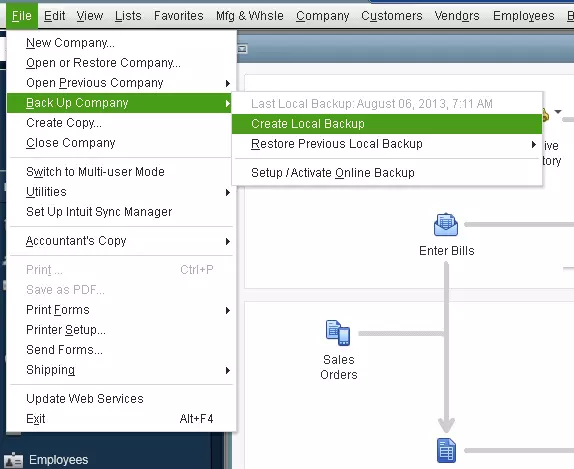
- Back up your company file. Open File → Back Up Company → Create Local Backup and follow the prompts to save a backup in a secure location.

- Check your QuickBooks version. Press F2 to open the Product Information window. Note the product year and release number.
- Confirm internet access. Open a browser and check whether you can access a secure website.
- Close other QuickBooks sessions. If the company file is shared, ask other users to finish their work before you change program settings.
- Check administrator access. Some repair tools and Windows security changes require administrator permissions.
Important for QuickBooks Desktop 2023 users: Intuit discontinued connected services for affected QuickBooks Desktop 2023 products after May 31, 2026, including Desktop Payroll.
If you use an affected 2023 version, check your upgrade options before attempting further payroll-update repairs. You can review Intuit’s Desktop 2023 discontinuation policy for details.
How to Resolve QuickBooks Error PS033
Start with the subscription and software checks below. If PS033 continues, try the program repair tools and investigate the connection settings.
The first four methods follow Intuit’s current troubleshooting guidance. The later CPS-folder method is based on older Intuit guidance and requires additional care.
Solution 1: Verify Your Payroll Subscription and Service Key
Intuit recommends checking your payroll service before making changes to the QuickBooks installation.
An inactive subscription or incorrect service key can prevent QuickBooks from downloading payroll updates.
Follow these steps:
- Close all open QuickBooks company files and restart your computer.
- Open QuickBooks Desktop and your company file.
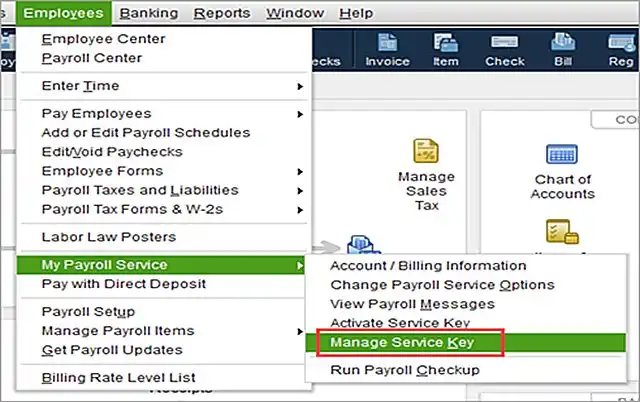
- Go to Employees → My Payroll Service → Manage Service Key.
- Check the Service Name and Status. The service should show Active.
- Select Edit and verify the service key number.
- If the number is incorrect, enter the correct service key.
- Click Next.
- Make sure Open Payroll Setup is unchecked.
- Select Finish.
QuickBooks should attempt to download the entire payroll update.
If the service shows Inactive, resolve the subscription issue before continuing. If the service key is already correct, do not change it unnecessarily.
Once the update finishes, check whether PS033 appears again. If the error remains, continue to the next method.
Solution 2: Check QuickBooks Activation and Install Updates
An unactivated or outdated QuickBooks Desktop installation may prevent payroll updates from completing.
First, check whether QuickBooks is activated:
- Open QuickBooks Desktop.
- Press F2 to open the Product Information window.
- Look beside the license number.
- Confirm that the product shows Activated.
If QuickBooks is not activated, follow the product registration or activation instructions provided by Intuit.
After confirming activation, update QuickBooks Desktop:
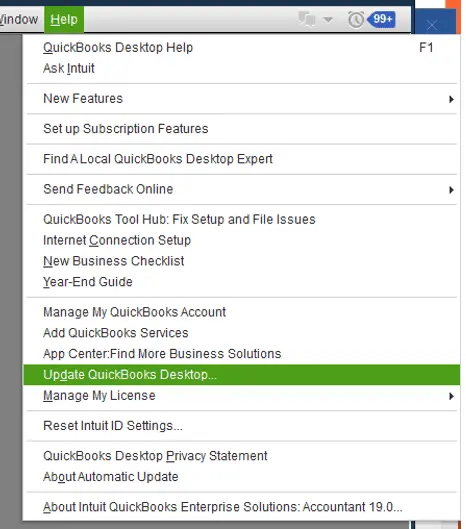
- Open the Help menu.
- Select Update QuickBooks Desktop.
- Click the Update Now tab.
- Select Get Updates.
- Wait for the available updates to download.
- Close and reopen QuickBooks Desktop.
- Select Install Now if prompted.
You can compare your installed release number with the latest available version using Intuit’s QuickBooks Desktop update guide.
Check the result: Open QuickBooks and retry the payroll update. If QuickBooks Payroll Update Error PS033 continues, download the complete payroll tax table update.
Solution 3: Download the Latest Payroll Tax Table
QuickBooks Desktop Payroll uses tax tables to calculate federal and supported state payroll taxes. An active Desktop Payroll subscription is required to download these updates.
If your earlier payroll download did not finish, try downloading the entire update again.
- Open QuickBooks Desktop.
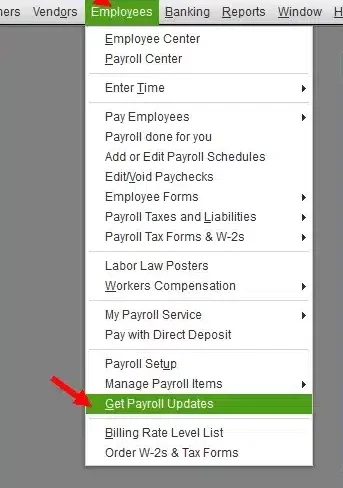
- Go to Employees → Get Payroll Updates.
- Look for the installed tax table version.
- Select Download Entire Update.
- Click Update.
- Wait for the download to finish.
QuickBooks should display an informational window when the update is complete.
To check whether the installed version is current, compare it with Intuit’s latest payroll tax table information.
If QuickBooks Error code PS033 appears again during the download, proceed to Quick Fix my Program.
Solution 4: Run Quick Fix my Program
Quick Fix my Program is a utility in QuickBooks Tool Hub that closes certain QuickBooks background processes and performs a basic program repair.
Intuit includes this tool in its recommended troubleshooting for PSXXX payroll update errors.
To run it:
- Close QuickBooks Desktop and any open company files.
- Open QuickBooks Tool Hub.
- Select Program Problems.
- Click Quick Fix My Program.
- Allow the tool to finish.
- Reopen QuickBooks Desktop.
- Install any available QuickBooks maintenance updates.
- Try downloading the payroll tax table again.

If Tool Hub is not installed, follow our QuickBooks Tool Hub download and installation guide.
If QuickBooks still displays PS033: Check whether Windows security software is preventing the update from accessing the required services.
Solution 5: Check Firewall and Antivirus Restrictions
Before changing any security settings, check whether the problem is limited to QuickBooks.
For example, if websites open normally in your browser but QuickBooks cannot download payroll updates, the connection used by QuickBooks may be blocked. However, a working browser alone does not prove that your firewall is responsible.
To review Windows Firewall settings:
- Close QuickBooks Desktop.
- Open the Windows Start menu and search for Windows Security.
- Select Firewall & network protection.
- Click Allow an app through firewall.
- Review the listed QuickBooks programs and their network permissions.
- If you find a blocked QuickBooks connection, confirm the correct application and permission settings before making changes.
If you use third-party antivirus software, review its protection history or blocked-connection logs.
For a business computer managed by an IT administrator, ask them to check whether the firewall is blocking required QuickBooks update traffic.
You can refer to Intuit’s firewall and security configuration guide for additional guidance. Some settings in that guide apply to multi-user networking rather than payroll updates, so use only the instructions relevant to your connection problem.
What about Microsoft Defender exclusions?
Intuit also documents an Add Defender Exclusion option under Installation Issues in QuickBooks Tool Hub.
This option may help when Microsoft Defender is interfering with the installation of QuickBooks updates. However, it changes how antivirus protection handles certain files.
Use it only when there is a reason to suspect security software is blocking the update and your organization’s security policy permits the change. Administrator permissions are required.
Do not routinely disable Windows Defender, Windows Firewall, or User Account Control to fix PS033.
After correcting a confirmed restriction, reopen QuickBooks and retry the payroll update.
Solution 6: Troubleshoot the CPS Folder if the Error Persists
A damaged CPS folder file is one of the causes of PS033 identified by Intuit.
The CPS folder is part of the QuickBooks installation and contains payroll-related components.
An Intuit Community response from February 2019 recommends renaming the CPS folder when downloading the payroll tax table does not resolve PS033.
However, Intuit’s newer PSXXX troubleshooting guide does not provide a universal CPS-folder path or a current renaming procedure for every supported Desktop version.
For that reason, treat this as an advanced, version-dependent repair, not a required step for every PS033 error.
Step 1: Confirm the CPS folder location
- Close QuickBooks Desktop.
- Press Windows + E to open File Explorer.
- Locate the installation directory for your QuickBooks Desktop version.
- Look for the Components folder.
- Open the Payroll folder and check whether it contains a folder named CPS.
Some older installation guides show a path similar to:
C:\Program Files\Intuit\QuickBooks 20XX\Components\Payroll\CPS
Here, 20XX represents the QuickBooks product year.
This path is an example, not a verified location for every current installation. Some installations use Program Files (x86) or another directory.
Do not assume the folder is missing simply because it does not appear at the example location.
Step 2: Rename the folder only after confirming the procedure
If Intuit support or reliable version-specific instructions confirm that CPS-folder renaming applies to your installation:
- Close QuickBooks and related processes.
- Confirm that you have selected the correct CPS folder.
- Right-click the folder and select Rename.
- Rename it to CPS.OLD, if that name is not already in use.
- Press Enter.
Do not delete the folder or rename other payroll components.
If Windows refuses the change, the folder is missing, or a folder named CPS.OLD already exists, stop rather than overwriting files.
Step 3: Test the payroll update
After completing a confirmed CPS-folder repair:
- Reopen QuickBooks Desktop.
- Go to Employees → Get Payroll Updates.
- Select Download Entire Update.
- Click Update.
- Check whether the download completes without PS033.
Older troubleshooting guidance suggests CPS-folder renaming can help resolve problems involving damaged payroll components. However, the exact folder-replacement behavior has not been verified for every currently supported QuickBooks installation.
If QuickBooks does not work as expected after the change, stop further folder modifications and seek version-specific assistance. Do not merge or overwrite payroll component folders without knowing which files QuickBooks is using.
How to Prevent QuickBooks Error PS033
Not every PS033 error can be prevented, but regular checks can reduce avoidable payroll-update problems.
- Use a supported QuickBooks Desktop version. Check Intuit’s product support status before relying on Desktop Payroll services.
- Keep QuickBooks updated. Install available maintenance releases and security updates for your supported version.
- Check your payroll subscription before payday. Confirm that the service remains active, particularly after a renewal or account change.
- Keep payroll tax tables current. Check for available updates before processing payroll.
- Avoid interrupting updates. Allow downloads and installations to finish before closing QuickBooks.
- Review unexpected security blocks. If antivirus or firewall software begins blocking QuickBooks after a security update, investigate the restriction rather than disabling protection.
These practices support routine payroll maintenance. They do not guarantee that damaged CPS files or other PS033 causes will never occur.
How to Confirm QuickBooks Error PS033 Is Fixed
The disappearance of an error message alone does not confirm that the payroll tax table was installed successfully.
Check the installed version:
- Open QuickBooks Desktop.
- Go to Employees → Get Payroll Updates.
- Find You are using tax table version.
- Compare the number with Intuit’s current payroll tax table release information.
- Select Payroll Update Info if you need additional version details.
- Retry the action that originally triggered PS033.
If the tax table is current and the affected payroll operation completes without the error, the immediate issue appears resolved.
Keep in mind that QuickBooks’ standard payroll tax table updates do not automatically change every payroll setting. For example, Intuit states that state unemployment insurance (SUI) rates must be updated separately.
What If QuickBooks Payroll Error PS033 Still Appears?
If PS033 QuickBooks Error continues after the recommended checks, focus on what happened during troubleshooting rather than repeating every method.
| What you found | Recommended next action |
| Payroll service shows Inactive | Resolve the subscription or service-key problem with Intuit. |
| QuickBooks is not activated | Complete product activation before downloading updates. |
| QuickBooks does not open | Run Quick Fix my Program without opening a company file. |
| The update connection appears blocked | Ask your IT administrator to review the relevant security logs and permissions. |
| The CPS folder is missing or inaccessible | Confirm the installation path and obtain version-specific instructions. |
| PS033 changes to another error code | Record the new error and follow its specific troubleshooting instructions. |
If PS033 disappears but another problem prevents payroll updates, see our guide to QuickBooks Payroll Update Not Working.
Avoid reinstalling QuickBooks, rebuilding company data, or changing additional Windows settings without evidence that those actions address the remaining problem.
When should you Get Help from a QuickBooks Expert?
Contact Intuit or a qualified QuickBooks professional when:
- Your subscription cannot be verified.
- PS033 prevents QuickBooks Desktop from opening.
- The CPS folder cannot be identified safely.
- Security restrictions require administrator-level changes.
- The error continues after completing the current Intuit troubleshooting steps.
- You are unable to confirm current payroll tax information before processing payroll.
Keep your QuickBooks product year, release number, payroll subscription type, exact error message, and a record of the methods you have tried. These details will help the support team investigate the problem.
Conclusion
QuickBooks Error PS033 is commonly associated with payroll update problems involving CPS files, internet settings, or firewall restrictions.
Start with Intuit’s recommended subscription, activation, update, and Quick Fix checks. Use CPS-folder repairs only when the procedure matches your installation.
Before processing payroll, confirm that the required tax table update has completed and the original error no longer appears.
Frequently Asked Questions
Why does QuickBooks Error PS033 appear even when my payroll subscription is active?
An active subscription does not rule out PS033. Damaged CPS files, incorrect internet settings, or firewall restrictions may still prevent payroll updates.
If the service key is correct and the subscription shows Active, check your QuickBooks release, download the complete payroll update, and run Quick Fix my Program before considering advanced repairs.
Can QuickBooks Error PS033 prevent QuickBooks Desktop from opening?
Yes, an Intuit Community user reported PS033 while opening QuickBooks Desktop.
If the program will not open, start with Quick Fix my Program through QuickBooks Tool Hub because it does not require an open company file.
If the problem remains, record the exact message and seek further diagnosis before changing the company file or installation folders.
Why can’t I find the CPS folder in QuickBooks Desktop?
The CPS folder’s location depends on the QuickBooks version and installation directory. Older guides commonly reference the Components and Payroll folders under the QuickBooks program directory.
If the expected path does not exist, check the installed product year and actual installation location.
Do not create a CPS folder manually or rename unrelated files. The exact path for every currently supported installation has not been verified.
Will renaming the CPS folder delete my payroll history or employee records?
The CPS folder contains payroll-related program components, while company transactions and employee records are stored in the QuickBooks company file.
Renaming the correct CPS folder is different from deleting payroll transactions. However, it may affect installed program components if performed incorrectly.
Back up your company file and confirm the appropriate procedure before making any changes.
Why does QuickBooks Error PS033 return after renaming the CPS folder?
Renaming the CPS folder does not fix internet restrictions, subscription verification problems, or every other cause of PS033.
If the error returns, note whether the payroll update completed, check that the service is active, and confirm whether QuickBooks can connect to its update services.
Avoid repeatedly renaming or replacing folders. If the result of the first rename is unclear, seek version-specific assistance before making further changes.
Can I process payroll while QuickBooks Error PS033 is still showing?
PS033 does not necessarily block every payroll function, but it may prevent QuickBooks from receiving required payroll tax updates.
Before processing payroll, verify that the installed tax table and applicable payroll tax settings are current.
If you cannot confirm the required calculations or tax rates, consult your payroll professional or Intuit Payroll support before processing affected paychecks.
Is QuickBooks Error PS033 the same as Error PS038?
No, PS033 belongs to the PSXXX group of payroll update errors. Intuit identifies CPS file damage, internet settings, and firewall restrictions as possible causes.
QuickBooks Error PS038 is associated with paychecks stuck in the Online to Send status.
Because the problems are different, follow the troubleshooting instructions for the exact error code shown in QuickBooks.
