QuickBooks relies on an active internet connection to download software updates, retrieve payroll tax table updates, and communicate with Intuit’s servers. However, users may sometimes encounter QuickBooks Error 12007 when attempting to download or install these updates.
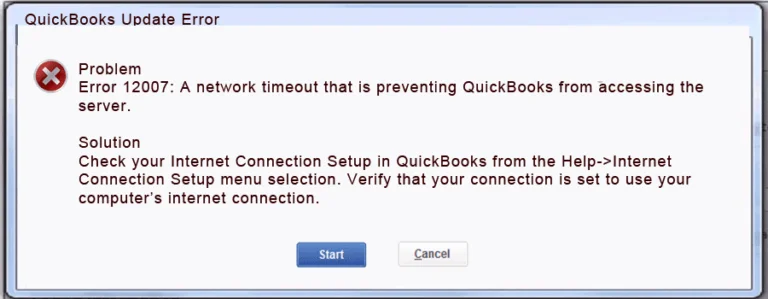
This error generally indicates that QuickBooks is having trouble establishing or maintaining a connection with the server. Network timeouts, incorrect internet settings, firewall restrictions, and security software interference can prevent the application from completing the update process.
If you are experiencing a QuickBooks update error 12007, it is important to identify the underlying connectivity problem before attempting additional updates. In this blog, we will explain the common causes of the error and walk you through practical troubleshooting methods to restore the connection.
Why Do You See The QuickBooks Error 12007
Several factors can interrupt communication between QuickBooks Desktop and Intuit’s servers.
| Common Symptoms | Possible Causes |
| QuickBooks displays Error 12007 while downloading updates. | Unstable internet connection or network interruption. |
| QuickBooks payroll updates fail to download. | Firewall or antivirus software blocking QuickBooks communication. |
| QuickBooks takes too long to connect to the update server. | DNS resolution problems or server timeouts. |
| The update process stops before completion. | Incorrect internet connection settings. |
| QuickBooks repeatedly displays the same update error. | Outdated QuickBooks Desktop version or unresolved connectivity issues. |
| QuickBooks cannot establish a secure connection. | Incorrect SSL settings or system date and time. |
| Payroll tax table updates remain incomplete. | Internet restrictions, subscription issues, or discontinued payroll services. |
| QuickBooks updates fail even when other applications have internet access. | Application-specific firewall restrictions or incorrect QuickBooks network settings. |
Having discussed that, let’s proceed to the necessary troubleshooting steps for the QuickBooks payroll update error 12007.
How to Fix QuickBooks Error 12007?
QuickBooks Payroll Update Error 12007 can interrupt software and payroll updates when the application cannot establish a stable connection with the required server. Fortunately, several troubleshooting methods can help identify and resolve the underlying connectivity issue. Follow the solutions below one by one and check whether QuickBooks can download updates successfully after each attempt.
Solution 1: Check Your Internet Connection
An unstable internet connection can prevent QuickBooks Desktop from communicating with Intuit’s servers. Start by checking whether your computer has a reliable internet connection.
- Open a web browser on your computer.
- Visit a few secure websites to verify internet connectivity.
- If the websites fail to load, restart your modem and router.
- Disconnect and reconnect your computer to the network.
- Once the connection is restored, reopen QuickBooks and try downloading the update again.
If the issue continues, contact your internet service provider to check for network interruptions.
Solution 2: Configure QuickBooks Internet Connection Settings
Incorrect internet configuration can interfere with communication between QuickBooks and its update servers. Restoring the recommended connection settings may help resolve the issue.
- Open QuickBooks Desktop.
- From the Help menu, select Internet Connection Setup.

- Select Use my computer’s Internet connection settings to establish a connection when this application accesses the Internet.
- Select Next.
- Select Advanced Connection Settings.
- Open the Advanced tab.
- Select Restore Advanced Settings.
- Select OK.
- Select Done.
- Try updating QuickBooks Desktop again.
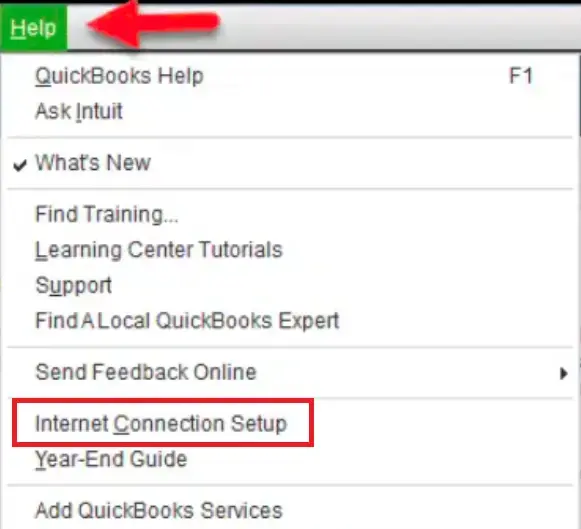
After restoring the recommended connection settings, reopen QuickBooks and check whether the update completes successfully. If Error 12007 continues to appear, your firewall or antivirus software may be restricting the application’s access to Intuit’s servers.
Solution 3: Check Firewall and Antivirus Permissions
Windows Firewall or third-party antivirus software may block QuickBooks Desktop from accessing the internet. Check whether QuickBooks Desktop is allowed through your firewall and ensure that your antivirus software is not restricting its network access.
For detailed instructions on identifying firewall restrictions and configuring the necessary permissions, read our guide on Windows Firewall Is Blocking QuickBooks: How to Diagnose and Fix It.
Once you have verified that QuickBooks has the necessary network permissions, attempt the update again. If security restrictions are not responsible, customized Windows Internet Properties settings could be interfering with the connection. The next solution explains how to review them.
Solution 4: Reset Internet Properties to Their Default Settings
Customized internet settings can sometimes interfere with QuickBooks’ communication. Restoring the default Internet Properties settings may help eliminate configuration-related conflicts.
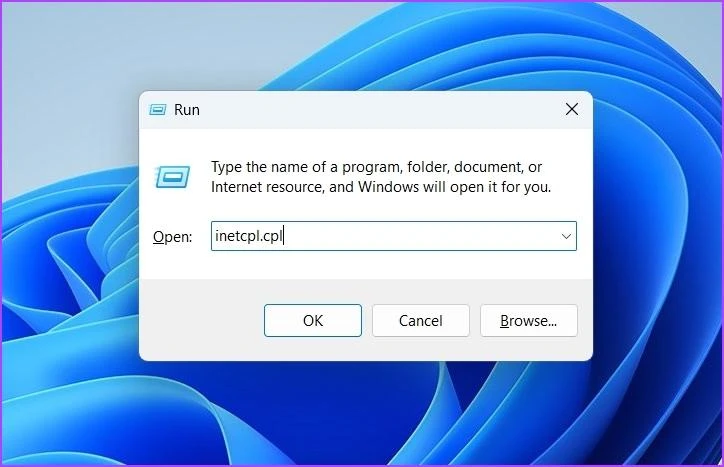
- Press Windows + R to open the Run dialog box.
- Enter inetcpl.cpl and press Enter.
- Navigate to the Advanced tab.
- Select Restore advanced settings.
- If the issue continues, review whether a full reset is appropriate for your Windows environment.
- Apply the changes and restart your computer.
- Open QuickBooks Desktop and check whether the update works.
Note: A full Internet Properties reset can affect customized browser settings, so review the changes before proceeding. If the connection problem remains, check whether Windows permissions are preventing QuickBooks from accessing the resources it needs.
Solution 5: Run QuickBooks Desktop as an Administrator
QuickBooks may encounter permission-related restrictions when accessing certain system resources. Running the application with administrator privileges can help determine whether insufficient permissions are contributing to the issue.
- Close QuickBooks Desktop completely.
- Locate the QuickBooks shortcut on your desktop.
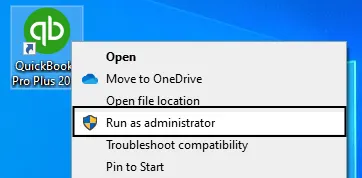
- Right-click the application icon.
- Select Run as administrator.
- If Windows displays a permission prompt, select Yes.
- Open the update section and attempt to download the latest release.
You can try resetting the QuickBooks update process next.
Solution 6: Update QuickBooks Desktop to the Latest Available Release
Using an outdated QuickBooks release can create compatibility issues with current online services. Installing the latest available update for your supported product version may help resolve these problems.
- Open QuickBooks Desktop.
- Select Help > Update QuickBooks Desktop.
- Navigate to the Update Now tab.
- Click Get Updates.
- Wait until QuickBooks completes the download.
- Close and reopen the application.
- Select Install Now if an installation prompt appears.
- Restart QuickBooks and verify whether the error has been resolved.
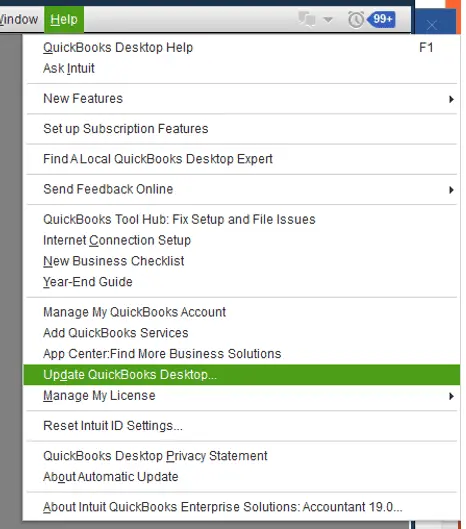
After installing the available release, restart QuickBooks and verify whether its online services are working properly. If the problem continues, the issue may involve the QuickBooks application itself rather than the update files. In that case, try using QuickBooks Tool Hub to diagnose potential program-related problems.
Solution 7: Use QuickBooks Tool Hub to Diagnose Program Issues
QuickBooks Tool Hub provides diagnostic utilities that can help troubleshoot certain program and installation problems. Running its repair tools may help if the error is associated with an application issue rather than your internet connection.
- Visit the official Intuit website and download QuickBooks Tool Hub.
- Close QuickBooks Desktop.
- Install the downloaded Tool Hub application.
- Open QuickBooks Tool Hub.
- Navigate to the Program Problems section.
- Select Quick Fix my Program.
- Allow the utility to complete its repair process.
- Reopen QuickBooks and attempt the update again.
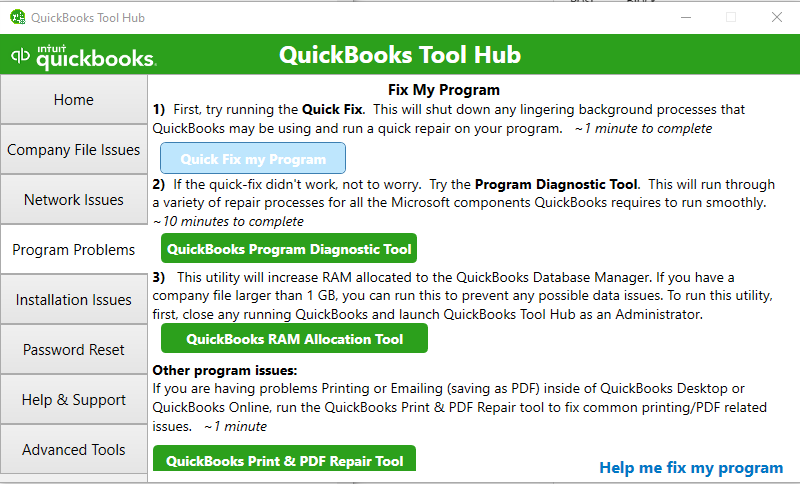
The next two solutions provide additional troubleshooting methods. These steps are particularly useful if the previous methods have not resolved Payroll Error 12007.
Solution 8: Run Windows in Selective Startup Mode
Sometimes, third-party applications or background services can interfere with QuickBooks Desktop and prevent it from connecting to online services. Running Windows in Selective Startup mode can help identify whether another application is causing the problem.
Before proceeding, create a backup of your QuickBooks company file and keep your product and license information handy.
Follow these steps:
- Press Windows + R to open the Run dialog box.
- Type msconfig and press Enter.
- Navigate to the General tab.
- Select Selective startup and enable Load system services.
- Open the Services tab.
- Select Hide all Microsoft services.
- Click Disable all.
- Uncheck Hide all Microsoft services.
- Locate and select Windows Installer in the services list.
- Click Apply and then OK.
- Restart your computer.
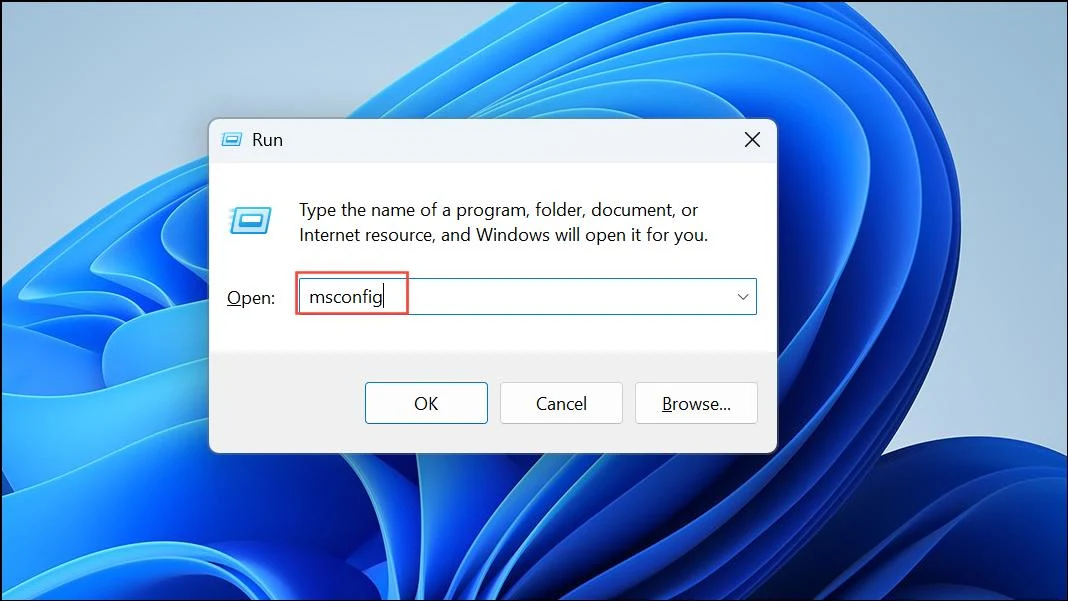
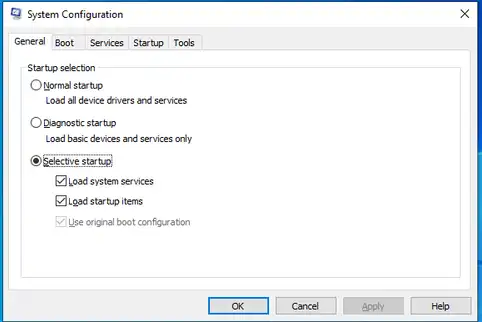
Once Windows restarts, check whether the QuickBooks installation or update issue has been resolved.
Important: Selective Startup changes Windows service configurations. After troubleshooting, restore Windows to Normal Startup.
Solution 9: Check TLS 1.2 Compatibility
QuickBooks Desktop uses secure internet connections to communicate with Intuit services. If your system does not meet the TLS 1.2 requirements, you may experience problems downloading QuickBooks or payroll updates.
To check TLS compatibility:
- Close QuickBooks Desktop.
- Download and run the TLS 1.2 Utility provided by Intuit.
- Follow the utility’s on-screen instructions.
- Restart your computer if prompted.
- Open QuickBooks and try downloading the update again.
Note: TLS 1.2 requirements apply to QuickBooks Desktop 2018 and later. Follow Intuit’s compatibility guidance for your particular version.
To reduce the likelihood of similar interruptions in the future, follow the preventive measures below.
Tips to Prevent QuickBooks Error Message 12007
Following these preventive practices can help maintain a more reliable connection between QuickBooks Desktop and Intuit’s online services.
- Avoid Interrupting Update Downloads: Do not shut down your computer, disconnect from the network, or close QuickBooks while an update is downloading or installing.
- Use a Reliable Network: Prefer a stable, trusted network for QuickBooks and payroll updates. Avoid public Wi-Fi or networks with restrictive access policies.
- Keep Windows Certificates Updated: Install supported Windows security and certificate updates to help your system establish secure connections with online services.
- Avoid Running Multiple Update Sessions: Close unnecessary QuickBooks instances before starting an update to reduce the possibility of overlapping update processes.
Conclusion
QuickBooks Error 12007 can interrupt software and payroll updates by preventing communication with Intuit’s servers. Identifying the underlying connectivity issue and following the appropriate troubleshooting steps can help restore update functionality. Keep QuickBooks, Windows, and security settings properly maintained to reduce recurring errors and ensure smoother updates.
Frequently Asked Questions
Does QuickBooks Error Code 12007 mean my company file is corrupted?
No, QuickBooks Payroll Error 12007 does not necessarily indicate company file corruption. It generally occurs when QuickBooks Desktop cannot establish a stable connection with Intuit’s servers. Network interruptions, firewall restrictions, or incorrect internet settings are more common causes. Your company file is unlikely to be affected by this connection error.
Why does QuickBooks Error 12007 keep happening after an update?
QuickBooks update error 12007 may continue appearing if the underlying connectivity problem has not been resolved. Incorrect internet settings, security software restrictions, DNS issues, or interrupted downloads can prevent QuickBooks from communicating with Intuit’s servers. Check your network and security settings before attempting another update.
Can QuickBooks Desktop Error 12007 be caused by a DNS problem?
Yes, DNS problems can prevent your computer from resolving the server address required to connect to Intuit’s services. As a result, QuickBooks may experience connection failures or timeouts while downloading updates. You can try flushing the DNS cache by opening Command Prompt as an administrator and entering ipconfig /flushdns. Then restart QuickBooks and retry the update.
Is it safe to run QuickBooks in Safe Mode with Networking to fix Error 12007 in QuickBooks?
Yes, Safe Mode with Networking can help determine whether a third-party application or background service is interfering with QuickBooks’ internet connection. However, it is primarily a diagnostic step, not a guaranteed fix. Some QuickBooks functions may not work normally in this mode. Restart Windows normally after completing the test.
My QuickBooks version is old (e.g., 2010 or 2009). Can Error 12007 be fixed?
QuickBooks Desktop 2009 and 2010 are discontinued versions and may no longer support online updates or connected services. Although you can investigate local network and internet configuration problems, changing these settings may not restore access to discontinued Intuit services. Check your product’s service eligibility and compatibility before attempting further updates
Accounts Confidant is an independent accounting and bookkeeping service provider and is not affiliated with Intuit.