QuickBooks Error H202 occurs when QuickBooks Desktop cannot establish a connection with the computer where the company file is stored. The error commonly appears when you try to open a company file in multi-user mode from a workstation.
The issue can prevent QuickBooks from accessing the company file and may display a message such as “This company file is on another computer, and QuickBooks needs help connecting to it.”
Network connectivity problems, incorrect hosting settings, firewall restrictions, QuickBooks services, or issues with the network configuration can all trigger the QuickBooks H202 error.
This guide explains what causes H202 and walks you through practical ways to diagnose and fix the problem.
Table of Contents
What Is QuickBooks Error H202?
QuickBooks Error H202 is a multi-user mode connectivity error. It occurs when a workstation cannot communicate properly with the computer or server hosting the QuickBooks company file.
In a typical multi-user setup, the company file is stored on a server computer, while other computers access it through the network. QuickBooks needs to communicate with the server and its associated services to open the file.
If that communication is blocked or misconfigured, QuickBooks may display Error H202.
Why Am I Getting QuickBooks Error H202?
The QuickBooks H202 error generally indicates a communication problem between the workstation and the computer hosting the company file.
The most common causes include:
Incorrect Hosting Configuration
QuickBooks uses hosting settings to determine which computer manages multi-user access to the company file. If hosting is enabled incorrectly on a workstation or disabled where it is required on the server, QuickBooks may fail to establish the connection.
Firewall Restrictions
Windows Firewall or another security application can block QuickBooks from communicating across the network. This can prevent the workstation from reaching the company file server.
QuickBooks Database Server Manager Problems
The QuickBooks Database Server Manager allows computers on the network to access company files stored on the server. If the required service is not running correctly, workstations may encounter H202.
Network Connectivity Problems
A weak, interrupted, or incorrectly configured network connection can prevent the workstation from reaching the server. This is particularly relevant when H202 occurs on only one computer.
Damaged Network Data File
QuickBooks uses a .ND file to store network configuration information associated with the company file. If this file is damaged or contains incorrect information, QuickBooks may have difficulty connecting to the company file.
Blocked QuickBooks Ports
QuickBooks Desktop uses specific network ports for communication. If firewall rules block the ports required by your QuickBooks version, the workstation may be unable to connect to the server.
How to Fix QuickBooks Error H202
Before making changes to firewall rules or QuickBooks files, perform a few basic checks.
- Confirm that the company file is stored on the intended server computer.
- Make sure the workstation and server are connected to the same network.
- Check whether the workstation can access the folder containing the company file.
- Confirm that QuickBooks Desktop is installed on both the server and affected workstation.
- Verify that the QuickBooks Database Server Manager is installed on the server.
- Make sure the company file has been placed in a properly shared folder.
- Confirm that you are attempting to open the company file through multi-user mode when required.
If the workstation cannot access the server or its shared folder, resolve that network problem before continuing with QuickBooks-specific troubleshooting.
Try the following solutions in order, starting with the simpler fixes.
Run QuickBooks Database Server Manager
QuickBooks Database Server Manager helps the workstations access company files stored on the host computer.
- Install QuickBooks Database Server Manager on the computer that stores your company files.
- Make sure it is installed for each QuickBooks Desktop version used on the network.
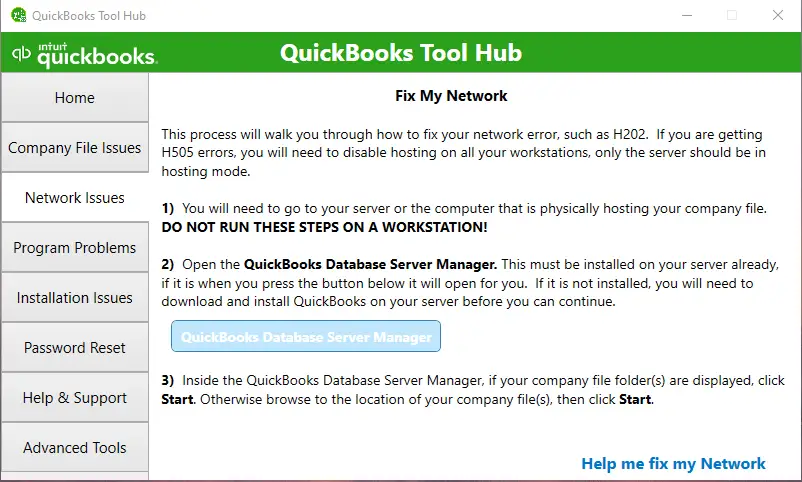
- Open QuickBooks Tool Hub on the server.
- Select Network Issues.
- Open QuickBooks Database Server Manager.
- Select the company file folder. If it isn’t listed, select Browse and locate the folder.

- Select Start Scan.
- Allow the scan to finish. The tool can also update the necessary firewall permissions.
- Open QuickBooks on the affected workstation and select File > Switch to Multi-user Mode.
If H202 remains, continue to the next solution.
Check QuickBooks Hosting Settings
Incorrect hosting settings can prevent workstations from connecting to the server.
On the server computer:
- Open QuickBooks Desktop.
- Select File > Utilities.
- If Host Multi-User Access appears, select it.
- If you see Stop Hosting Multi-User Access, do not select it.
On each workstation:
- Open QuickBooks Desktop.
- Go to File > Utilities.
- If Stop Hosting Multi-User Access appears, select it.
- If Host Multi-User Access appears, leave it unchanged.
The computer storing the company file should be the one hosting multi-user access.
Check QuickBooks Services on the Server
QuickBooks depends on specific Windows services to manage access to company files.
- On the server, open the Windows Start menu.
- Search for Run and open it.
- Enter services.msc and press Enter.
- Find QuickBooksDBXX, where XX represents the version-specific service.
- Double-click the service.
- Set Startup type to Automatic.
- Make sure the service status is Running. If it isn’t, select Start.
- Open the Recovery tab.
- Set First failure, Second failure, and Subsequent failures to Restart the Service.
- Select Apply > OK.
Repeat the same process for QBCFMonitorService.
Afterward, reopen QuickBooks on the workstation and try File > Switch to Multi-user Mode.
Check Firewall Settings and QuickBooks Ports
A firewall can block communication between QuickBooks workstations and the company file server, causing QuickBooks H202 error on Windows 10/11.
- On the server, configure Windows Firewall to allow QuickBooks through.
- Add the appropriate QuickBooks programs to the firewall exceptions.
- Make sure the ports required by your QuickBooks Desktop version are permitted.
- Save the firewall changes.
- Restart QuickBooks on the workstation.
- Try opening the company file in multi-user mode again.
If the firewall is blocking QuickBooks traffic, allowing the required applications and ports can restore communication with the server.
Test the Network Connection to the Server
If QuickBooks cannot communicate with the server, check whether the workstation can reach it over the network.
First, enable network discovery on the server and affected workstations:
- Open Network and Sharing Center.
- Select Change advanced sharing settings.
- Turn on Network discovery.
- Also enable File and printer sharing.
Then identify the server name:
- Open Run on the server.
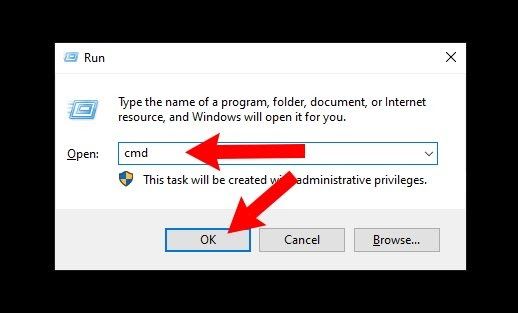
- Enter cmd and press Enter.
- Enter ipconfig /all.
- Locate the Host Name under Windows IP Configuration.
- Note the server name.
From the affected workstation:
- Open Run.
- Enter cmd.
- Type ping [server name] and press Enter.
- Check the response.
Repeat the test on each workstation experiencing H202. Successful replies with no packet loss indicate that the basic network connection is working. Packet loss or unusually slow responses may indicate a network problem that needs further investigation.
Run QuickBooks File Doctor
QuickBooks File Doctor can check company-file and network-related problems.
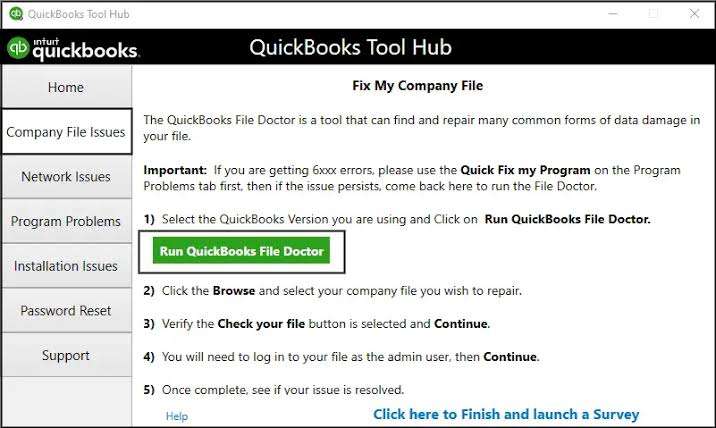
- Open QuickBooks Tool Hub.
- Select Company File Issues.
- Select Run QuickBooks File Doctor.
- Choose the affected company file. If it isn’t listed, select Browse and locate it.
- Select Check your network.
- Select Continue.
- Enter the QuickBooks administrator password.
- Select Next.
- Allow the tool to complete its checks.
After the process finishes, try opening the company file again in multi-user mode.
Check Windows Permissions for QuickBooks Services
QuickBooks services need appropriate permissions to access the company-file location.
Make sure QuickBooksDBXX and QBCFMonitorService have the required Windows permissions on the server. Also verify that the Windows user account has access to the folder containing the company file.
After updating the permissions, restart QuickBooks and test multi-user mode again.
Fix H202 on Windows Server 2012 Essentials R2
If you use Windows Server 2012 Essentials R2, there are additional troubleshooting steps involving the Base Filtering Engine and QuickBooks Database Server Manager.
Step 1: Confirm the server version
- Open Settings on the server.
- Select System > About.
- Check the Windows Server version.
- Continue only if you’re using Windows Server 2012 Essentials R2.
Step 2: Install QuickBooks Database Server Manager
Install QuickBooks Database Server Manager on the server for each QuickBooks Desktop version being used. You can use either the Full Program setup or the Server Only setup, depending on your server configuration.
Step 3: Restart the Base Filtering Engine
- Open Run.
- Enter services.msc and press Enter.
- Locate Base Filtering Engine.
- Right-click it and select Stop.
- Open QuickBooks Database Server Manager.
- Select the folder containing your company files.
- Select Start Scan.
- Wait for the scan to finish.
- Return to the Services window.
- Right-click Base Filtering Engine and select Start.
- Confirm that Windows Firewall is also running.
Try opening the company file again. If H202 continues, return to the standard troubleshooting methods above.
Restart QuickBooks and Test Multi-User Mode
After completing the applicable troubleshooting steps:
- Close QuickBooks on all workstations.
- Reopen QuickBooks on the server.
- Open the company file.
- Confirm that the server is configured to host multi-user access.
- Open QuickBooks on the affected workstation.
- Select File > Switch to Multi-user Mode.
- Try accessing the company file.
If the workstation connects successfully, the H202 error should be resolved.
What If QuickBooks H202 Still Appears?
If you’ve completed the applicable troubleshooting steps and QuickBooks still can’t communicate with the company file server, check the following:
- Verify that the company file is stored on the correct host computer.
- Confirm that the server and workstation can communicate over the network.
- Recheck QuickBooks hosting settings.
- Make sure QuickBooksDBXX and QBCFMonitorService are running.
- Review Windows Firewall rules and QuickBooks port permissions.
- Check that the company-file folder has the required Windows sharing and access permissions.
- Run the QuickBooks Database Server Manager scan again.
- Test the connection from other workstations to determine whether H202 affects one computer or the entire network.
If H202 occurs only on one workstation, the problem is more likely to involve that workstation’s network connection, firewall, permissions, or local QuickBooks configuration rather than the company file server itself.
Conclusion
QuickBooks Error H202 can interrupt multi-user access when a workstation loses the connection it needs to reach the company file. The quickest way to resolve it is to identify where that connection breaks, whether in the hosting configuration, QuickBooks services, network, firewall, ports, or file permissions.
Work through the applicable fixes systematically rather than changing multiple settings at once. Once the server and workstation can communicate correctly and QuickBooks has the required access, you should be able to reopen the company file in multi-user mode without the H202 error.
Frequently Asked Questions
Why am I getting QuickBooks Error H202?
QuickBooks H202 error usually occurs when QuickBooks Desktop cannot communicate with the computer or server hosting the company file. Common causes include incorrect hosting settings, firewall restrictions, network connectivity problems, blocked ports, QuickBooks services, or folder permission issues.
How do I fix QuickBooks H202 when opening a company file?
To fix QuickBooks H202 error, check the QuickBooks Database Server Manager, hosting settings, QuickBooks services, firewall and port permissions, network connection, and folder permissions. You can also run QuickBooks File Doctor to check for company-file and network-related problems.
QuickBooks says it can’t communicate with the company file server. What do I do?
If QuickBooks can’t communicate with the company file server H202, first verify that the server is accessible from the affected workstation. Then check hosting settings, QuickBooks services, firewall rules, network connectivity, ports, and company-file folder permissions.
Is H202 a firewall issue in QuickBooks?
A firewall can cause QuickBooks Error H202, but it isn’t the only possible cause. H202 occurs when something prevents QuickBooks Desktop from establishing the required multi-user connection with the company file server. Firewall rules, blocked QuickBooks ports, hosting settings, network connectivity, and QuickBooks services can all contribute to the problem.
What is the difference between QuickBooks H101, H202, and H303 errors?
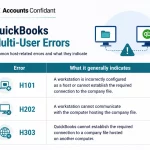
H101, H202, and H303 are all associated with QuickBooks Desktop multi-user connectivity, but they can indicate different configuration problems.
Does QuickBooks File Doctor fix H202 error?
QuickBooks File Doctor can check for certain company-file and network-related problems that may contribute to QB Error H202. Open QuickBooks Tool Hub, select Company File Issues, and run QuickBooks File Doctor on the affected company file.
Why does H202 only happen on one computer and not others?
If H202 QuickBooks error occurs on only one workstation, the issue may be specific to that computer. Check its network connection, firewall settings, Windows permissions, and local QuickBooks configuration. If other workstations can access the same company file, the server is less likely to be the source of the problem.
How do I check if hosting is enabled correctly for H202 error?
Open QuickBooks Desktop and go to File > Utilities. On the computer storing the company file, Host Multi-User Access should be enabled. On workstations, hosting should be disabled. If Stop Hosting Multi-User Access appears on a workstation, select it to disable hosting.
Do I need to open specific ports to fix QuickBooks H202?
QuickBooks Desktop uses specific network ports for communication. If your firewall blocks the ports required by your QuickBooks version, it can contribute to QuickBooks Error Code H202. Check the port requirements for your QuickBooks Desktop version and allow the required traffic through the firewall.